
Datasets

Quick Navigation
- Overview
- Upload CSV Files
- Import via SFTP
- Connect via API
- Fetch (Pull Data)
- Subscribe (Real-Time Updates)
- Data Mapping
- Enrich Fields
- Link Datasets
- Edit Dataset Data
- Use Datasets in SurveySparrow
- FAQs
Overview
Datasets in SurveySparrow let you bring external business data into the platform and combine it with customer experience data.
This enables you to:
- Eliminate data silos
- Build richer dashboards and reports
- Create smarter workflows and surveys
- Make faster, data-driven decisions
Once added, datasets can be used across:
- Foresight
- Executive Dashboards (Coming soon)
- CogniVue (Coming soon)
- Survey workflows (Coming soon)
Add Data to Datasets
You can create and populate datasets in multiple ways.
1. Upload CSV Files
Import structured data using files.
How it works:
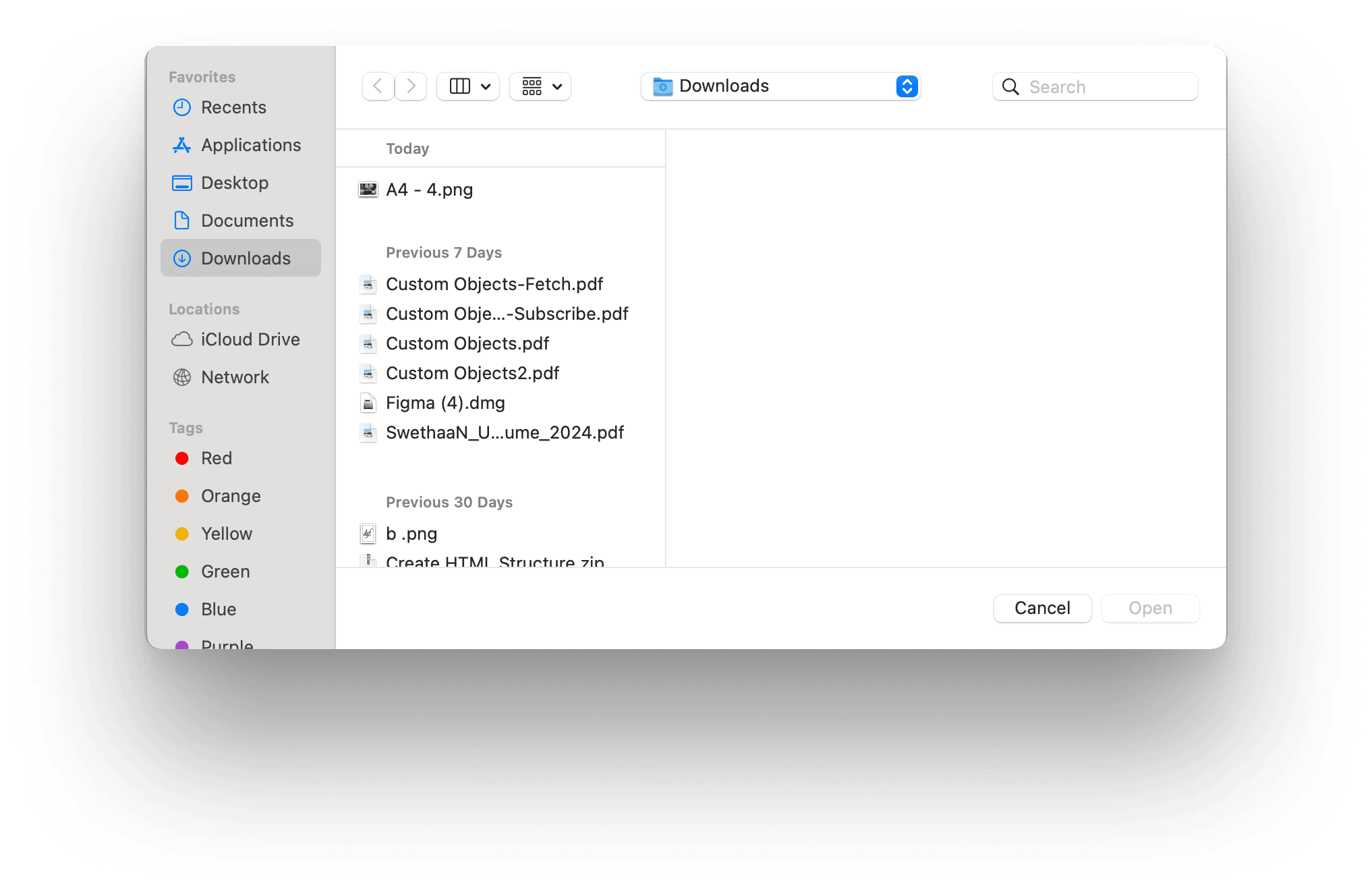
- Select Import from File
- Upload your CSV file
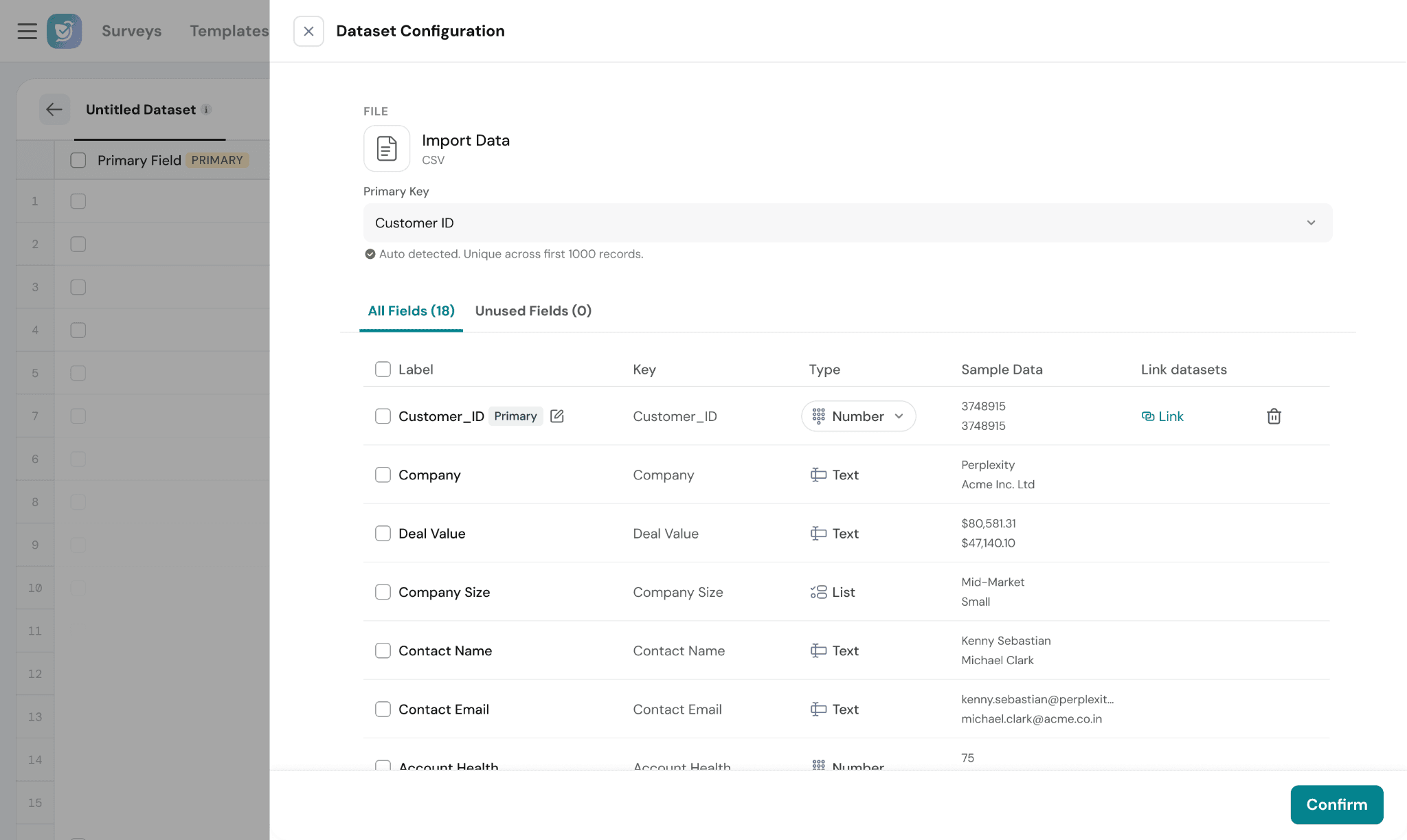
- Review detected fields
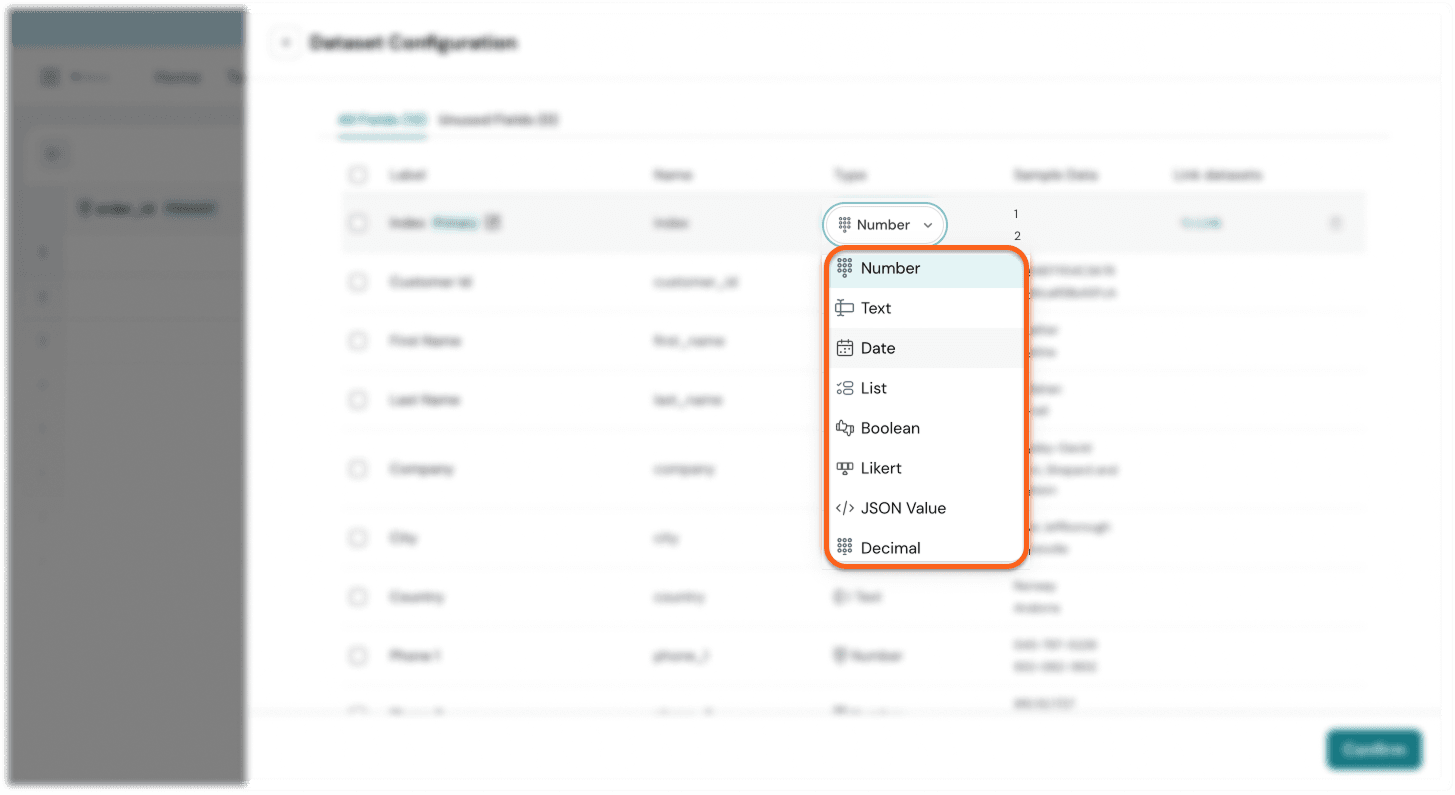
- Adjust data types if needed
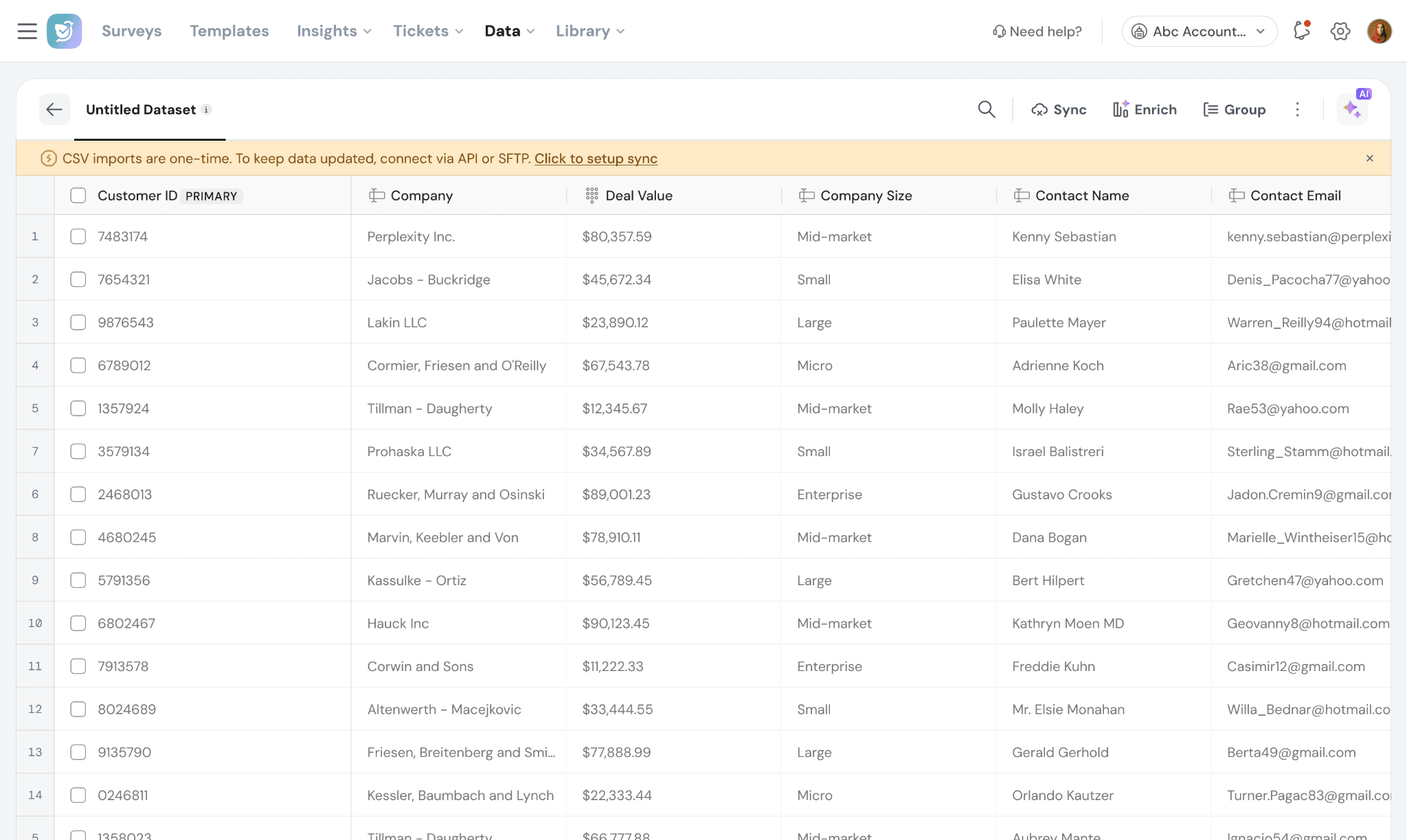
2. Import via SFTP
Automatically sync records from your files periodically.
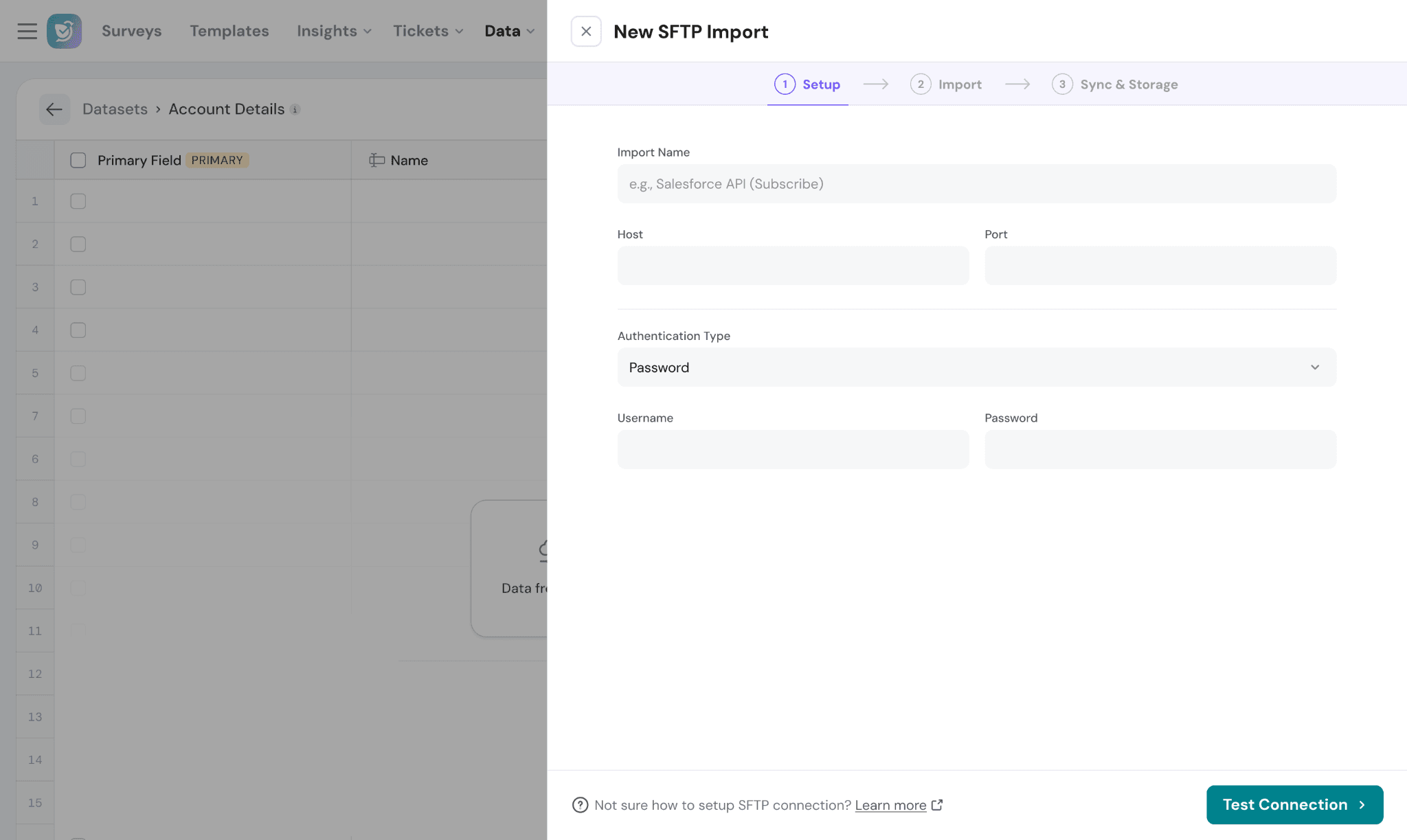
Step 1: Set up the connection
- Choose SFTP while creating a dataset
- Enter:
- Host
- Port (default: 22)
- Username
- Password or SSH Key
- Click Test Connection
✅ If successful, proceed to the next step
⚠️ If failed, verify credentials or allow list required IPs
Step 2: Configure import
- Select import type:
- File
- Folder-based
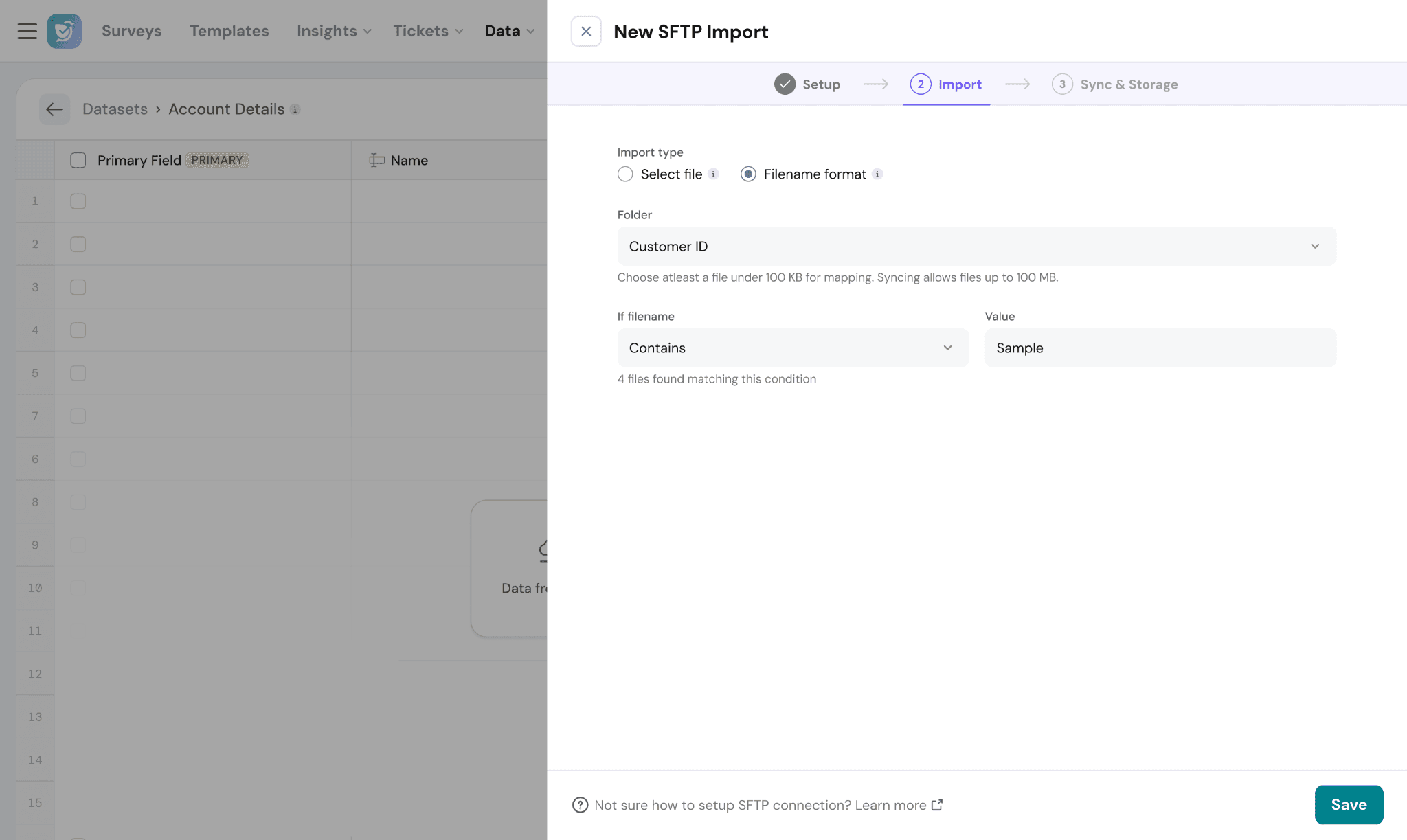
- Preview matched files
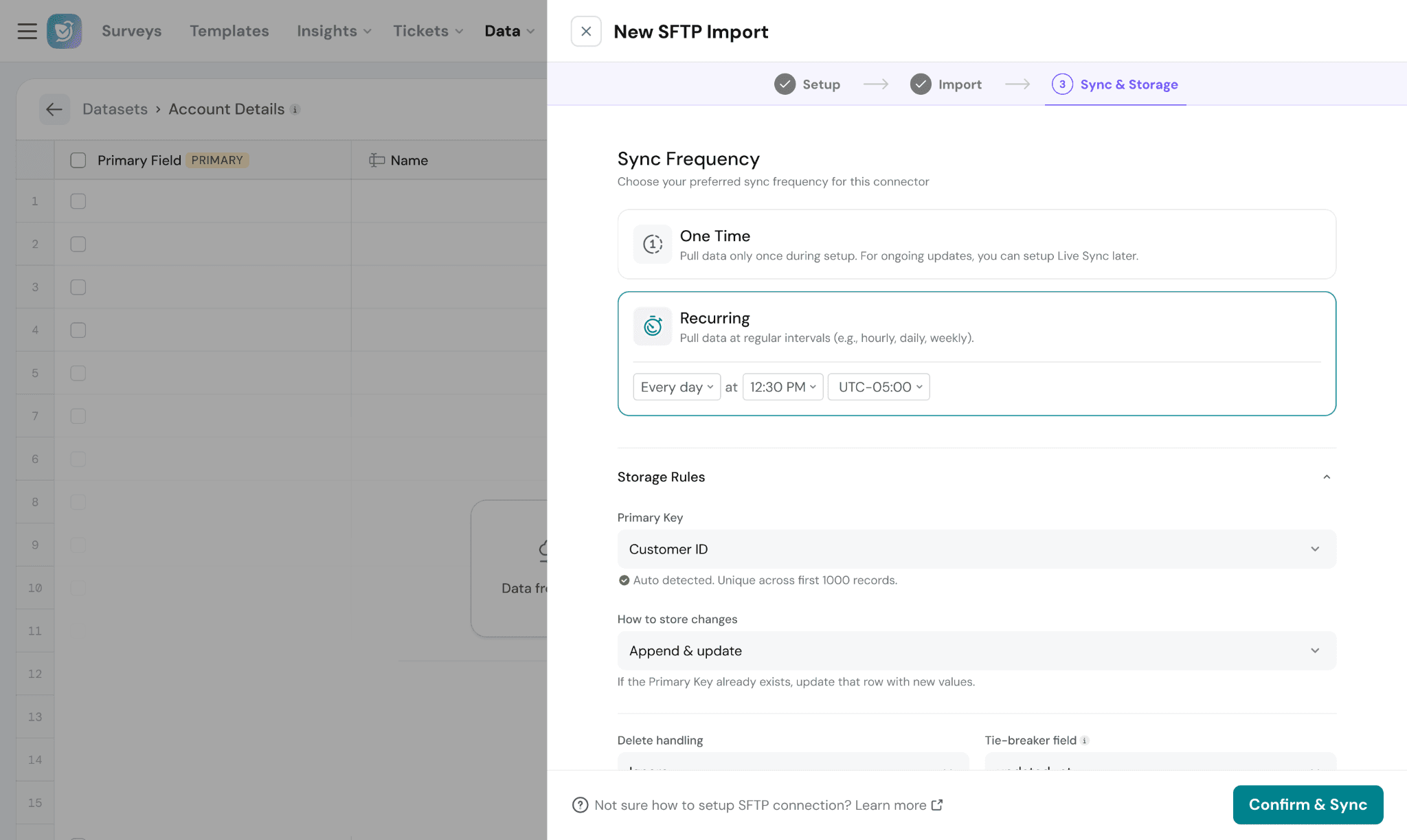
- Set sync frequency:
- One-time
- Recurring
3. Connect via API (Fetch & Subscribe)
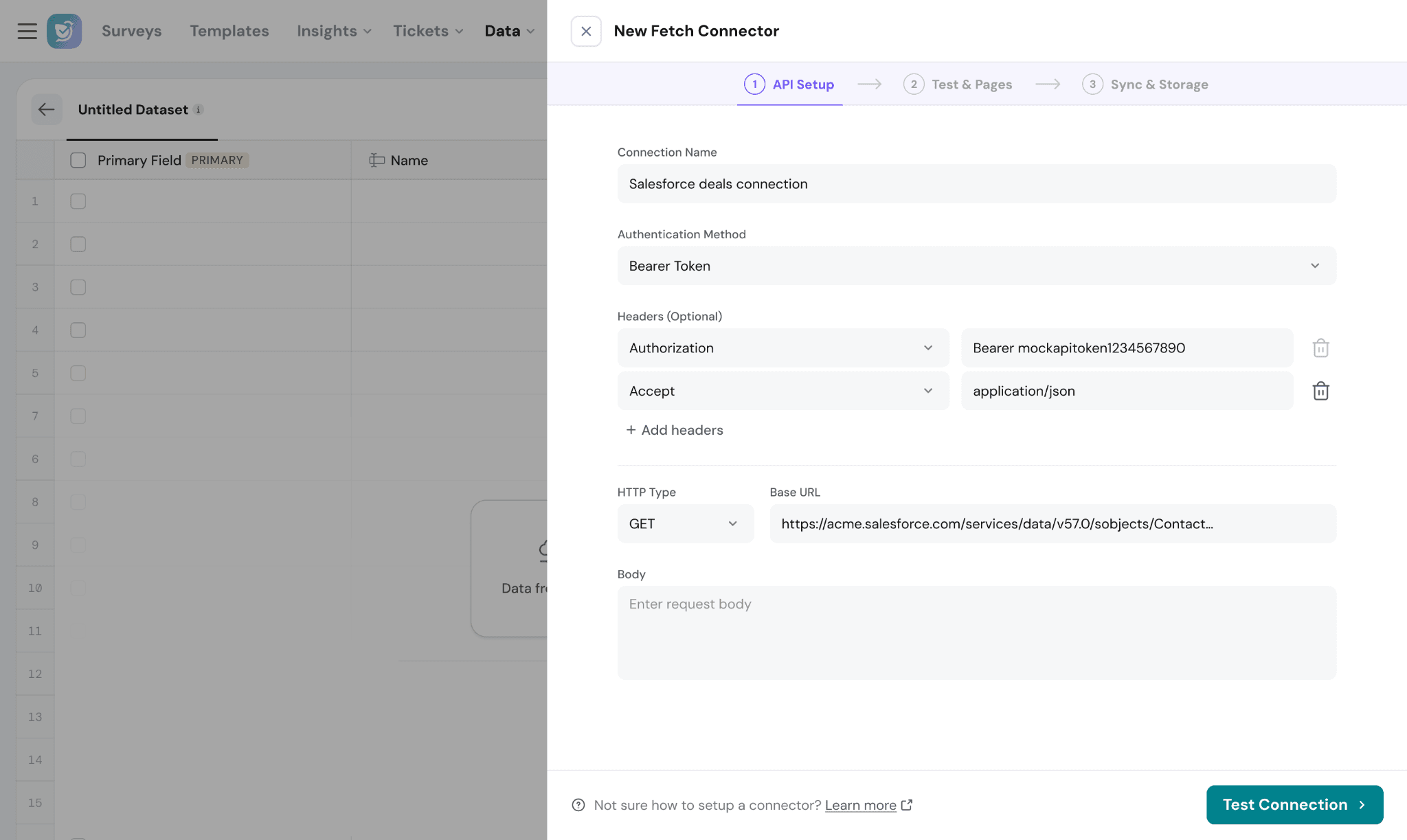
Need to integrate SurveySparrow with an external application, such as MoEngage, that doesn't have a native integration? No worries! You can seamlessly connect it using SurveySparrow's API capabilities to keep your data in sync. Choose Fetch to periodically import data from your external application, or Subscribe to receive real-time updates via webhooks.
Follow the steps below to configure the integration that best suits your use case.
Fetch (Pull data)
Use Fetch to retrieve data from APIs and sync it into your dataset.
Fetch is best suited for:
- Scheduled imports
- Large datasets
- Periodic updates from external systems
Key capabilities:
- Supports OAuth, API Key, Basic Auth, Bearer tokens
- Configure pagination for large datasets
- Set sync frequency (one-time or recurring)
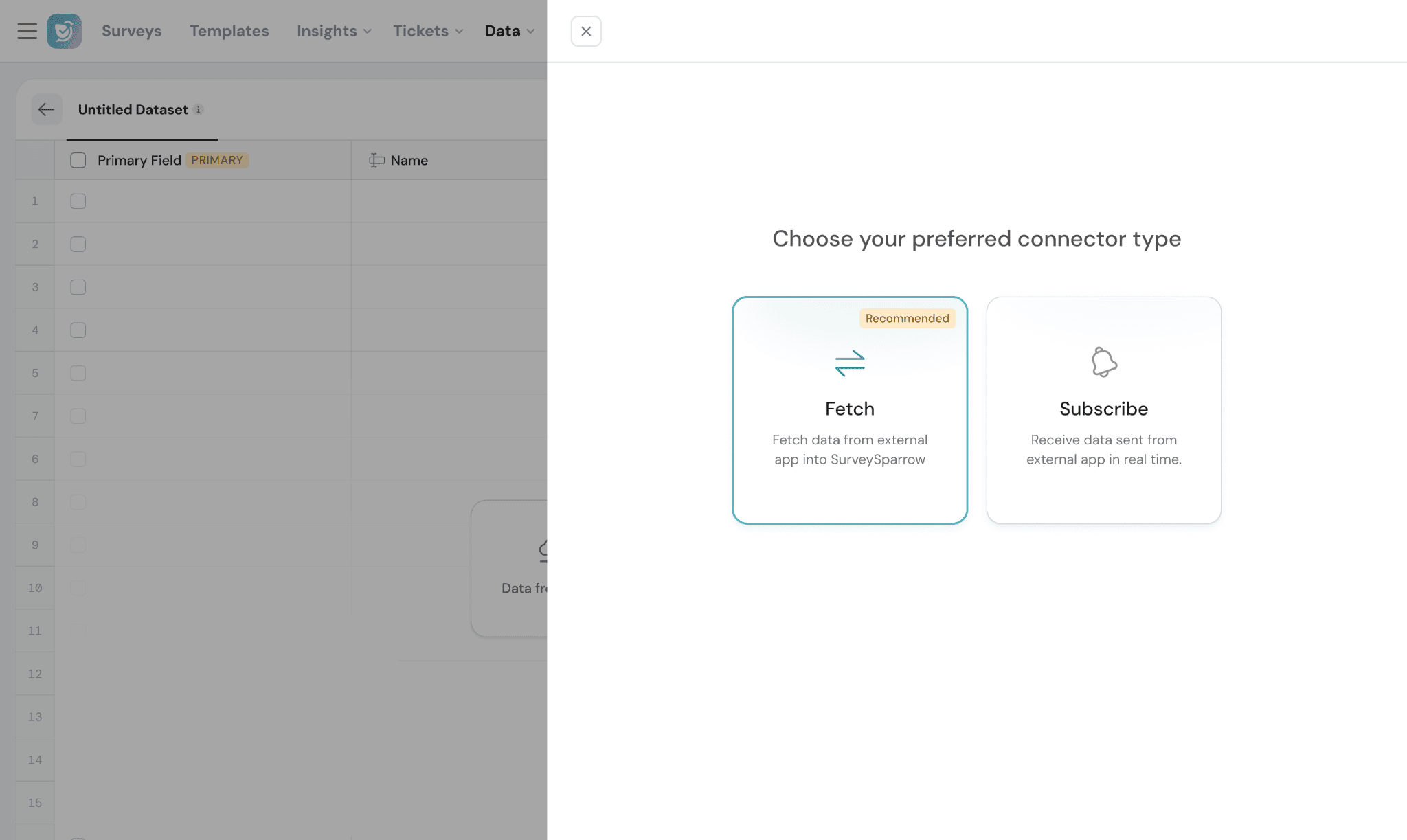
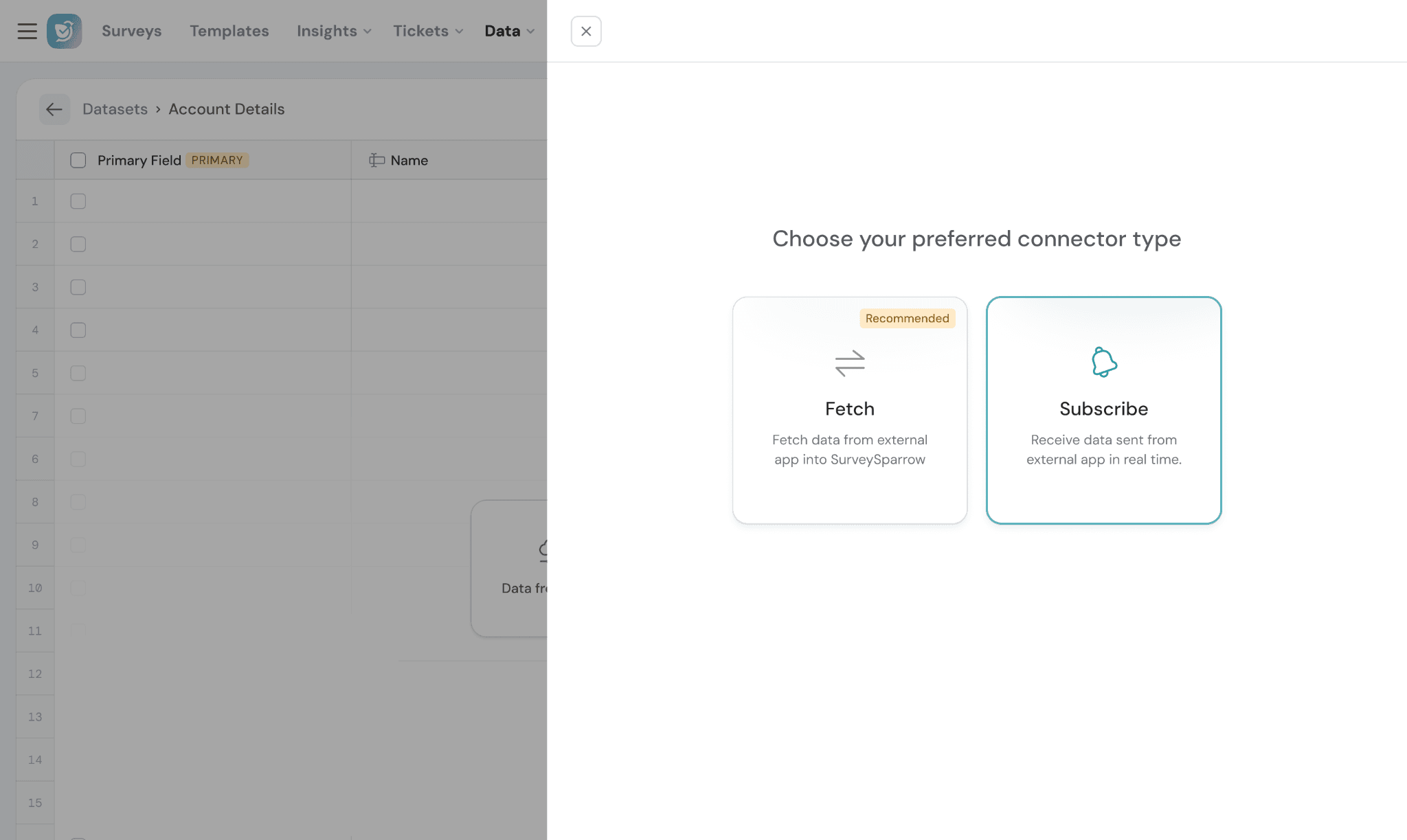
- Choose Connector Type:
Fetch → Pulls data from an external application at scheduled intervals
Subscribe → Receives real-time updates from an external application using webhooks
- Configure API Response & Pagination
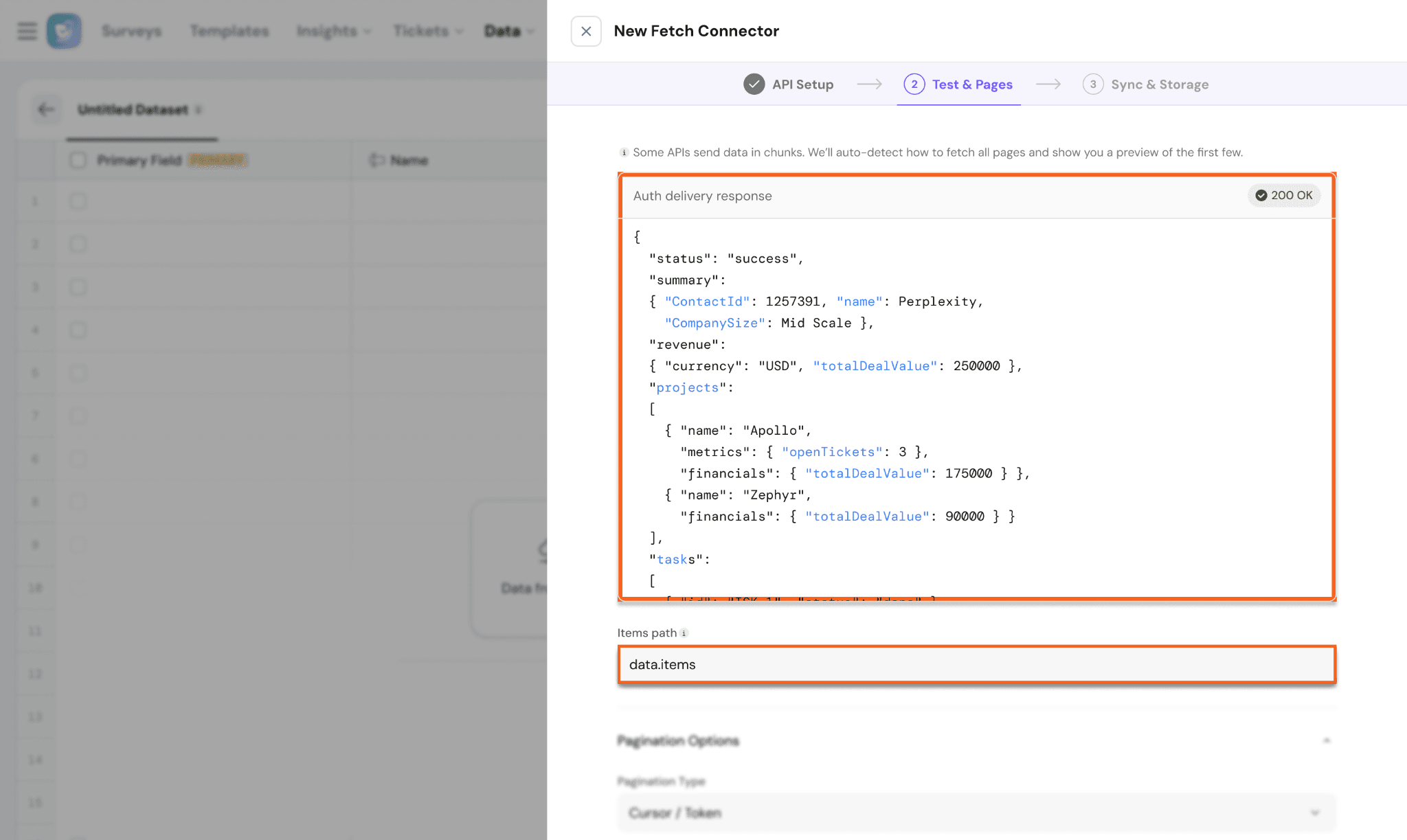
After connecting your API, configure how SurveySparrow should read and sync the data.
- Item Path
Defines the location of records inside the API response
SurveySparrow uses Item path to identify which records should be imported into the dataset.
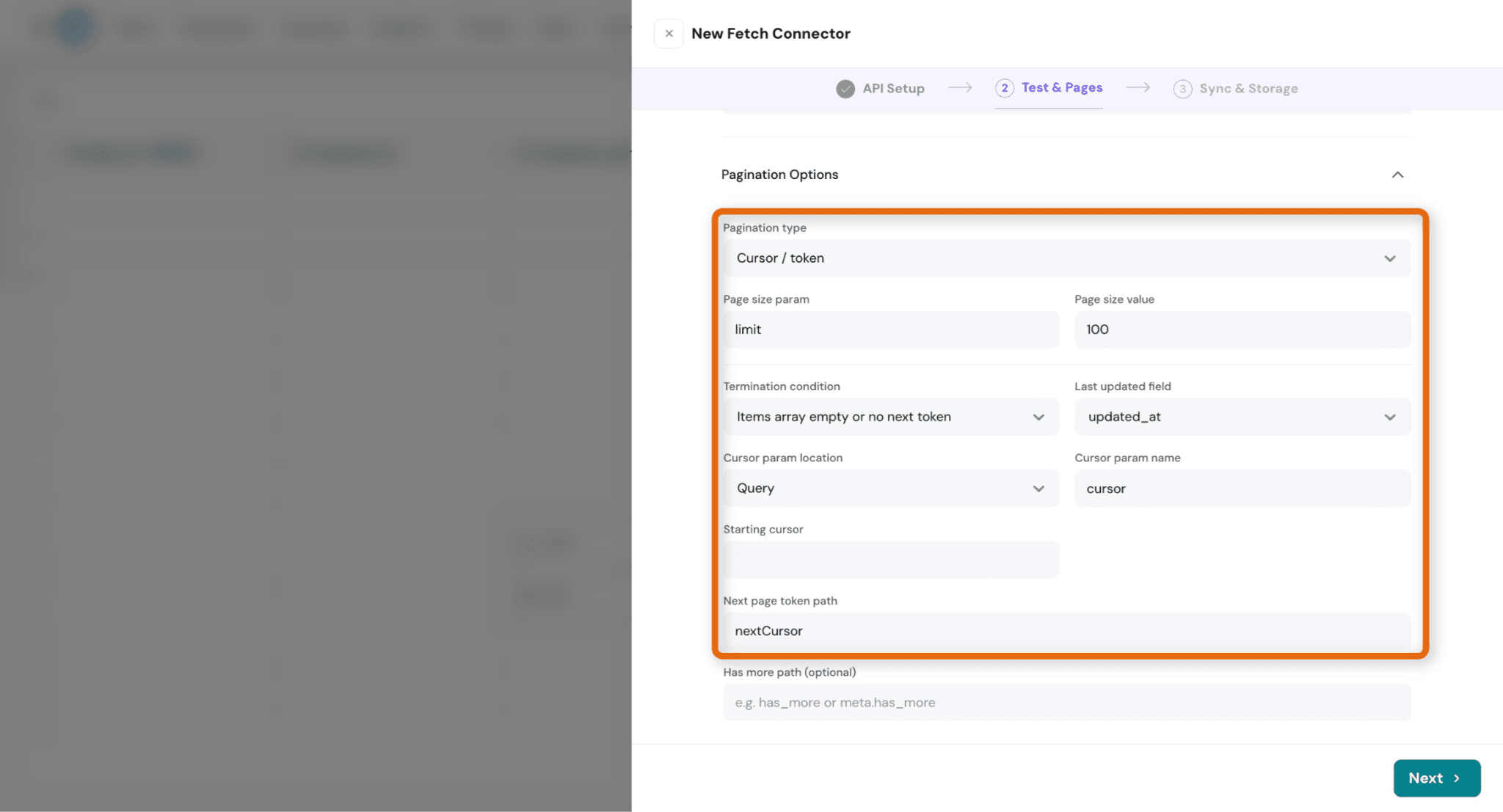
- Pagination Type:
Defines how the API provides the next set of records.
Supported types:
- Cursor/ Token
- Offset-based
- Page-based
i. Page Size Param:
The parameter name used by the API to control how many records are returned per request.
ii. Page Size Value:
Defines the number of records fetched in each request.
iii. Termination Condition:
Defines when SurveySparrow should stop requesting additional pages.
Example:
- Stop when no items are returned
- Stop when no next token is available
iv. Last Updated Field
Used for incremental syncs.
Checks this field to identify newly added or updated records.
v. Cursor Param Name
Defines the parameter used to pass the pagination cursor or token.
vi. Starting Cursor:
Defines the initial cursor or offset value used when the first sync begins.
Sync Modes:
- Append & Update → Updates existing records or adds new ones
- Incremental & Append → Adds only new/updated records
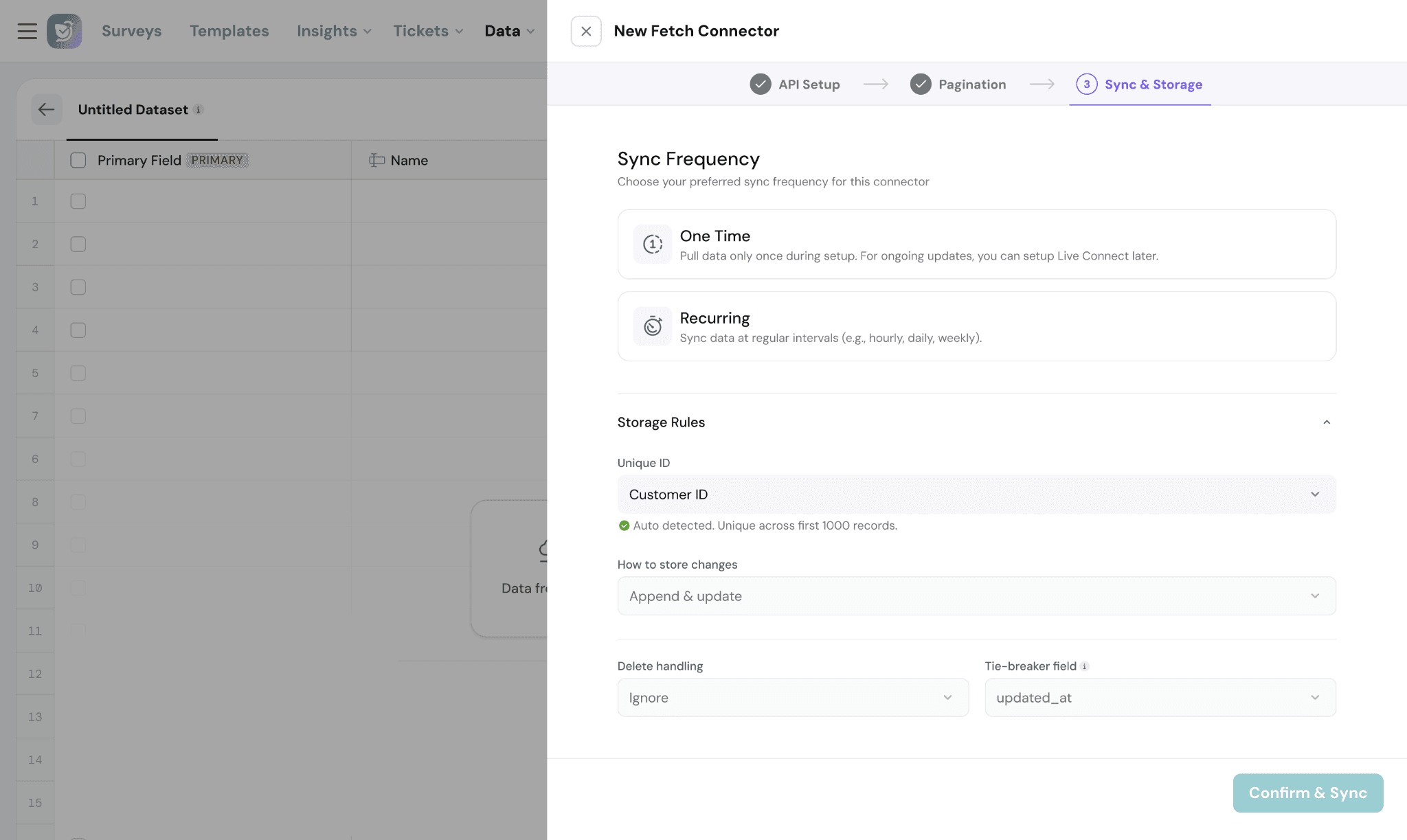
Sync Frequency:
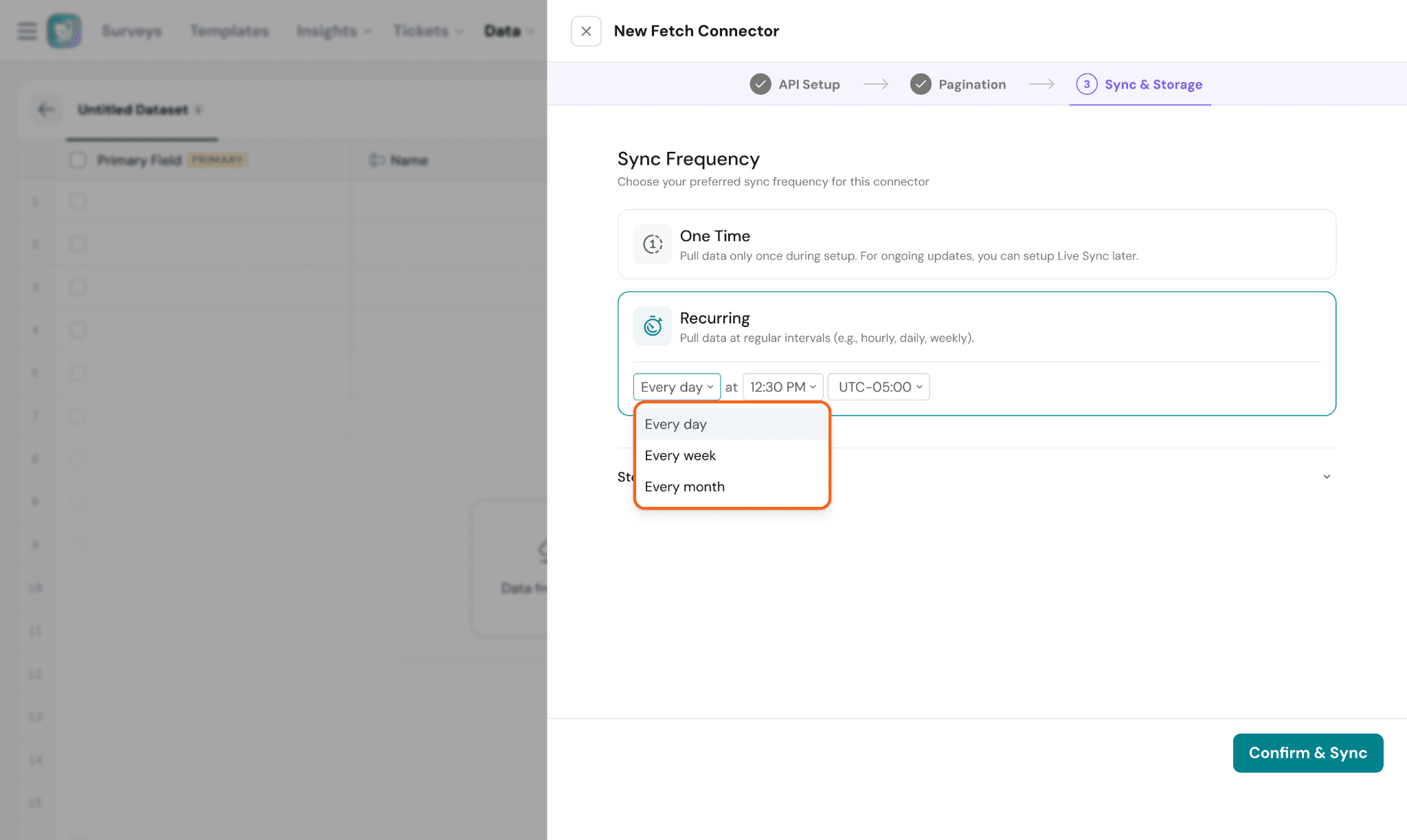
Choose how often the dataset should sync with the external system.
Options include:
- One-time → Runs the sync only once
- Recurring → Automatically syncs data at regular intervals.
Recurring syncs can be configured hourly, daily, weekly, or monthly.
Storage Rules:
Storage rules determine how incoming records are identified and updated.
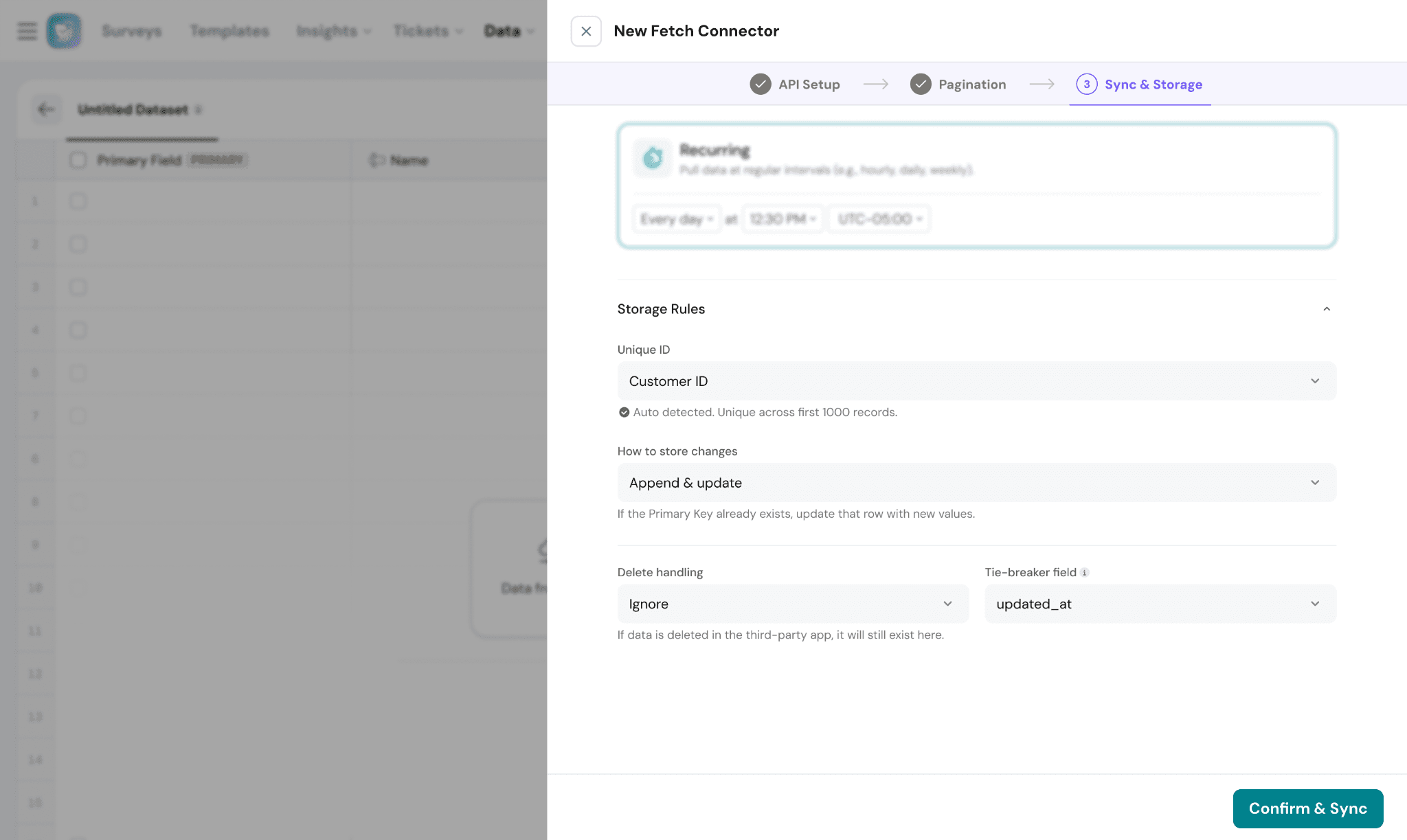
Unique ID:
The Unique ID acts as the primary identifier for each record.
This field is used to:
- Prevent duplicate records
- Update existing records during sync
- Link datasets with other data sources
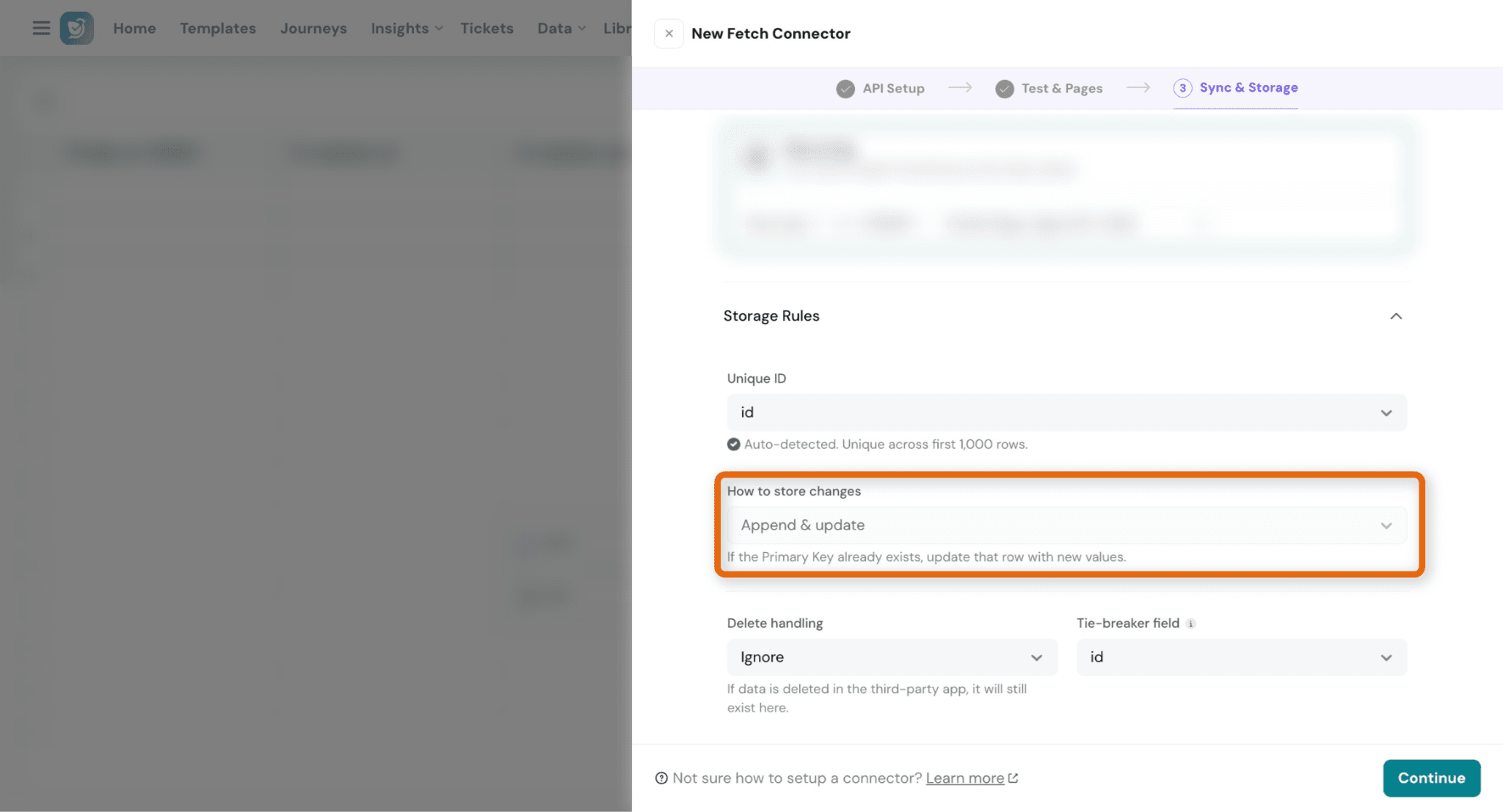
Sync Mode:
Choose how synced records should be stored.
- Append & Update → Updates existing records or adds new ones
Delete Handling:
Defines how deleted records from the source system should be handled.
Current supported behavior:
- Ignore → Deleted source records remain in the dataset
Tie-breaker Field:
Used when multiple records contain the same Unique ID.
This field is to determine which record should be retained.
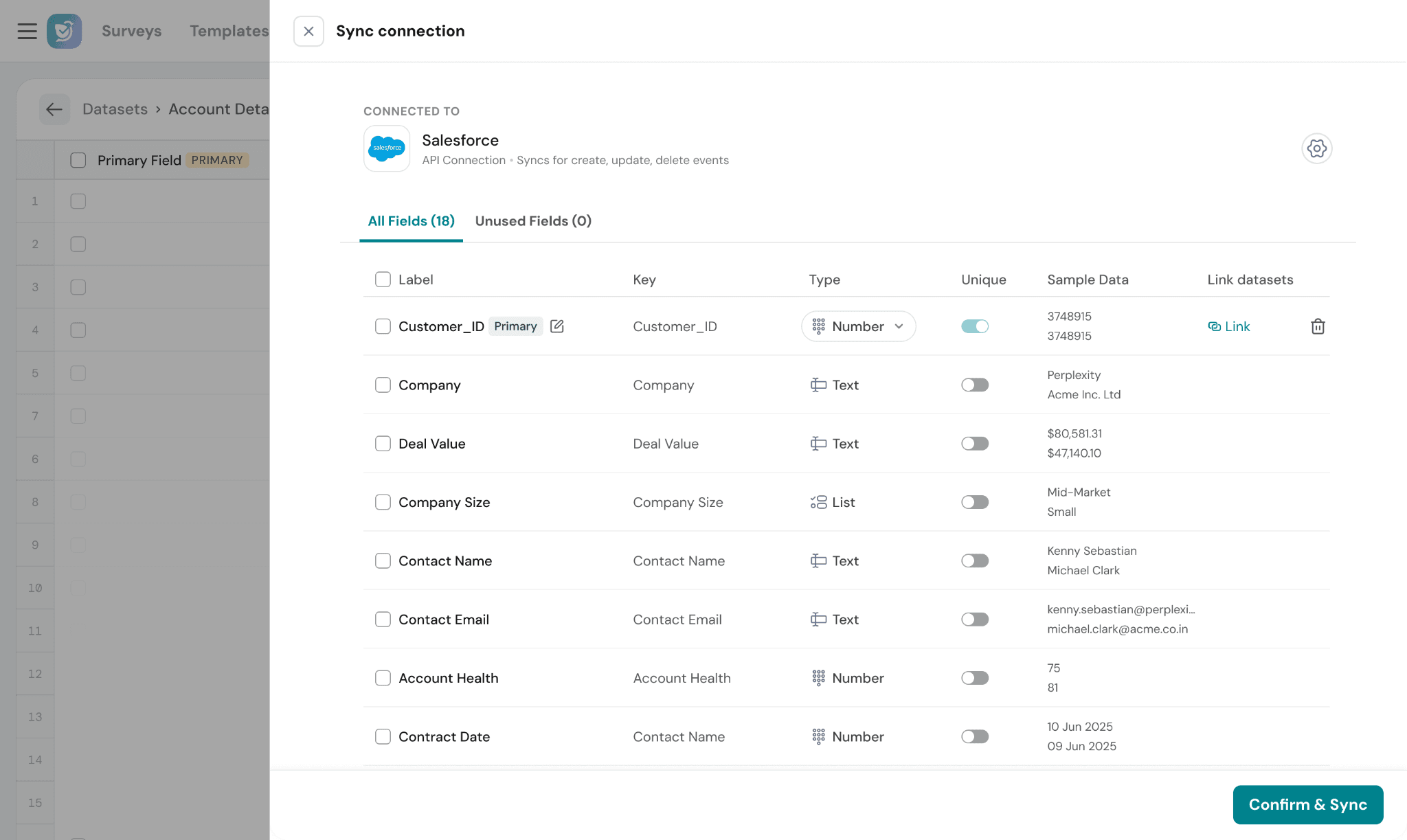
Review & Map Fields:
Once the sync configuration is complete, SurveySparrow displays all detected fields from the source data.
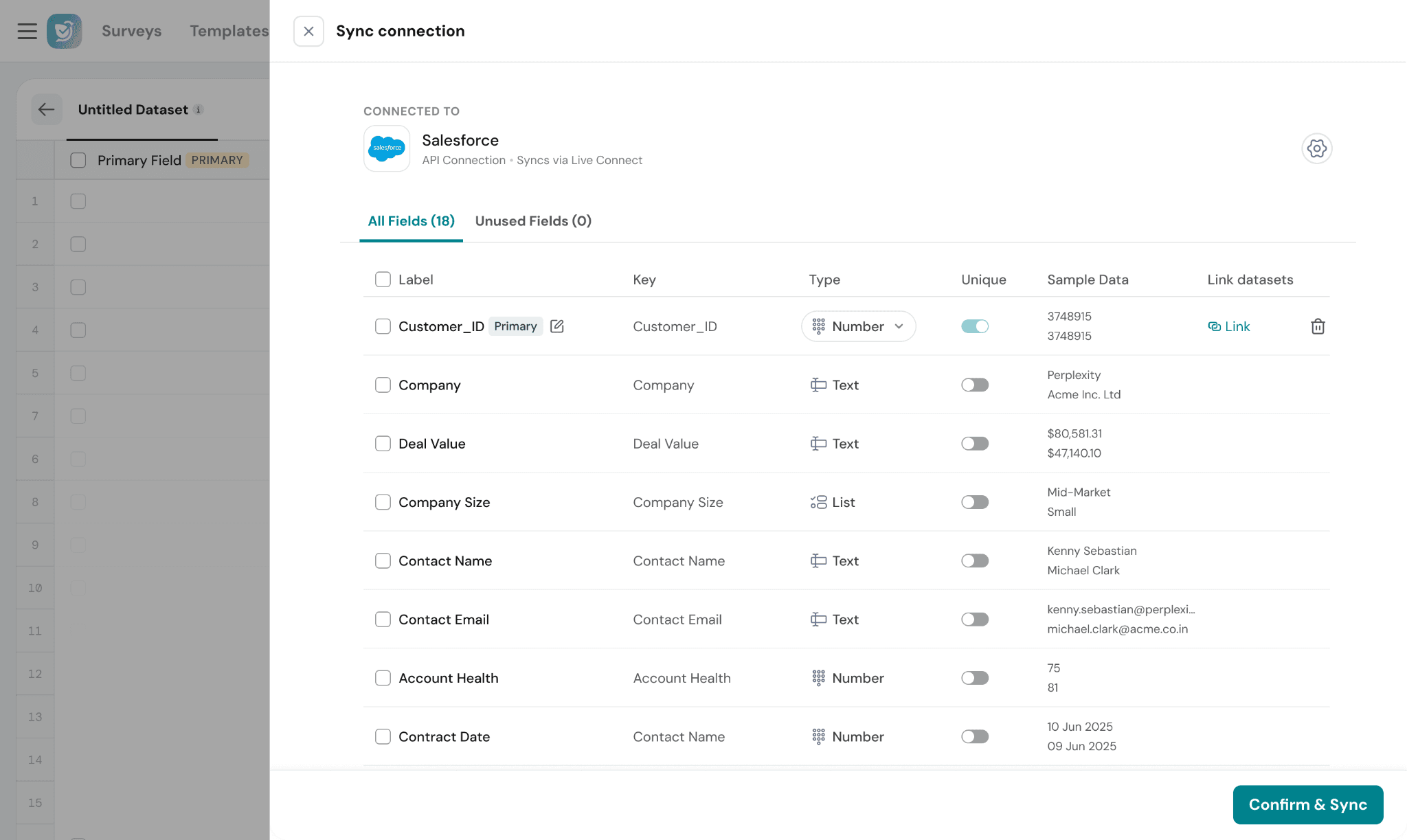
Unused Fields:
Fields that are not mapped or actively used are grouped under the Unused Fields section.
You can:
- Review them later
- Re-map them
- Enable them when needed
Complete the Sync:
After reviewing the fields:
- Confirm the mappings
- Select the required linked fields (optional)
- Click Confirm & Sync to start importing data into the dataset
Subscribe (Real-time updates)
Use Subscribe to receive real-time updates from external applications using webhooks.
Unlike Fetch, which periodically pulls data, Subscribe automatically pushes updates to SurveySparrow whenever changes occur in the source system.
Subscribe is best suited for:
- Live operational updates
- Real-time workflows
- Continuously changing records
What it does:
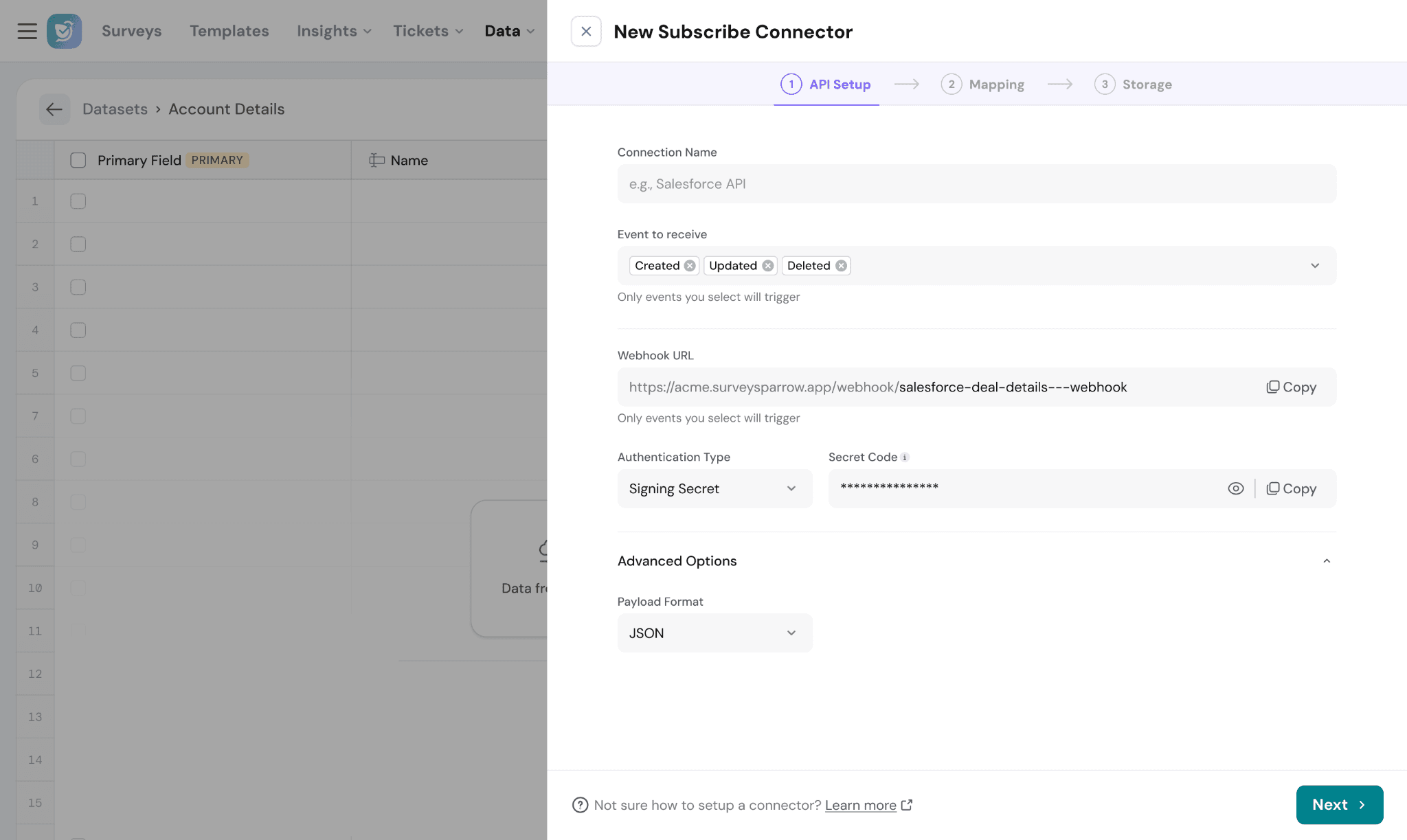
- Listens to events from your external system:
- Create
- Update
- Delete
- Automatically updates your dataset
These are lifecycle events for a single record or object in the external application.
For example:
- A new customer added in CRM → Created
- Customer details changed → Updated
- Customer removed from CRM → Deleted
Selecting the appropriate event types ensures your dataset stays synchronized with changes happening in the source platform.
Webhook URL:
SurveySparrow automatically generates a webhook URL during setup.
The external application sends event data to this endpoint whenever the selected lifecycle events occur.
Use the Copy option to add the webhook URL to your external system.
Authentication Type:
Choose how incoming webhook requests should be validated.
Supported options include:
- Signature Secret
- Authentication headers
This helps ensure webhook events are securely received from trusted sources.
Secret Code:
The secret code is used to verify the authenticity of incoming webhook events.
When the source system sends data:
- SurveySparrow validates the request signature
- Confirms the request came from the configured source
- Processes the event securely
Payload Format:
Defines the format of incoming webhook data.
Currently supported:
- JSON
Event Path:
Defines the field path used to identify the event type in the incoming payload.
Sample Payload:
Provide a sample webhook payload from the external application.
SurveySparrow uses this sample to:
- Detect fields automatically
- Generate mappings
- Validate payload structure
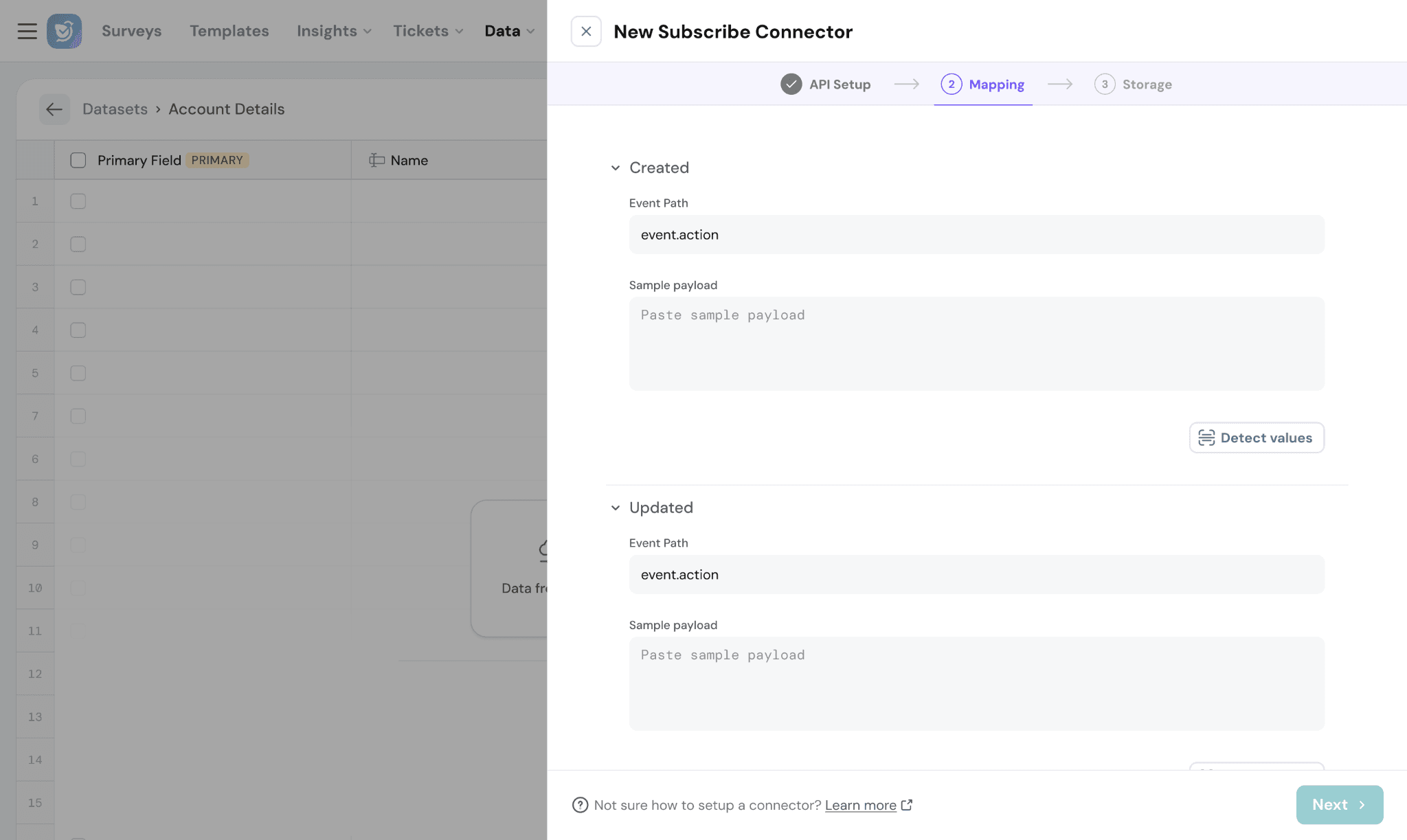
Detect Values:
Click Detect Values to automatically parse the sample payload and identify:
- Event fields
- Record structure
- Data mappings
This helps reduce manual configuration effort.
Next Step:
Once mapping is complete:
- Configure storage and sync behavior
- Select the Unique ID field
- Confirm the subscription setup
Data Mapping
After importing, SurveySparrow automatically assigns data types.
Supported types:
- Text
- Number
- Boolean
- DateTime
- List (single/multi select)
- Likert scale
- JSON/Object
- Decimal
You can modify these if needed.
Each field includes:
- Label (editable)
- Key (fixed identifier)
Enrich Fields
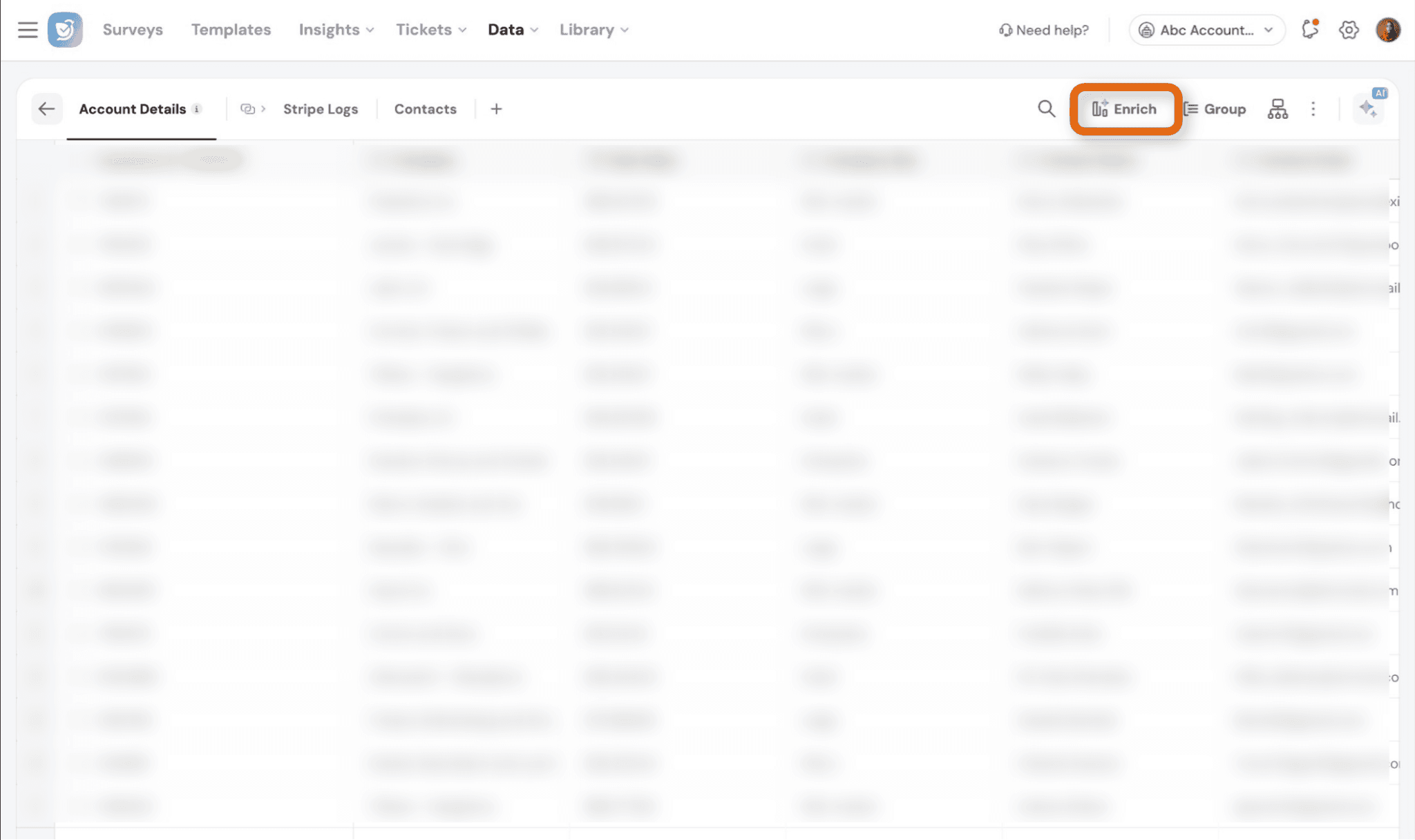
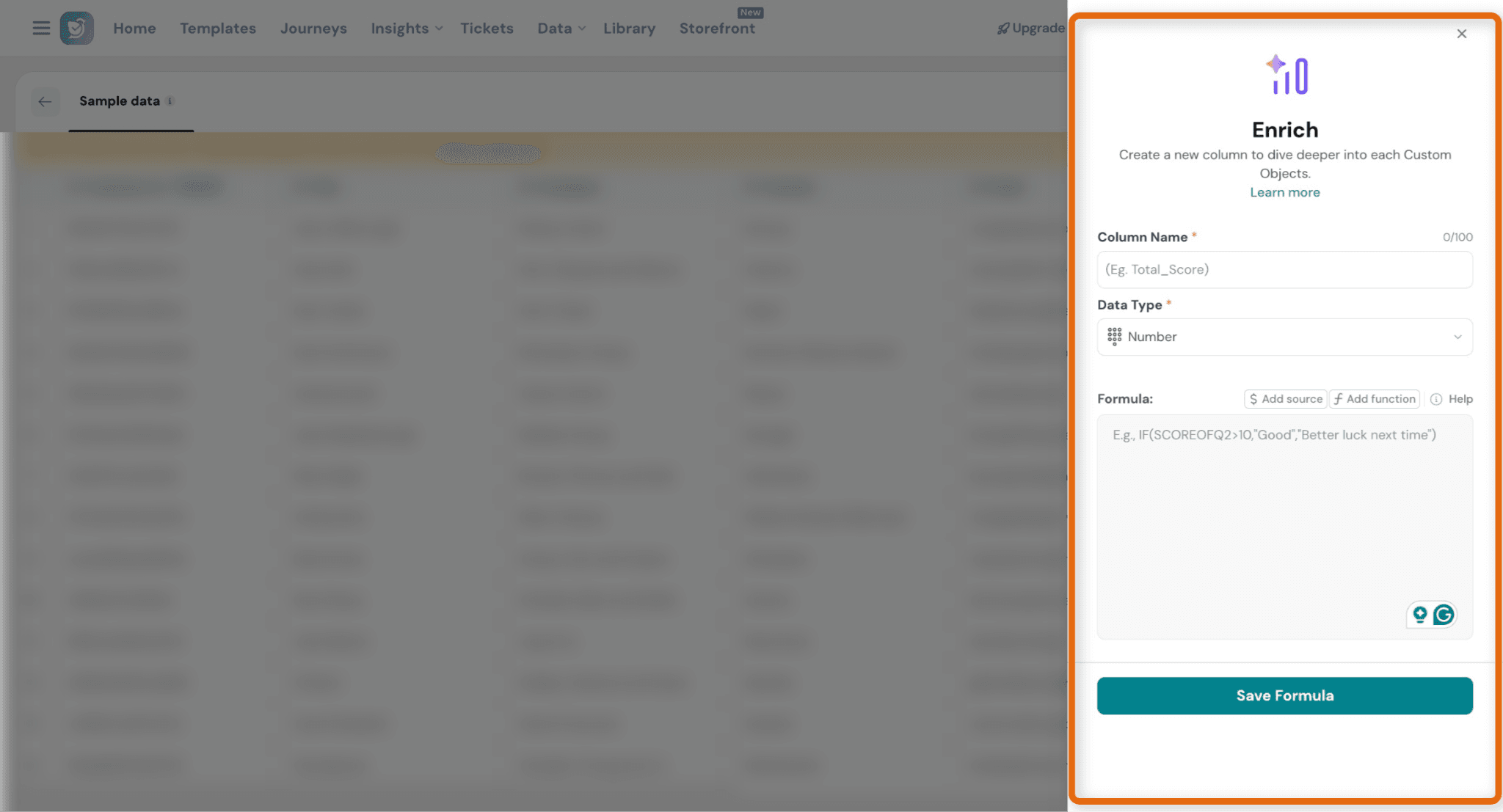
You can use Enrich to create derived fields from existing dataset fields.
These fields are calculated using formulas and help generate additional insights without modifying your original data.
How it works
- Create a new field using a formula based on existing fields
- The derived field is added as a new column in your dataset
- Calculations run:
- When the field is created
- On every dataset sync (SFTP, API, etc.)
Supported Enrich Type:
Currently, only Formula-based Enrich is supported for datasets.
Using formulas, you can:
- Create calculated fields
- Combine multiple fields
- Generate derived metrics from dataset values
Where can you use enriched fields:
Enriched fields behave like any other dataset field and can be used in:
- Dashboards
- Filters
- Workflows
- Metrics
Important Notes
- Enrich fields do not modify the original dataset fields
- Changes to source fields may impact derived fields
- Formula calculations automatically update during dataset syncs
Link Datasets
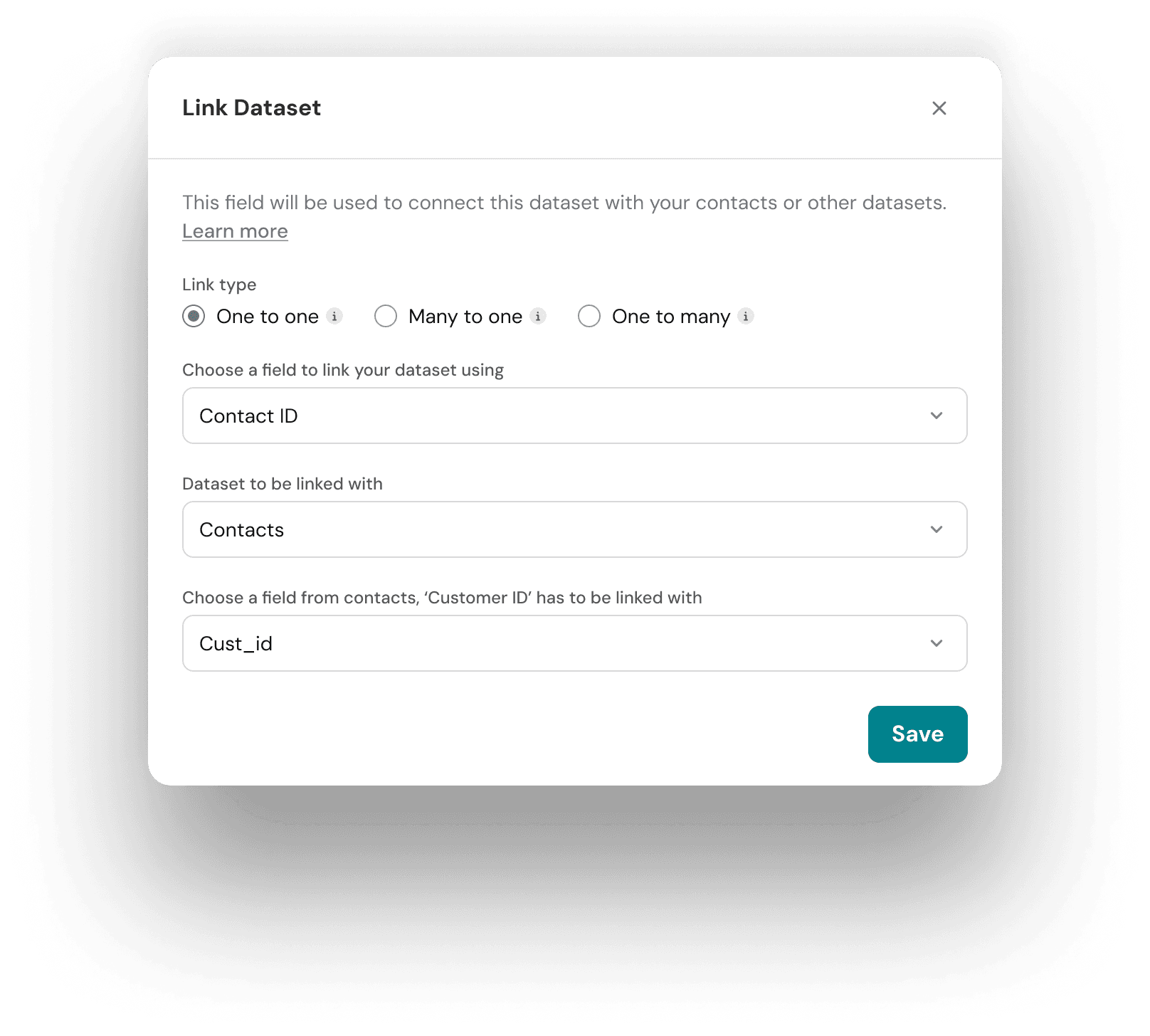
Connect datasets with Contacts, Surveys, or other datasets to unify your data.
Linking datasets helps combine related information across multiple data sources for reporting, workflows, and analysis.
Relationship types
- One-to-One → One record maps to one record in the target dataset
- Many-to-One → Multiple records map to a single record in another dataset
- One-to-Many → One record maps to multiple records in the target dataset
How to link
- Select a dataset
- Choose Link Dataset
- Map a common field (e.g., Email, Customer ID)
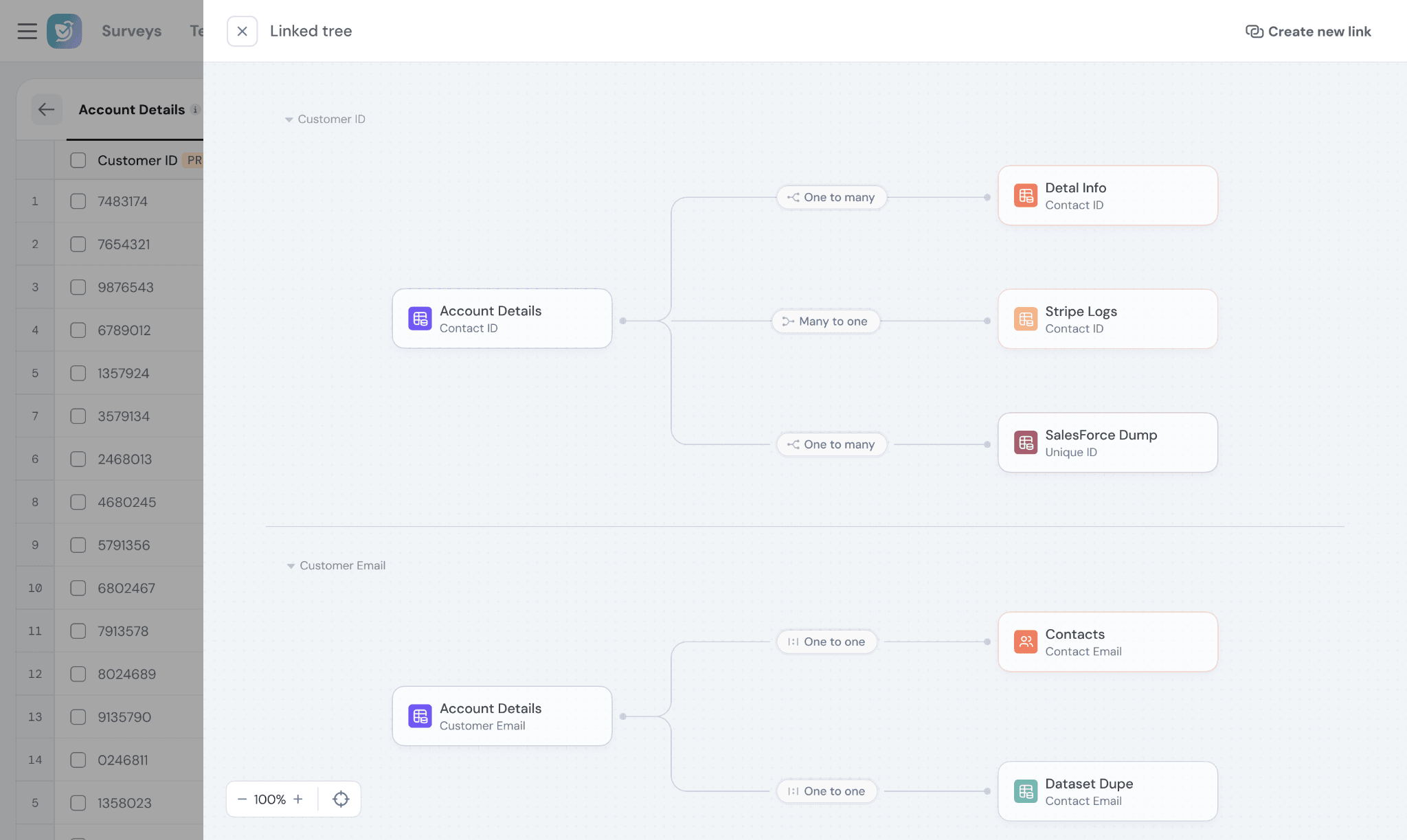
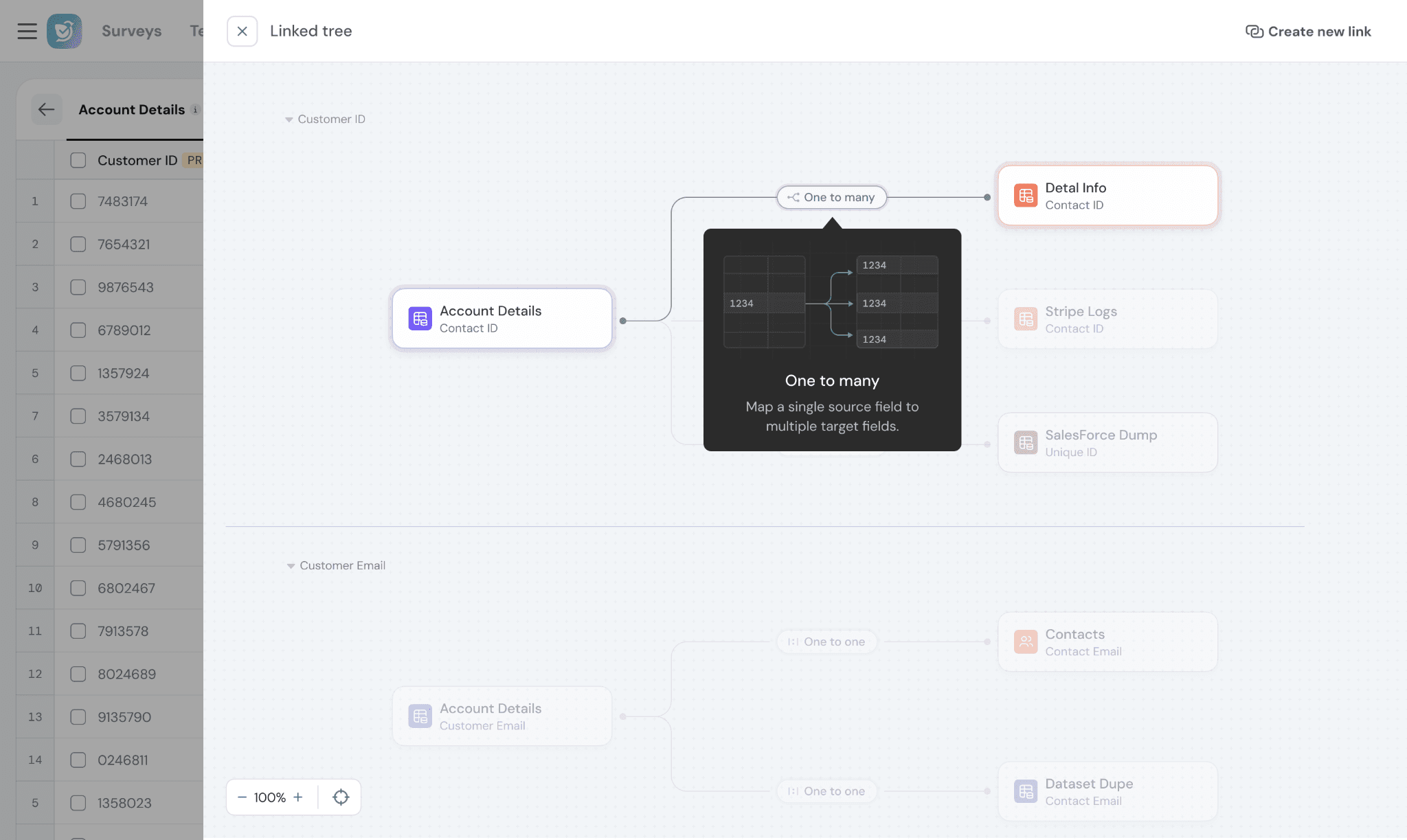
💡 Tip: Linking is required to combine multiple data sources in dashboards or workflows.
Edit Dataset Data
- You can edit records manually (for manual and file uploads)
- Editing linked fields may affect dashboards and workflows
- Fields used as unique identifiers cannot be modified
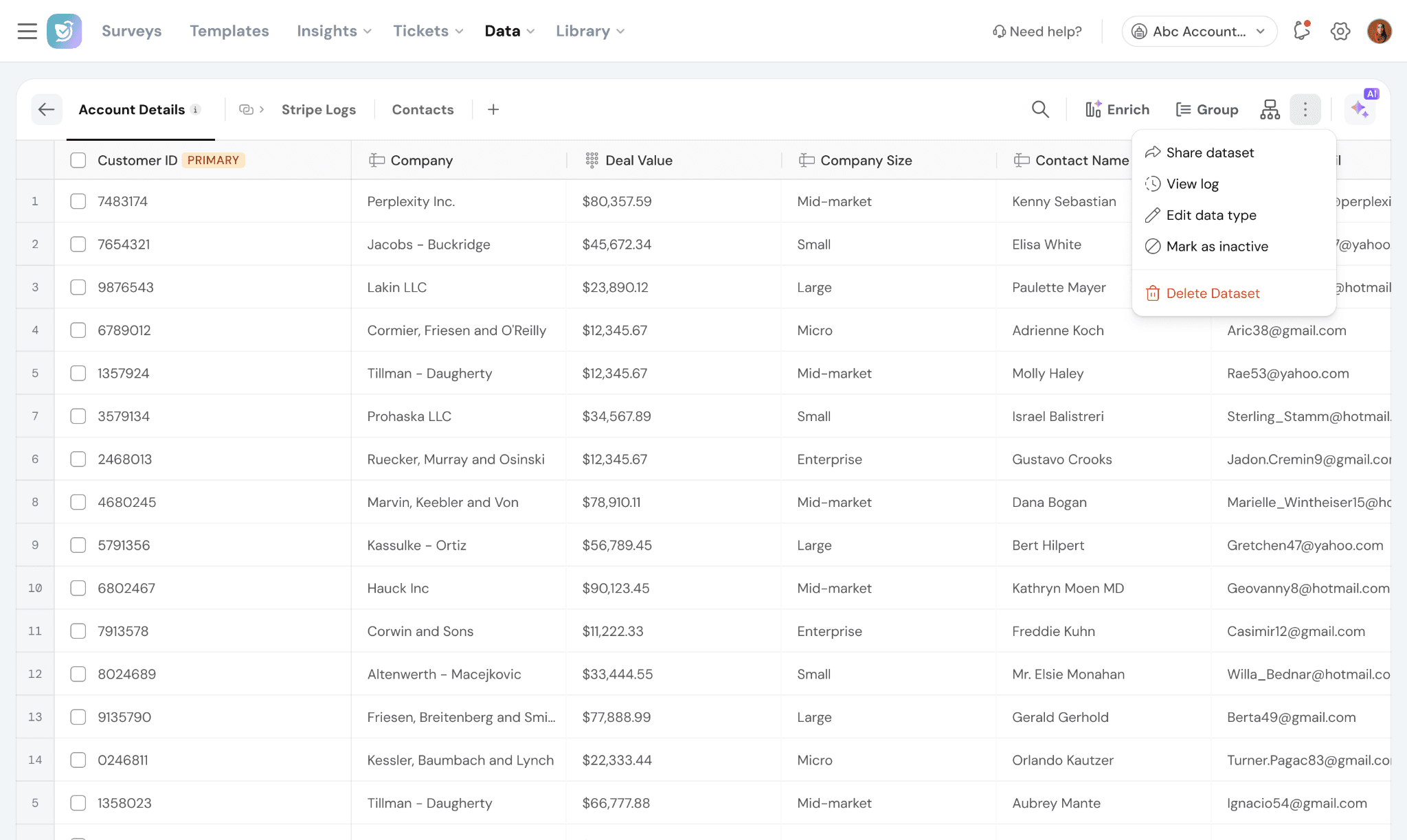
⚠️ Warning: Changes may impact existing dashboards, workflows, or surveys.
Use Datasets in SurveySparrow
Once your dataset is ready, you can use it across the platform.
In Surveys & Workflows (Coming Soon)
- Personalize survey experiences
- Trigger workflows based on data
- Automate actions using external data
Advanced Analysis (Coming Soon)
- Combine the dataset + survey data
- Build custom metrics
- Set alerts based on thresholds
Important Notes
- A unique identifier (primary key) is required for updates
- Duplicate records are resolved using a tie-breaker field (e.g., timestamp)
- Dataset linking is required to combine multiple data sources
- Changes to datasets may impact dashboards and workflows
FAQs
1. What is a dataset in SurveySparrow?
A dataset is a collection of external or manually added data that you can use alongside survey data for analysis, dashboards, and workflows.
2. What data sources can I import into datasets?
You can import data using:
- CSV or XLSX files
- SFTP
- API (Fetch and Subscribe)
3. Why do I need a primary key?
A primary key (like Email or Customer ID) uniquely identifies each record.
It is required to:
- Update existing records during sync
- Avoid duplicates
- Link datasets with contacts, surveys, or other datasets
4. What are Enrich fields?
Enrich fields are derived fields created using formulas from existing dataset fields.
They:
- Add new calculated columns
- Automatically update on every sync
- Works the same way as Enrich fields in the response page
5. How can I combine the dataset data with the survey data?
You need to link your dataset to surveys or contacts using a common field (such as Email or Customer ID).
Once linked, you can use both data sources together in dashboards and workflows.
6. Can I edit my dataset after importing it?
Yes, but:
- Manual edits are supported for manual and file uploads
- Changes to fields used in dashboards or workflows may impact them
- Primary key fields used for linking cannot be modified
7. How can I use datasets in SurveySparrow?
You can use datasets to:
- Build dashboard widgets and reports
- Apply filters and create metrics
- Personalize surveys
- Trigger workflows and automations