
Search

Azure Synapse Analytics is a limitless, enterprise-grade analytics service from Microsoft that brings together enterprise data warehousing and big data analytics into a unified platform
SurveySparrow’s integration now enables survey responses to be synced into tables within Azure Synapse. To only allow specific responses, you can also create conditional filters, including date filters.
Now, your reports, dashboards, and decisions always use the latest customer insights—no manual exports required.
Some valuable use cases include:
In this article, we’ll walk you through connecting your SurveySparrow account to Azure Synapse and setting up powerful response mappings from start to finish, specifically:
1. Inside your SurveySparrow account, click on the settings icon.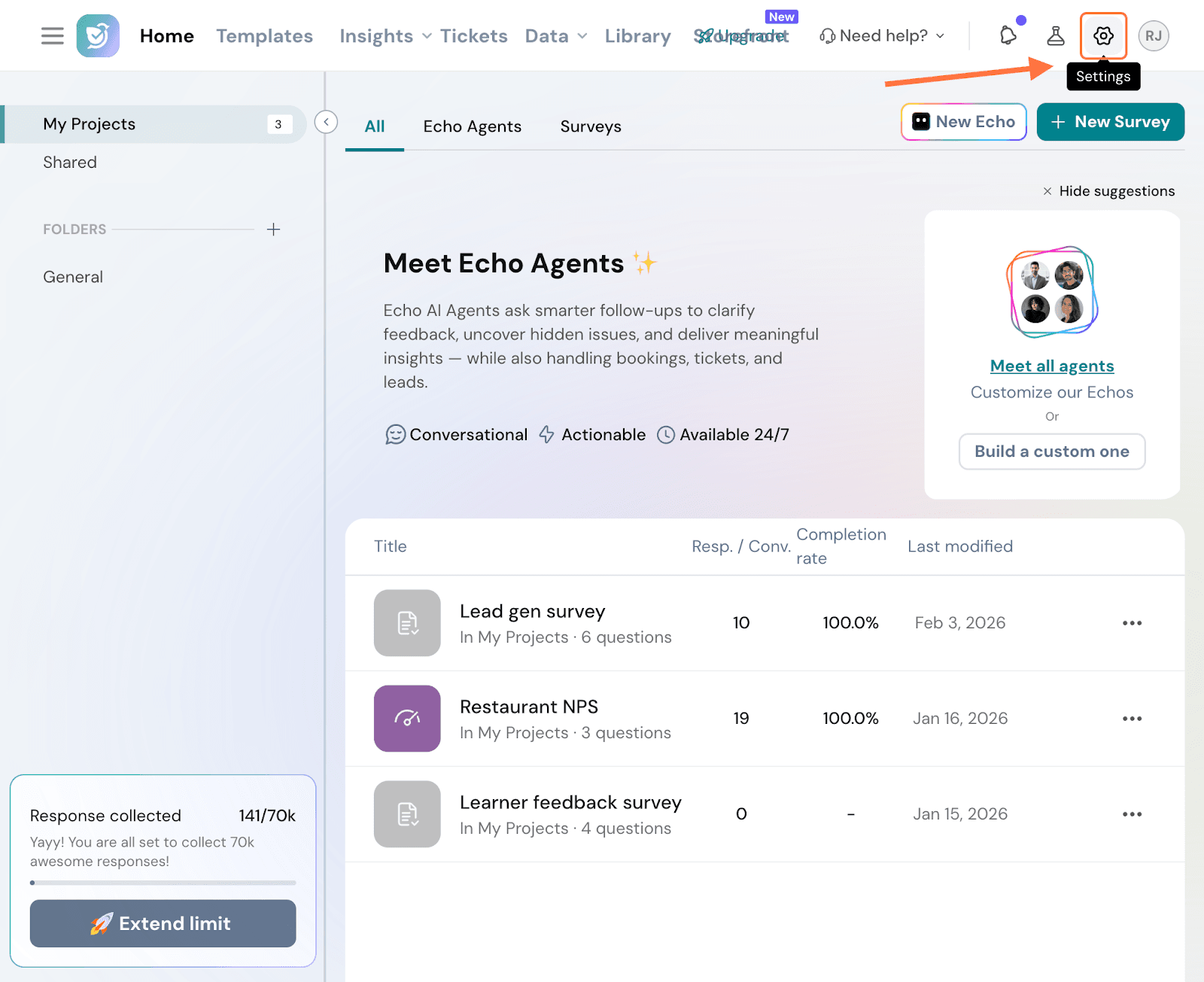
2. Scroll down the left panel in the settings page till you see the Apps and Integrations option, then click on it.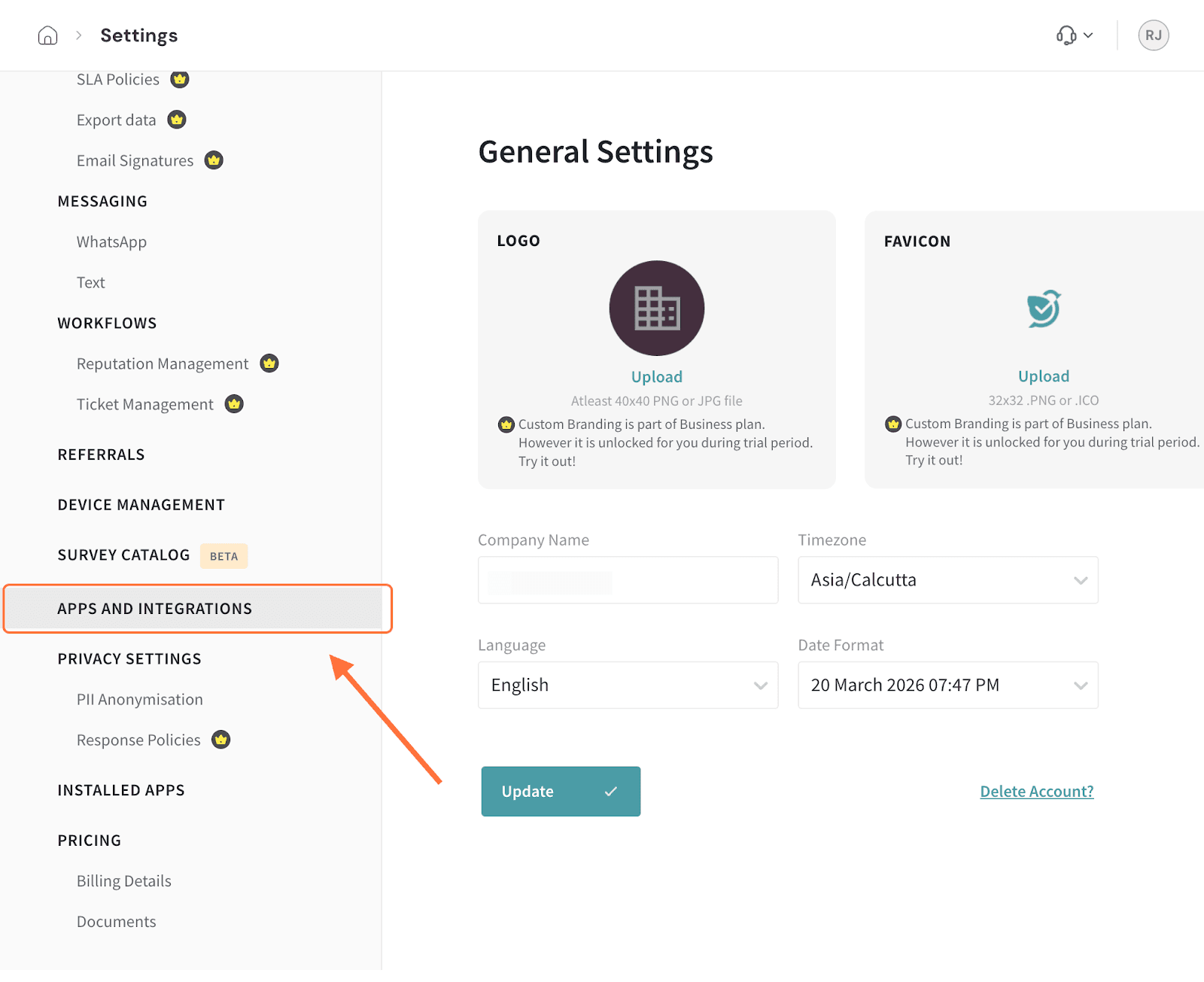
3. Search for the Azure Synapse integration using the search box (or scrolling through the integrations), then click on the toggle when you see it.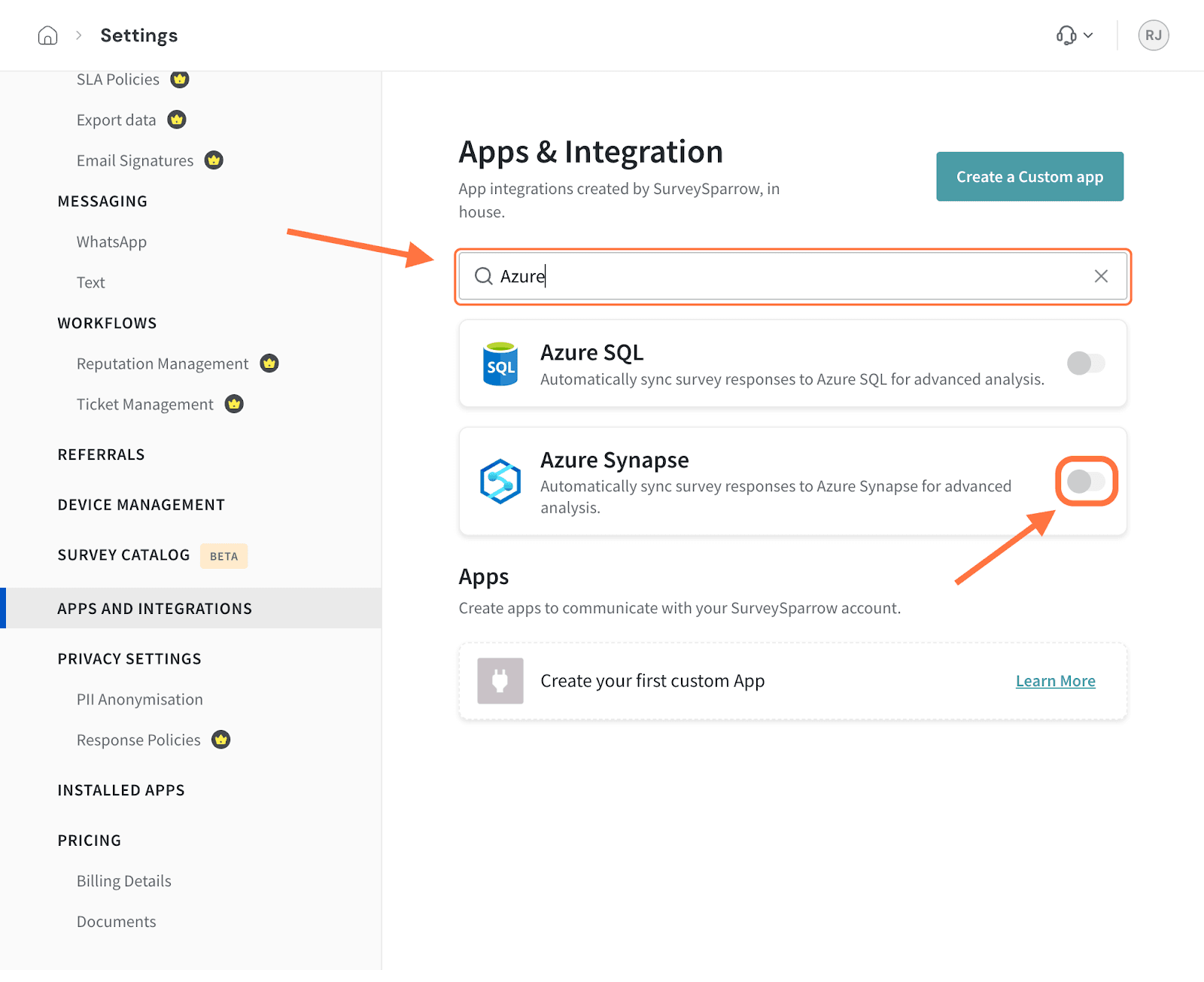
4. Next, in the setup screen you’ll need to enter your Tenant ID.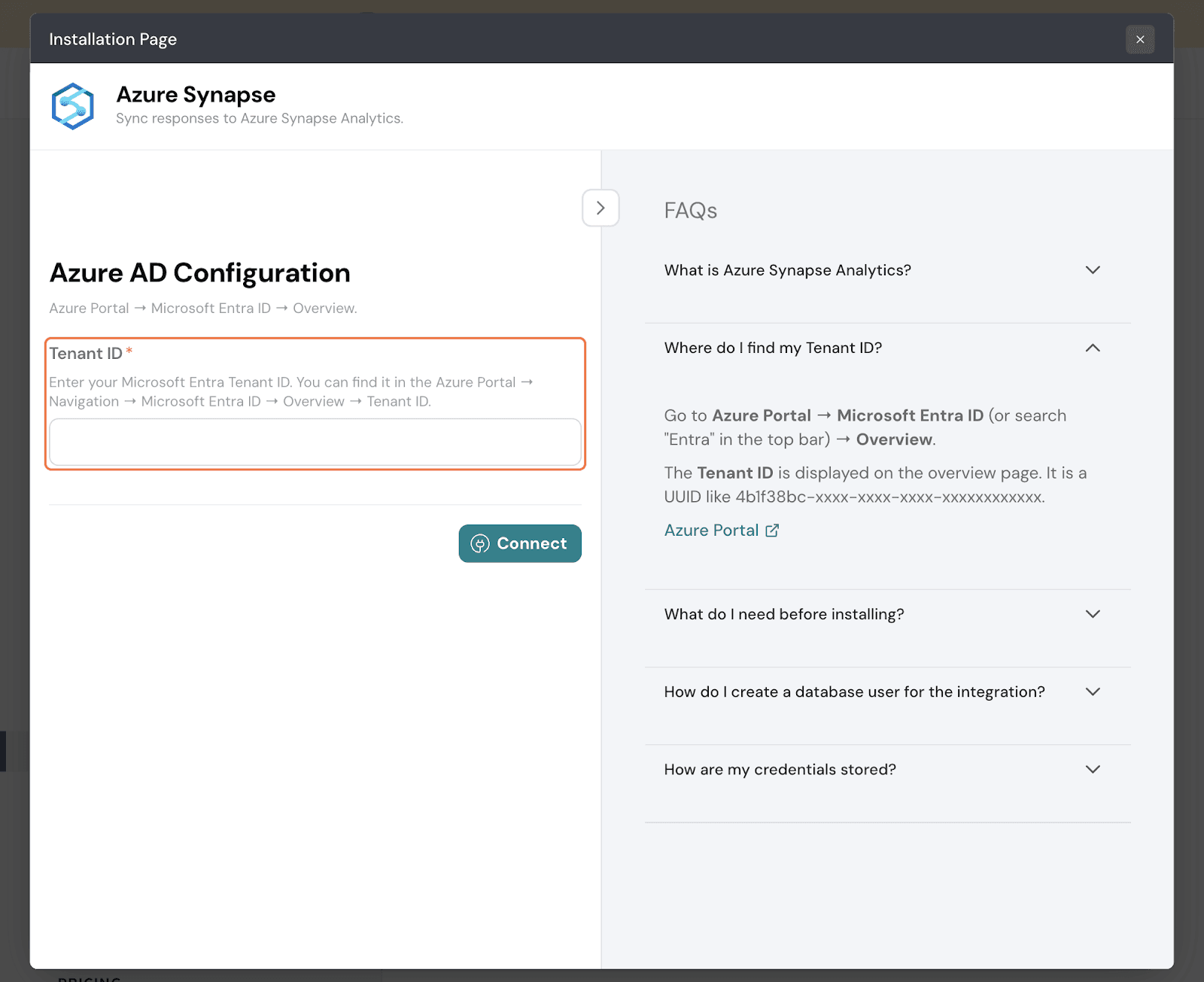
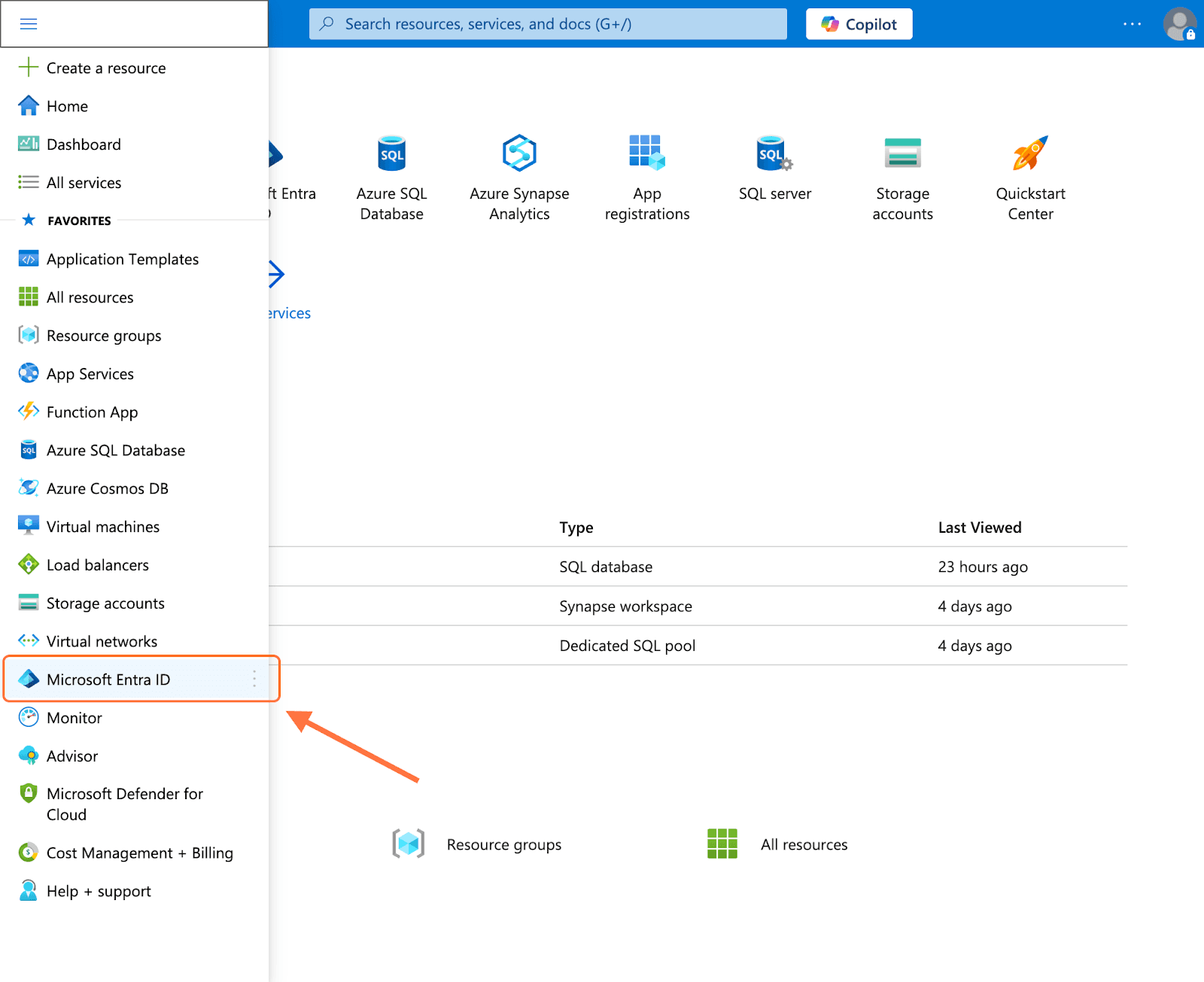
Note: To find the Tenant ID, go to your Azure account. Click on the hamburger menu in the left corner and select Microsoft Entra ID.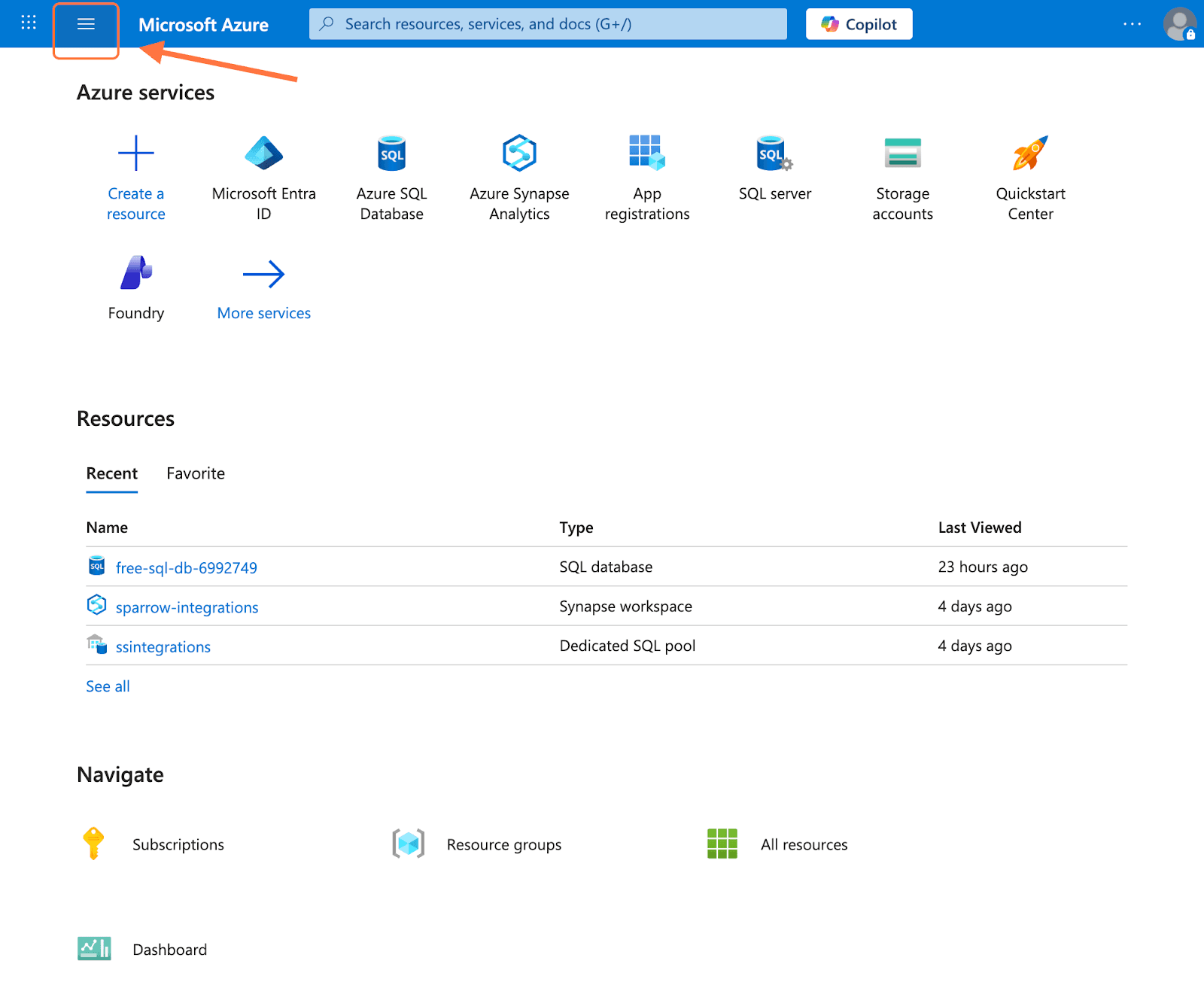
Inside the Overview section, you’ll see the Tenant ID. Hover over it and click on the copy icon.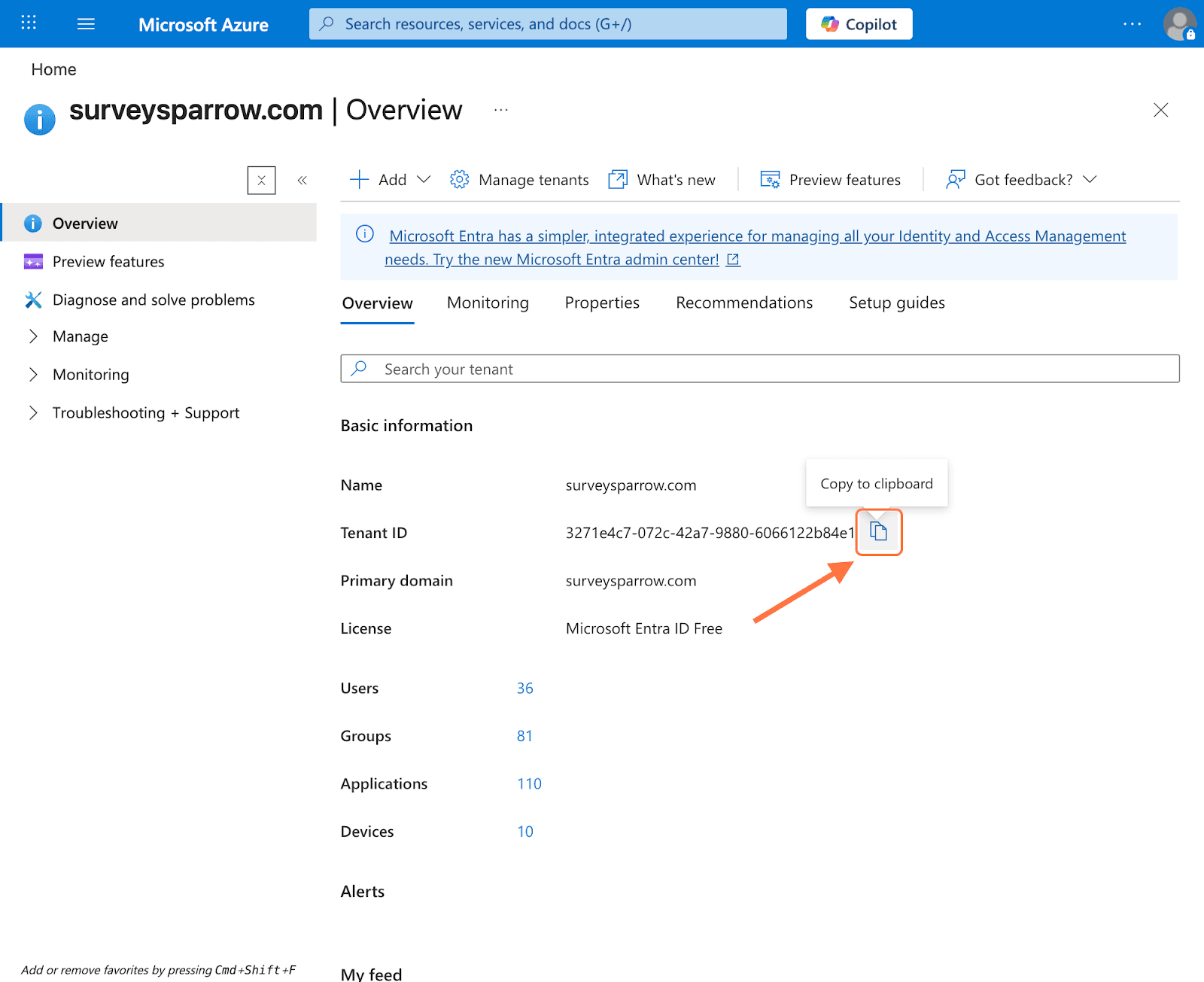
5. After entering the details back in SurveySparrow, click Connect.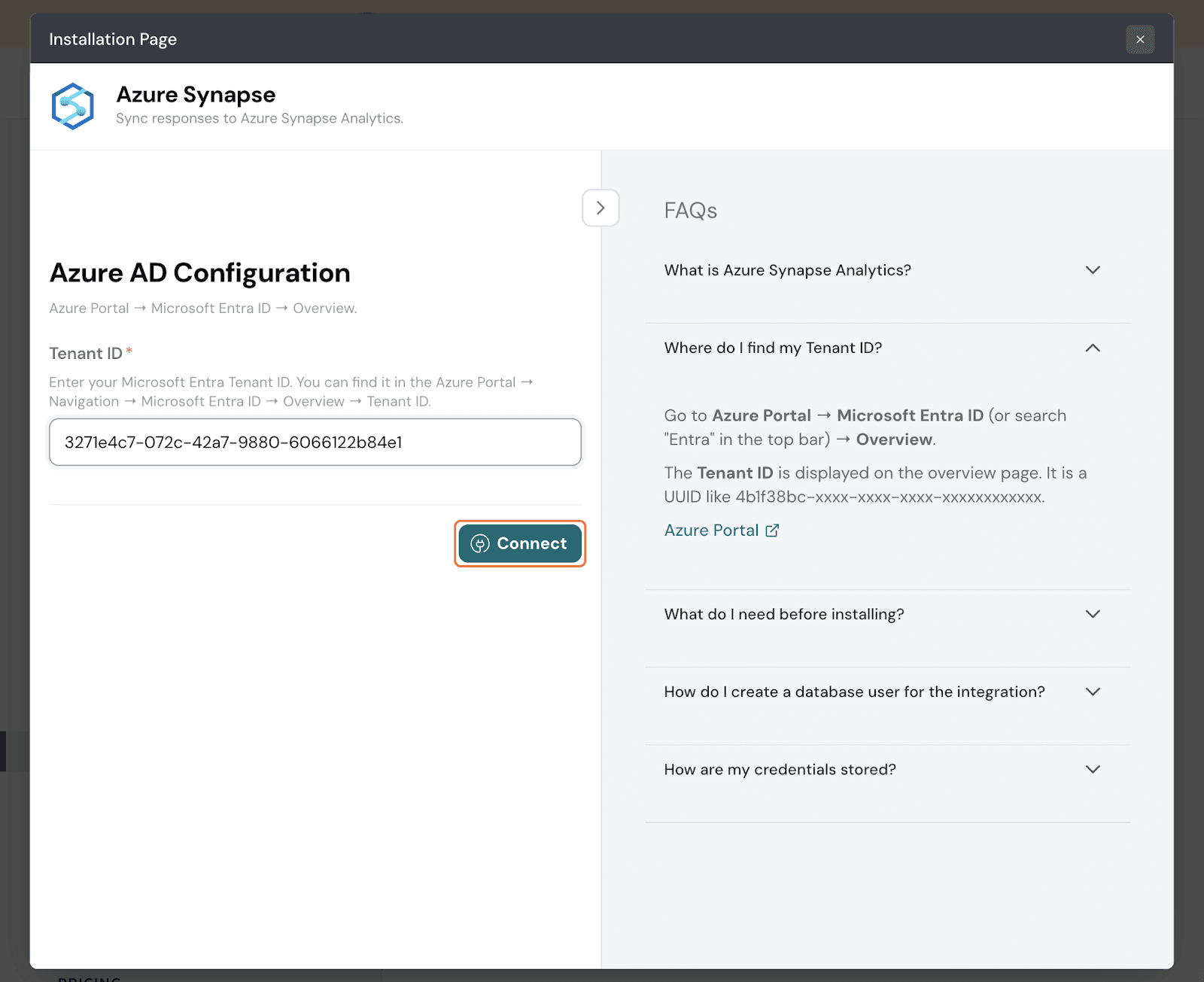
6. You will need to select a Microsoft account to complete authentication.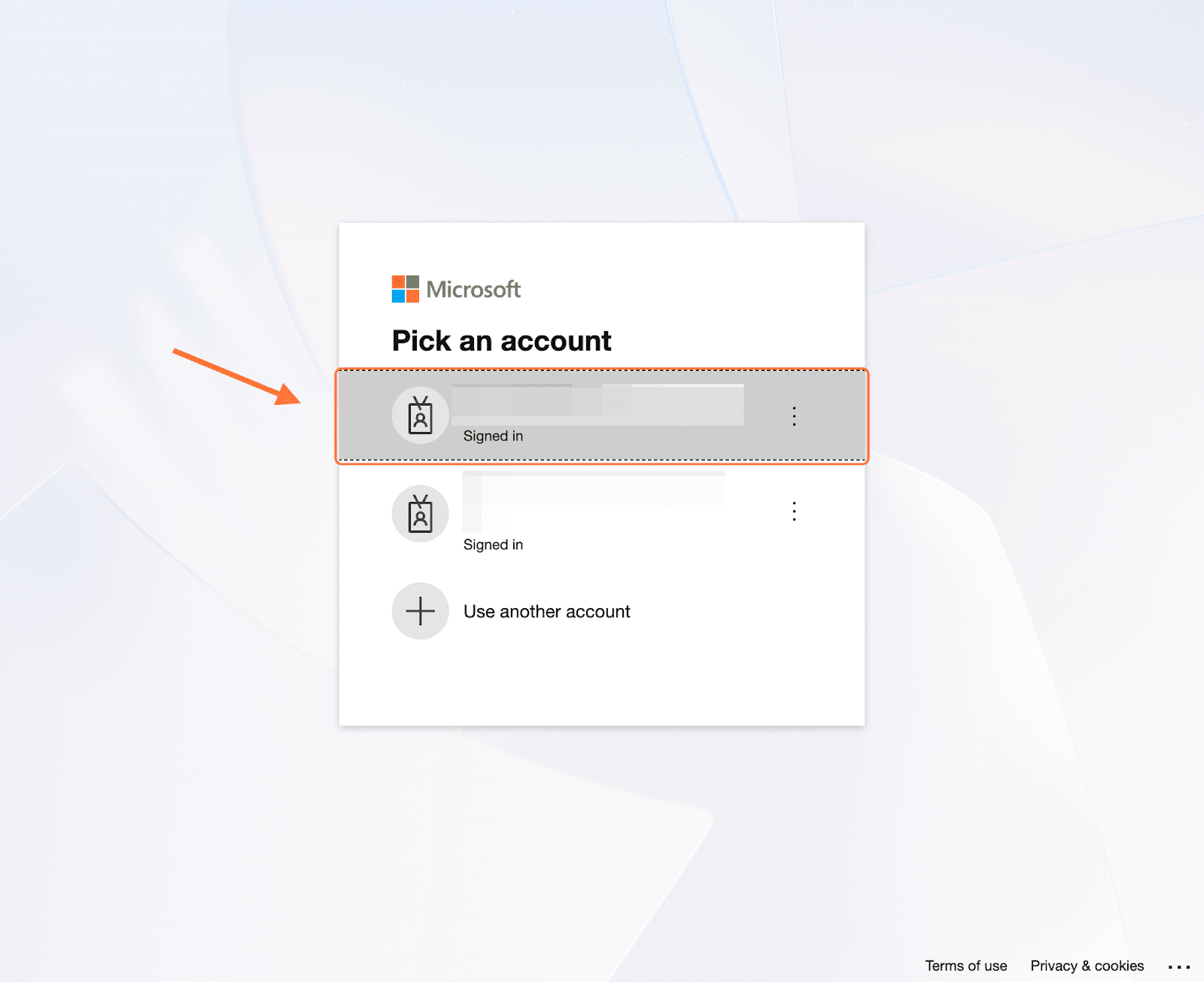
Before creating mappings, you need to run a script inside Azure Synapse so that SurveySparrow can pass data. Follow these steps.
1. Inside the Azure Portal, search for Azure Synapse Analytics and open it when it appears.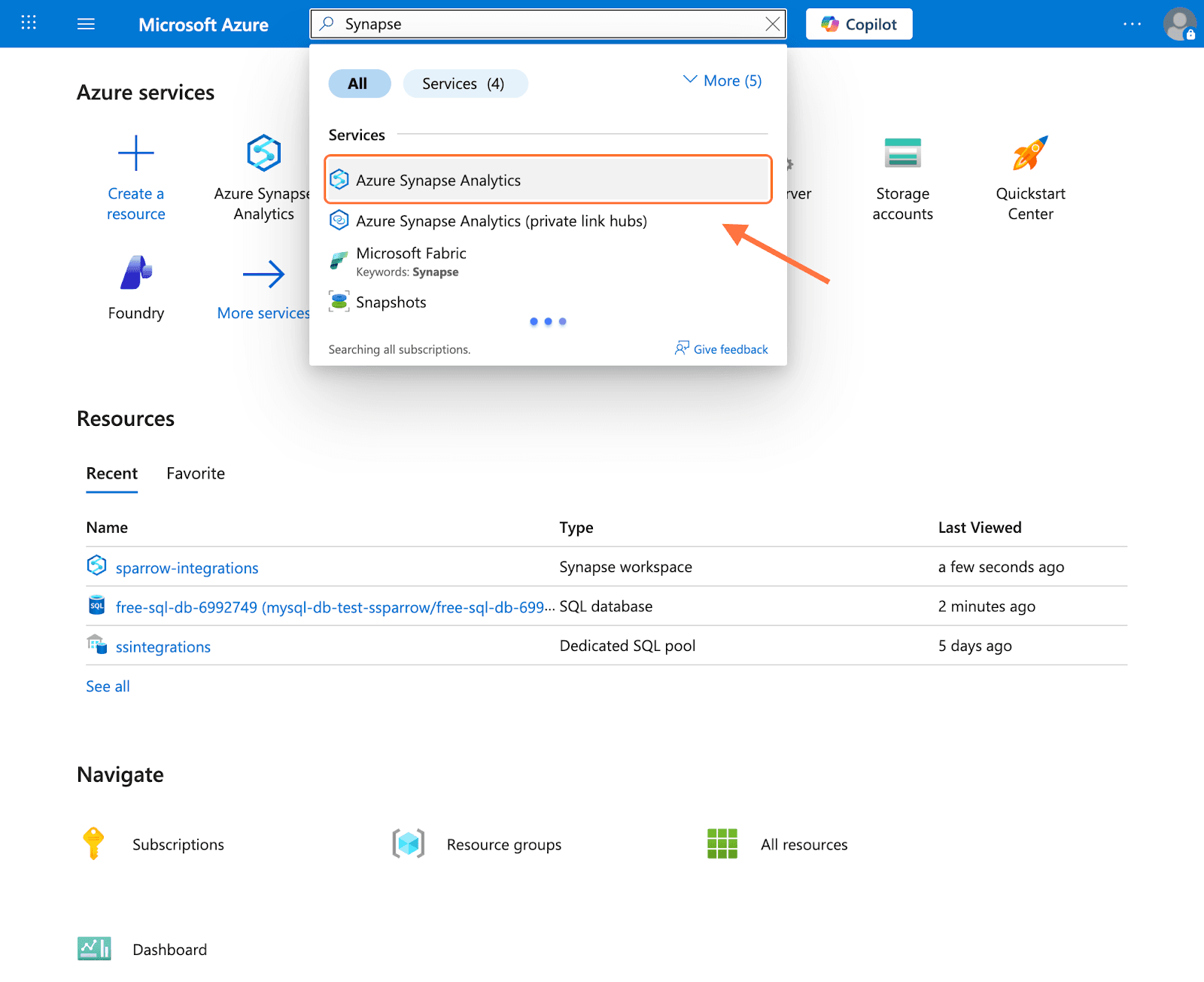
2. Open the workspace in which the intended database sits by clicking on the name.
3. You’ll see a tab for Synapse Studio. Click on Open.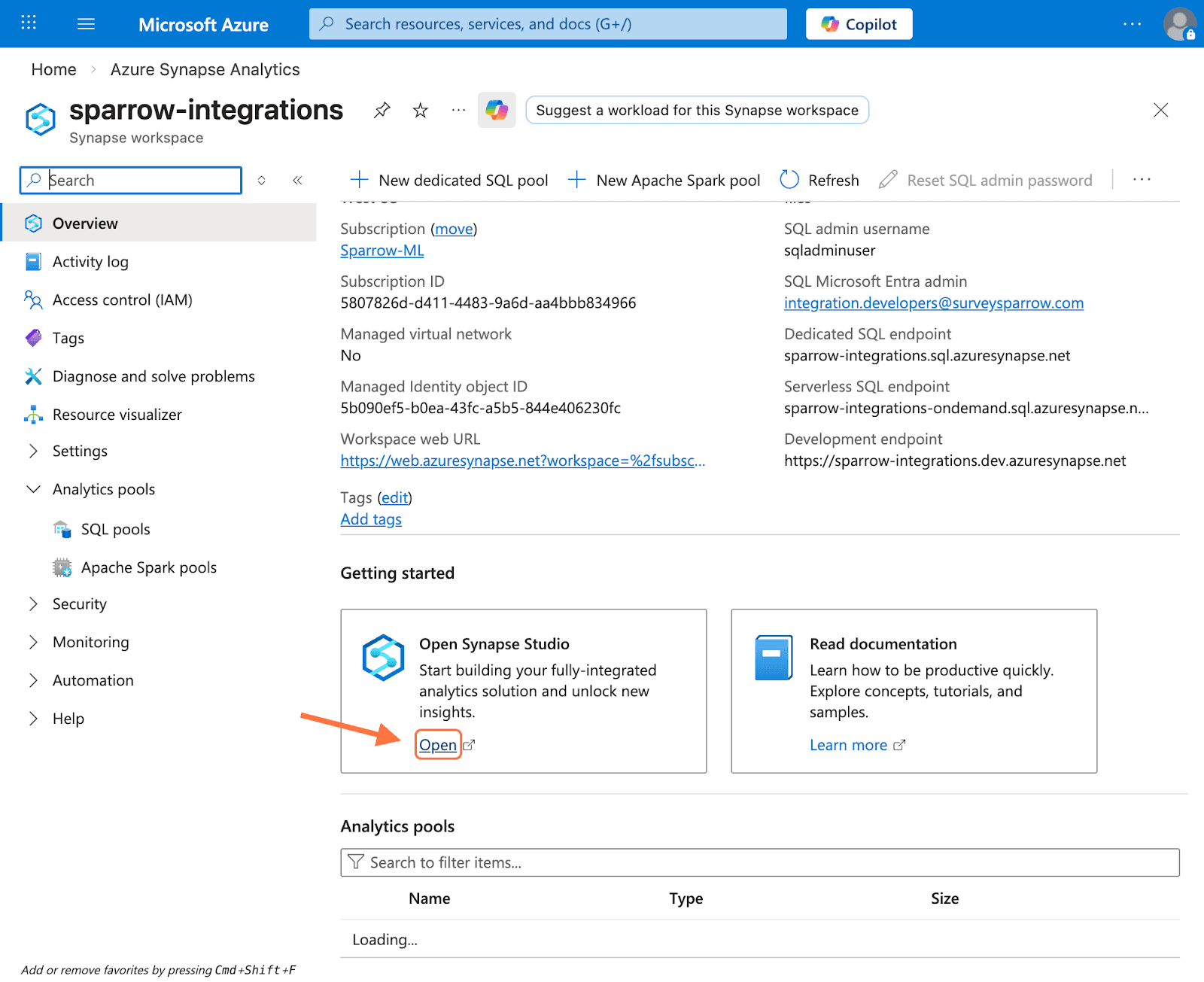
4. Select the Microsoft account tied to your Azure workspace.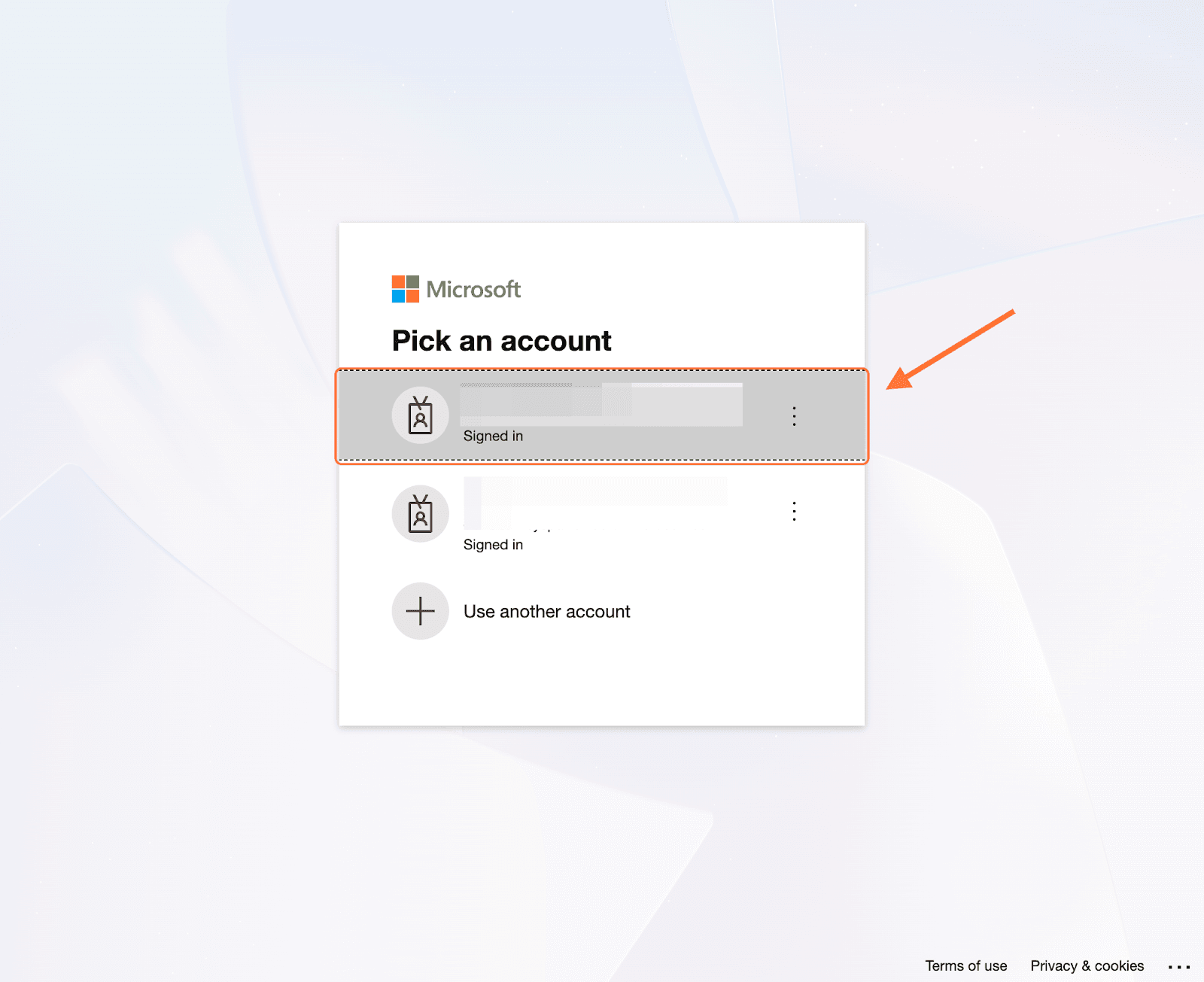
5. Inside Synapse Analytics, click on the Data icon in the left panel.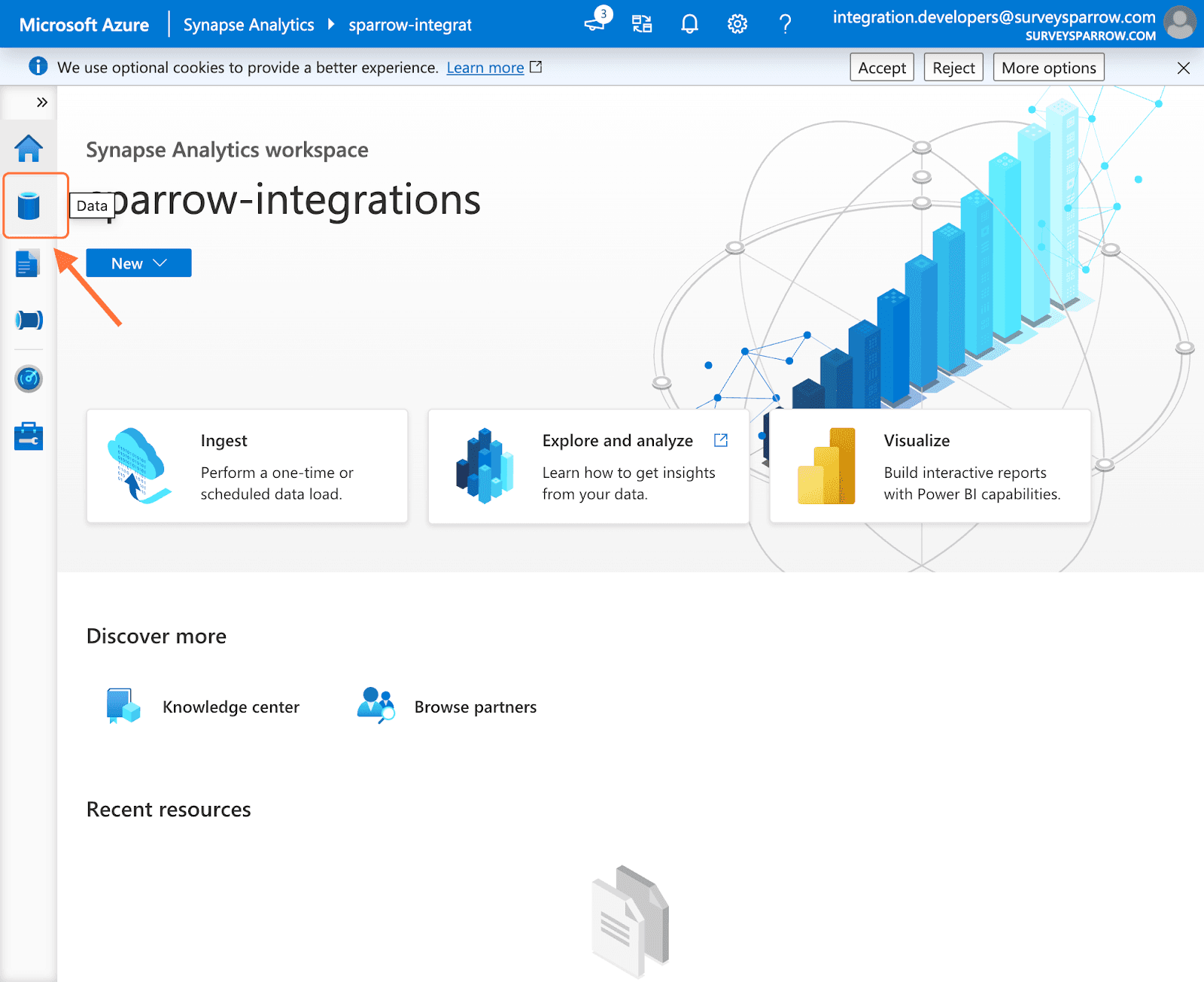
6. When you see the intended database, click on it to expand it.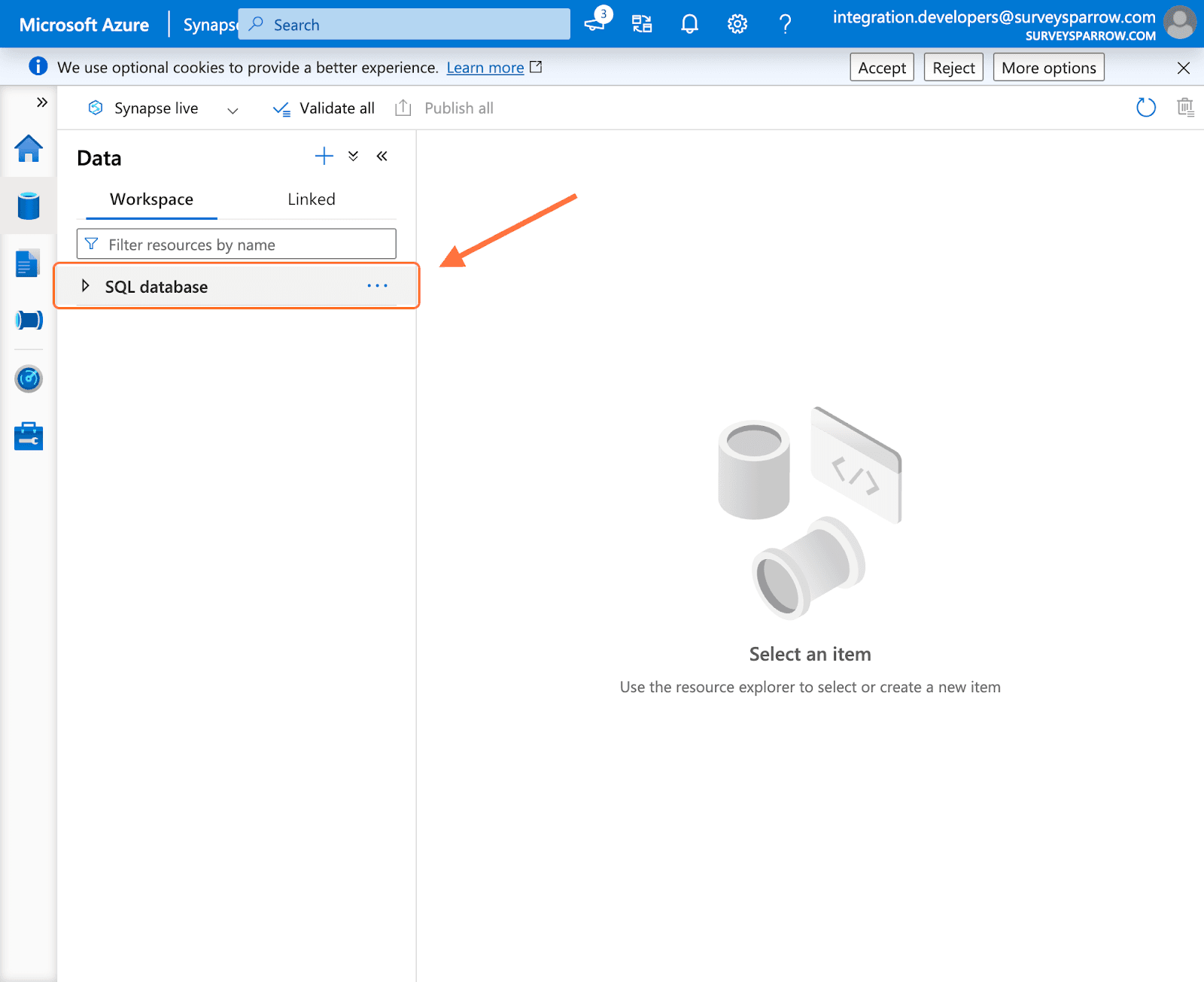
7. When the specific schema appears, hover over it. Click on the horizontal 3-dot icon.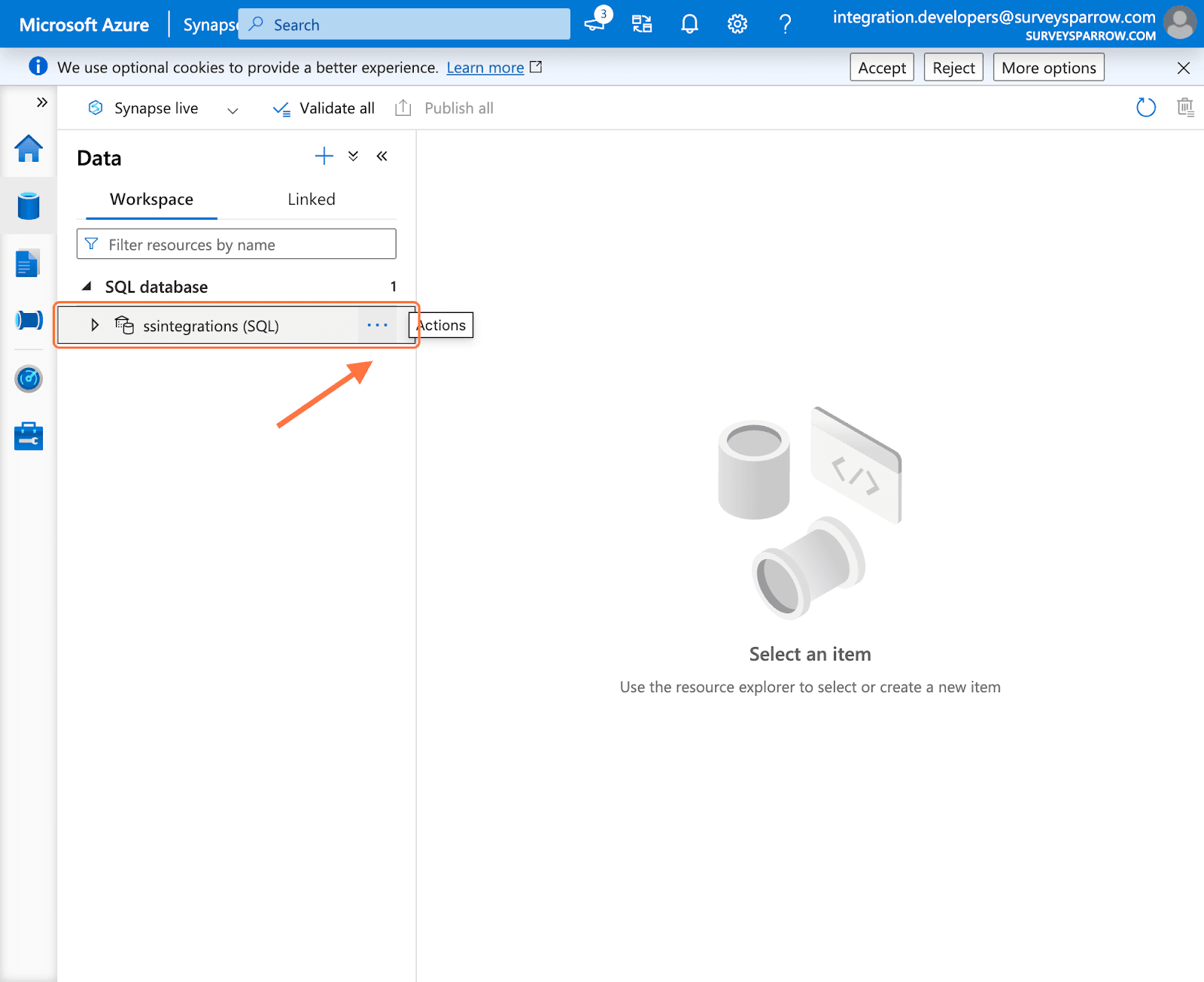
8. When the menu pops up, hover over New SQL script, then click on Empty script.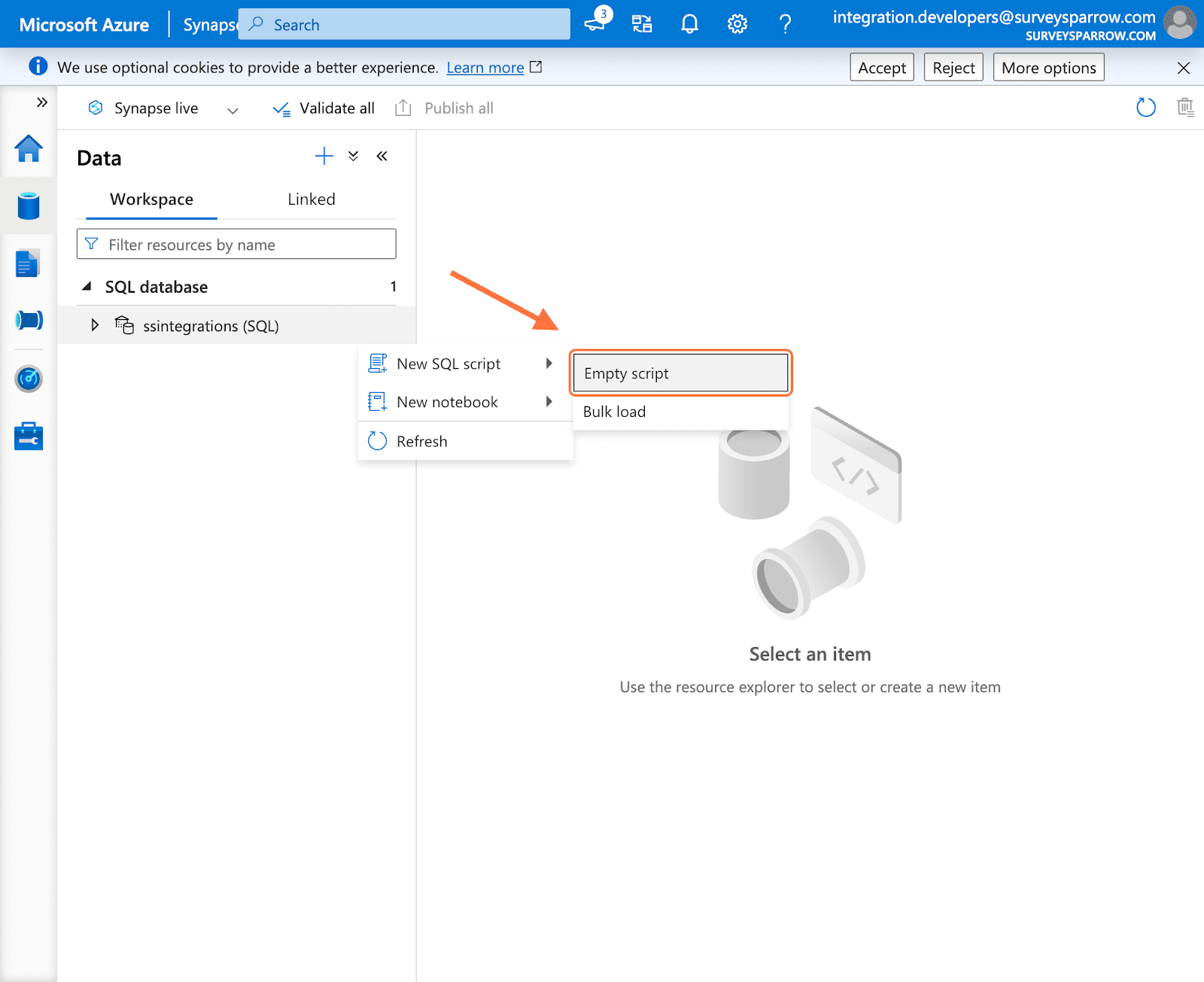
9. Copy this script into the query editor and click on Run.
-- Create user from AAD
CREATE USER [SurveySparrow - Azure Synapse] FROM EXTERNAL PROVIDER;
-- Grant read access
EXEC sp_addrolemember 'db_datareader', 'SurveySparrow - Azure Synapse';
-- Grant write access
EXEC sp_addrolemember 'db_datawriter', 'SurveySparrow - Azure Synapse';
-- Grant DDL permissions
EXEC sp_addrolemember 'db_ddladmin', 'SurveySparrow - Azure Synapse';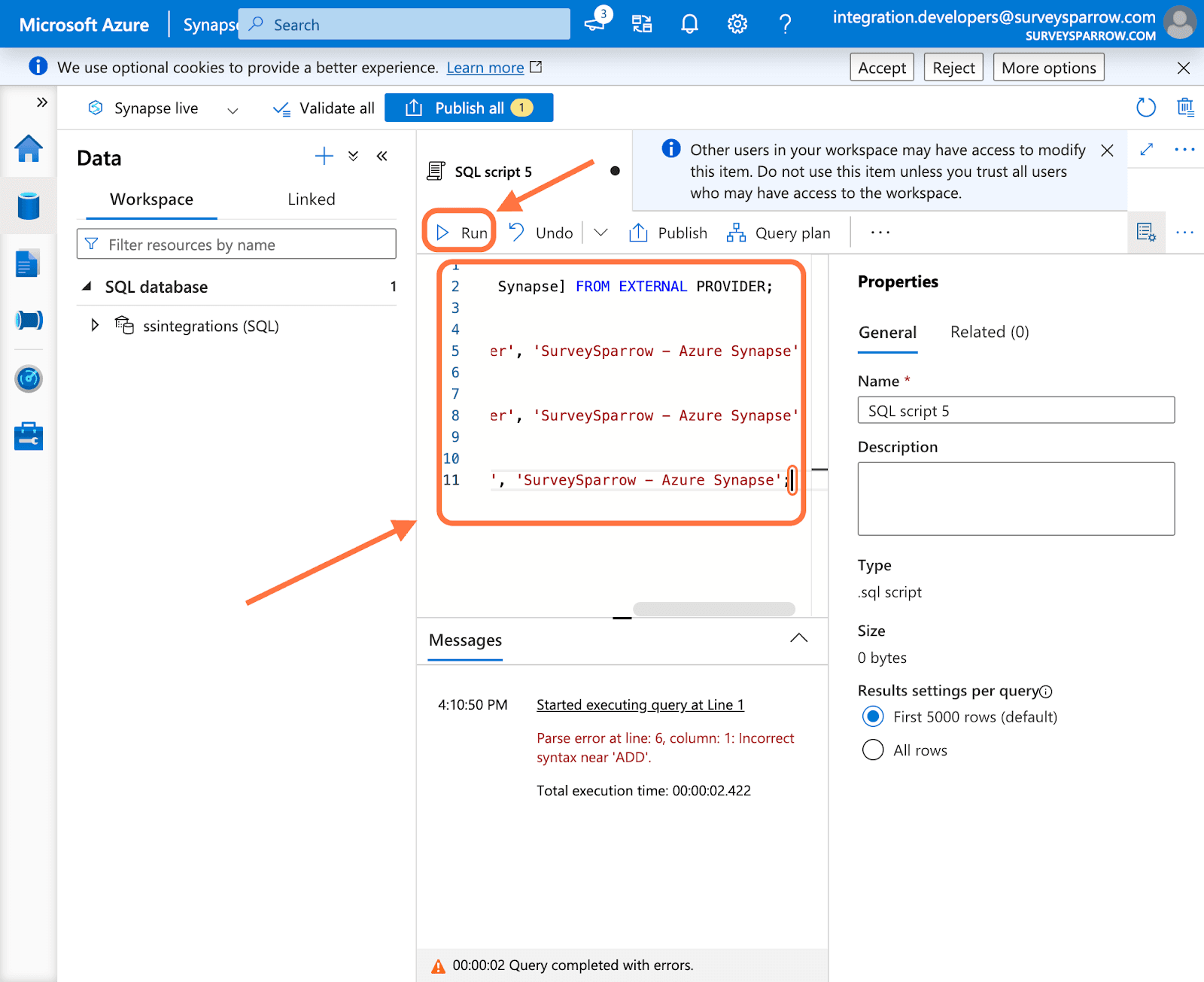
1. Open a survey and click on the Integrate/Configure tab.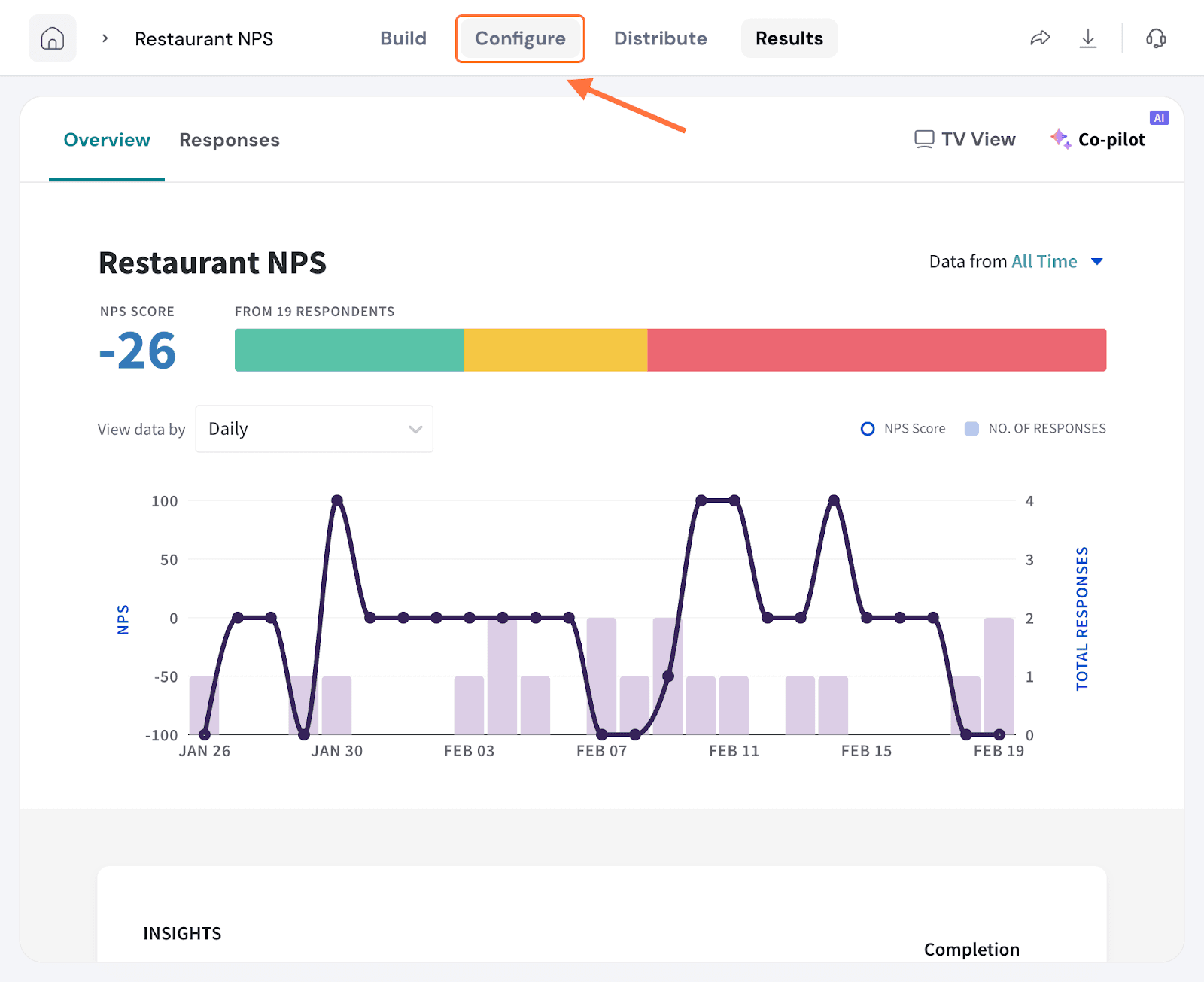
2. Search for the Azure Synapse integration using the search box (or by scrolling through the integrations). When it appears, click on the toggle.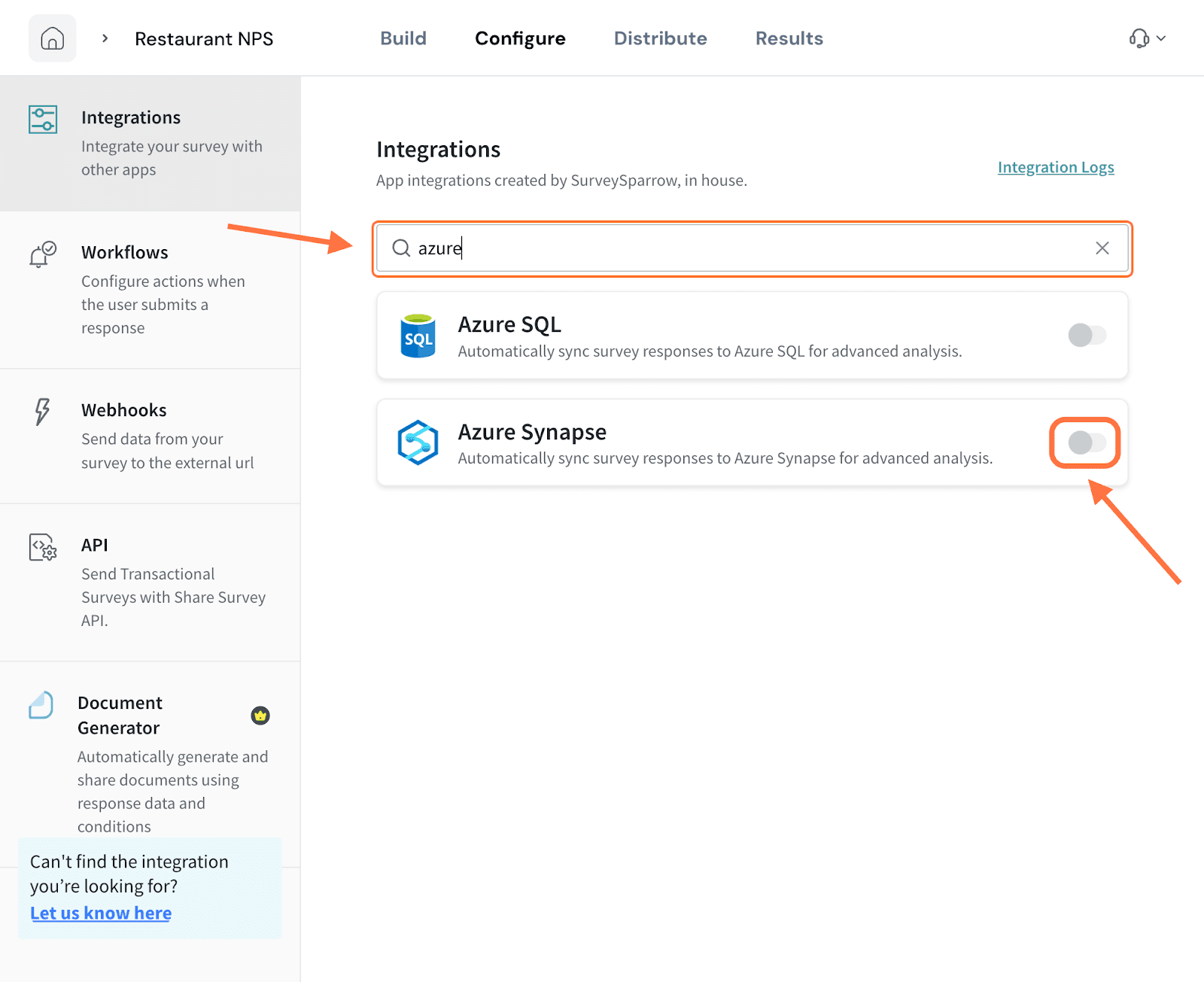
3. When the integration setup screen opens, you must first connect the destination database. You must start by entering the SQL endpoint and database name. 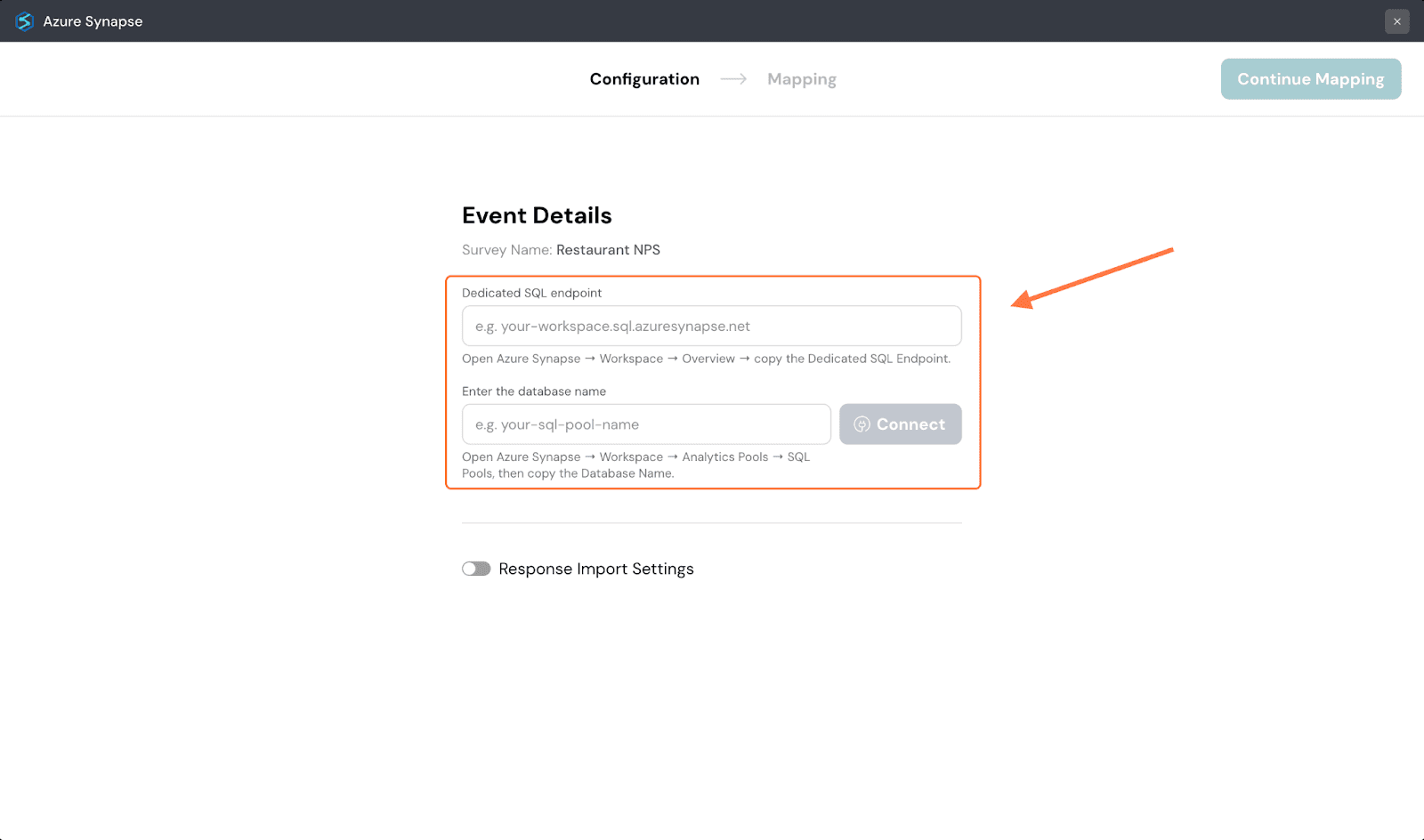
Note: You can find both items inside your Azure account, search for Azure Synapse and click on it under Services.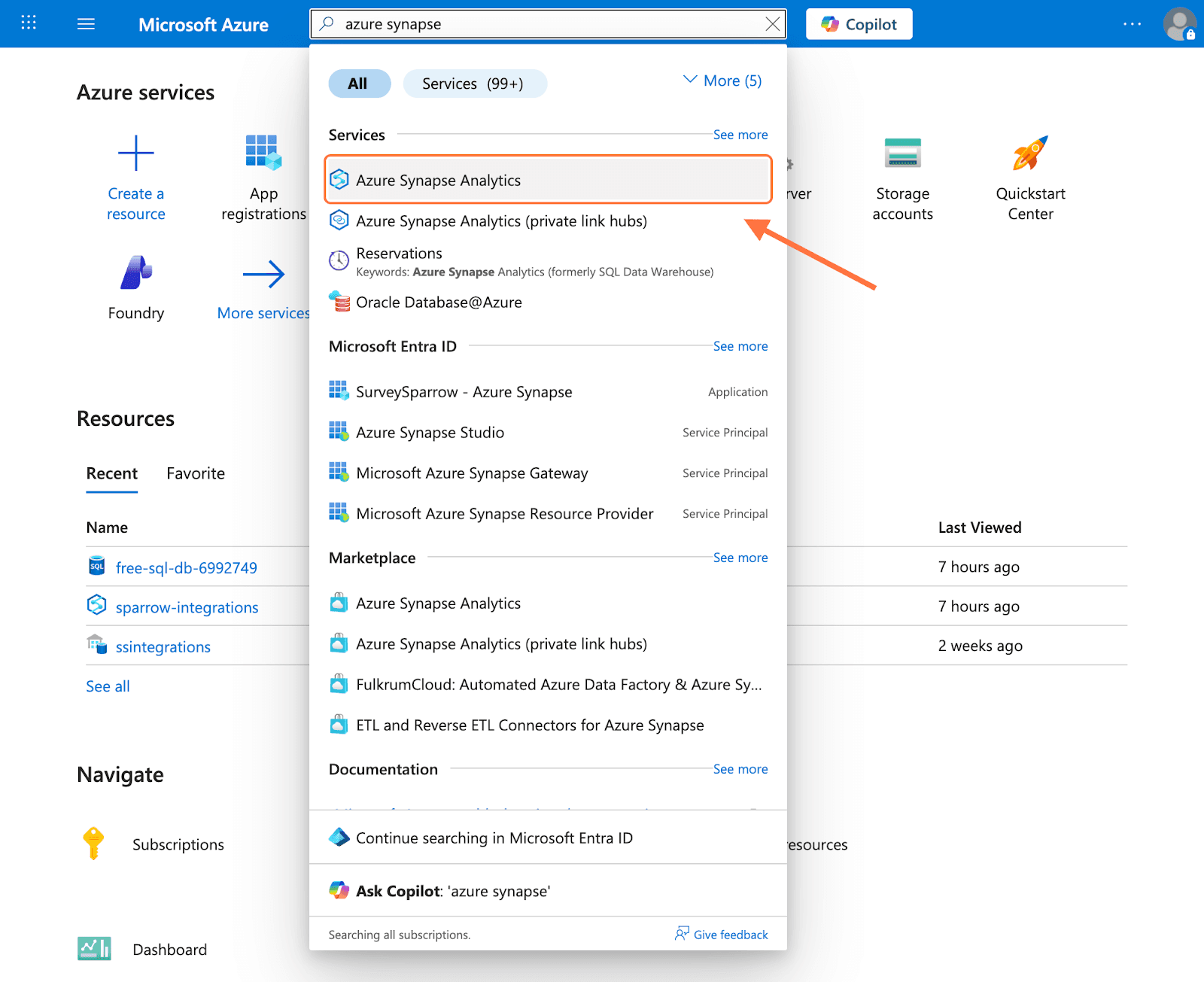
Click on the workspace within which the database sits.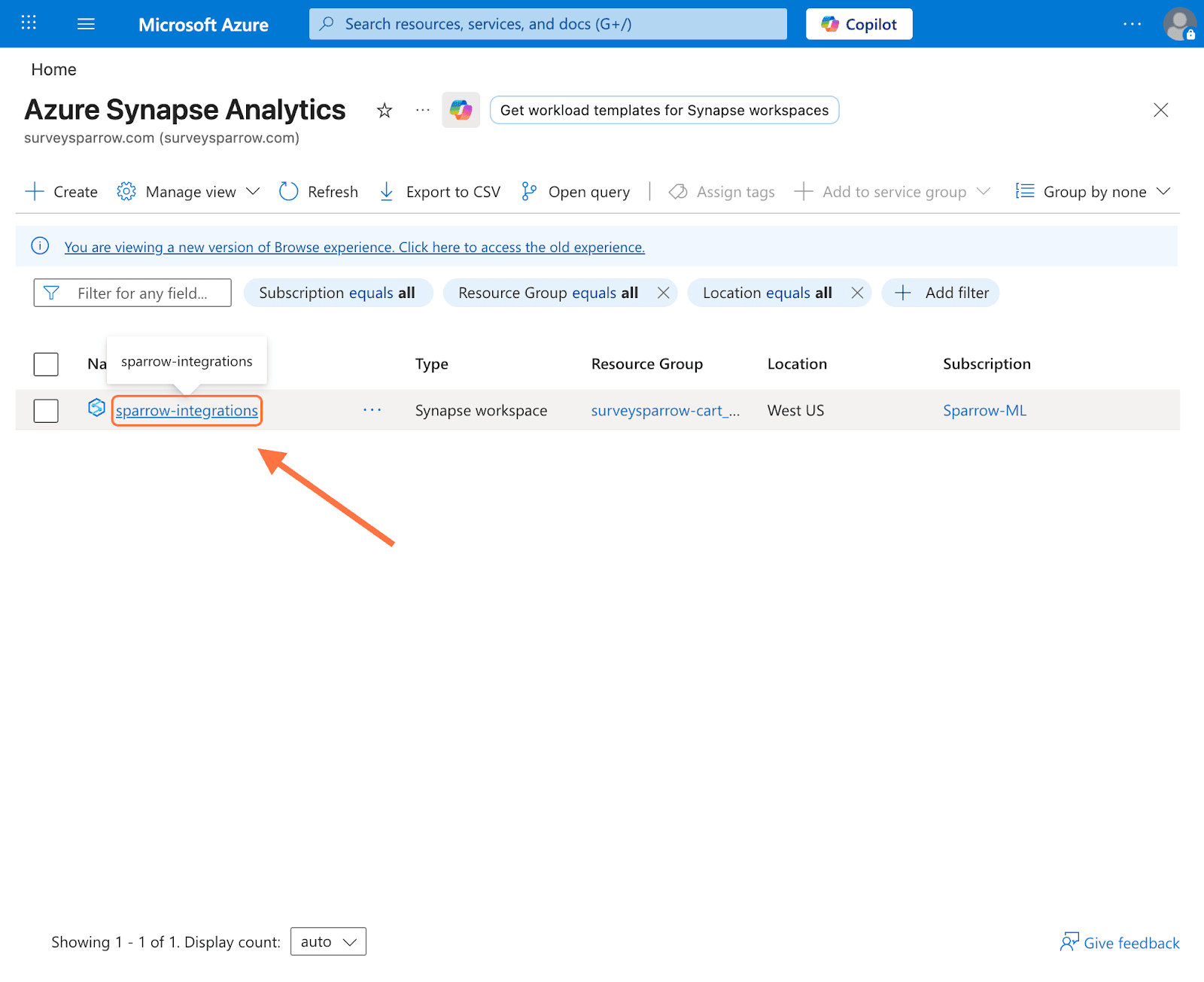
You’ll see the dedicated SQL endpoint, hover over it and click on the copy icon.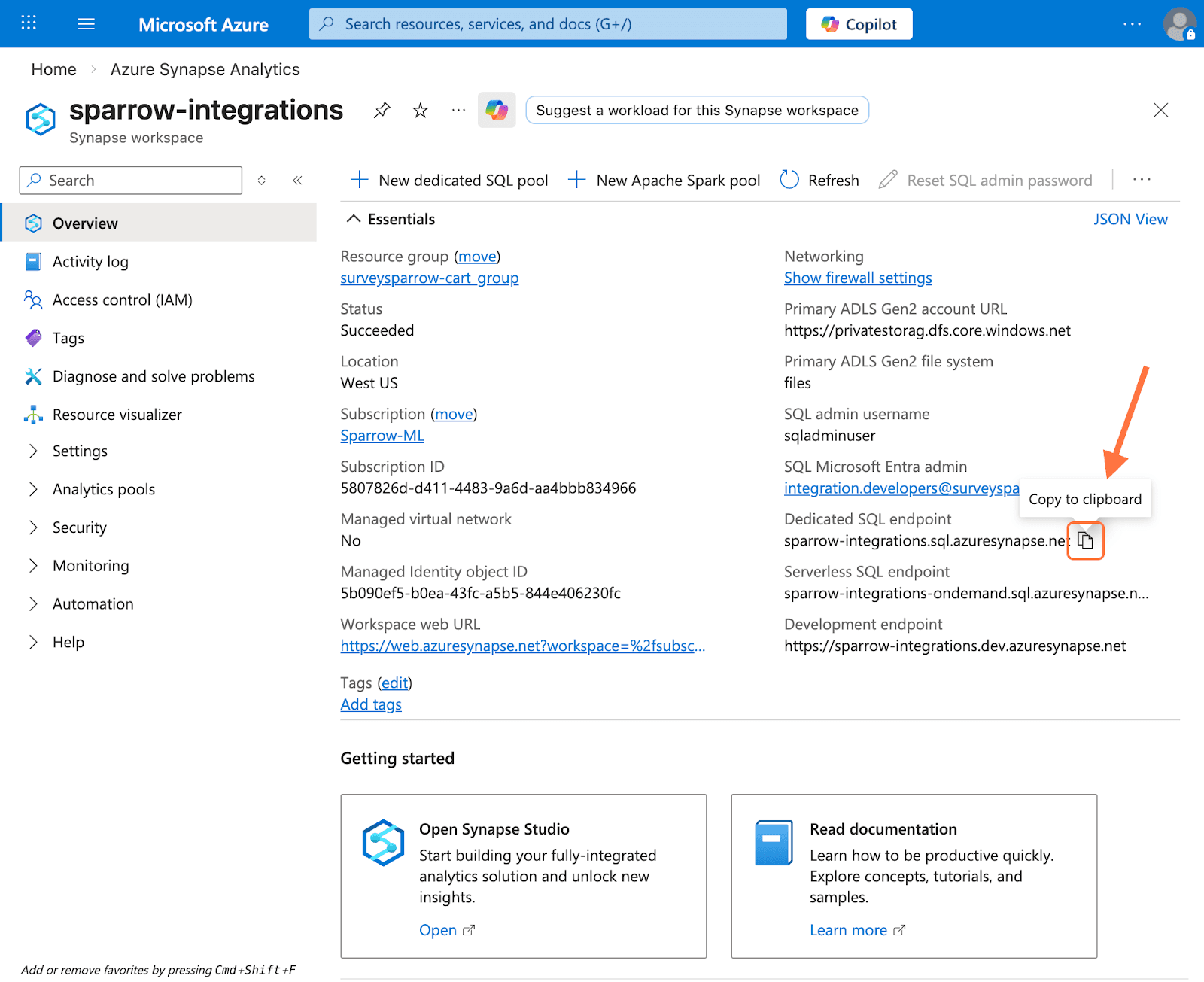
For the database name, click on Analytics pools (in the left panel) and then click on SQL pools.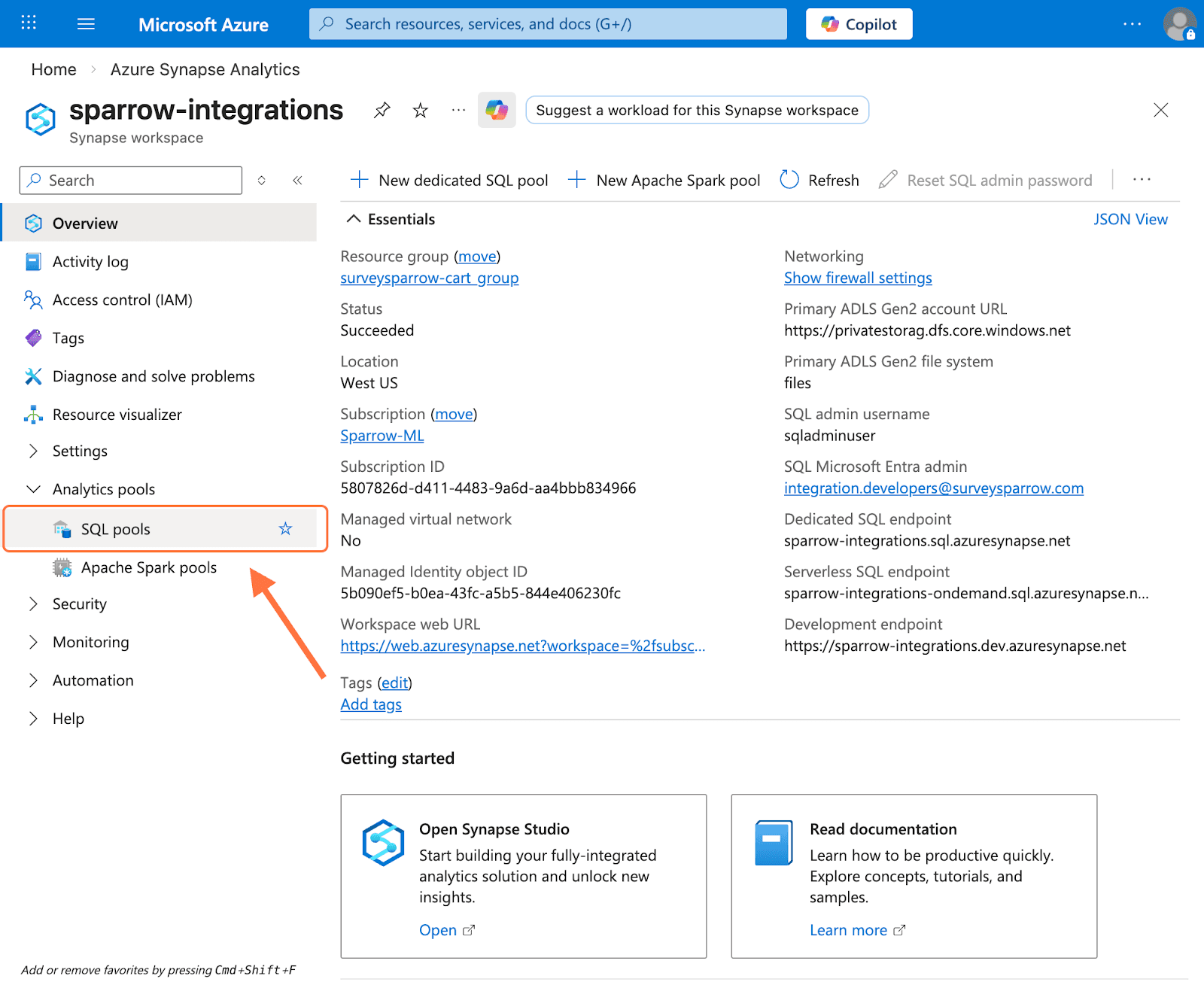
You’ll see all the databases in the SQL pools section. Copy the name of the one you want.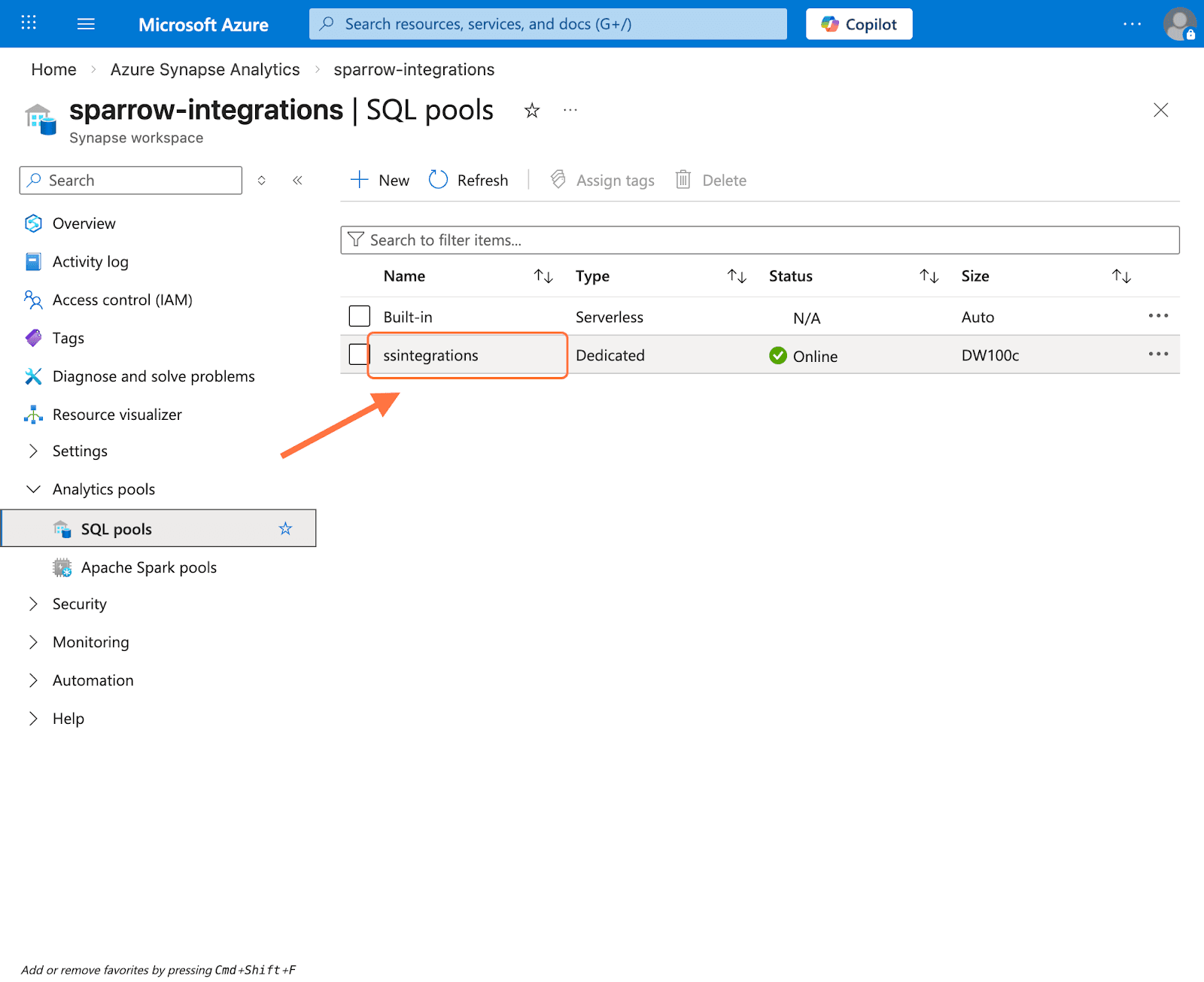
4. Once you’ve copied both details in the configuration screen, click on Connect.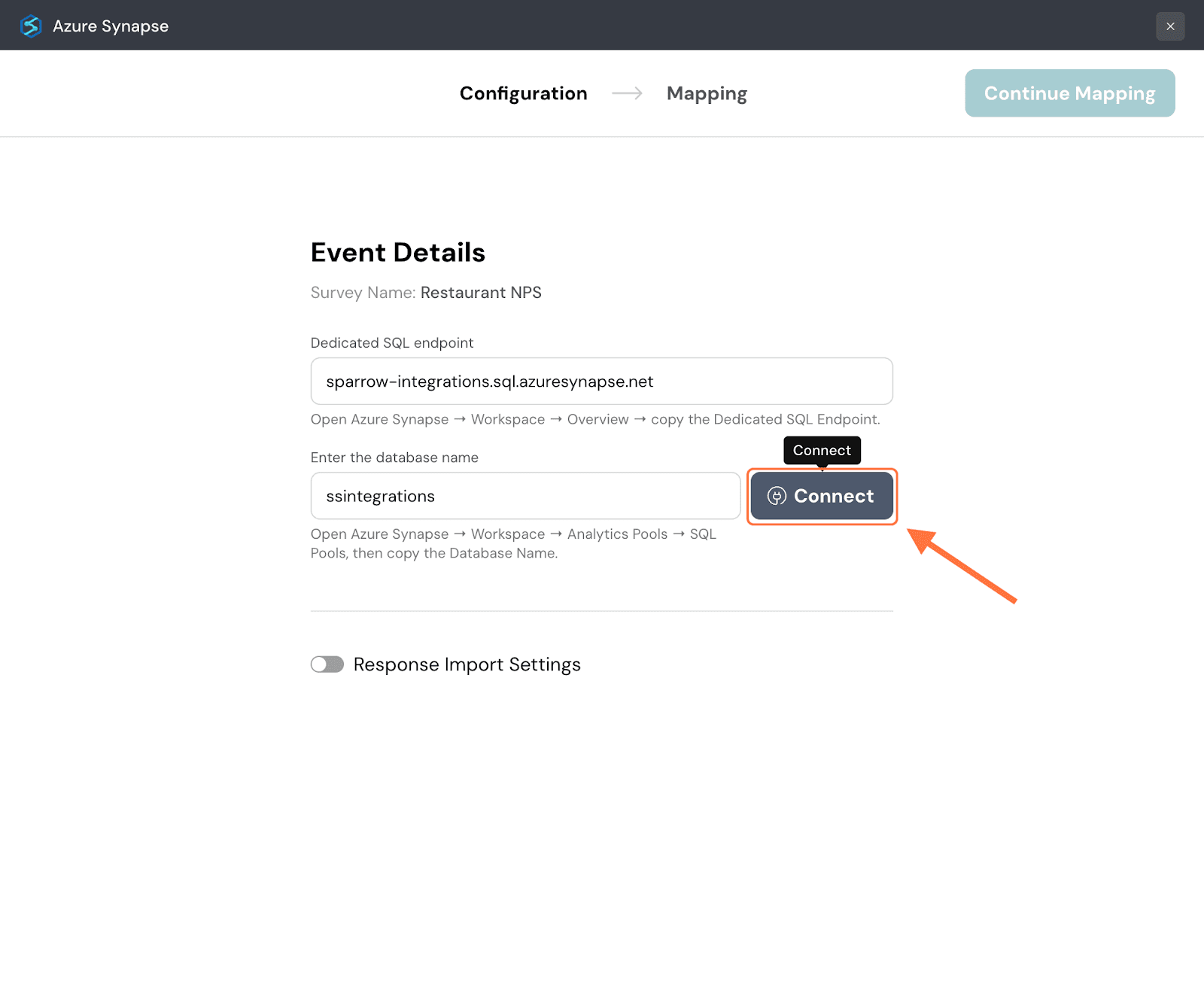
5. Click on the drop-down under Schema and choose from the options.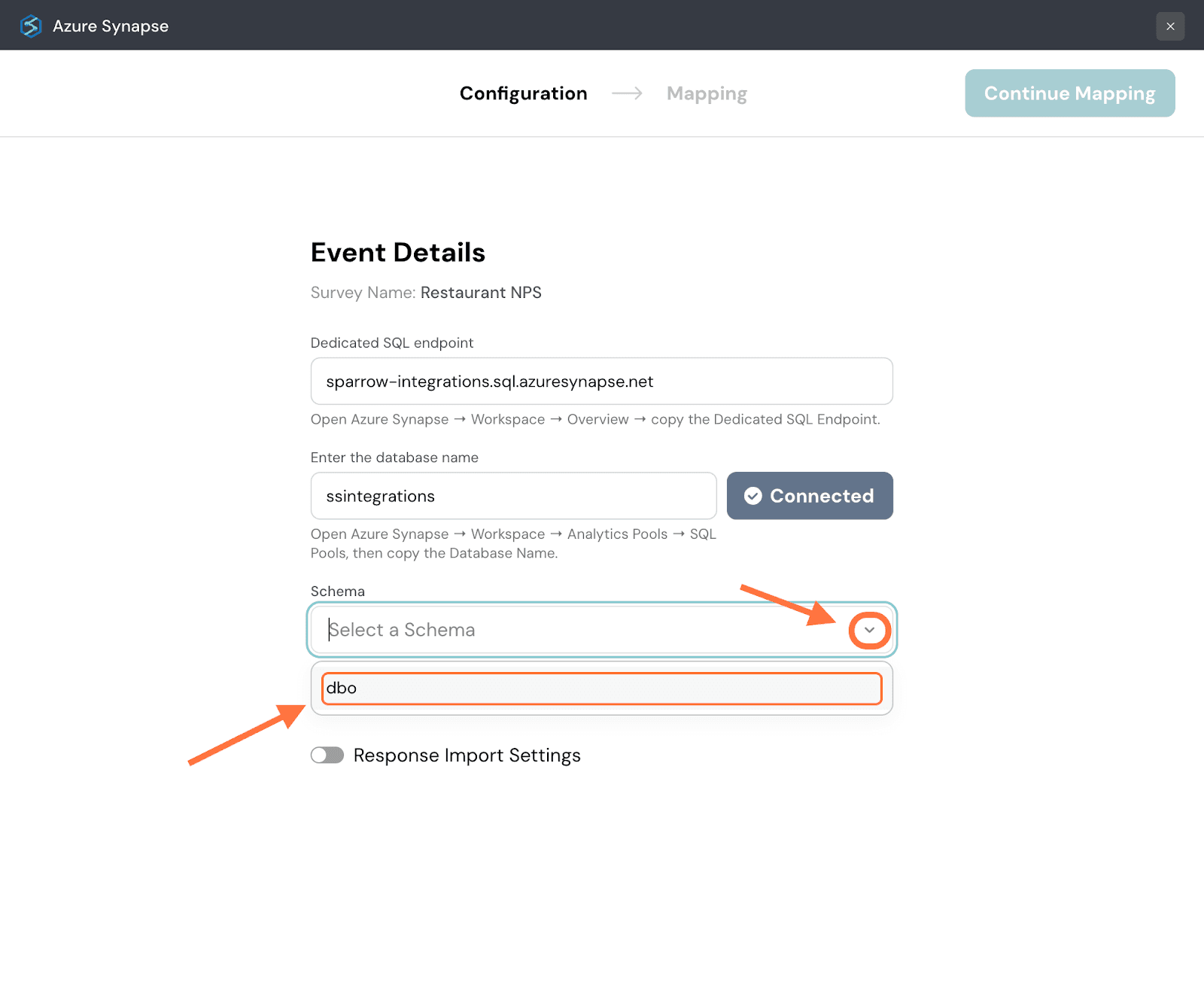
6. Now you must select the table to which you want to push the survey data. But you can either choose an existing table from the dataset or create a new one. Click on the dropdown under Action to decide. Both actions have different flows. We’ll first start with an existing table.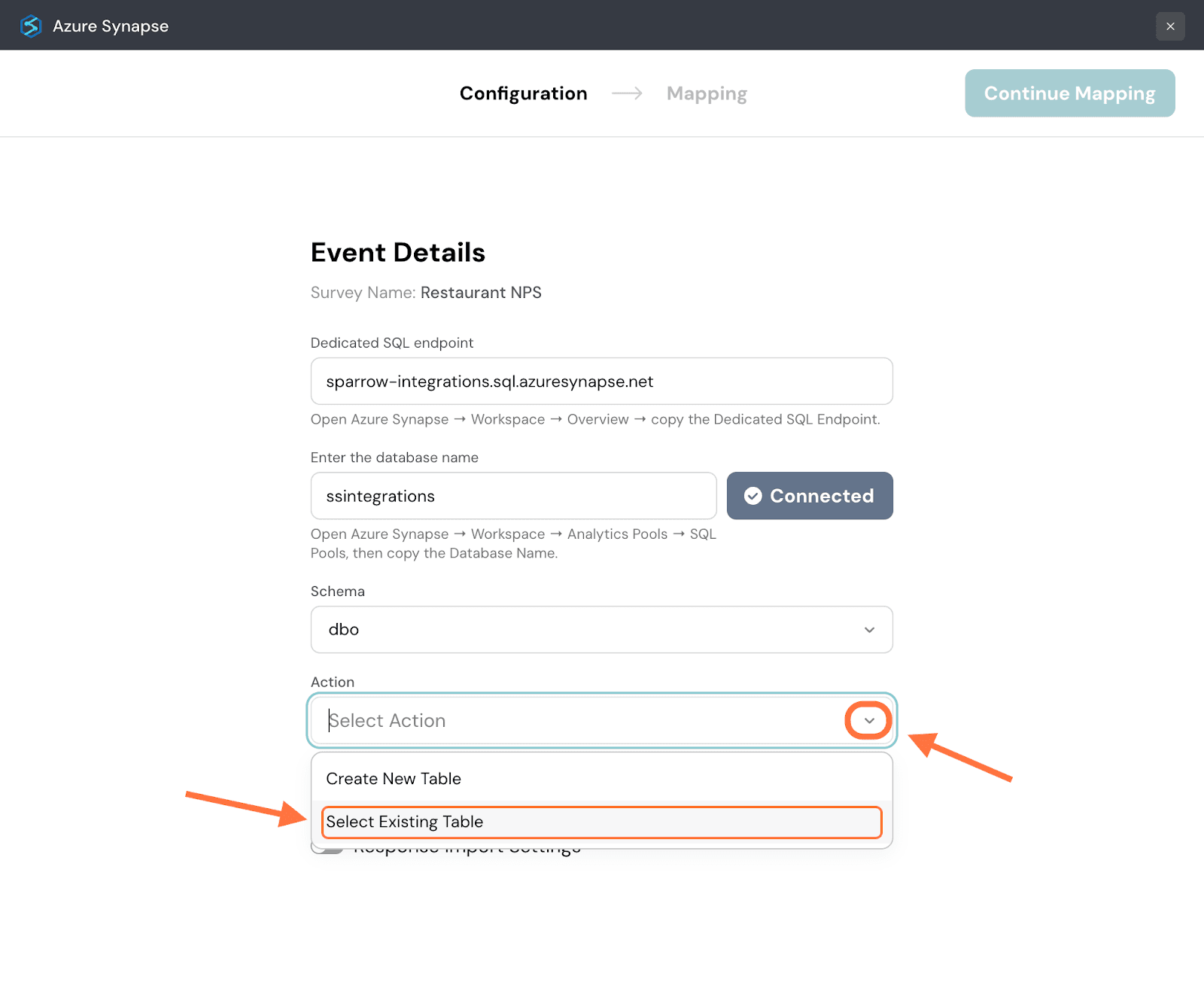
7. Next click on the drop-down button under Table and select from the options.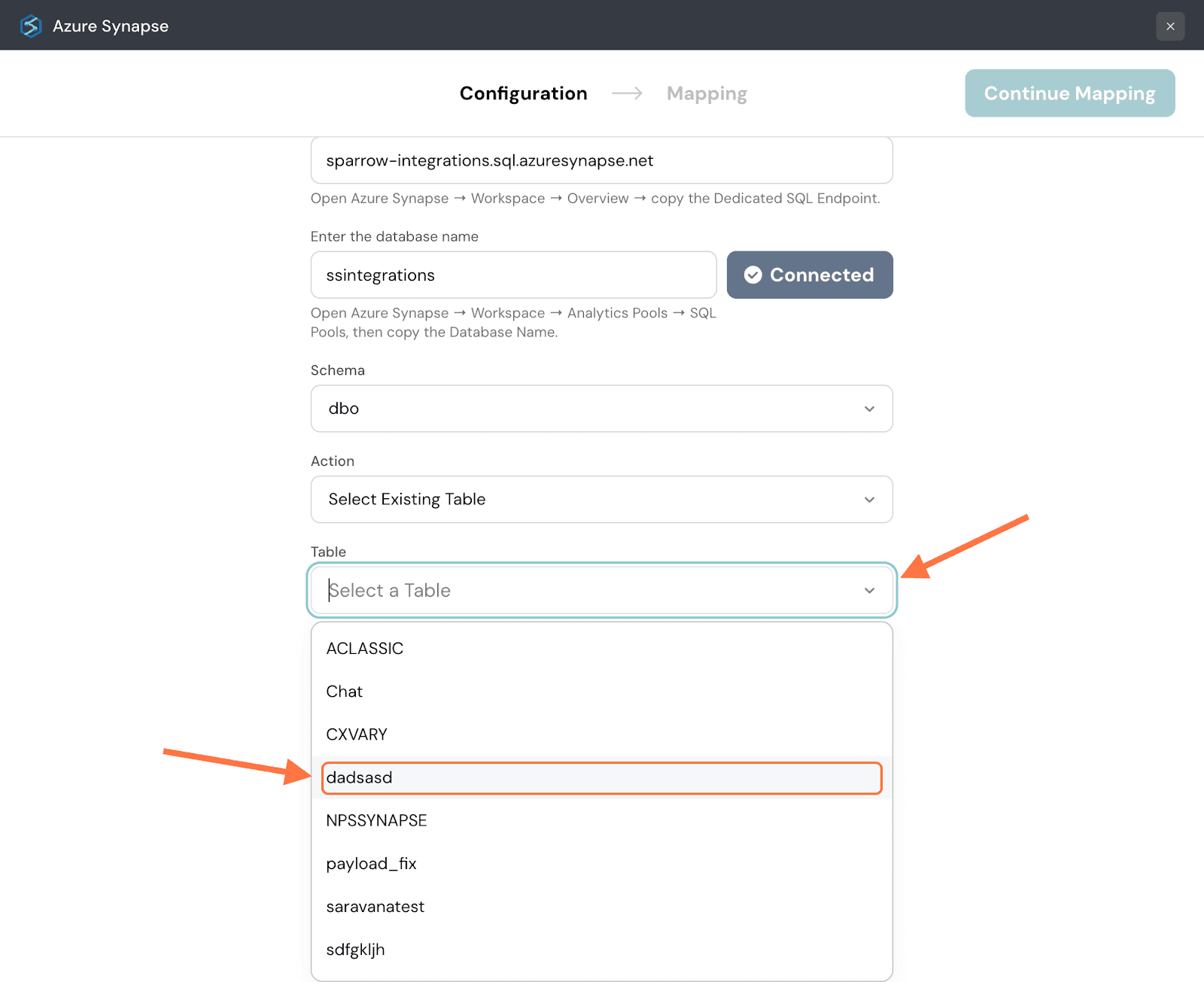
8. By default, only new responses are imported. If you want to only import responses from a specific date, click on the toggle next to Response Import Settings.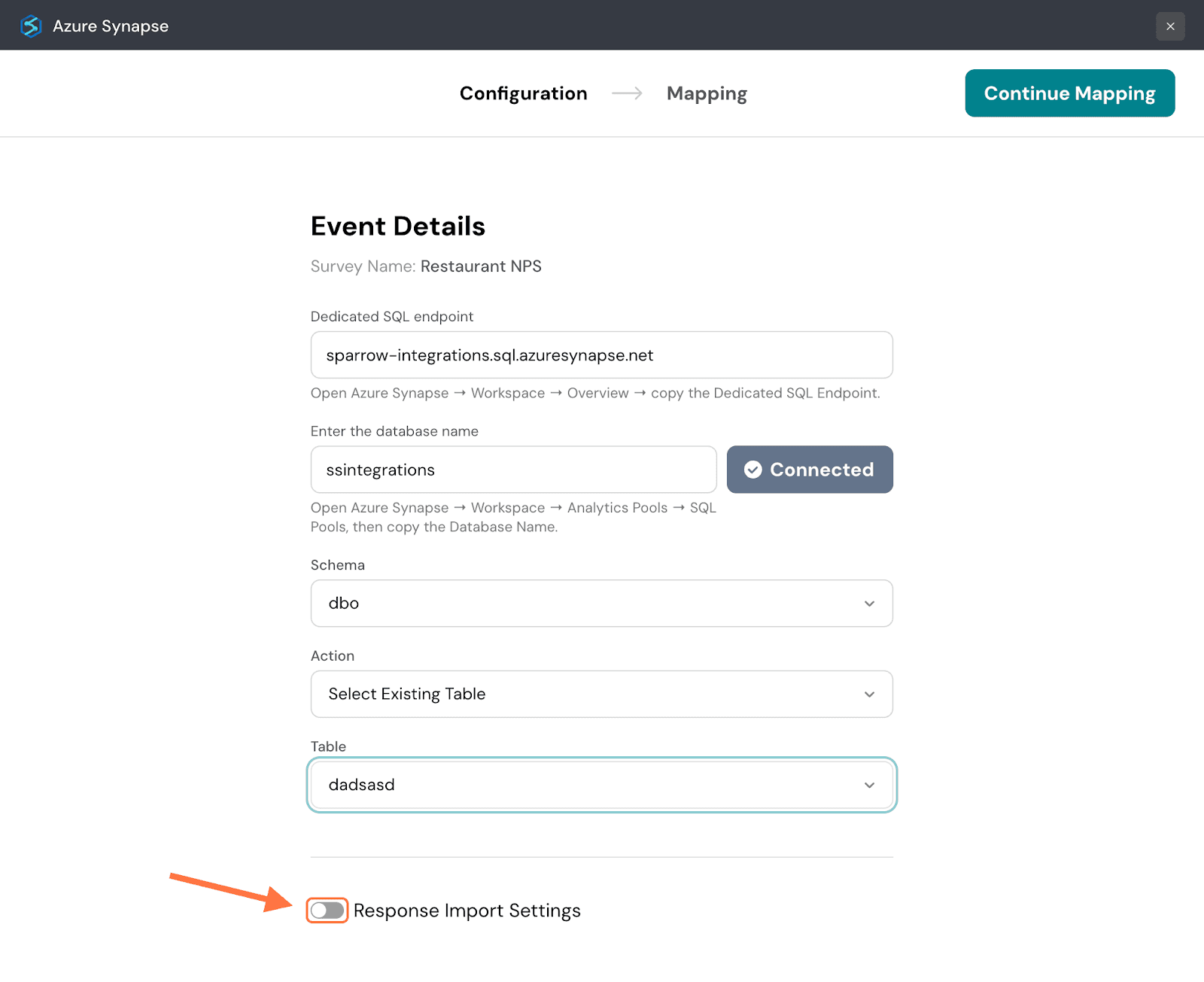
9. When you hover over the Specific Date option, a calendar will appear. Choose a date, then click on Apply.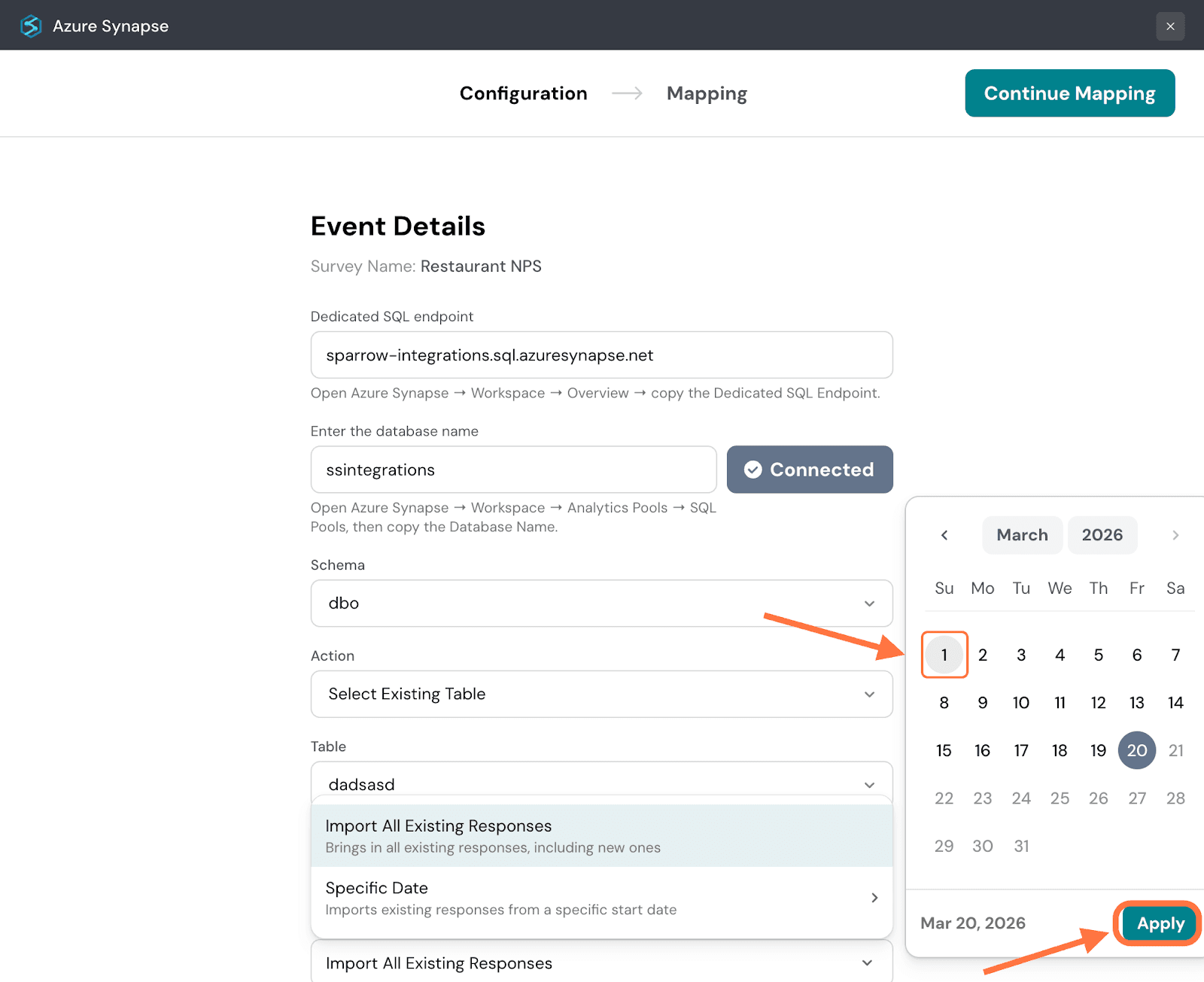
10. Click on Continue Mapping.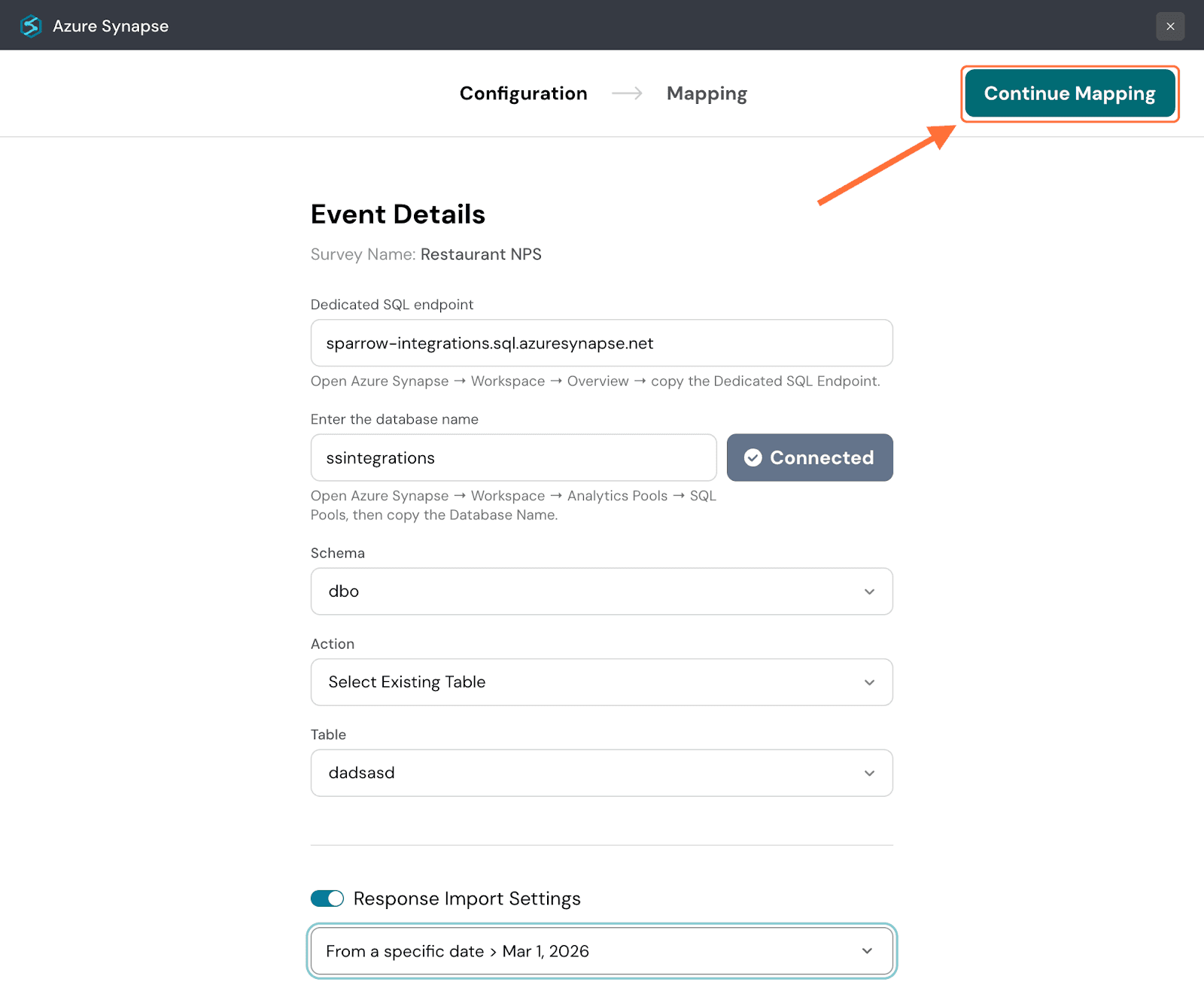
11. Now in the Mapping section, you need to configure which response properties are going to Azure Synapse. First you can set conditions to decide which type of response gets synced to Azure Synapse. Click on Set Conditions.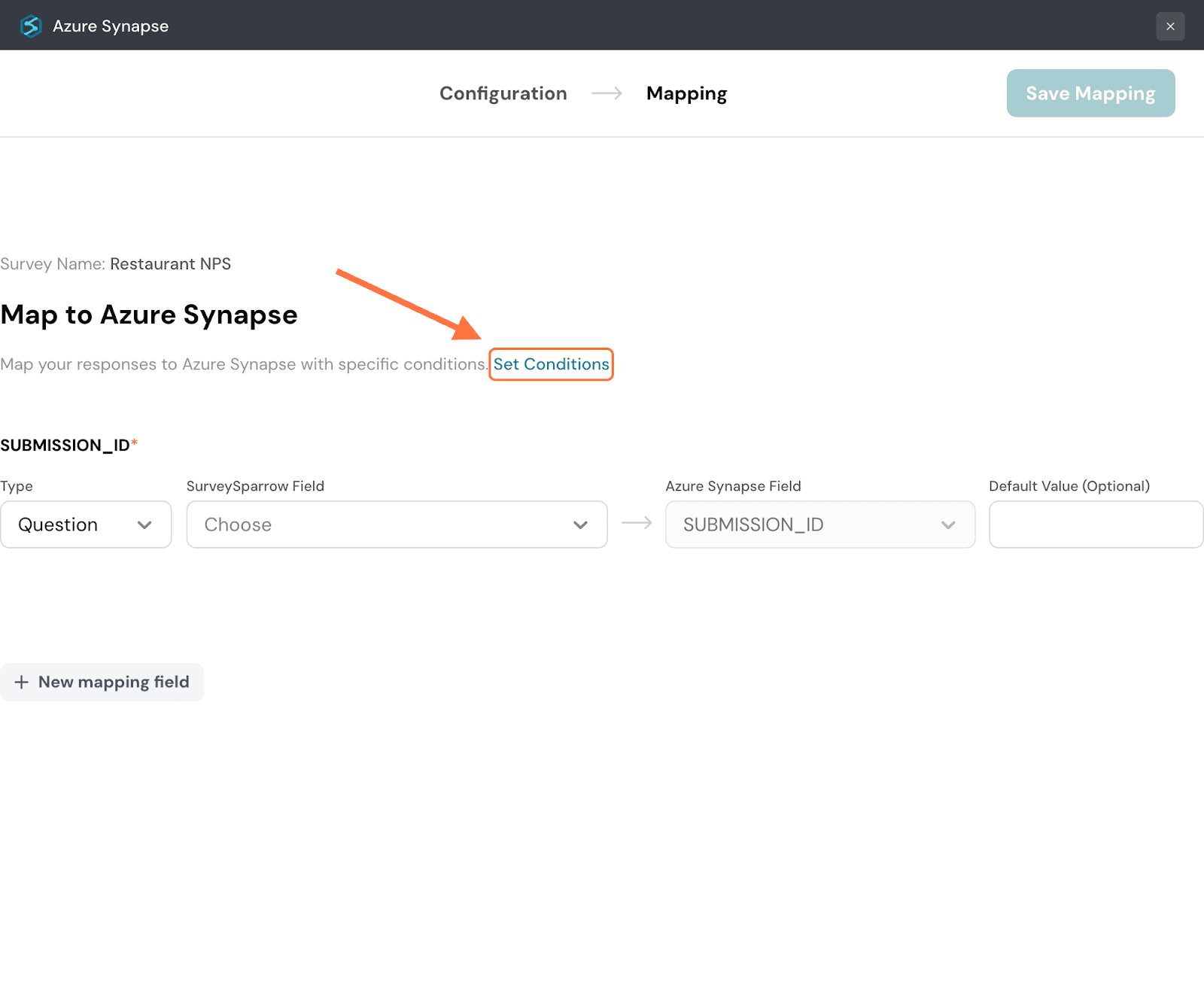
12. In the condition setting modal, you can set a conditional logic for the conditions: either any or all. The default setting is any, but if you’d like to change the logic, click on the drop-down next to it.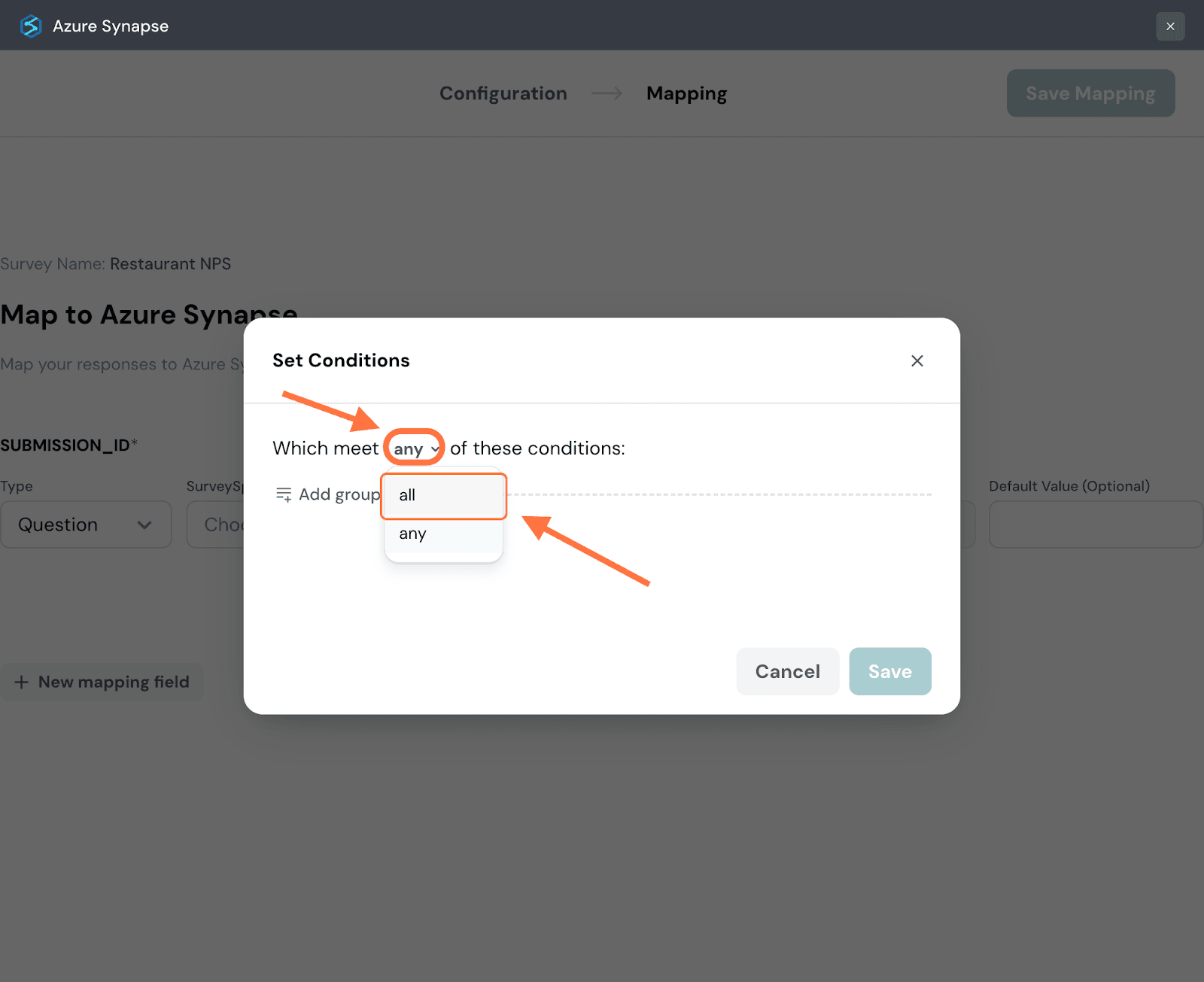
13. To add conditions, click on Add Group.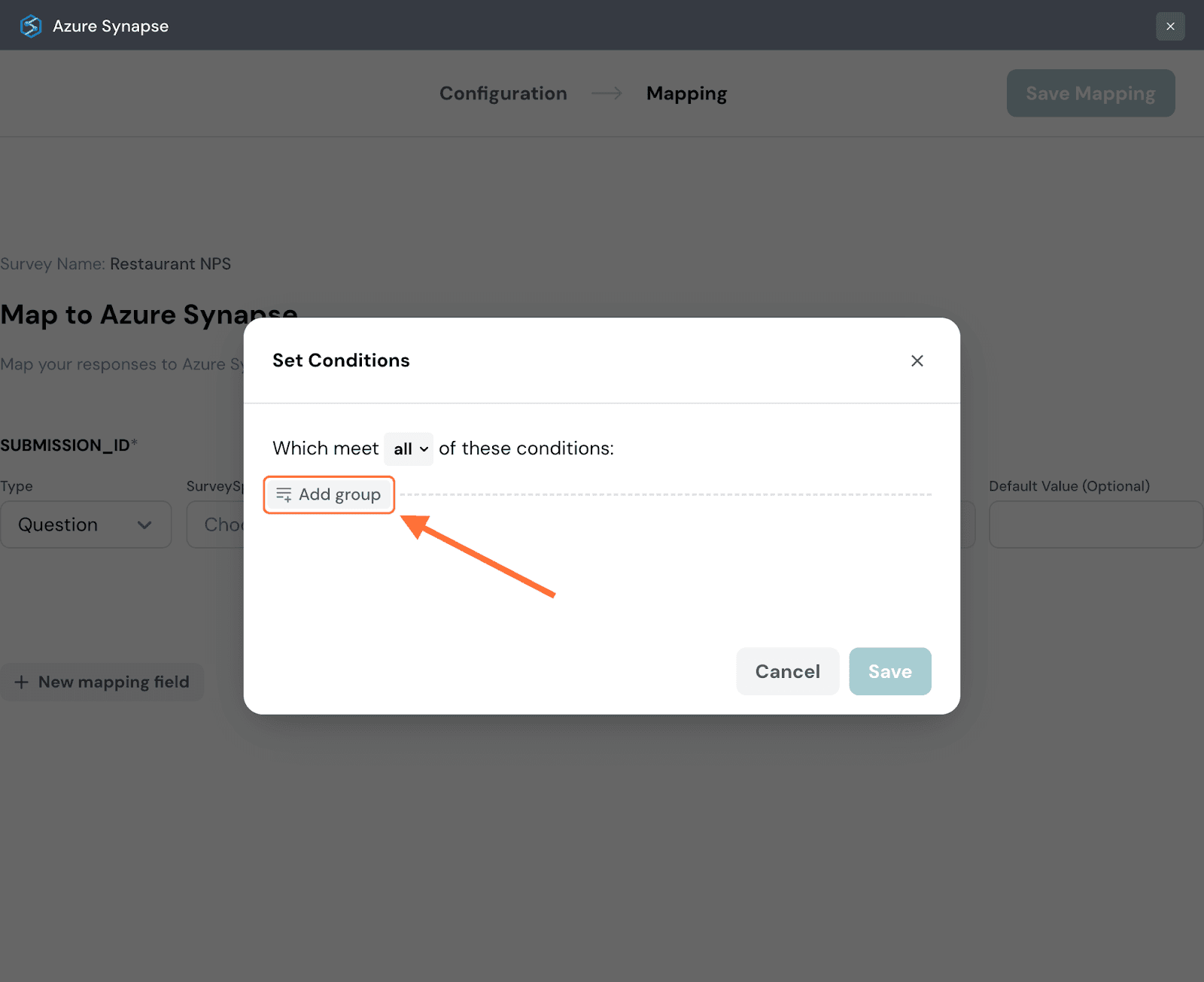
14. Choose a category of data from the drop-down menu to which the condition must apply. For this instance, let’s go with a question.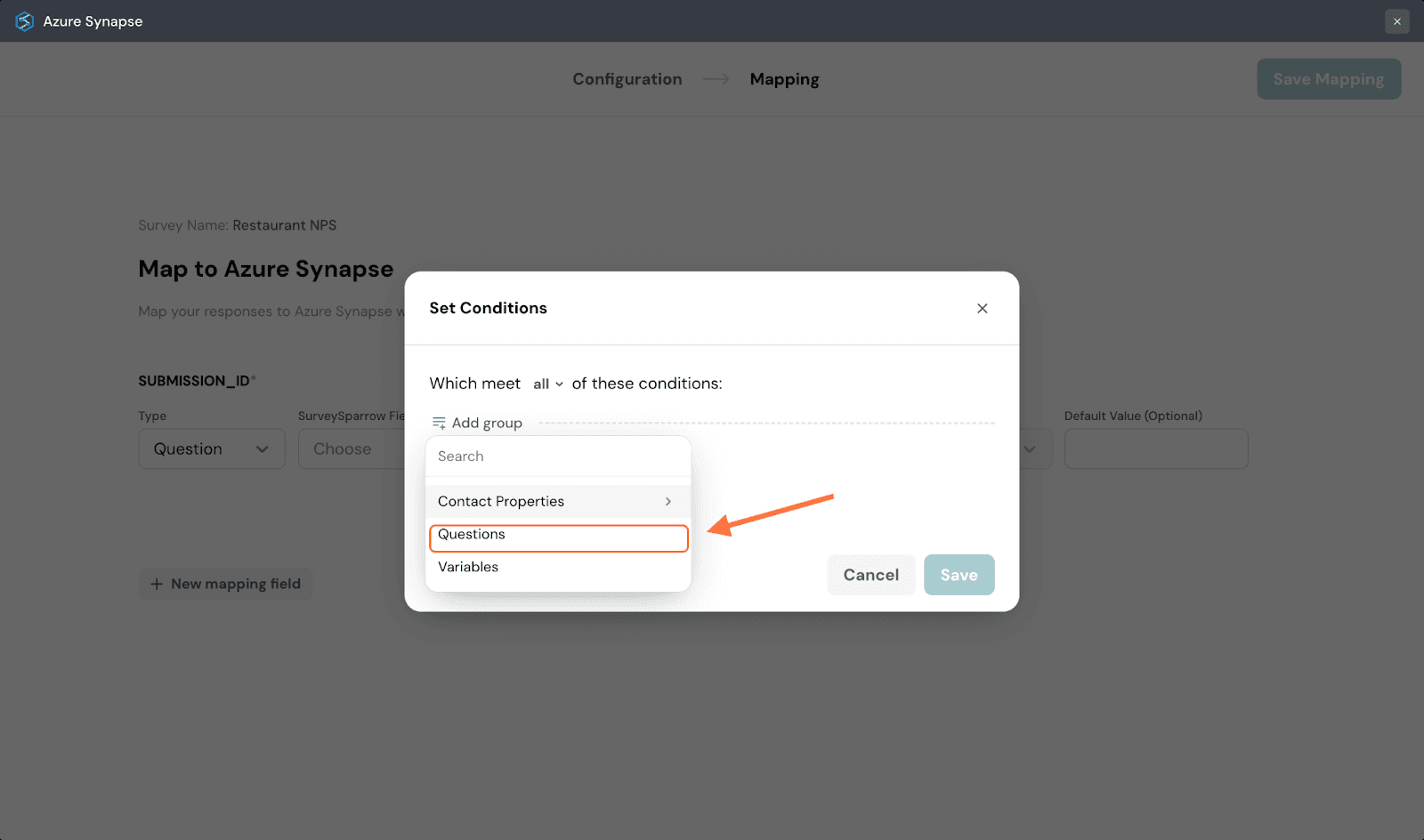
15. Choose a particular item from that category, in this instance a question.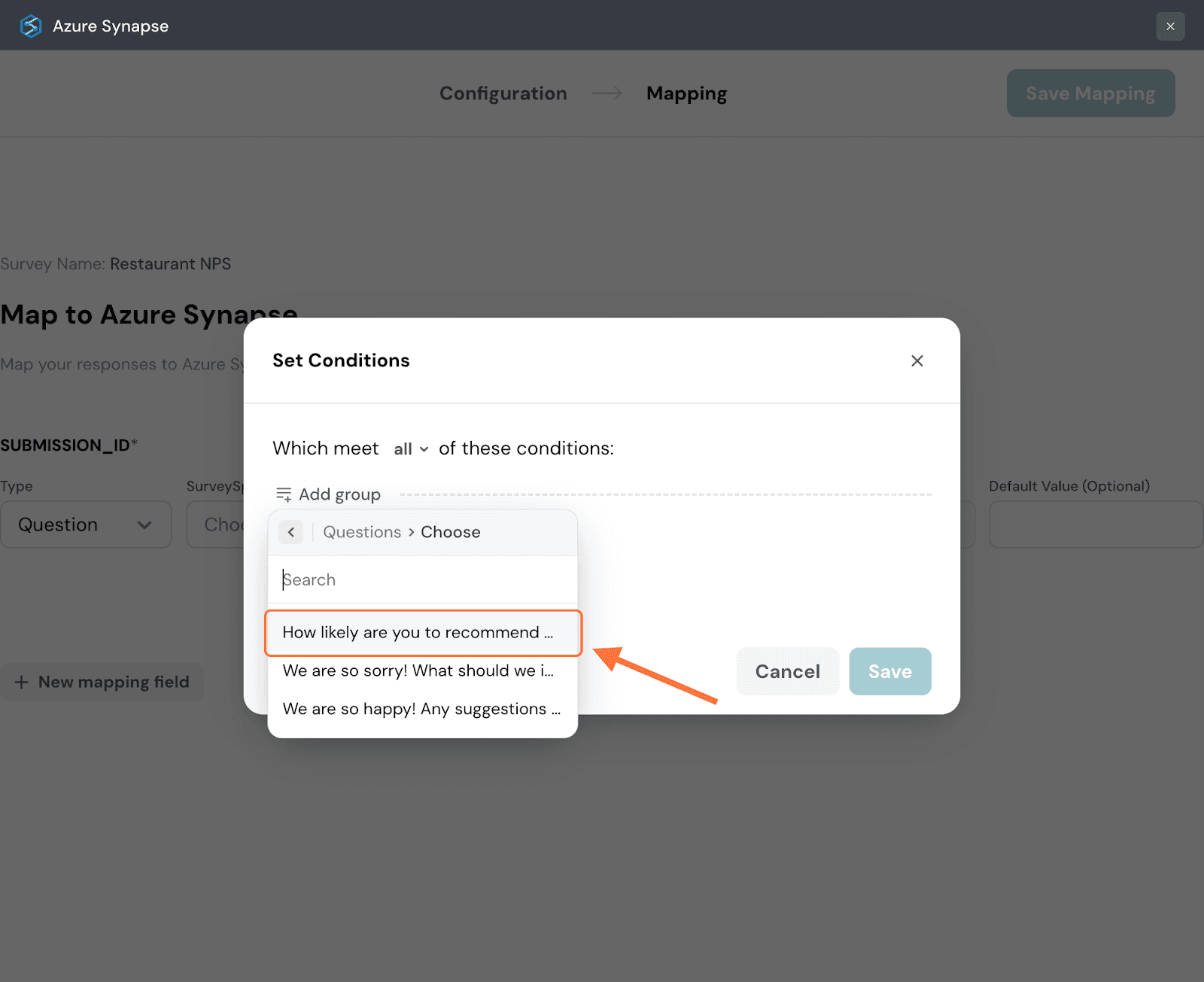
16. Click on Choose Condition to start defining the condition.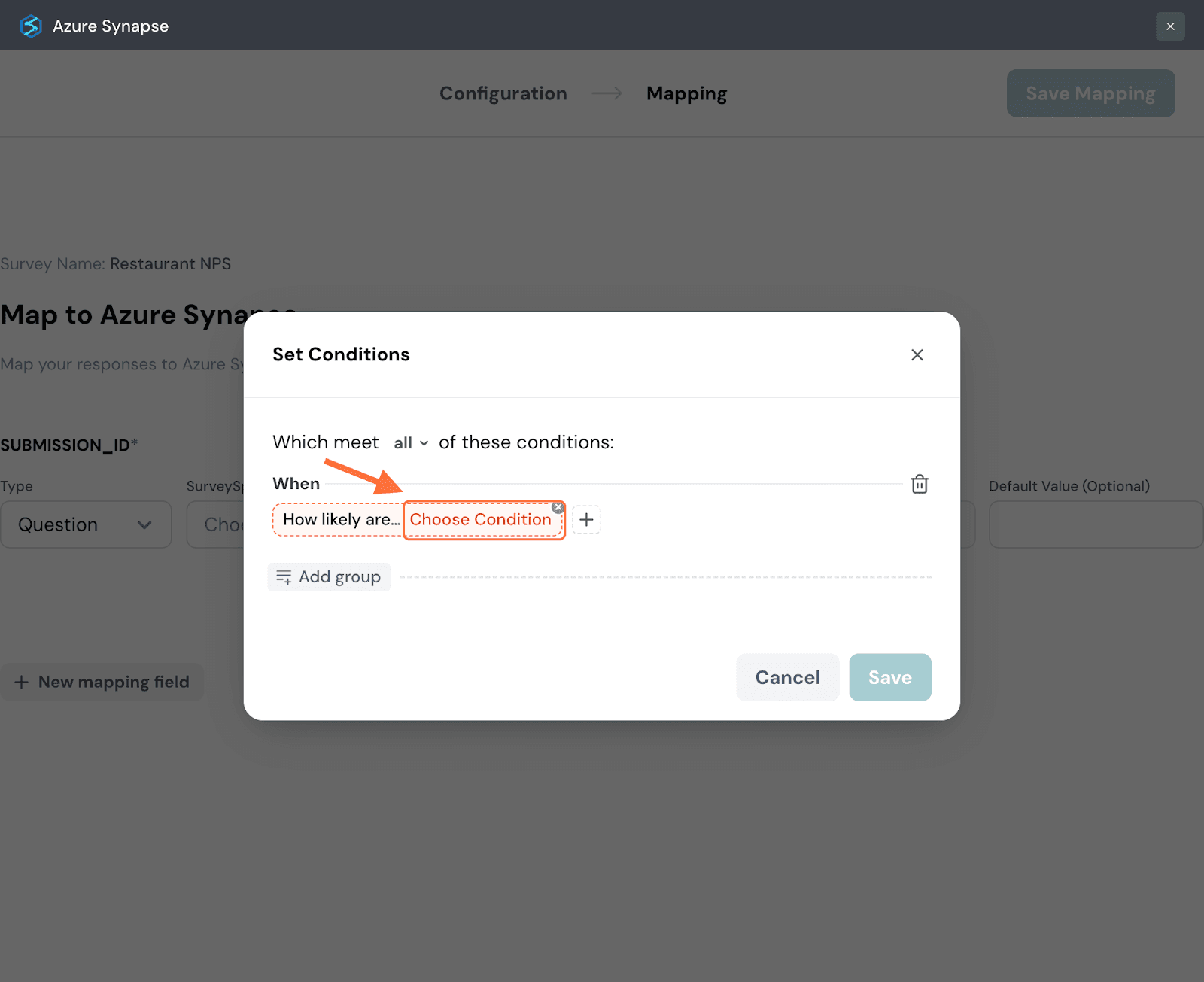
17. A list of comparison operators appears, choose one.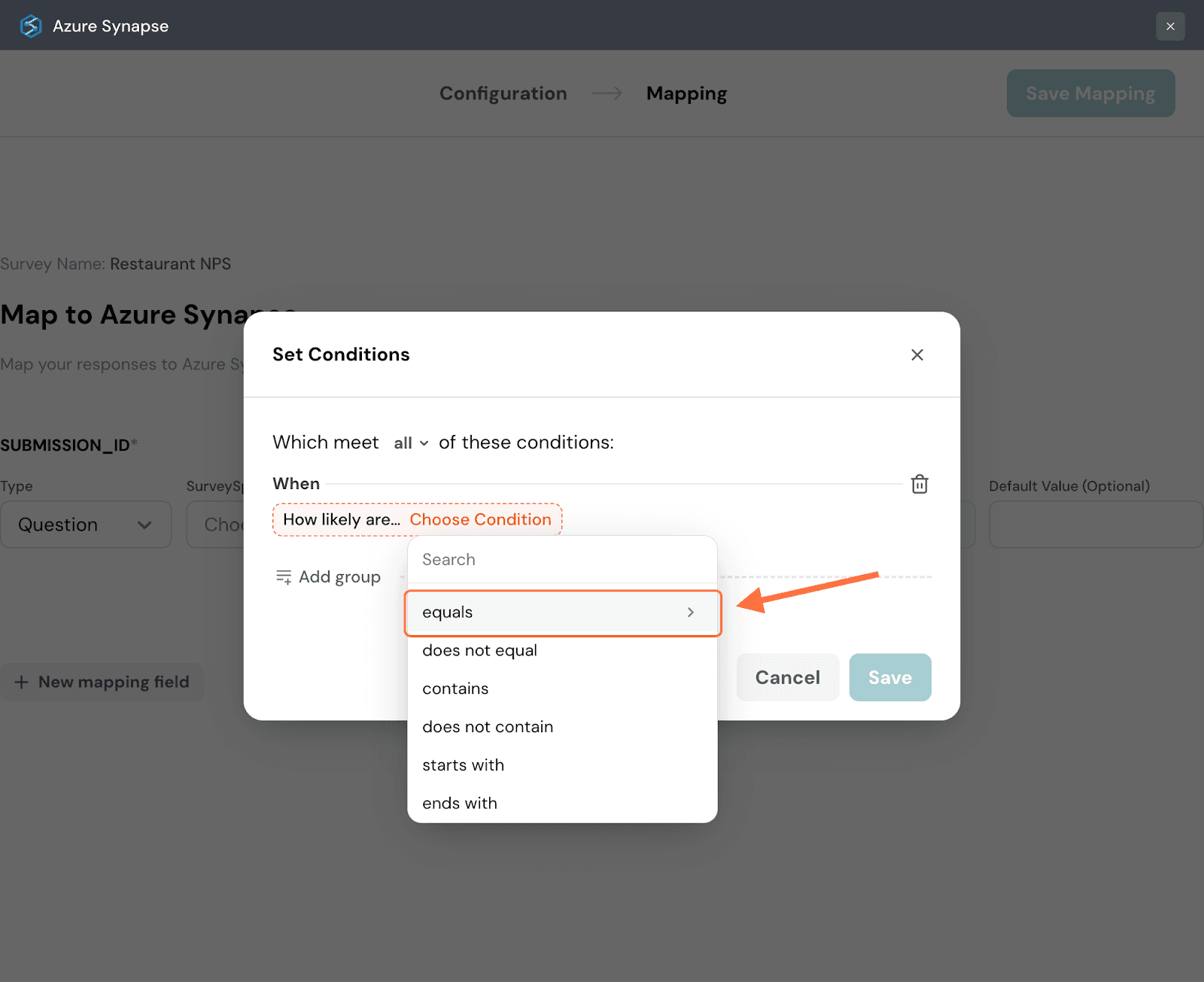
18. Input a value for the data to be tested against and then click Apply.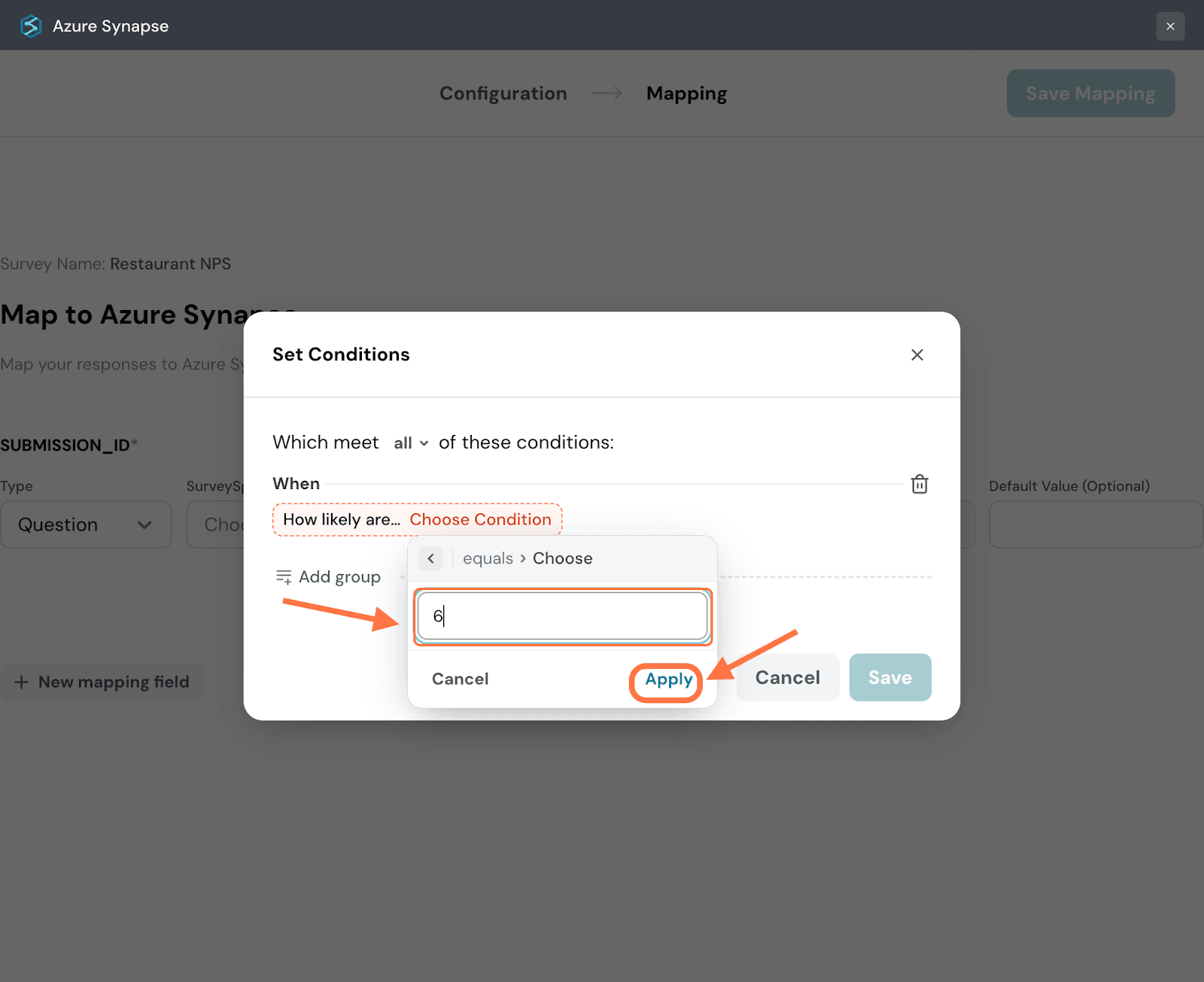
19. You can turn a condition into a group of conditions by hovering near it and then clicking on the plus icon that appears to the right. Repeat the same steps as above to create another condition.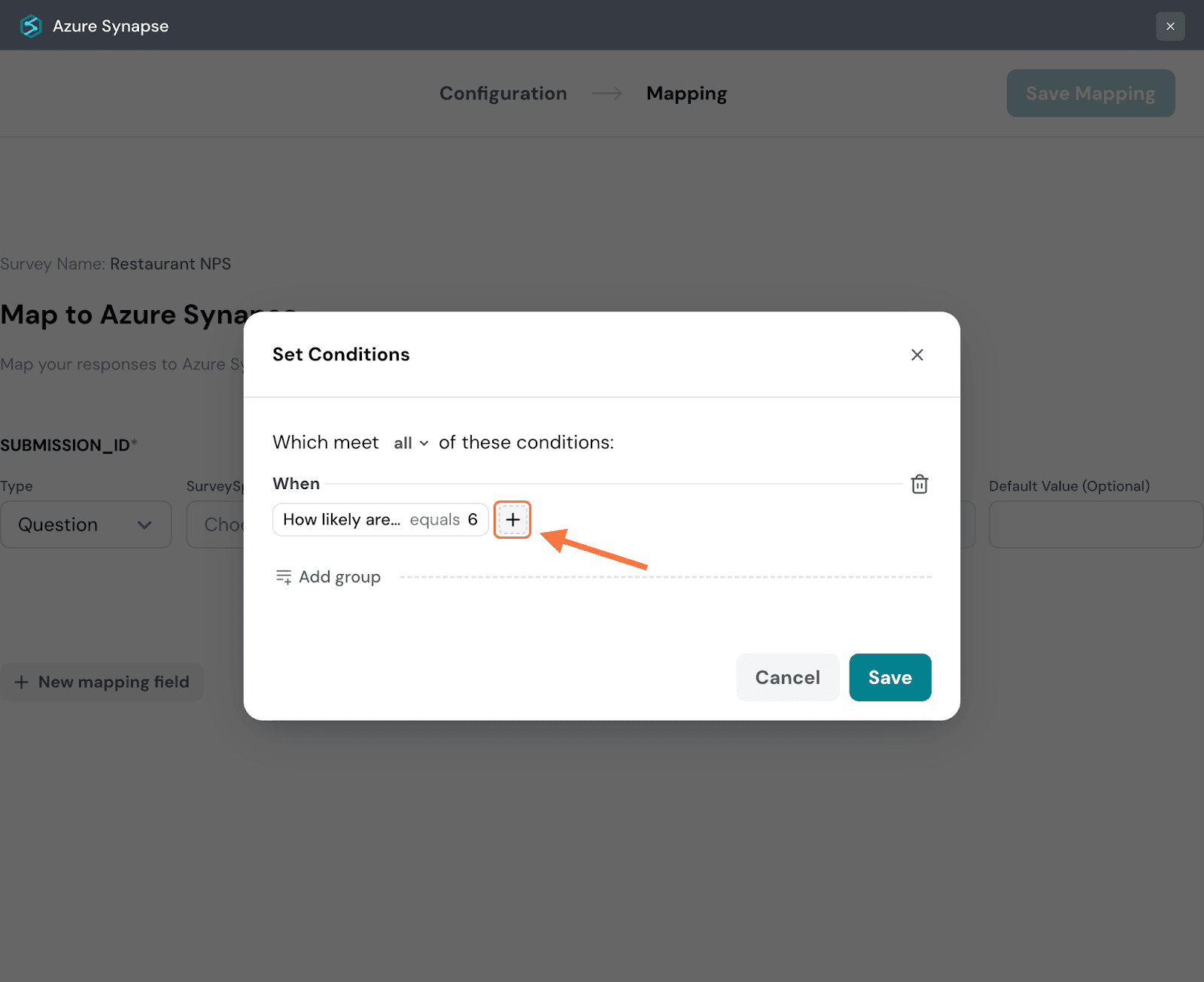
20. Within a group of conditions you can set conditional logic: and/or. The default is and, but if you’d like to change it, click on the drop-down.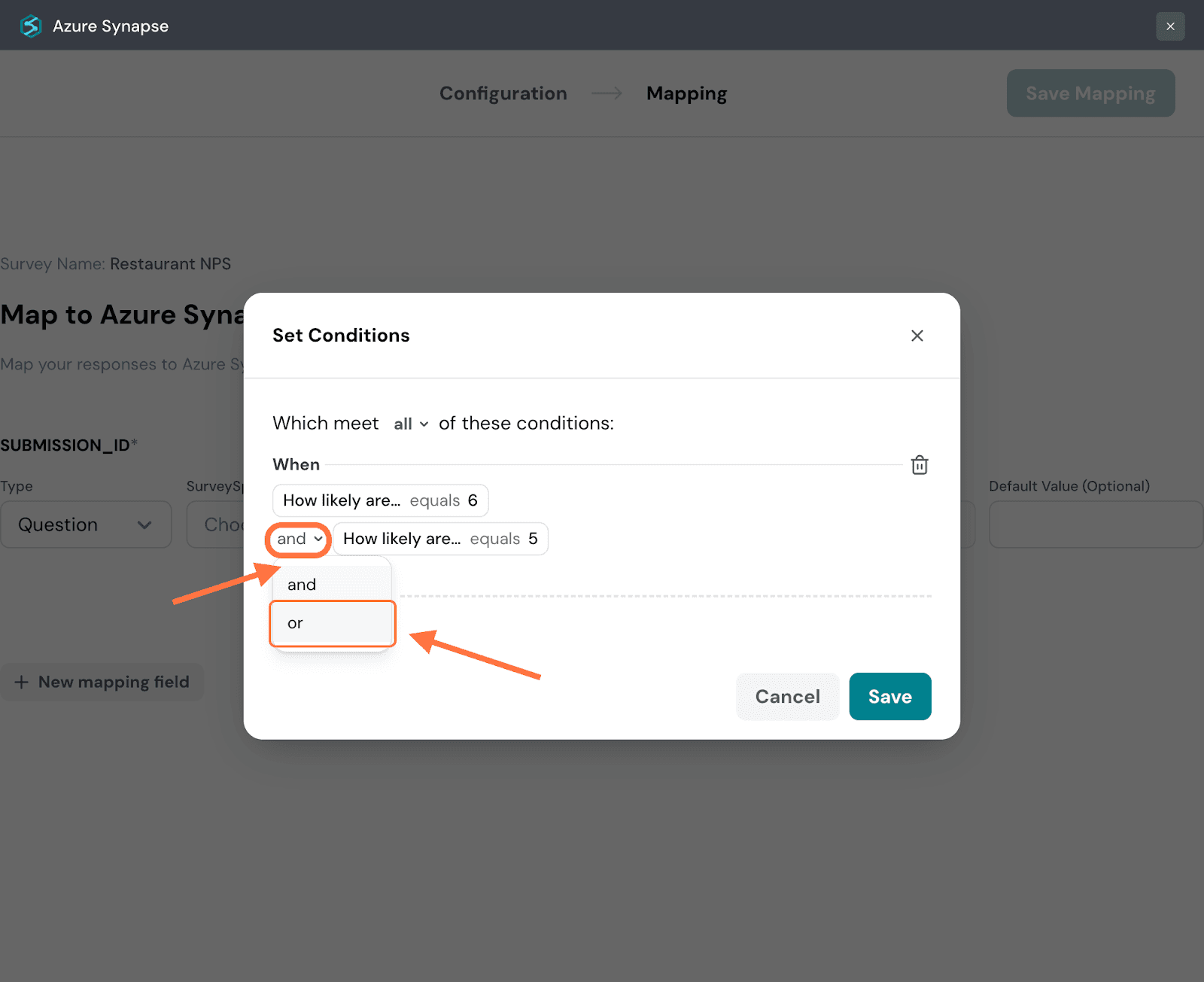
21. Click on Add Group to add more conditions/condition groups. When you’re done, click Save.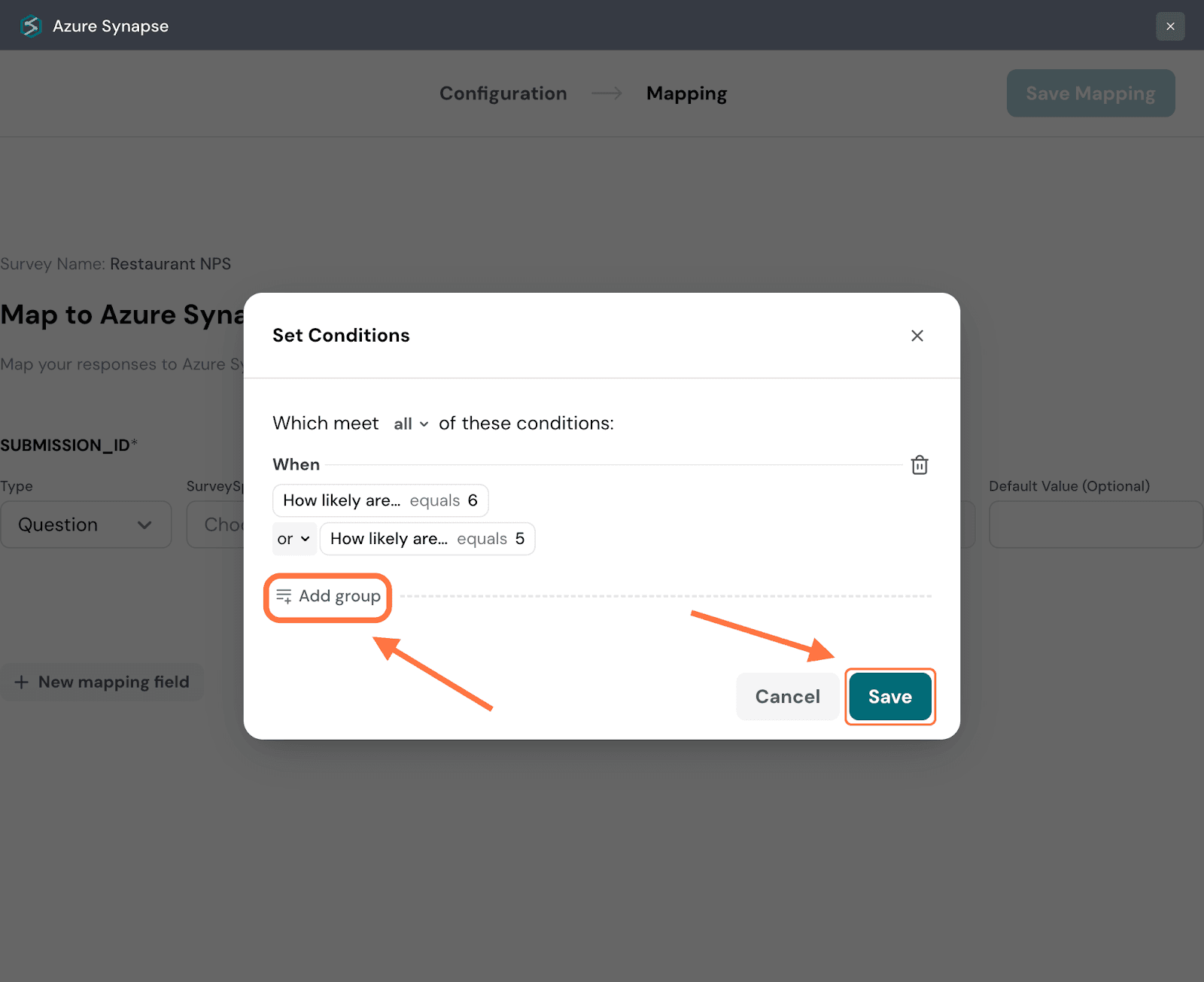
22. The first step of creating a mapping is to first map a response property to the SUBMISSION_ID field in Azure Synapse. This is mandatory. The default property type is a question, but you can change it by clicking on the drop-down and choosing from the options.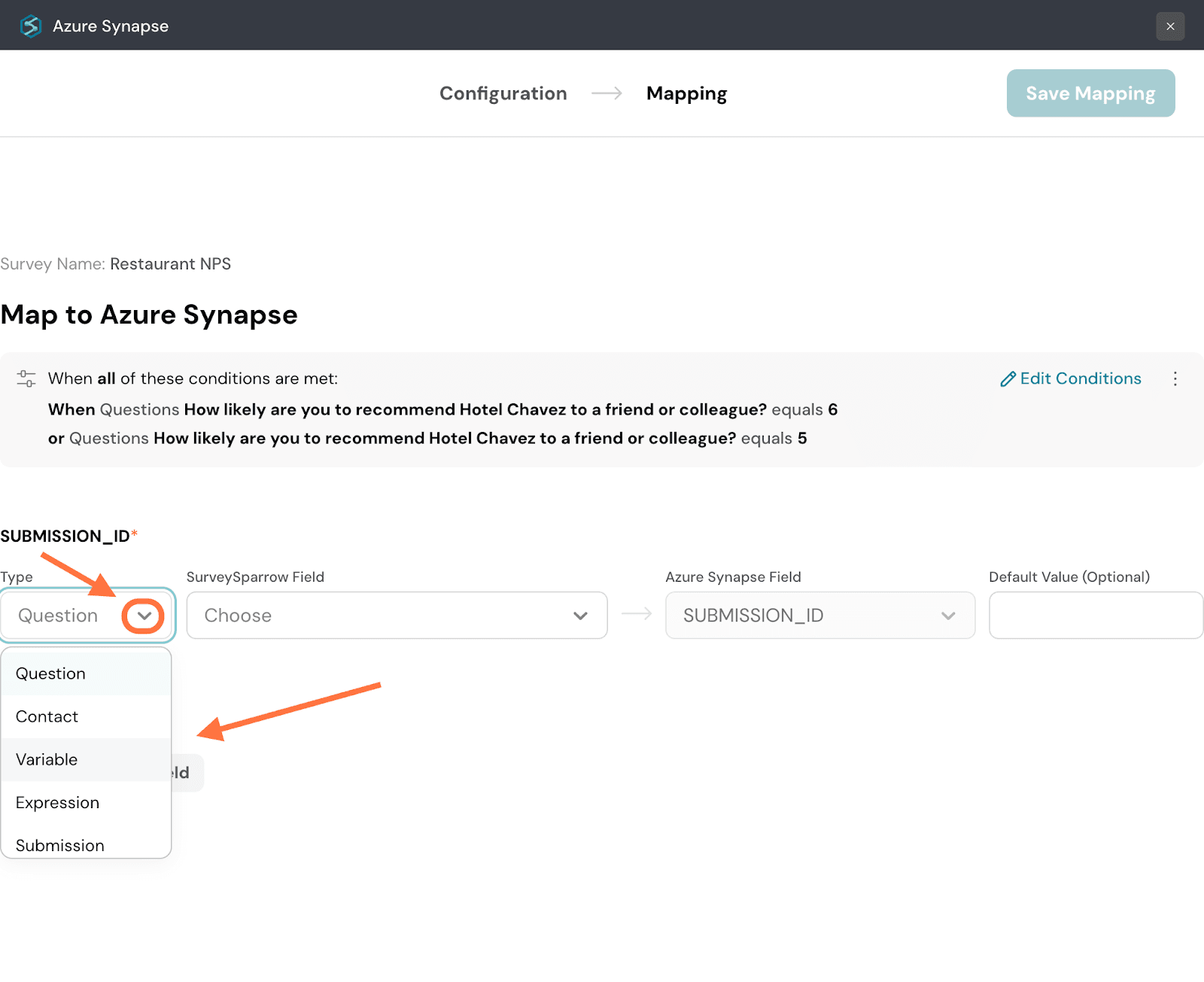
23. Next, you must choose a particular item of that property type that you’ve already created for the survey. Click on the drop-down menu under SurveySparrow Field and choose from the options.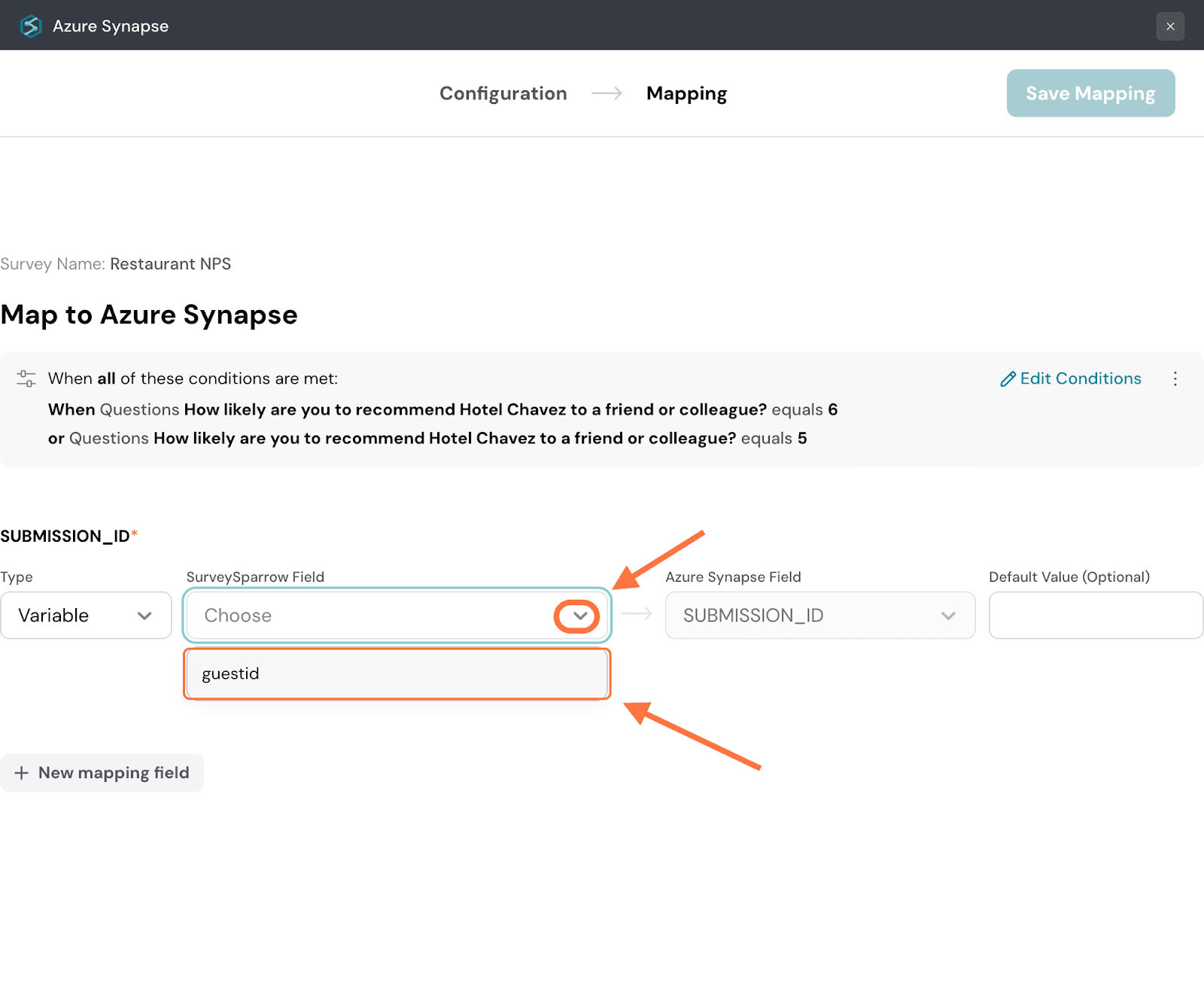
24. If a particular response has no data for the chosen property, the Azure Synapse field will remain empty. But you can choose to fill in a default value that will be filled in as a substitute for such situations.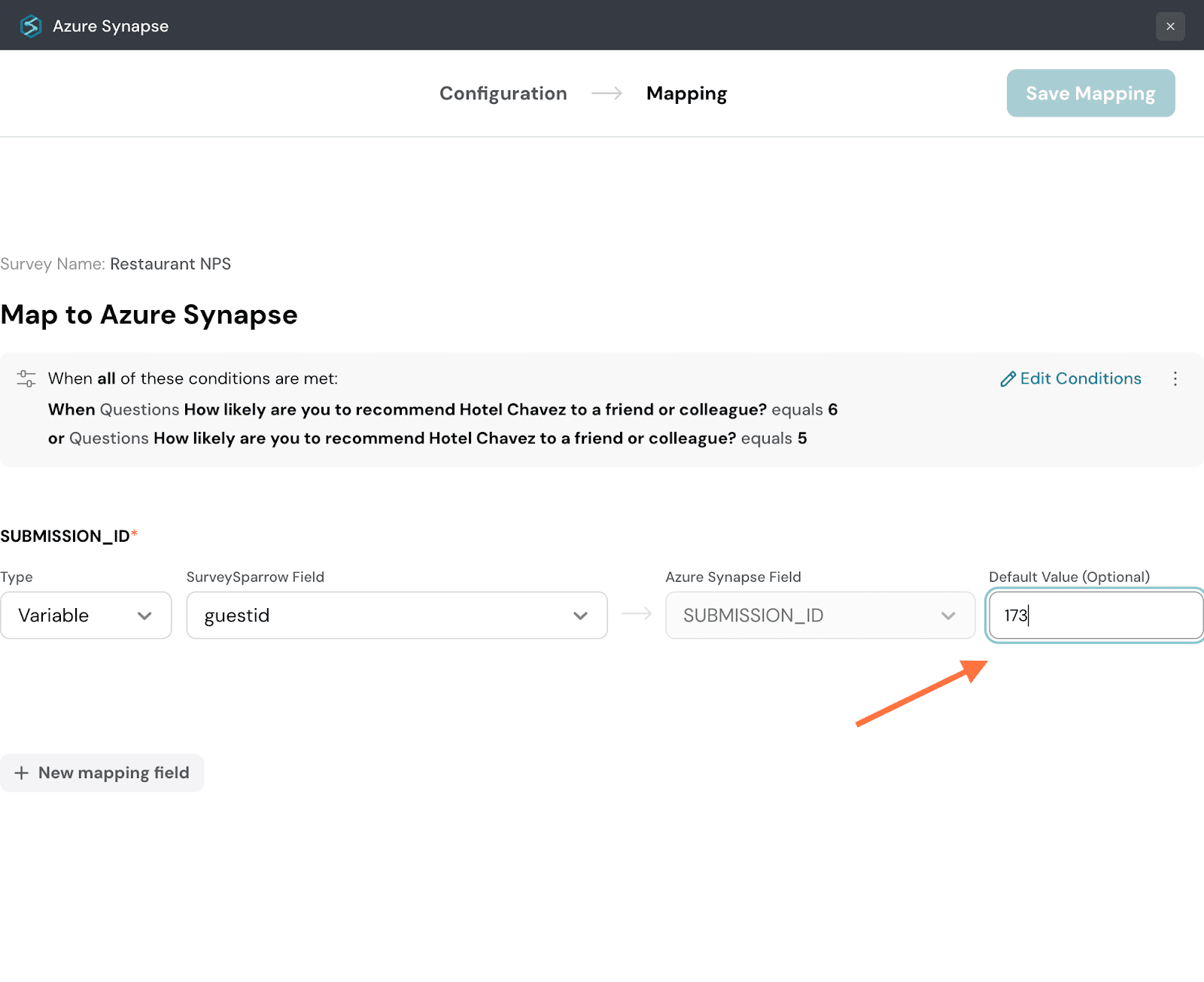
25. To add more mapping fields, click on New mapping field.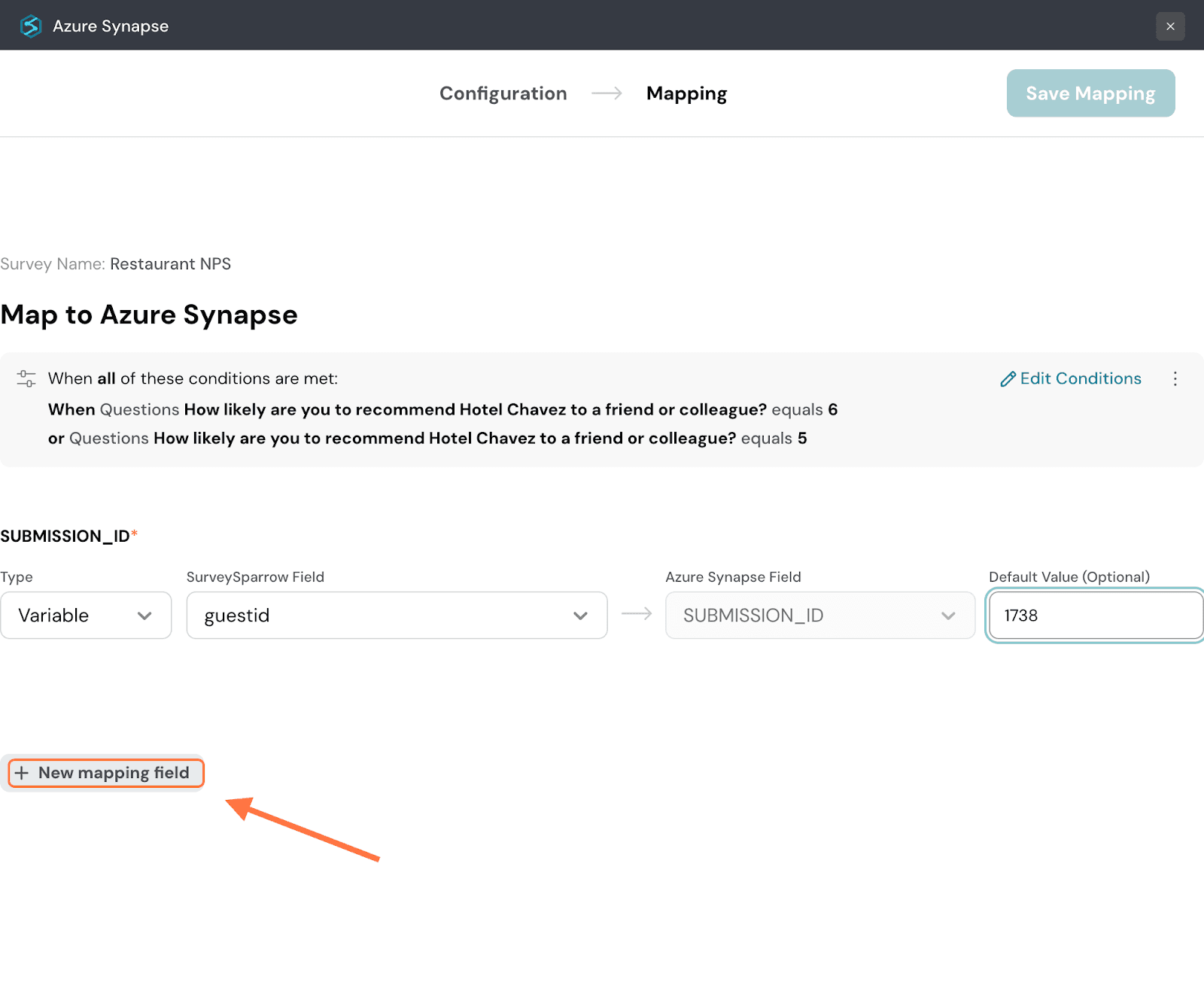
26. When you’re done, click on Save Mapping.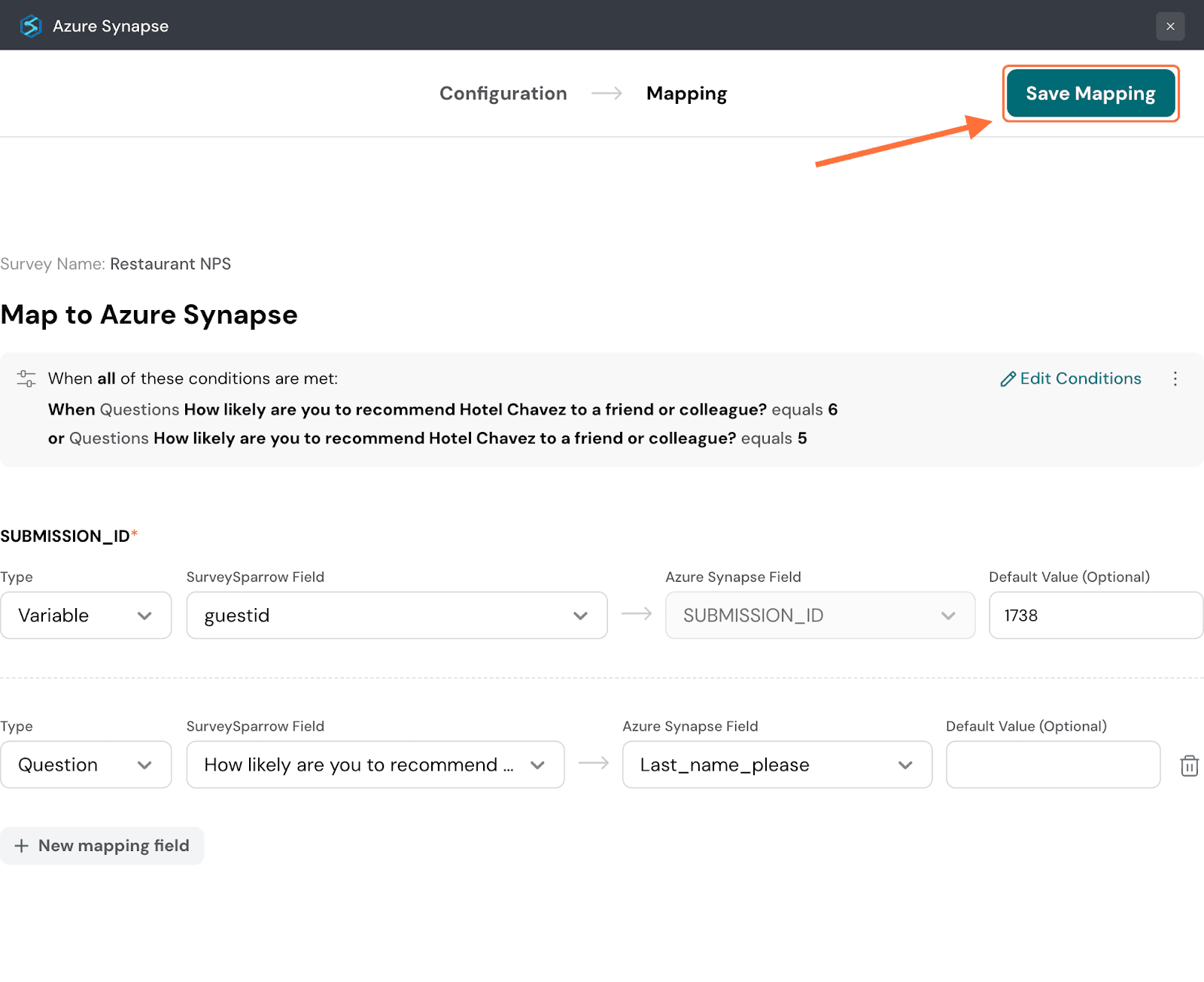
27. Create a name for the mapping, then click on Save Mapping.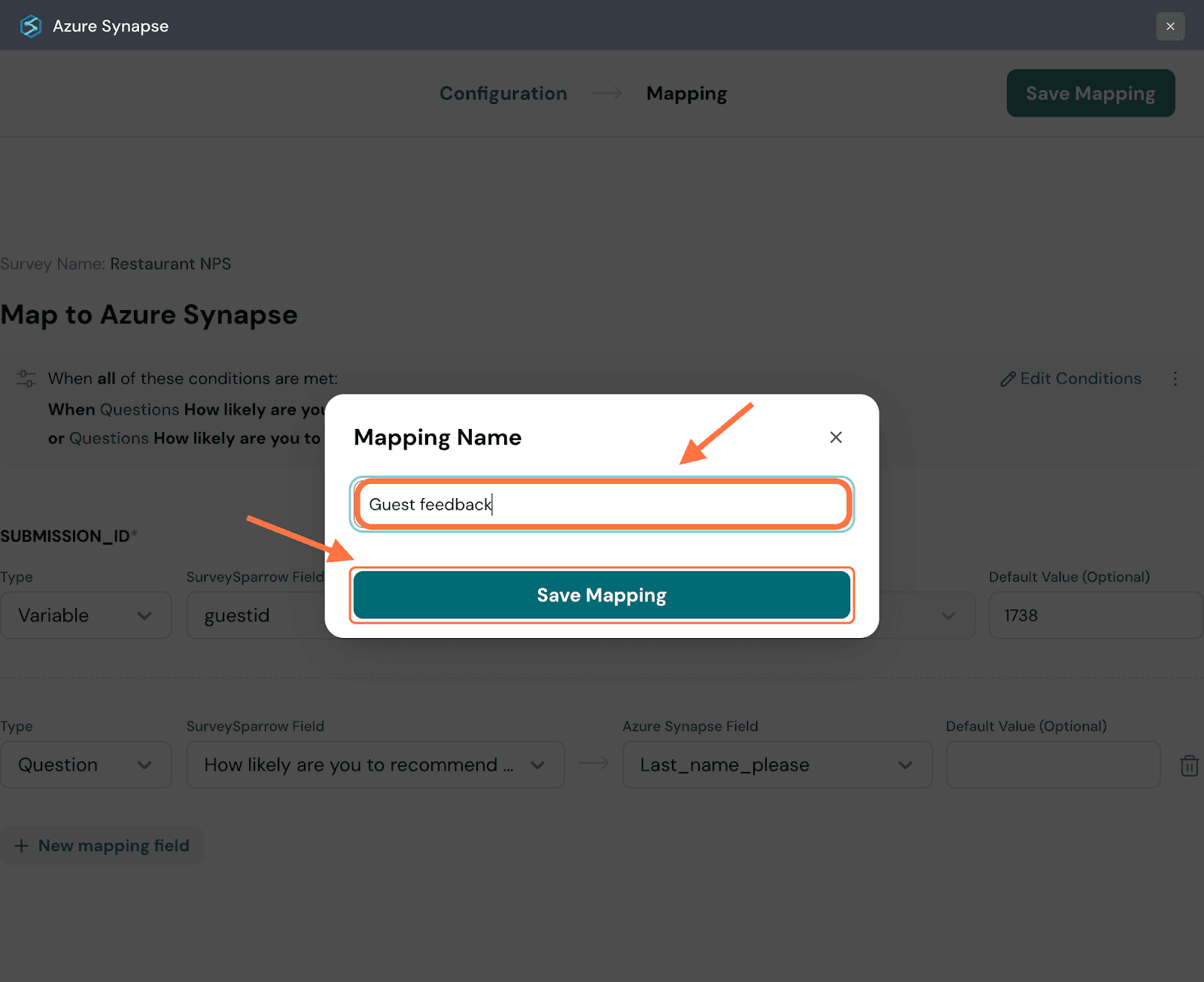
28. After the mapping is saved, you’ll be taken to a screen where you can access all saved mappings. To review the mapping configuration, click on the mapping.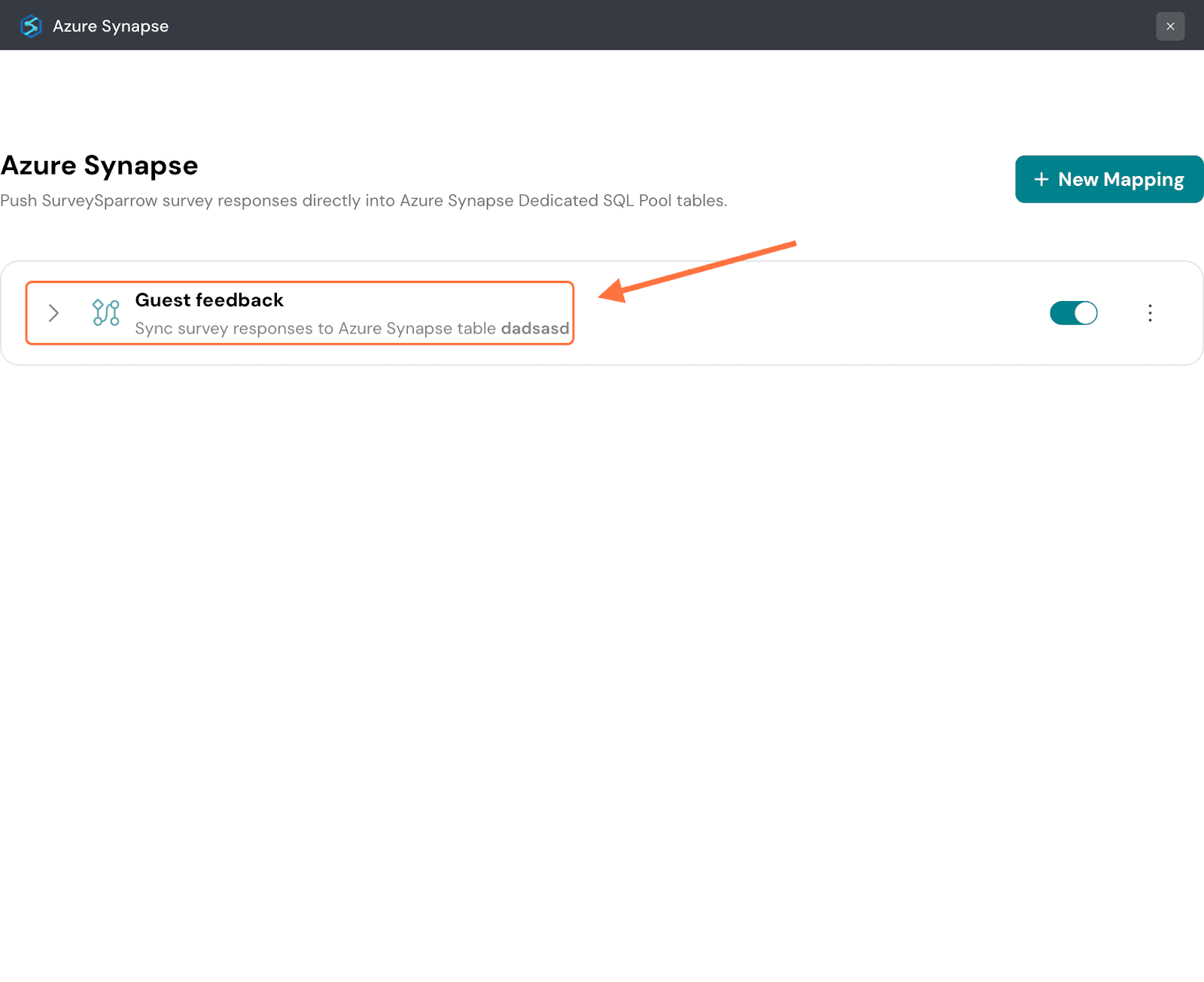
29. The mapping tab expands to show you its settings. If you’d like to modify it, click on the ‘Edit….’ button.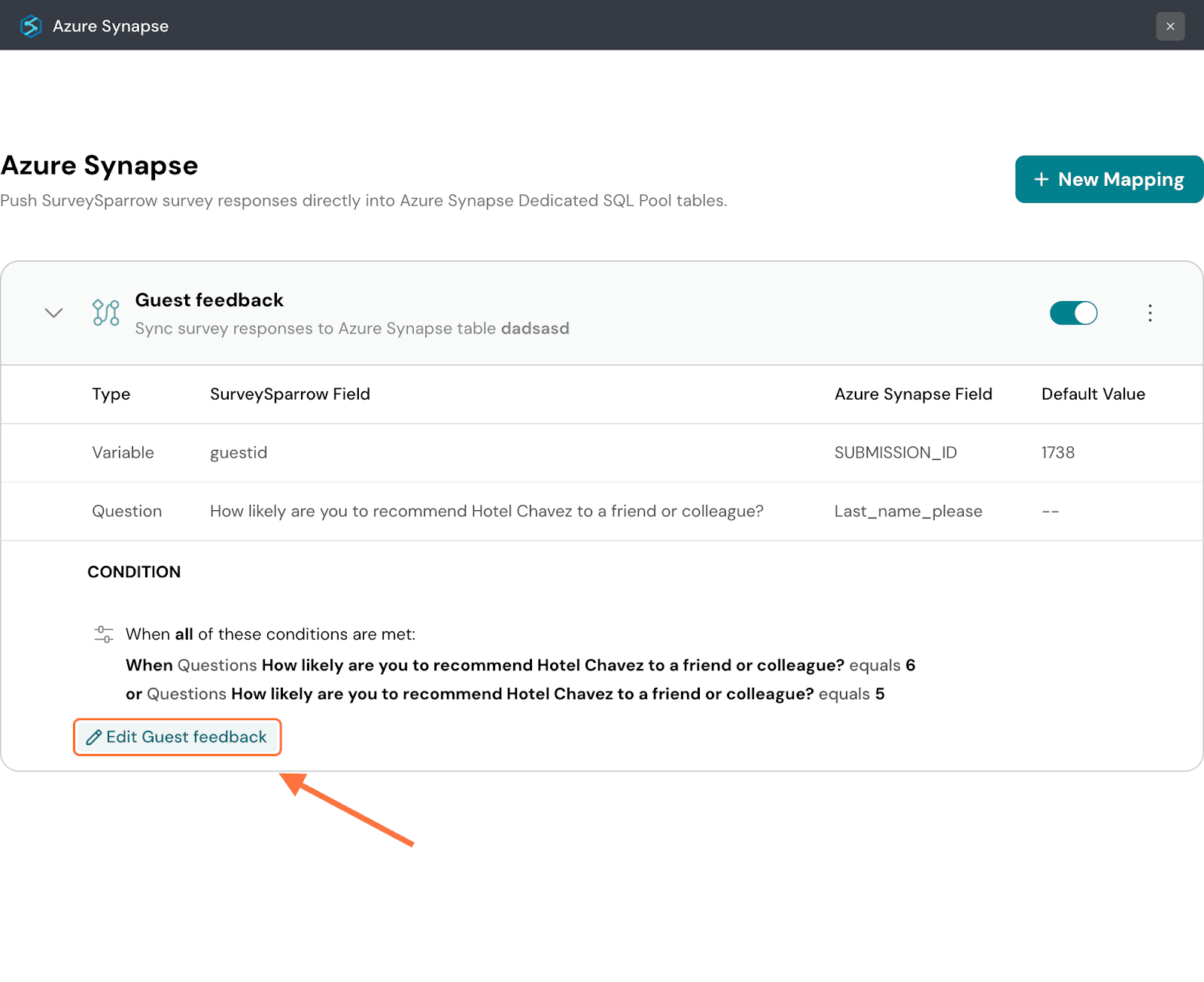
30. To pause the mapping, click on the green toggle button.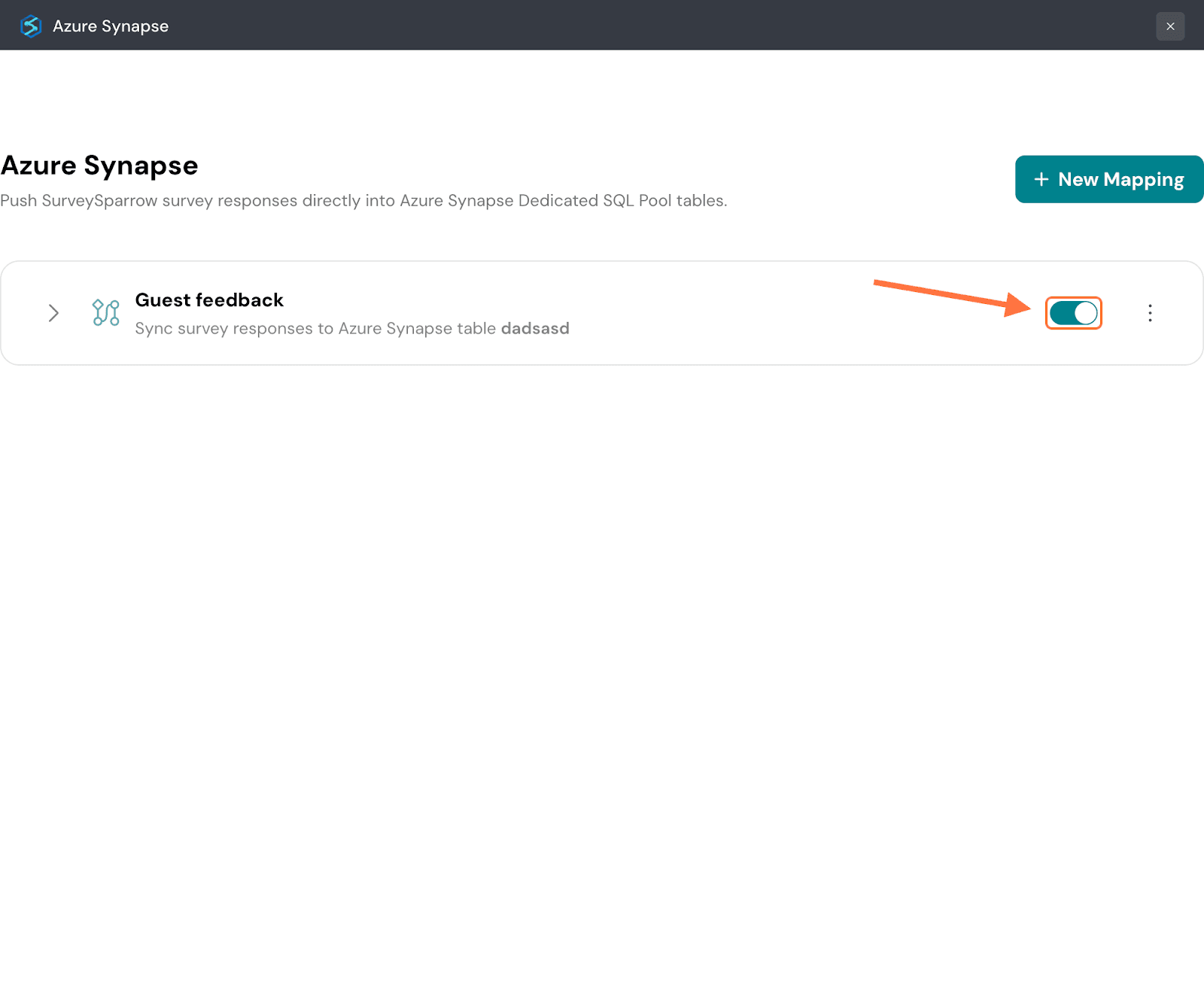
Note: Any responses that come in while the mapping is paused will not be synced to Azure Synapse later.
31. To delete the mapping, click on the vertical three-dot icon, then click on Delete.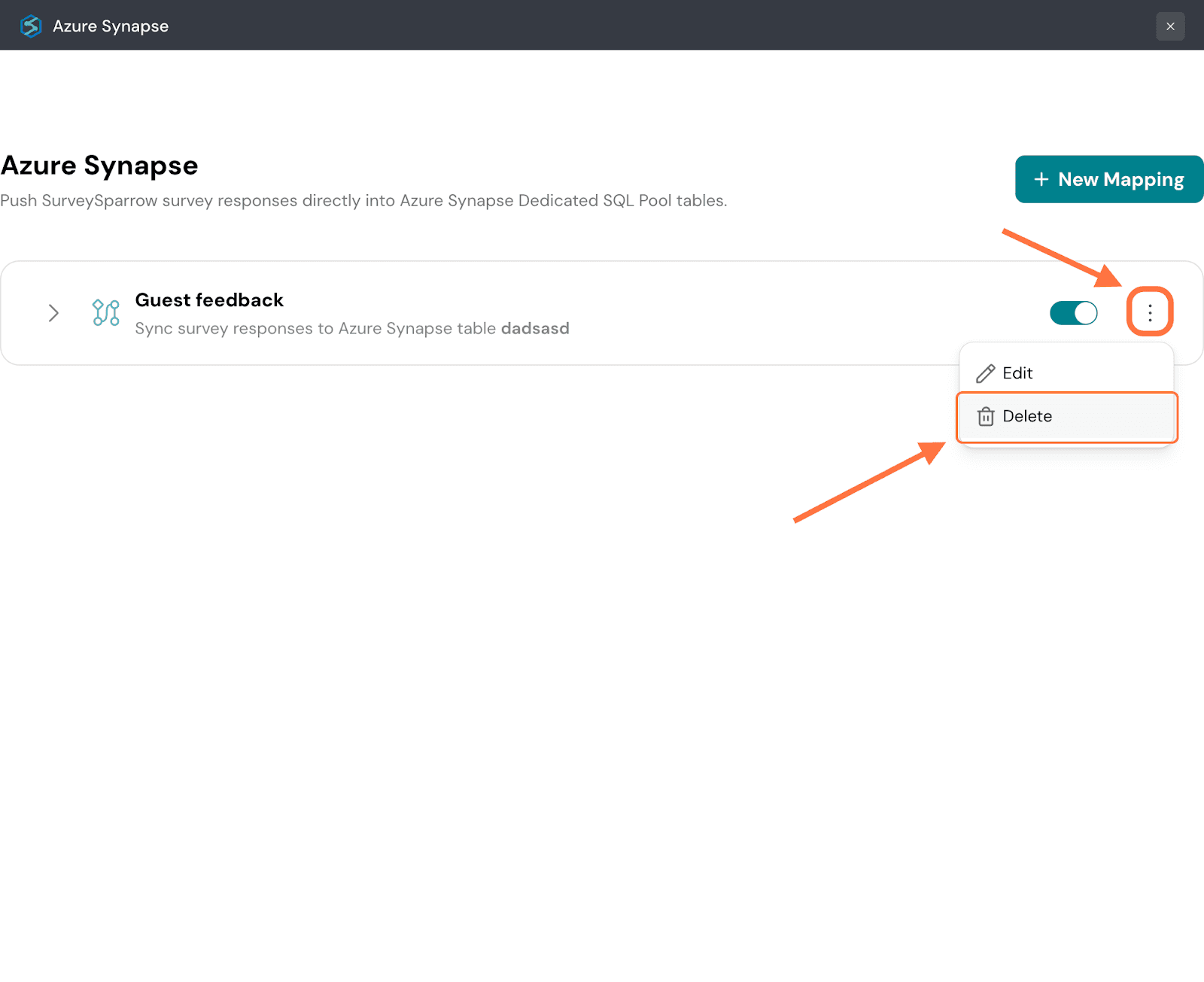
32. Click on Confirm to proceed.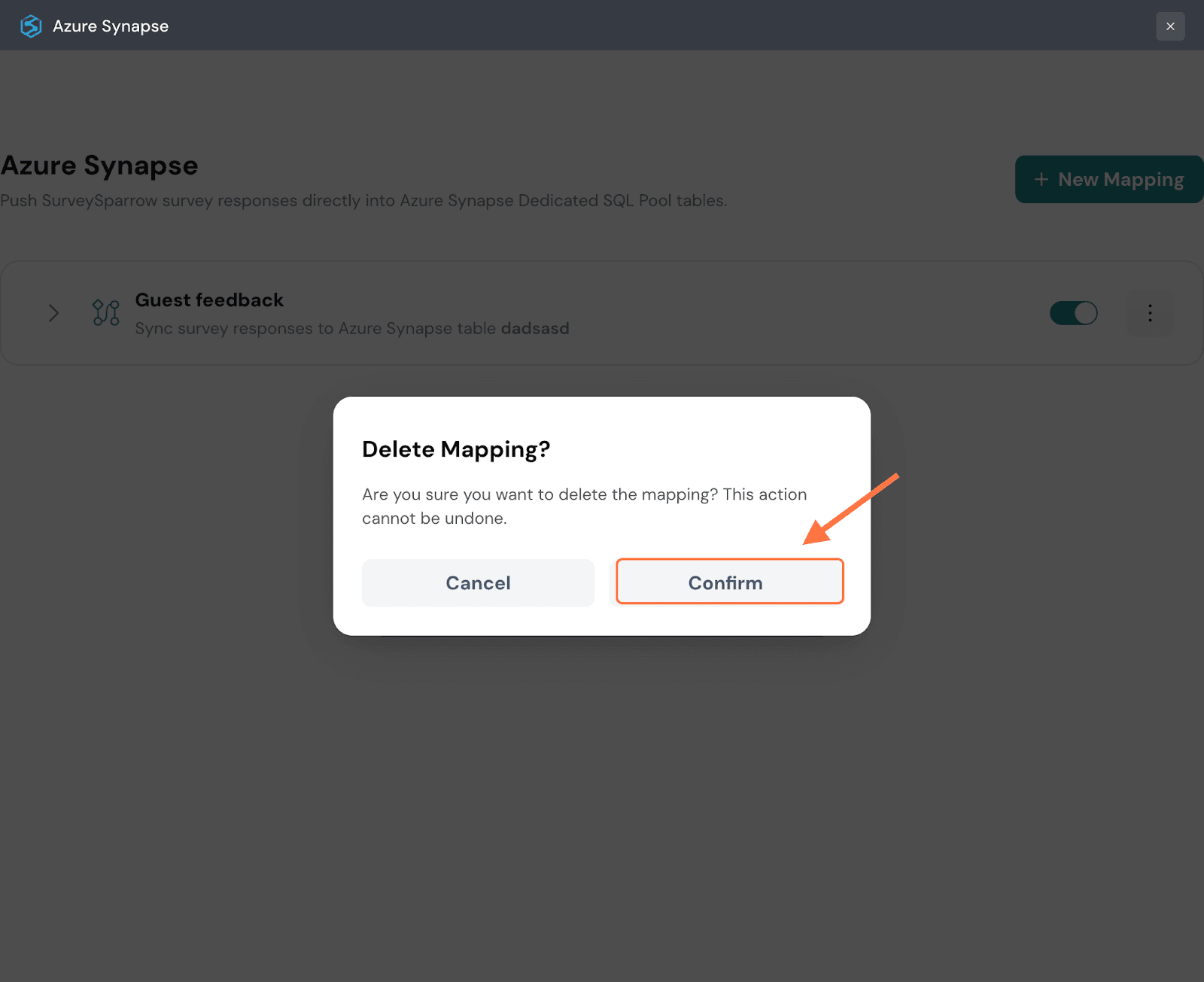
33. Click on New Mapping to add another mapping.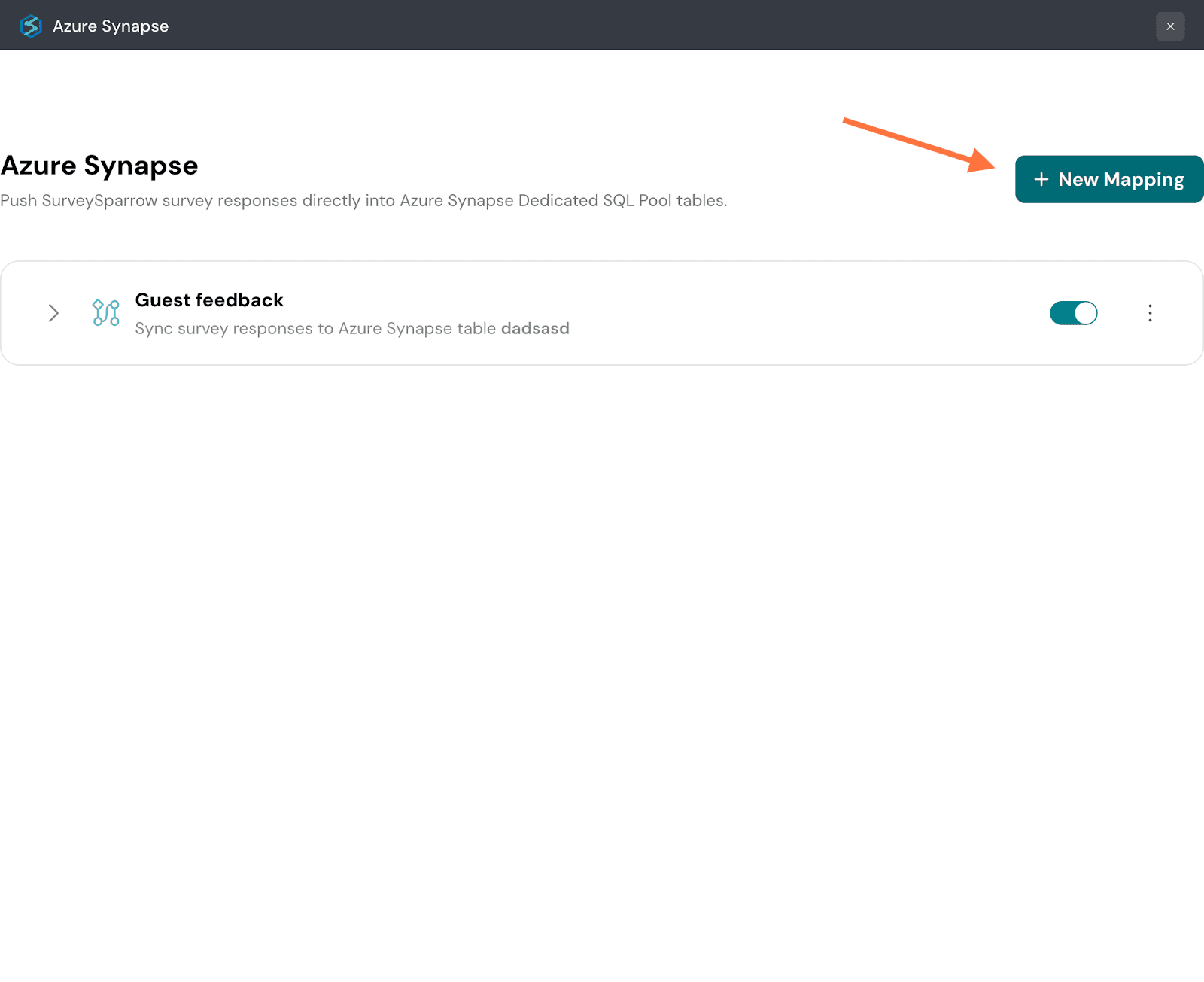
34. Now let’s explore the other set of steps to create a new table for mappings. Once you’re selected Create New Table as your action, enter a table name and click on Continue Mapping.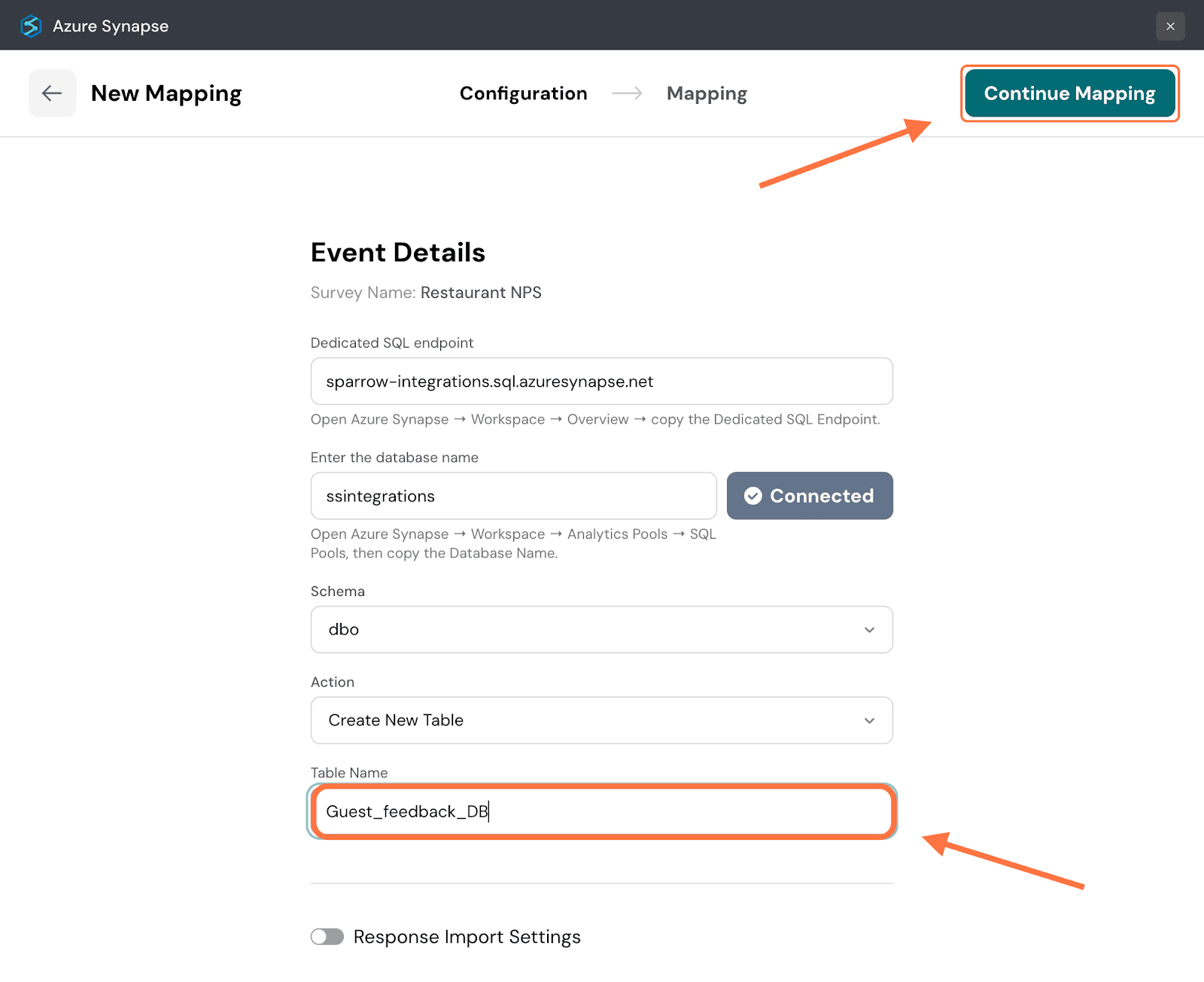
Note: The table names cannot have a period/colon/slash, else the mapping will not proceed.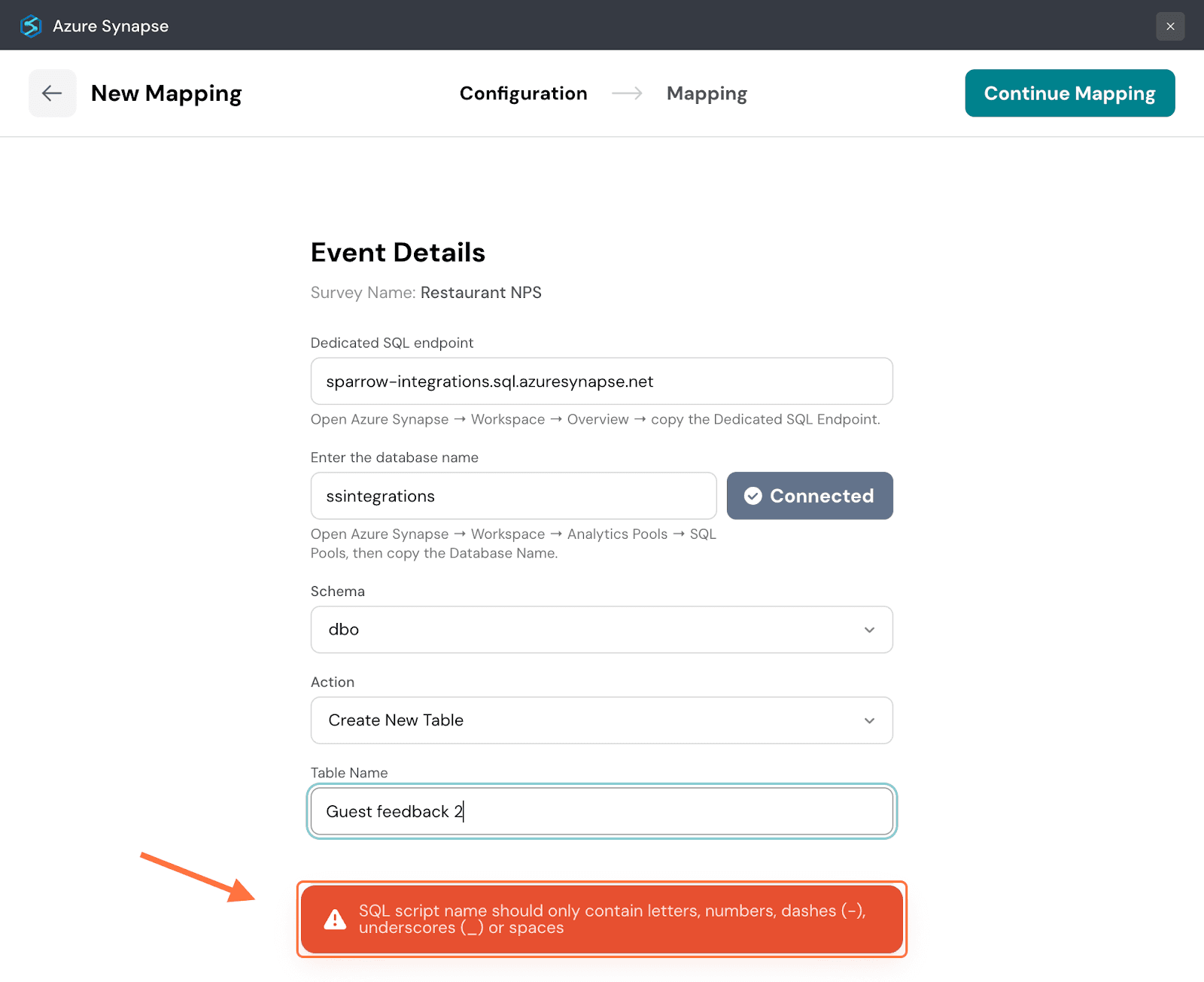
35. In the mapping section, the default option is to send all the response data. You can see all the response properties and their quantities. But if you want to be selective, click the button next to Send Selected data.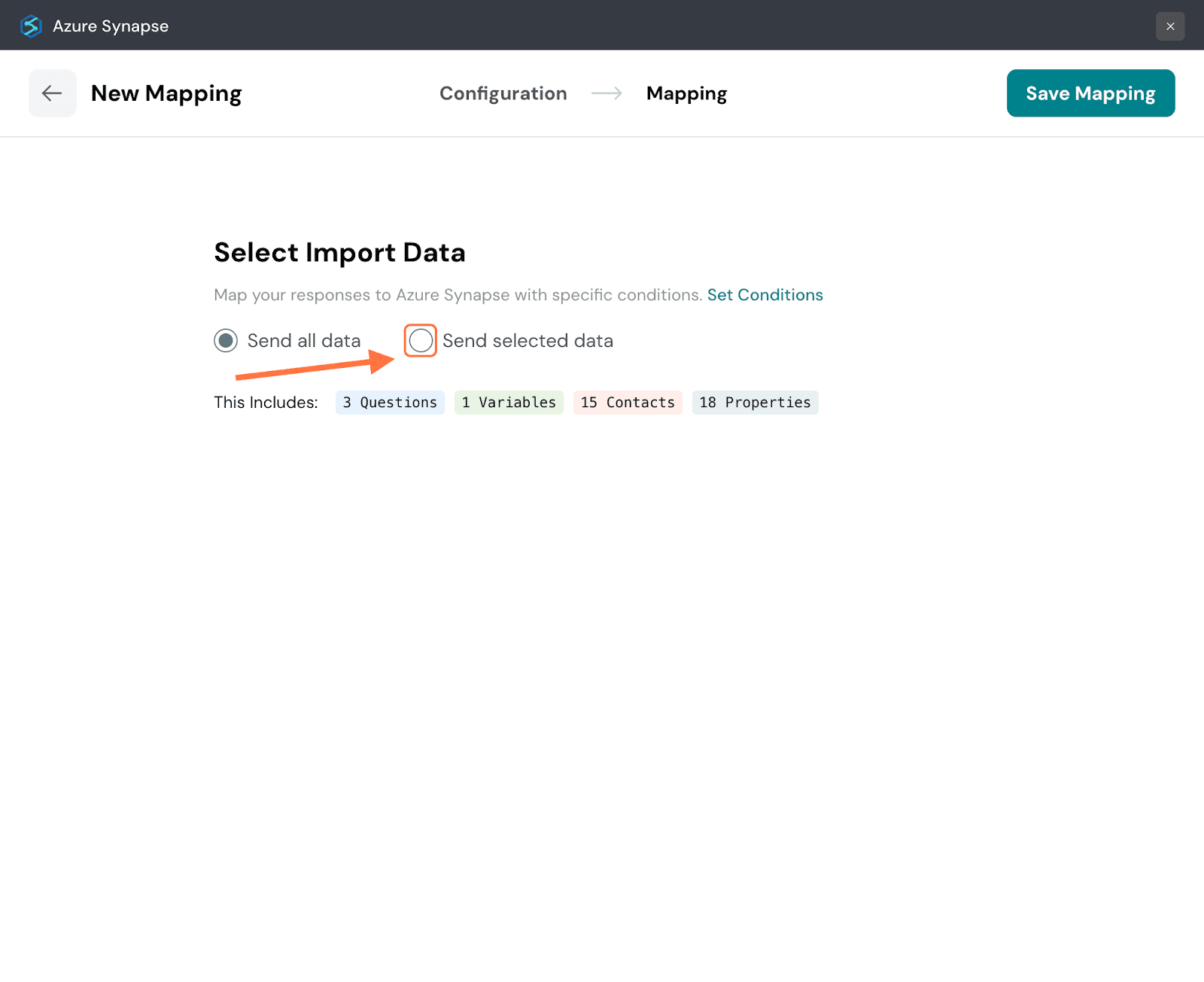
36. You will be shown a series of tabs for each response property. Each tab will have a list of items for that particular property. Click on the checkboxes of the items you want to import to Azure Synapse. Navigate through the respective tabs and select the ones you want. You can also use the search box to find items.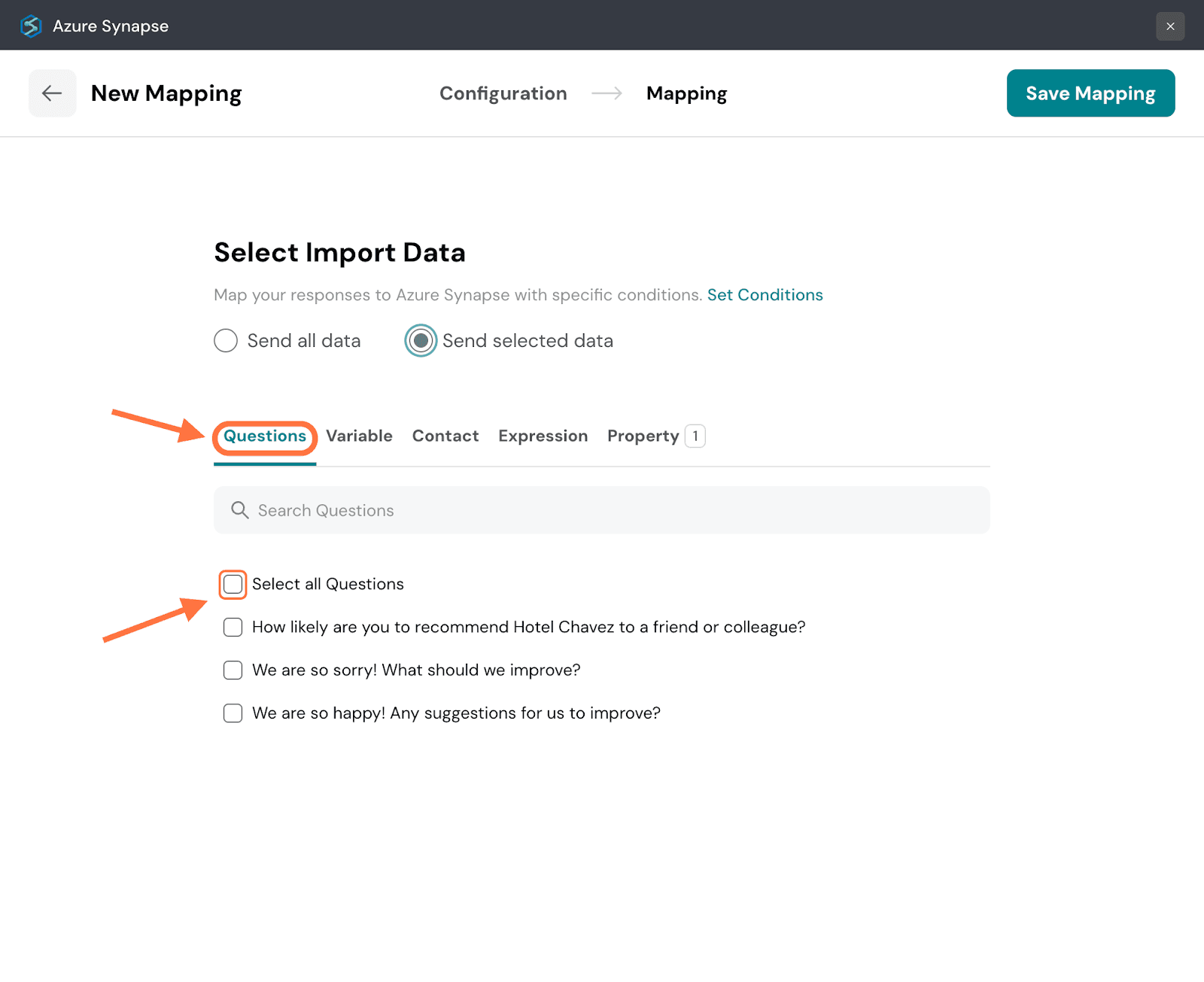
37. When you’re done, click on Save Mapping.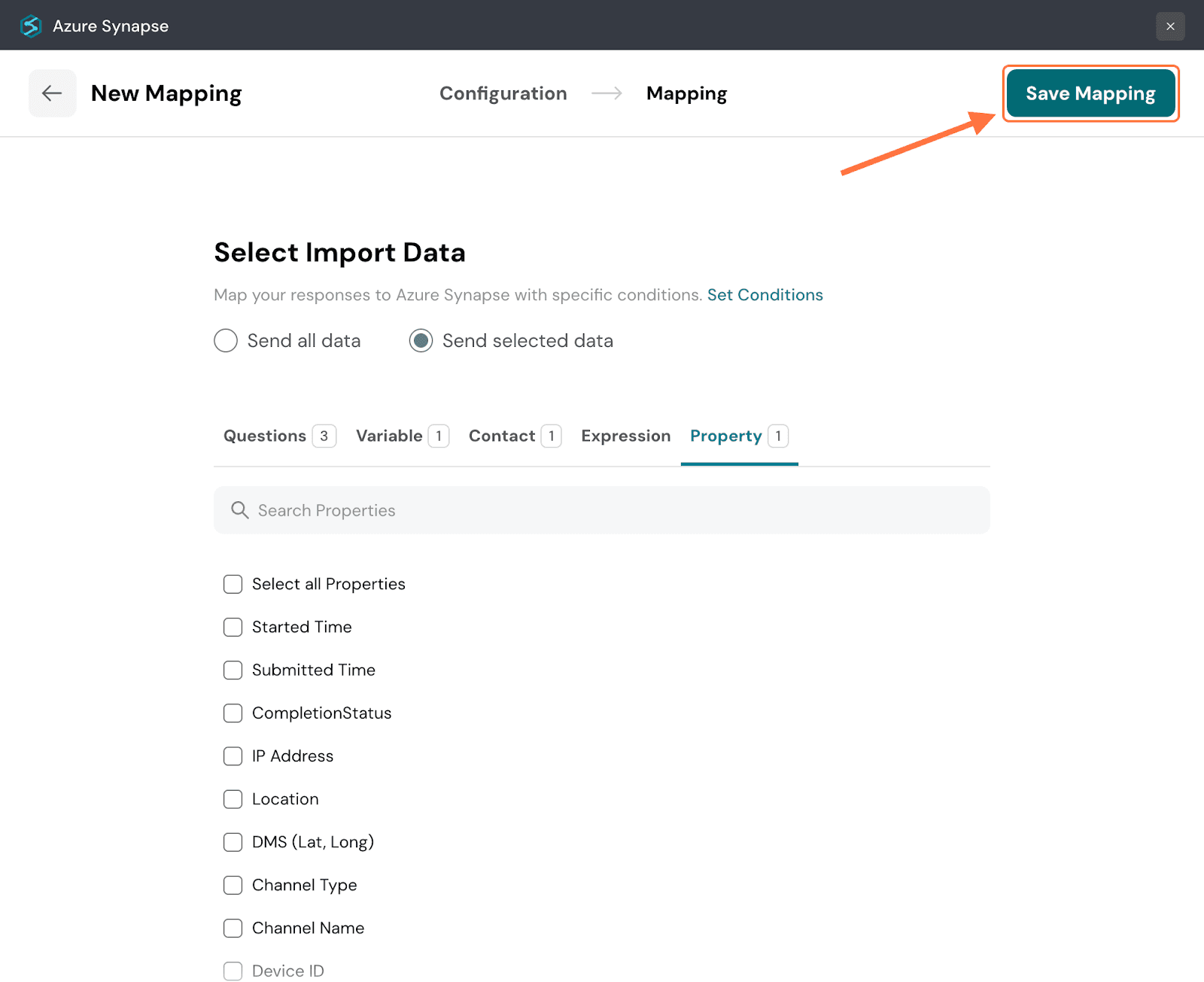
38. Create a name for the mapping and click on Save Mapping.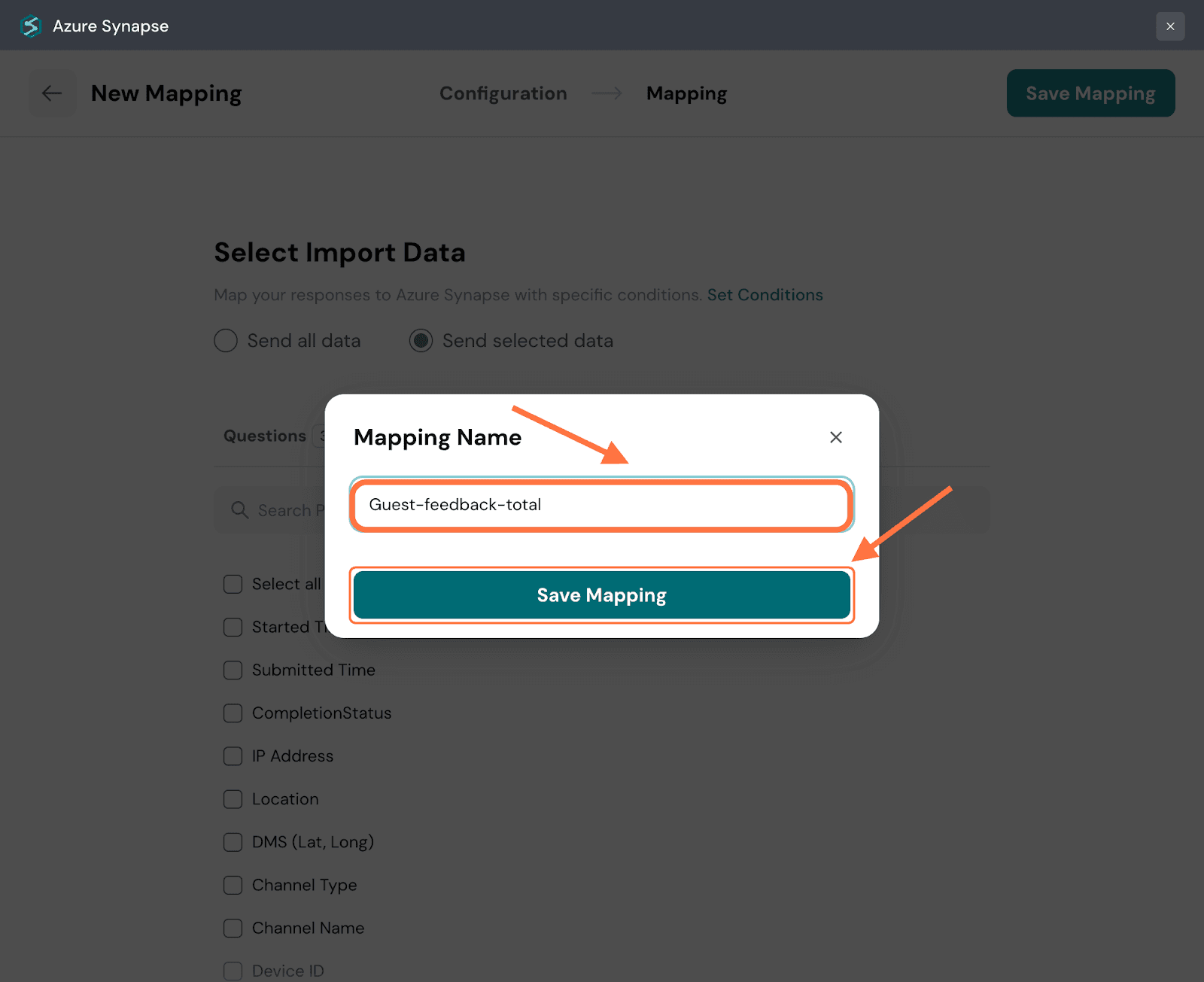
By connecting SurveySparrow to Azure Synapse, you turn customer feedback into a live, trusted data source that works alongside your sales, product, and operational insights—no manual exports or technical heavy lifting required. This means faster decisions, smarter prioritization, and the confidence that every report reflects what your customers are saying right now. Whether you're leading Customer Experience or driving Product strategy, the integration scales with your needs and keeps your data secure and audit-ready.
Start syncing your survey data today and see the difference real-time insights can make. Feel free to reach out to our community, if you have any questions!
Powered By SparrowDesk