Survey Embed widgets | How to make the most of them

How to configure the SurveySparrow embed widget
SurveySparrow widget configuration lets you decide when an embedded survey opens on your website or product, which values travel with it, and how your page reacts when a respondent finishes. Choose Embed when you want your own code to decide when the survey appears, for example only after a purchase. These options apply to Classic surveys shared through Embed, not to Executive Dashboard widgets.
Embed, SpotChecks or Mobile SDK?
All three are under Website & Apps on the Distribute tab. Pick the one that matches where the survey runs and what decides when it appears.
Option | Choose it when | How it works |
|---|---|---|
Embed | You want the survey on your own web page, opening on page load, on a simple trigger you set, or when your code calls it. | You paste a snippet and use the options in this article. Modes: Inline Embed, Pop-up and Side Panel. |
SpotChecks | You want SurveySparrow to decide, from rules you set. | You set conditions in SurveySparrow, such as which pages or screens, what triggers it, which visitors see it and how often it repeats. It works for websites and mobile apps. See SpotChecks for website. |
Mobile SDK | The survey belongs inside a native mobile app, opened from your app's code. | You add the SDK to your app. See What is Mobile SDK. |
Prerequisites
- A Classic survey ready to share.
- Access to your website's code, or a developer who can add a script to it.
Get the embed code
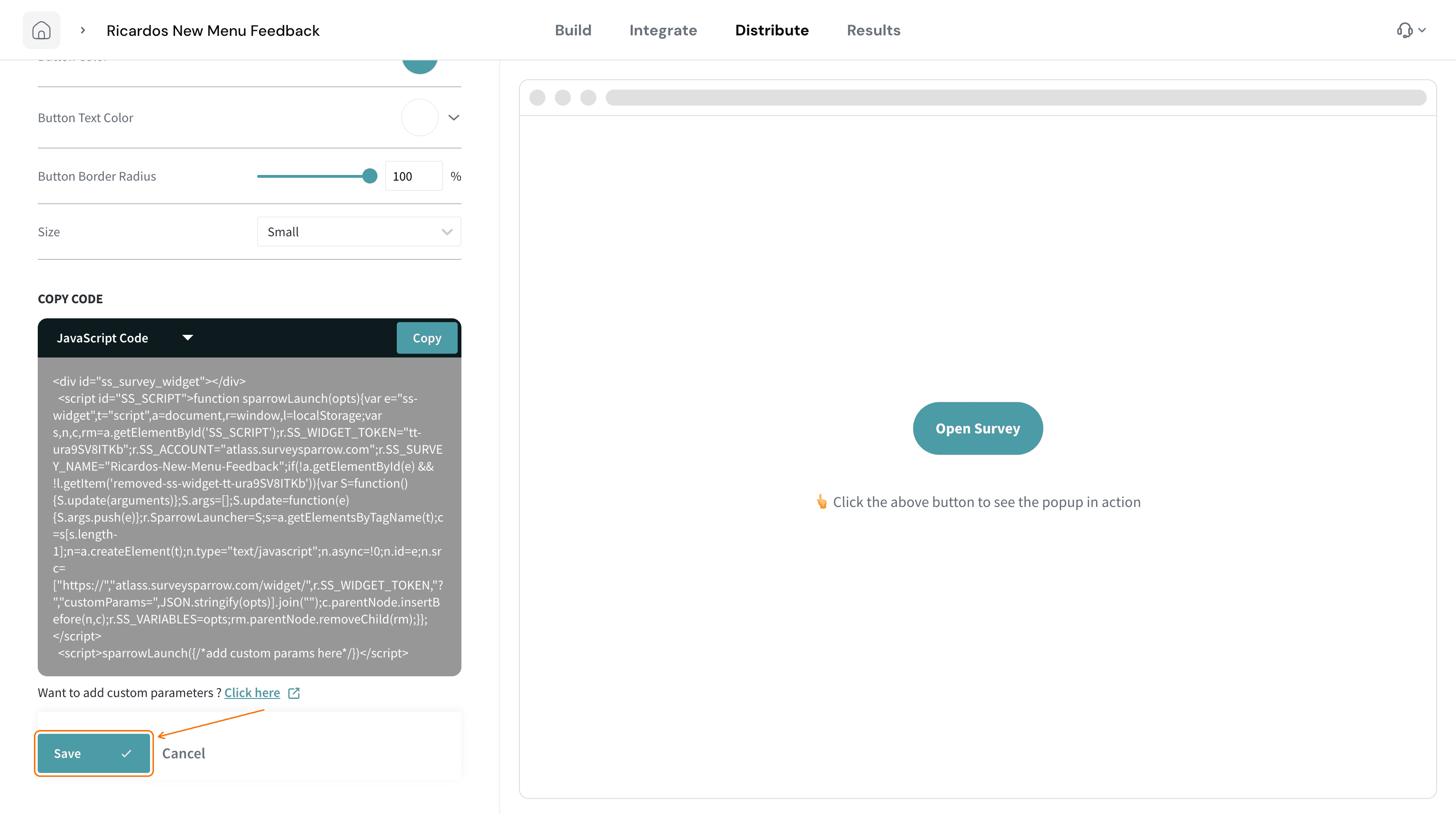
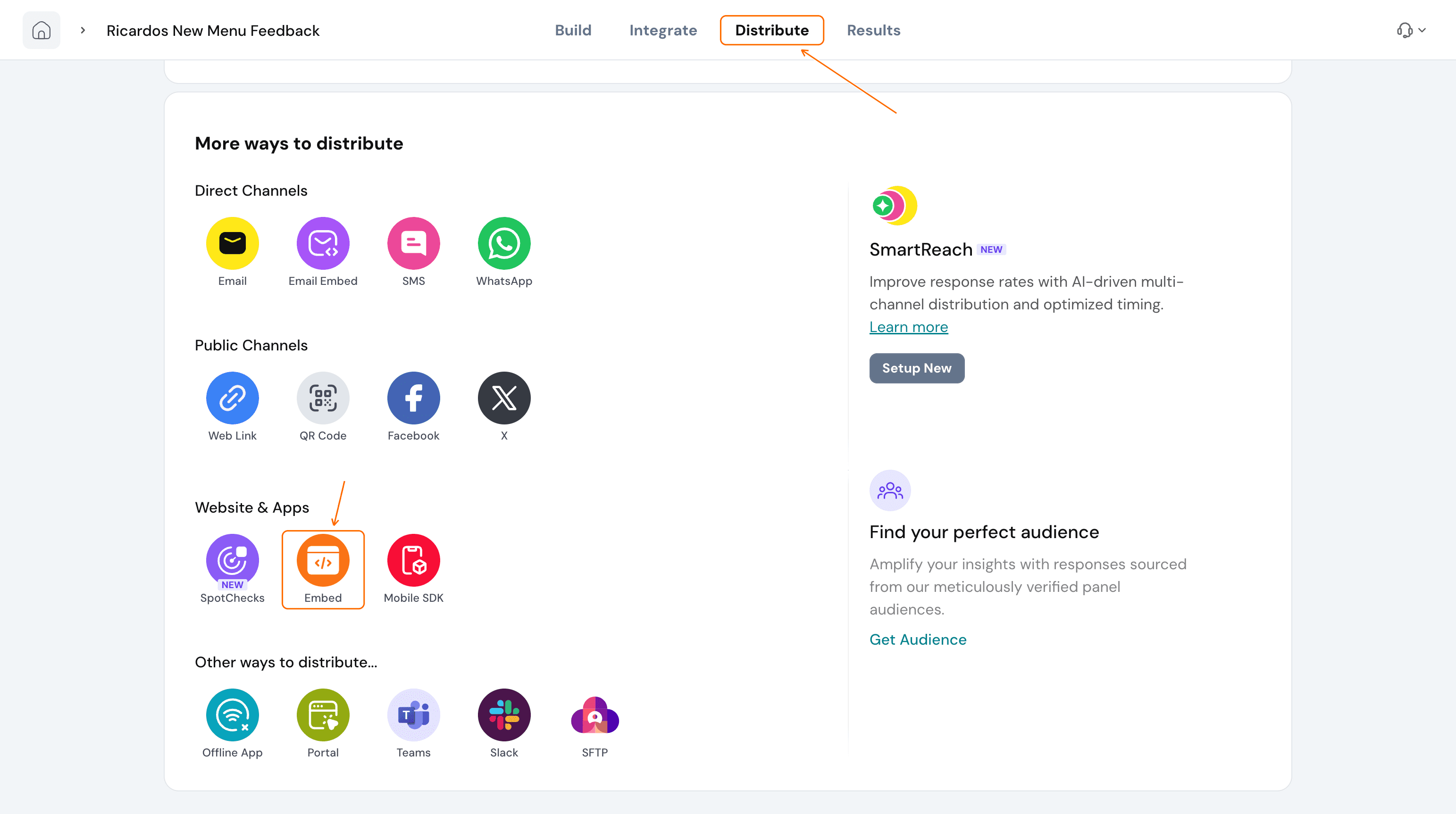
- Open the survey and select the Distribute tab. Under Website & Apps, select Embed.
- Under CHOOSE MODE, pick Inline Embed, Pop-up or Side Panel.
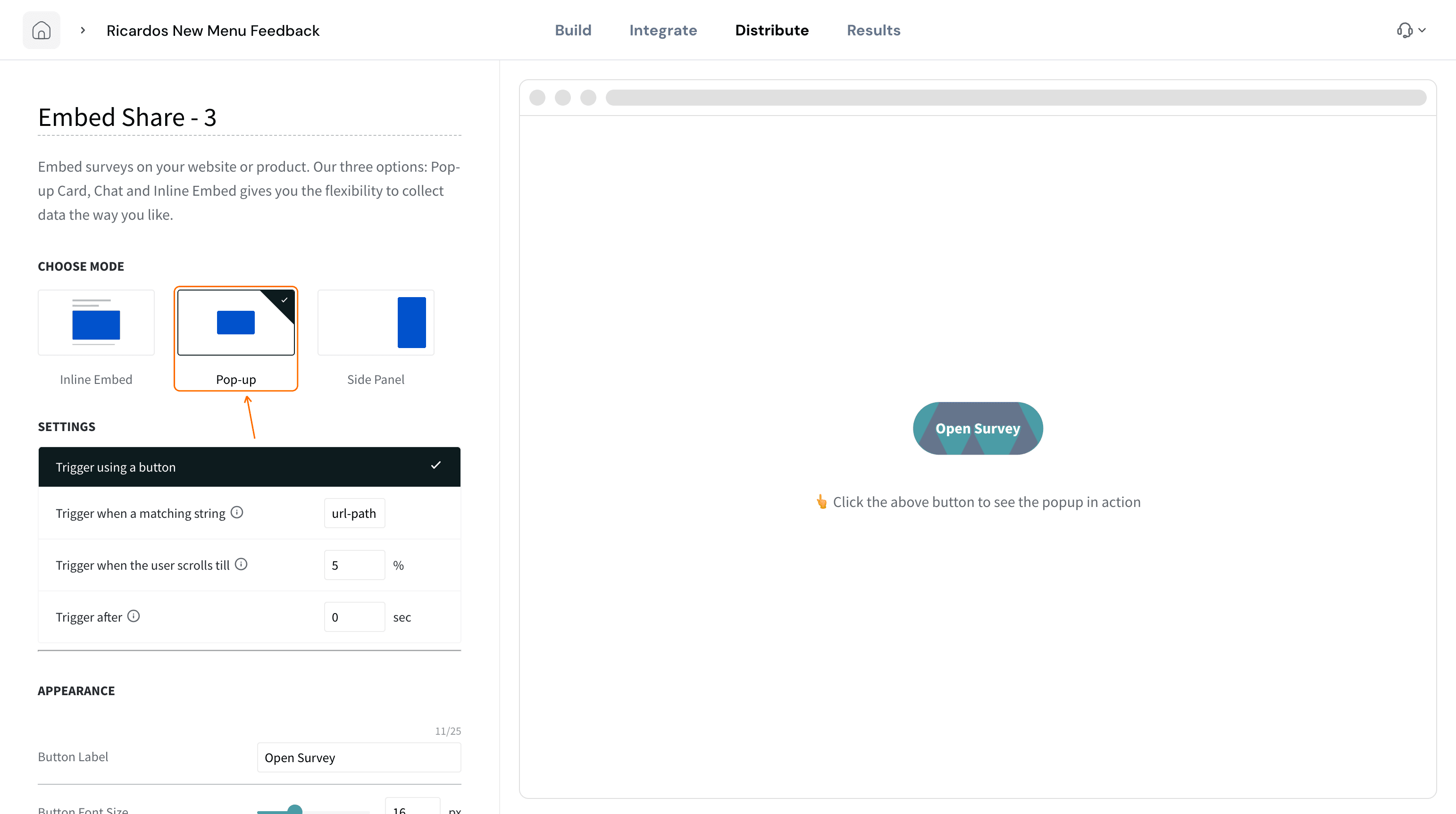
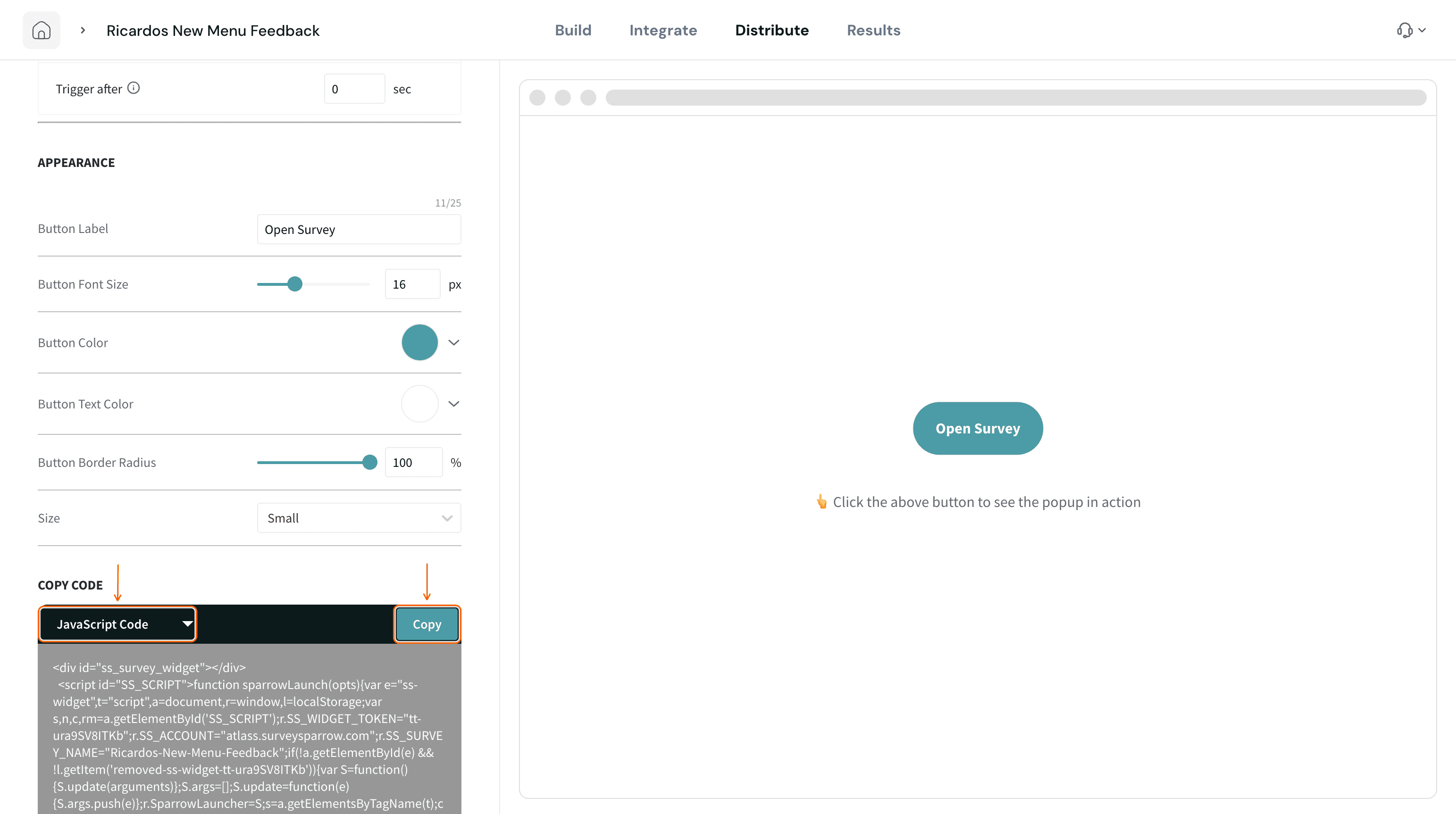
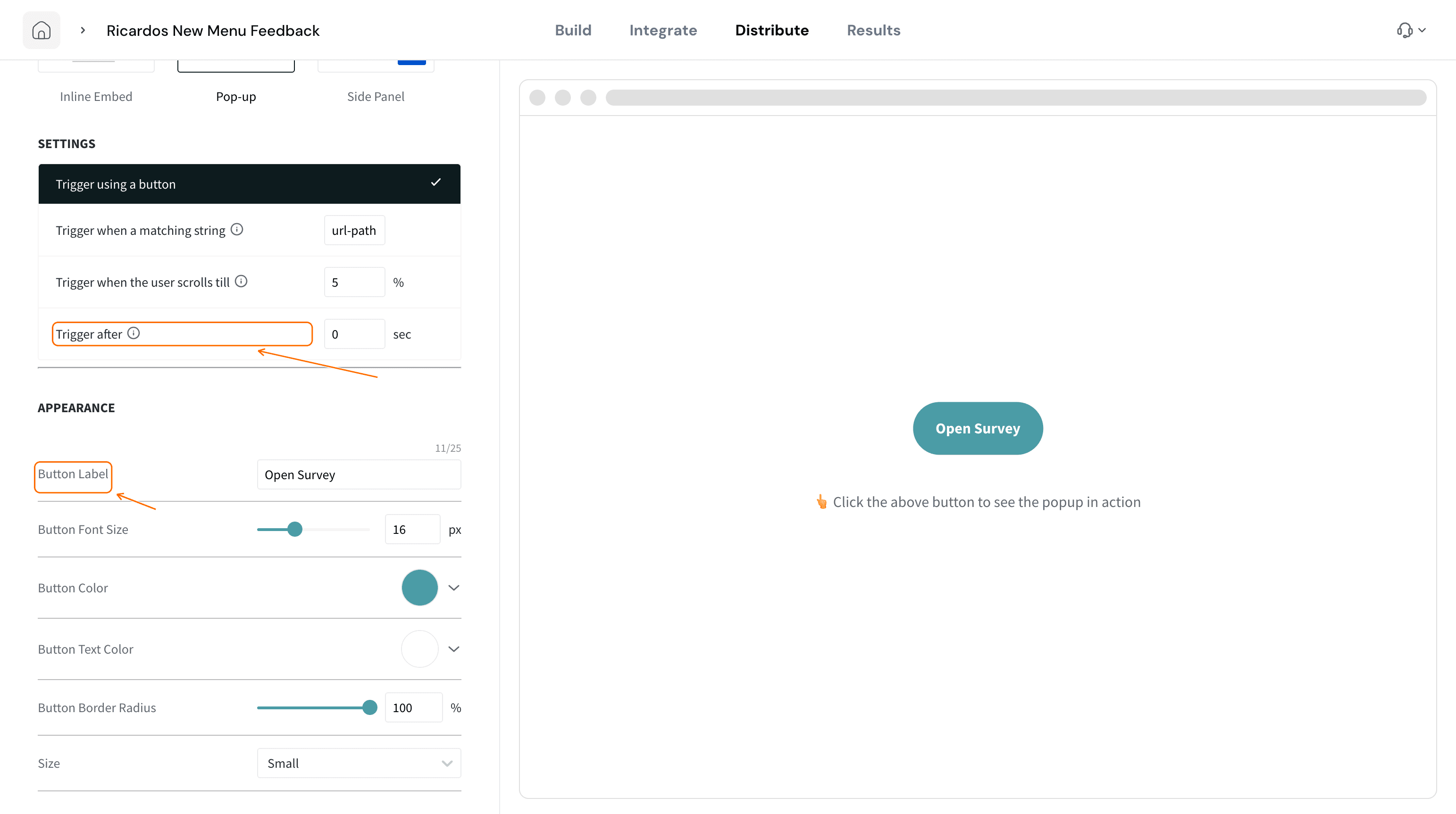
- For Pop-up or Side Panel, choose how it opens under SETTINGS: Trigger using a button, Trigger when a matching string, Trigger when the user scrolls till or Trigger after. Then style the button under APPEARANCE.
For Inline Embed, set the Width and Height under APPEARANCE instead.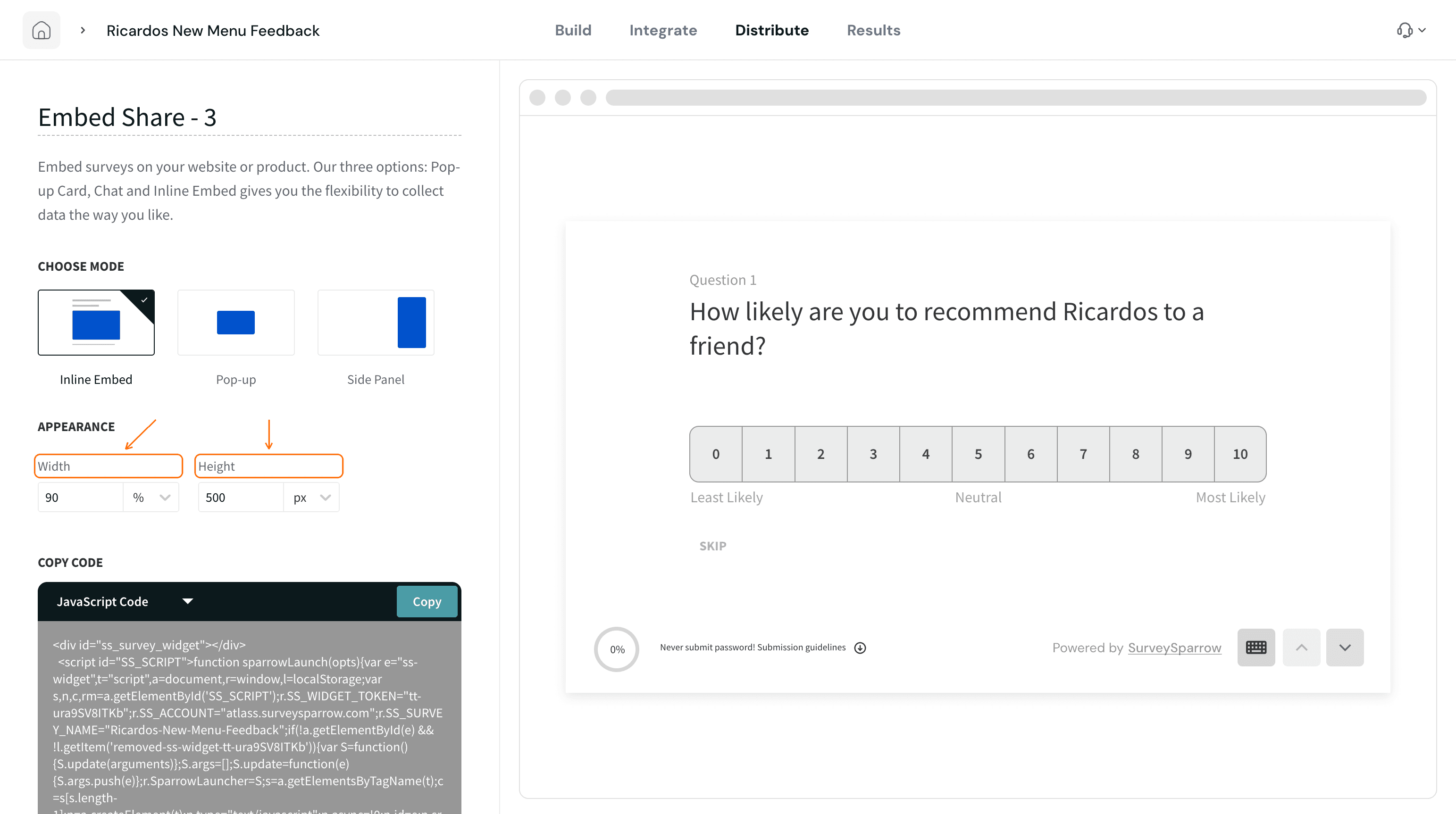
Stop the survey opening when the page loads
By default the embed code starts the widget as soon as the page loads: Inline Embed shows the survey, and Pop-up or Side Panel follows the trigger you chose under SETTINGS. To stop that, set triggerOnLoad to false in a script tag above the embed code, so it is in place before the widget loads.
<script>
  window.sparrowConfig = { triggerOnLoad: false };
</script>
Nothing appears until your code opens the survey, as shown next.
Open the survey when something happens
With triggerOnLoad set to false, call SparrowLauncher('popup') from your own code when the event occurs, such as a button click after an order is placed.
document.getElementById('order-placed').addEventListener('click', () => {
  SparrowLauncher('popup');
});
In Pop-up and Side Panel modes the trigger you chose under SETTINGS still applies, so check that it matches the way you call the launcher. Some triggers wait for a button click, a scroll, a delay or a matching URL. Call SparrowLauncher('popup') once per page view. To take the survey off the page from your code, call SparrowLauncher('remove').
Open the redirect page in a new tab
If your survey redirects respondents when it ends, set newTab to true to open that page in a new tab and remove the widget. By default the current page goes to the redirect URL. If you also set triggerOnLoad, put both in one block, for example { triggerOnLoad: false, newTab: true }; a second sparrowConfig tag replaces the first.
<script>
  window.sparrowConfig = { newTab: true };
</script>
This applies only when the survey has a redirect URL set on its end page.
Pass values to the survey
With triggerOnLoad set to false, add a variables object to the launcher call. SurveySparrow adds each value to the survey address, so you can tag a response with something your site already knows.
SparrowLauncher('popup', {
  variables: { customer_id: 1234, order_total: '42' }
});
- The names
email,answer,q,aandsparrowRemare reserved. Using one logs "Variable … is not allowed" in the browser console. - Values are not URL-encoded, so avoid
&,=and#in them. - To pass values to a survey that opens on its own, put them in the snippet's last line instead, for example
sparrowLaunch({ customer_id: 1234 }). - Query-string parameters on your page's own URL are passed to the survey as variables too, and the reserved names apply to them.
- To store a value with each response, create a matching custom variable first. See How to use Global Variables?.
- To recognise logged-in users, see Tracking logged in users with SurveySparrow Widget.
Show the survey in a specific language
Pass sparrowLang with a language code. It is added to the survey address like any other value. Use it in the launcher call when triggerOnLoad is false, or in the snippet's last line, for example sparrowLaunch({ sparrowLang: 'hi' }), when the survey opens on its own.
SparrowLauncher('popup', {
  variables: { customer_id: 1234, sparrowLang: 'hi' }
});
The language must be turned on in the survey's Languages settings. To give each language version its own link, add ?sparrowLang=<language_code> to the survey weblink, or &sparrowLang=<language_code> if the link already contains a ?. For example, ?sparrowLang=hi opens Hindi, ?sparrowLang=en English and ?sparrowLang=de German. To add languages, see Multilingual Surveys and Changing the Survey Language.
React to what happens in the survey
The widget sends messages to your page as the survey runs. Each one is a message event whose type tells you what happened.
Know when the survey starts loading
surveyLoadStarted includes surveyDetails with the survey name and ID.
window.addEventListener('message', (e) => {
  if (e.data && e.data.type === 'surveyLoadStarted') {
    // The survey has started loading
  }
});
Know when the respondent changes language
languageChanged includes code and label for the new language.
window.addEventListener('message', (e) => {
  if (e.data && e.data.type === 'languageChanged') {
    const { code, label } = e.data; // the new language code and label
  }
}
Know when the survey is completed
surveyCompleted includes response and customParams, which holds the values you passed.
window.addEventListener('message', (e) => {
  if (e.data && e.data.type === 'surveyCompleted') {
    const { response, customParams } = e.data;
  }
});
Know when the survey redirects
redirectPage includes the url the respondent is sent to.
window.addEventListener('message', (e) => {
  if (e.data && e.data.type === 'redirectPage') {
    // The survey is redirecting to e.data.url
  }
});
Know when the survey window closes
removeWindow carries no extra data.
window.addEventListener('message', (e) => {
  if (e.data && e.data.type === 'removeWindow') {
    // The survey window was closed
  }
});
Troubleshooting
The survey does not appear when the page loads. Open the browser console and look for "SurveySparrow Widget Skipped. Reason:". Then check whether triggerOnLoad is set to false; if it is, nothing appears until your code calls SparrowLauncher('popup'). Also check the trigger you chose under SETTINGS for Pop-up or Side Panel, since some triggers wait for a button click, a scroll, a delay or a matching URL, that you selected Save, and that the whole snippet was pasted.
A value arrives cut off or missing. Values are not URL-encoded. Remove &, = and #, and make sure the name is not one of the reserved names listed above.
The redirect opens in the same tab. Set newTab to true in sparrowConfig, and check that the survey has a redirect URL on its end page.
The survey stays in the default language. Confirm the language is turned on under the survey's Languages settings, then check that sparrowLang uses the same language code as that setting, for example hi.
FAQ
Where does window.sparrowConfig go? In a script tag above the embed code, so it is in place before the widget loads.
How do I know a respondent finished the survey? Listen for the surveyCompleted message. It includes the response and any values you passed.
Are these options for Executive Dashboard widgets? No. They configure the survey you embed on a website or product.
Related articles
- How to embed your survey in Web Pages?
- Tracking logged in users with SurveySparrow Widget
- SpotChecks for website
- How to use Global Variables?
- Multilingual Surveys
Still stuck? Contact our support team through chat and we will help.