
How do I edit a survey?

To edit your survey, go to the Survey section
Locate the survey you want to edit and click on the edit icon. 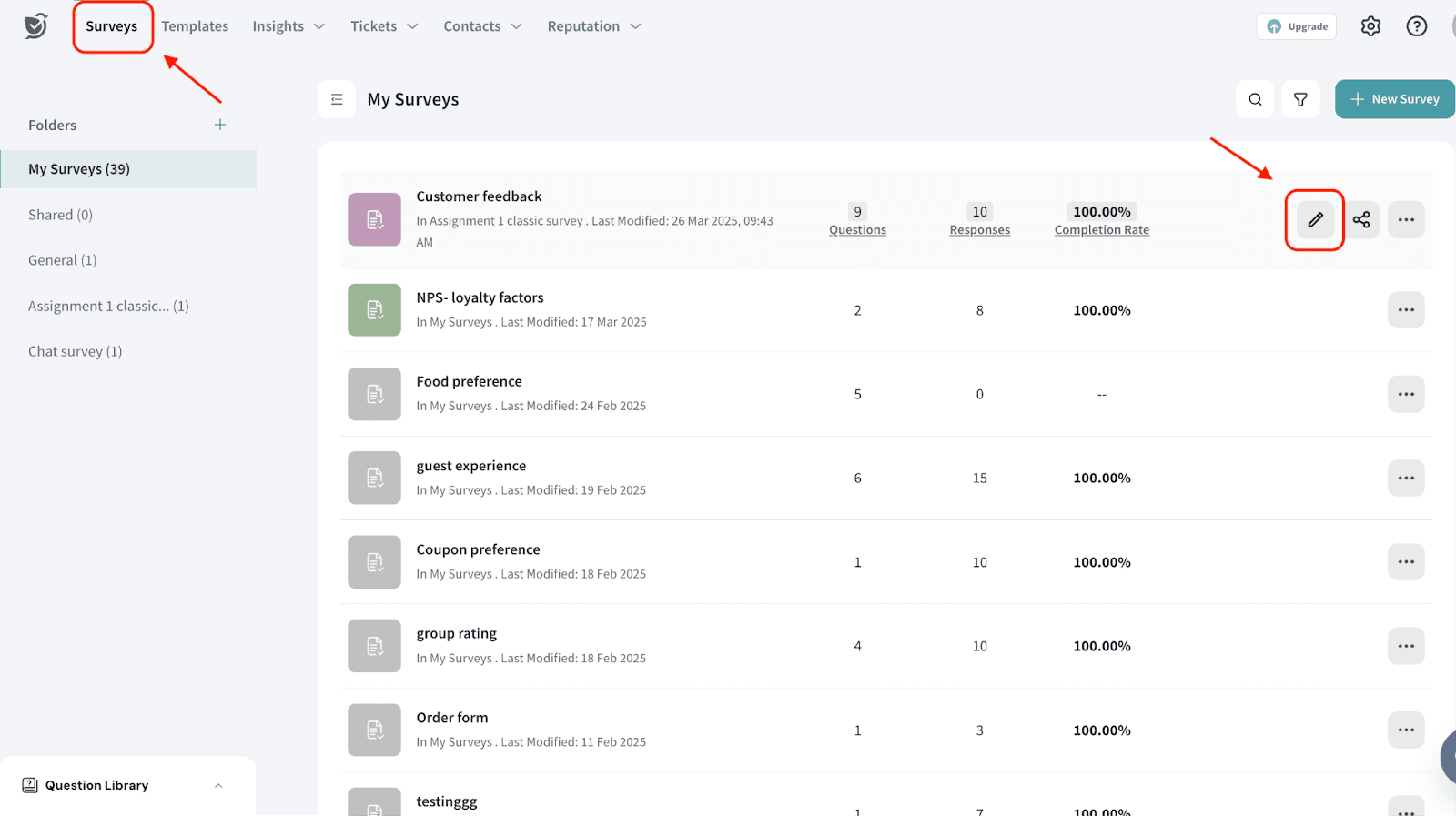
You can also click the three-dot icon to access additional editing options. Under this menu, you'll find the following: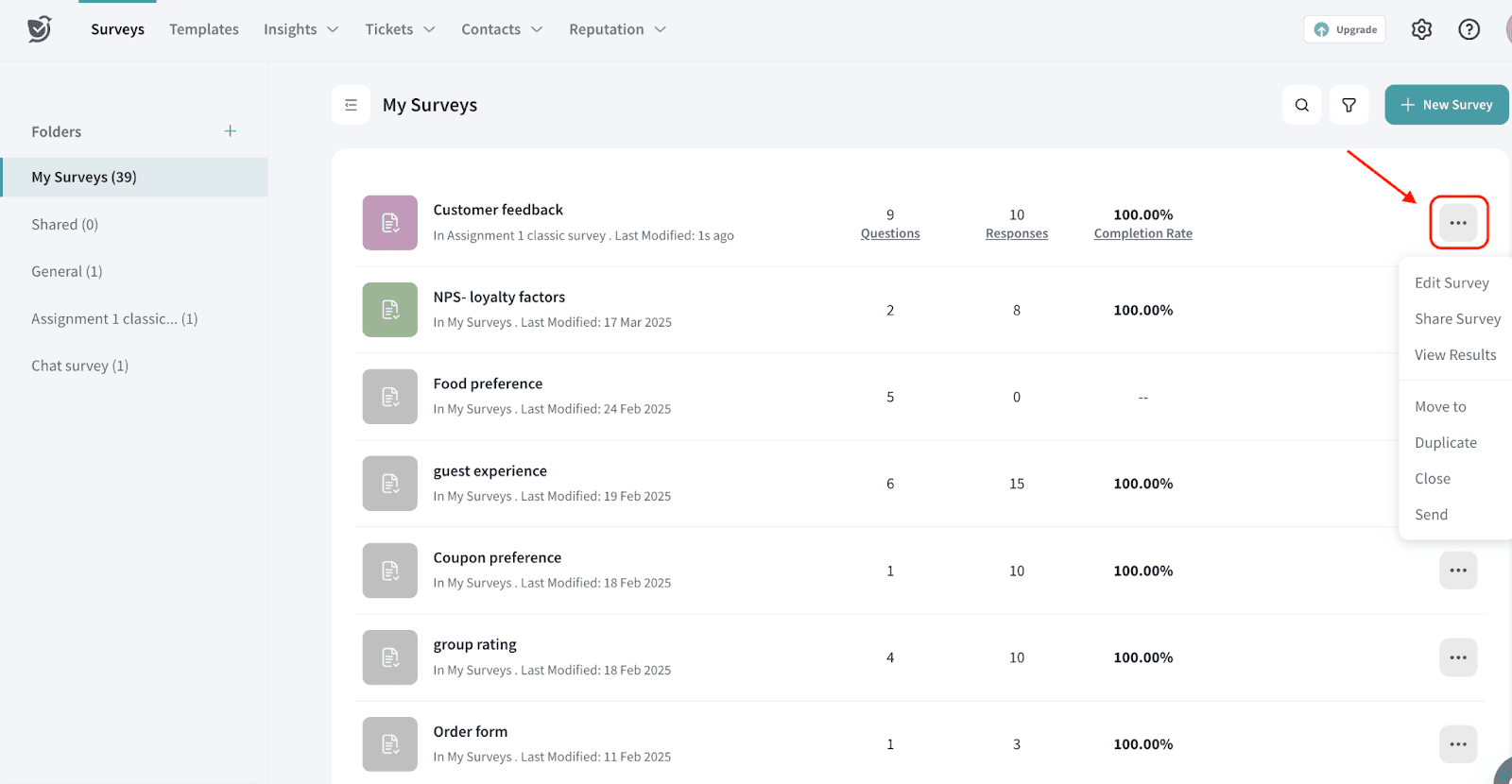
The first three options help you work with your survey:
- Edit: Opens the Build section, where you can modify questions, set configurations, and enhance the design.
- Share Survey: Opens the Share section, allowing you to choose how to distribute your survey.
- View Results: Opens the Results section, where you can see response overview, detailed reports, and individual responses.
The next set of options helps with survey management:
- Move To: Move the survey to a specific folder for better organization.
- Duplicate: Create a copy of the survey to edit separately.
- Close: Archive the survey so it no longer appears in your list. You can also check the help articles for steps to close a survey and retrieve a closed survey.
- Send: Transfer the survey to a sub-account. You can refer to the help article on creating a sub-account.
You can also use templates to edit your survey. To do this, go to your home page and choose Templates.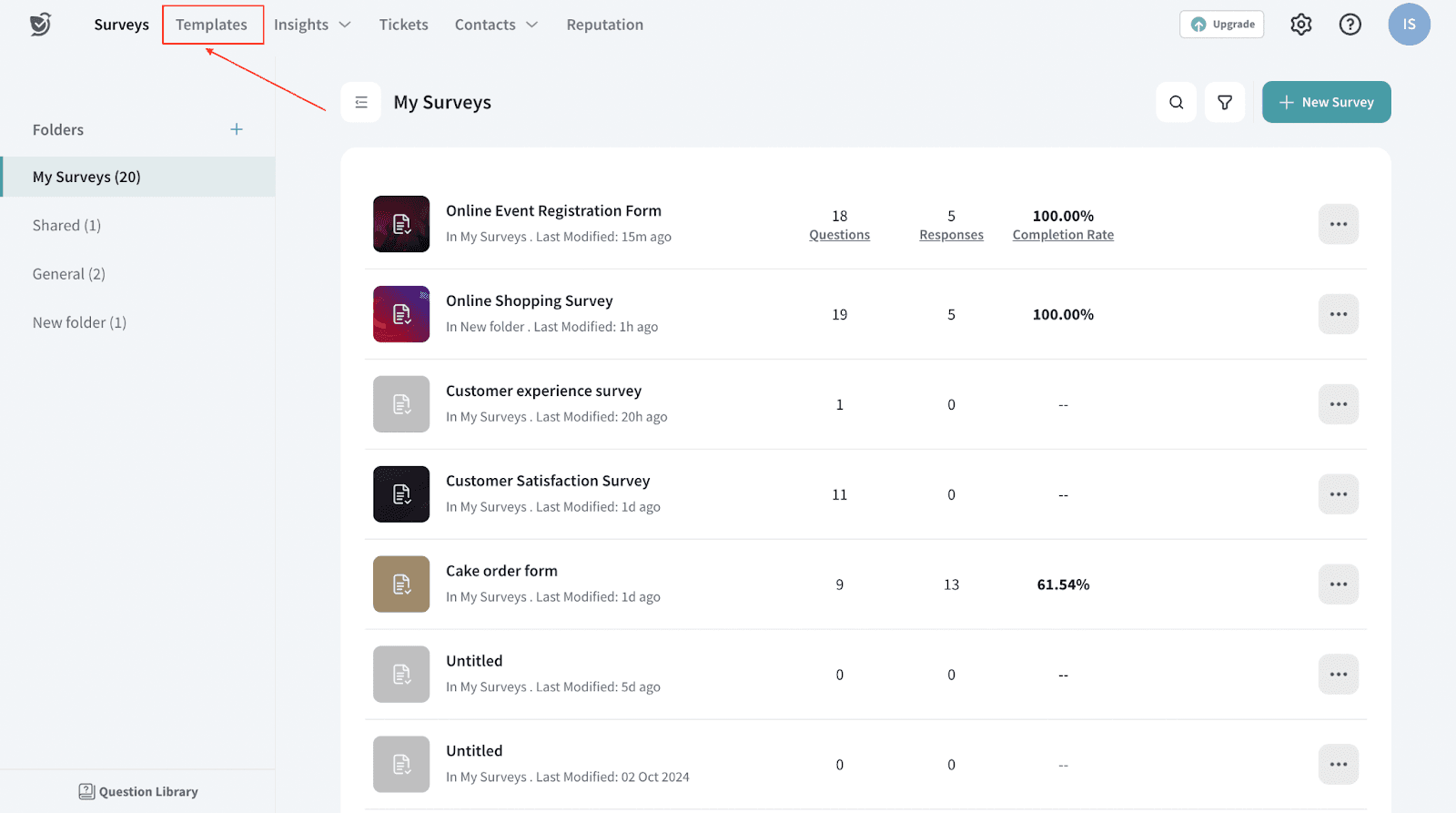
Now choose the template you want to edit.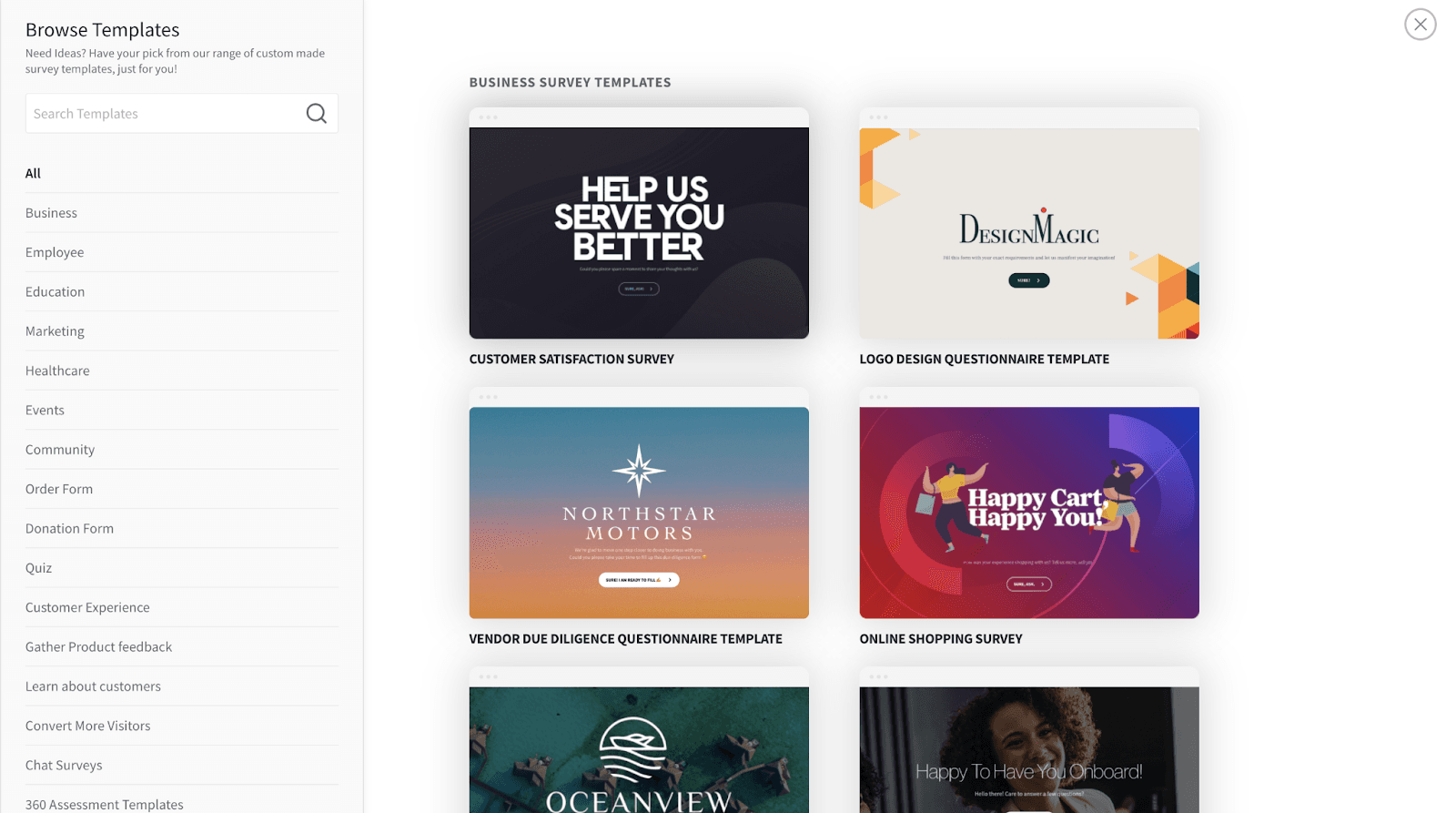
Click on “Choose Template” and start editing your survey.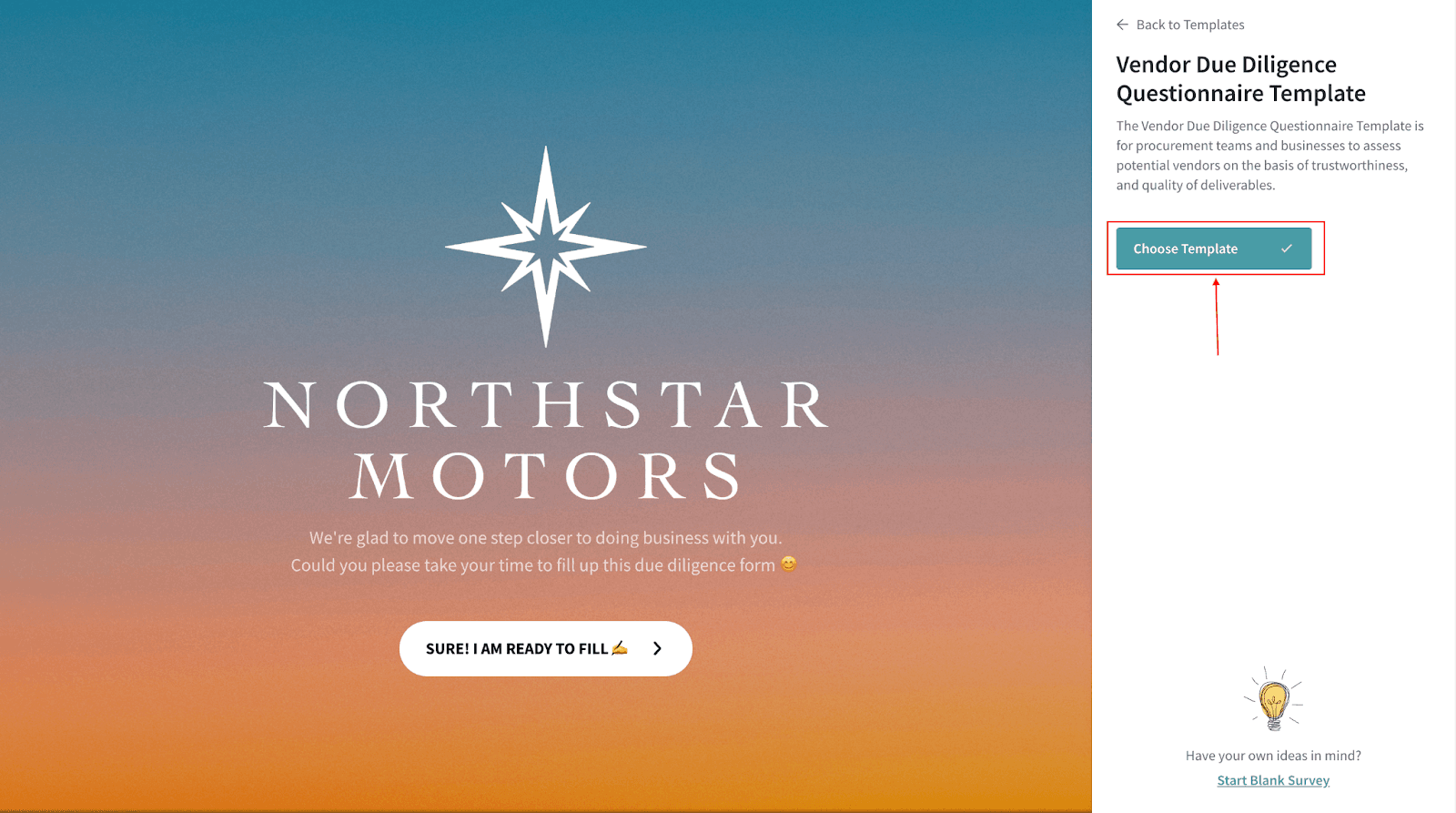
Need someone else (e.g., your Manager) to edit the same survey? Sharing a survey link is for distribution, but editing requires collaboration access. You can enable this in two ways:
1) Add them as a user on your account (recommended for full editing): Ask your account admin to add the Manager as a user, then place the survey in a folder they can access (for example, move it to the General folder or a shared folder you’ve granted them access to). Once they have folder access, they can open the survey and edit it. Click here to know more about folder management.
2) Invite them to comment (feedback only): Open the survey in the Build section and use the Invite option to send an email invite or share a collaborator link. This allows them to leave comments, but it does not grant full edit access. Click here to know more about survey collaboration.
Please reach out to us if you have any questions. We are just a chat away!