
How do I include my first survey question in Email?

Include the first question of your Survey in Email Share
Email Share lets you embed the first survey question, or any eligible question, in the email itself, so recipients see the question as soon as they open it instead of only a button. You choose the question to show, and you can switch back to a Get Started button at any time.
Prerequisites
- An Email Share on your survey. It appears on the Distribute tab.
- At least one question of a supported type. See the list below.
How do I embed a question in an Email Share?
- Open the Distribute tab and select your Email Share. In this example it is Email Share 1.
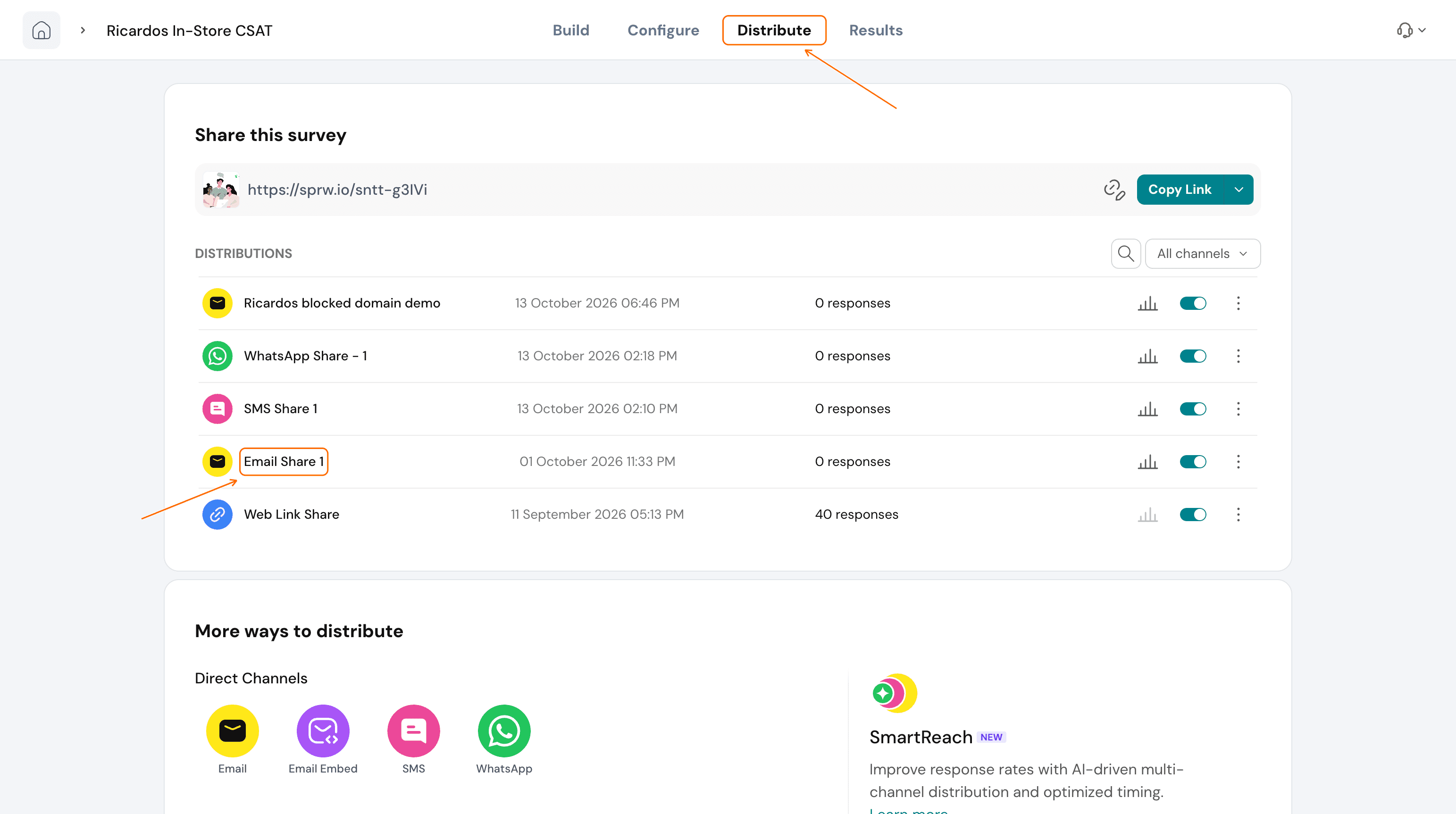
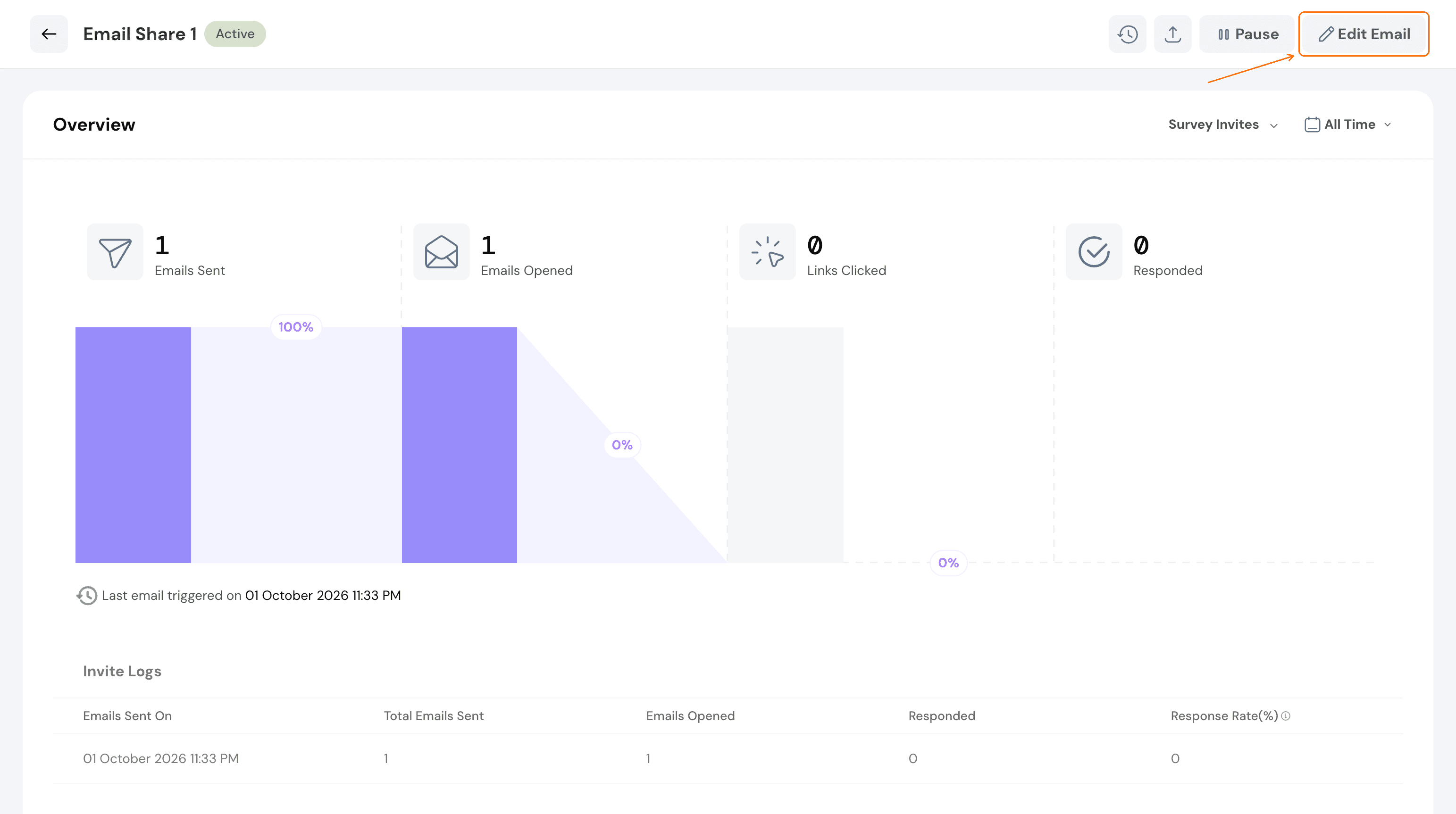
- Select Edit Email.
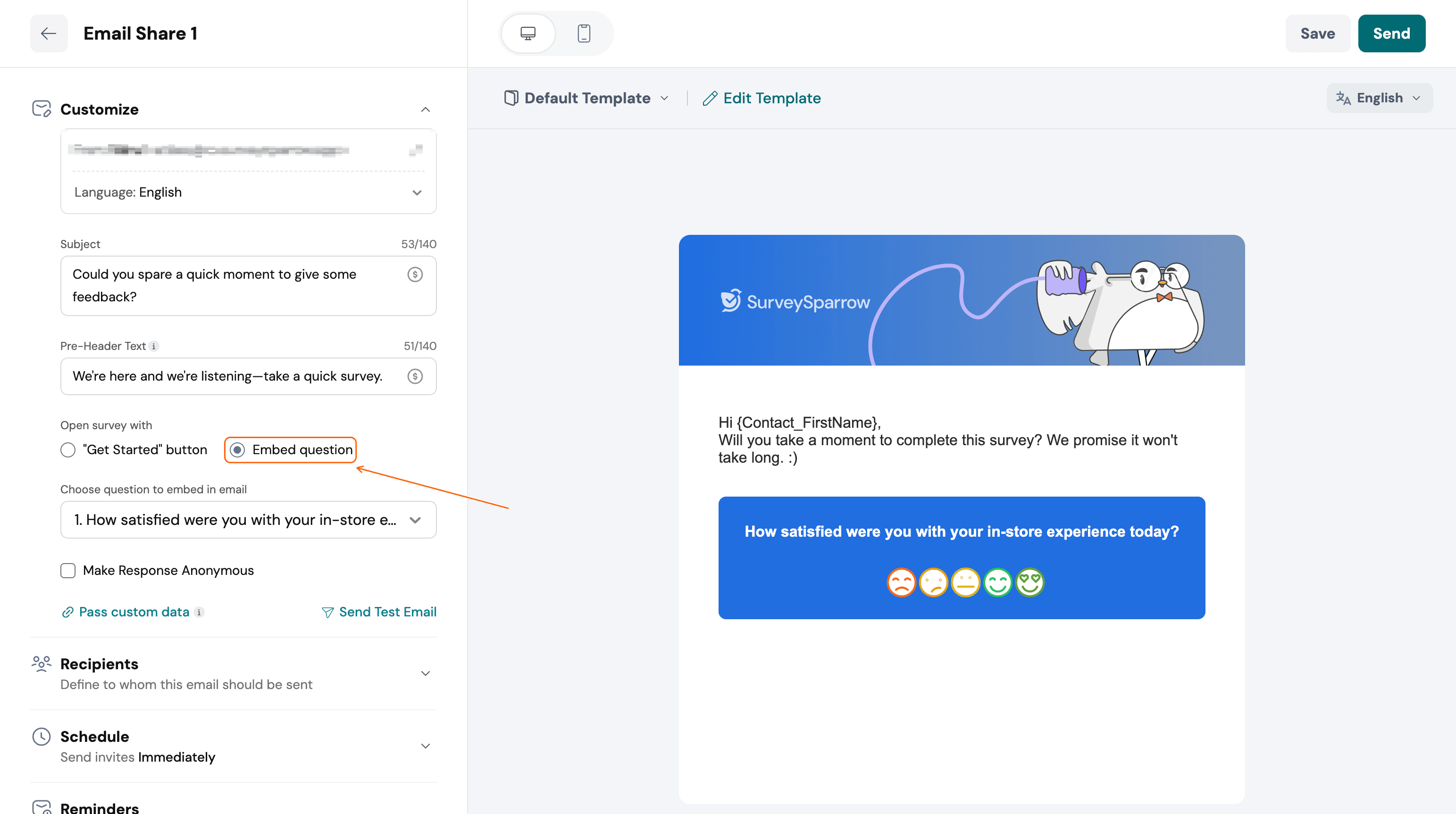
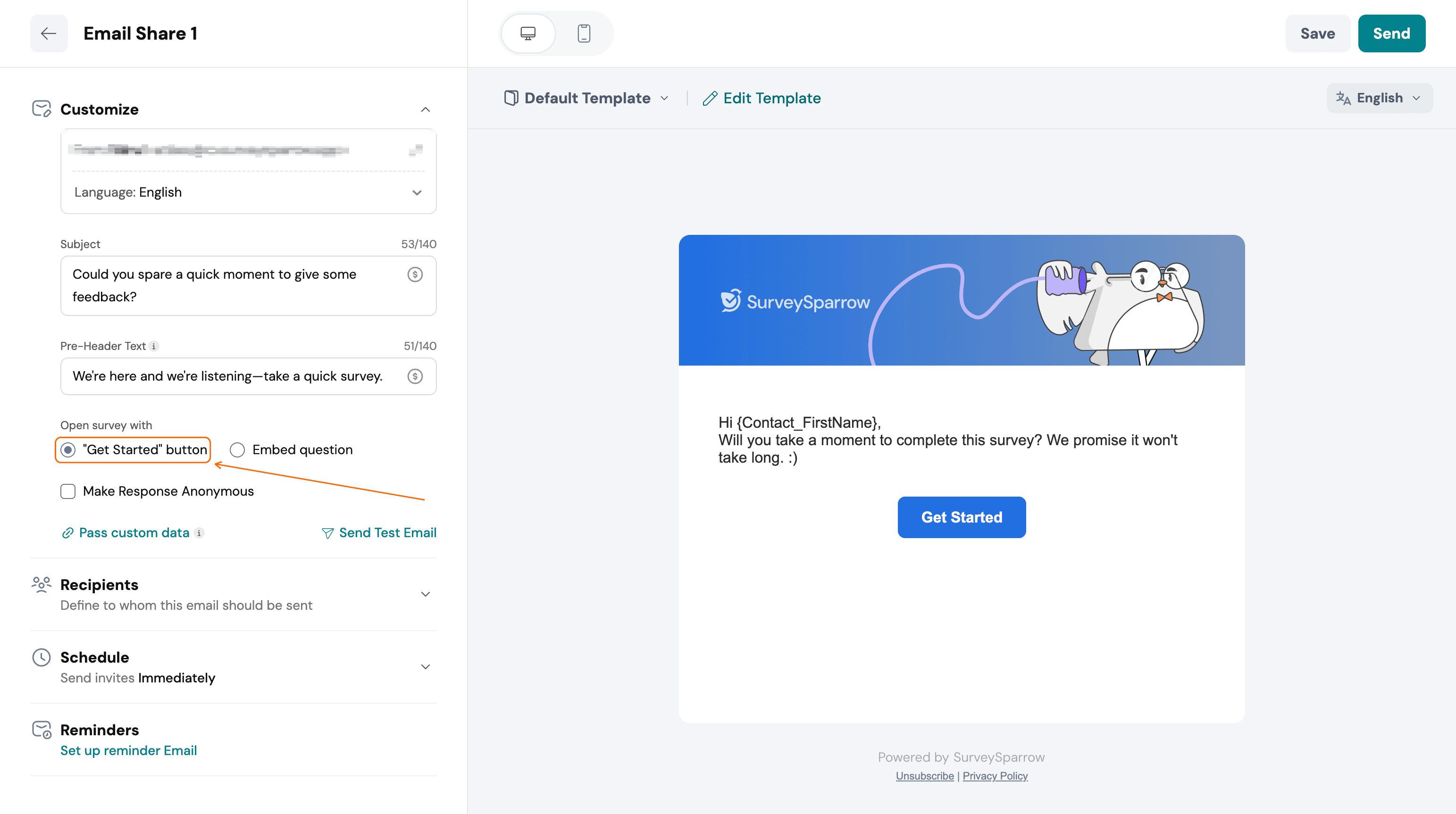
- Under Open survey with, select Embed question. The preview shows the question.
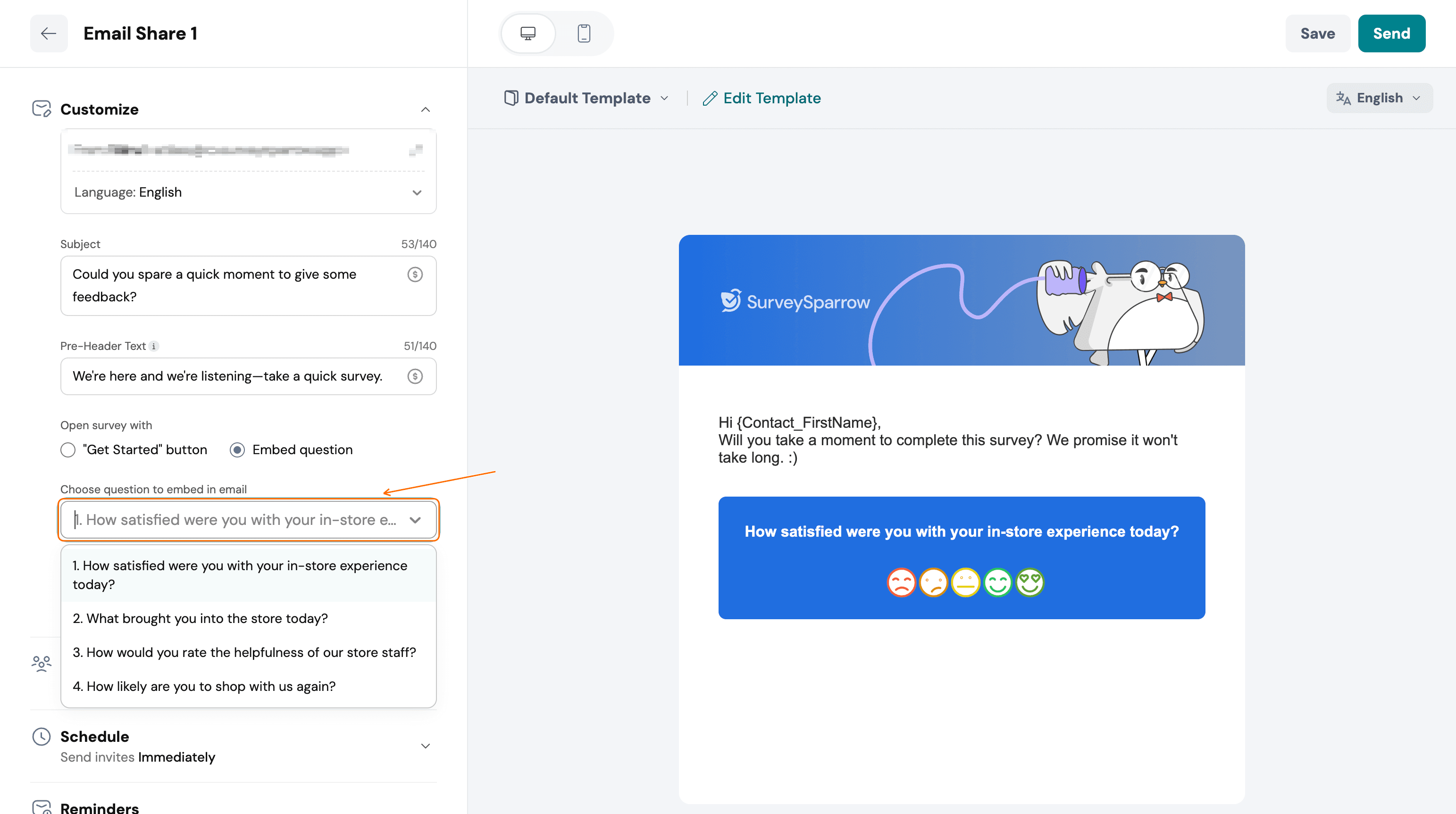
- Open the Choose question to embed in email list and select the question you want.
- To show a button instead of a question, select "Get Started" button under Open survey with. The preview shows a Get Started button and no question.
Which question types can I embed?
You can embed questions of these types:
- Opinion Scale
- Rating
- Multiple Choice, one answer allowed
- Picture Choice, one answer allowed
- Yes/No
- Net Promoter Score (NPS)
- Customer Satisfaction Score (CSAT)
- Customer Effort Score (CES)
Troubleshooting
Why does my email show a button instead of a question?
Open survey with is set to "Get Started" button. Select Embed question, then choose the question from the Choose question to embed in email list.
FAQ
Does the embedded question have to be the first question?
No. The list offers every eligible question in the survey, for example question 3.
Is this the same as Email Embed?
No. Email Share sends the invite from SurveySparrow. Email Embed gives you code to paste a survey into an email that you send from another tool.
Can I embed more than one question?
You choose one question from the list.
Related articles
Still need help? Contact our support team and we will get back to you.