
Delivering personalized thank you pages

Delivering personalized thank you pages
The ‘Multiple Thank You Pages’ feature allows you to show personalized thank you page messages to survey respondents.
You can either categorize your survey respondents and tag a specific thank-you page to them or trigger a thank-you, once a certain condition is met. In the latter case, if more than one condition is satisfied, the thank-you page that’s tagged to the first condition will be displayed or will take precedence.
Here’s an example that'll help you understand this feature better. Imagine that you are running a product survey. You can identify an unhappy customer through your survey. With the ‘Multiple Thank you page’ feature, you will be able to redirect them to your customer support page. You can hence maintain proactive communication with your customers.
Now, let’s see how to set it up!
To set up Multiple Thank You Pages:
After creating the questions and deciding the number of thank you pages you want in your survey, follow these steps.
Note: If you use Page Redirect, the Thank-you message will be hidden. To show the Thank-you message and still send respondents to the prize draw entry form, place the prize draw link on the Thank-you page instead.
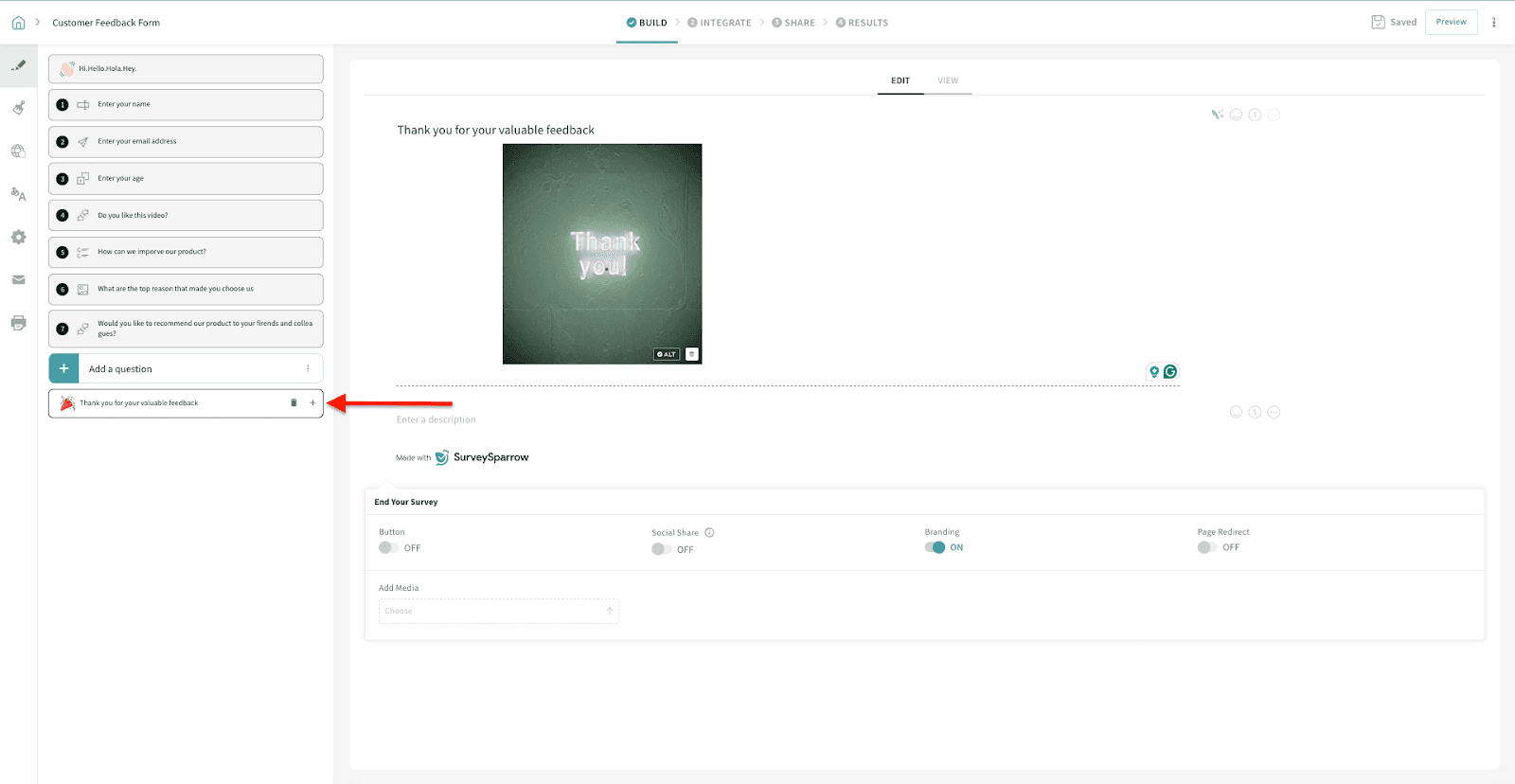
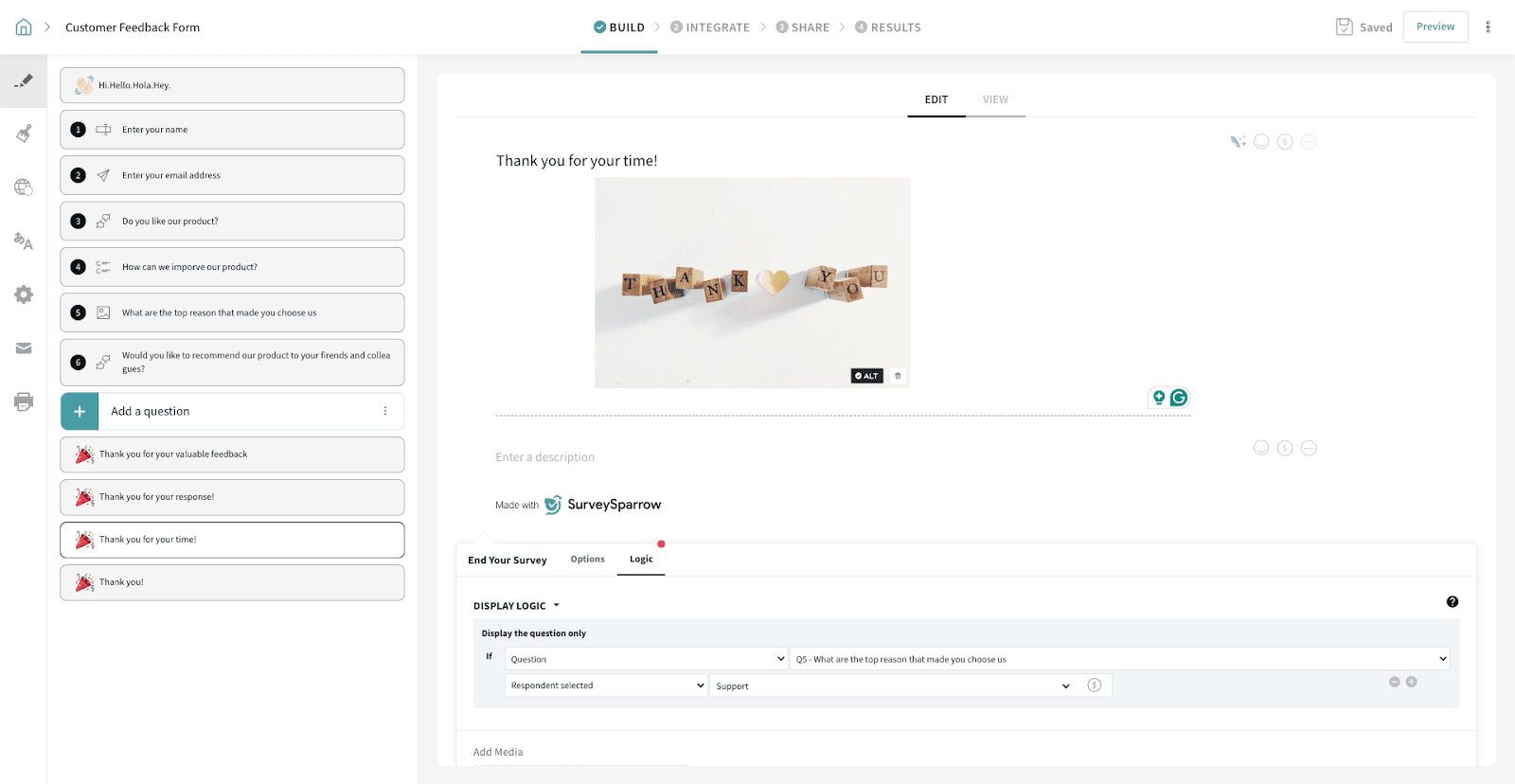
1. Go to the default Thank you page and click on the “+” icon in the right corner to add another Thank you page.
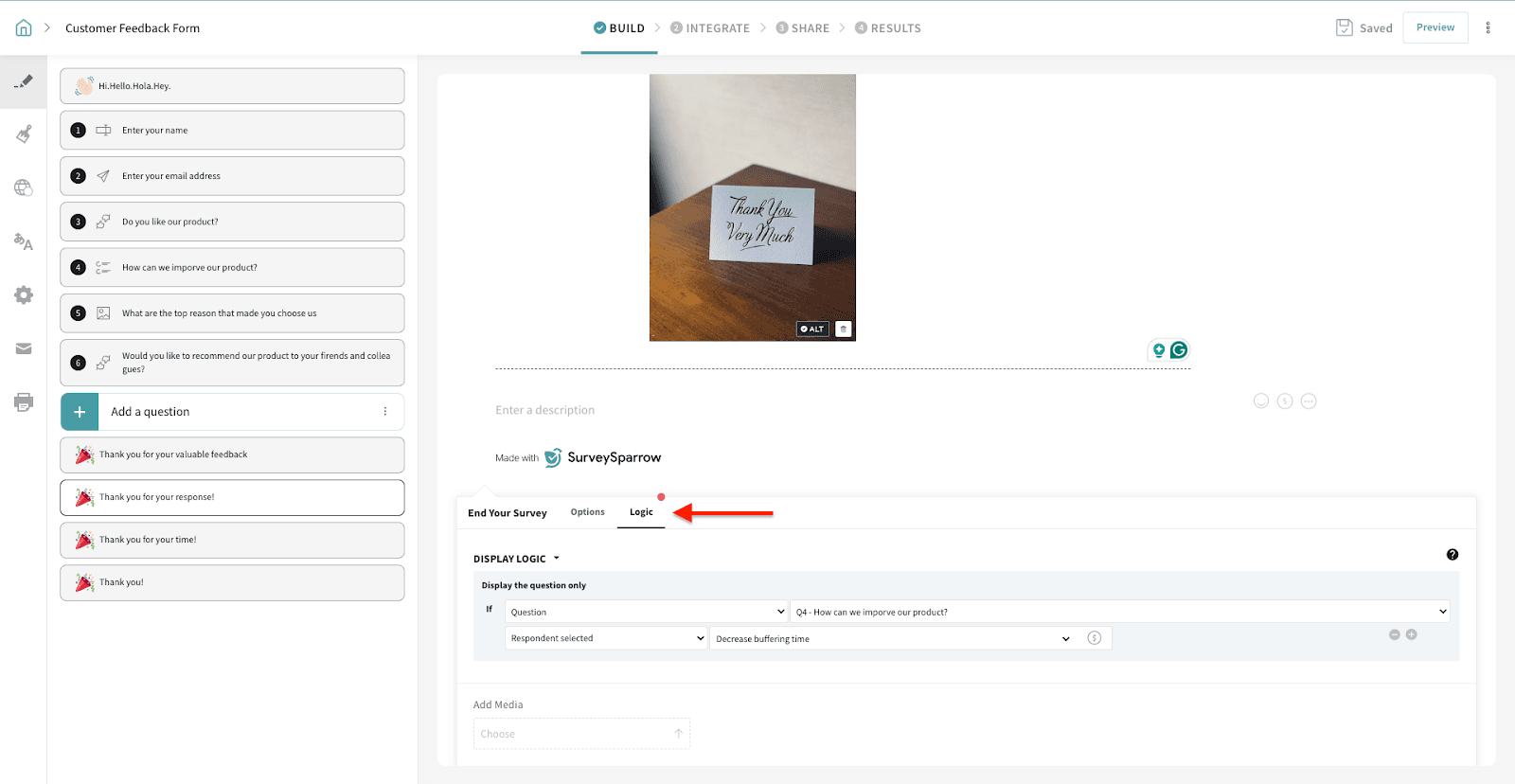
2. Click on the Logic button to add the conditions for which the page should be shown.
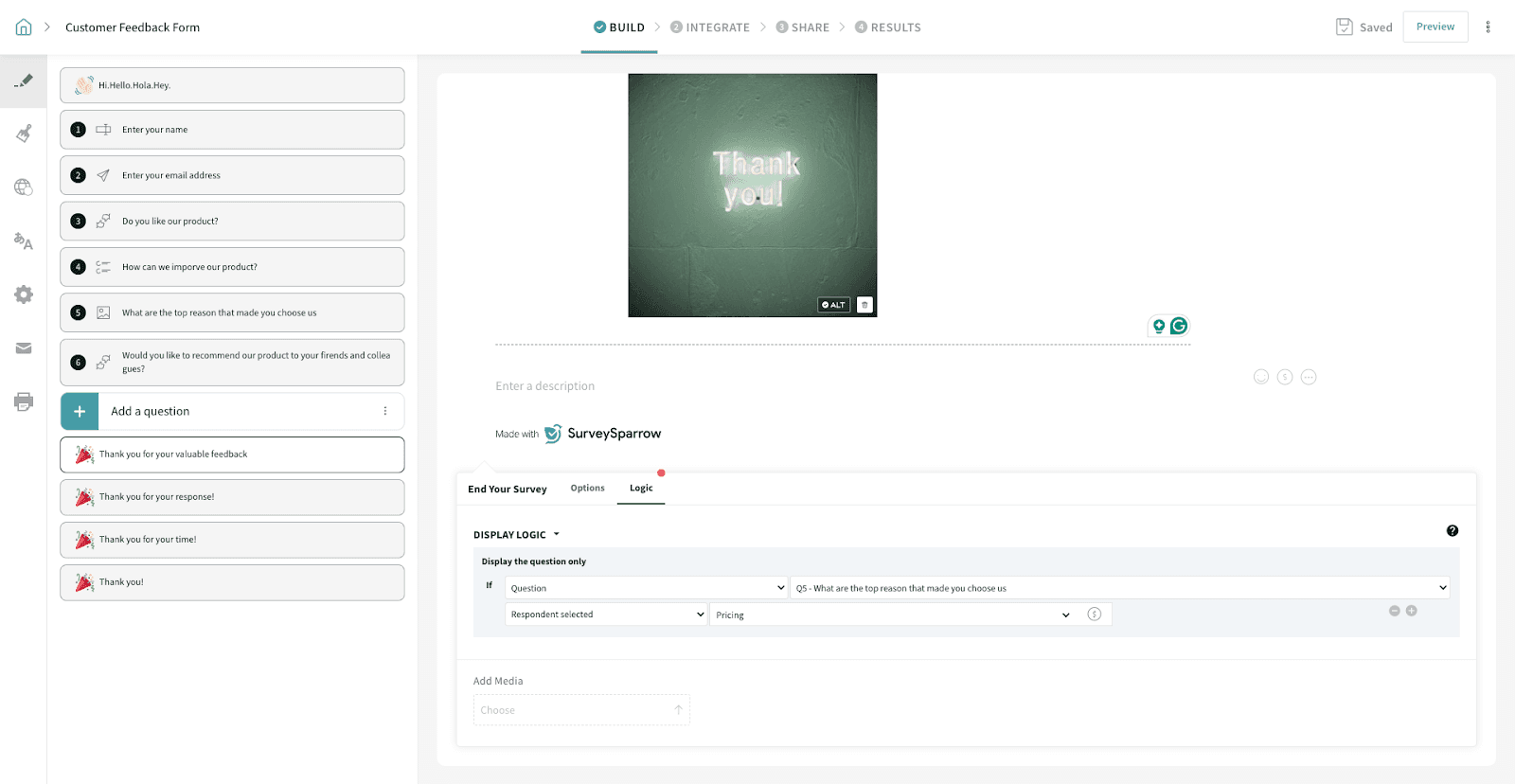
3. Set the question and conditions for multiple categories.
Thank you page if a response is already submitted
You can also choose to display the Thank You page if the survey has already been submitted. Under Display Logic, in the "Display the question only if" section, select Survey.
For example, if you are conducting a survey for students to select their electives, a student who has already submitted their response and opens the survey link again will automatically be redirected to the Thank You page.
- Under ‘Display the question only’, choose Survey
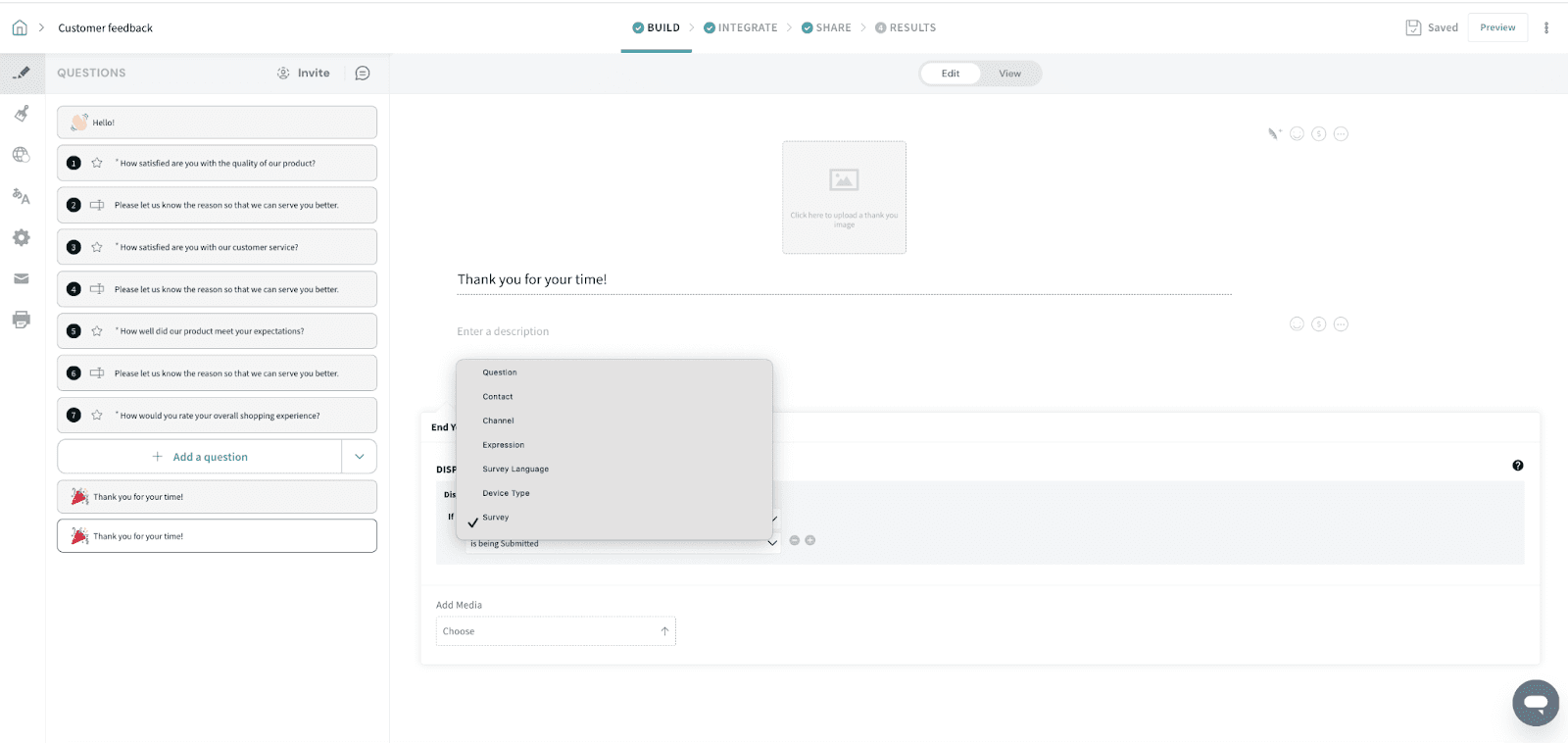
- Next, select "is already submitted".
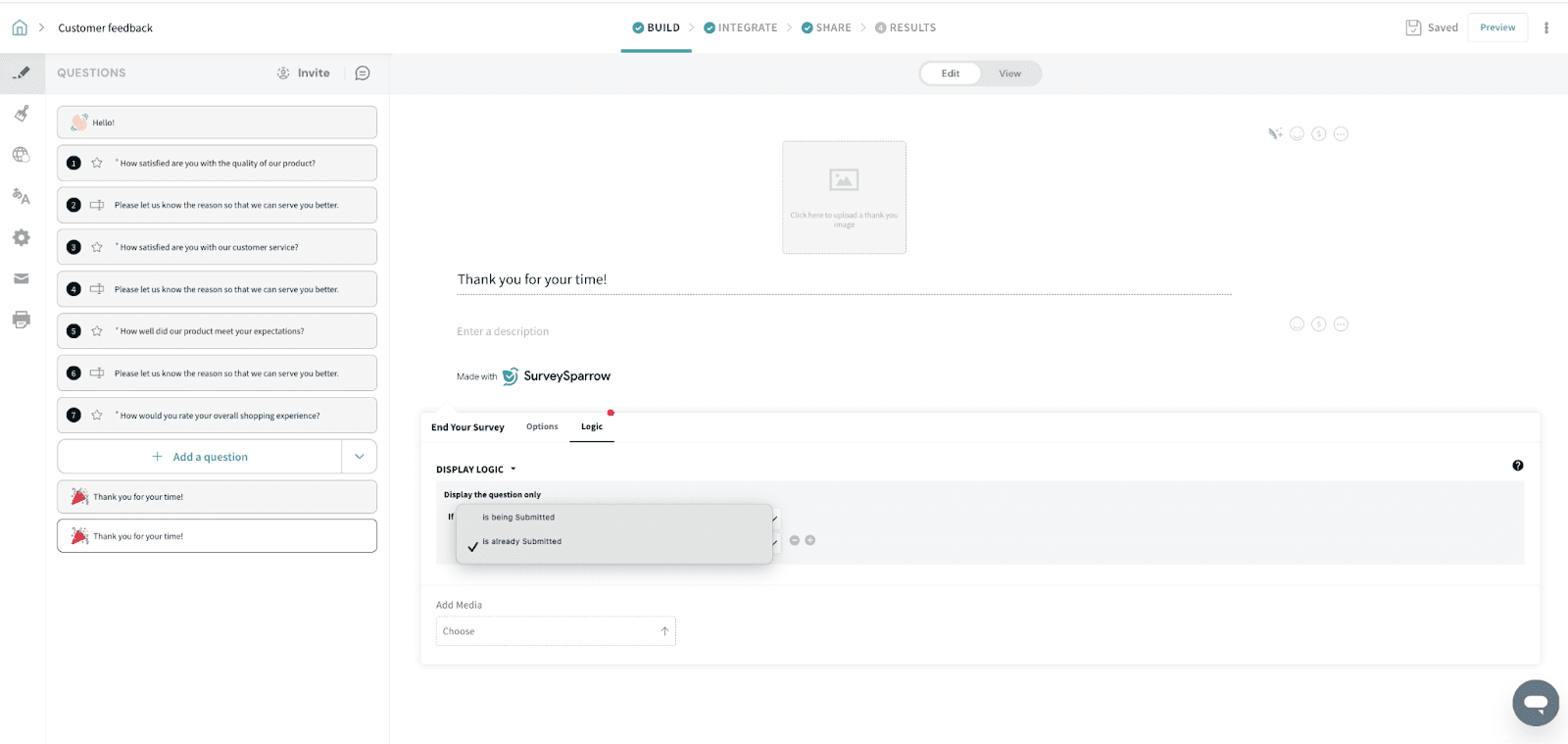
- Preview and proceed.
Using this with an anonymous survey + prize draw: If you want to keep your main survey anonymous but still run a prize draw, keep the main survey completely anonymous (don’t add any email collection questions). Create a separate SurveySparrow form only for prize draw entry (to collect name and email), and add the prize draw form link on the main survey’s Thank-you page. This lets you show a thank-you message to all survey respondents, and a separate thank-you message on the prize draw form for those who choose to enter.
Note: If you use Page Redirect, the Thank-you message will be hidden. To show the Thank-you message and still send respondents to the prize draw entry form, place the prize draw link on the Thank-you page instead.
That's how simple it is to configure multiple Thank you pages. It will help you acknowledge the respondent with a relevant message at the end of the survey.
Feel free to reach out to our community if you have any questions.