
How do I create a Sub Account?

To create a sub account in SurveySparrow, open Settings and add one under your main account. A sub account is a separate account with its own surveys and users, so each brand, department or client stays organized and its survey data stays safe, while you manage all of them from the parent account.
Prerequisites
- A name for the new account, for example your brand or client name.
- A subdomain for the new account, such as
aurora-resorts, which becomesaurora-resorts.surveysparrow.com. - The name and email address of the owner, if someone other than you will own the account.
Create a sub account
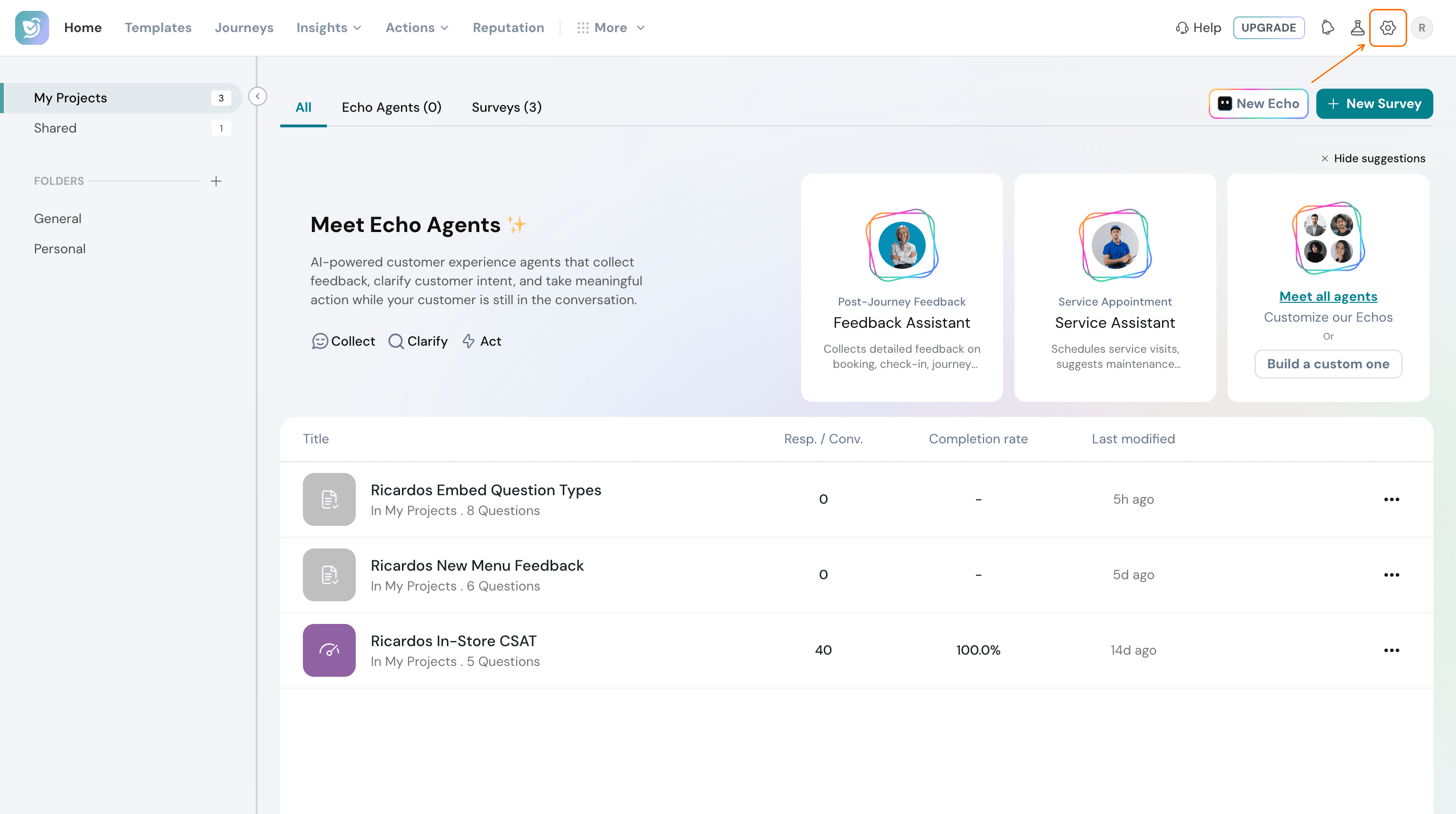
- Select the Settings icon in the top navigation bar.
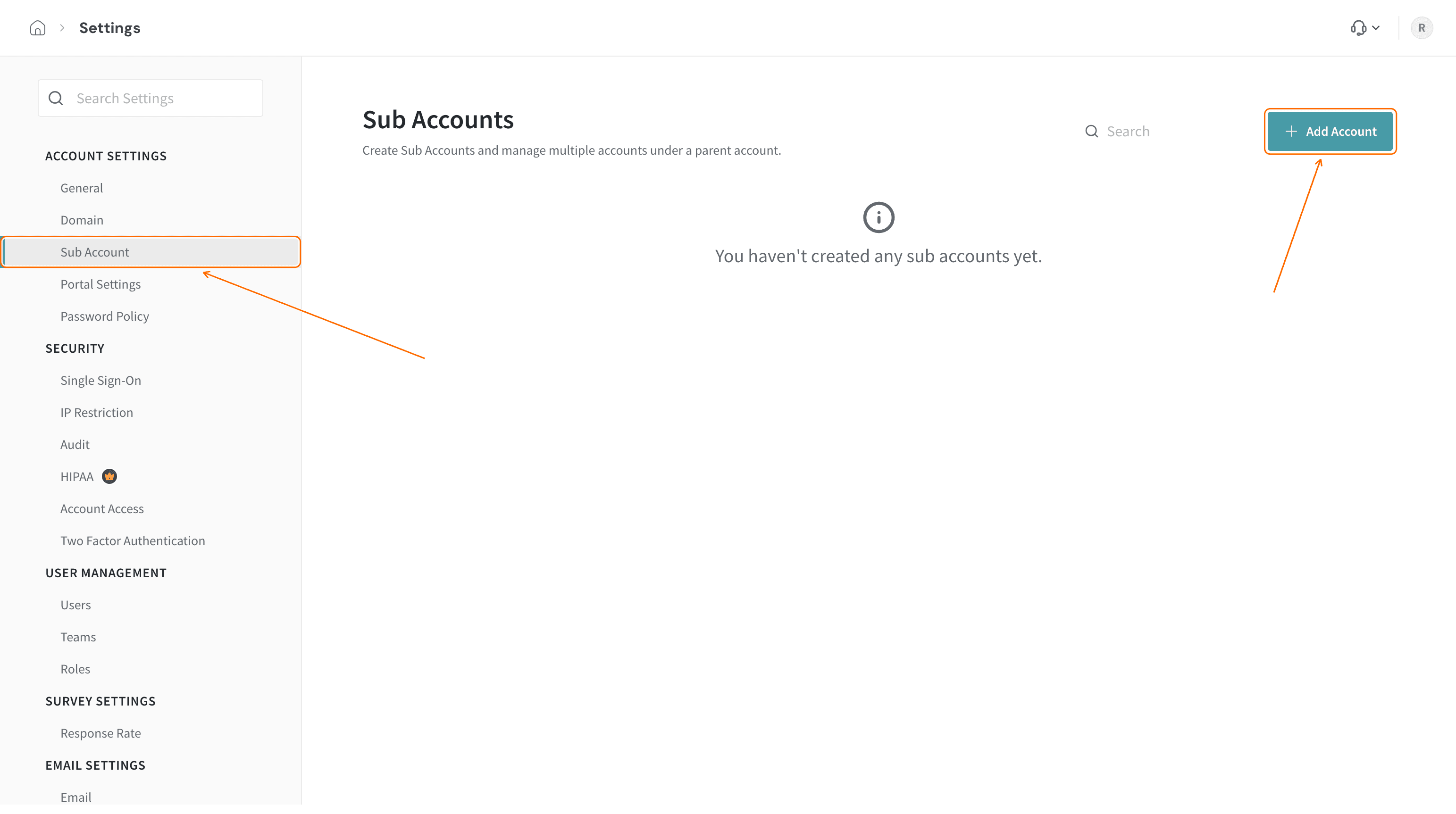
- Select Sub Account in the left menu, then click Add Account.
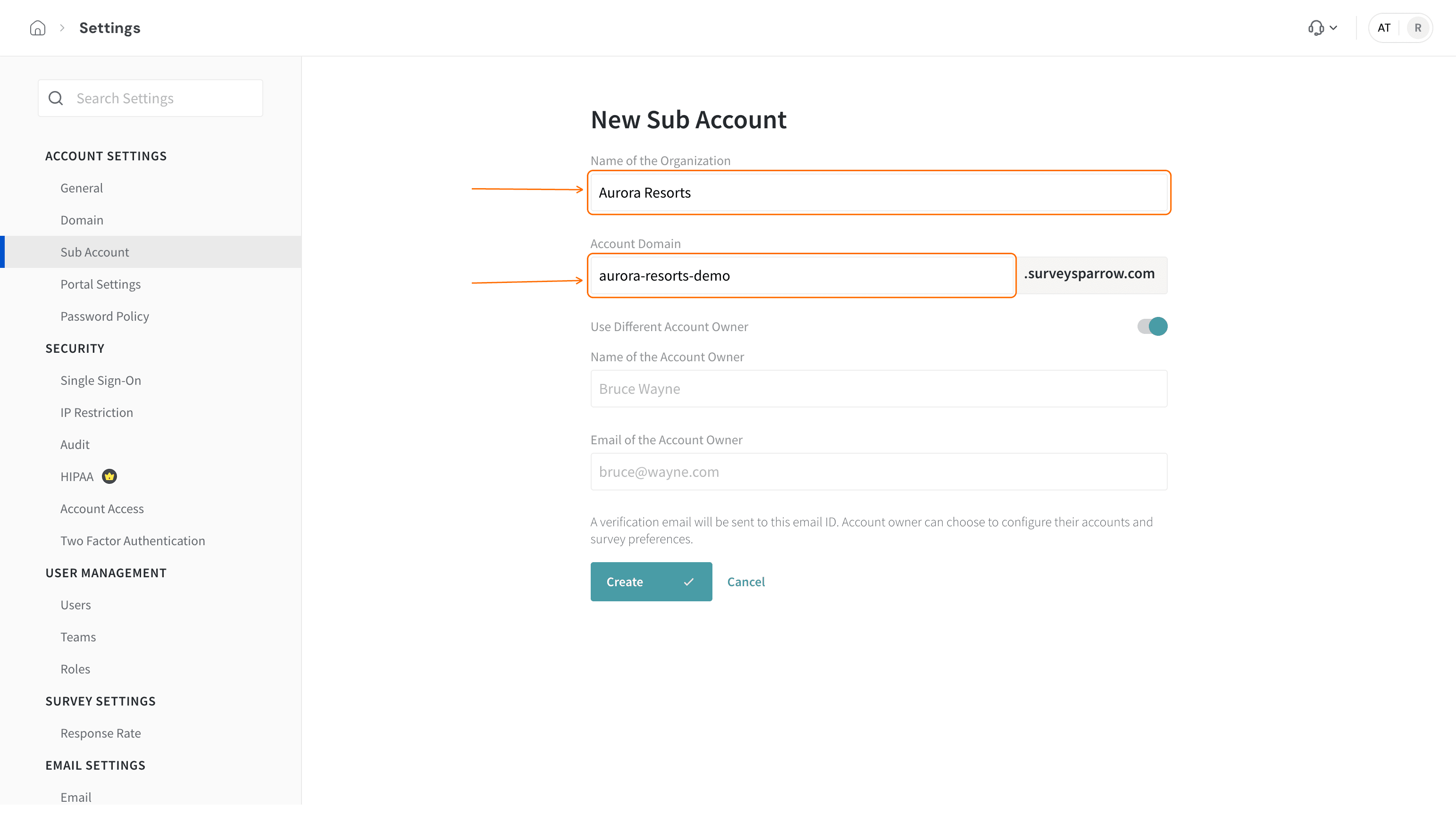
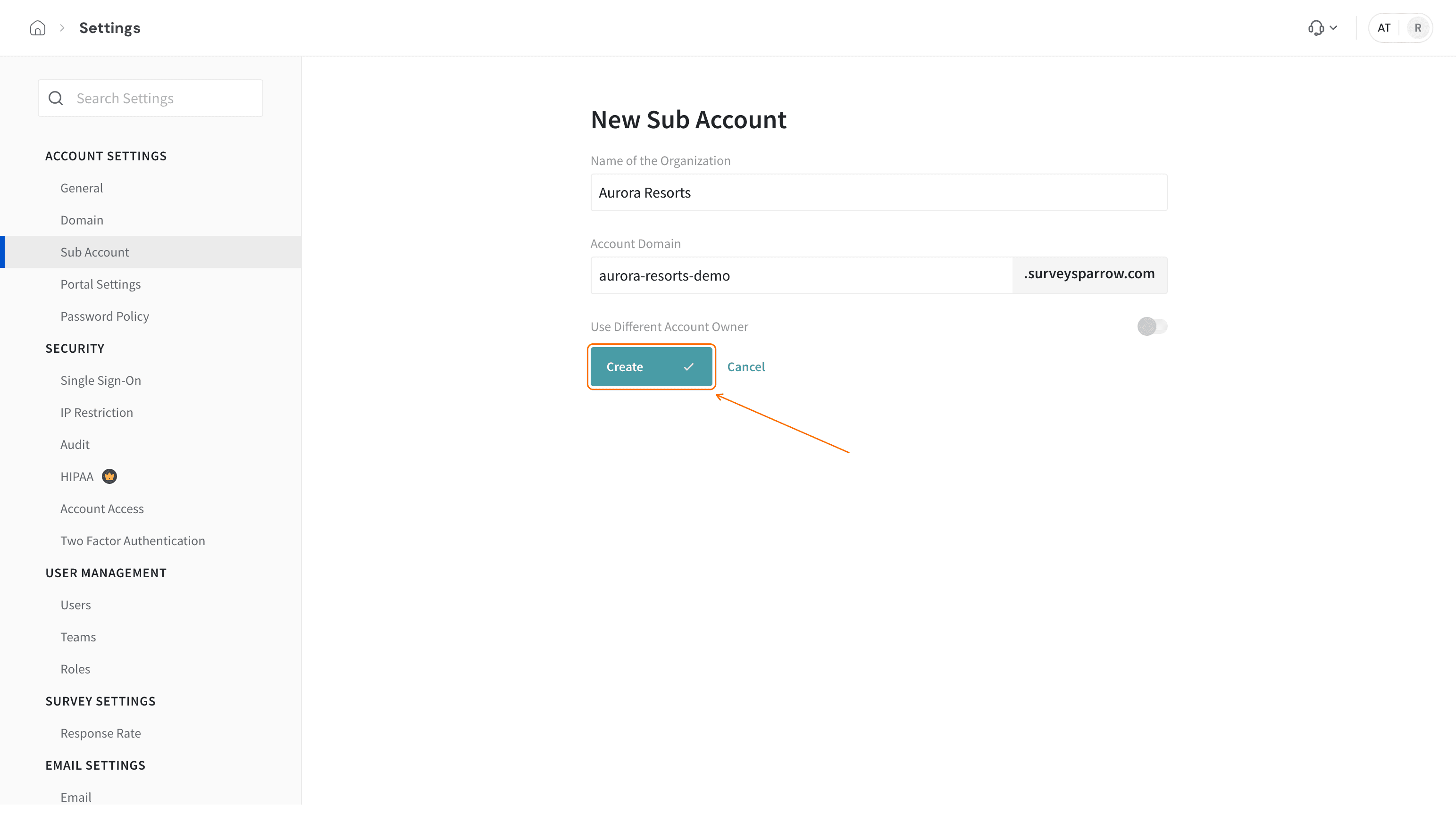
- Enter the account name in Name of the Organization and the subdomain in Account Domain.
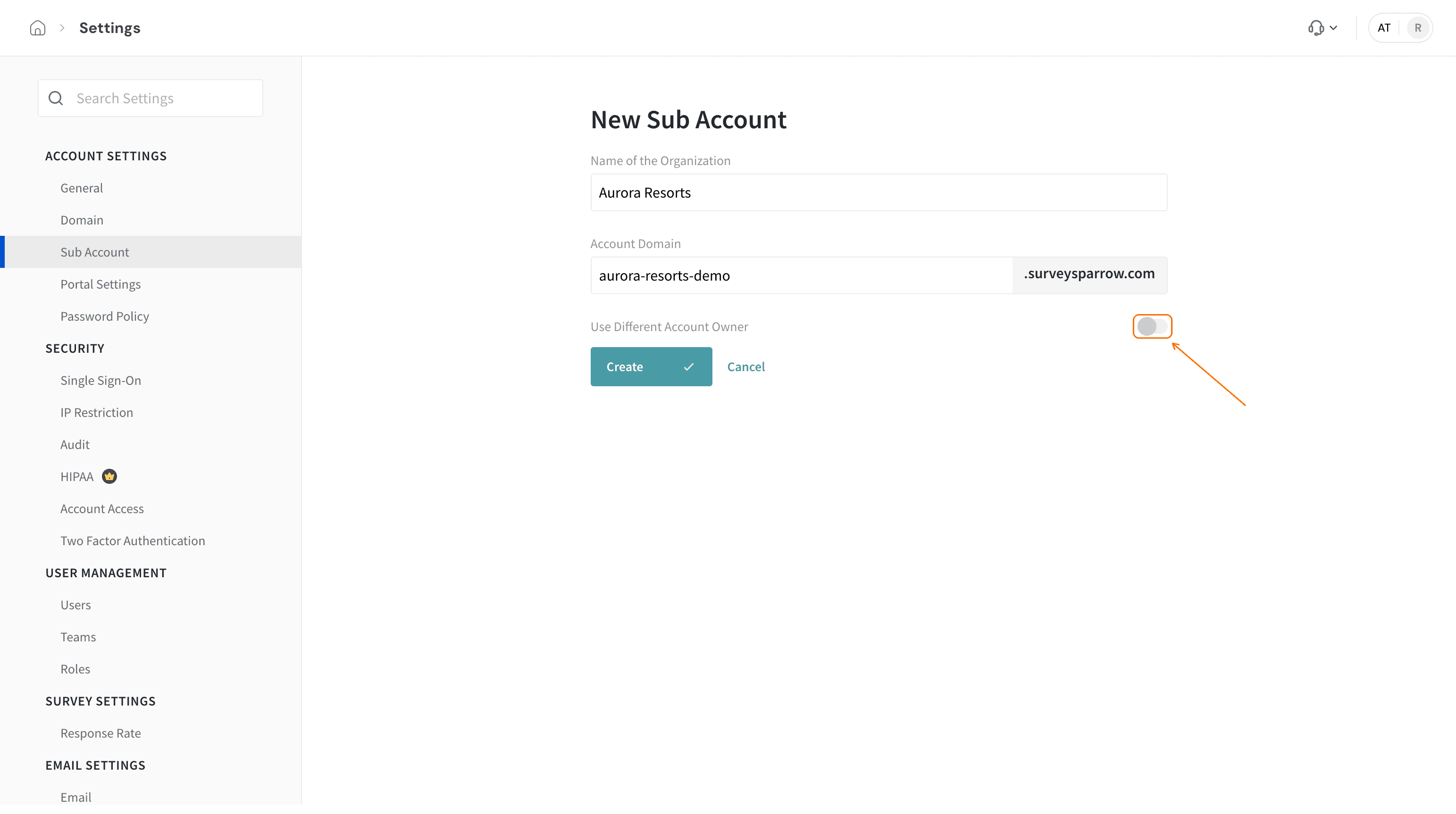
- Turn Use Different Account Owner off if you want to own the account yourself. Leave it on to enter Name of the Account Owner and Email of the Account Owner. SurveySparrow sends a verification email to that address.
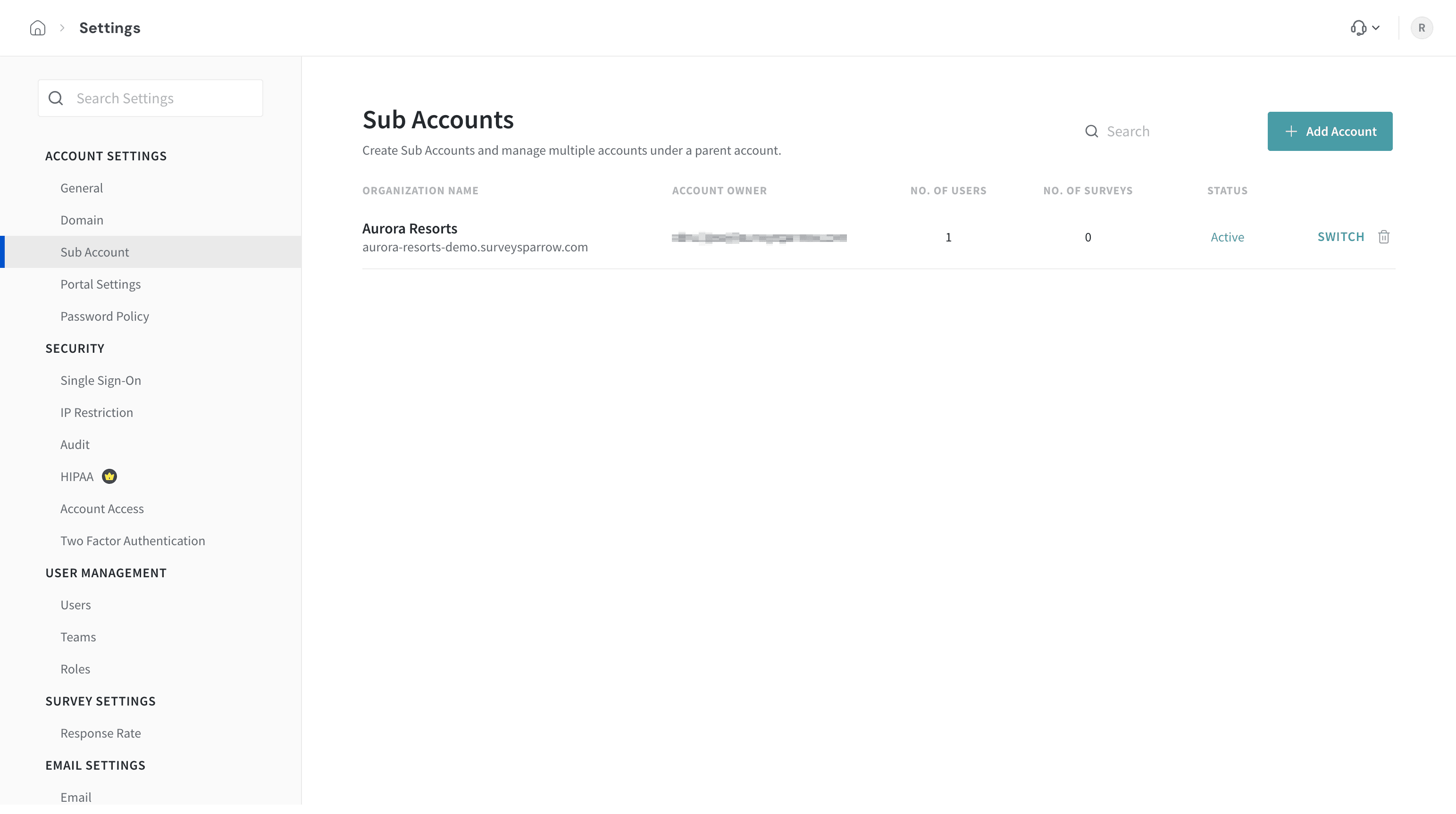
- Click Create. The new account appears in the list with its owner, number of users, number of surveys and status.
Switch to or delete a sub account
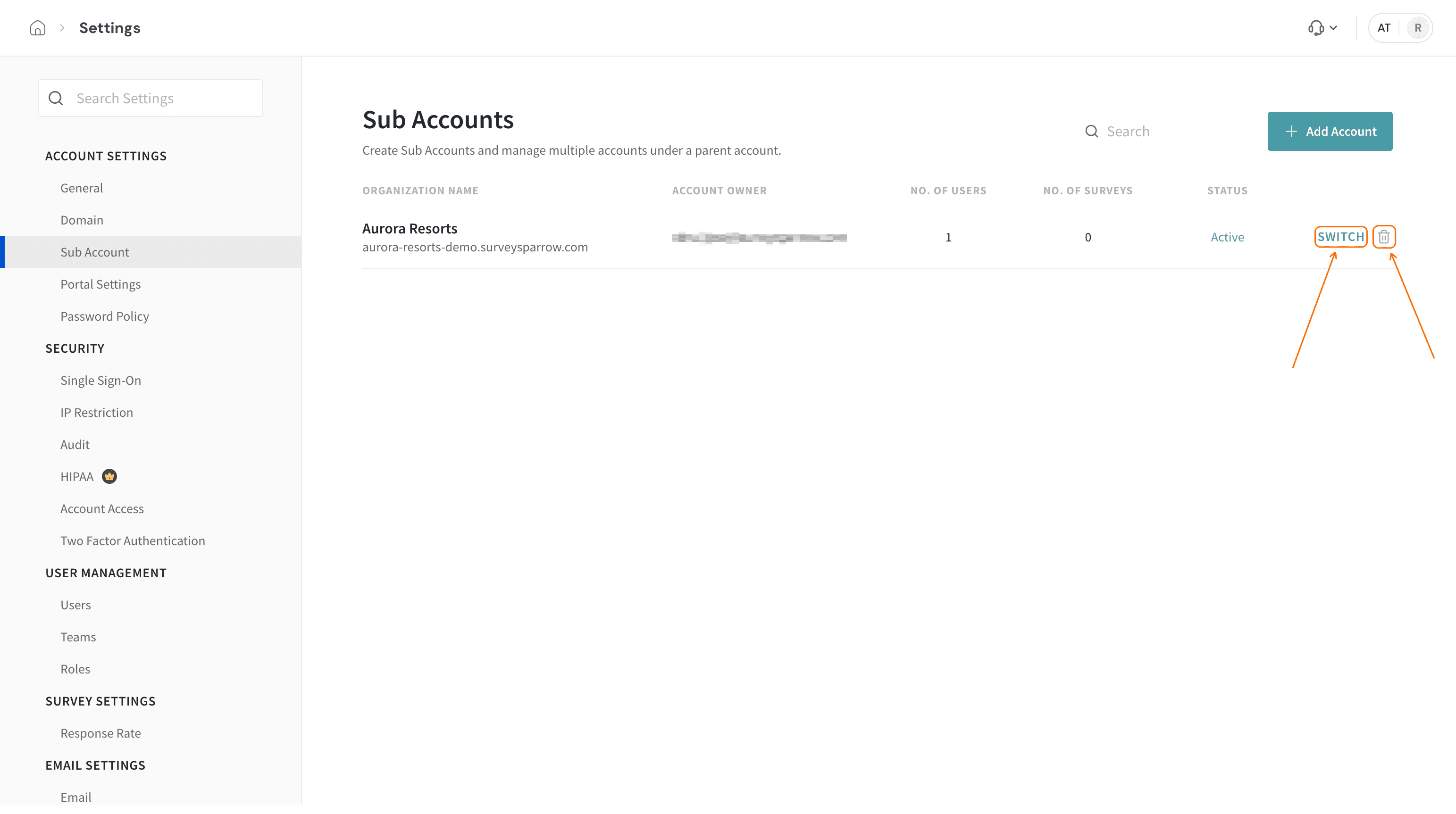
Click Switch next to a sub account to open it. Click the bin icon next to Switch to delete a sub account you no longer need.
Convert a sub account to a standalone account
If your organization structure changes, our team can convert an existing sub account into an individual (standalone) account. Our team handles the conversion, so reach out to support through chat or email and share the sub account URL.
What to expect during the conversion:
- Your surveys can stay live, so sending and collecting responses are not interrupted.
- Survey IDs, response IDs and contact IDs stay unchanged.
- This helps avoid disruption to custom integrations that rely on those IDs, such as Salesforce syncs.
- The usual turnaround is about one week, and it may vary with account size.
If your integration uses the SurveySparrow Account ID as an external identifier, mention it when you raise the request. Support can then confirm the expected behavior for your setup before they proceed.
Troubleshooting
An error appears when I add a sub account
Contact support through chat or email and mention the error. They can check your account.
The option to switch accounts is missing from the top navigation bar
This can happen after you create or edit a survey inside a sub account. Refresh the page, and the option to switch back to the main account or to another sub account appears again.
The sub account is not deleted
If a sub account stays in the list after you delete it, contact support through chat or email and share the sub account URL.
FAQ
Who should use sub accounts?
Sub accounts suit any setup where one organization runs several groups. A company with multiple departments can create one sub account per department, a company with several brands can create one per brand, and an agency can create one per client. Each sub account can invite project members or customers to collaborate.
What happens to the data when an employee leaves?
Add a new user to the existing sub account. The new user can access the data associated with that account, depending on their role.
Can someone else own a sub account?
Yes. Keep Use Different Account Owner on and enter the owner's name and email address when you create the account. SurveySparrow sends them a verification email.
How do I add people to a sub account?
See Inviting your team members in User Management for adding users, and Custom Roles and Permissions (Including Survey Edit Access) for what each role can do.
Related articles
- Managing your Account Settings
- Configuring a custom domain of your choice for your survey URL
- Inviting your team members in User Management
- Custom Roles and Permissions (Including Survey Edit Access)
Still stuck? Reach out to our support team through chat or email, and we will help you.