
Reputation Management Overview

This Reputation Management overview shows how SurveySparrow brings your online reviews into one place. Use the Reviews section to read, filter, respond to and create tickets from reviews, and the Overview section to track your average rating, sentiment and listing performance. Showcase, Boost and Social Feeds add embeddable review widgets, review-request campaigns and social listening.
Prerequisites
- At least one listing added to Reputation Management. See Add a listing below.
- Business account credentials for the review platform, when you connect a platform.
What's in Reputation Management
The Reputation page is organized into these sections.
Section | What it does | Where to learn more |
|---|---|---|
Reviews | Read, filter, respond to and create tickets from your online reviews | This article |
Overview | Track your average rating, sentiment and listing performance | This article |
Boost | Ask customers for reviews by email or SMS | Boost reputation with email campaigns and Boost Reviews with SMS Campaigns |
Showcase | Embed your best online reviews on your website | This article |
Social Feeds | Listen for social media mentions of your brand or topics |
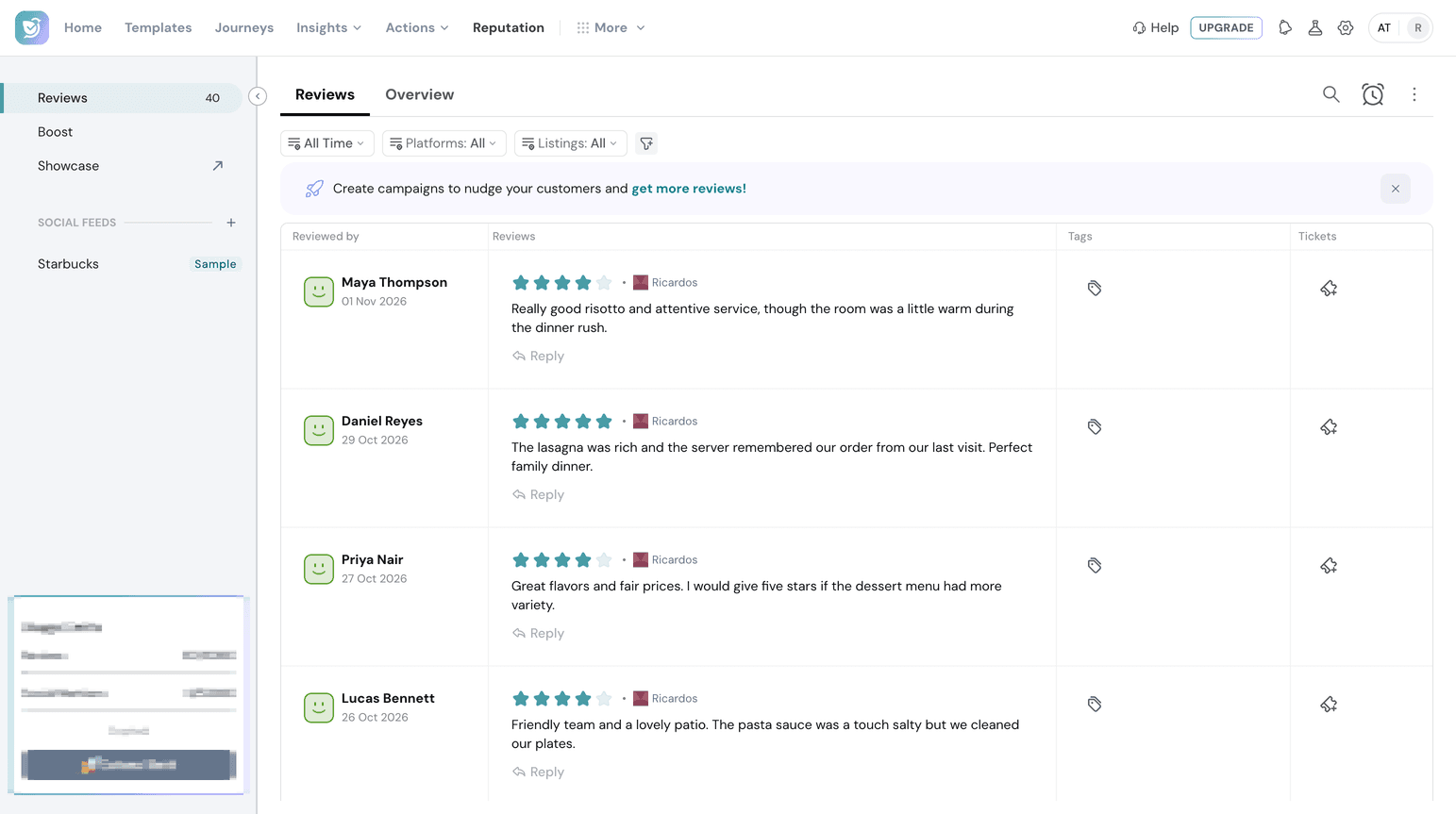
Add a listing
A listing is a business location on a review platform. Reviews load into the Reviews section after you add one.
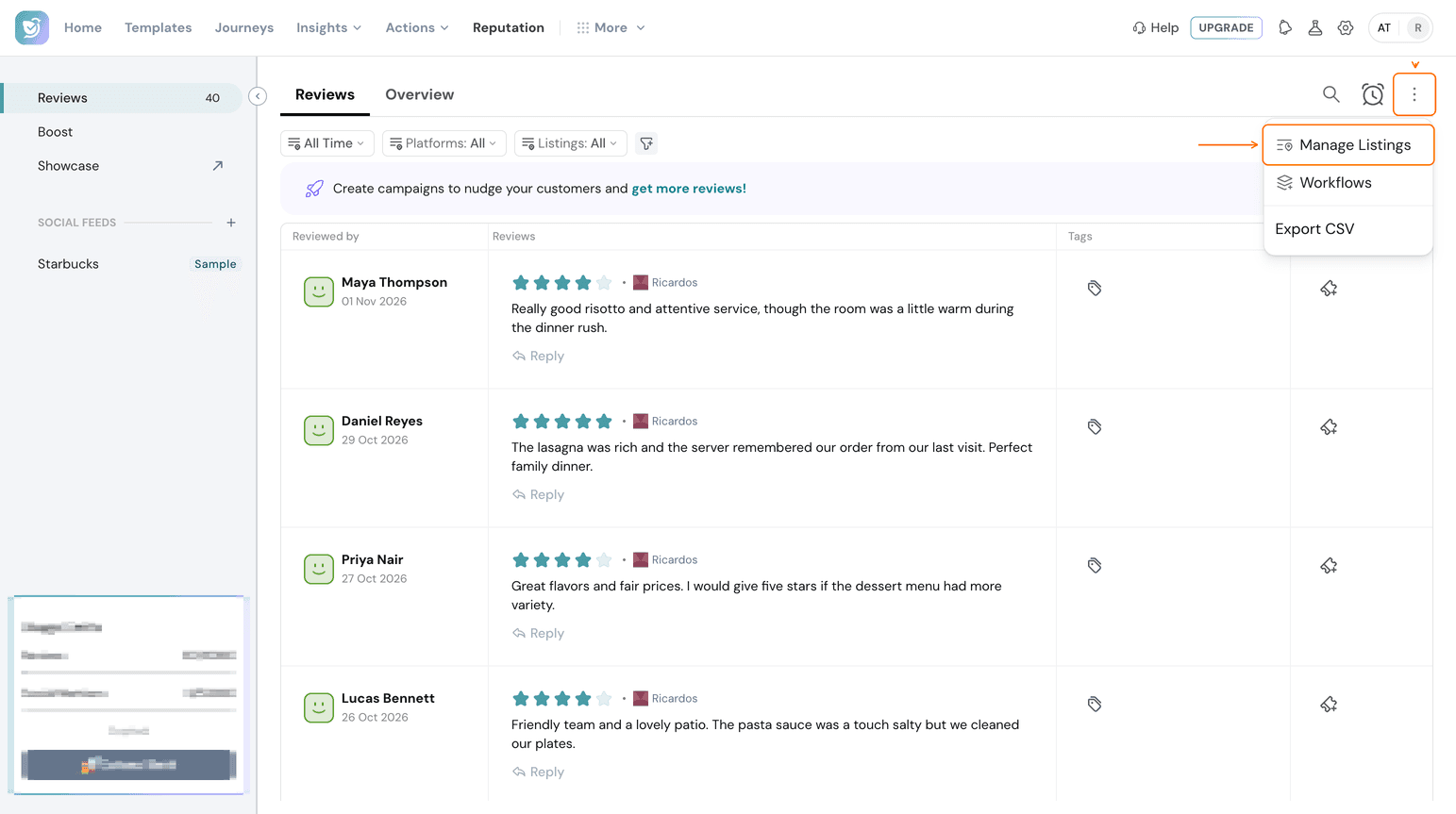
- Click More options at the top right of the Reviews tab, then select Manage Listings.
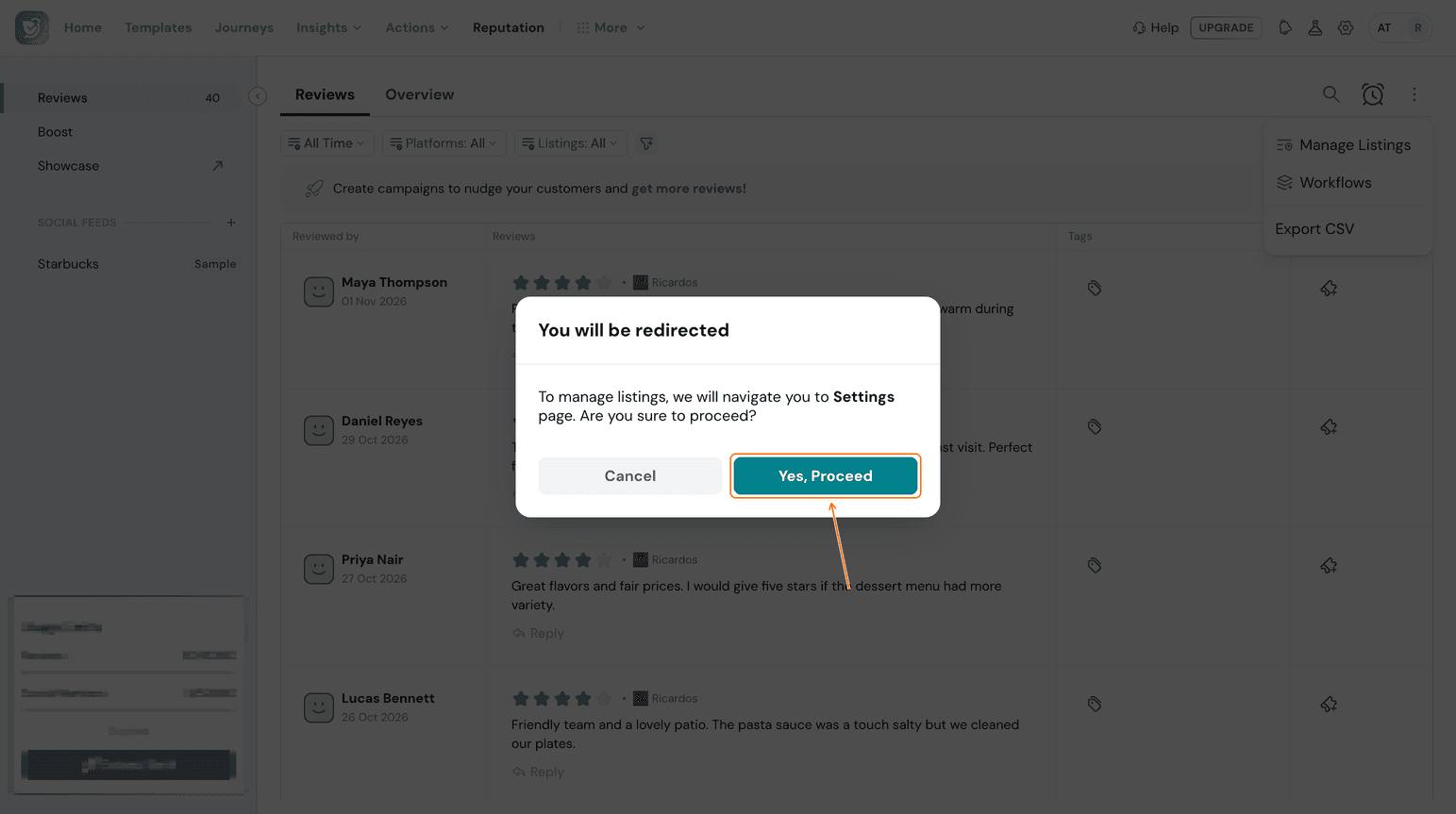
- In the confirmation dialog, click Yes, Proceed.
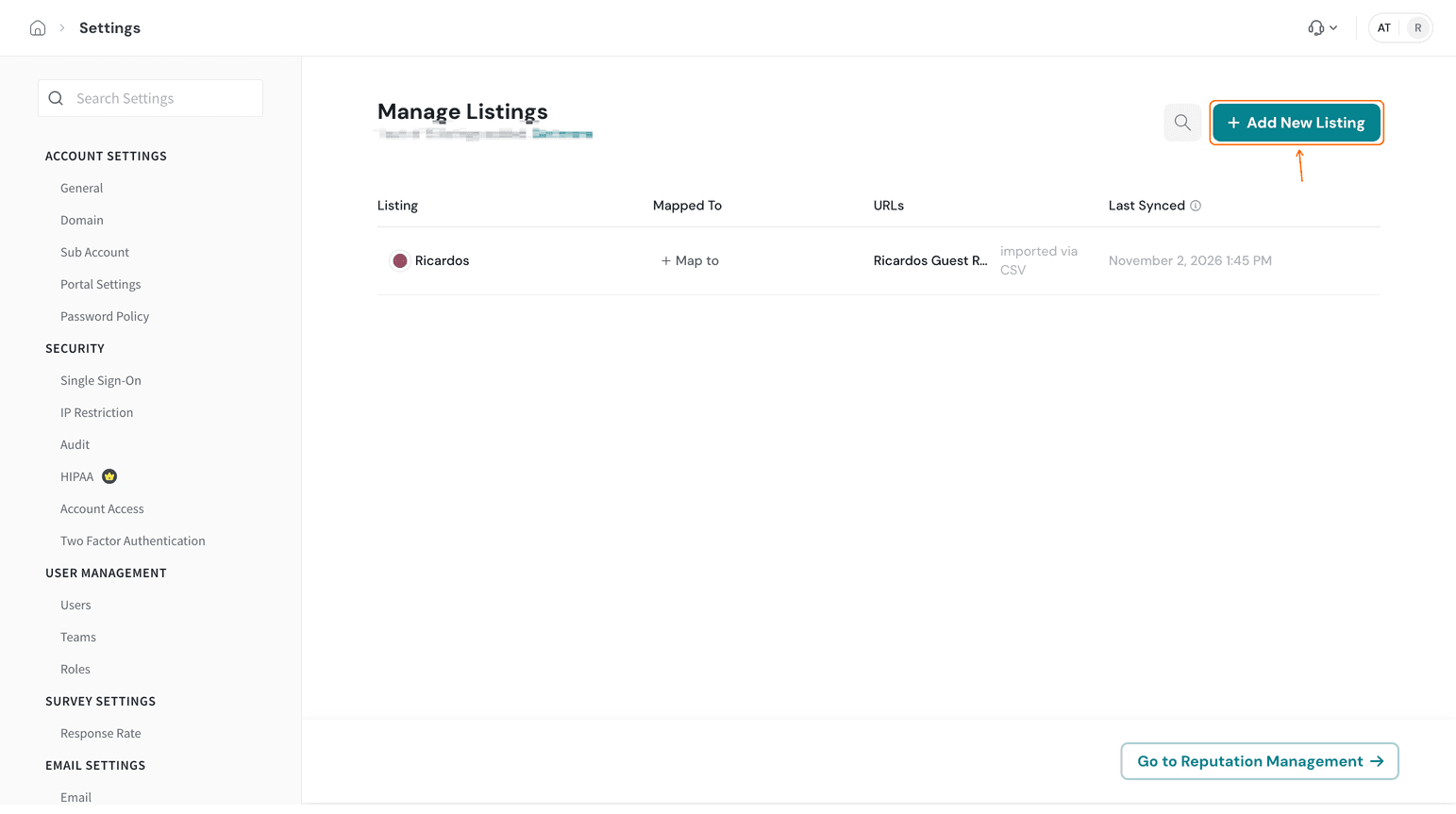
- Click Add New Listing.
- Search for your platform in the search field, or click Custom Listing to bring in reviews from a CSV file.
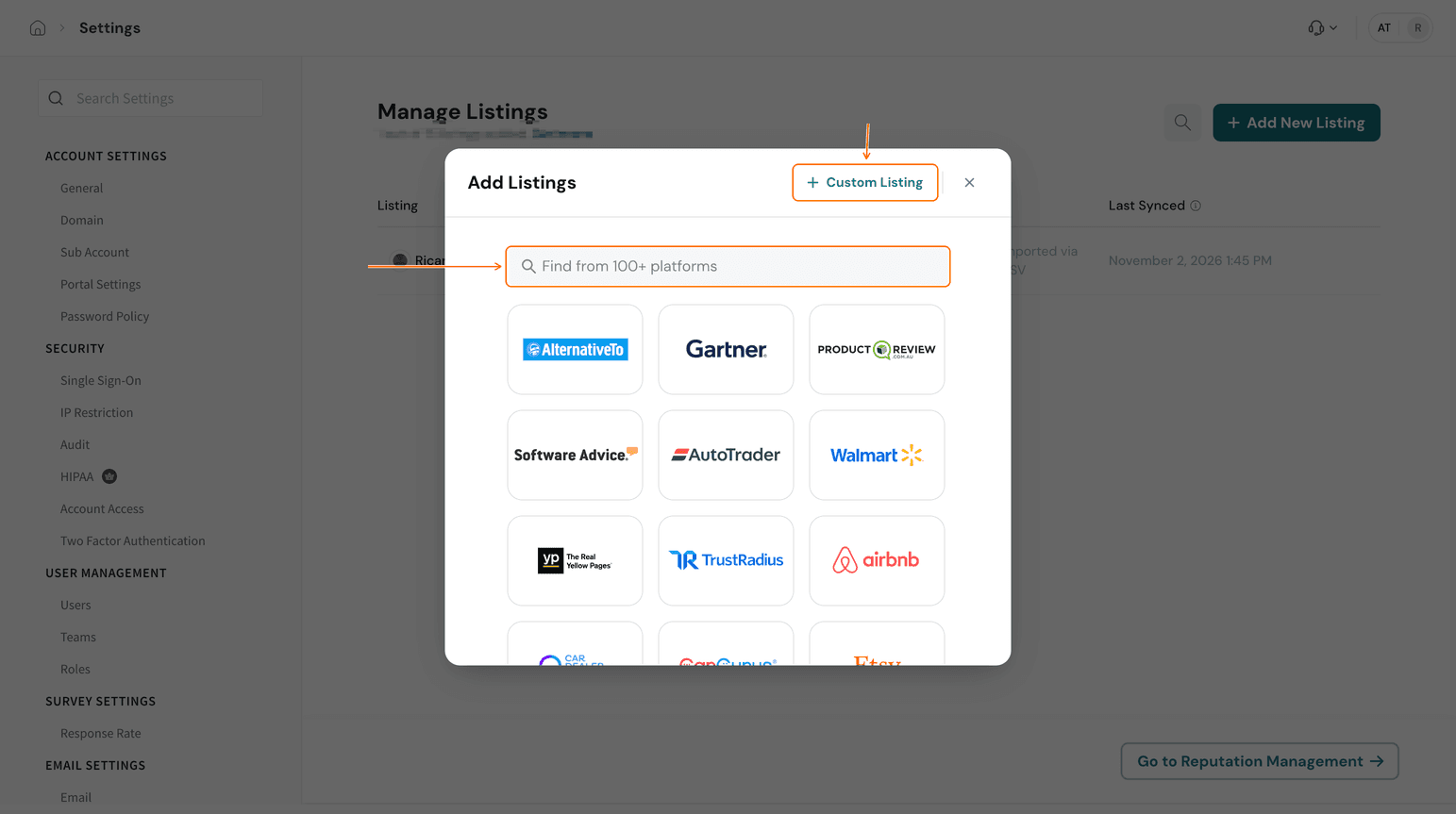
- Follow the on-screen prompts for the platform you chose.
These platforms have their own setup articles:
Platform | Setup article |
|---|---|
Amazon | |
Airbnb | |
Apple App Store | |
Booking.com | |
Flipkart | |
G2 | |
For any other review site, see How to connect a review site with SurveySparrow? For a platform that is not on the list, see Import reviews from custom review platforms. The full platform list is in Reputation Management Platforms Supported.
Reviews from connected platforms refresh every 24 hours.
Reviews
The Reviews tab lists every review from all your listings, with the reviewer, star rating, listing, review text and any ticket. Open a review to see its positive and negative phrases highlighted.
Filter reviews
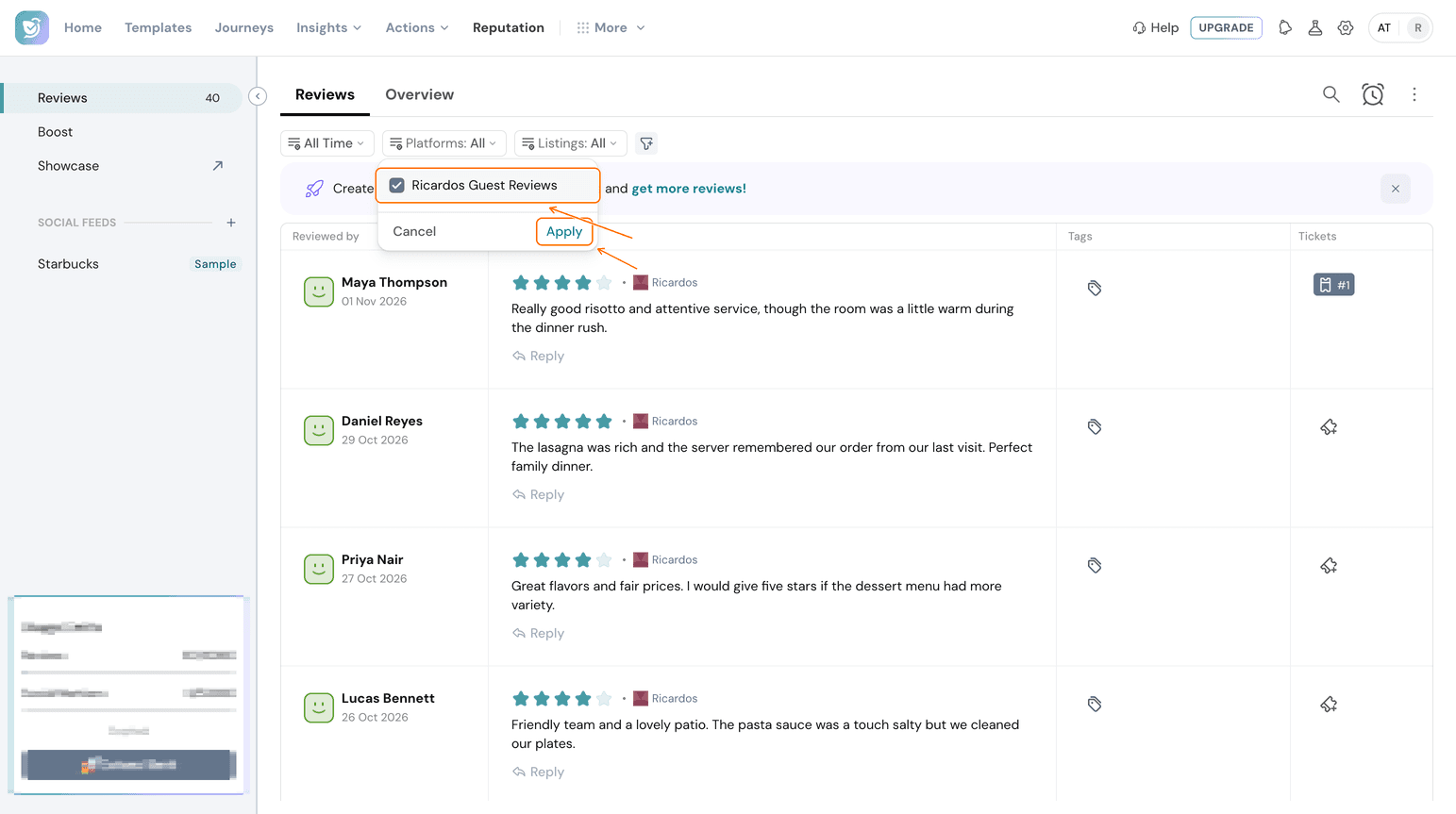
- Click Platforms.
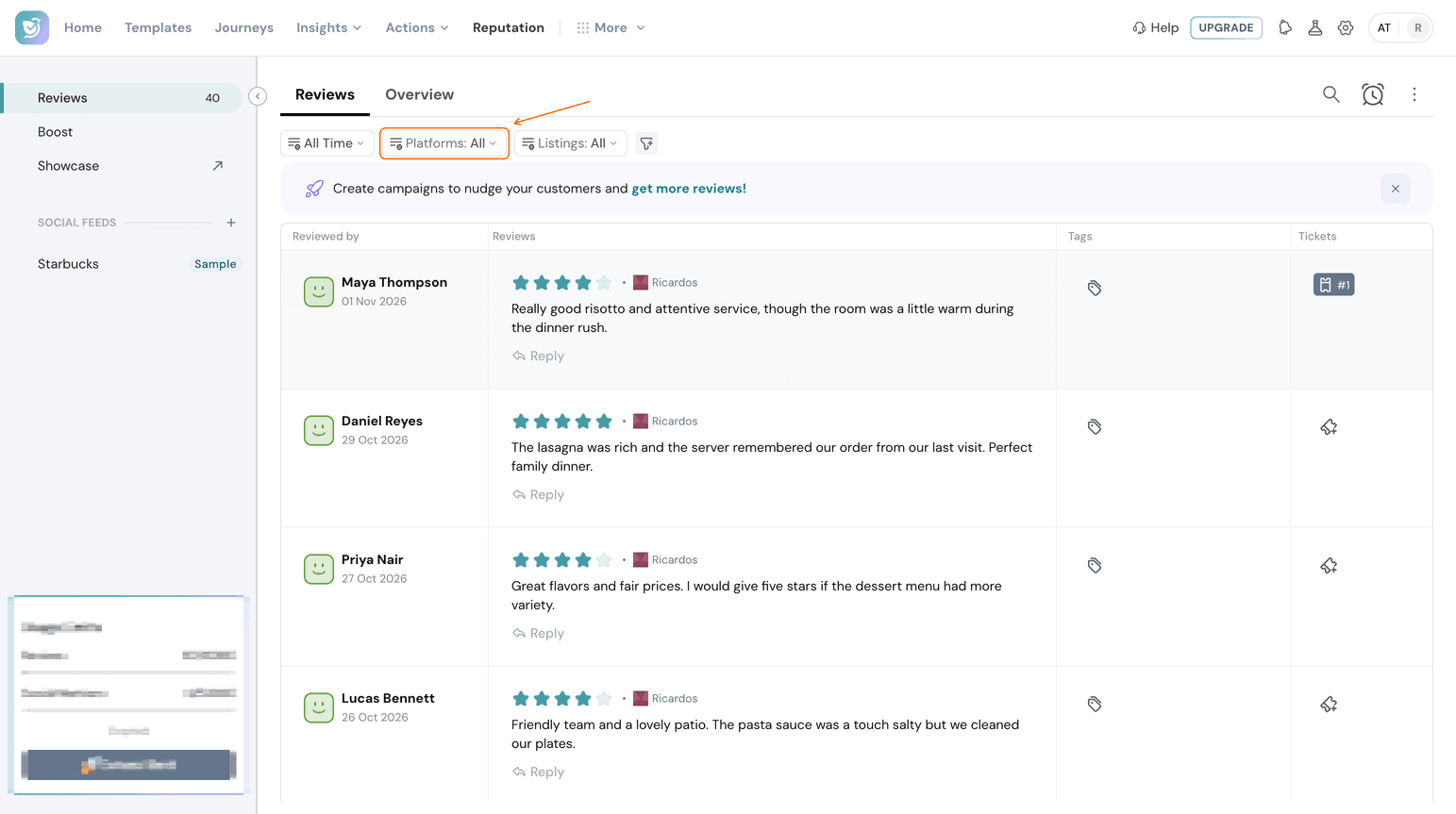
- Select a platform and click Apply.
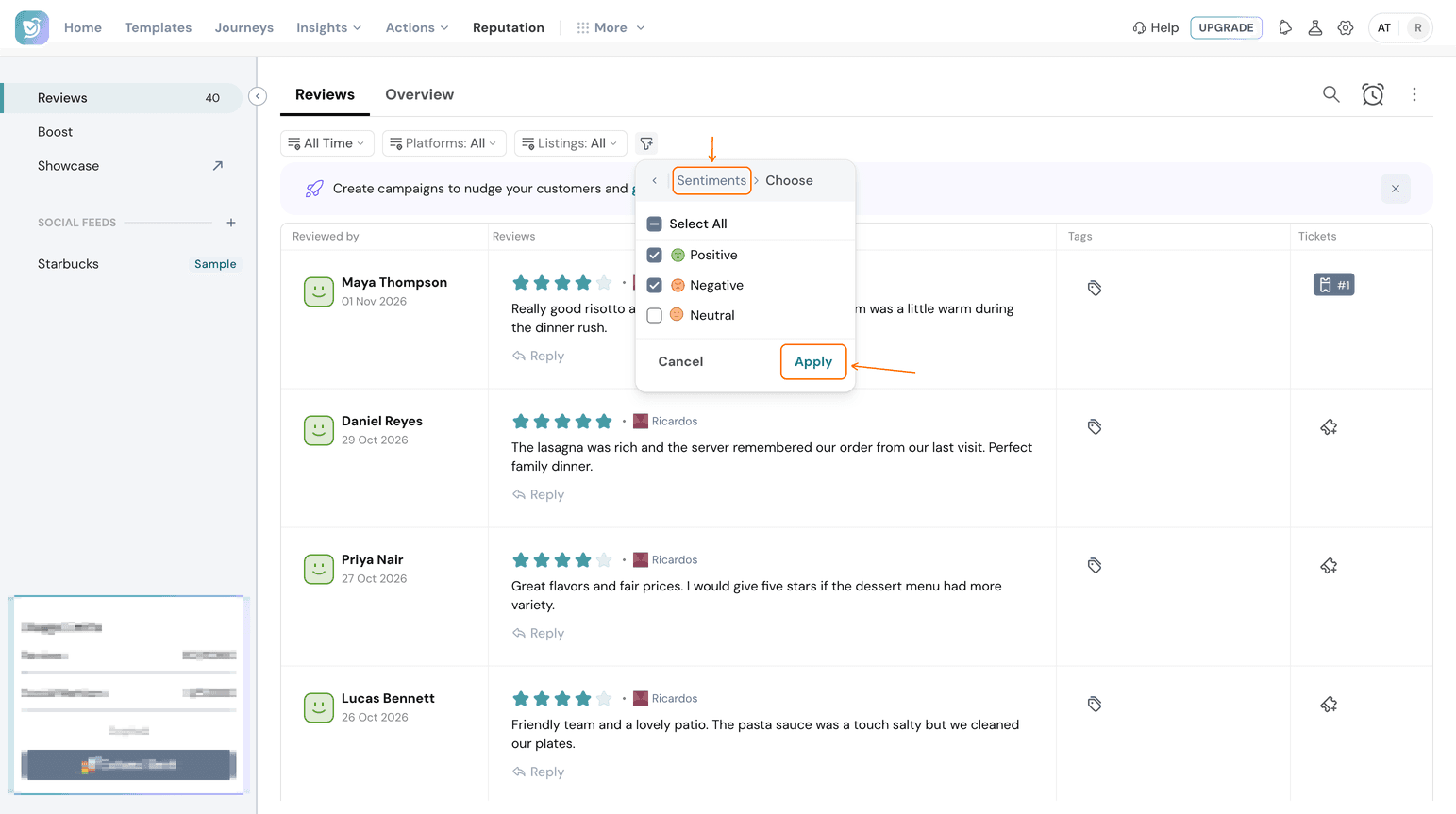
- Click the funnel icon to open the filter panel.
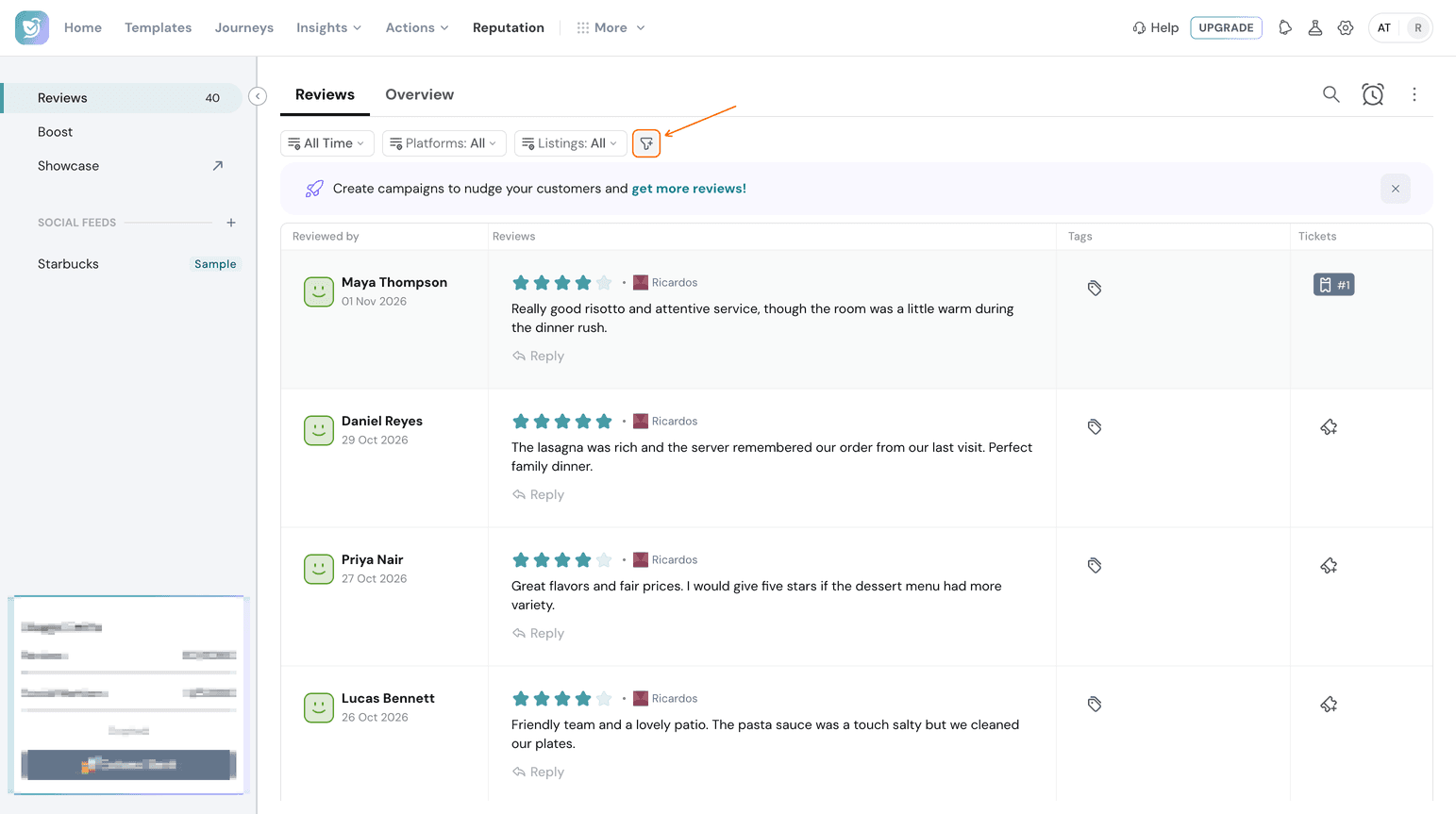
- Select Sentiments, choose Positive, Negative or Neutral, and click Apply.
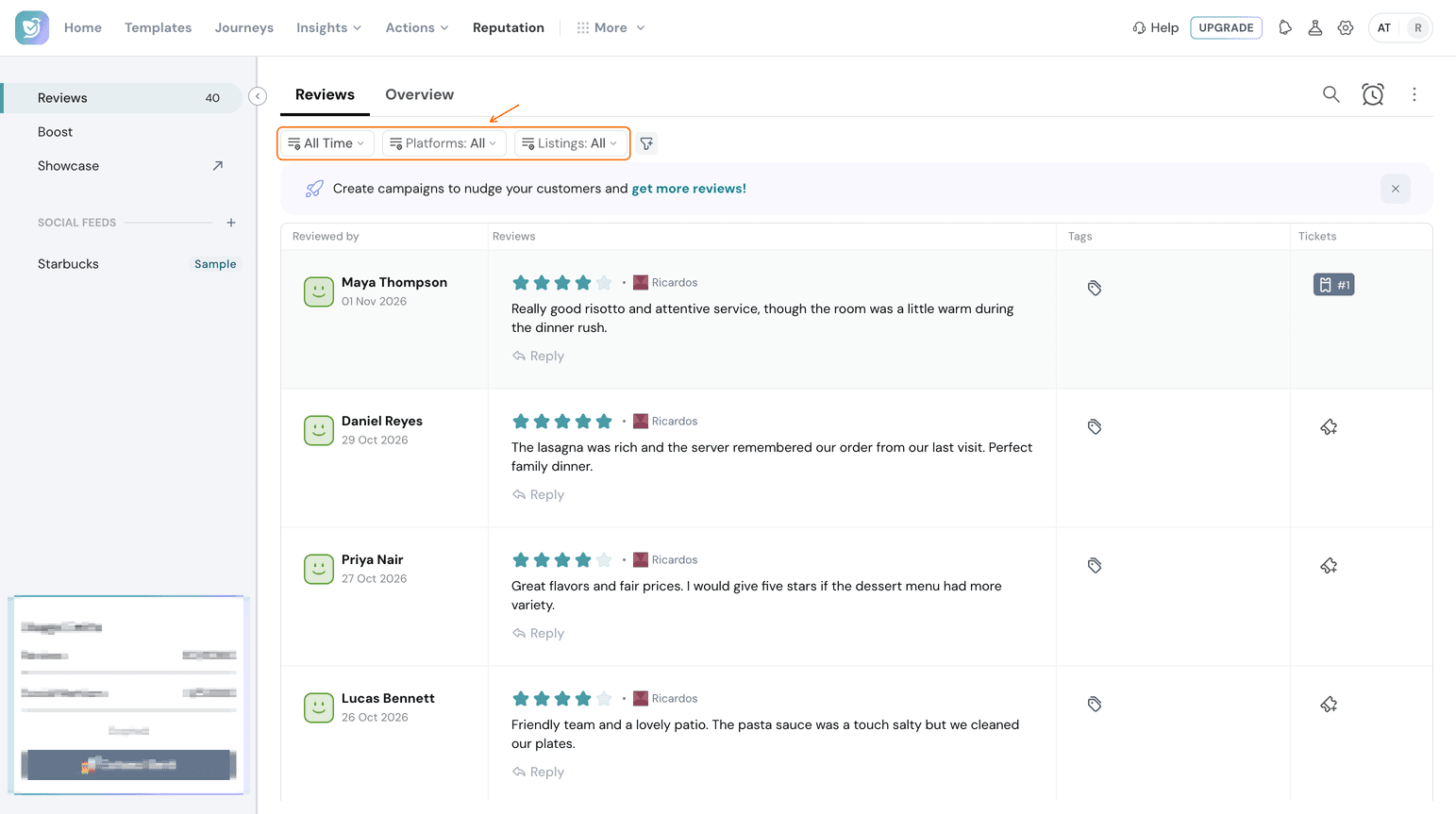
- Use All Time, Platforms and Listings at the top of the list to narrow reviews by date range, platform or location.
Respond to a review
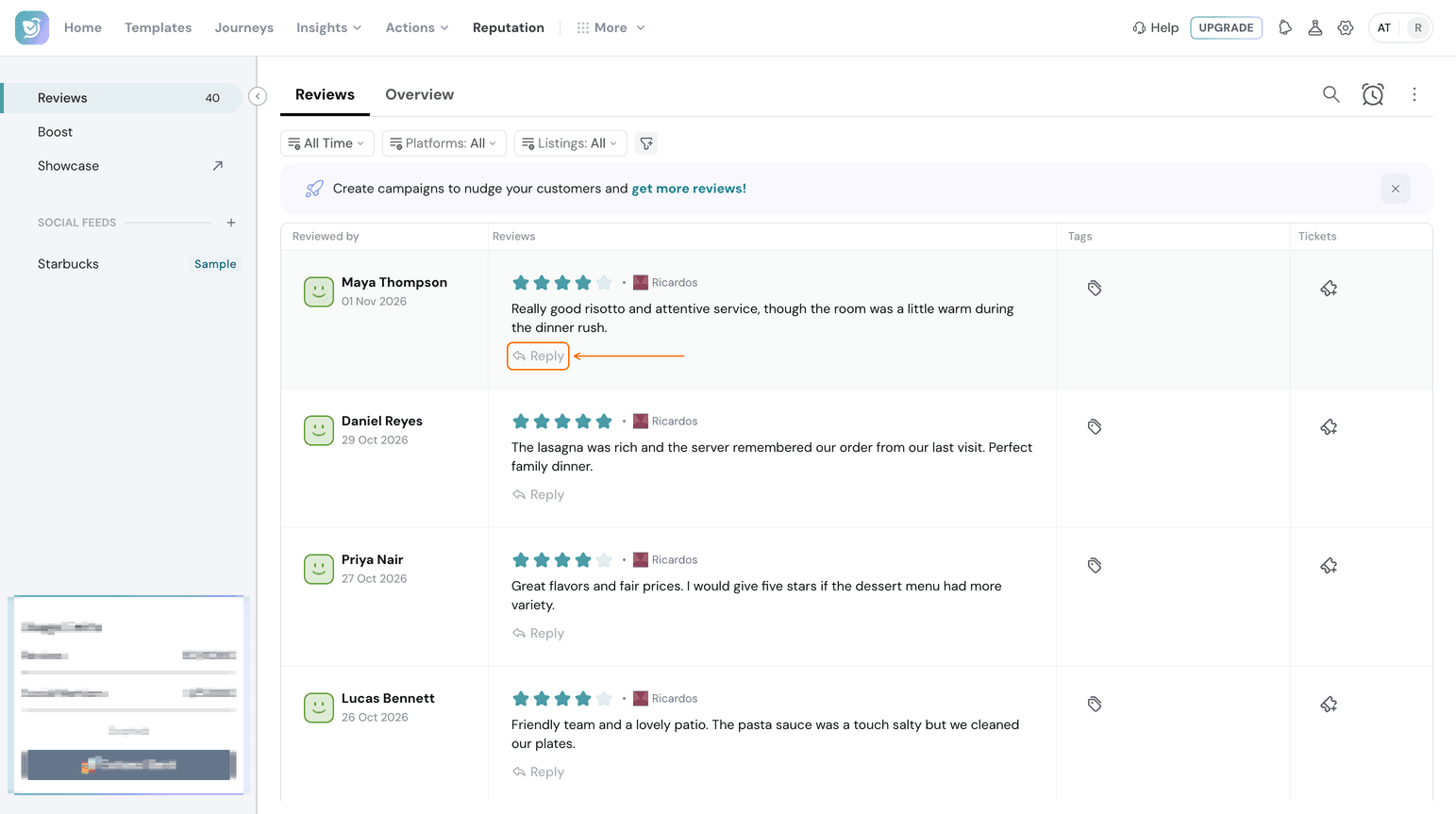
- Click Reply under the review.
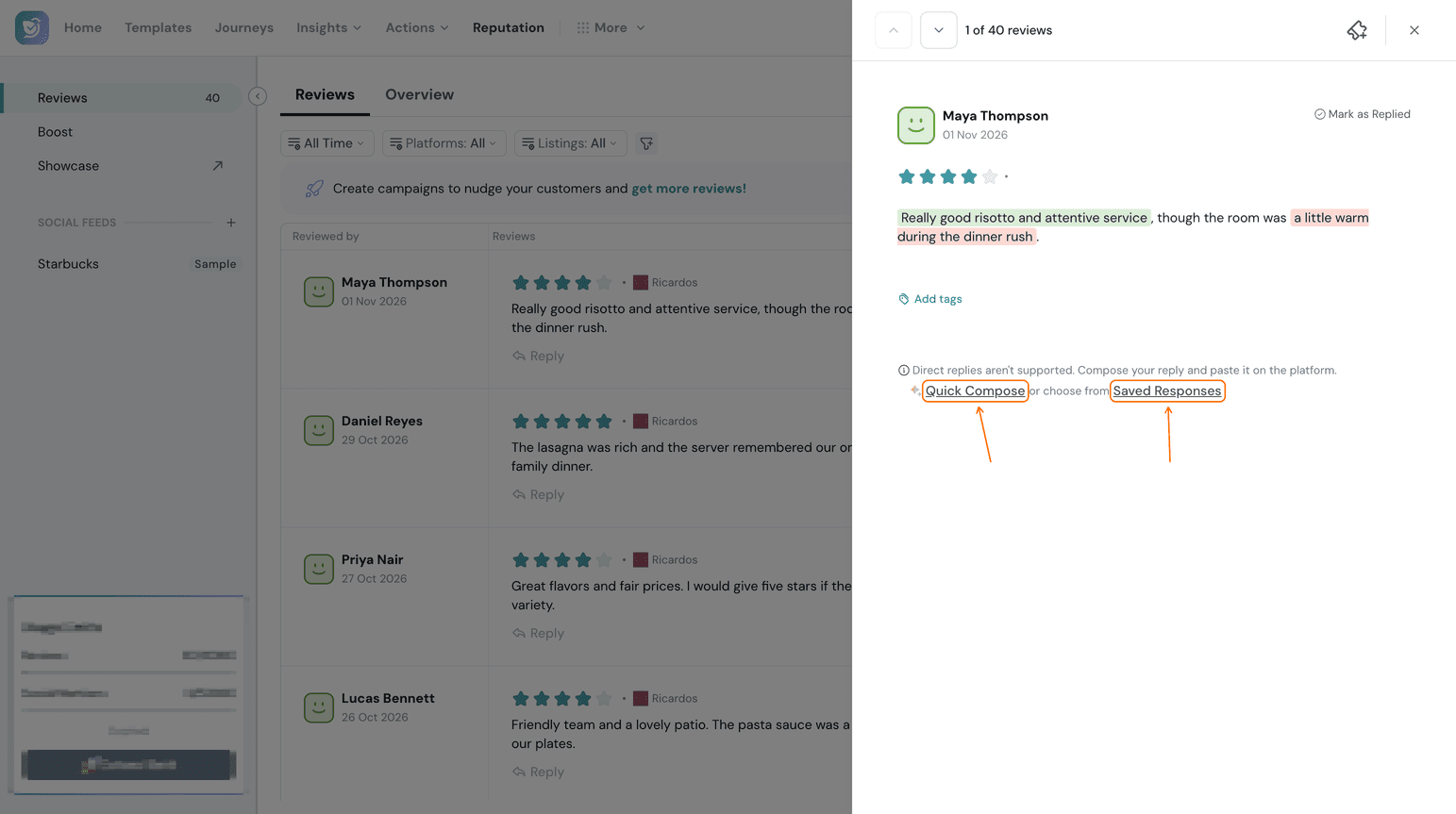
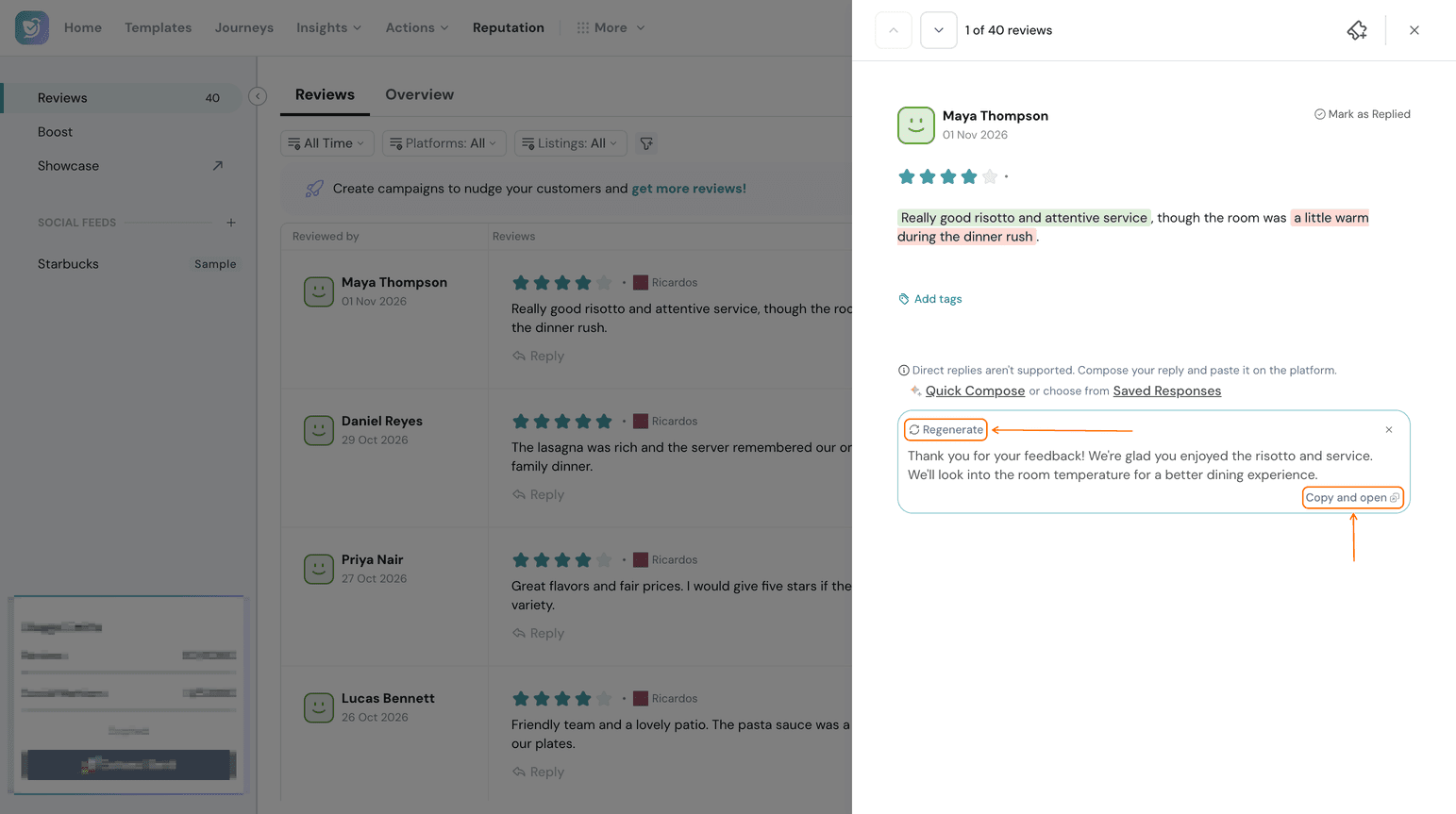
- Click Quick Compose to draft a reply, or choose a standard reply from Saved Responses.
- Review the draft. Click Regenerate for a new version, or Copy and open to copy it.
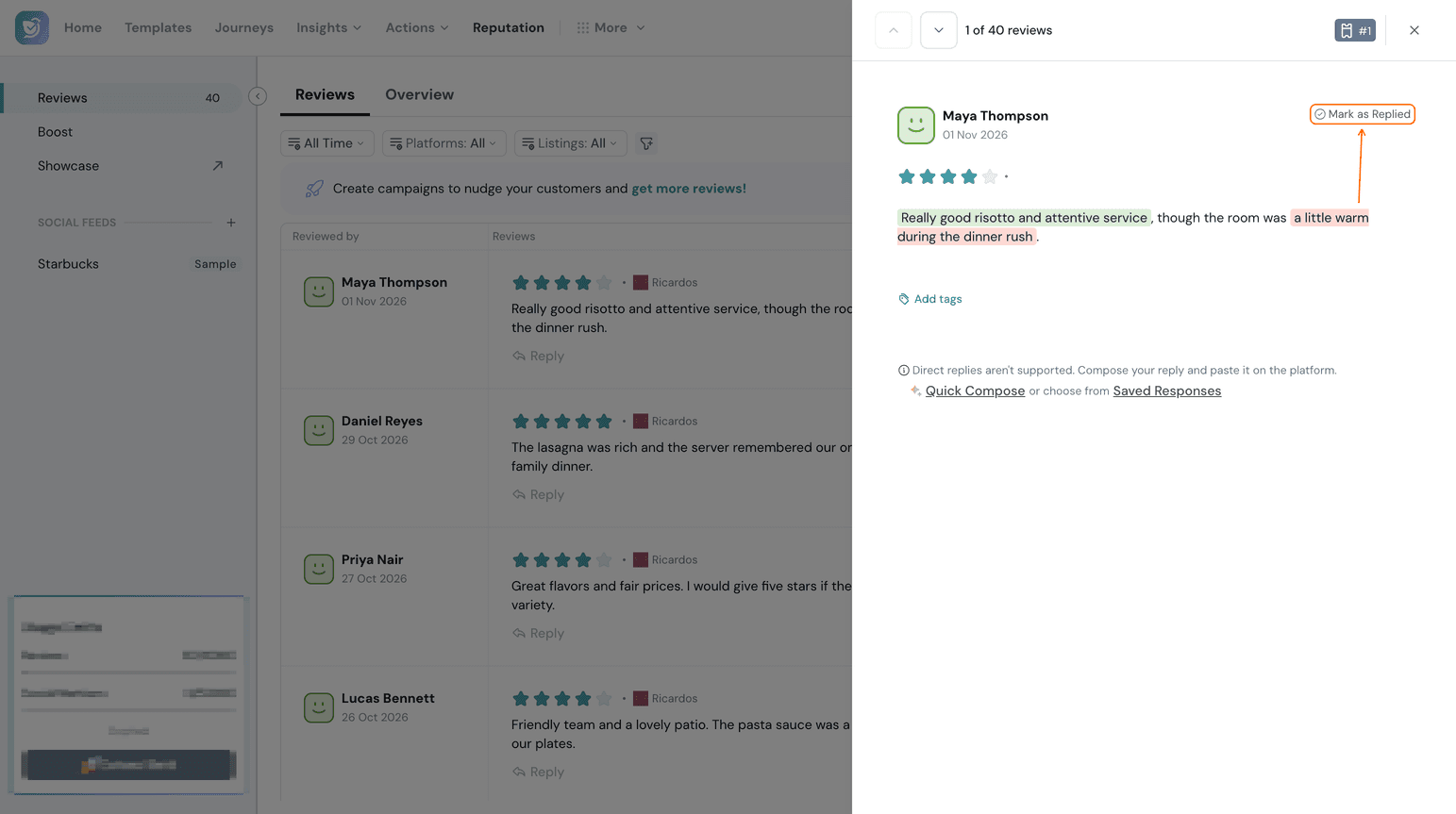
- If the listing does not support direct replies, such as a listing imported from a CSV file, go to the review platform and paste your reply there, then return to SurveySparrow and click Mark as Replied.
To see which reviews still need a reply:
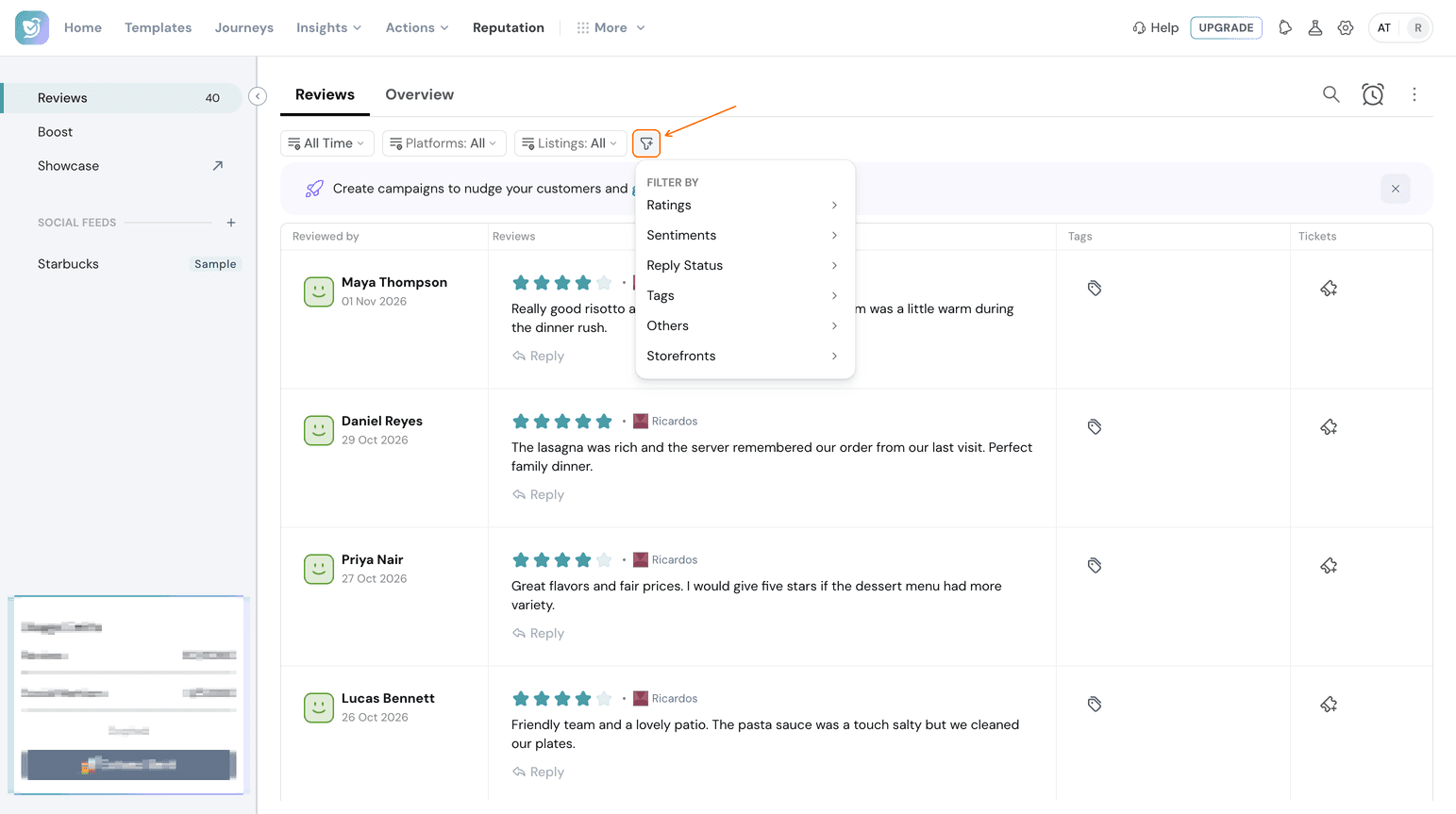
- Click the funnel icon to open the filter panel.
- Select Reply Status, then choose Replied or Pending Replies.
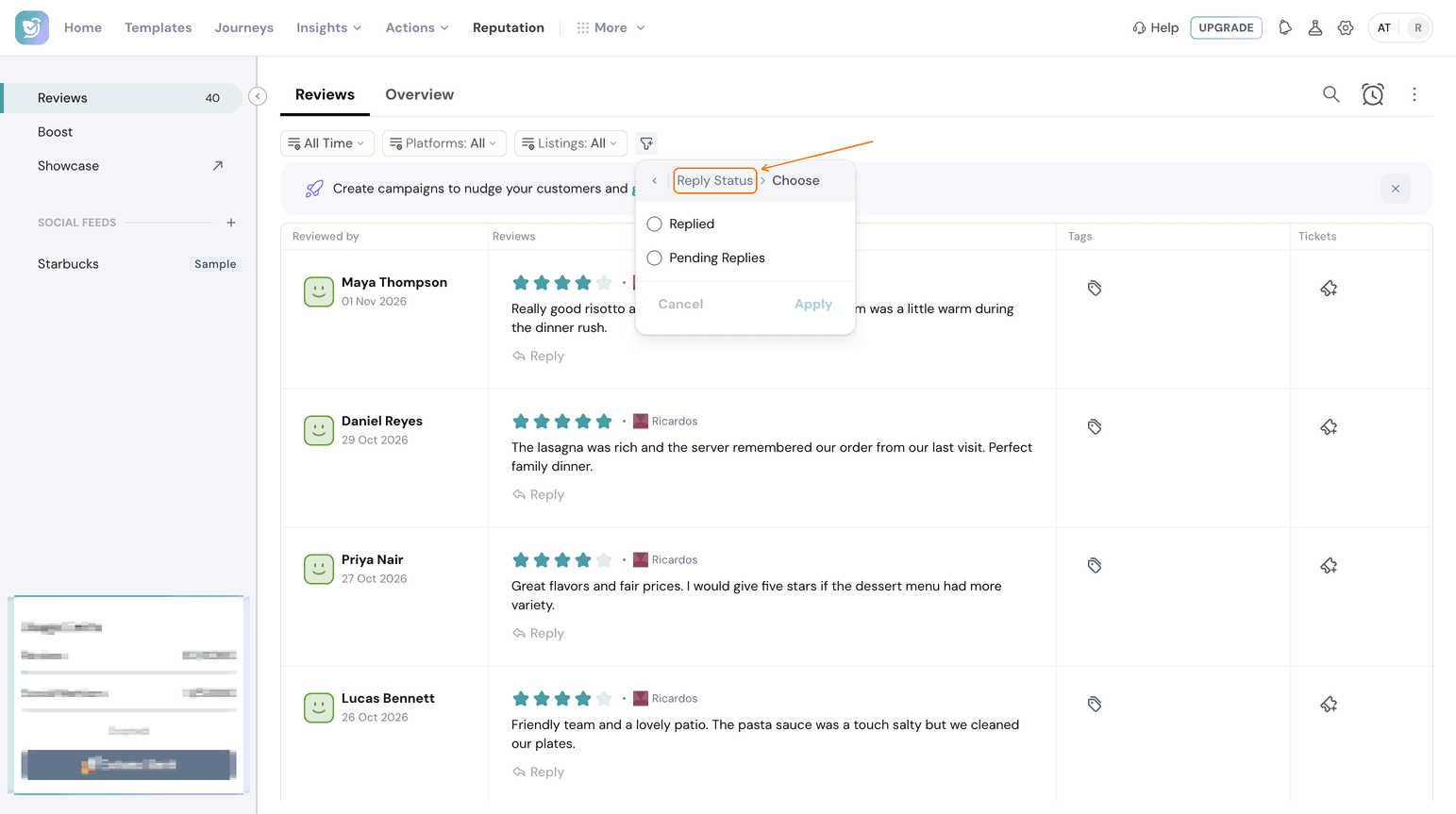
- Click Apply.
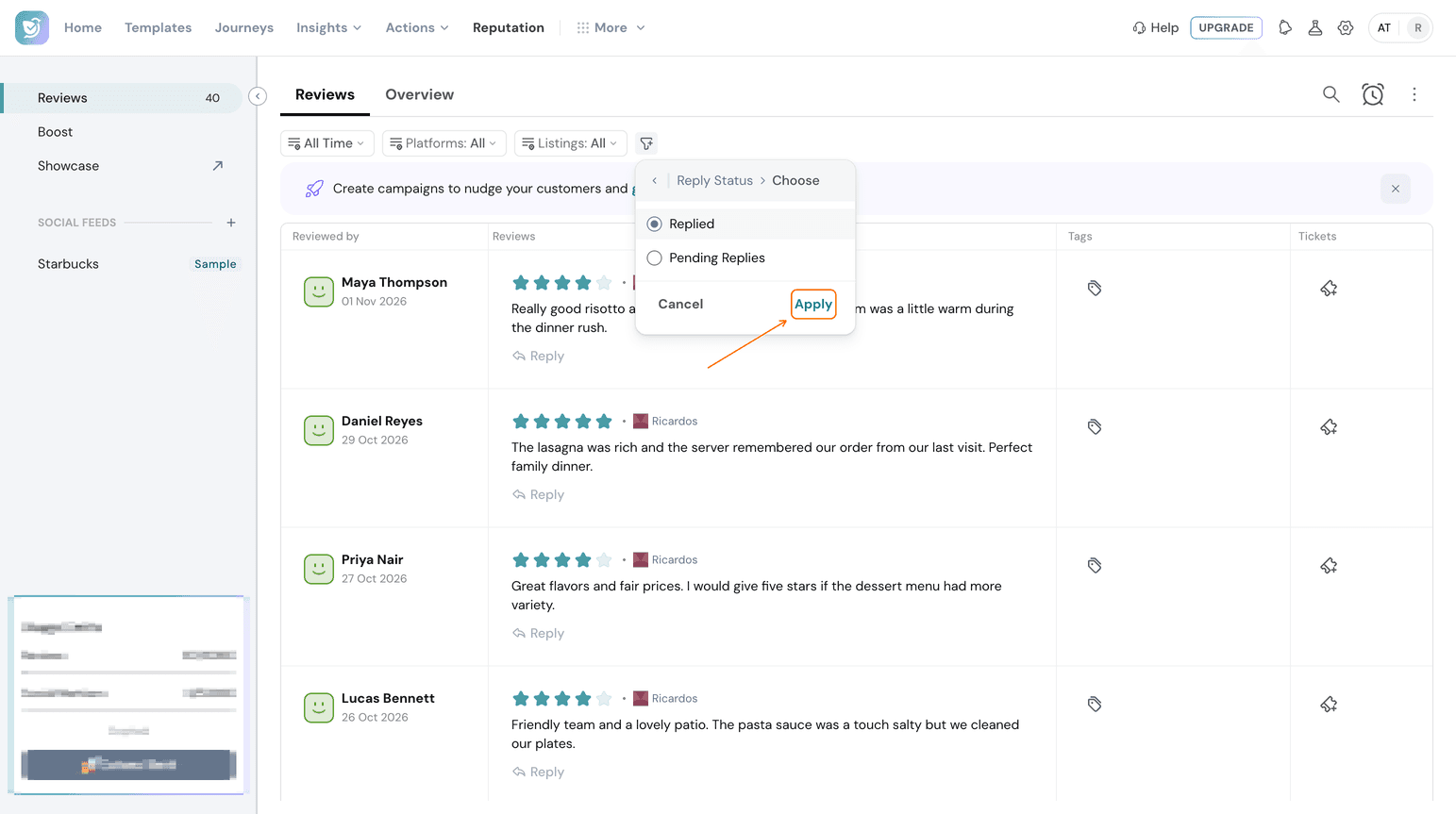
Create a ticket from a review
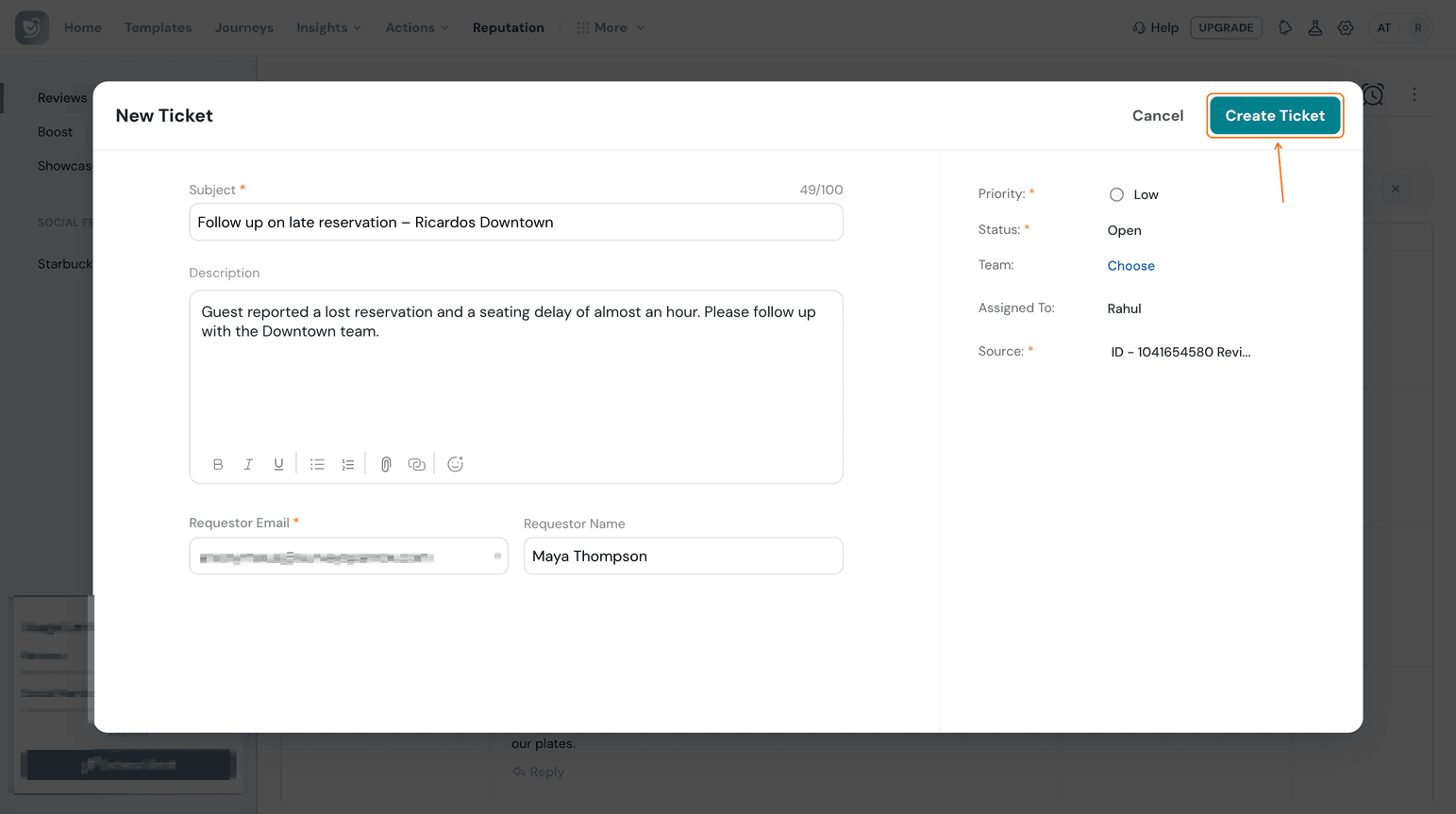
Create a ticket to close the loop on a review, such as a complaint or a compliment worth acting on.
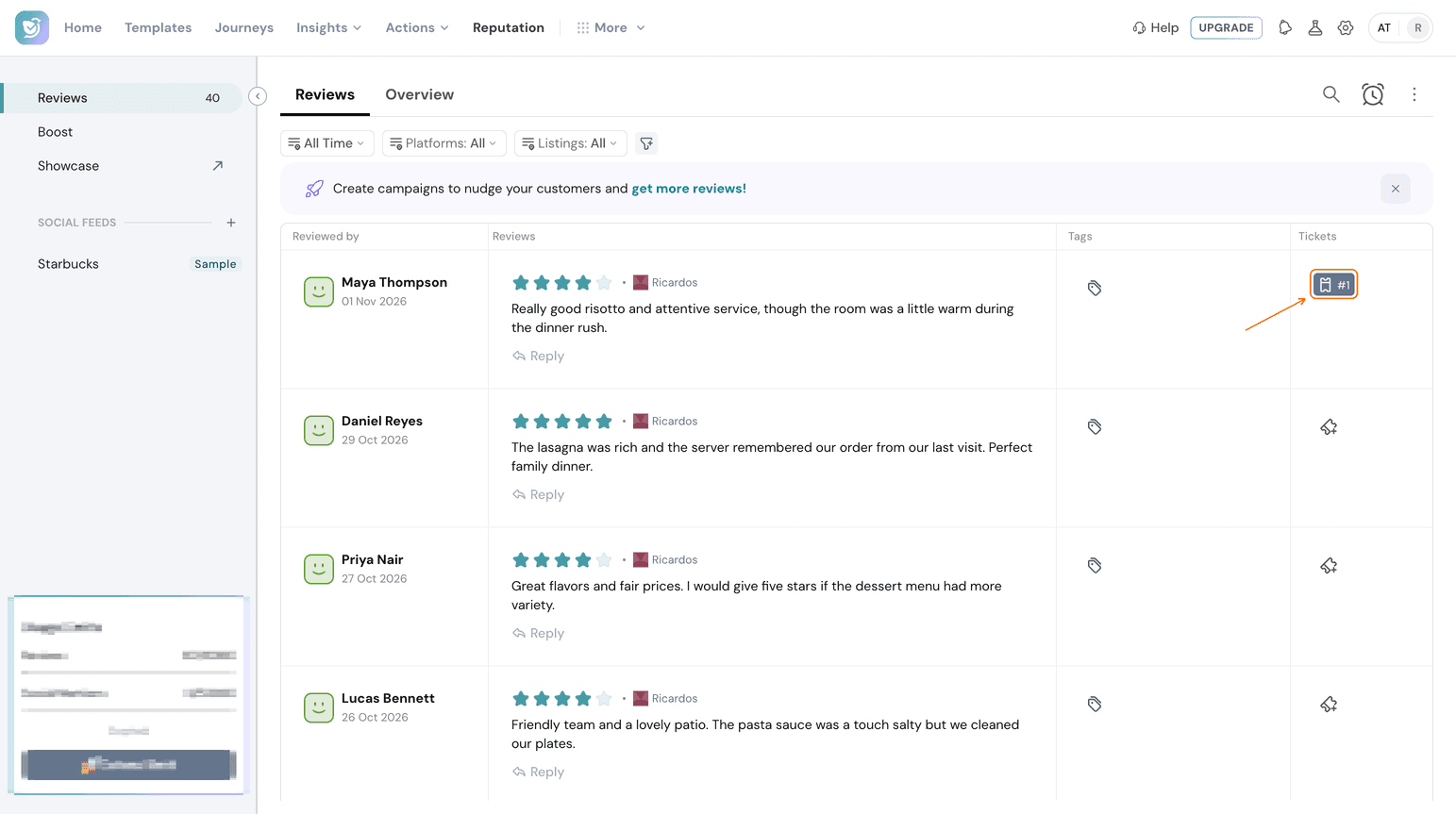
- Click the ticket icon in the Tickets column of the review.
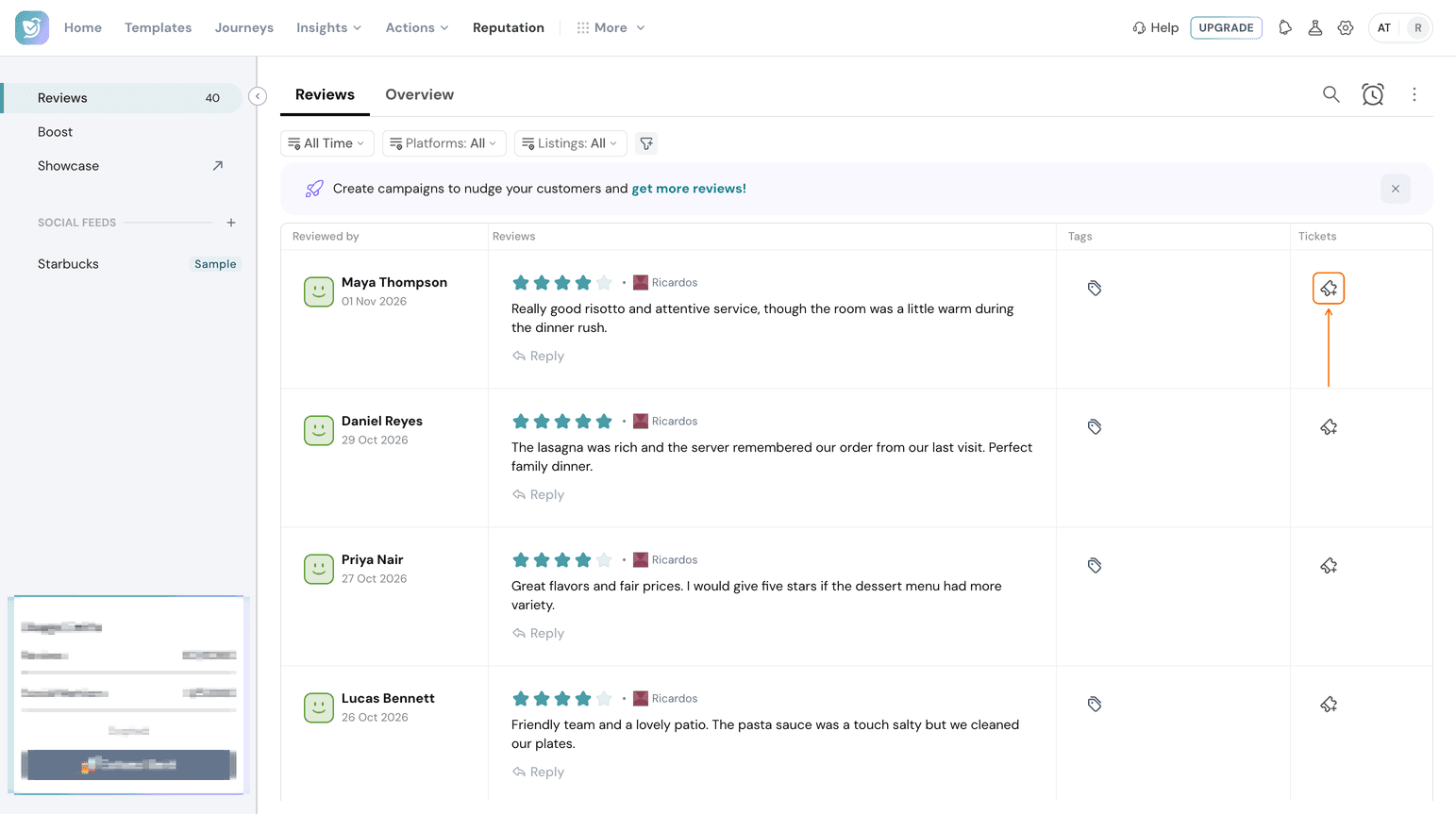
- Edit the Subject if needed, then enter a Description so the assignee understands what to do.
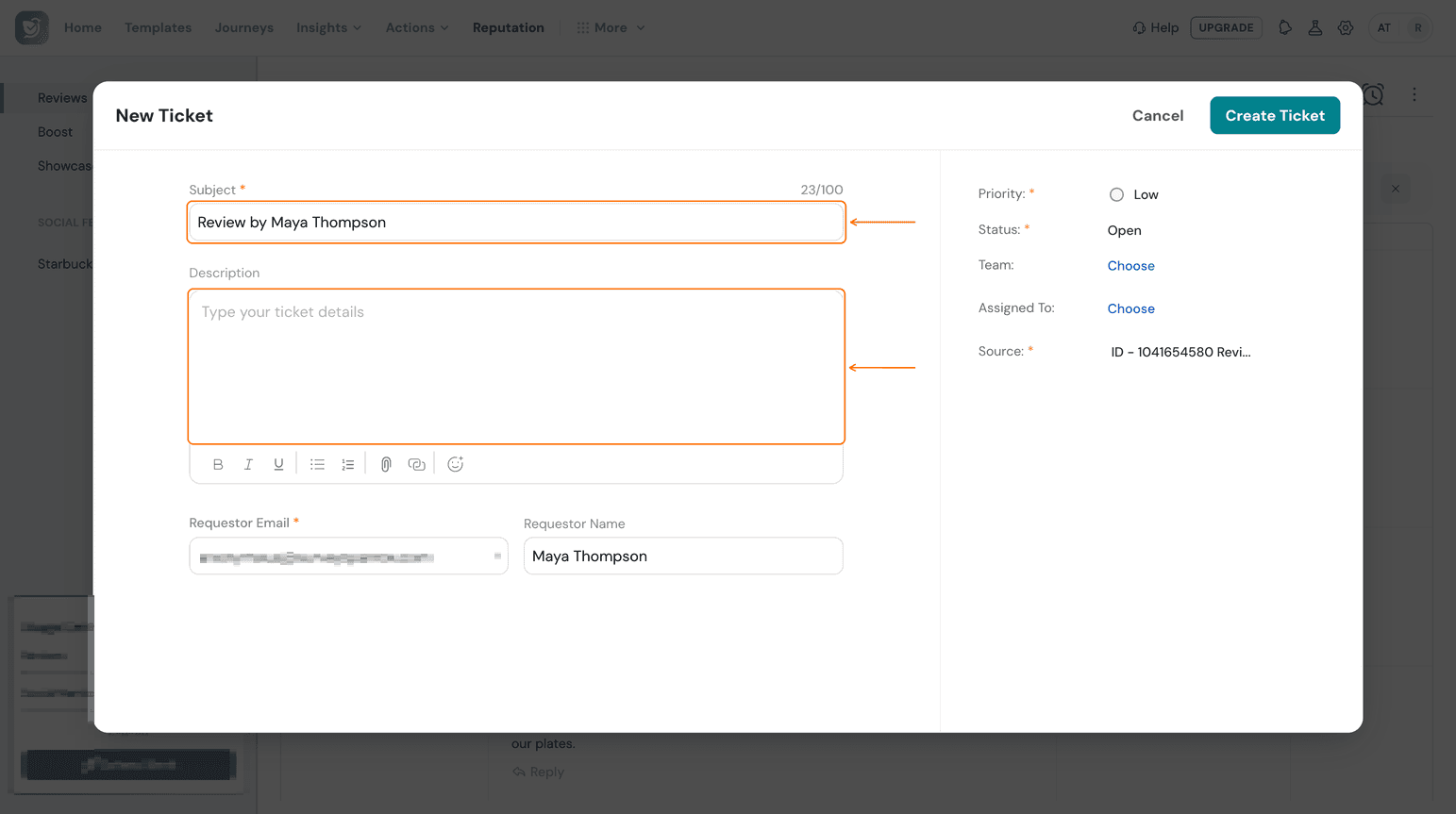
- Open Assigned To and choose who should handle the ticket.
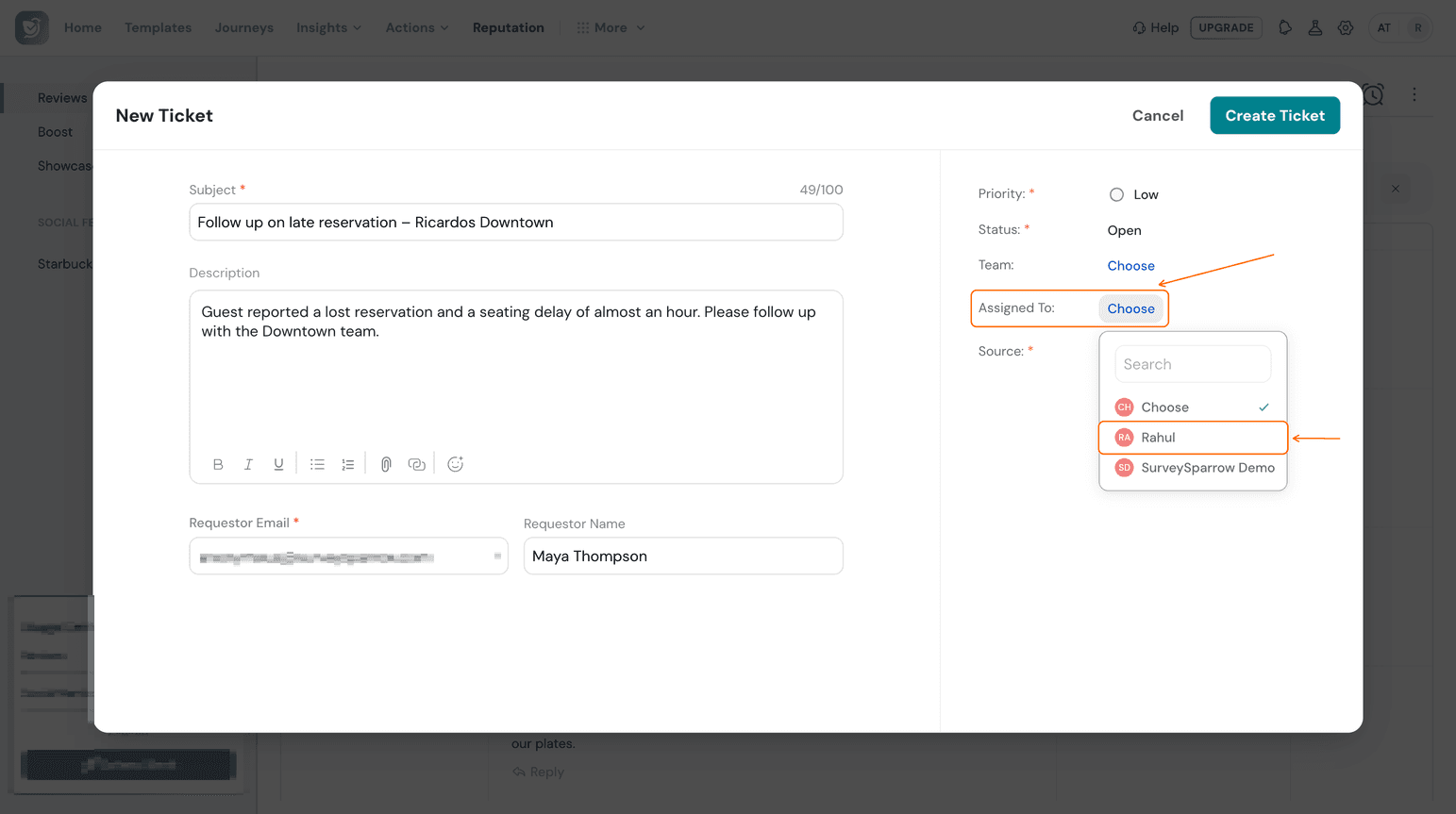
- Click Create Ticket.
The review now shows a ticket number in the Tickets column. Open ticket management to follow the ticket through.
The Requestor Email is currently filled with a placeholder address because the reviewer's email is not available. This does not affect how the ticket is handled. To create tickets automatically, see Create tickets for online reviews.
Overview
The Overview tab summarizes how your reviews are trending across all listings.
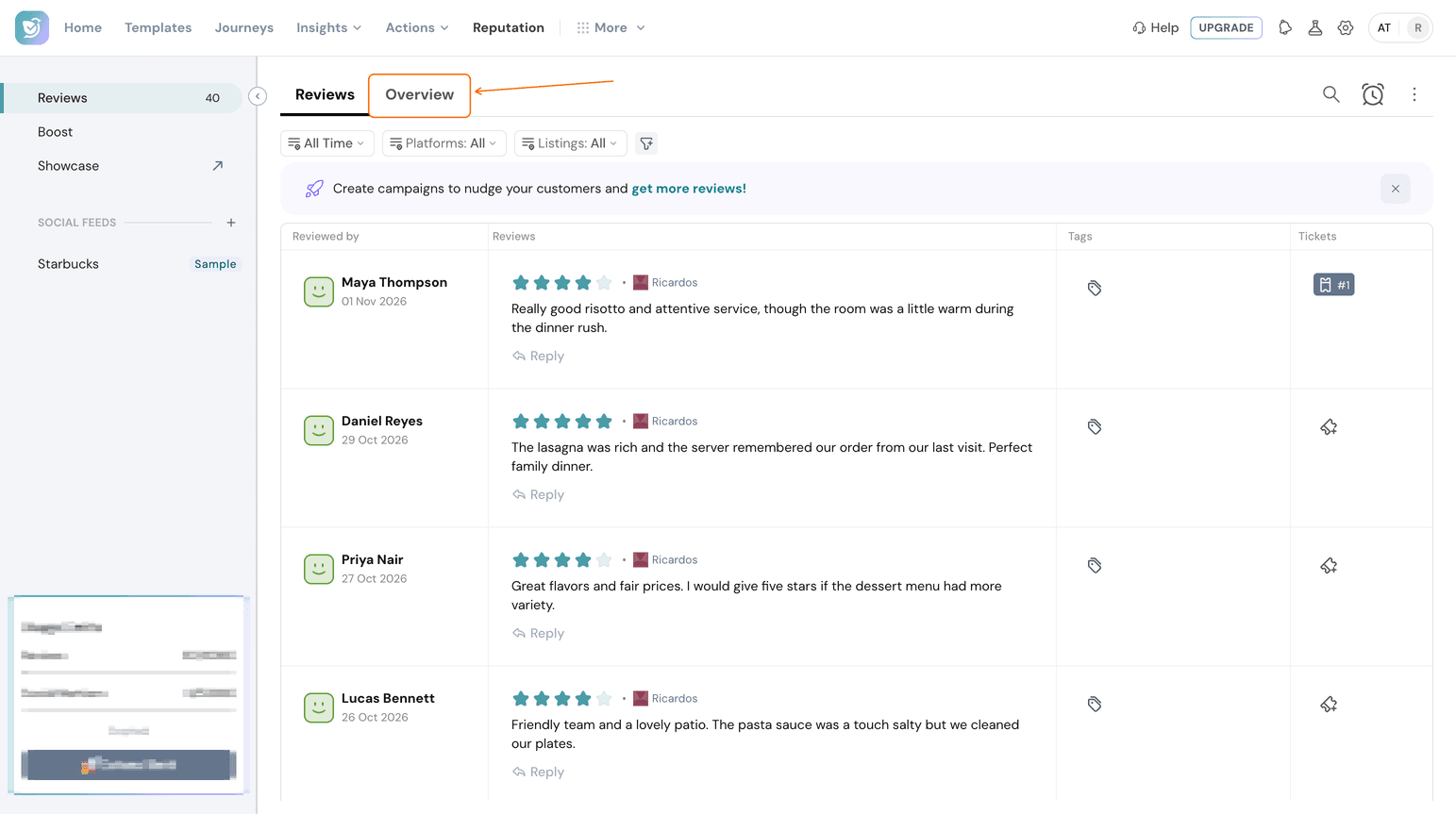
- Click Overview.
- Use All Time, Platforms and Listings to focus on a period, platform or location.
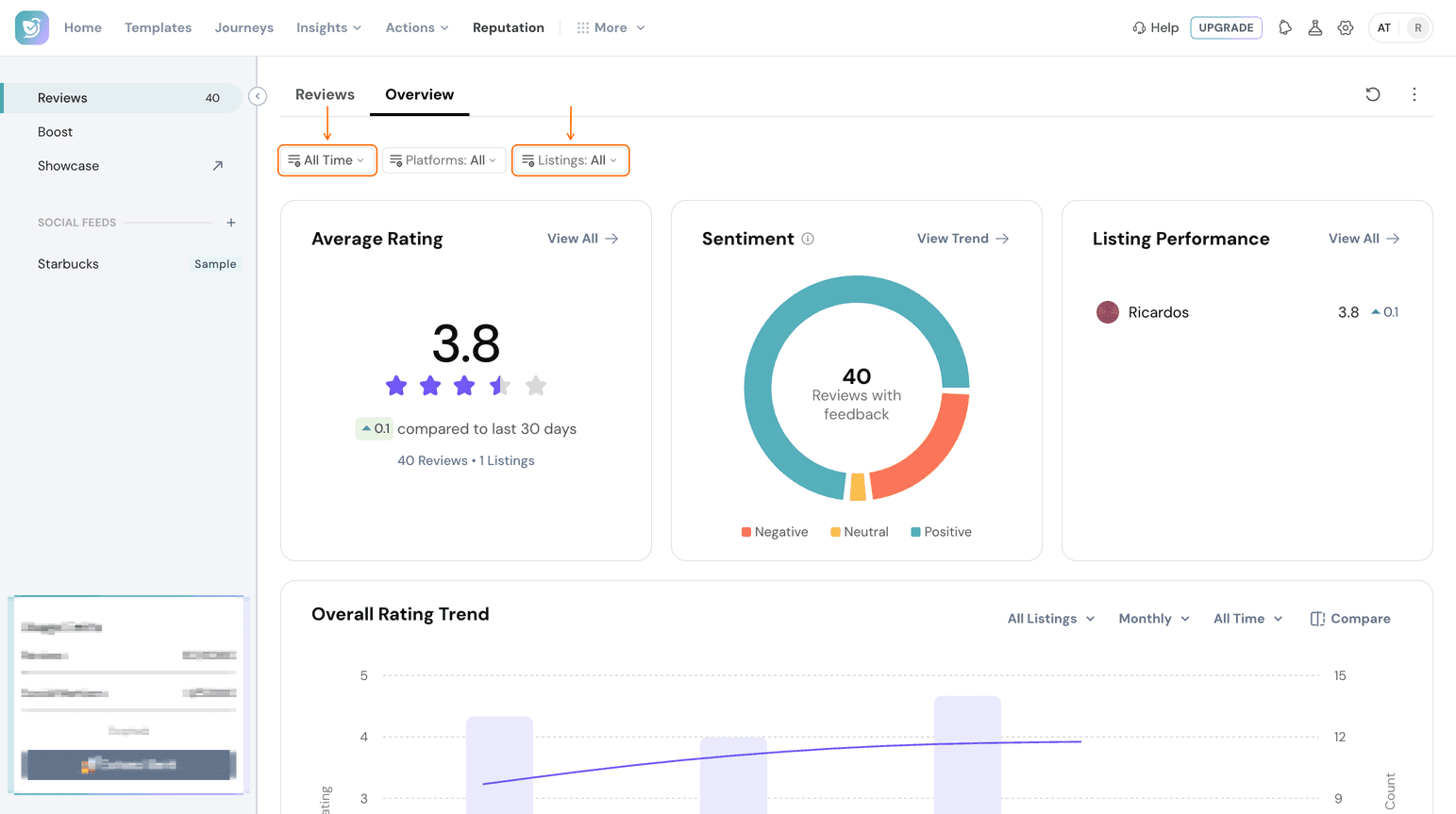
The Overview tab summarizes your reviews in cards. These are the main ones:
Card | What it shows |
|---|---|
Average Rating | Your average star rating, how it changed against the last 30 days, and the number of reviews and listings behind it |
Sentiment | Share of Positive, Neutral and Negative reviews |
Listing Performance | The average rating for each listing and its change |
Overall Rating Trend | Average rating and number of new reviews over time |
Reviews Per Listing | Rating, number of reviews and sentiment for each listing |
Embed your reviews with Showcase
Showcase turns your best online reviews into a widget you can embed on your website. To show survey responses instead, see Highlight customer praise with Feedback Showcase.
- Click Showcase in the left panel.
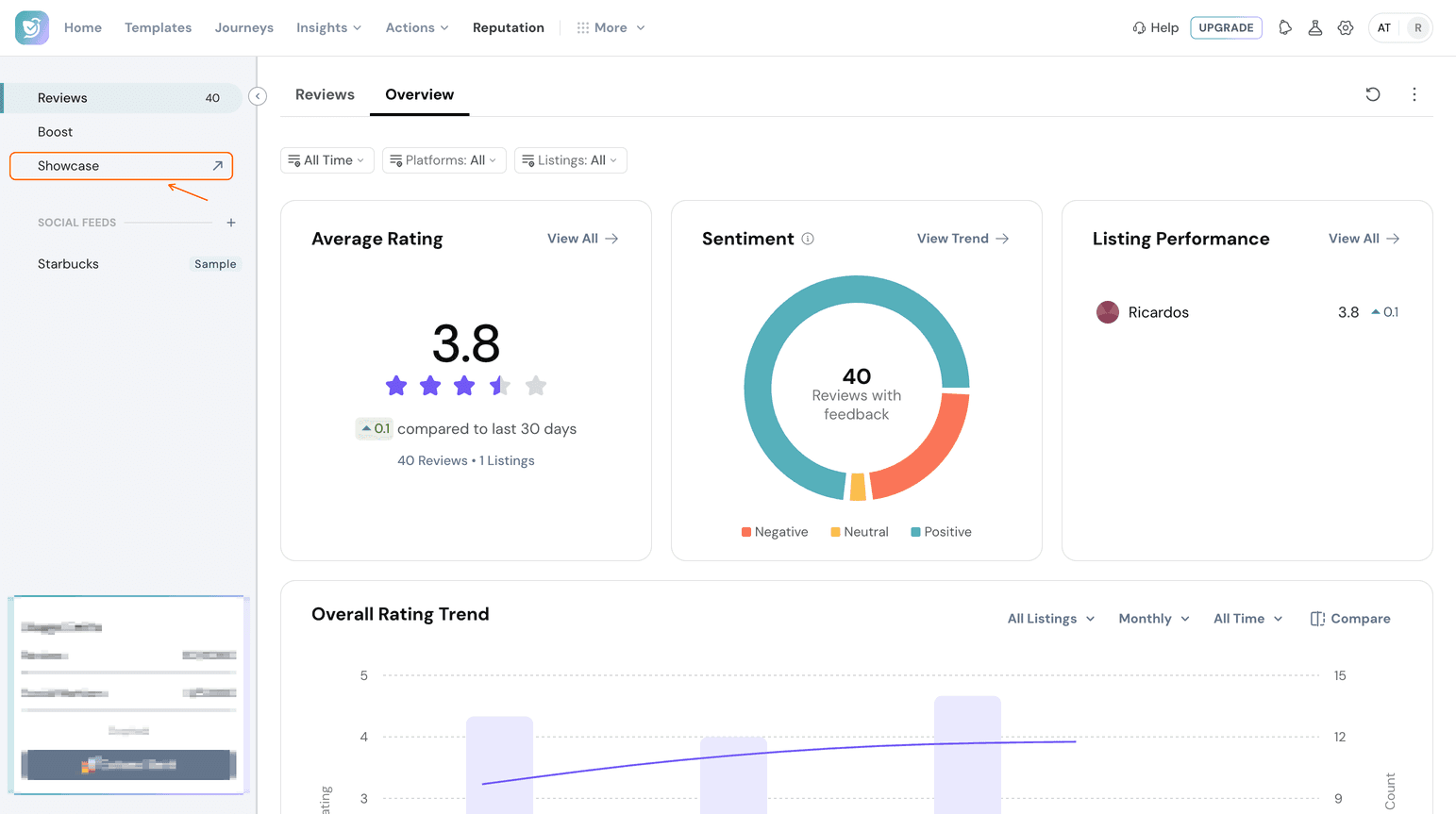
The Embed Reviews page opens.
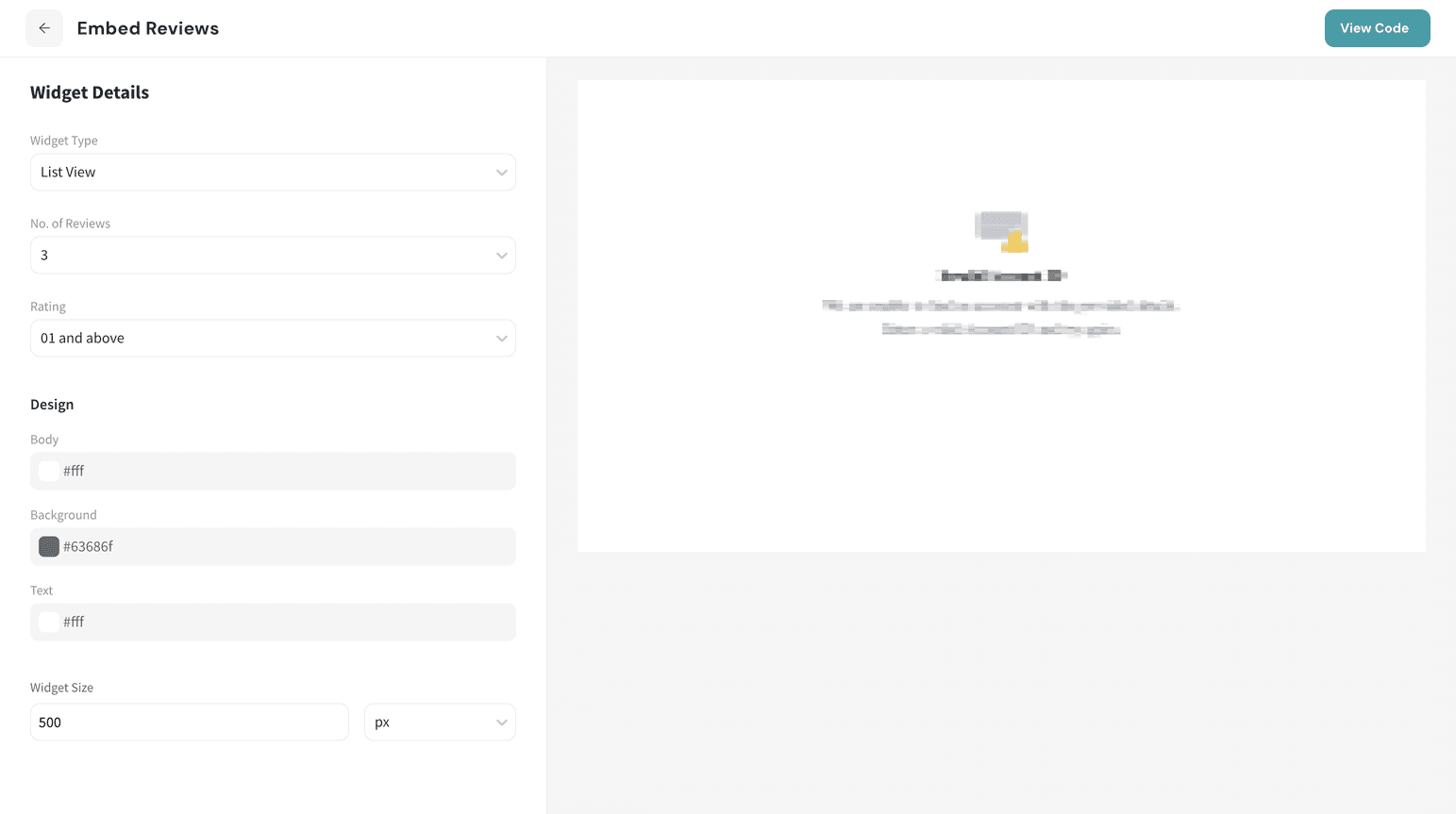
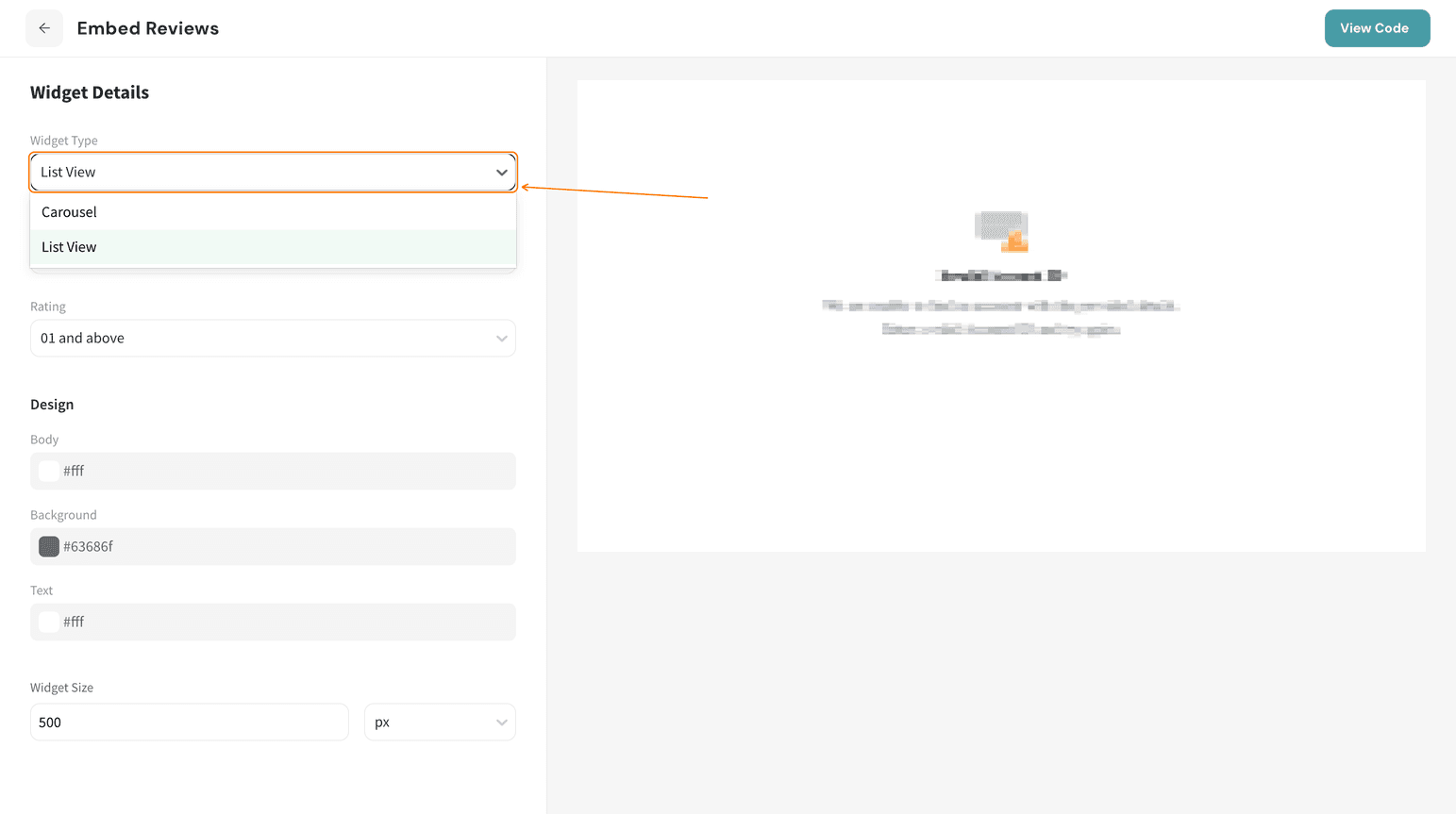
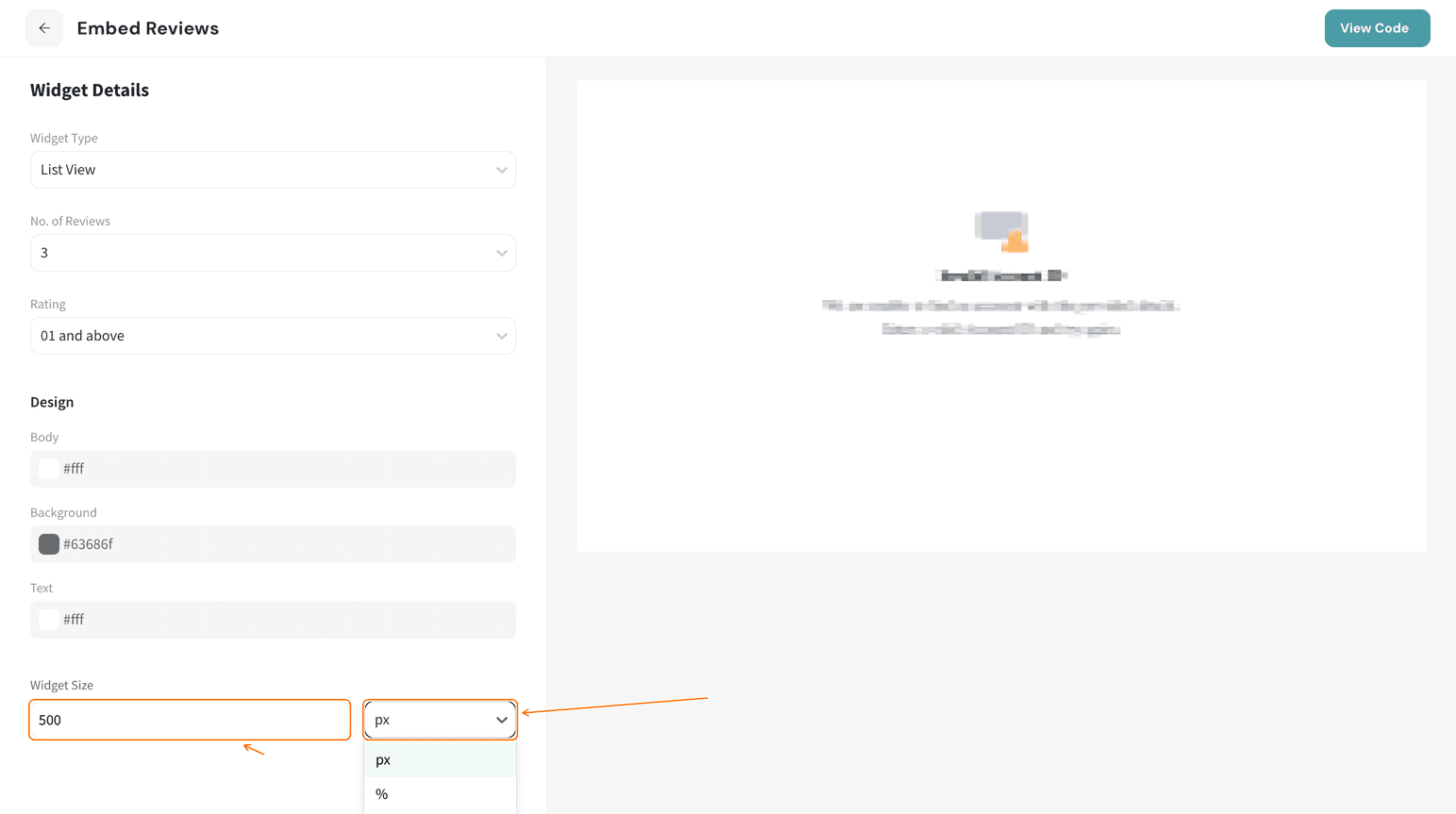
- Open Widget Type and choose Carousel or List View.
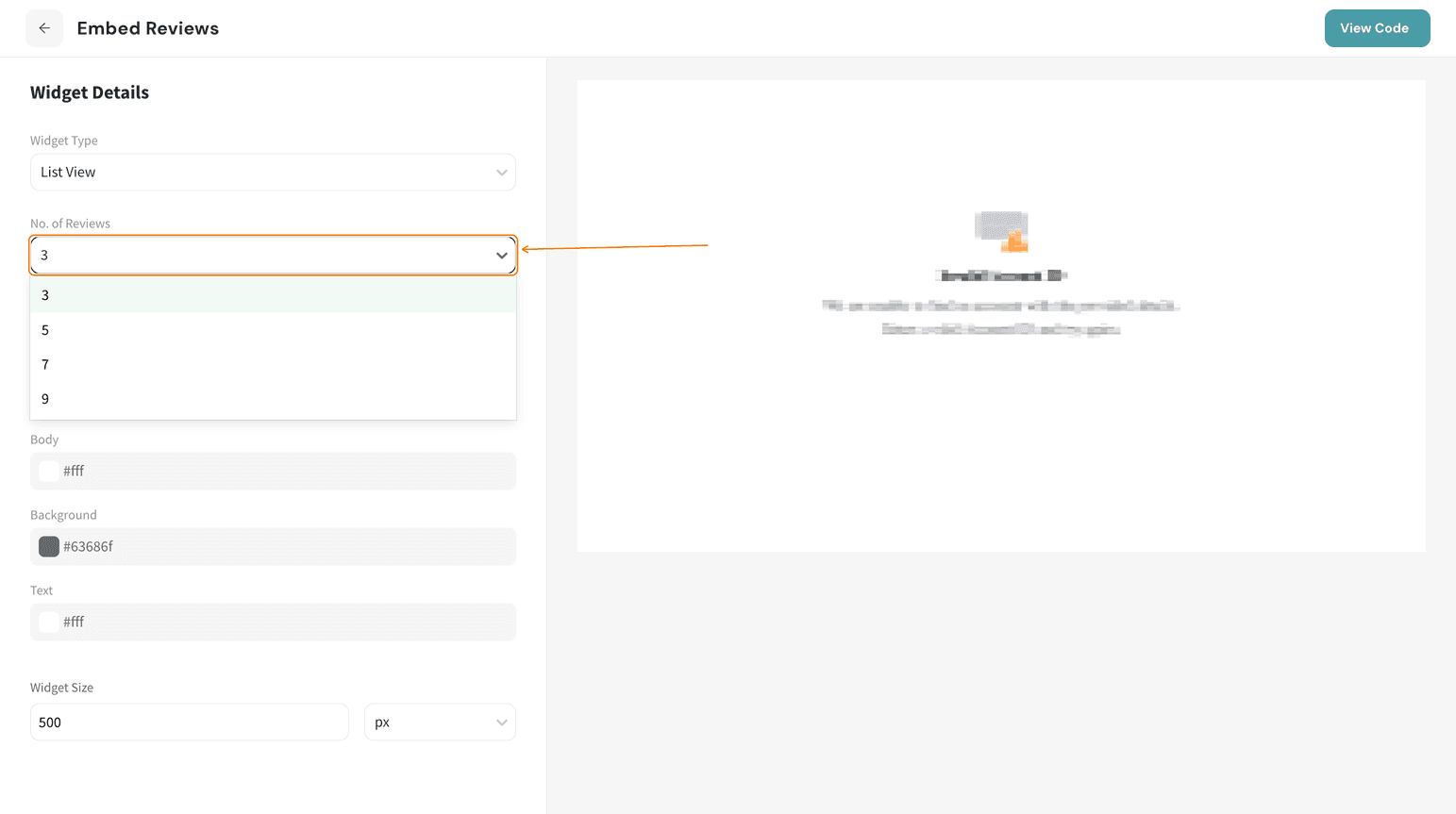
- Open No. of Reviews and choose whether the widget displays 3, 5, 7 or 9 reviews.
- Open Rating to show only reviews at or above a rating.
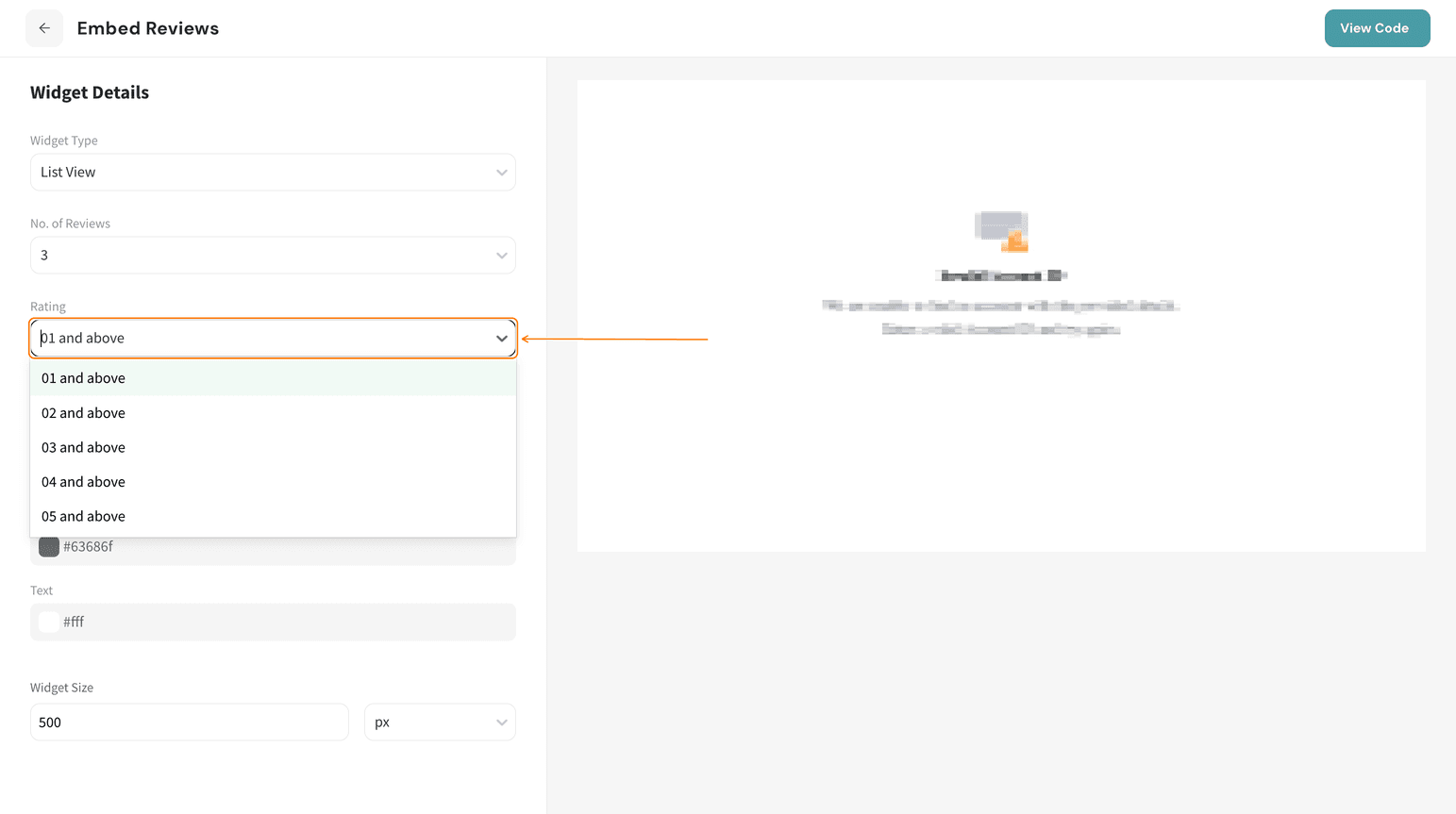
- Under Design, click Body and pick the widget body color.
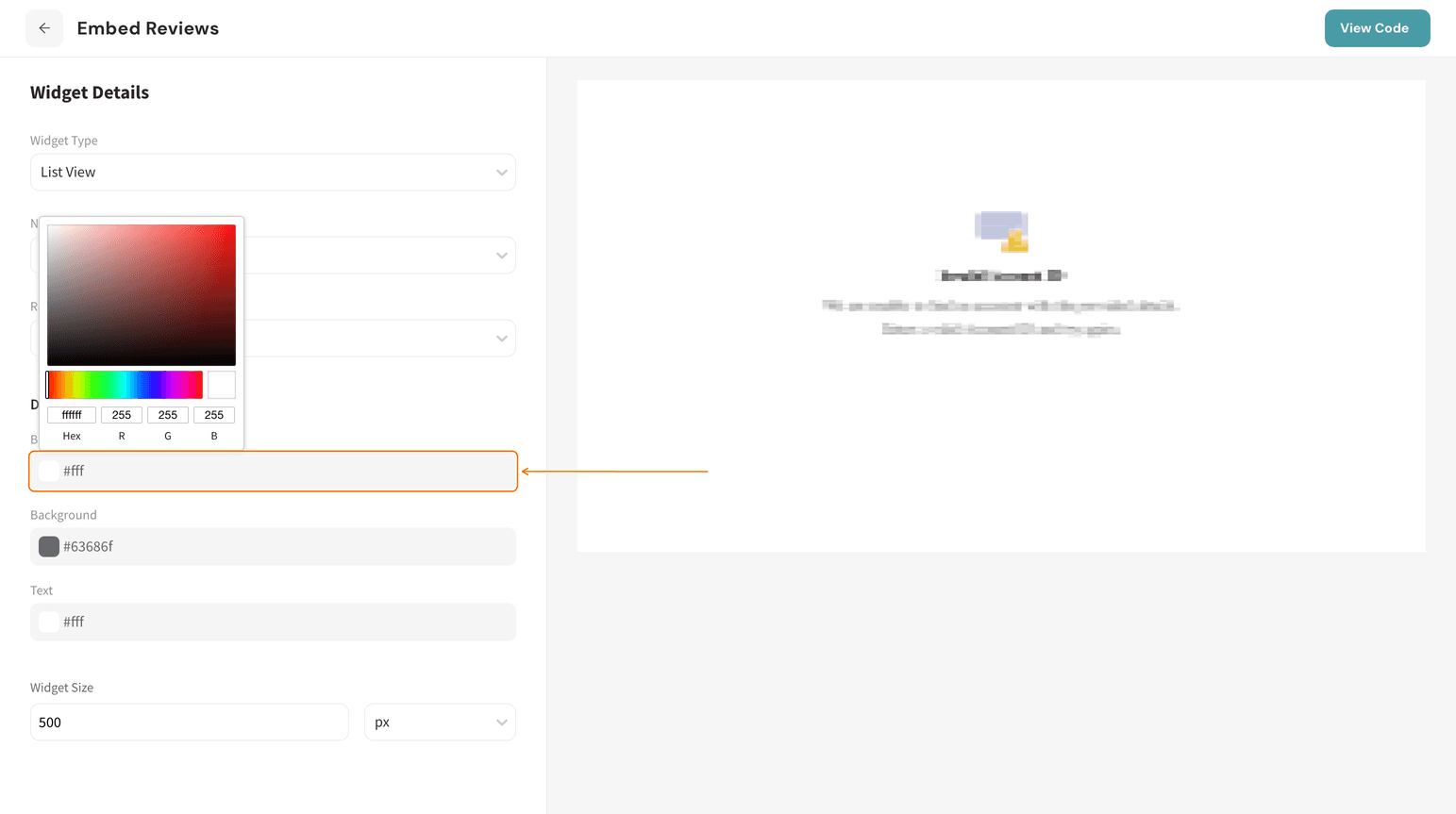
- Click Background and pick the background color.
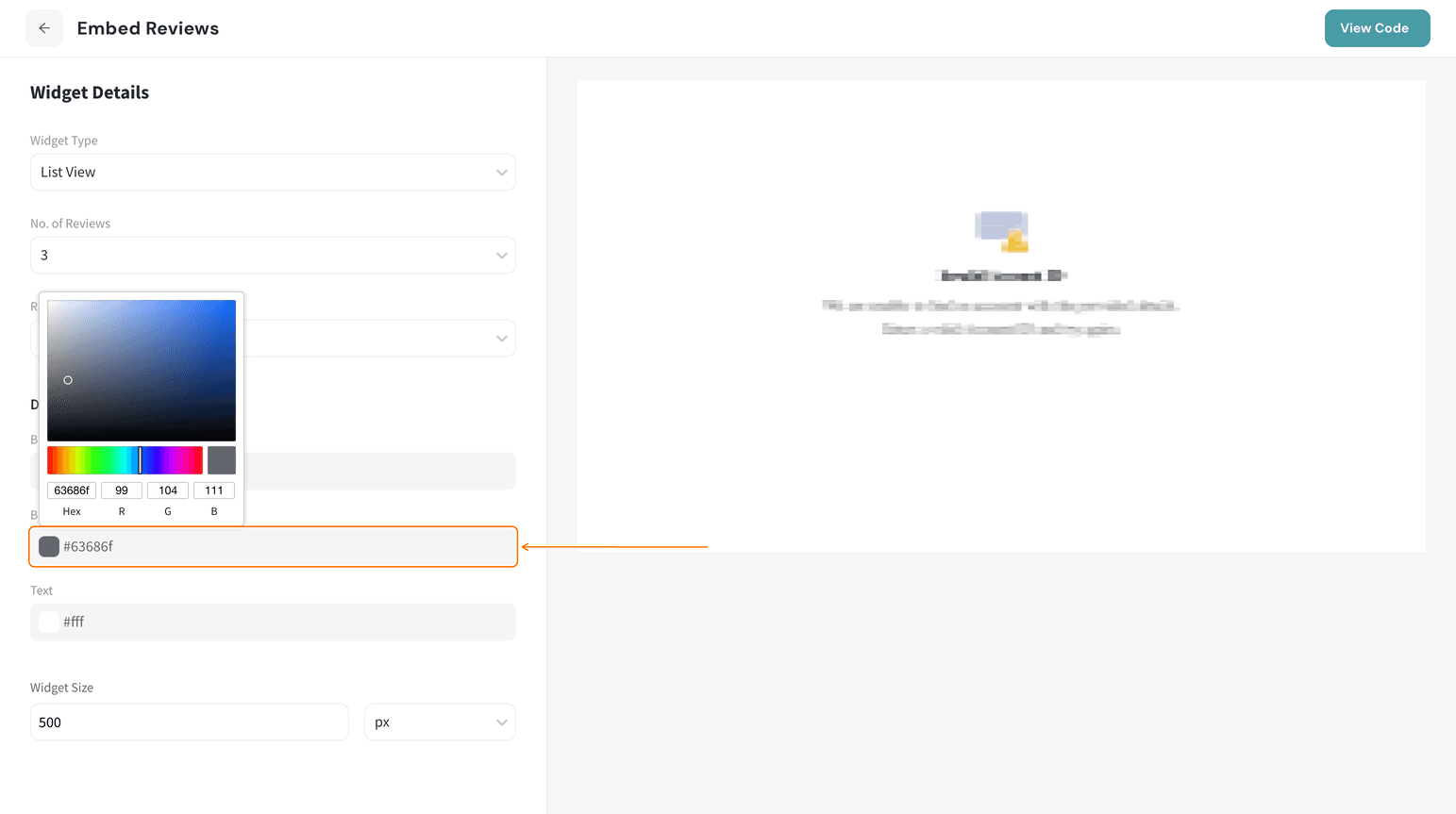
- Click Text and pick the text color.
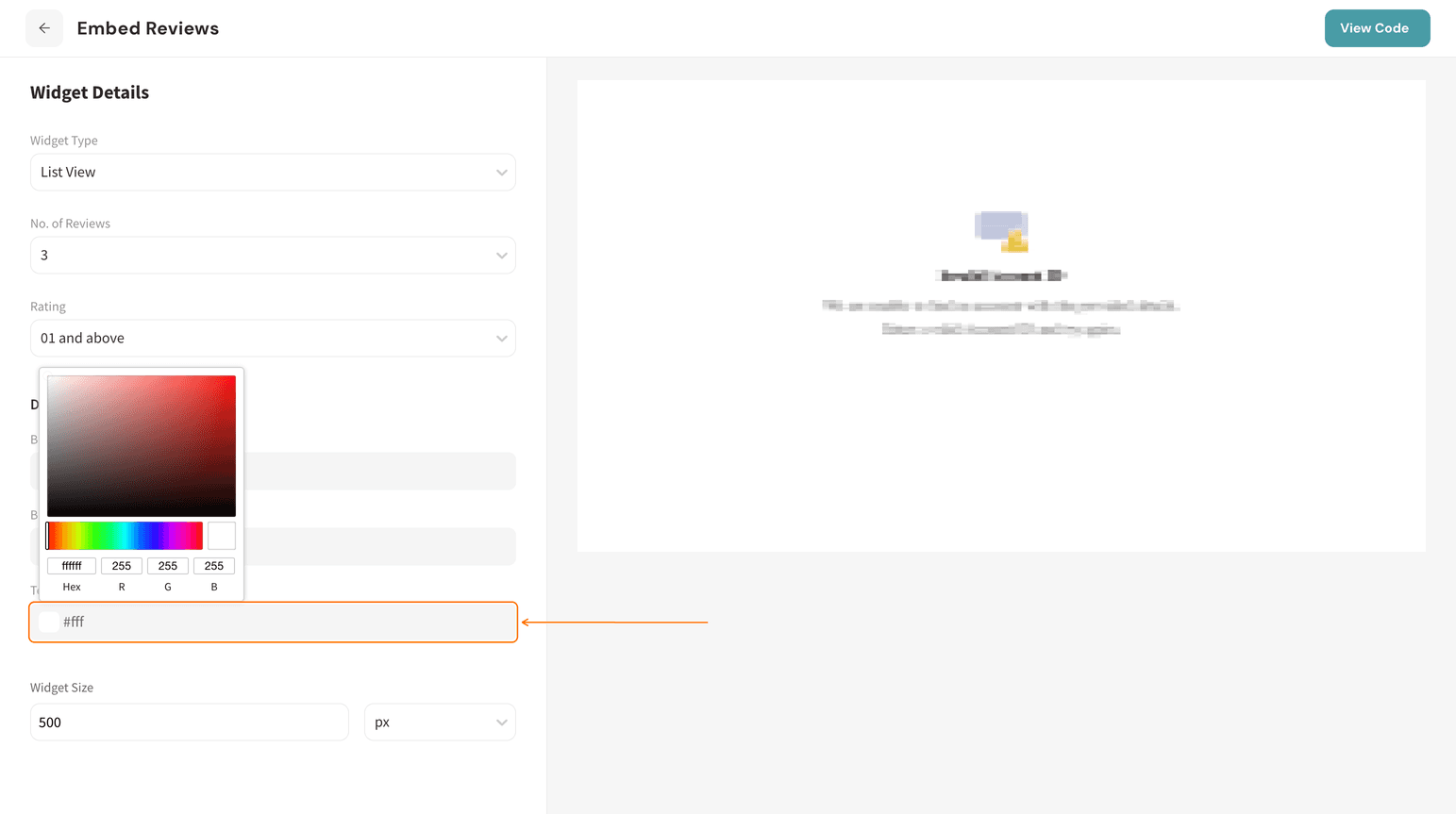
- Set Widget Size as a number, and choose pixels or percent for its unit.
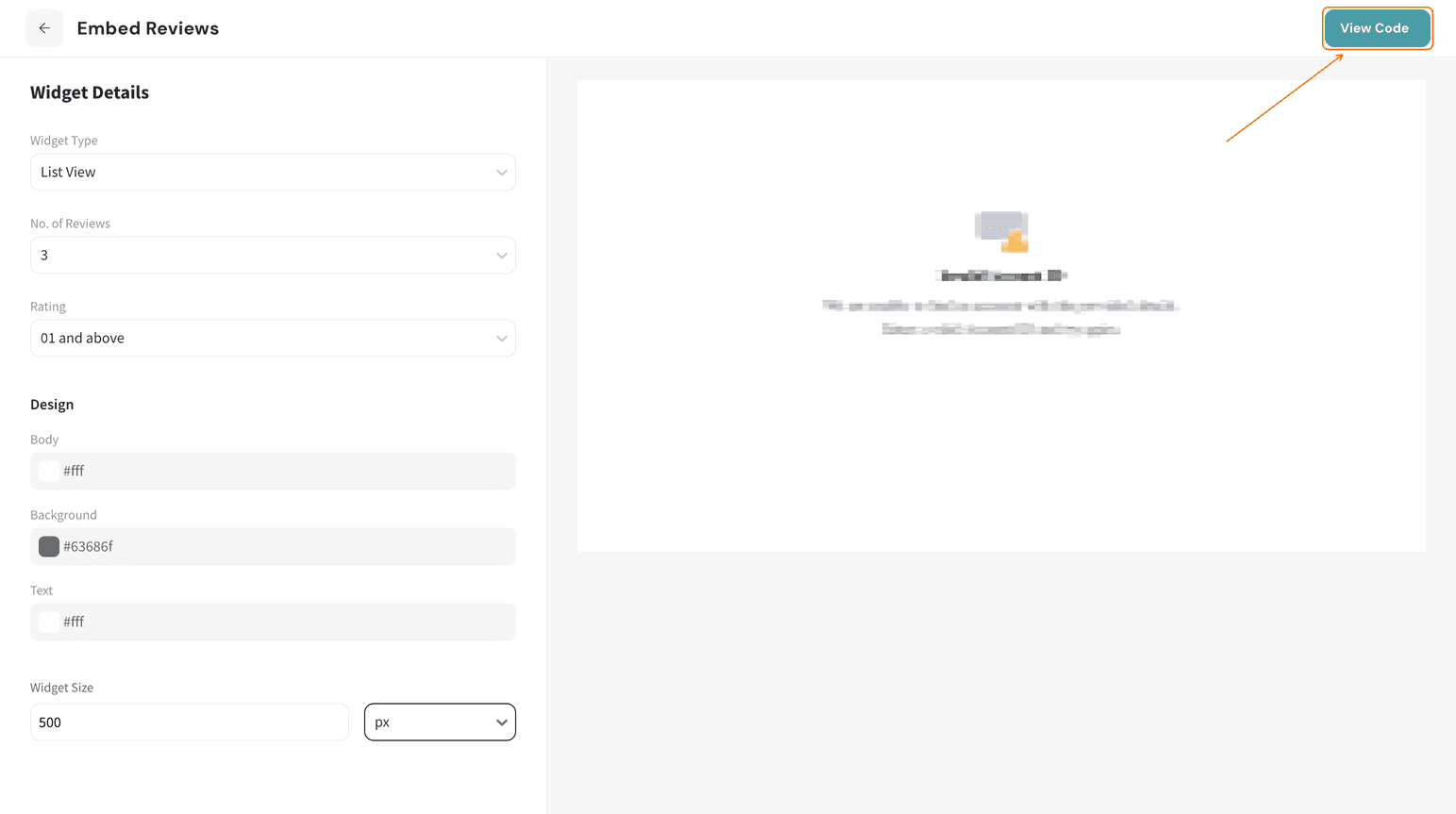
- Click View Code.
- Click Copy code.
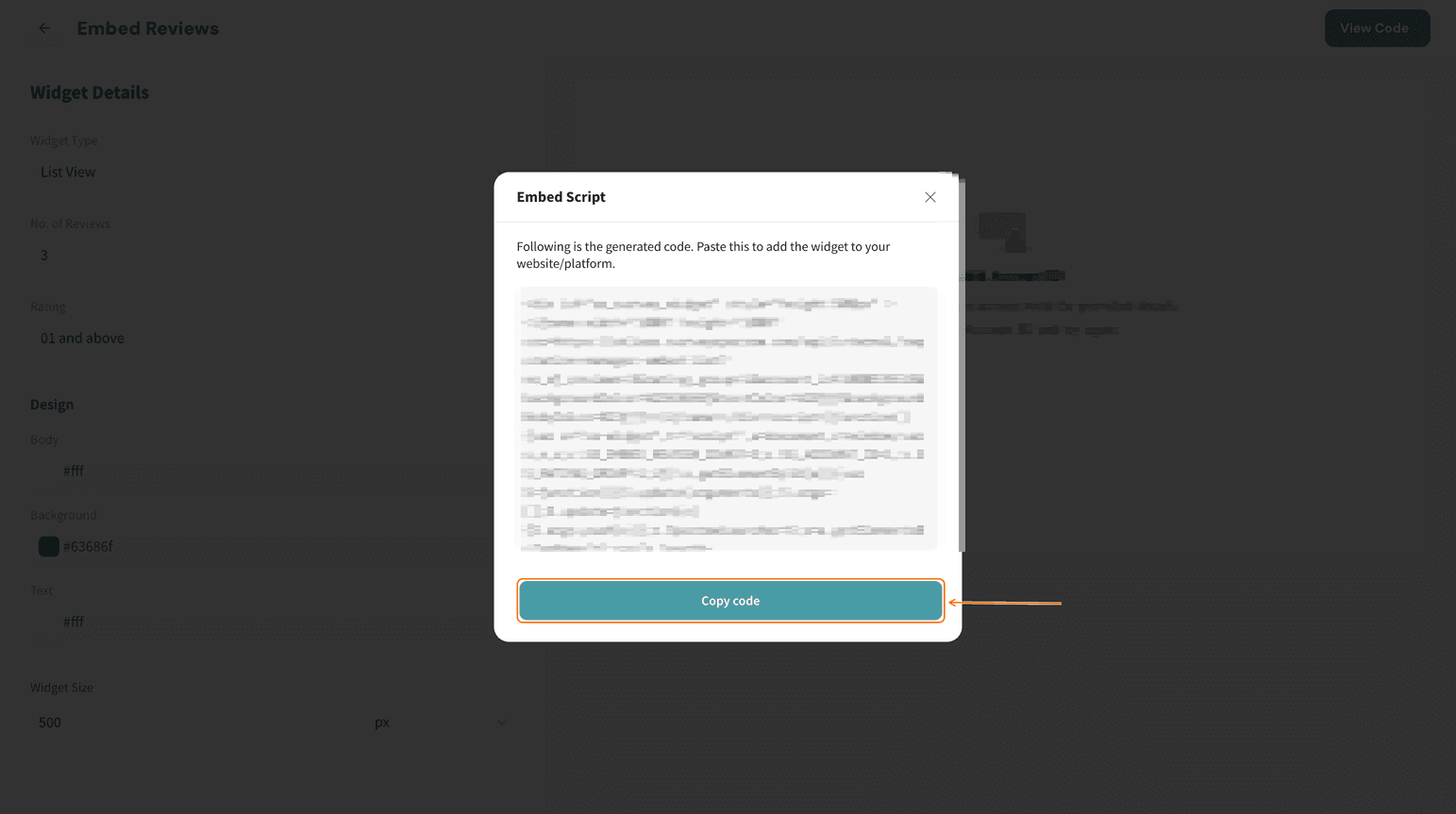
- Paste the script anywhere between the
<body>and</body>tags in your page's HTML.
Other Reputation features
- Boost asks customers for reviews by email or SMS so more of them leave a rating. See Boost reputation with email campaigns and Boost Reviews with SMS Campaigns.
- Social Feeds listen for public social media conversations about your brand, a topic or a competitor and collect them as mentions. See Social Listening.
- Workflows and Slack alerts automate what happens when reviews arrive. Open Workflows from More options, and see Workflows in Reputation Management and Setting up Slack alerts for Reputation Management.
Troubleshooting
My reviews are missing or out of date
Reviews from connected platforms refresh every 24 hours, so a review posted today may take a day to appear. Check that the listing was added with the business account credentials for that platform. If a listing shows no reviews after 24 hours, contact support.
I see only one review from a reviewer
For a given reviewer, only the latest review and reply are fetched for each platform.
FAQs
What does Reputation Management do in SurveySparrow?
Reputation Management collects your online reviews in one place. You can filter reviews, create tickets from them and track your rating and sentiment on the Overview tab. Showcase embeds your reviews on your website, Boost asks customers for reviews, and Social Feeds track mentions on social media.
Which online review platforms are supported?
More than 100 platforms. See Reputation Management Platforms Supported for the full list, or read how to manage your reviews across platforms.
How often do reviews sync from the platforms?
For connected platforms, the review data is updated in Reputation every 24 hours.
How do I embed reviews on my website?
Use Showcase in the left panel of the Reputation page. It generates a script you paste into your site. See Embed your reviews with Showcase above.
What is the difference between Showcase and Feedback Showcase?
Showcase in Reputation displays your online reviews. Feedback Showcase displays responses to your surveys. See Highlight customer praise with Feedback Showcase.
Can I reply to reviews from SurveySparrow?
Yes. Click Reply under a review and draft a reply with Quick Compose or Saved Responses. For a listing imported from a CSV file, post the reply on the platform and click Mark as Replied.
Related articles
- Boost reputation with email campaigns
- Boost Reviews with SMS Campaigns
- Social Listening
- Workflows in Reputation Management
- Create tickets for online reviews
- Reputation Management Platforms Supported
Please let us know if you face any difficulties. We are just a chat away.
Was this helpful?