
Integrating Excel Online with SurveySparrow

Sync your survey responses in real time through a new or an existing spreadsheet
With the Excel Online Integration, you can sync your survey responses in real time through a new or an existing spreadsheet. This ensures that you receive real-time survey data easily.
With this integration, you will be able to:
- Create a sheet to update responses.
- Choose from existing sheets or update the URL to share responses.
- Send all/selected survey responses to an Excel sheet.
- Import old responses to the Excel sheet.
To enable this integration, follow the steps below:
1. Create the survey you want to integrate with Excel Online.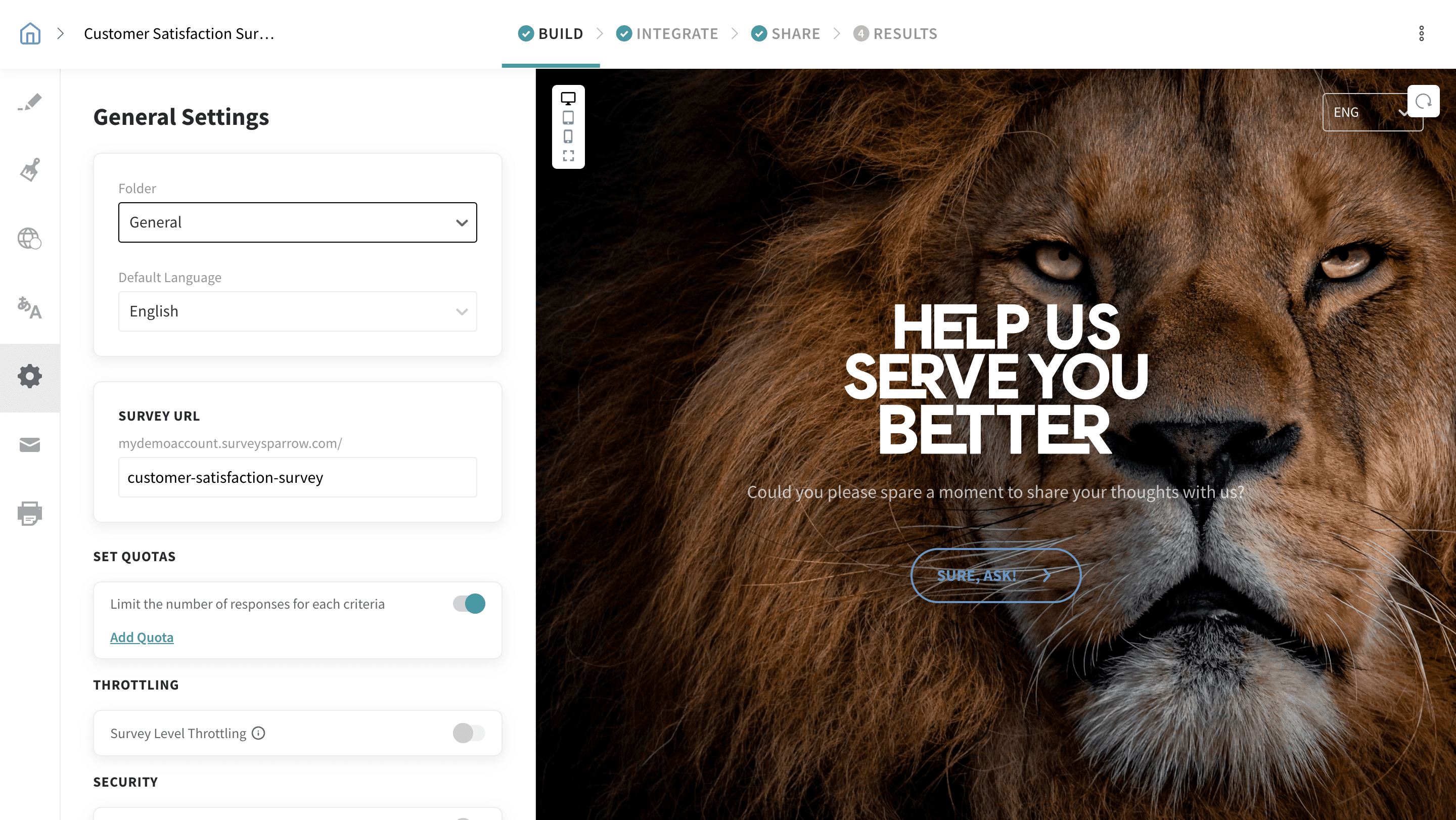
2. Navigate to the Integrations tab and find the Excel Online integration.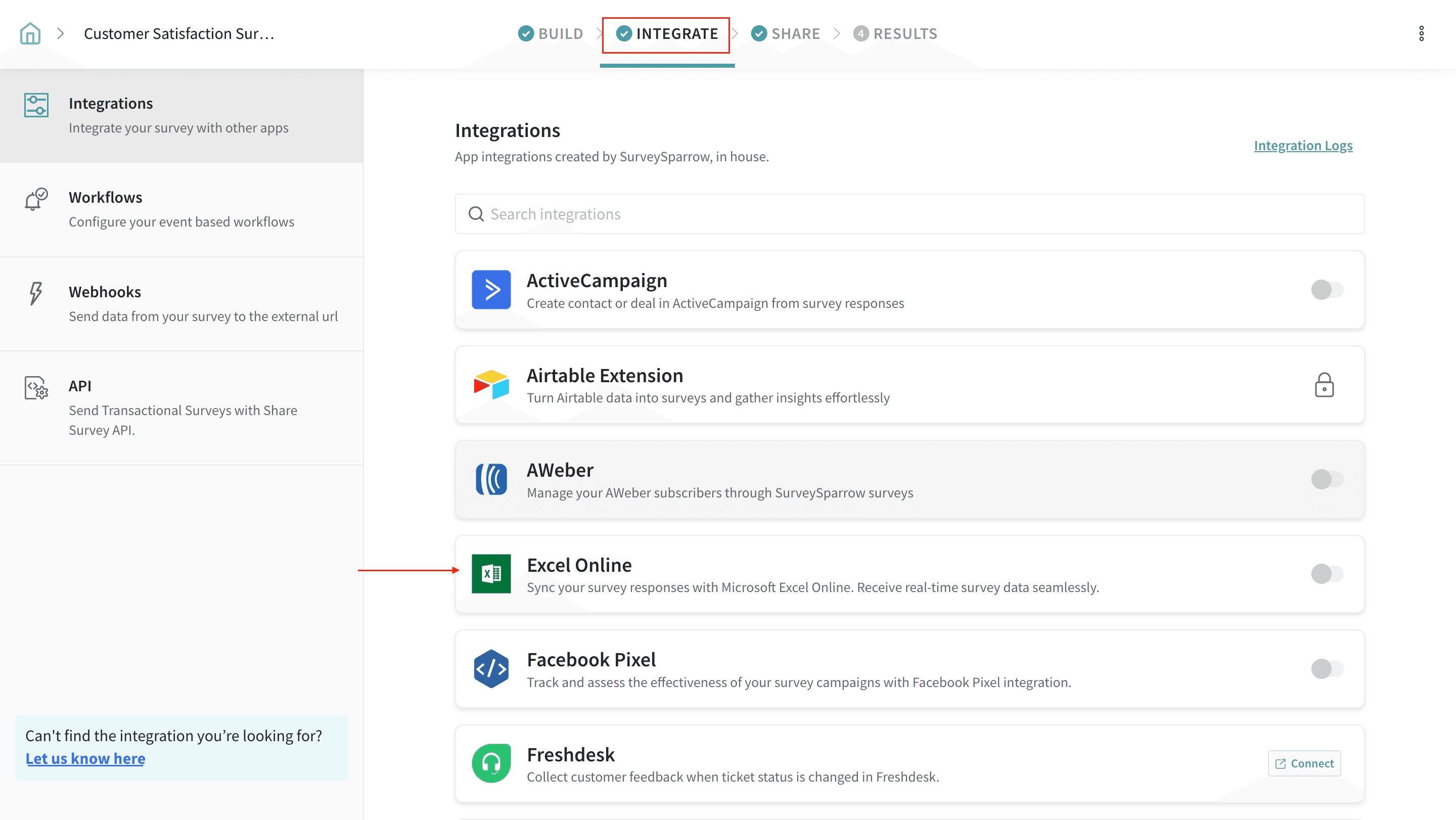
3. After you authenticate your account, click on Accept.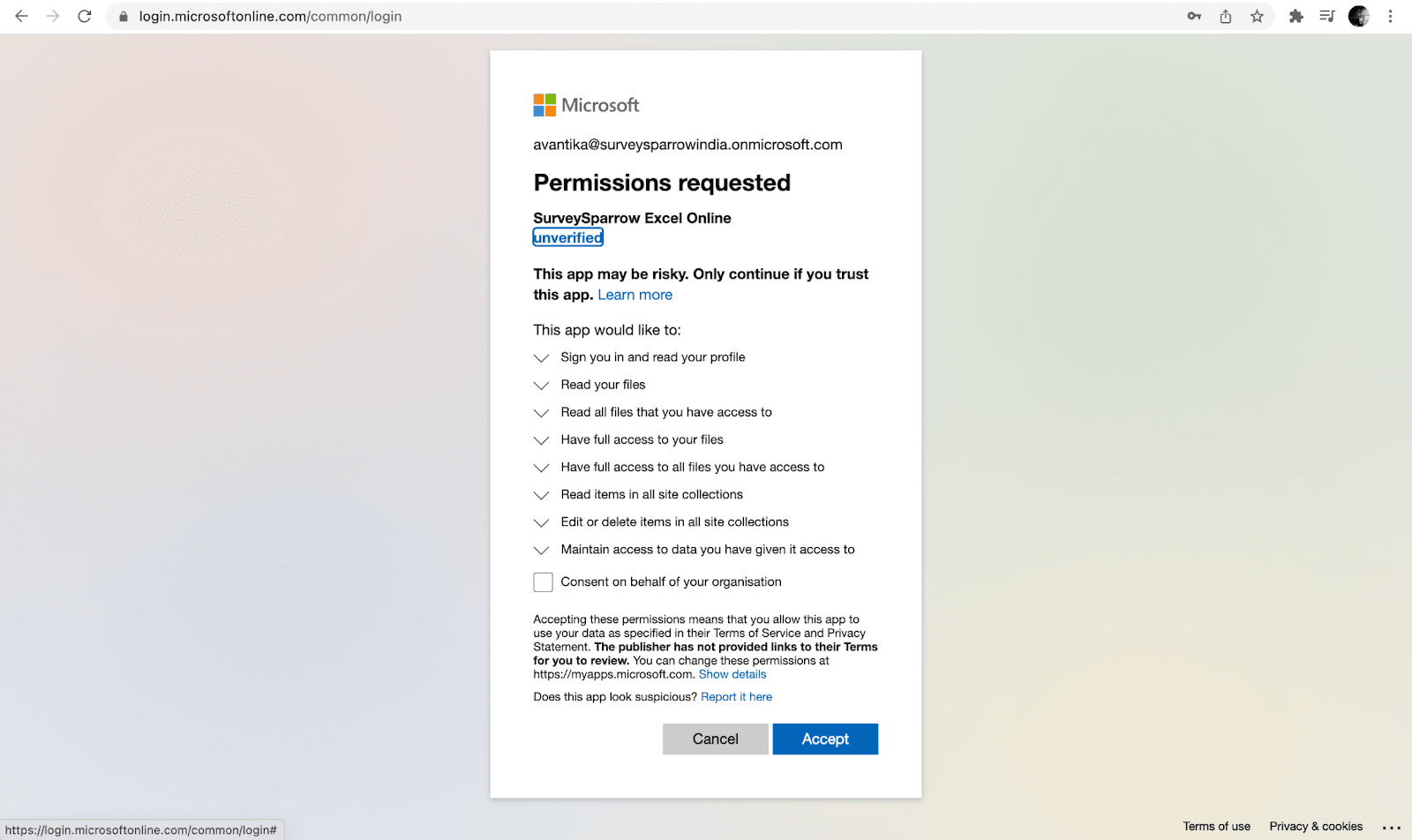
4. The integration has now been enabled. You will now be redirected to the Integrate page.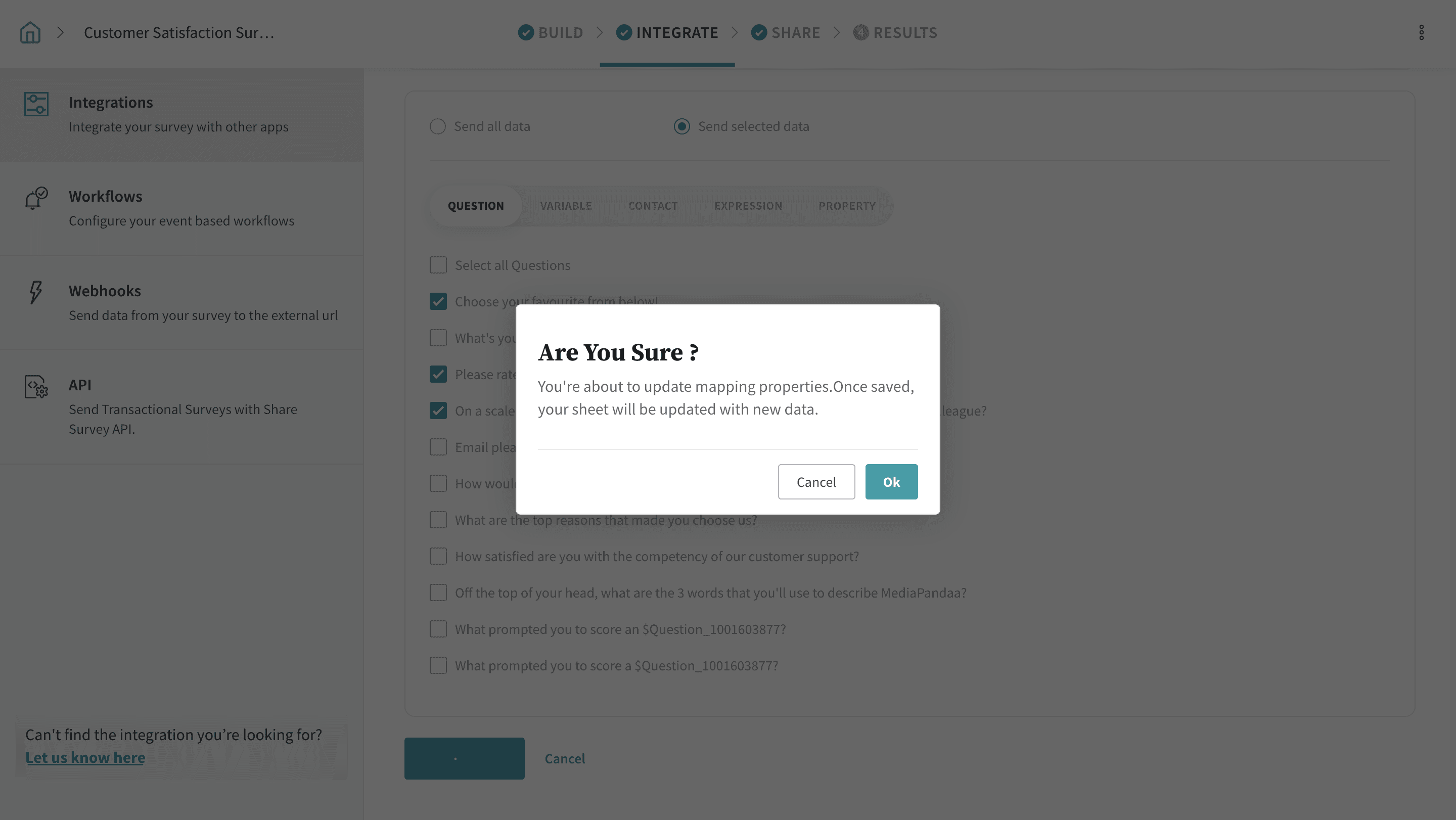
Use case 1:
Create a new sheet to update responses.
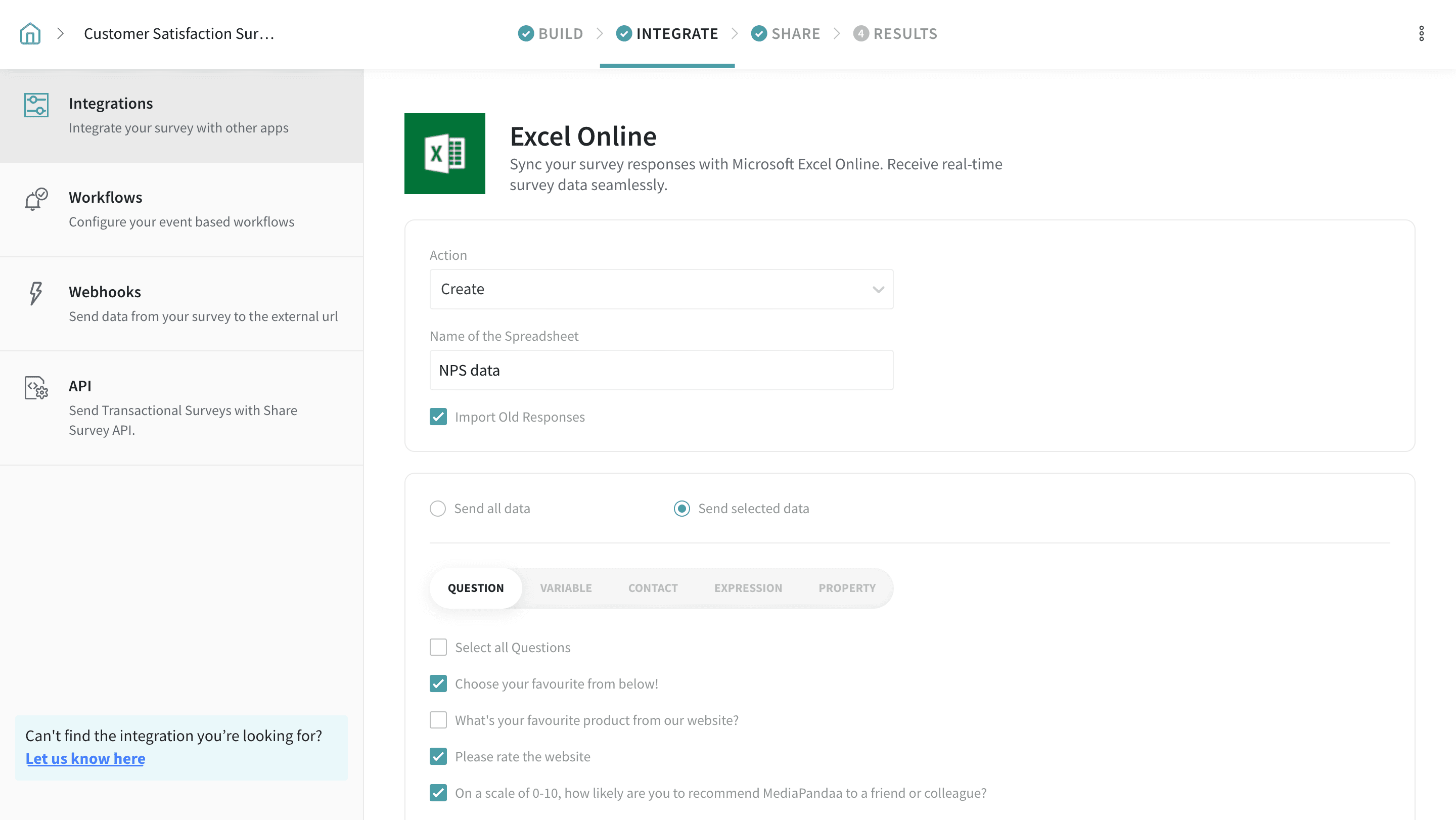
- Under Action, choose Create from the dropdown list.
- Now, enter the name of your new spreadsheet.
- You can choose to import old responses by clicking on the checkbox.
- Now, choose whether you want to send all your data or only send selected data. In the case of selected data, you get to choose between questions, variables, contacts, expressions, or properties.
Use Case 2:
Choose from existing sheets or update the URL to share responses.
- Under Action, select Choose sheet from the dropdown list. Now, click on the dropdown to select from existing sheets.
- If you need to update the sheet URL, choose enter Sheet URL and paste the URL in the box below.
- You can choose to import old responses by clicking on the checkbox.
- Now, choose whether you want to send all your data or only send selected data. In the case of selected data, you get to choose between questions, variables, contacts, expressions, or property.
When you’re done choosing the conditions, click on Save. Your responses will now be synced in real time.
And Voila! If you want to disable the integration, click on the toggle button on the Integration tab.
Note:
- In case you don’t choose between all or selected data, ‘Send all data’ will be enabled by default.
FAQs
1. What does the force sync button on the Integrations tab perform?
Force sync automatically updates all the existing responses.
2. Is it possible to import old responses?
Yes, it is possible to import old responses by checking the Import Old Responses box.
3. Do we have an option to choose existing sheets?
Yes. You can choose existing sheets or even update a sheet URL. Refer Use Case 2.
4. Do we get to send selected data to Excel Online?
Yes. You can send selected data to Excel Online by checking the Send selected data box and choosing between questions, variables, contacts, expressions, or property.
5. What will happen if we add a new question after setting up the integration?
Once you add a new question and choose to send its responses to the existing excel sheet, a pop-up window will open. Click OK to update the mapping properties.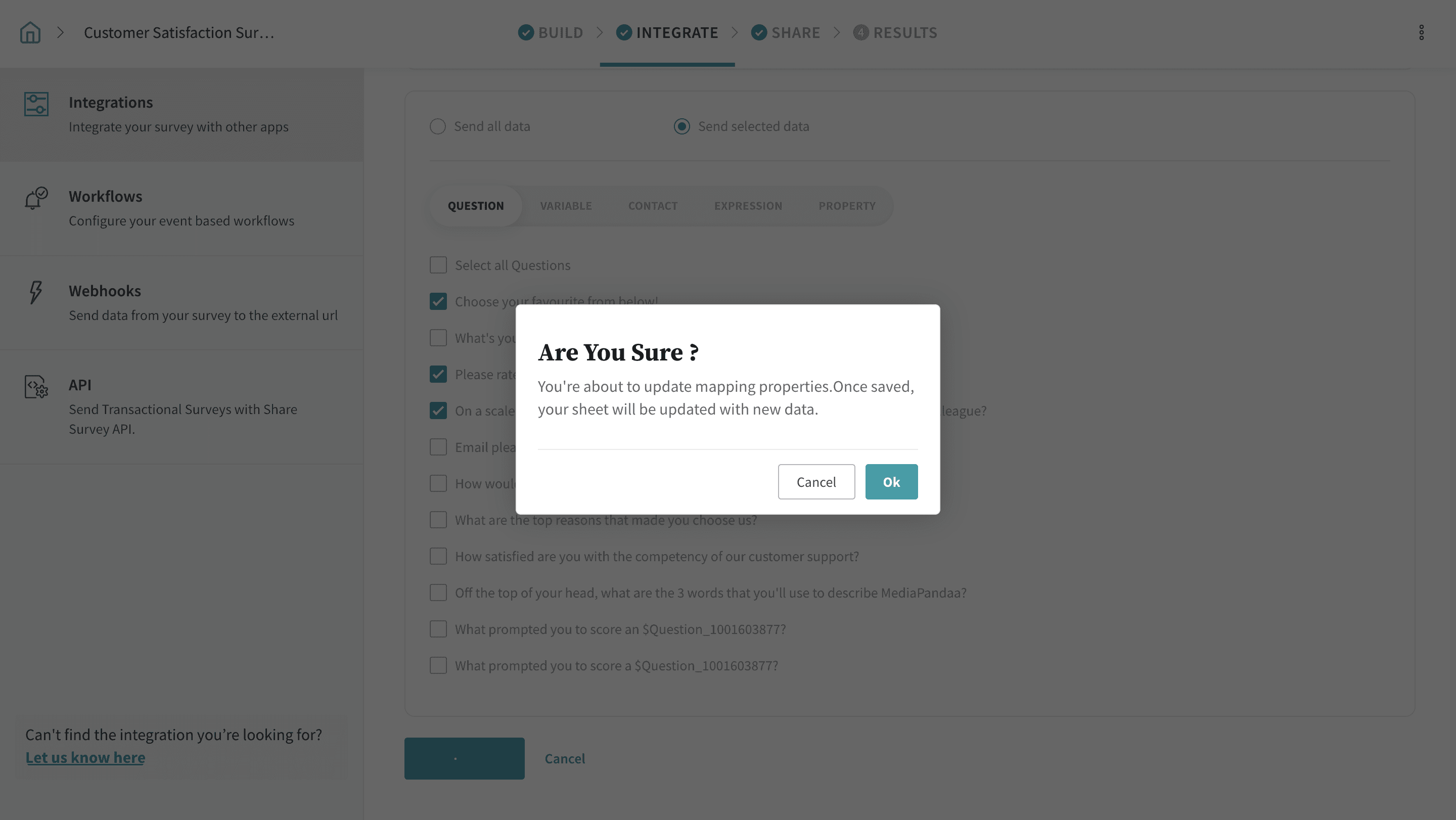
Not seeing responses sync to Excel Online? If your integration was working earlier or new responses are only syncing after a Force Sync, try these quick steps:
- Make sure the Excel Online integration is still enabled.
- Verify that the required Microsoft permissions are still active.
- Click Force Sync to sync the latest responses.
- Turn the integration off and back on, then reconnect your Microsoft account and click Accept when prompted.
- If you're using an existing workbook, try creating a new Excel sheet and reconnecting the integration.
- To sync older responses, enable Import Old Responses and click Save.
If you're still facing the issue, reach out to us via chat or email with your survey name, Survey ID, and a screen recording. We may also request temporary Account Access to investigate further, which can be granted only by the Account Owner from Settings → Security → Account Access.