SurveySparrow Go: Use Offline Mode (Email or Device PIN Login)

SurveySparrow Go is the mobile companion app that lets you create, distribute, and collect surveys right from your smartphone—even without an internet connection. Whether you’re in a trade show booth, a retail outlet, or conducting field research, the app ensures you never miss valuable feedback. With offline mode, you can collect responses anytime, anywhere, and sync them securely once you're back online.
This means your data stays safe, accurate, and instantly available in your SurveySparrow account—no manual uploads or missed entries.
You might find this especially useful when:
- Running on-ground surveys at events or exhibitions where internet access is unreliable. Teams can use their devices as dedicated feedback kiosks and sync results later.
- Conducting field research or retail audits where teams gather real-time input from customers in locations with limited connectivity.
In this article, we’ll explore the whole process of using SurveySparrow Go’s offline mode, including:
- Logging into offline mode via email
- Logging into offline mode via PIN
- Collecting offline feedback
- Adjusting the offline mode settings
Logging into offline mode via email
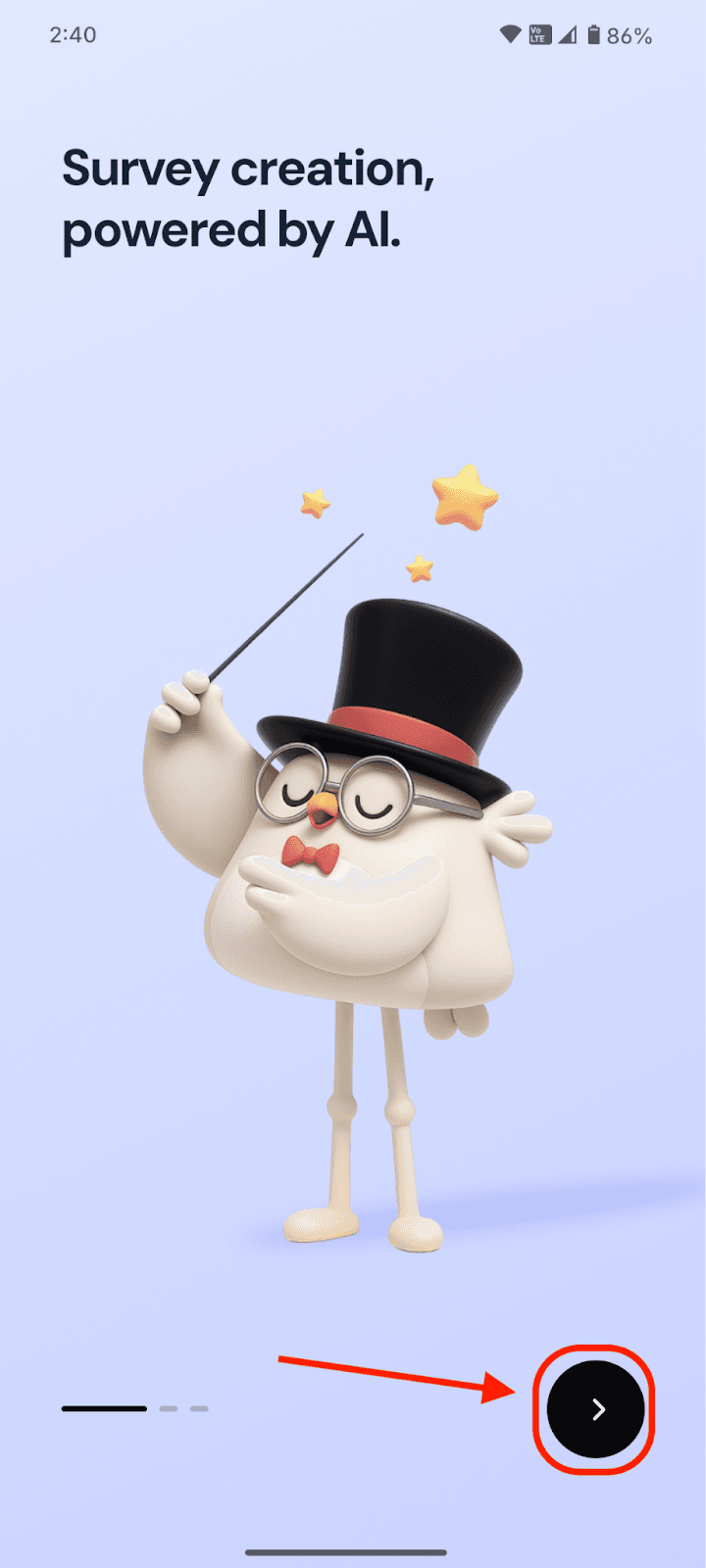
1. After installing the app from Google Play Store/Apple App Store, open the app and swipe through the intro screens.
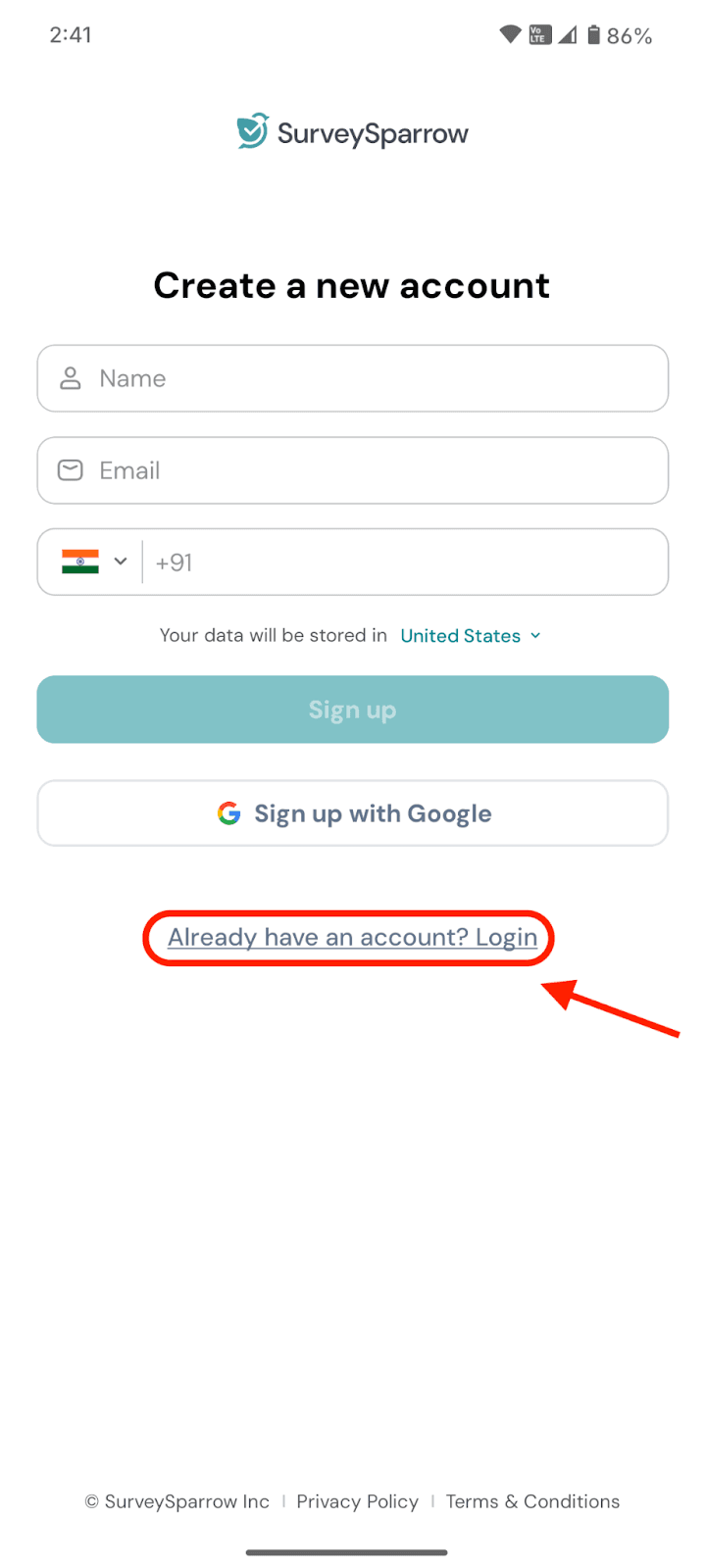
2. Next, you’ll reach the signup screen. If you already have an account, click on Already have an account? Login.
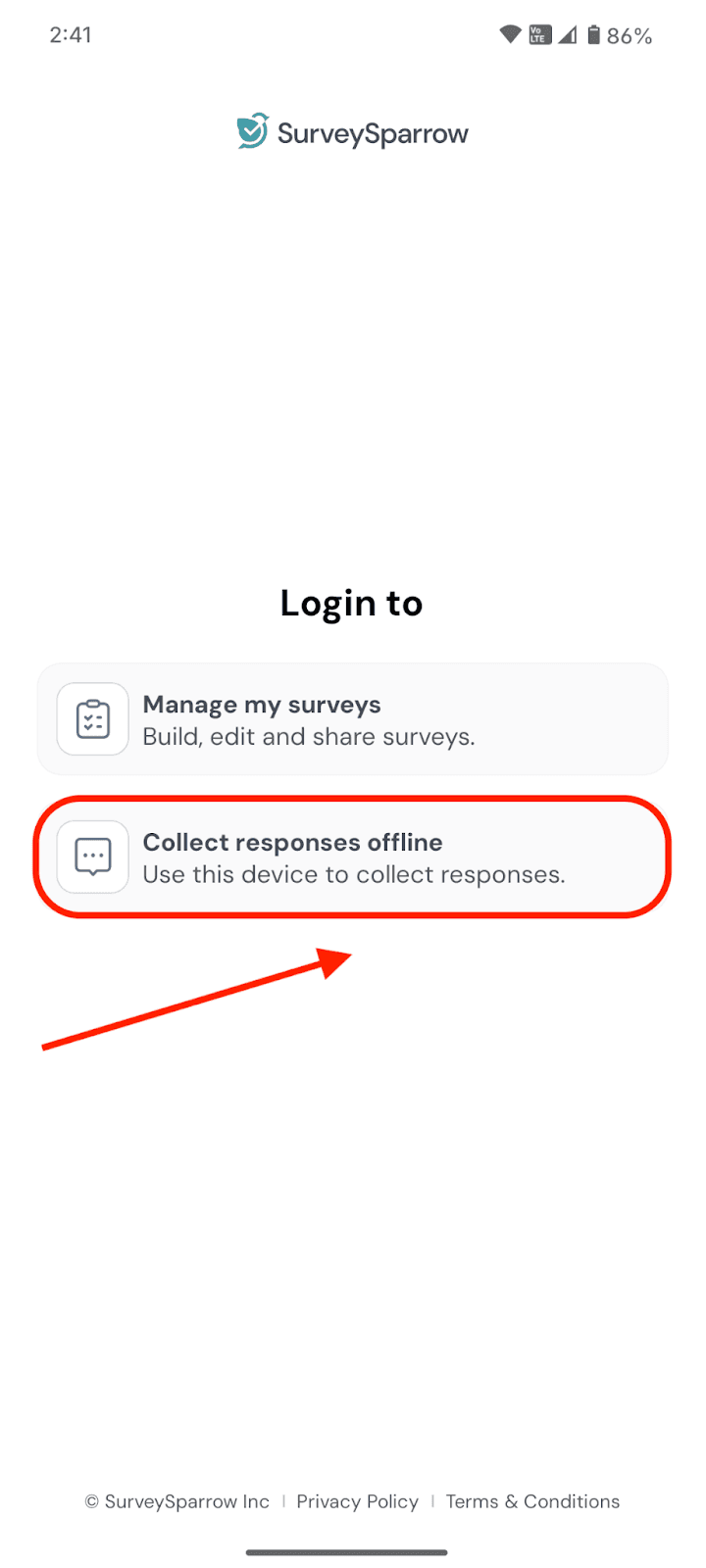
3. In the next screen you’ll have to choose the purpose of your login, which will accordingly determine the login process. If you wish to use offline surveys, click on Collect responses offline.
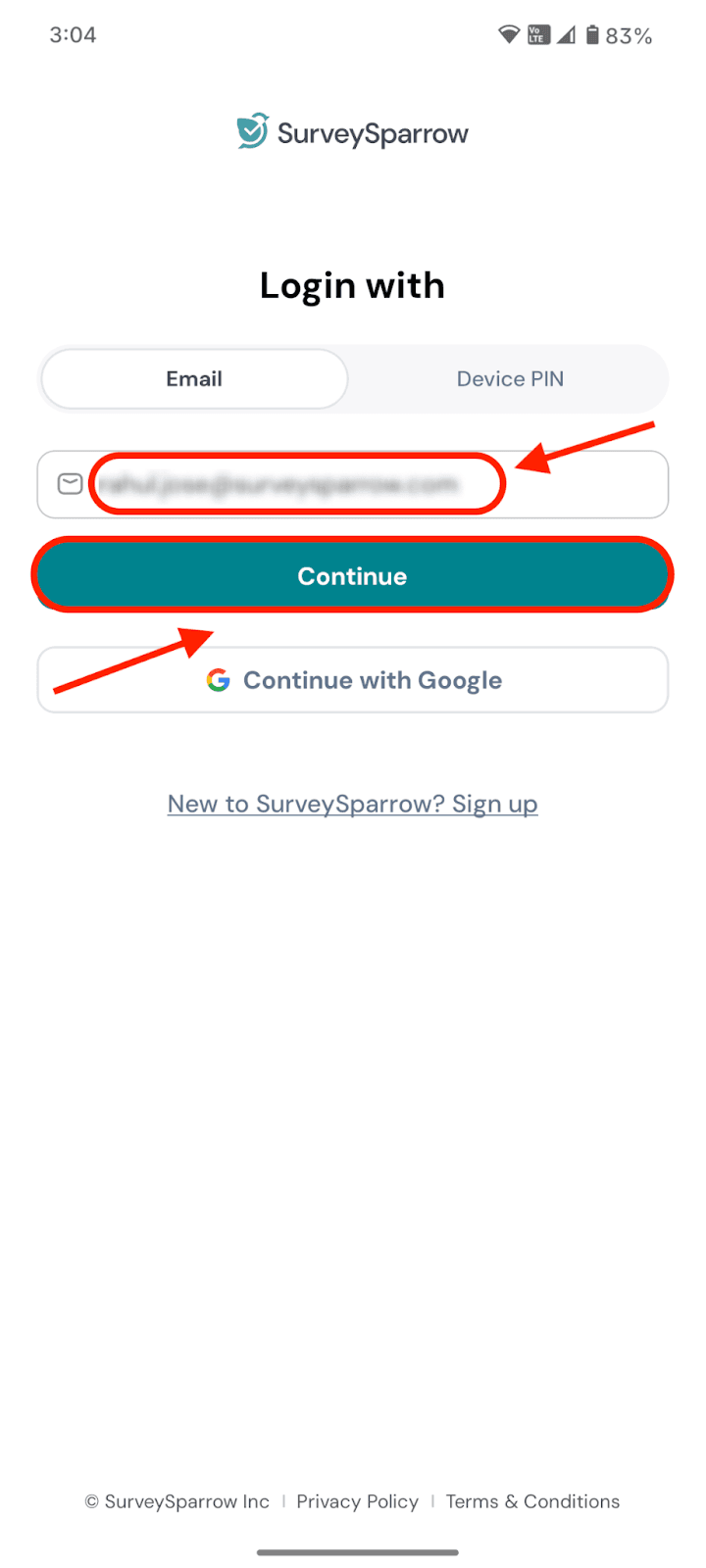
4. In the next login screen, you can choose to log in with Email or via your Device PIN. Here, we’ll explore the login process via Email. Type in your email address and click Continue.
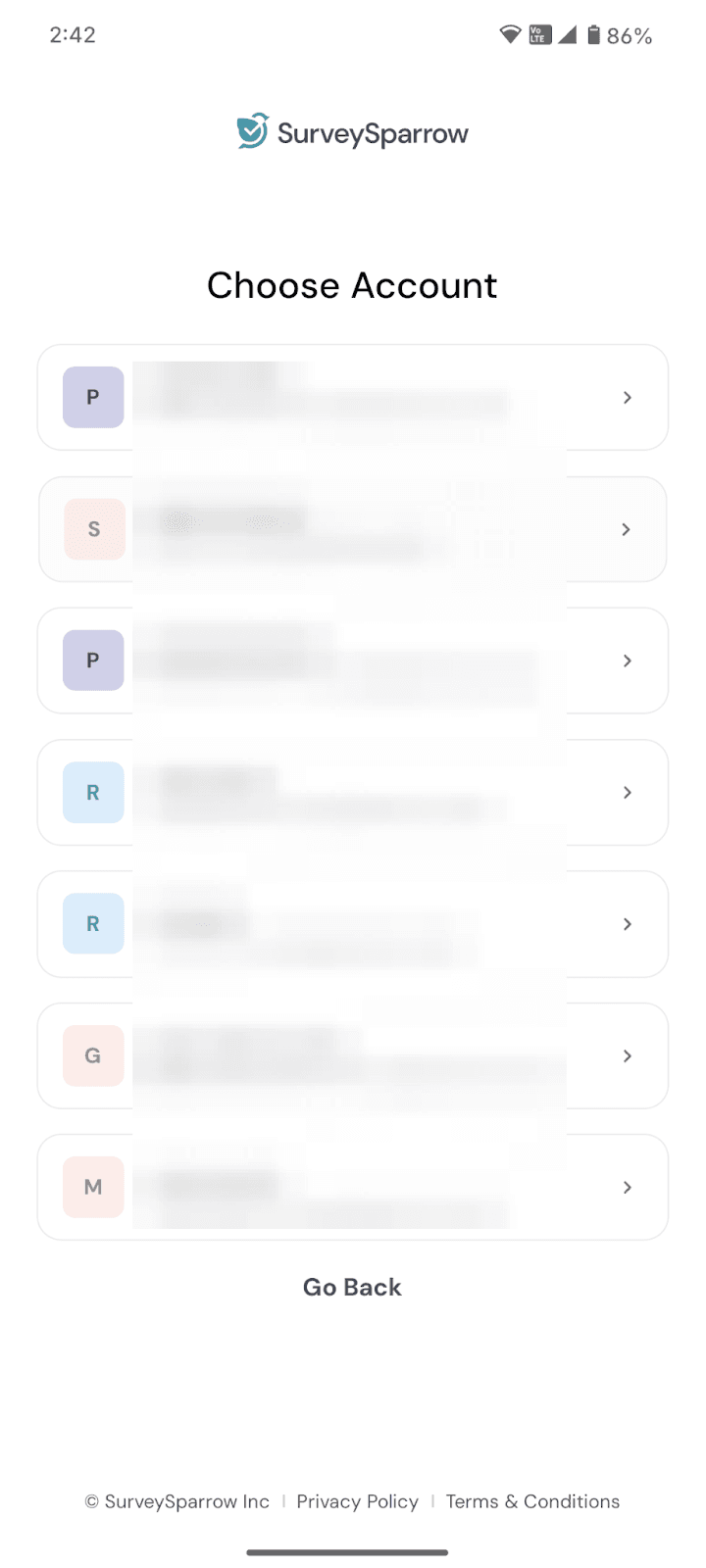
Note: If you have multiple SurveySparrow accounts tied to your email, you’ll need to choose one.
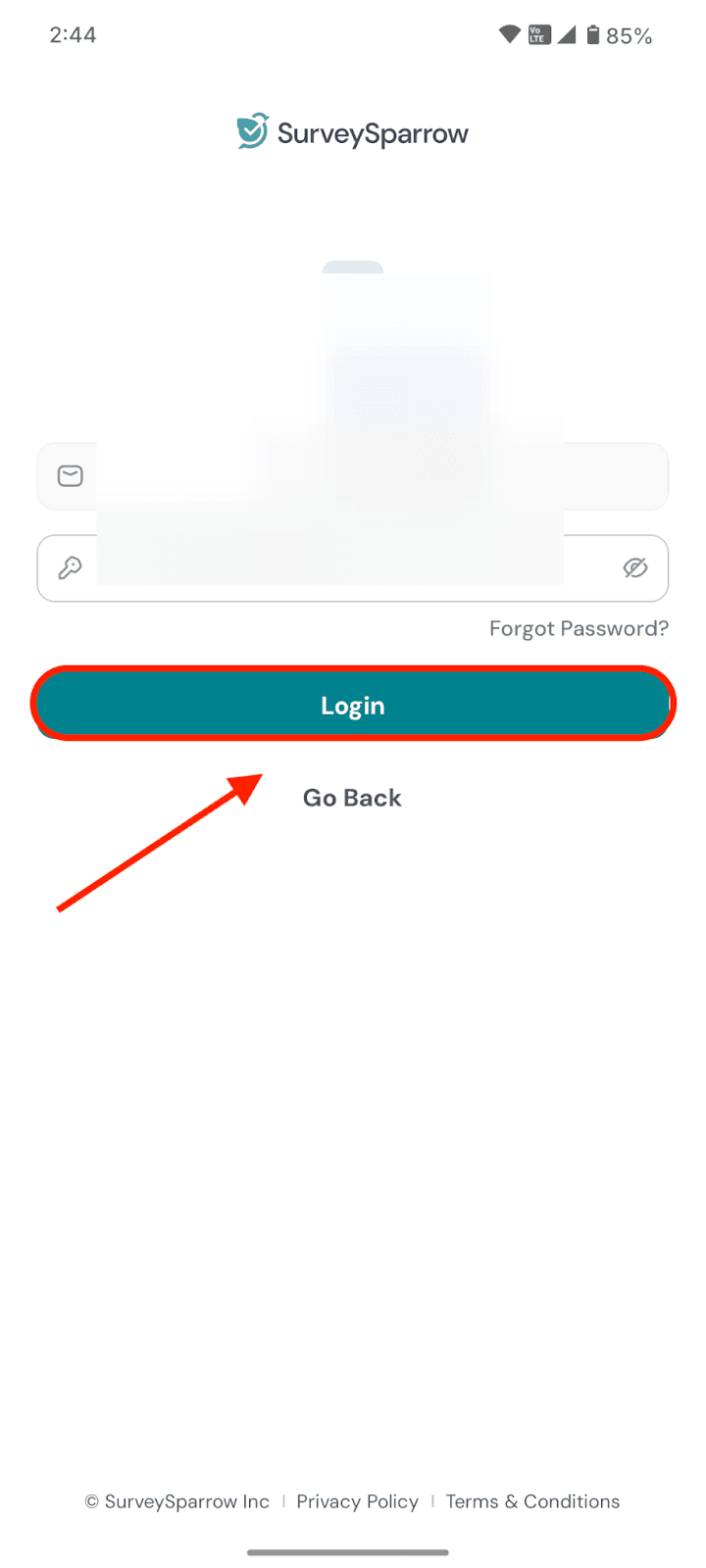
5. Next, you’ll have to type in your account password. Then, click on Login.
Logging into offline mode via PIN
Each device that you wish to use as an offline feedback collection hub must have its own PIN. Let’s explore the process of creating the PIN first, followed by the login process.
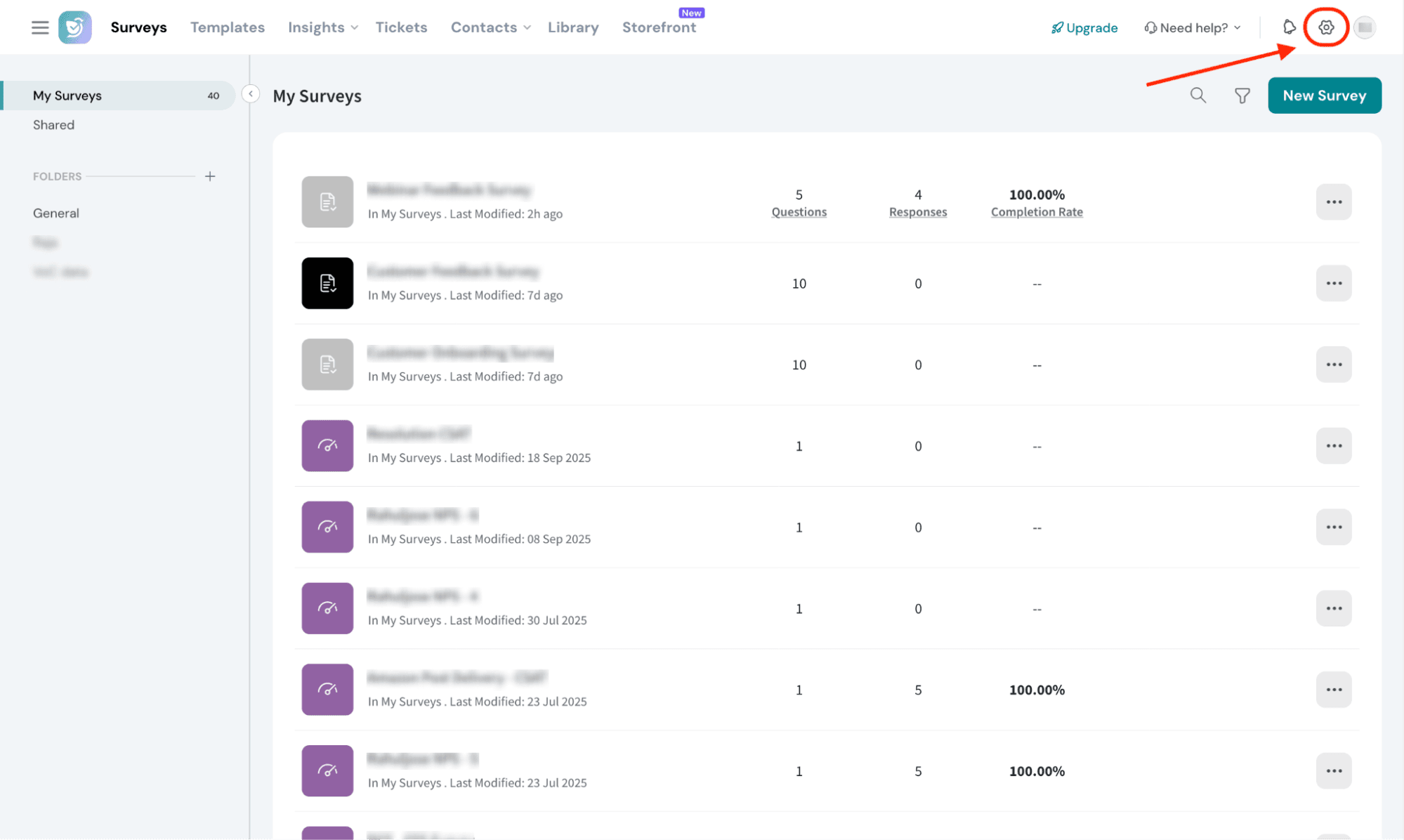
1. Within your SurveySparrow account’s homepage, click on the settings icon.
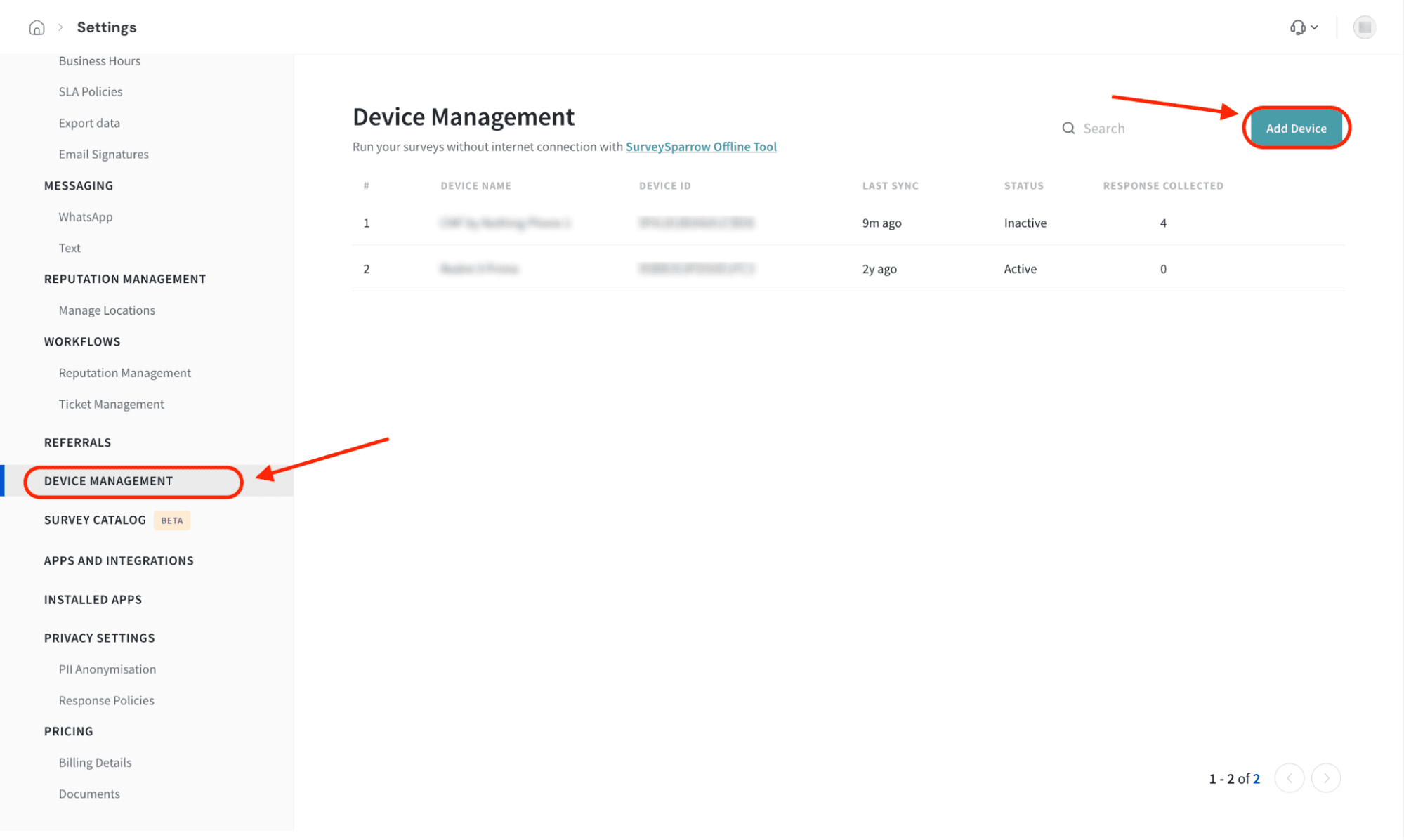
2. Within the settings page, scroll down the left panel, until you see Device Management. Click on it. When the section opens, click on Add Device.
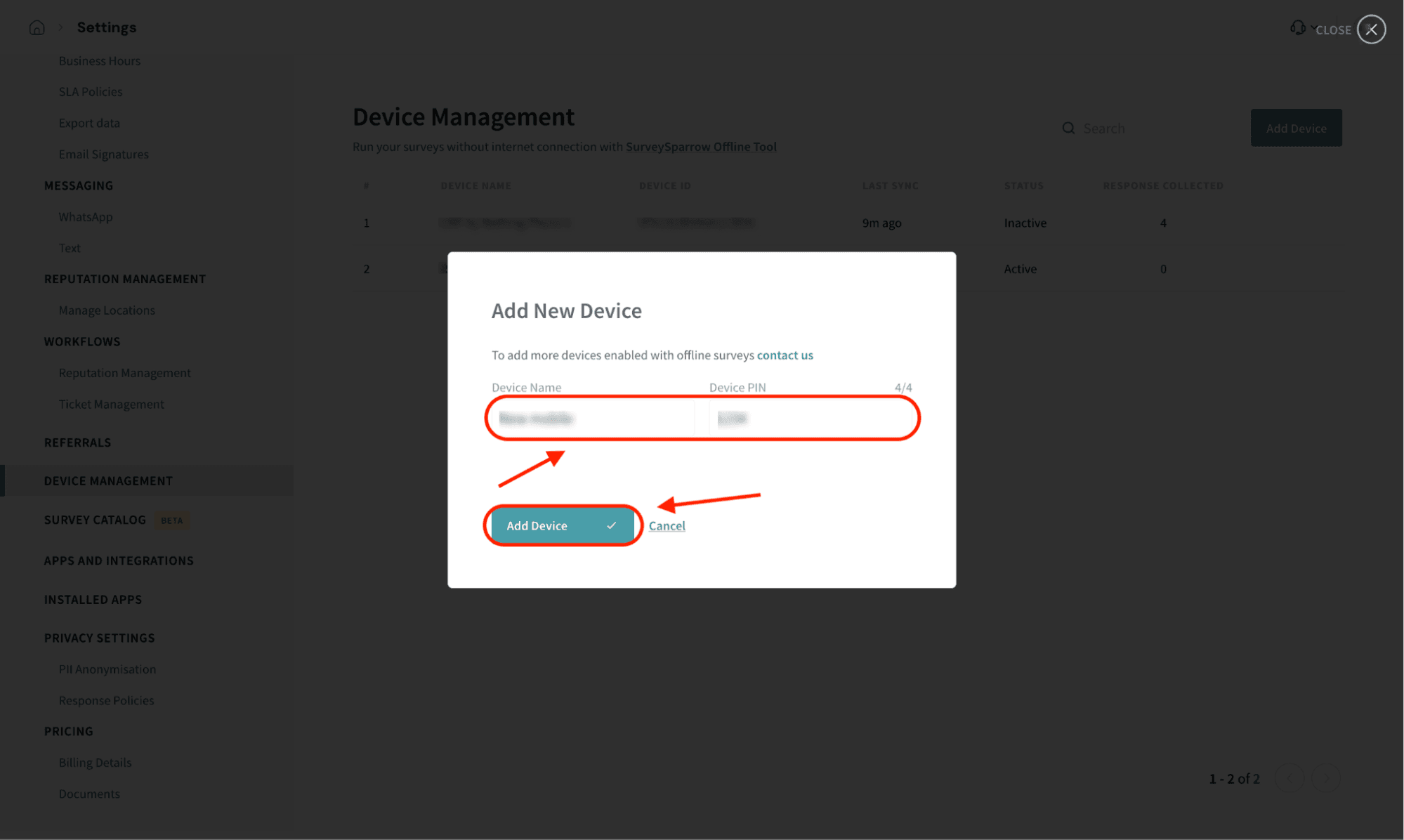
3. Type in the Device Name and Device Pin (4 digit number), then click on Add Device. Repeat this process for as many devices as you need.
4. Now, go to the app’s login screen and open the Device PIN tab. 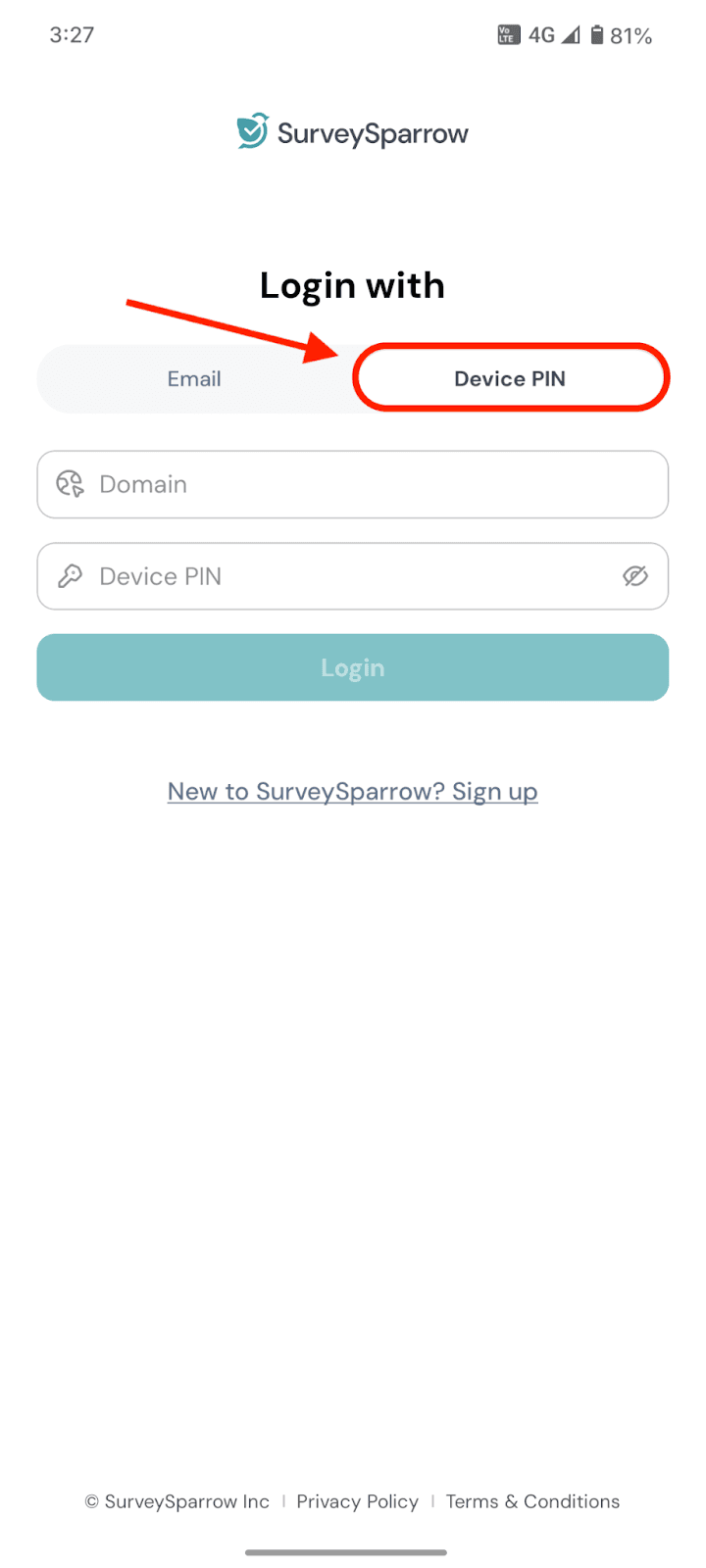
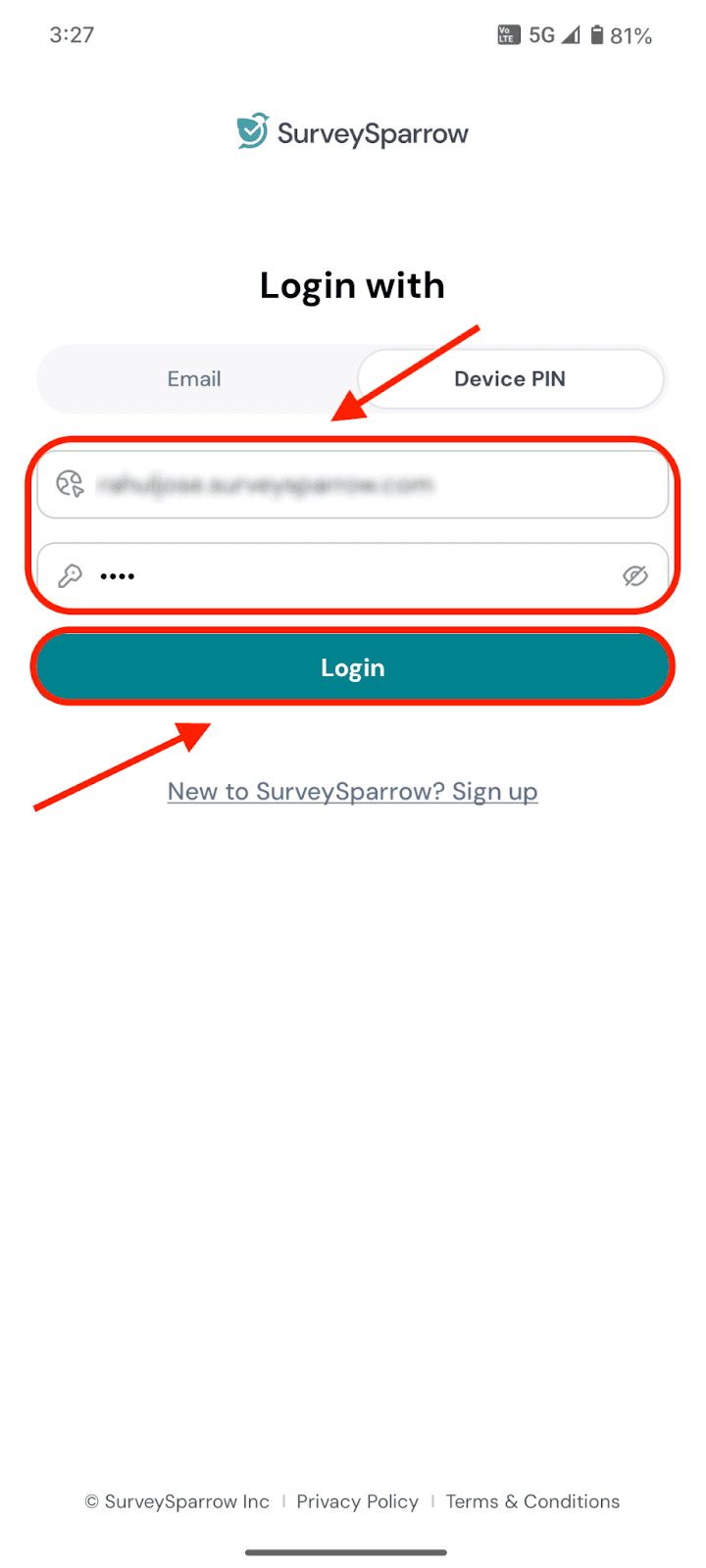
5. Type in the domain (SurveySparrow account domain) as well as the Device PIN, then click on Log In.
Troubleshooting: Survey appears locked or inaccessible in Offline mode (Device PIN) If your team sees a locked screen or can’t open surveys in the SurveySparrow Go offline app (especially across multiple devices), check the following: 1) Verify the correct domain - On the Device PIN login screen, enter your SurveySparrow account domain exactly as it appears in your account URL. - A wrong domain can prevent the device from authenticating and may look like the survey is “locked.” 2) Verify the Device PIN is correct and mapped to that device - In the web app, go to Settings → Device Management. - Confirm the device is added and the PIN is a 4-digit number. - If multiple devices are used, ensure each device has its own PIN and the team is not reusing a PIN intended for a different device. 3) Confirm offline access is enabled for the survey - Open the survey in the web app and check the Share section to ensure offline access is enabled (where applicable). 4) Update the app and retry login - Update SurveySparrow Go from the App Store/Play Store. - Force close and reopen the app, then log in again using the domain + Device PIN. 5) If the issue persists, collect details for Support - The exact text shown on the locked screen (or a screenshot). - Your account domain, device name(s), and the Device PIN setup used. - App version and OS version. Tip: If you can’t upload a video in the support portal, share a screenshot instead, or ask Support for an alternate upload option.
Troubleshooting: Survey appears locked or inaccessible in Offline mode (Device PIN)
If your team sees a locked screen or can’t open surveys in the SurveySparrow Go offline app (especially across multiple devices), check the following:
1) Verify the correct domain
- On the Device PIN login screen, enter your SurveySparrow account domain exactly as it appears in your account URL.
- A wrong domain can prevent the device from authenticating and may look like the survey is “locked.”
2) Verify the Device PIN is correct and mapped to that device
- In the web app, go to Settings → Device Management.
- Confirm the device is added and the PIN is a 4-digit number.
- If multiple devices are used, ensure each device has its own PIN and the team is not reusing a PIN intended for a different device.
3) Confirm offline access is enabled for the survey
- Open the survey in the web app and check the Share section to ensure offline access is enabled (where applicable).
4) Update the app and retry login
- Update SurveySparrow Go from the App Store/Play Store.
- Force close and reopen the app, then log in again using the domain + Device PIN.
5) If the issue persists, collect details for Support
- The exact text shown on the locked screen (or a screenshot).
- Your account domain, device name(s), and the Device PIN setup used.
- App version and OS version.
Tip: If you can’t upload a video in the support portal, share a screenshot instead, or ask Support for an alternate upload option.
Collecting offline feedback
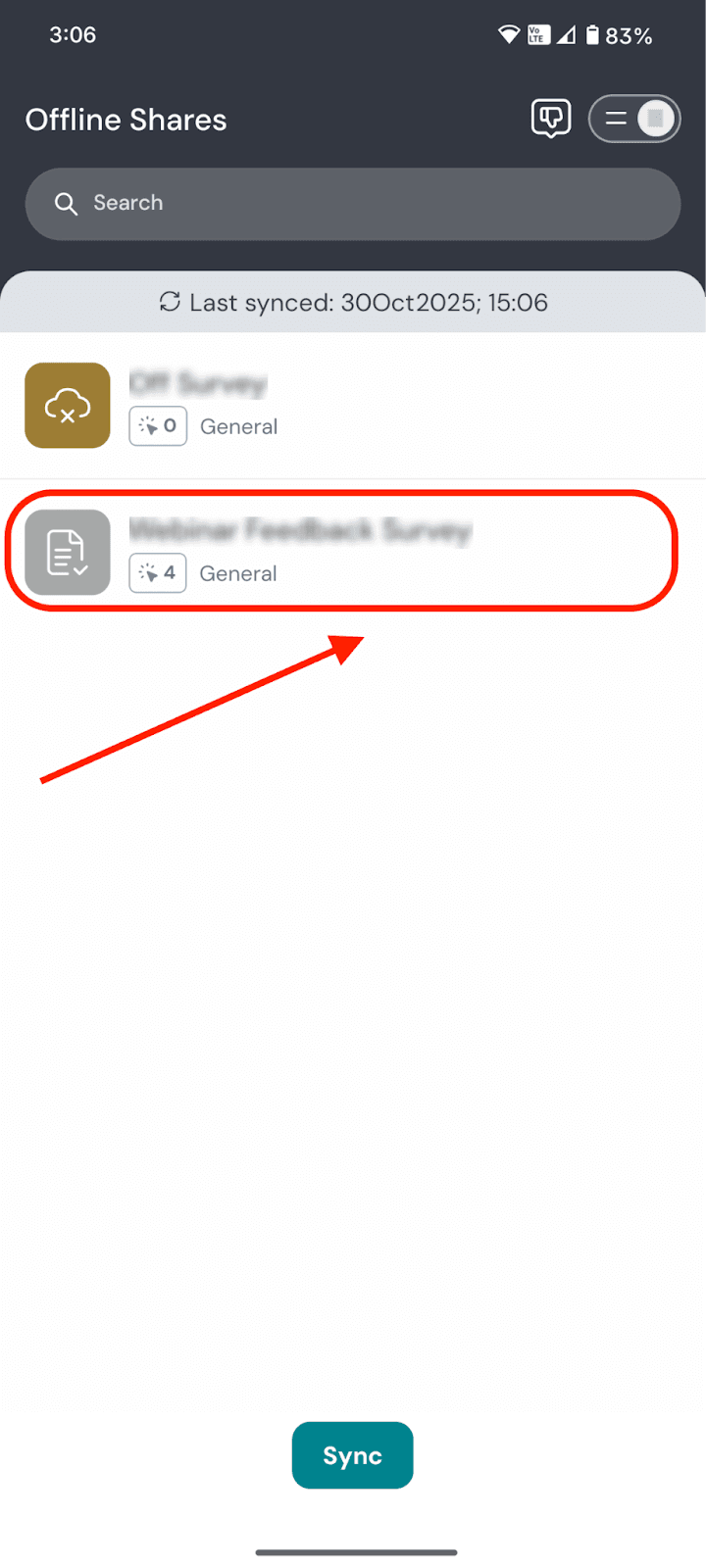
1. Within offline mode, you can see all the offline surveys created, but you cannot create a new one. To do this, you must head to the online survey mode, or the desktop version of SurveySparrow. To start collecting offline feedback, click on a survey.
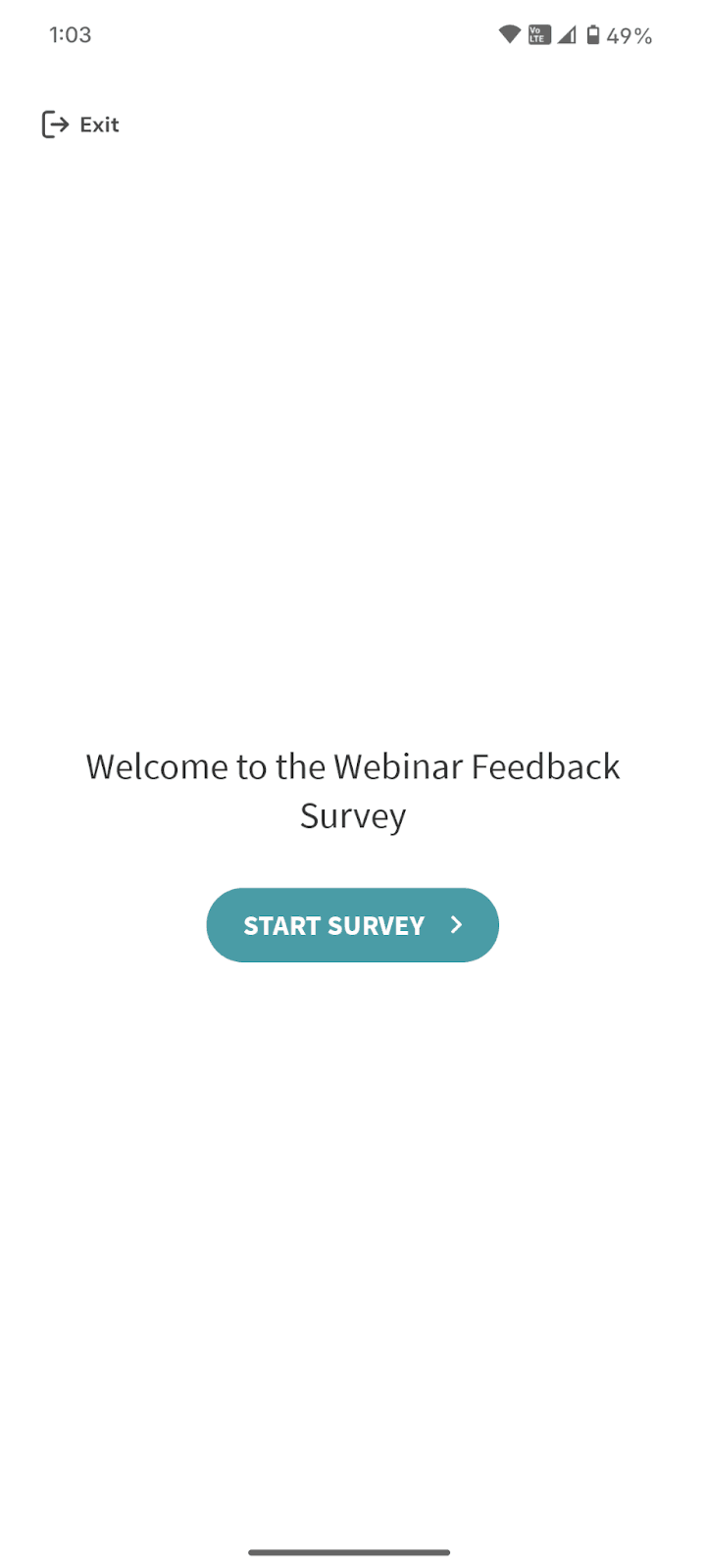
2. The survey opens up on the device and respondents can start to fill it up.
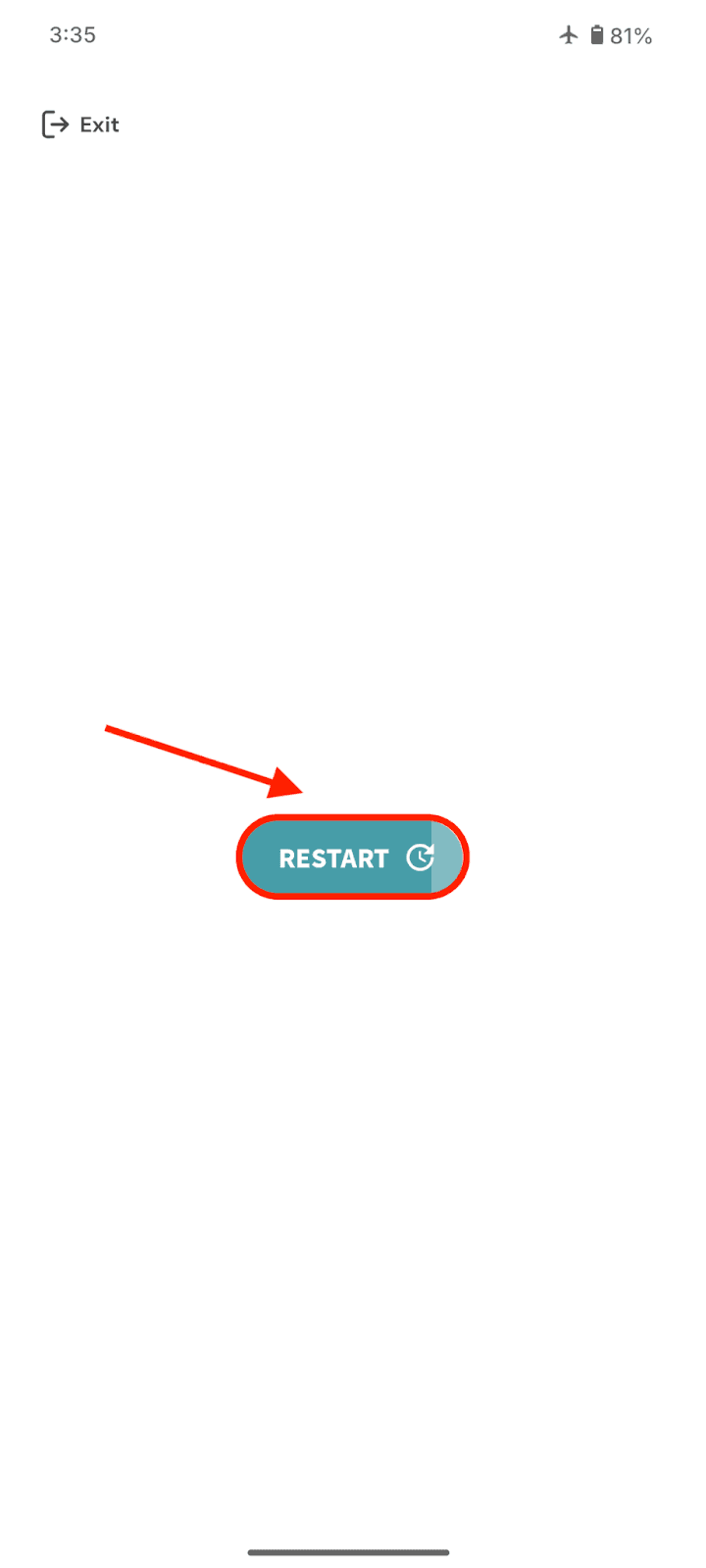
3. When the survey is completed, a button titled Restart appears with a timer. If you do not click the Restart button by the end of the timer, the survey automatically resets for the next respondent.
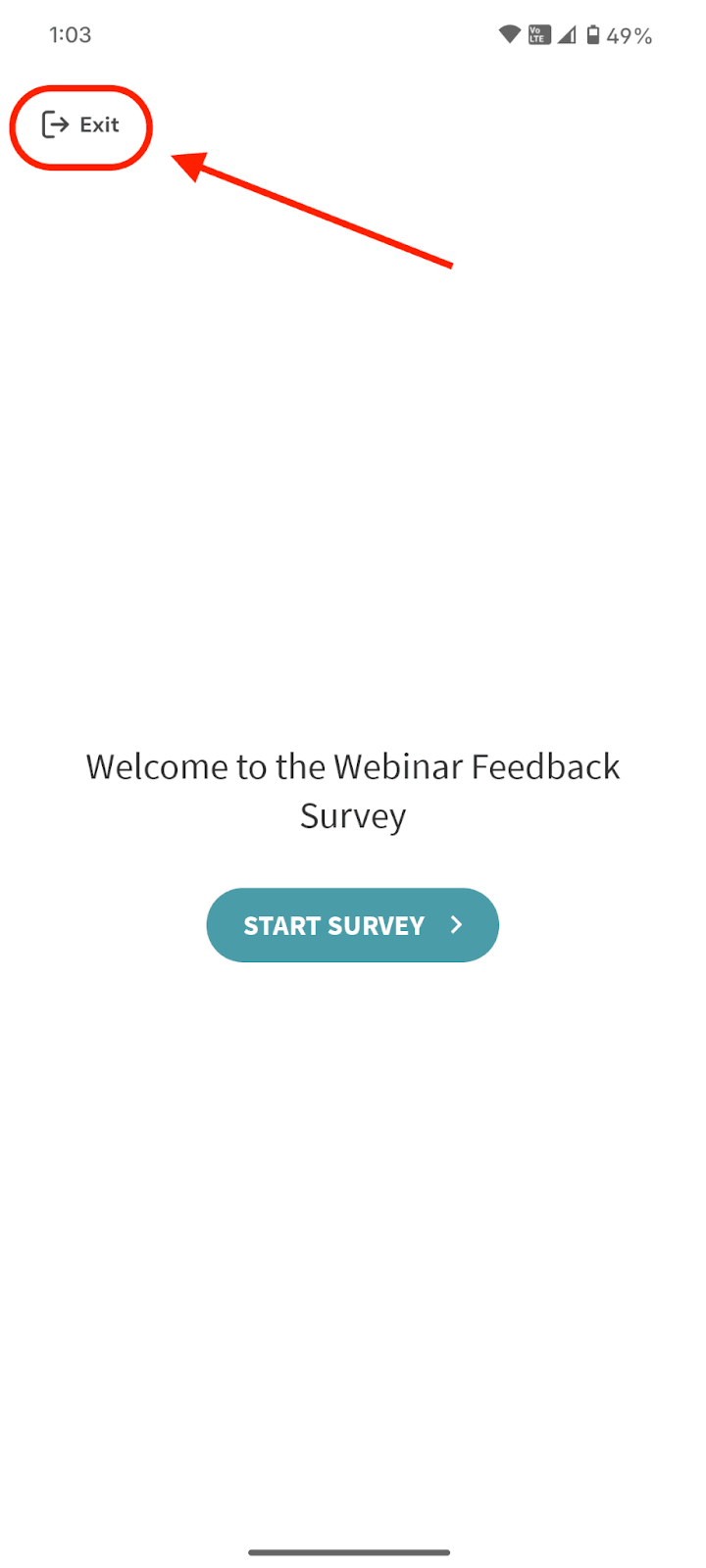
4. To end the survey, click on Exit.
5. A confirmation prompt appears. Click on View Dashboard.
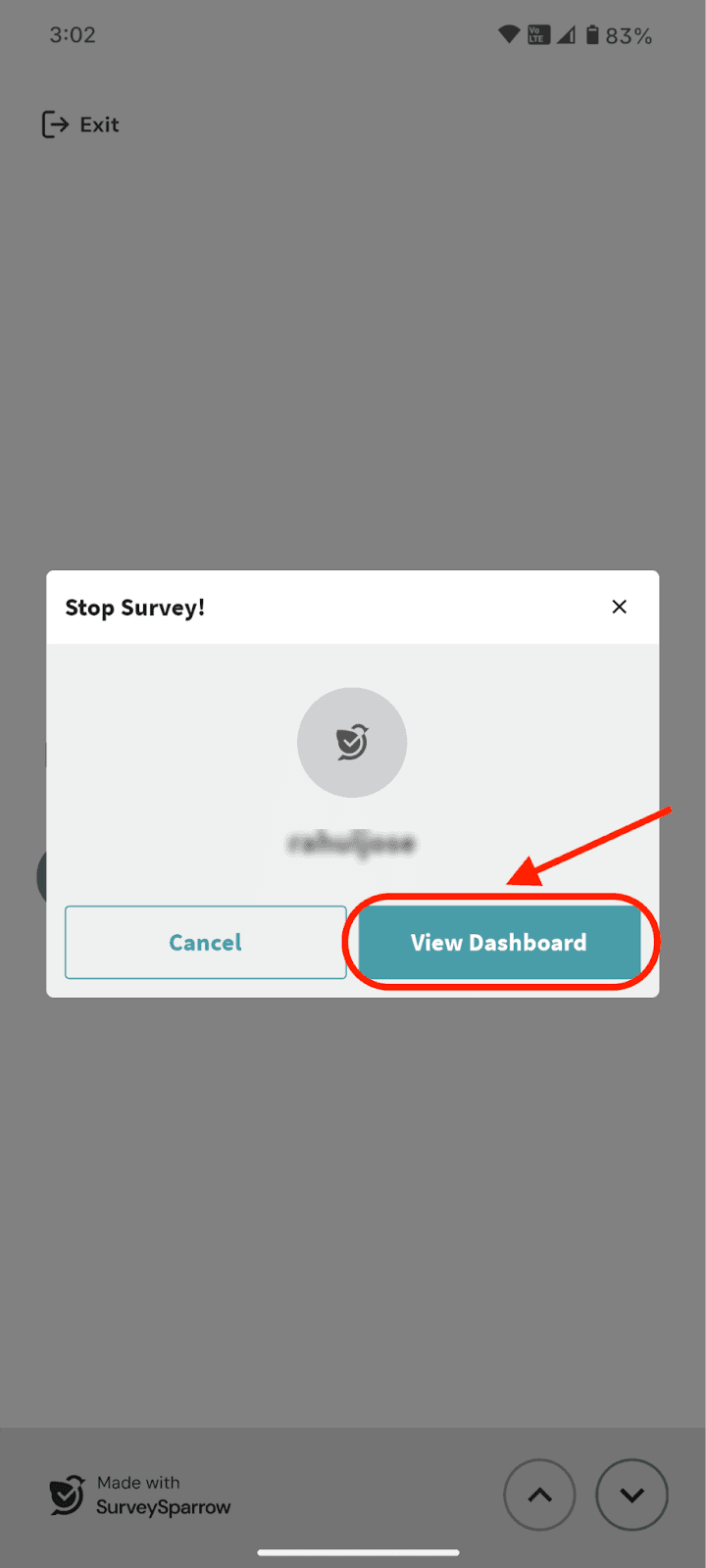
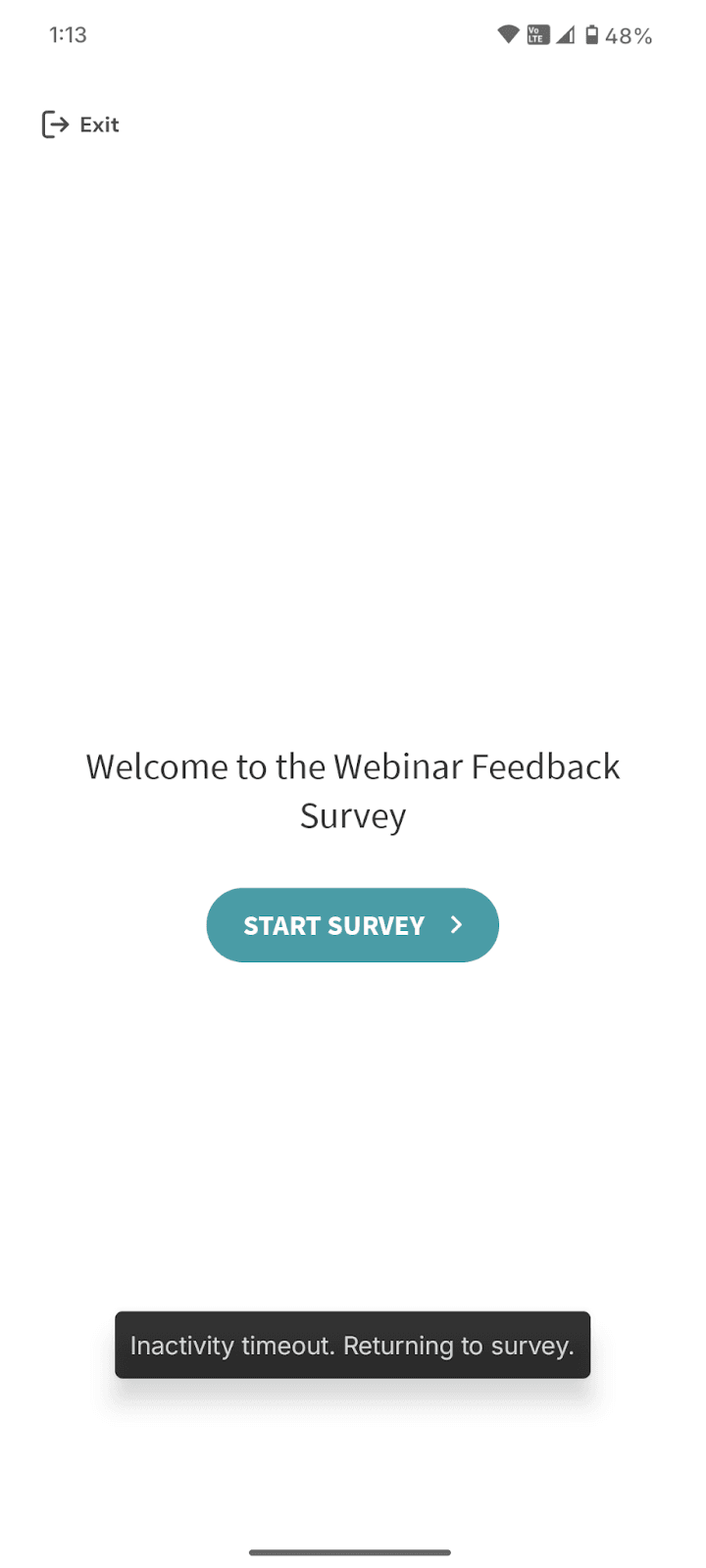
Note: If the button is not clicked in 10 seconds, the user will be returned to the survey.
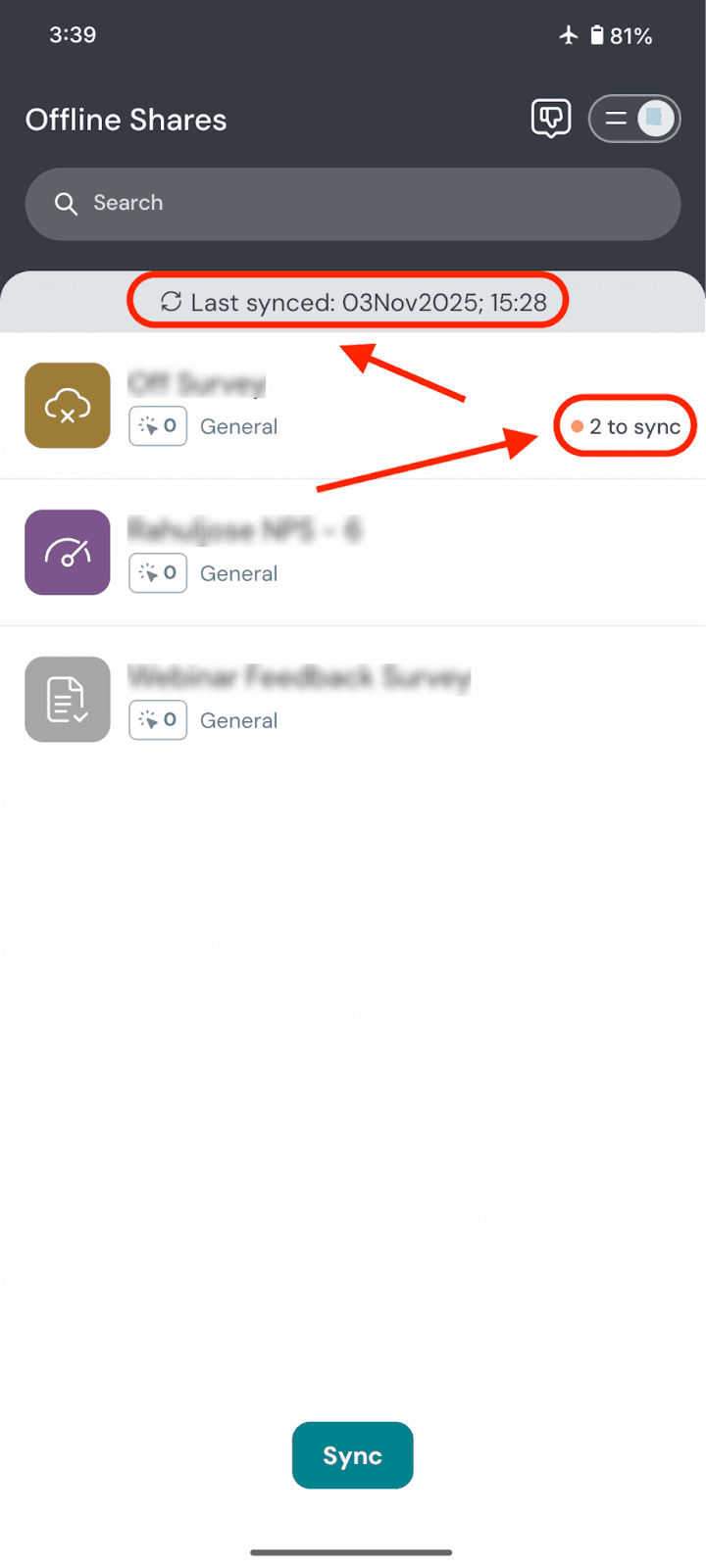
6. In the home screen of the offline mode, the user can see when the responses were last synced. The user can also see how many responses of a particular survey are to be synced.
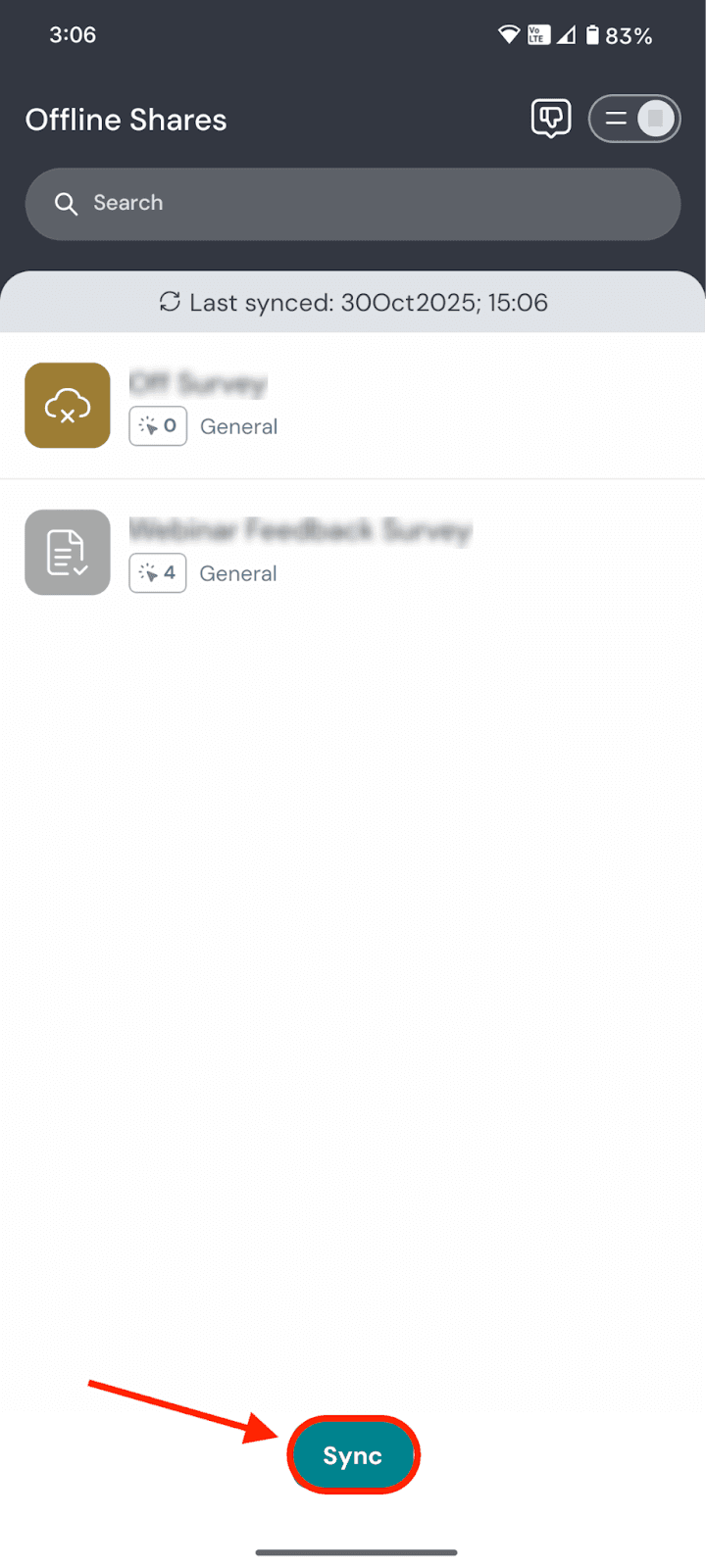
7. When the user has access to the internet, the responses are automatically synced to SurveySparrow. They can also click on Sync.
Adjusting the offline mode settings
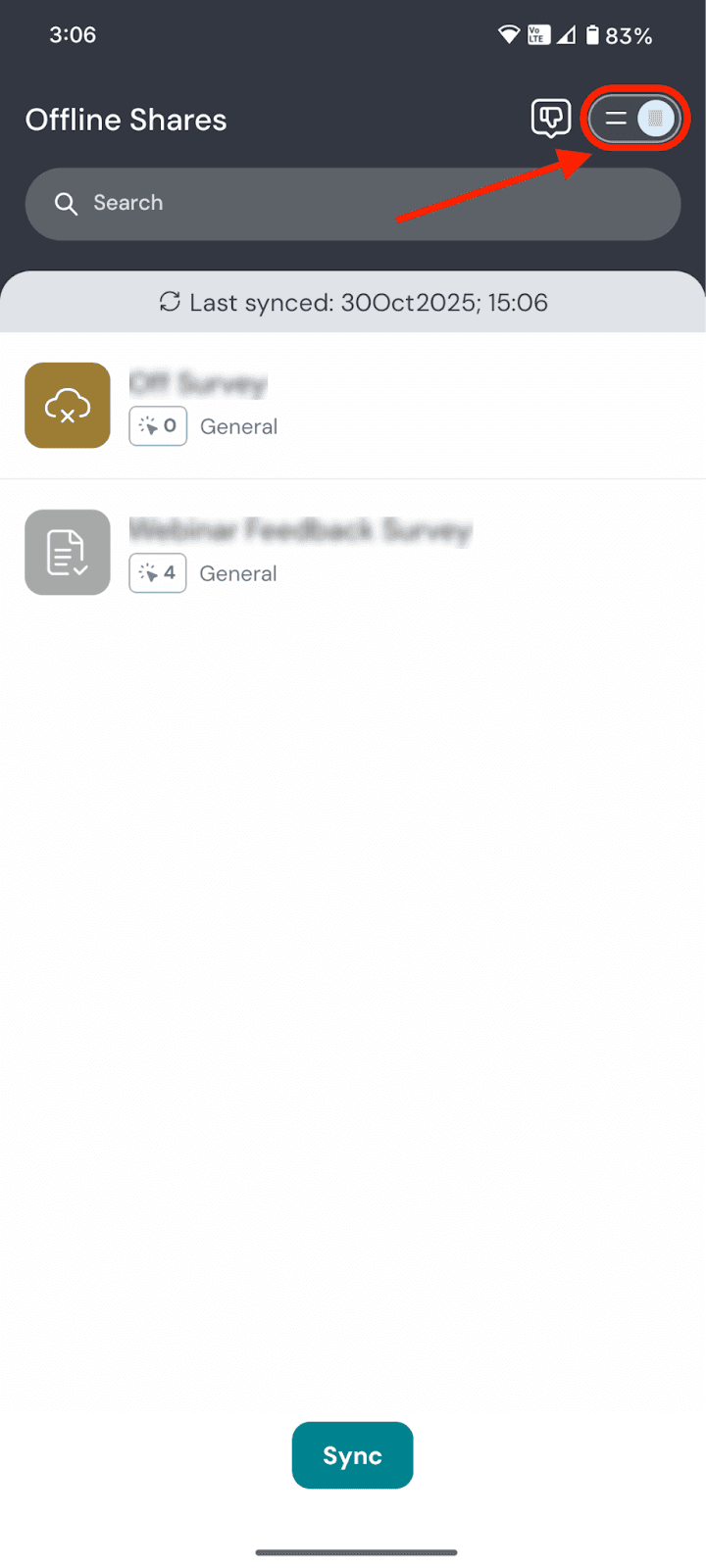
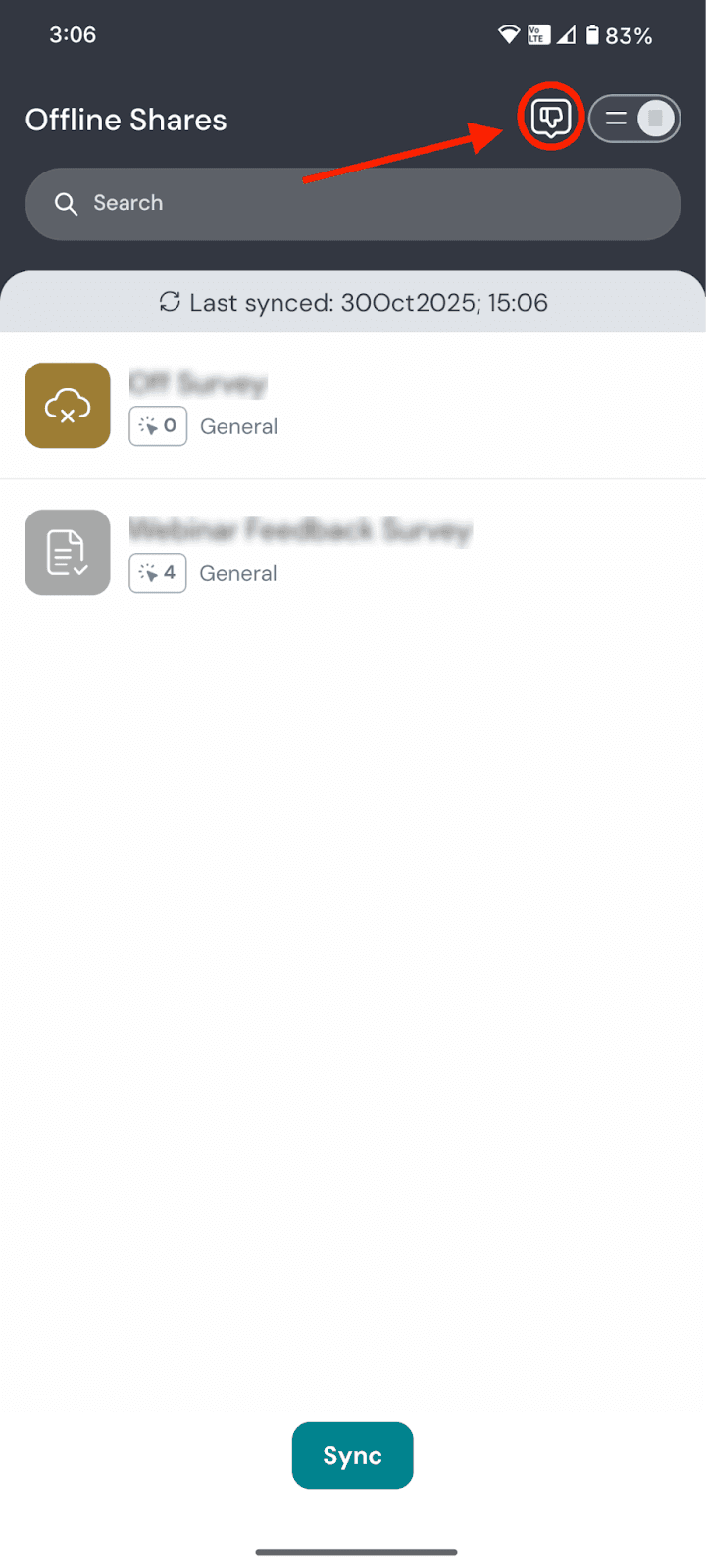
1. To open the survey settings, click on the tab in the top right corner of the offline mode’s home screen.
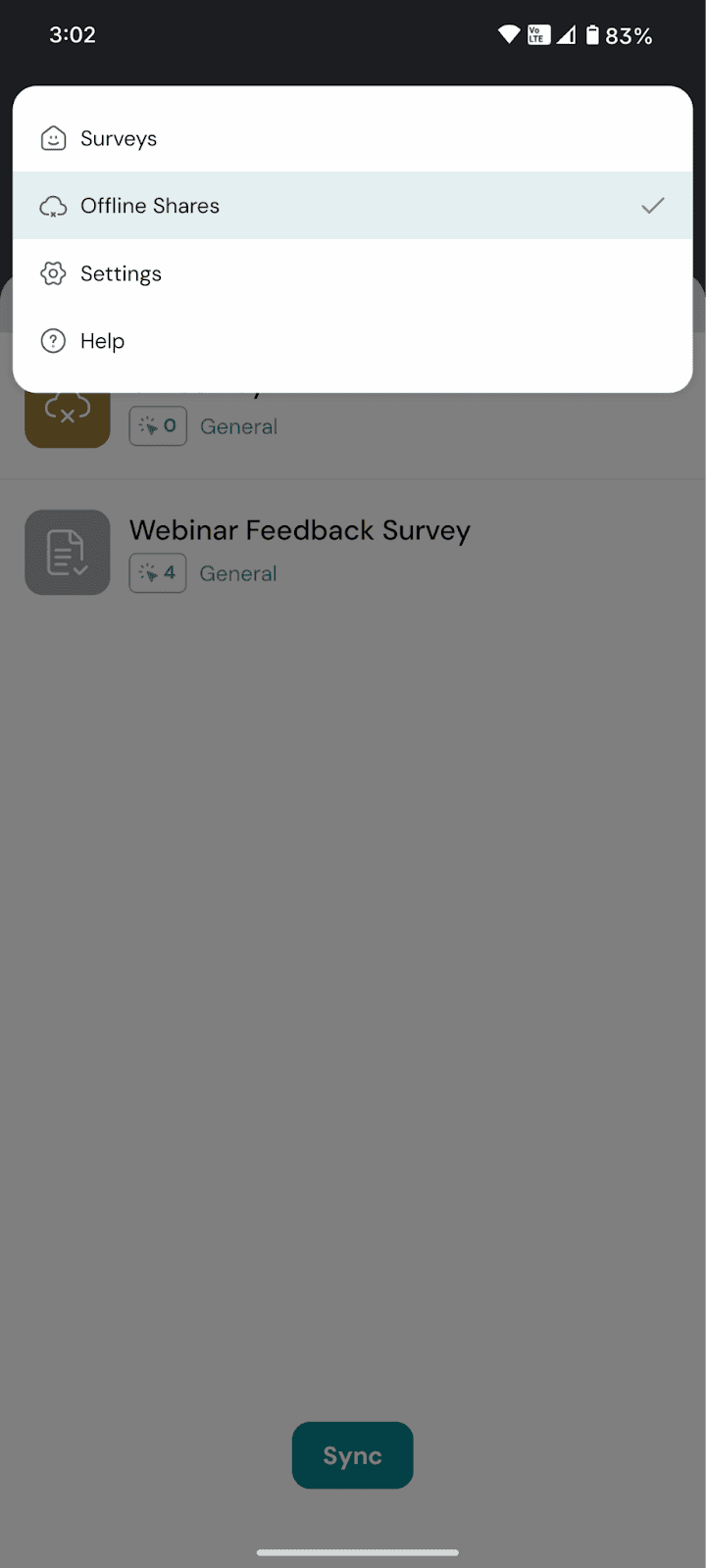
2. A menu pops up. Here’s a quick overview of most of the settings:
- Surveys: Opens the app’s online mode. To learn more about online mode, click here.
- Settings: Opens your account settings. We’ll explore this in detail below.
- Help: Takes you to SurveySparrow’s knowledge base.
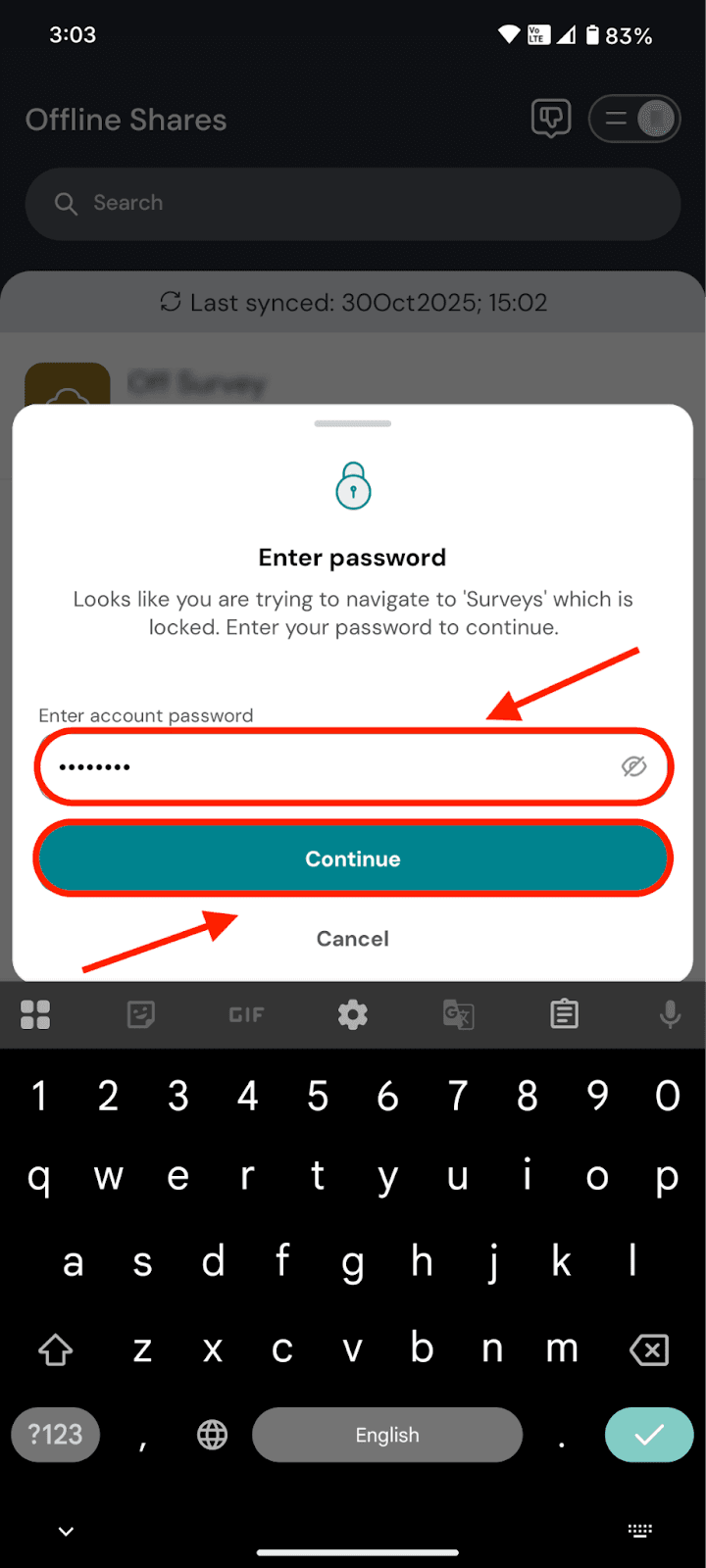
Note: If you click on Surveys, you will need to type in your account password. Type in the password and click Continue.
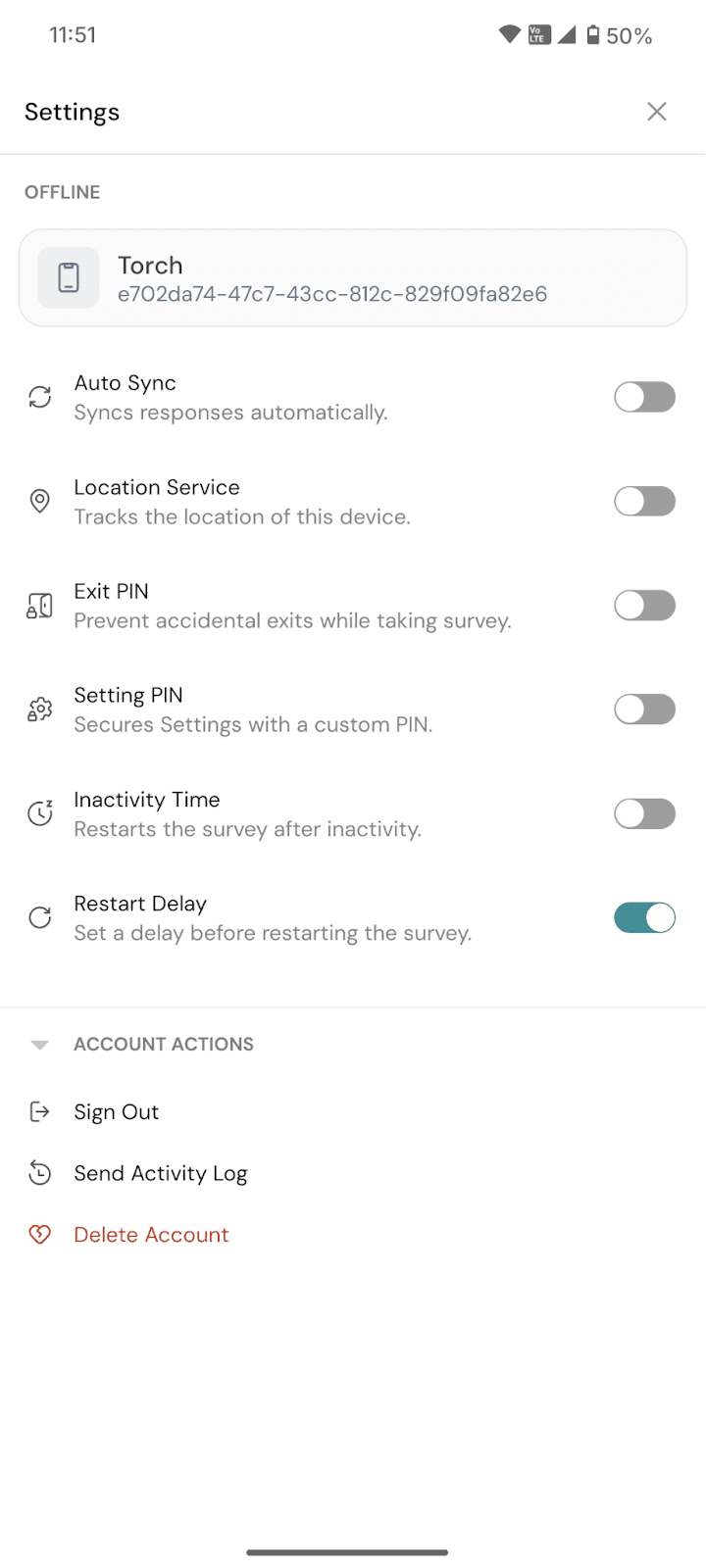
3. In the settings section, you can adjust the offline survey settings as well as the account settings (logout, activity log, account deletion).
To sum it up, the SurveySparrow Go app makes feedback collection effortless, allowing you to be ready, instead of waiting for internet connectivity or worrying about data loss. You can step out anywhere and immerse yourself in feedback collection, without missing a single entry or spending time manually uploading responses later. But there’s more to be experienced with the app’s Online mode. You can even create and share surveys to your audience. To understand how it works, click here.
Feel free to reach out to our community, if you have any questions!
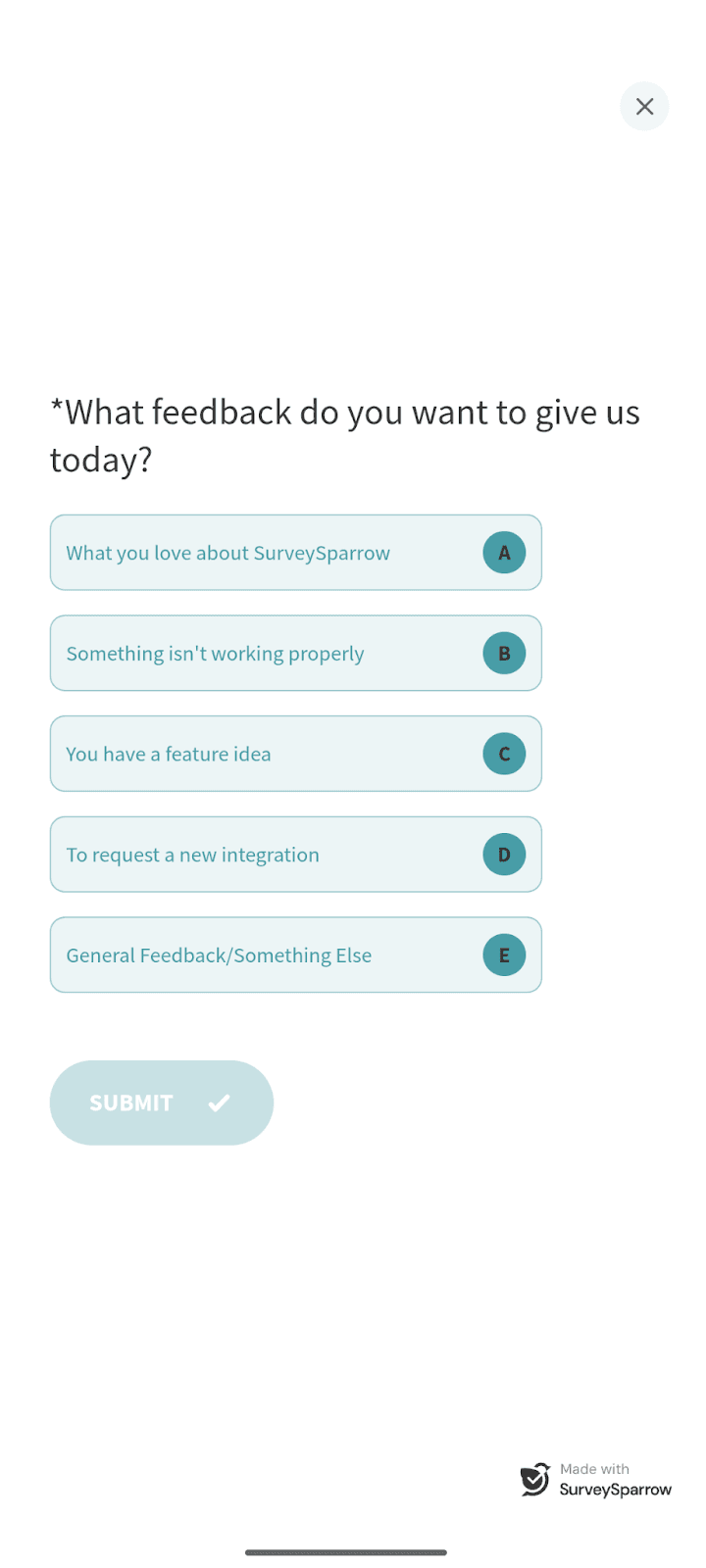
Note: If you wish to provide feedback about the SurveySparrow Go app, click on the thumbs down icon in the top right portion of the app.
A feedback survey opens up.