
What are Action Plans?

Action Plans help you turn customer experience (CX) feedback into structured, trackable improvements.
While SurveySparrow helps you collect feedback and identify CX issues, Action Plans ensure those insights are acted on, with clear ownership, deadlines, and measurable impact on CX metrics like NPS, CSAT, CES, and Ratings.
Why are Action Plans required?
Customer feedback helps you understand what’s going wrong, but insights alone don’t improve customer experience.
Many teams face challenges such as:
- Feedback is being reviewed but not acted on
- No clear ownership for improvements
- Difficulty tracking whether actions made an impact
- CX initiatives spread across multiple tools with no visibility
Action Plans solve this by turning feedback into clear, owned initiatives that can be tracked from start to finish and measured against CX metrics.
When should I use Action Plans?
Action Plans are useful in common CX scenarios such as:
- Your NPS, CSAT, or CES score drops, and you need a structured way to fix the root cause
- Online reviews show recurring negative themes across locations or channels
- Multiple teams are involved in CX improvements, and ownership is unclear
- Leadership asks whether specific initiatives actually improved CX metrics
- You receive large volumes of feedback and need help prioritizing what to act on first
Before you begin
Before accessing Action Plans, you need to enable Labs.
Enable Labs
- Log in to your SurveySparrow account
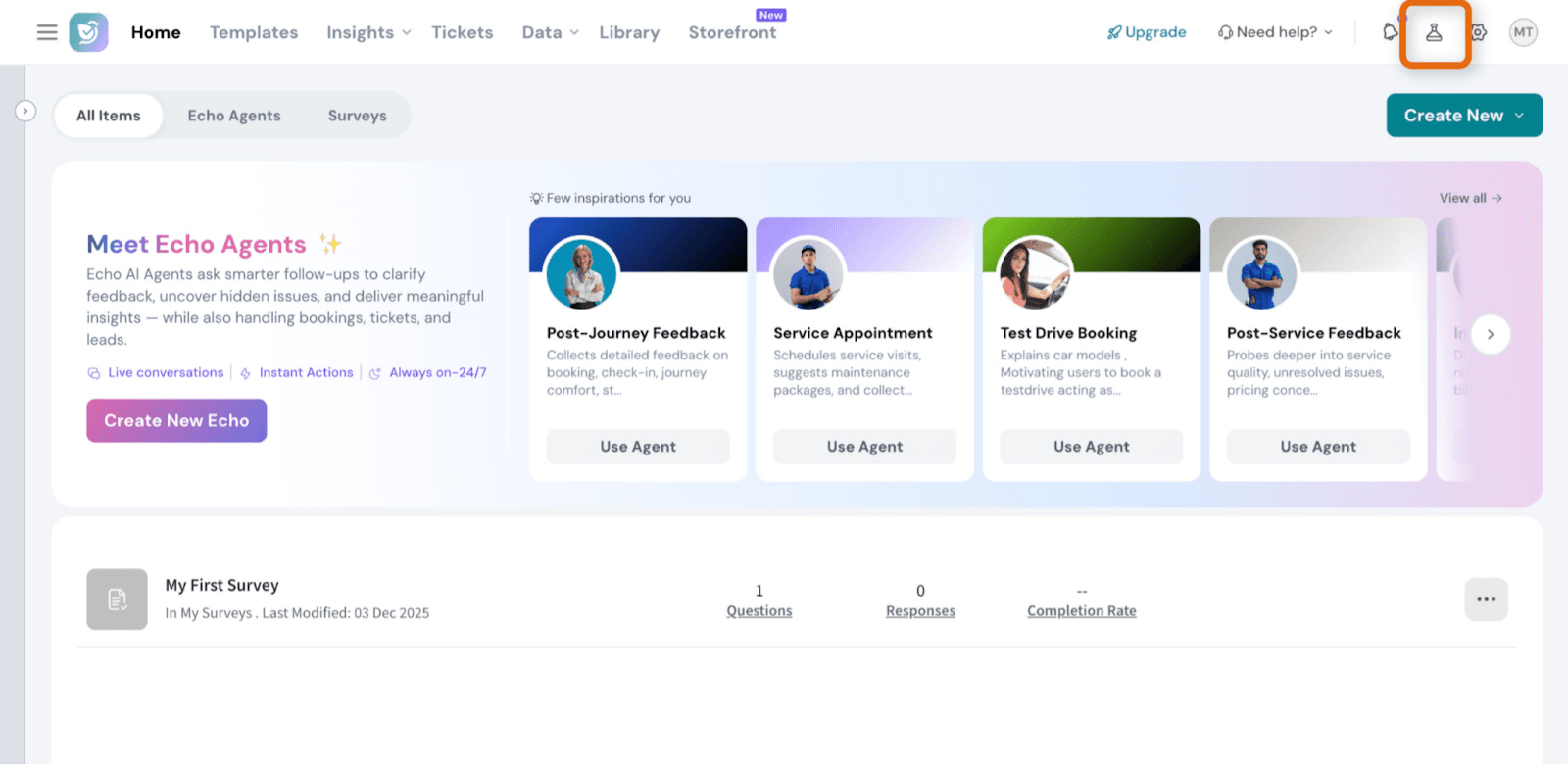
- Click the Labs icon in the top-right corner of the screen
- Enable Labs
Once Labs is enabled, the Action Plans option becomes available in the navigation menu.
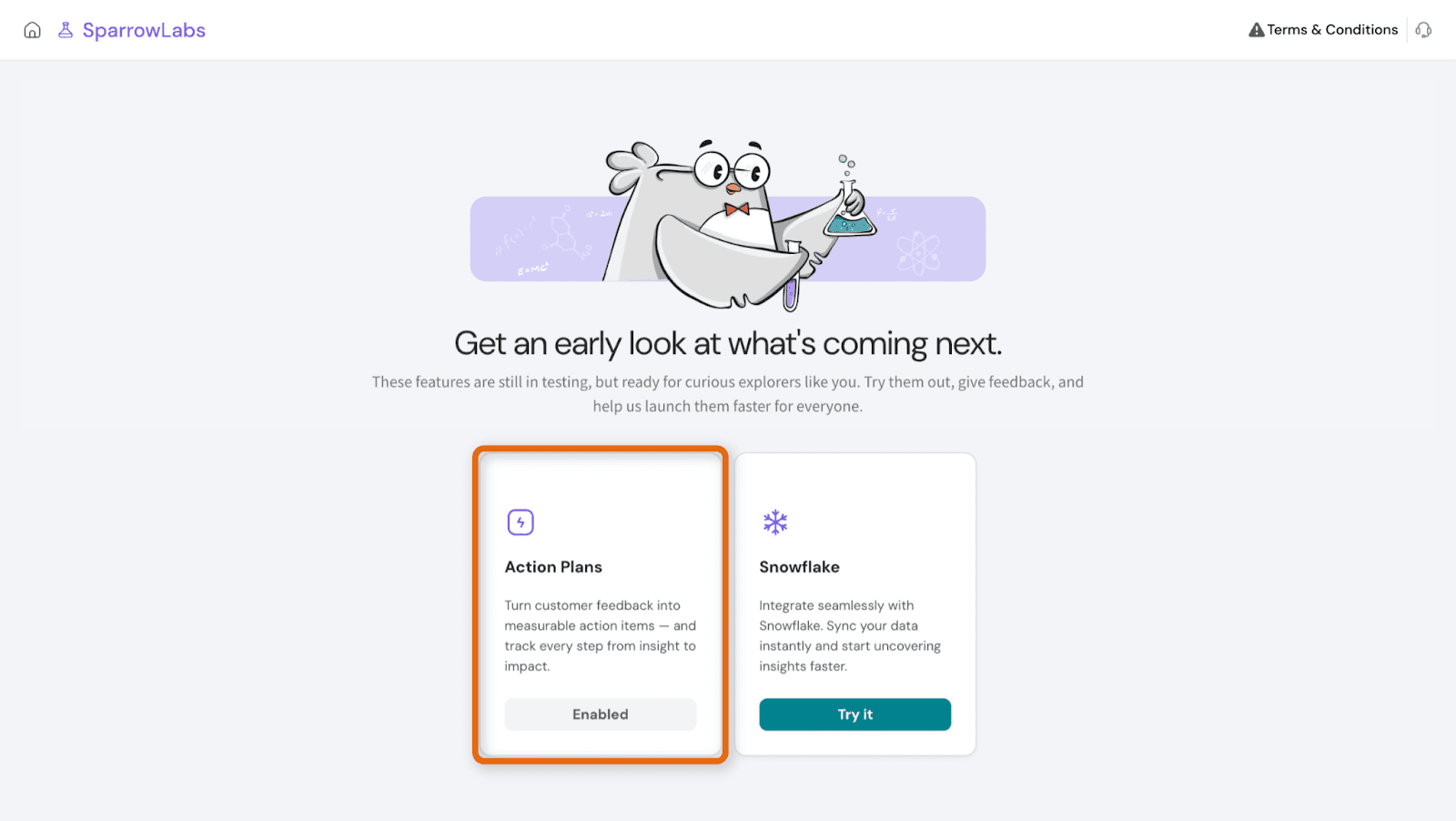
Note: Labs only need to be enabled once.
How to access Action Plans
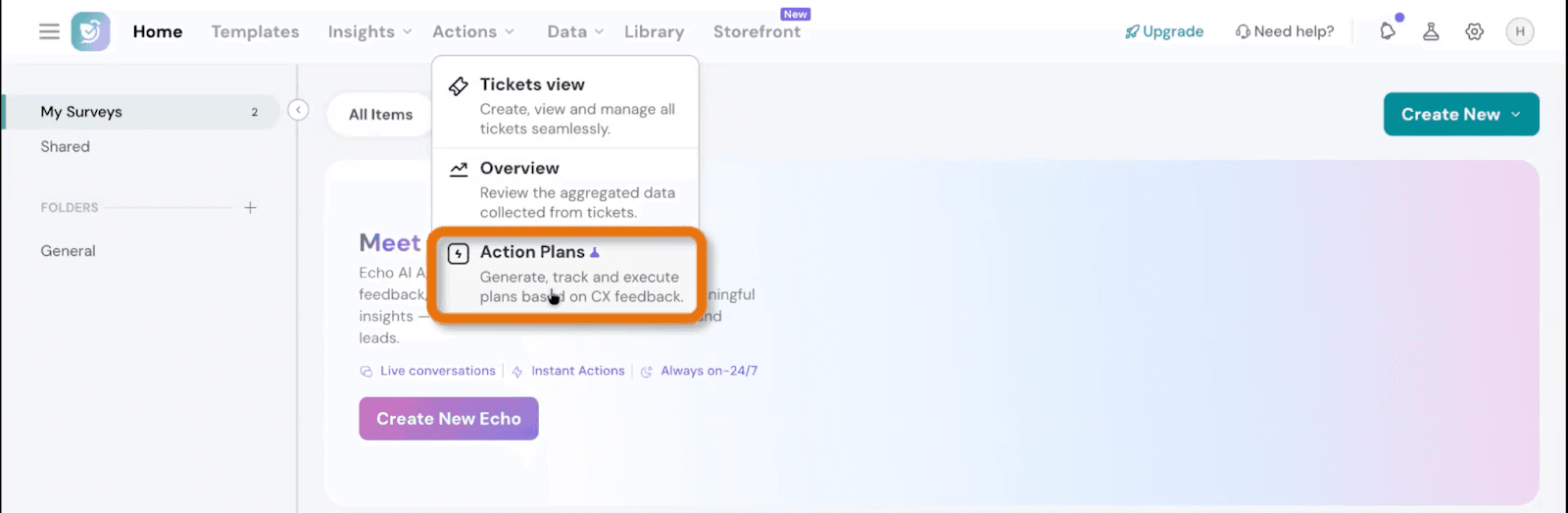
From the main navigation menu, select Action Plans. Action Plans are available on both the web and mobile apps.
Action Plans Overview
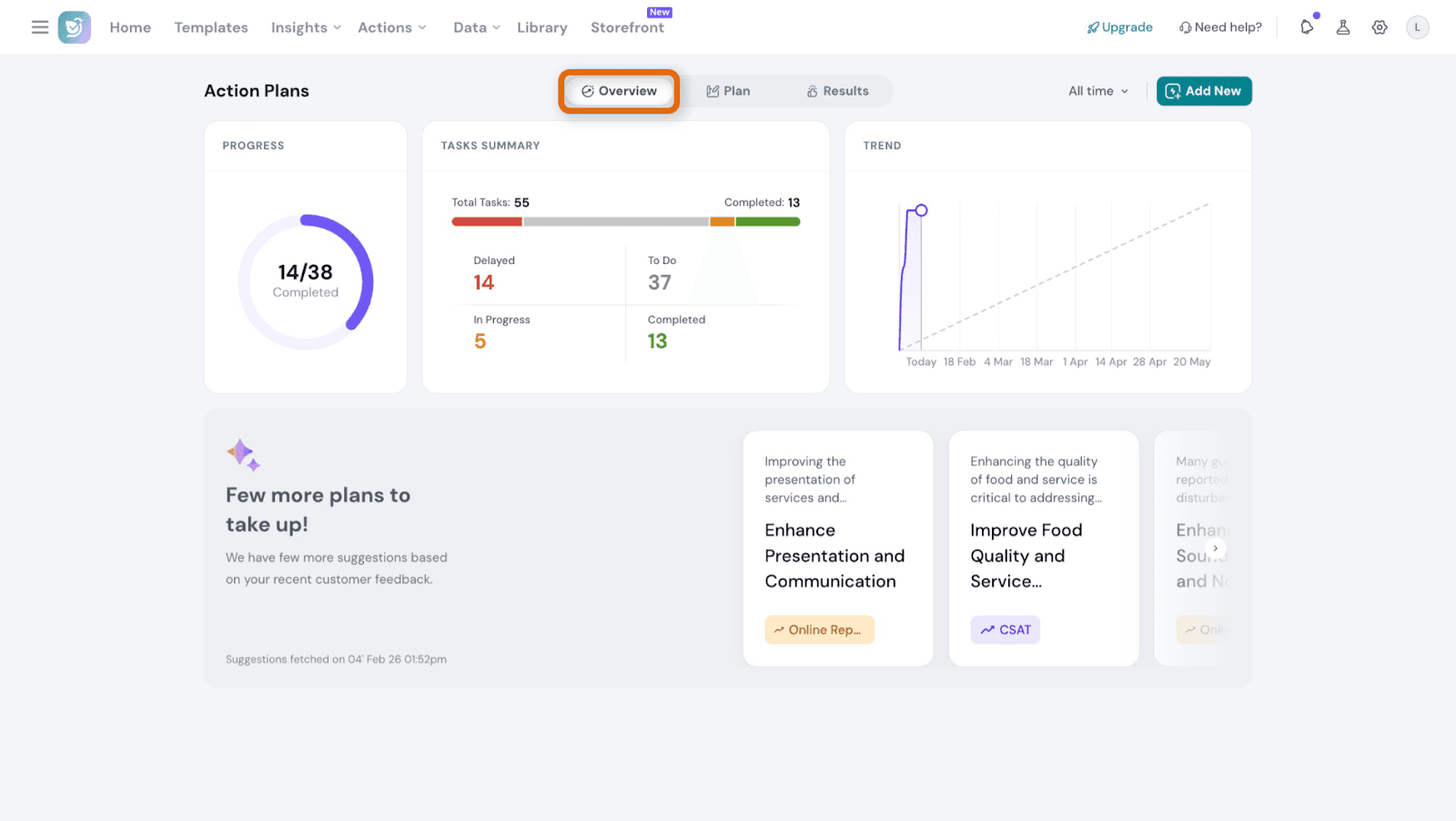
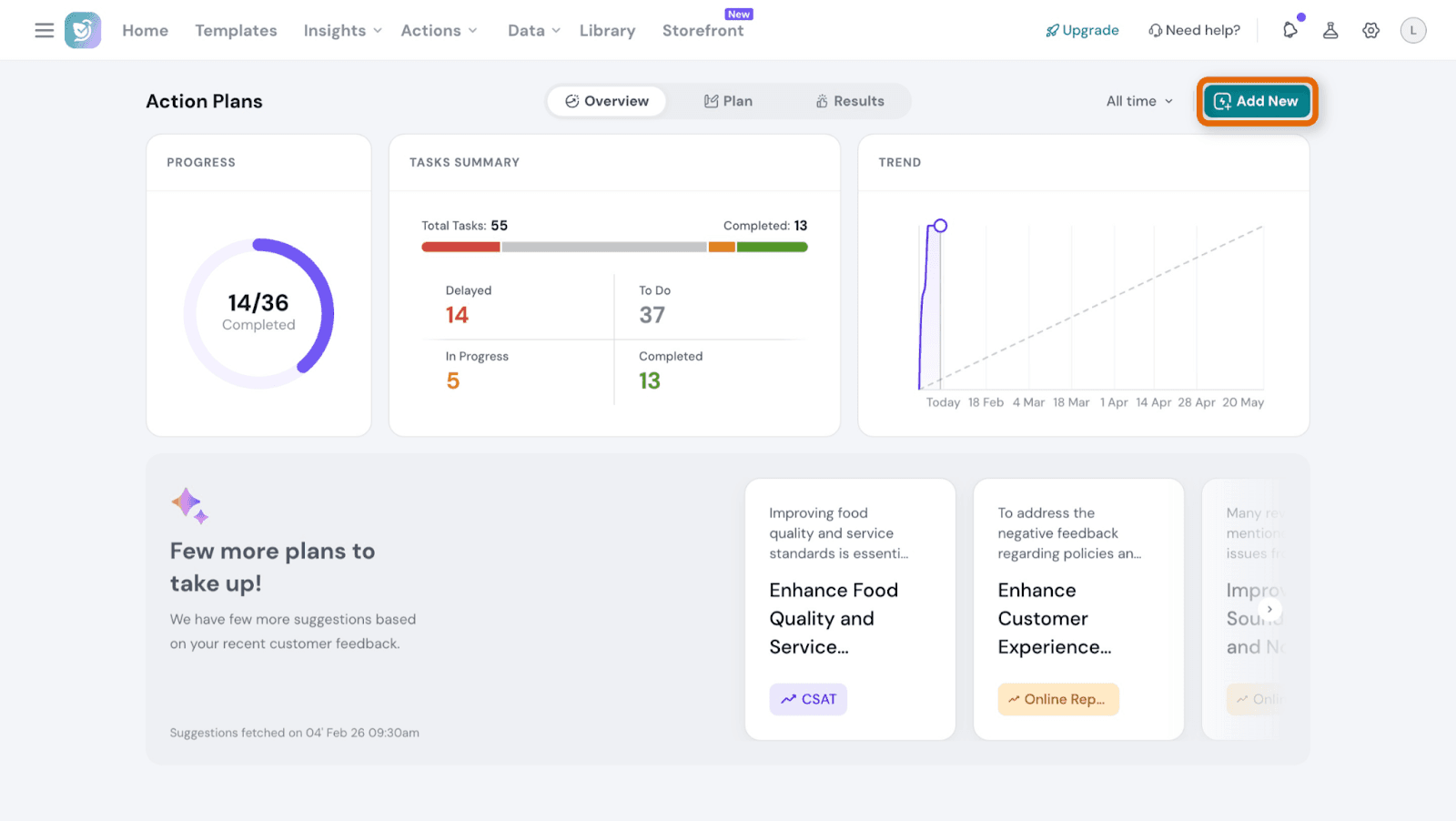
The Overview tab gives you a quick snapshot of how your Action Plans are progressing.
From this view, you can:
- See the overall progress of all active Action Plans
- Track task statuses such as To Do, In Progress, Completed, and Delayed
- Identify Action Plans that need attention
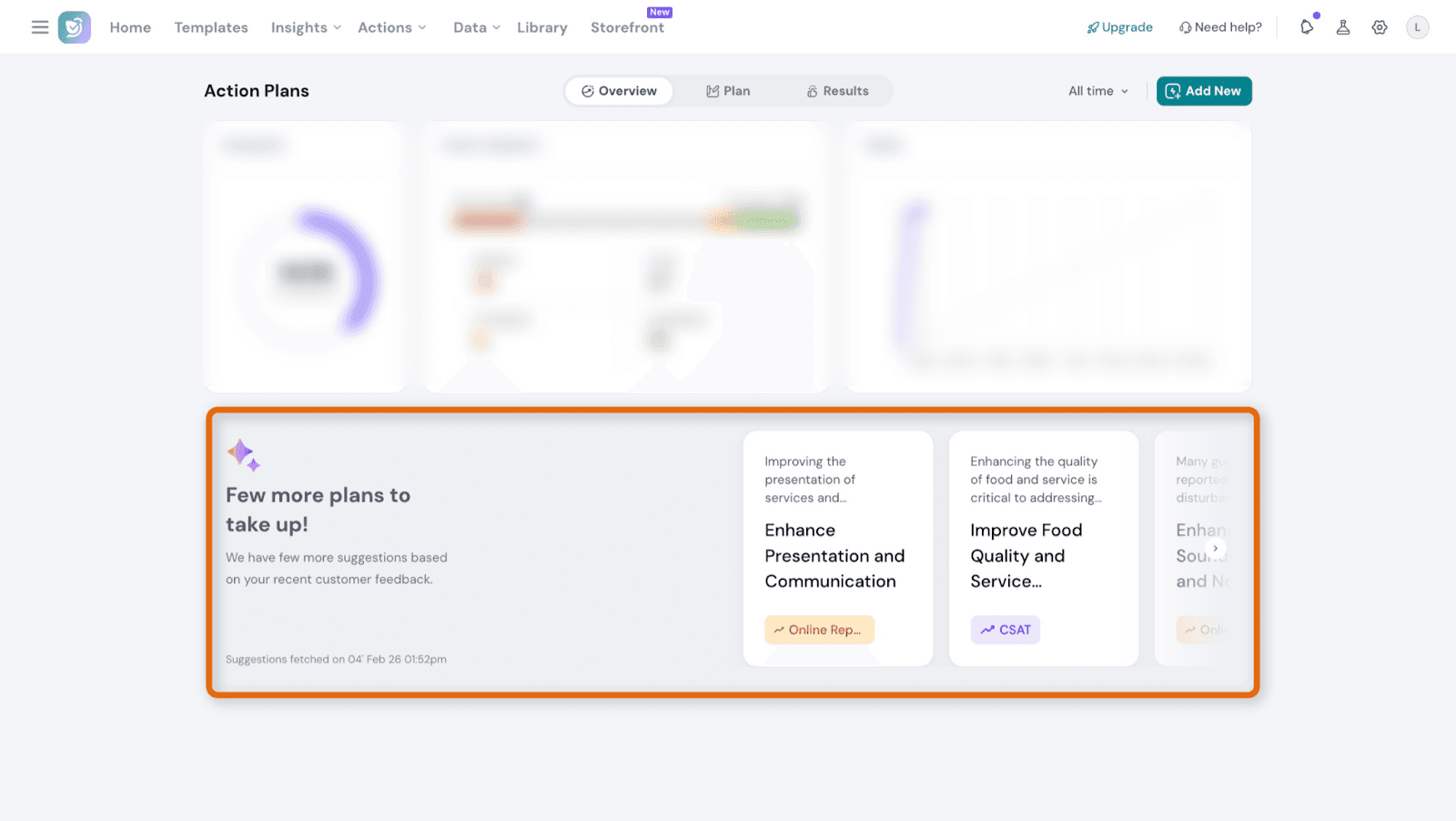
- View AI-suggested Action Plans based on recent feedback (if available)
The Overview helps CX managers quickly understand the health of ongoing initiatives and prioritize next actions.
How to create an Action Plan
Step 1: Create a new Action Plan
- Go to Action Plans
- Click Add New
Step 2: Choose a metric and data source
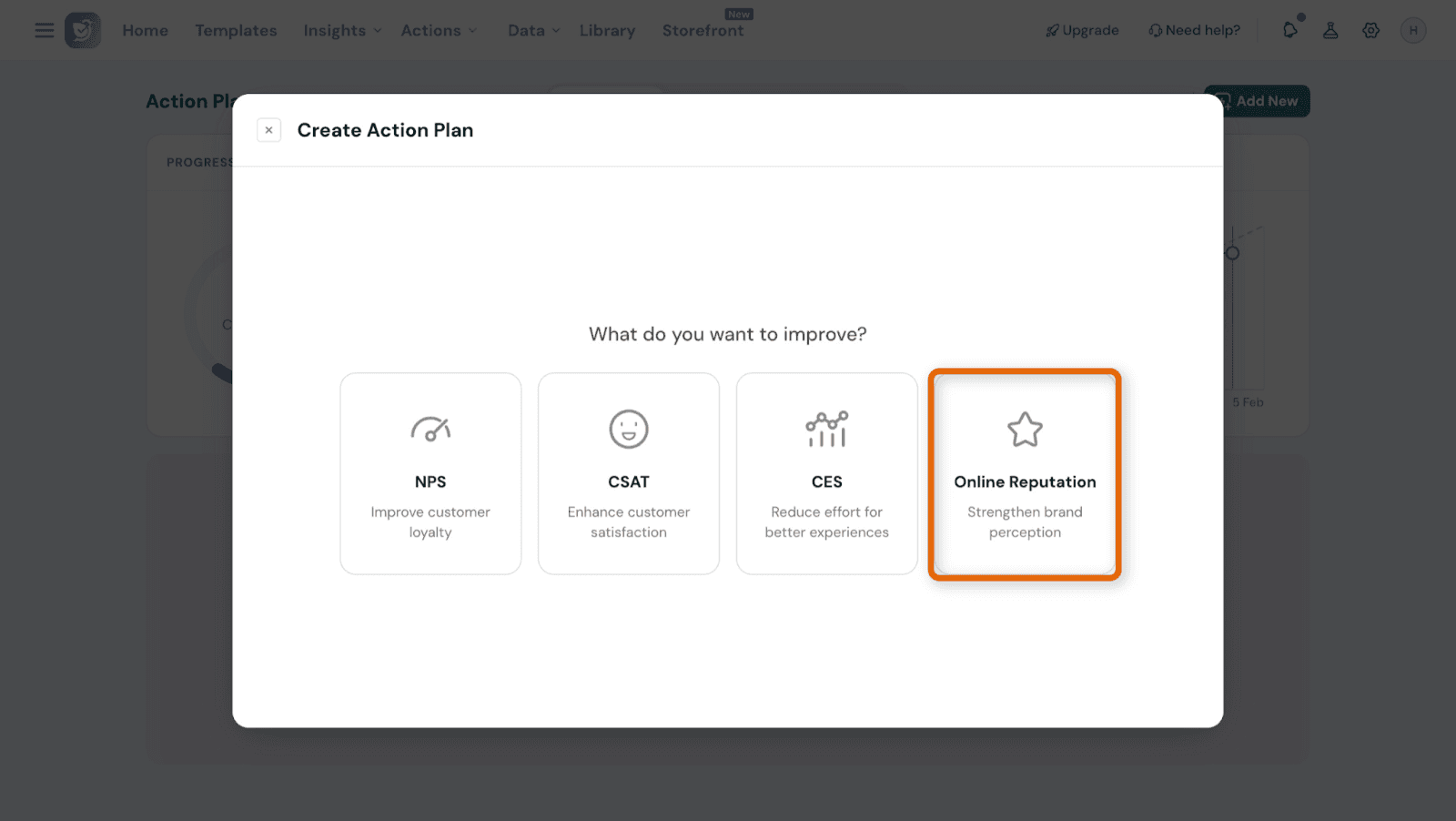
- Select the CX metric you want to track:
- NPS
- CSAT
- CES
- Online Ratings
- From the Create Action Plan screen, choose the metric you want to improve.
For this example, select Online Reputation.
Step 3: Choose review sources and locations
After selecting Online Reputation, configure where the ratings should be tracked from.
- Select the review platform (For example: Booking.com, Agoda, etc.)
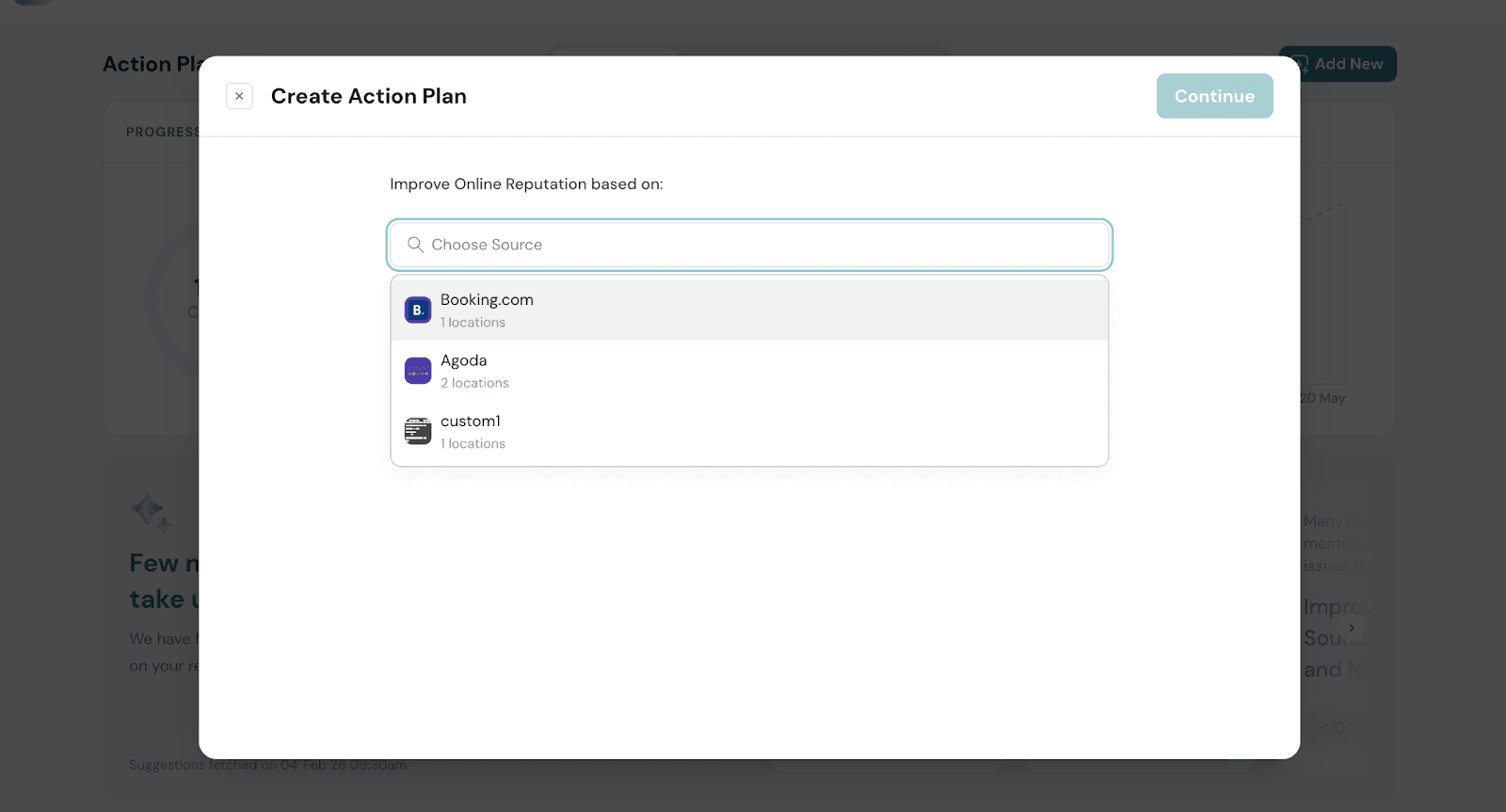
- Choose one or more locations
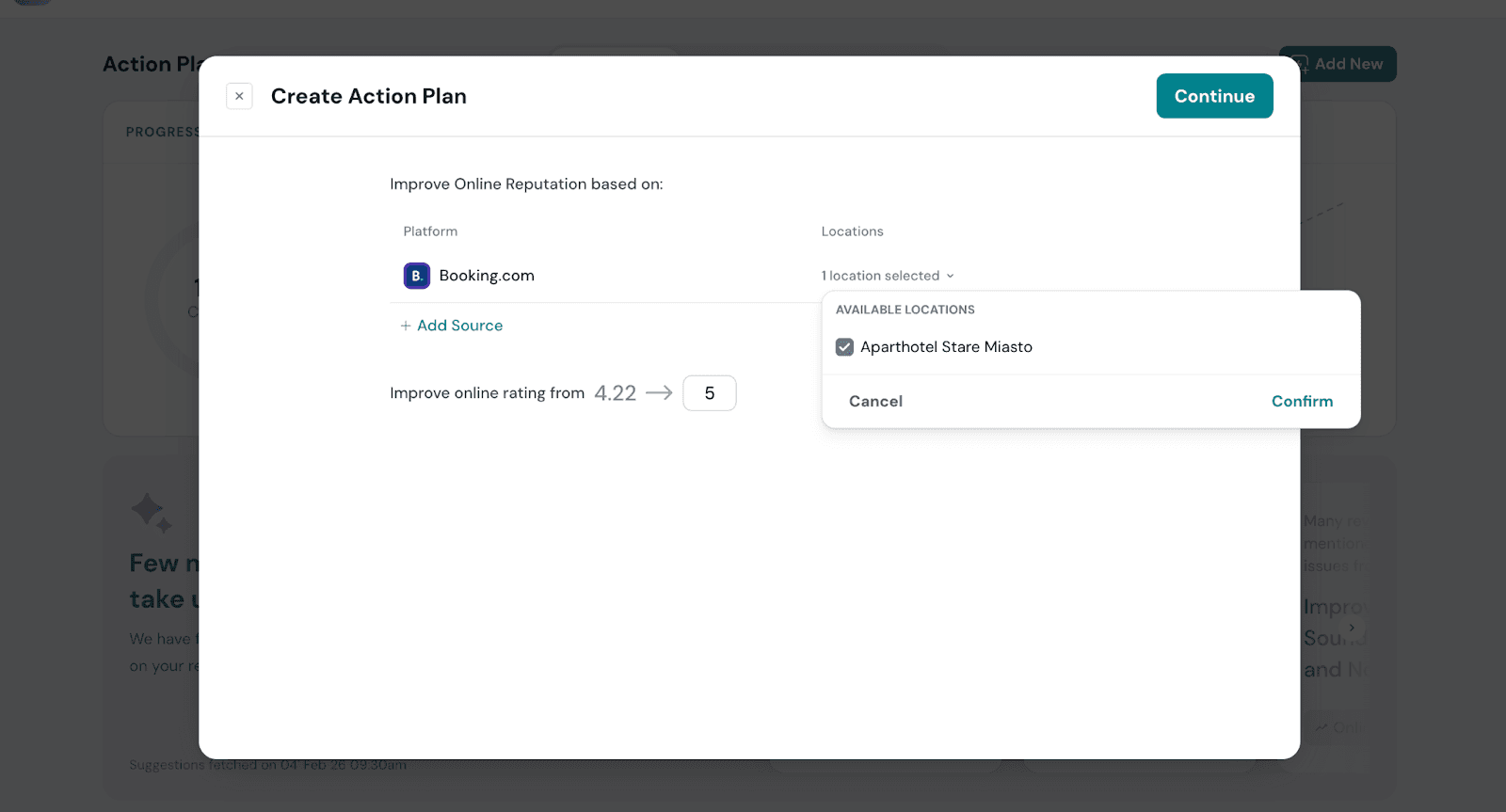
- Click Add Source if you want to include additional platforms
- Review the current online rating, which is auto-populated
- Enter the target rating you want to achieve
This defines the goal your Action Plan will track.
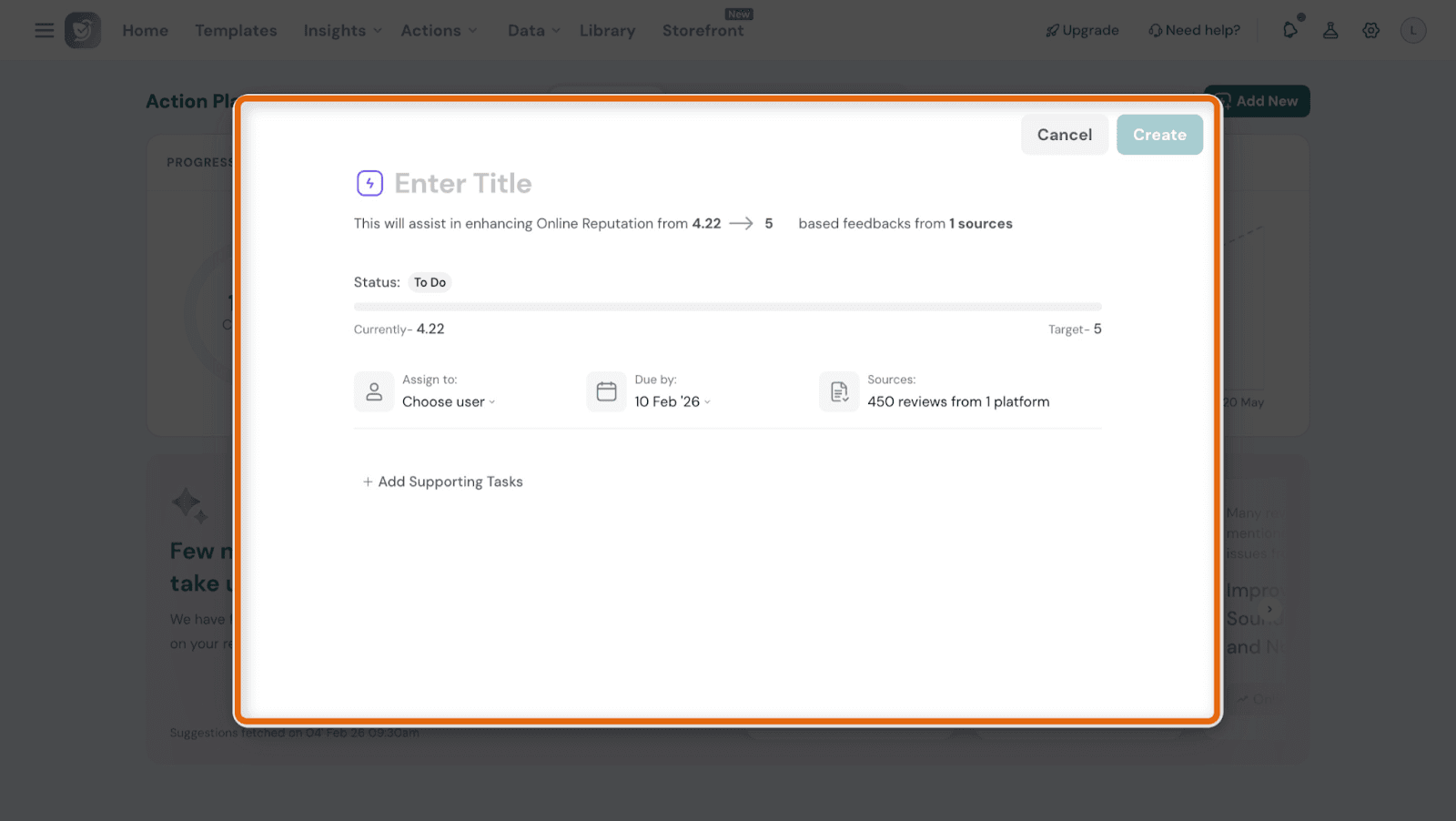
Step 5: Add plan details and supporting tasks
In this step, you define the overall Action Plan details.
- Enter a title for the Action Plan
- Review the summary shown below the title, which includes:
- The metric being improved (Online Reputation)
- Current rating and target rating
- Number of sources used
- Set the following details:
- Status (for example, To Do)
- Assign to - choose a user responsible for the plan
- Due by - select a target completion date
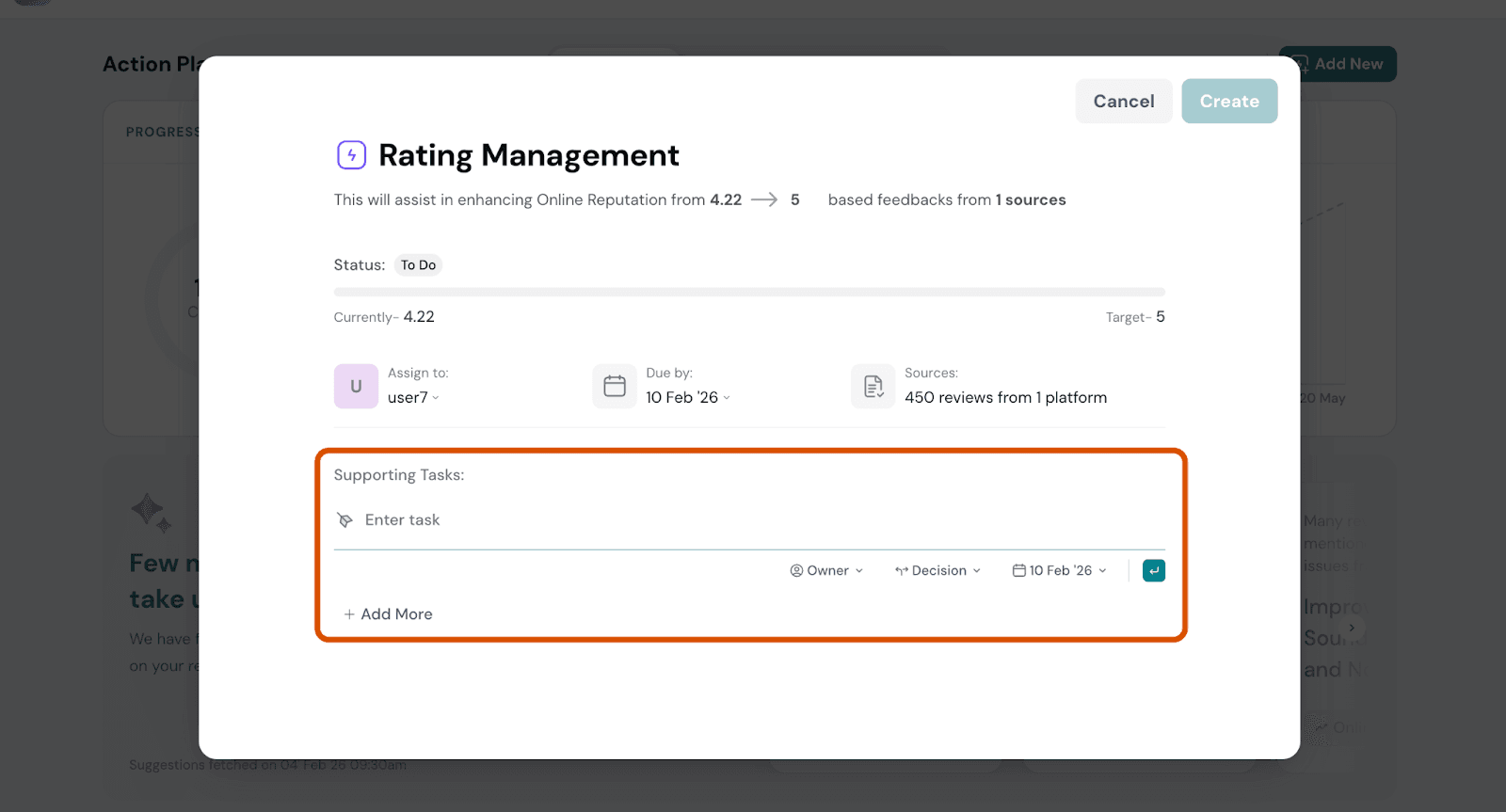
- (Optional) Click Add Supporting Tasks to:
- Break the plan into smaller tasks
- Assign owners to each task
- Track progress at a task level
Step 6: Create the Action Plan
- Review all the details
Click Create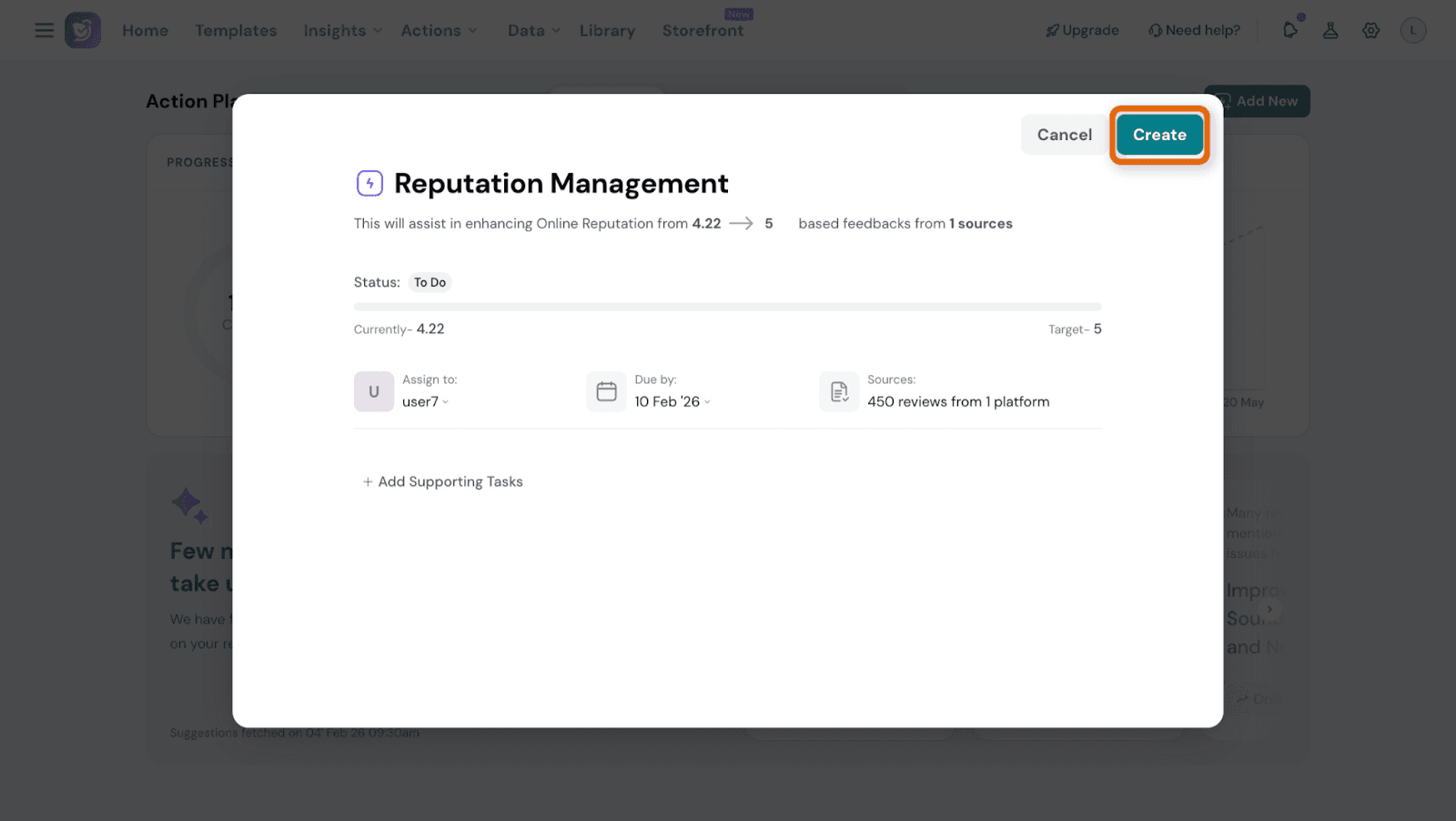
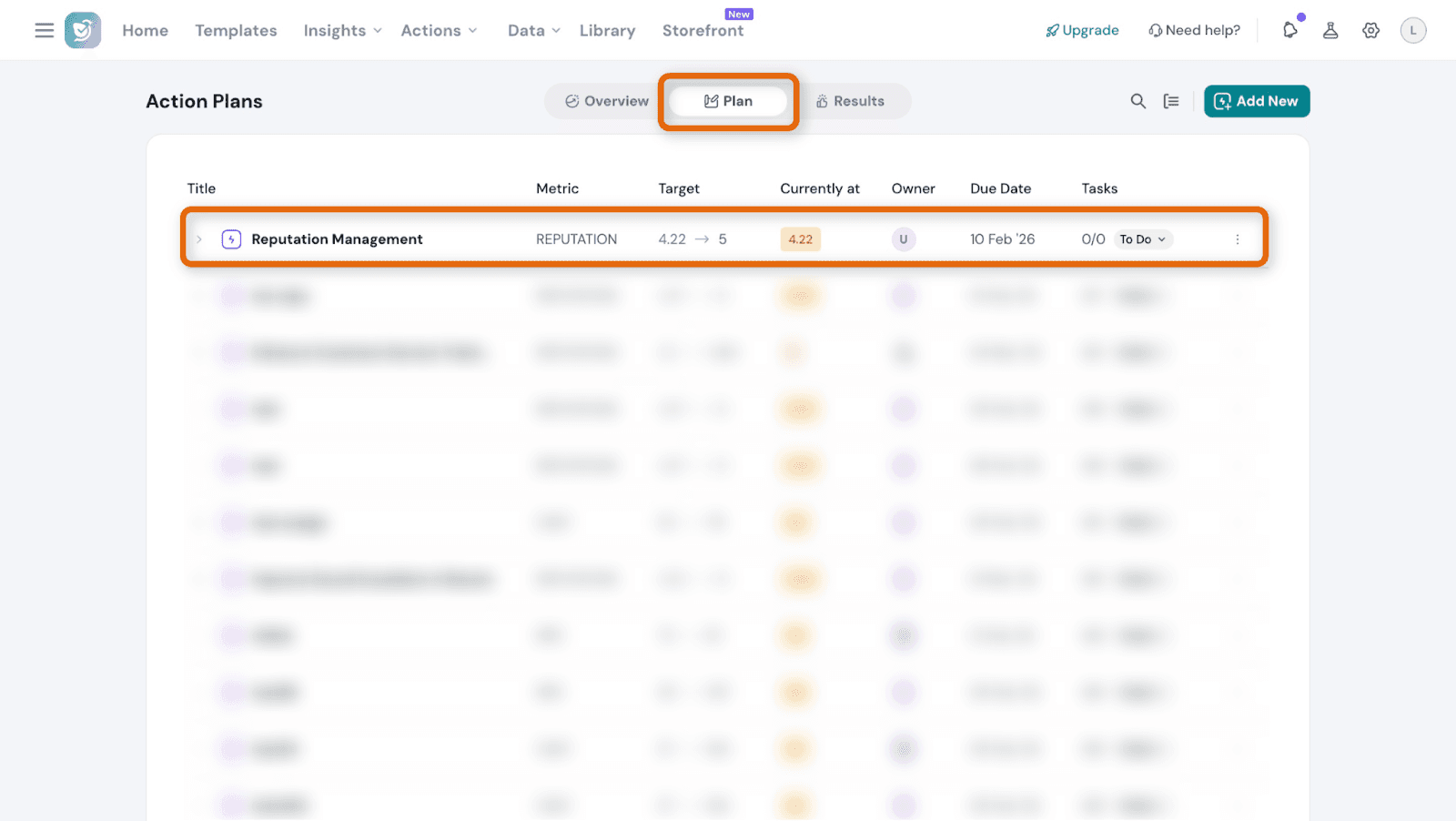
The Action Plan is now created and appears in the list view.
How to track results and impact
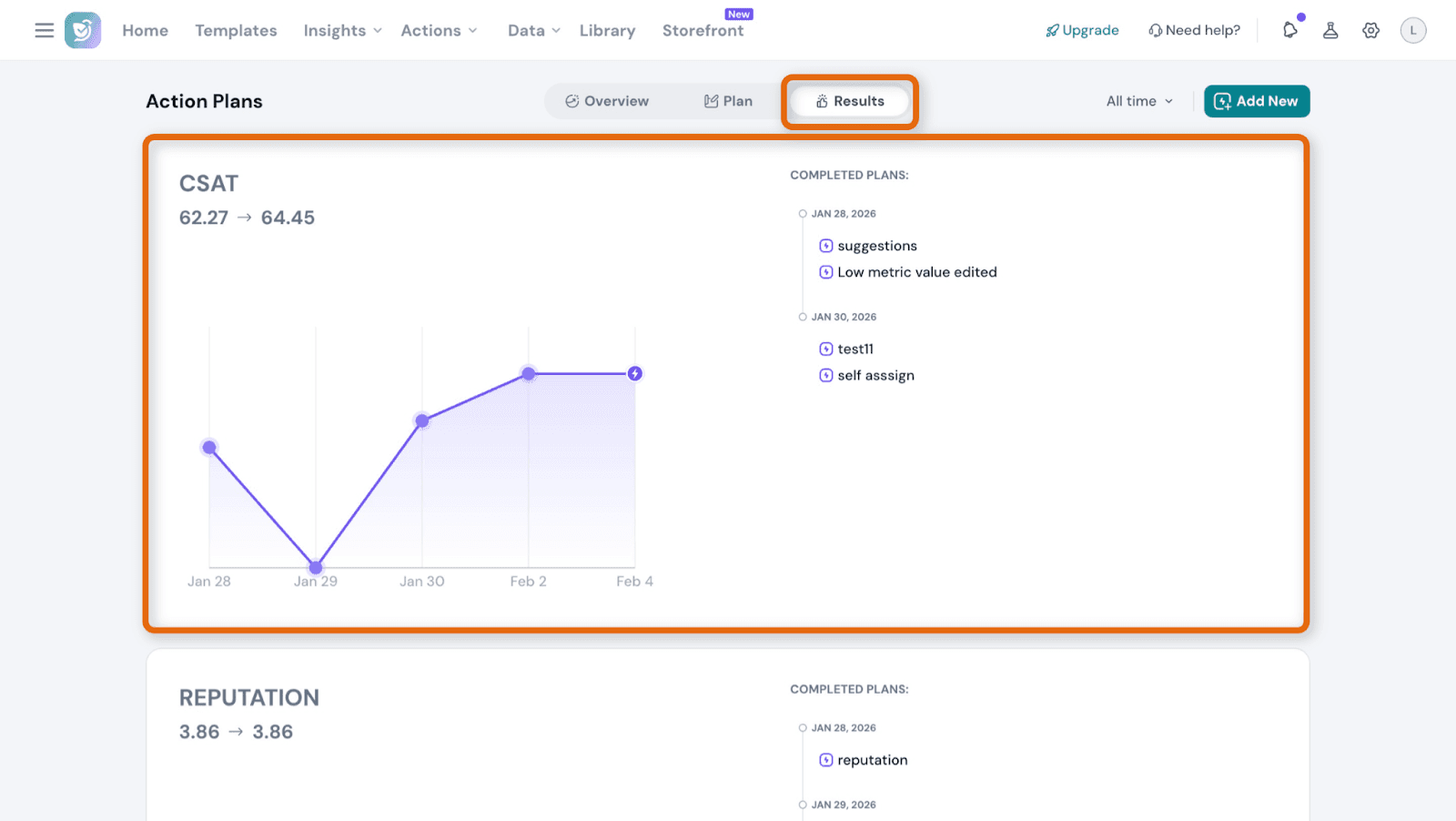
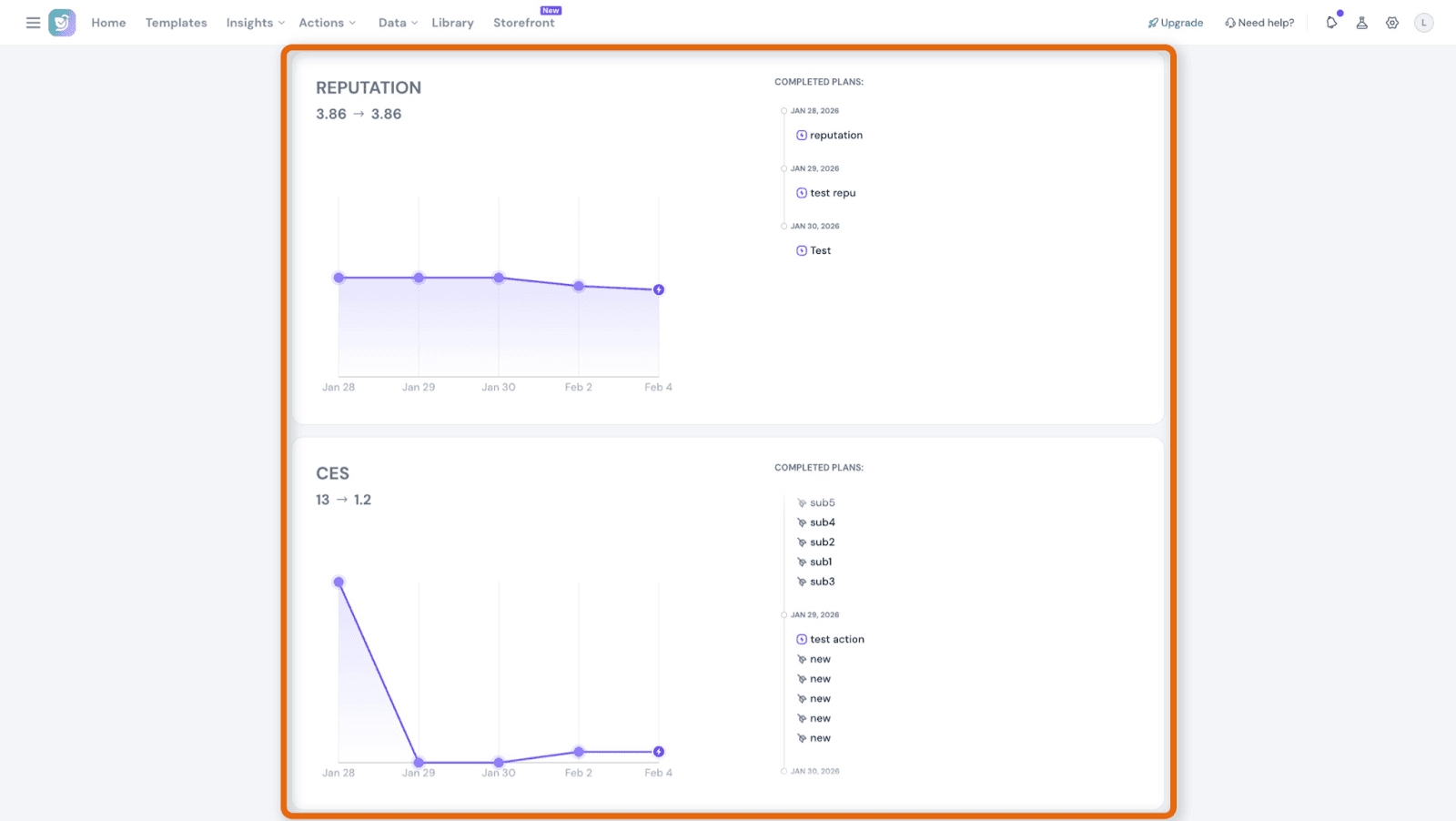
The Results section shows how your CX metric has changed since the Action Plan started.
Here you can:
- View baseline and latest metric values
- See trends over a selected date range
- Identify completed Action Plans that contributed to improvements
What are AI-generated Action Plans?
For accounts with sufficient feedback data, SurveySparrow automatically provides AI-generated Action Plans based on recent negative feedback.
These recommendations help you quickly focus on the most impactful CX issues without manually analysing large volumes of feedback.
How AI-generated Action Plans work
The AI analyzes recent negative sentiment from:
- NPS detractors
- Unhappy CSAT or CES responses
- 1-3 star reviews
- Text feedback with a negative tone
Recurring themes are identified, and the top recommended Action Plans are suggested.
Notes
- Permissions
- By default, only Admins can create Action Plans and assign owners.
- Assigned users can update their own tasks.
- AI recommendations
- AI-generated Action Plans refresh every 30 days.
- If there isn’t enough data, recommendations won’t appear.
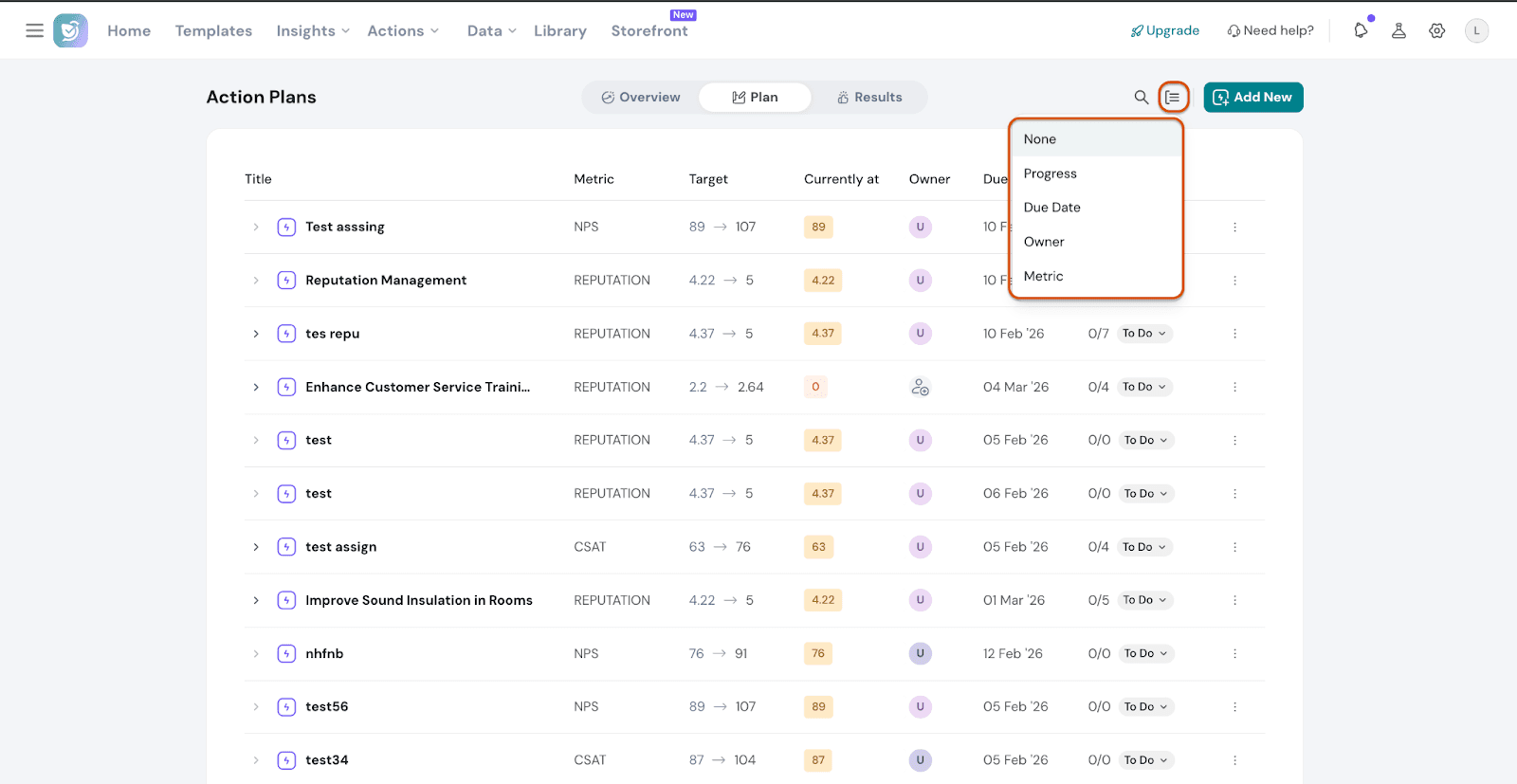
- Filters
- Filters are optional and saved with the Action Plan.
- Applied filters are visible in the Action Plan details.
FAQs
Why not use project management tools like Jira or Asana instead?
Action Plans are designed specifically to improve CX.
Unlike general task tools, Action Plans are directly linked to customer feedback and CX metrics such as NPS, CSAT, CES, and Ratings, making it easier to measure impact.
Can Action Plans help improve CX scores?
Yes. Action Plans let you track progress and see how completed initiatives affected your CX metrics over time, making improvements visible and measurable.
What happens if I don’t have enough data for AI-generated Action Plans?
If there isn’t enough recent feedback data, AI recommendations won’t appear.
You can still create Action Plans manually using your existing insights.
Are Action Plans linked to specific surveys or responses?
Action Plans are linked to aggregated CX metrics, not individual responses.
They help track long-term improvements rather than one-off customer issues.
Do Action Plans support collaboration?
Yes. Team members can:
- Add comments
- @mention teammates
- Attach files
- Update task statuses
All activity is logged with timestamps for visibility.