How to Send Multilingual Email Surveys in SurveySparrow

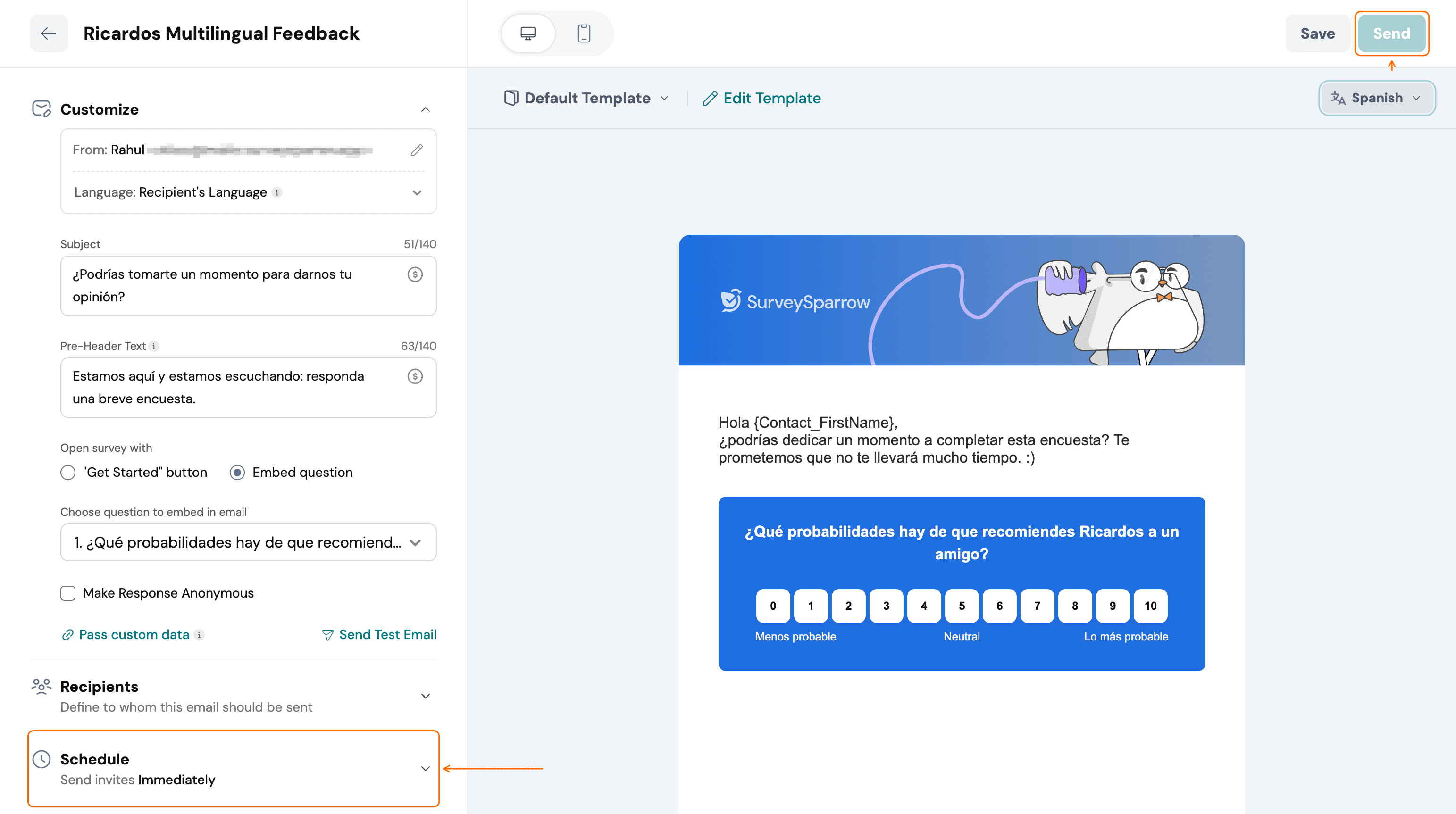
You can send an email survey in a contact's language so the invite and the survey arrive in the same language they use every day. Set each contact's language once, translate your survey, and choose Recipient's Language in Email Share. This helps most when your contacts speak different languages, such as guests, customers or employees across regions.
Prerequisites
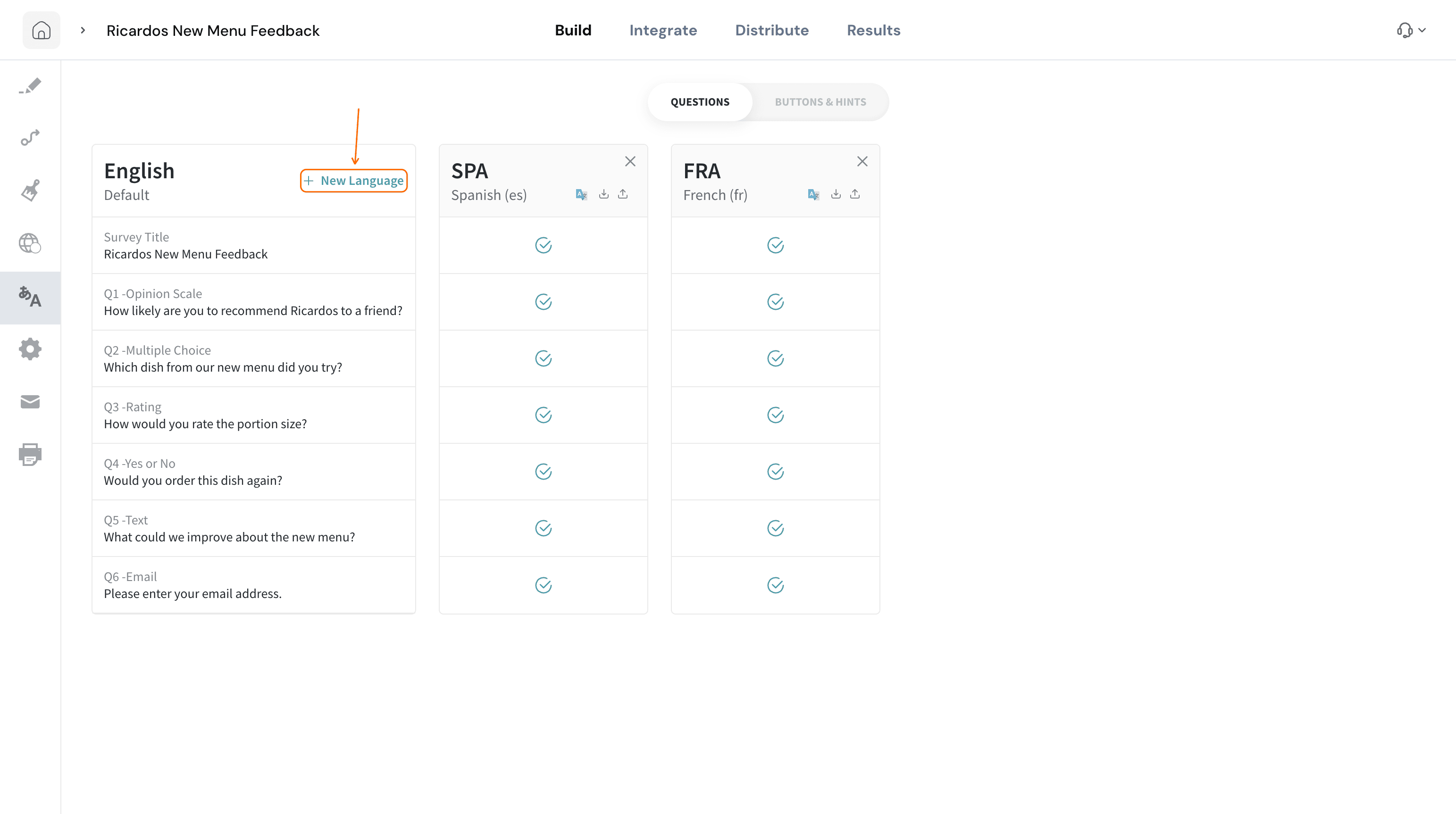
- Your survey is translated into every language your contacts use. Add languages with the Languages icon in the survey builder's left sidebar, as described in Multilingual Surveys.
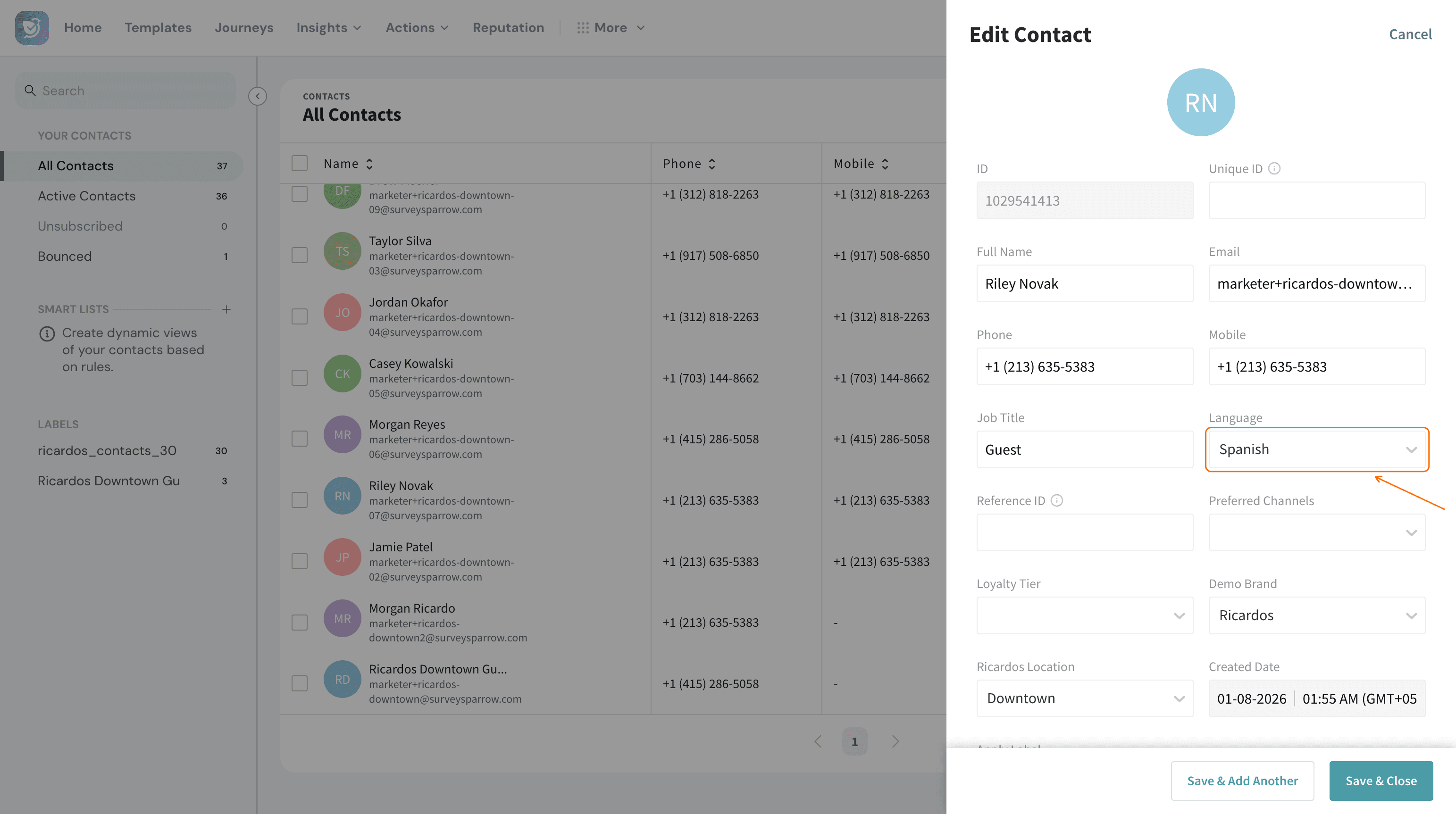
- Each contact has a Language saved. Open More ▸ Data ▸ Contacts, edit the contact and choose a Language. For more on managing contacts, see Contacts Management.
How to send an email survey in a contact's language
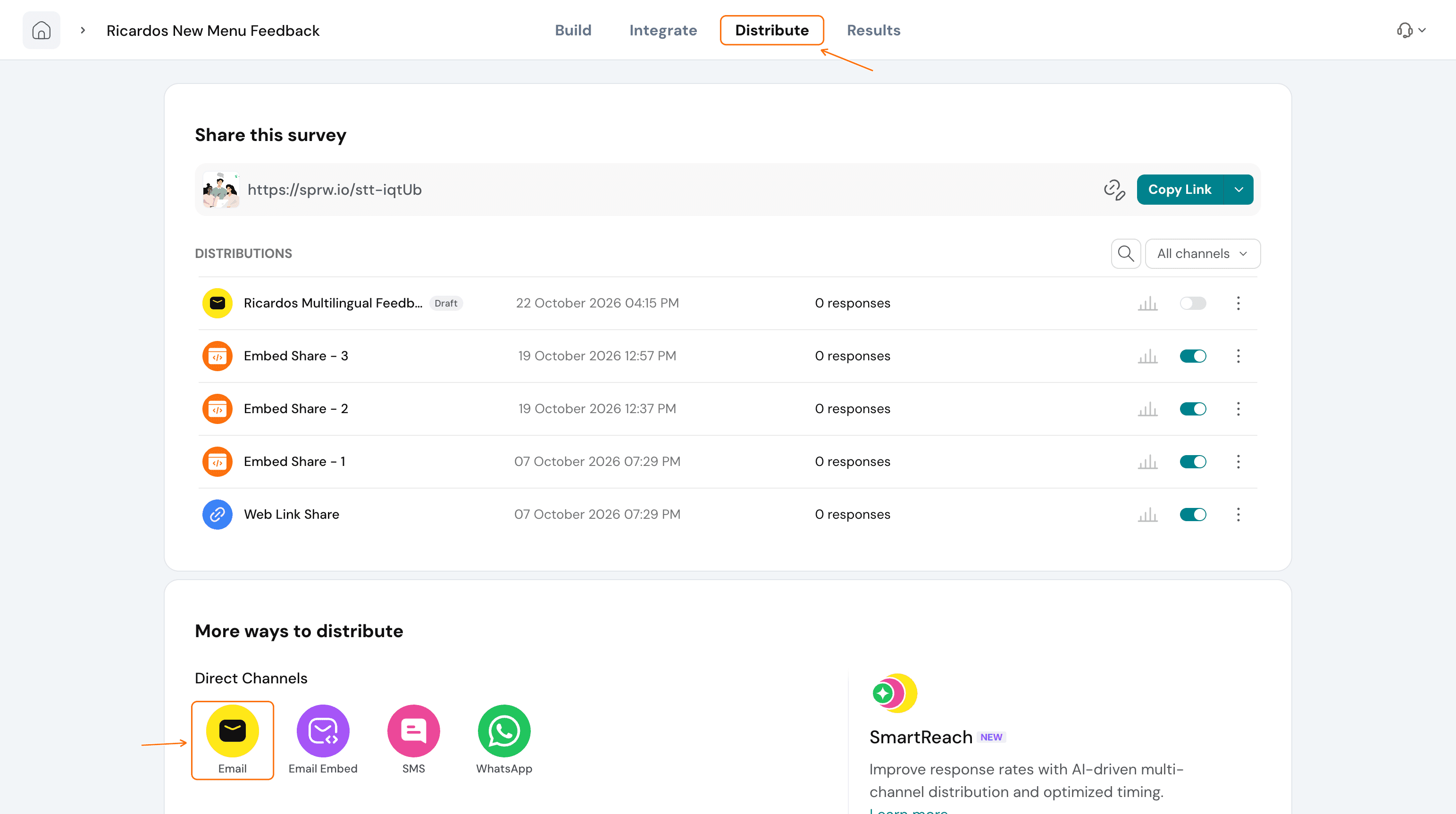
- Open your survey, go to the Distribute tab and select Email to create an email share. For the full setup, see How to Share Surveys Via Email?
- In Customize, open Language and select Recipient's Language. Each contact gets the email in their saved language. To send everyone one language, select that language instead.
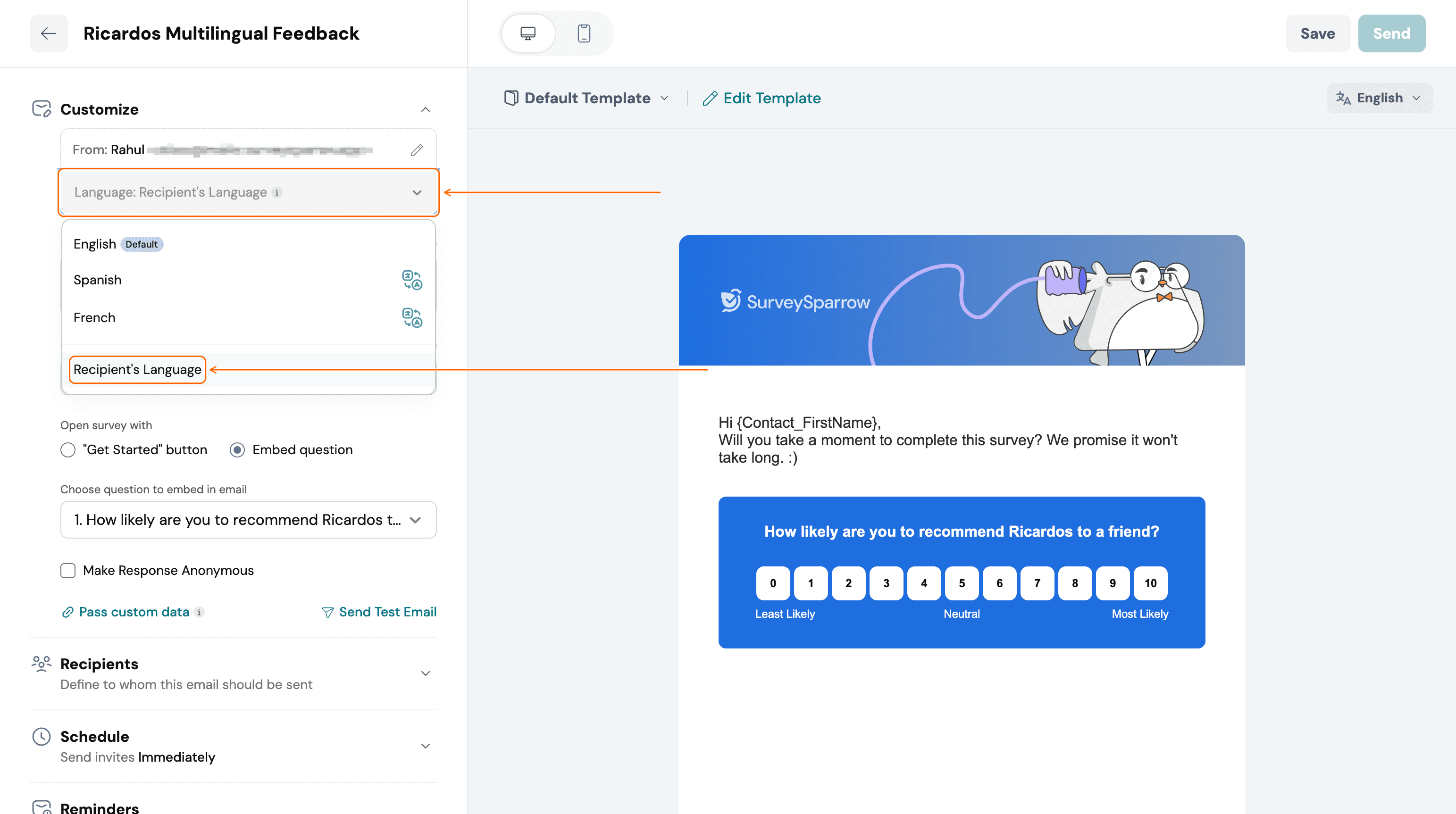
Note: Each contact's language comes from their Language field. Save it first under More ▸ Data ▸ Contacts (see Contacts Management). - Open the language switcher at the top right of the email preview.
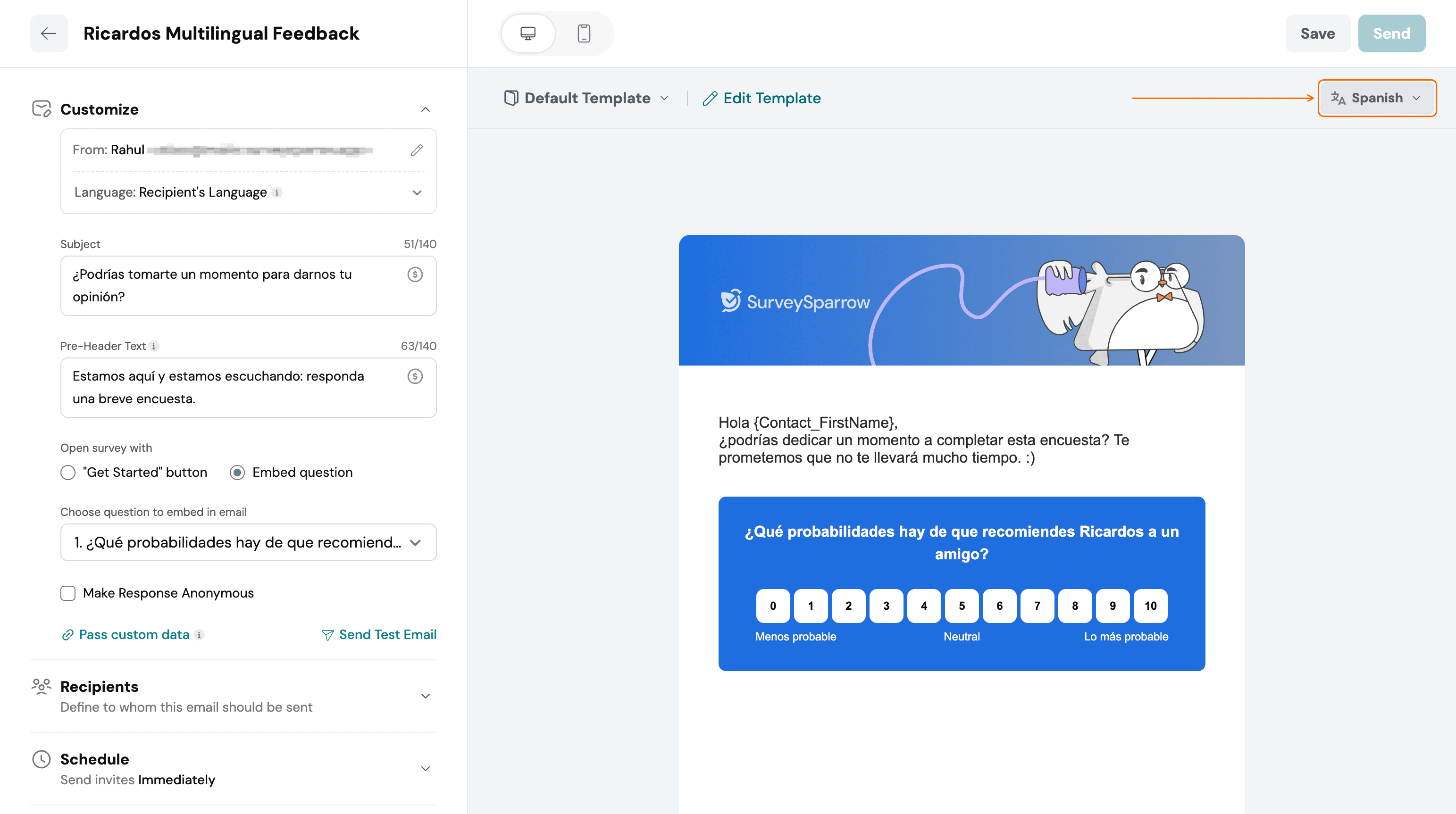
- Choose a language to preview the subject, pre-header and embedded question in that language. Repeat for each language you send in, and review the Subject and Pre-Header Text shown for it.
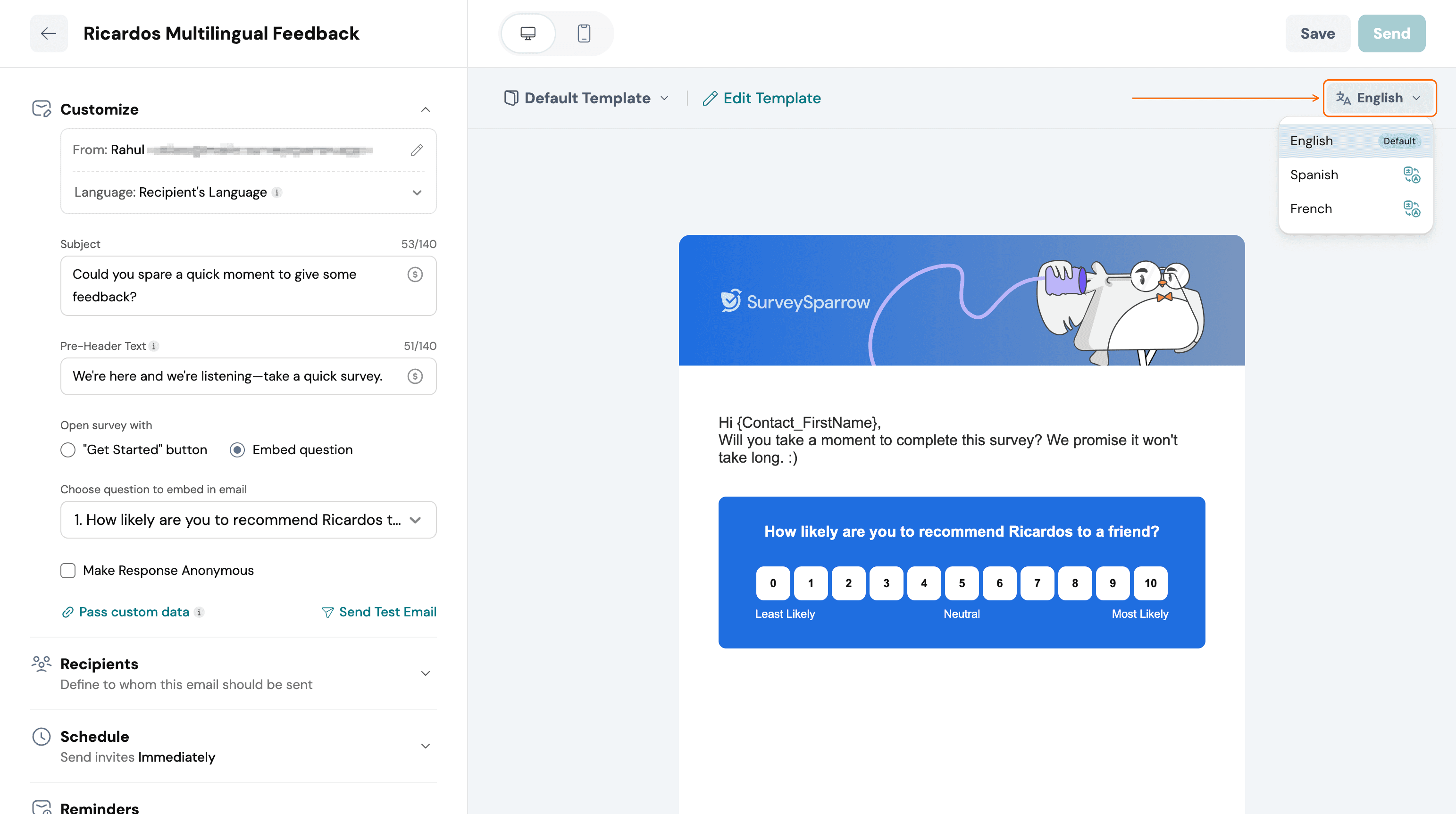
Your contacts receive the email and the survey in their own language. If the survey isn't translated into a contact's language, both the email and the survey are sent in the survey's default language.
Troubleshooting
The email arrived in the default language. Check that the survey is translated into that contact's language in the Languages editor, and that the contact's Language field is set. If the survey has no translation for that language, the email and the survey use the survey's default language.
The switcher doesn't show my languages. Set Language to Recipient's Language, then open the switcher again. If a language is still missing, add it in the survey's Languages editor first.
I can't find "Add New Language" in the email editor. The email editor has no control for adding languages. Add them in the survey's Languages editor, and the email picks them up. To refresh a language's email text from English, use the translate icon next to that language in the switcher (Retranslate from English). See Multilingual Surveys.
FAQ
Where do I store a contact's language? In the contact's Language field. Open More ▸ Data ▸ Contacts, edit the contact and choose a language.
Do I need to translate the survey first? Yes. The email follows the languages your survey has. Without a translation, the email and survey are sent in the survey's default language.
Can I send everyone the same language? In Customize, select that language in Language instead of Recipient's Language.
Can I schedule a multilingual email survey? Yes. Use Schedule in the email share, the same as for any other email survey. To chase people who haven't replied, see How to send reminders to your audience?
Related articles
- Multilingual Surveys
- How to Share Surveys Via Email?
- Contacts Management
- How to send reminders to your audience?
Still stuck? Reach out to us through the chat on this page. We're happy to help.