
Bot detection

Keep your survey data relevant by filtering out spam responses
Bot submissions can sabotage your surveys. Bot fraud happens when automated programs fill surveys with random data, distorting your results and turning your valuable research inaccurate. That’s where bot detection becomes crucial.
Bot detection helps you capture genuine insights from real people, not robots. This ensures your data reflects true customer sentiment, empowering you to make informed choices that drive success.
How does SurveySparrow’s bot detection work? SurveySparrow uses two separate checks to filter out bot activity.
- The first check applies only to surveys shared via email. Every email share includes a hidden link that's invisible to a real reader but gets picked up by automated email scanners and security tools, which tend to click every link in a message to check it's safe. Since only a bot would ever click this hidden link, doing so is a reliable signal that the "click" came from a scanner, not a person — and it gets flagged accordingly.
- The second check kicks in once someone actually opens and lands on the survey form. Here, SurveySparrow uses Google reCAPTCHA (which runs in the background) to monitor response fills. Anything that fails this check is marked as a spam response rather than a valid one.
Let’s see how to enable bot detection and keep your survey data relevant.
Enabling bot detection
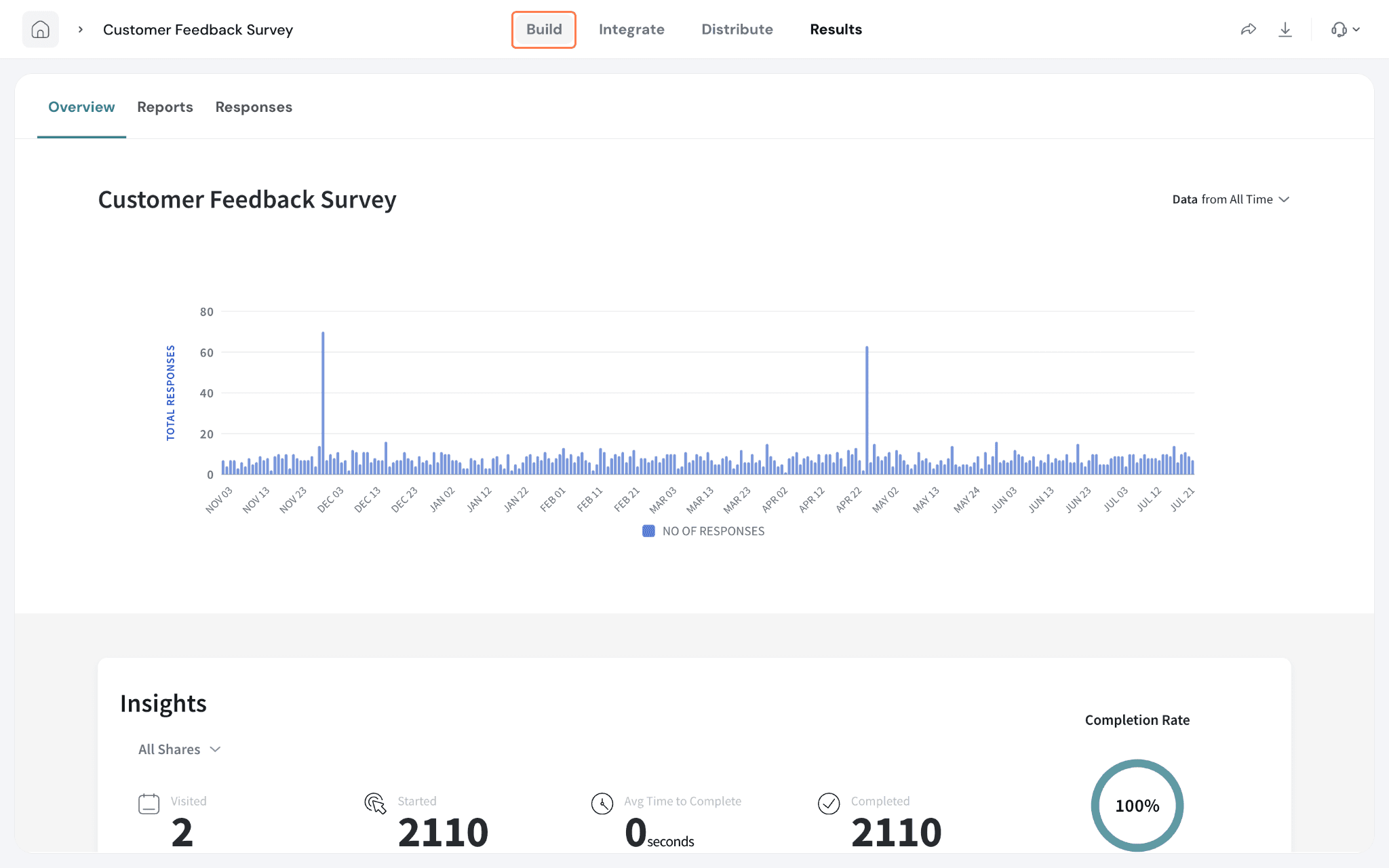
- Open the survey and select Build.
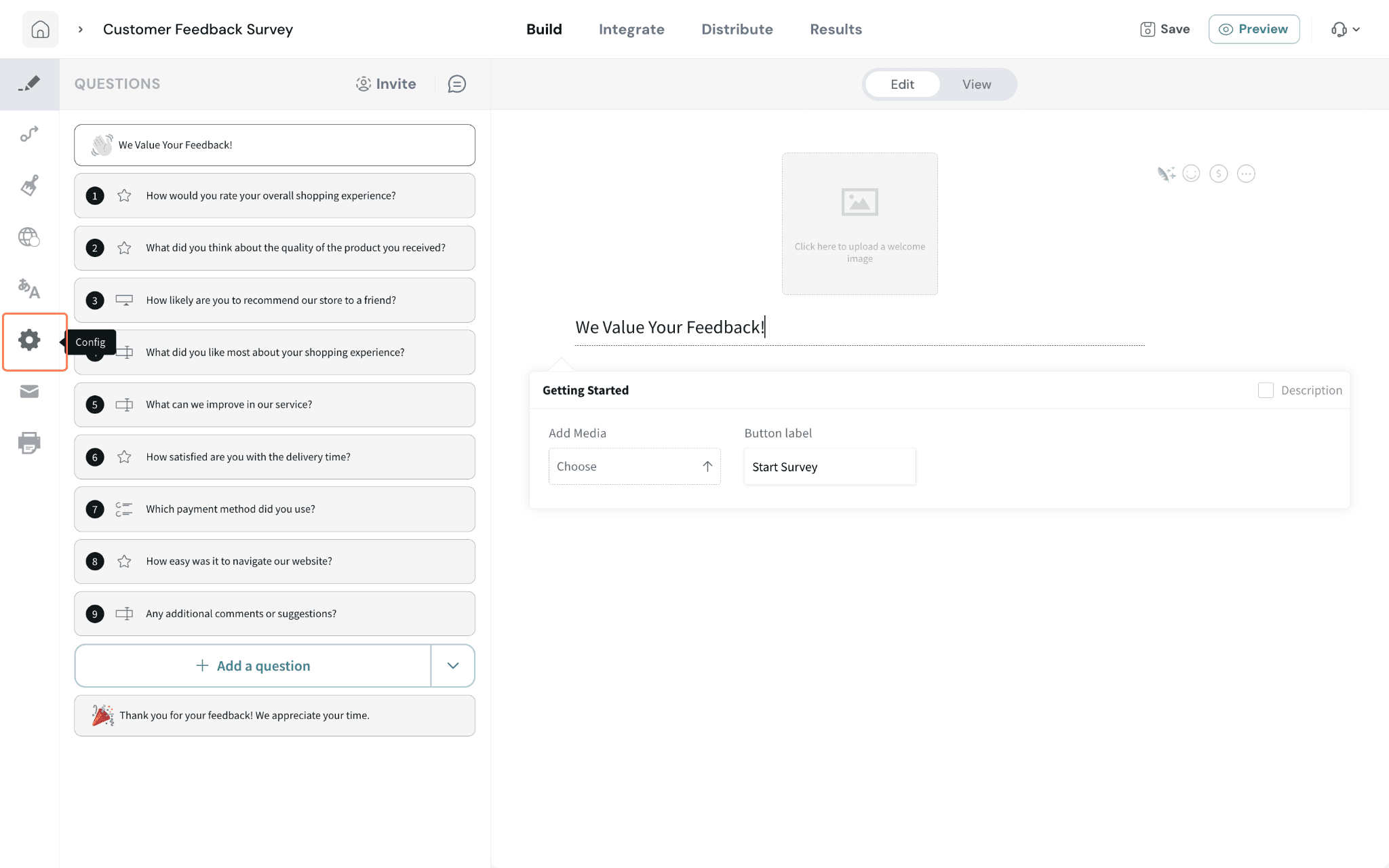
- Select the Settings icon in the left sidebar.
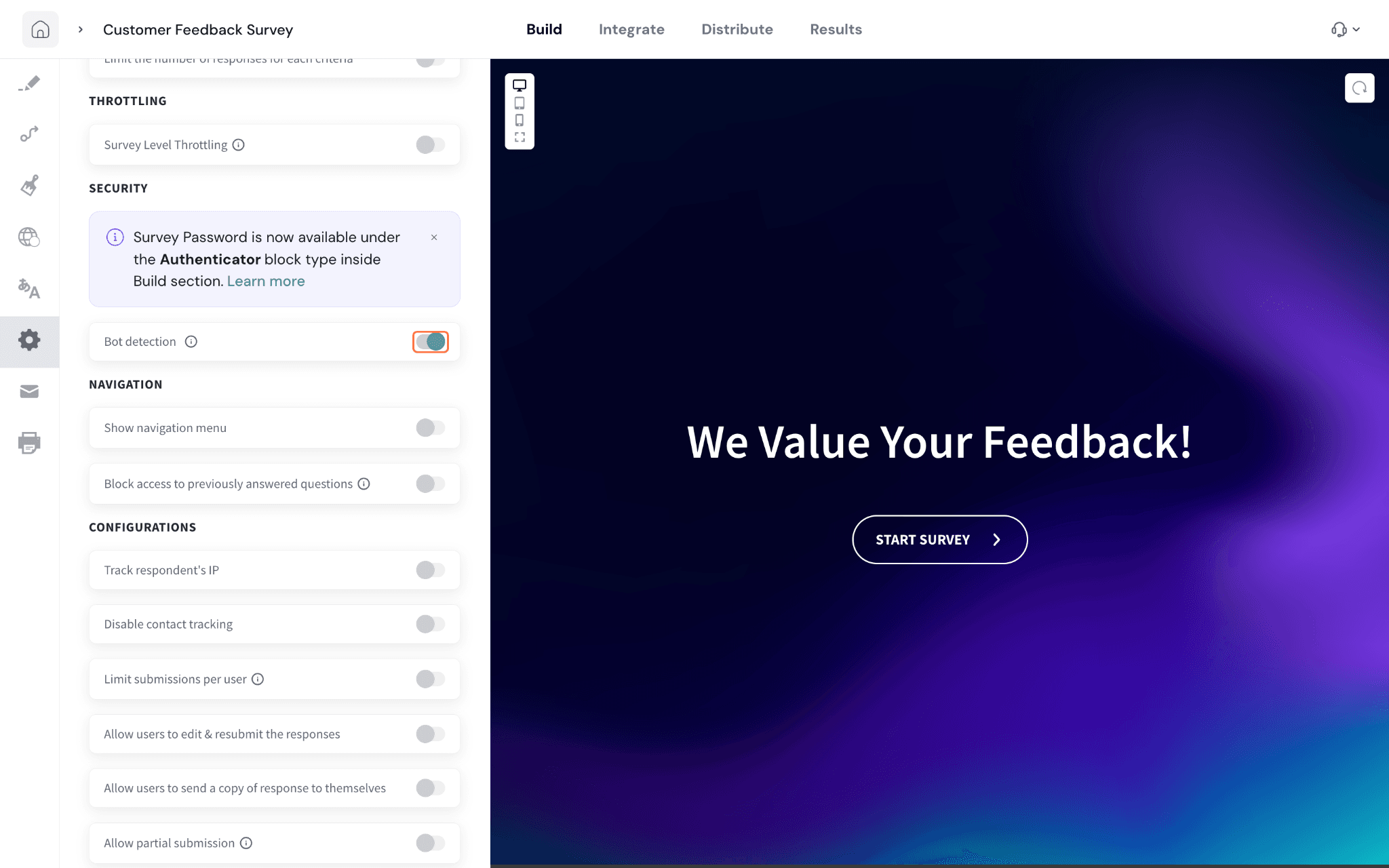
- In General Settings, scroll to Security and turn on Bot detection.
After the survey starts receiving responses, suspected bot submissions are filtered from analysis and can be reviewed separately.
Filtering out bot responses
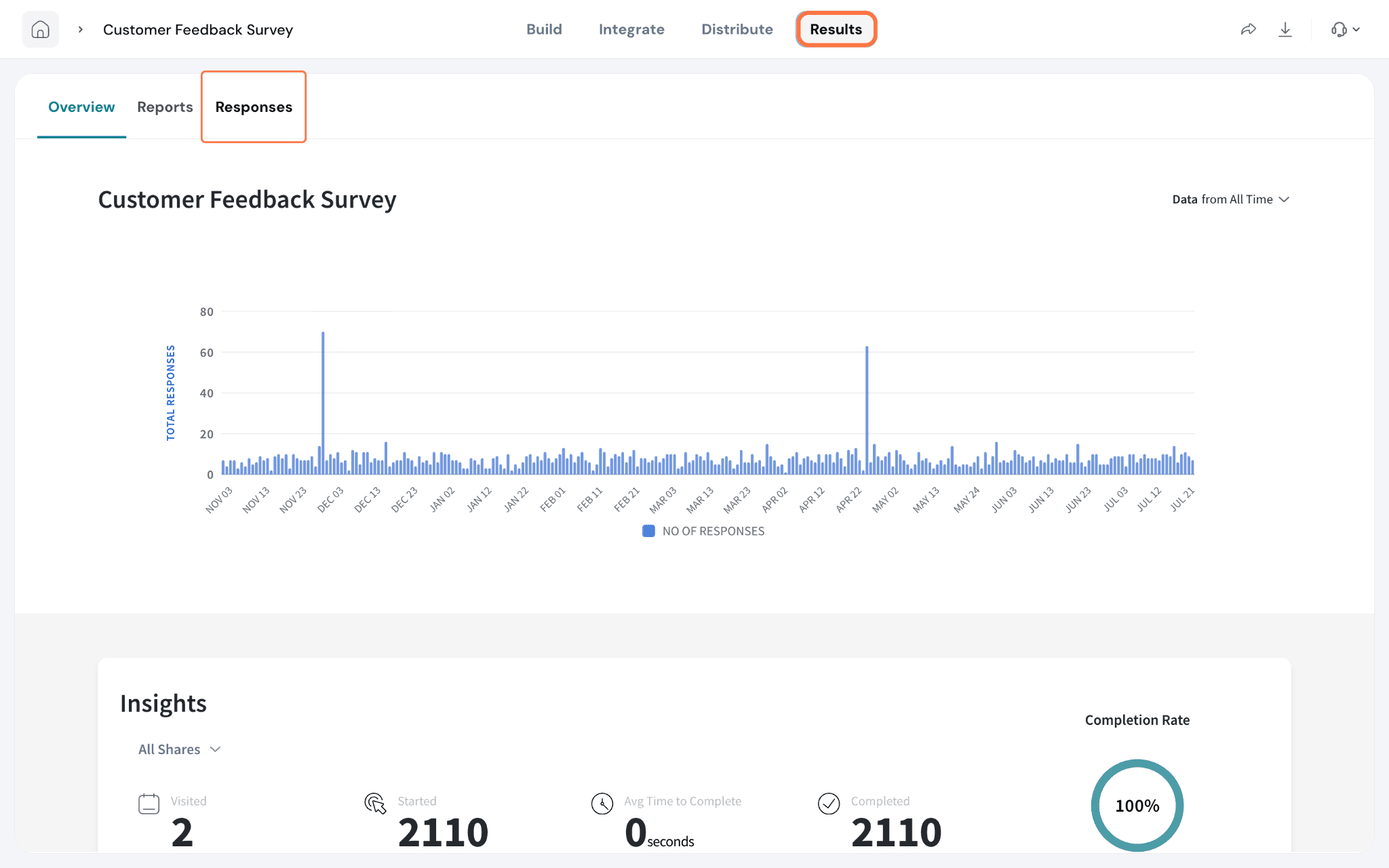
- Open Results and select Responses.
- Click on the vertical three-dot icon in the right, then hover over Response Quality.
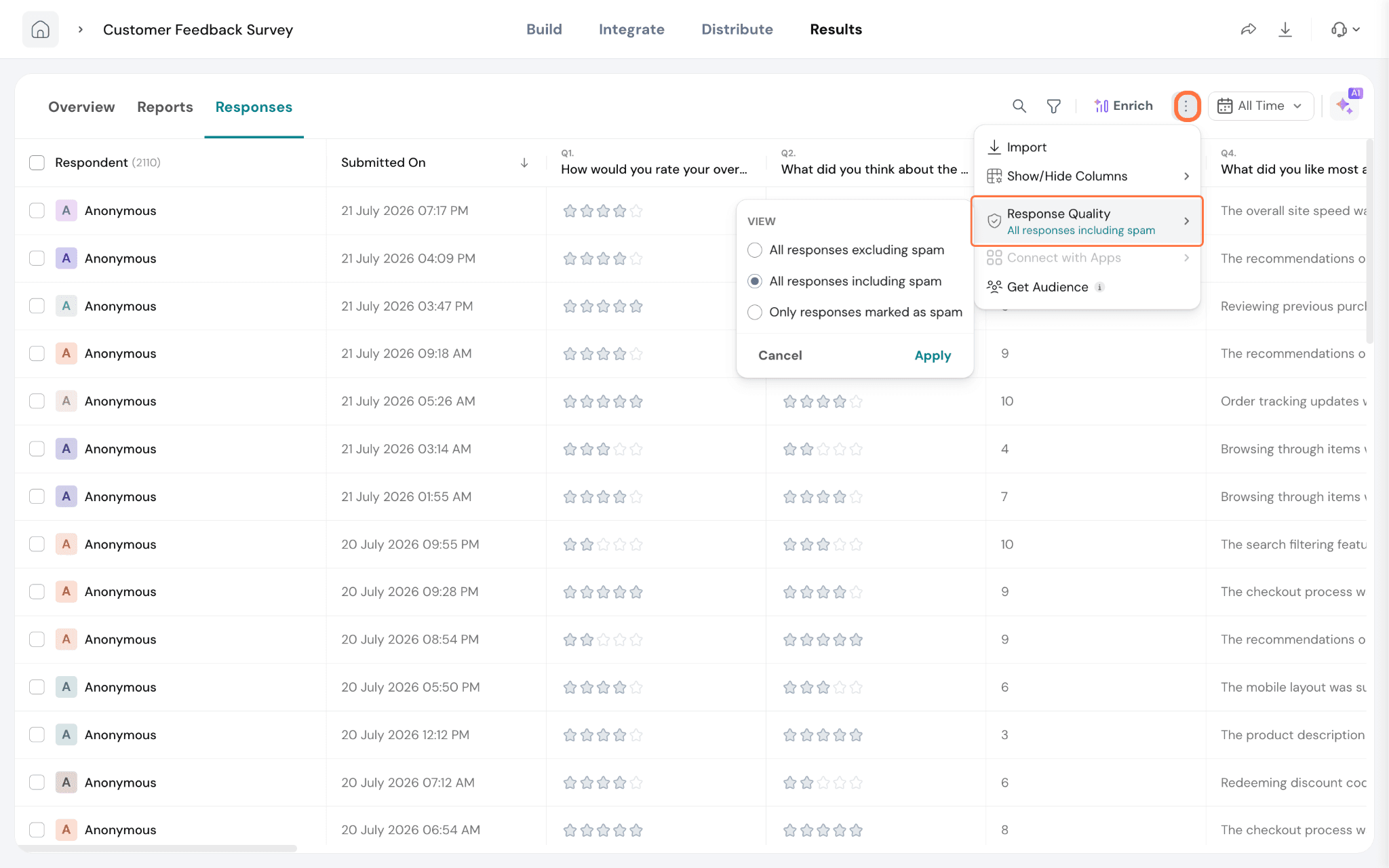
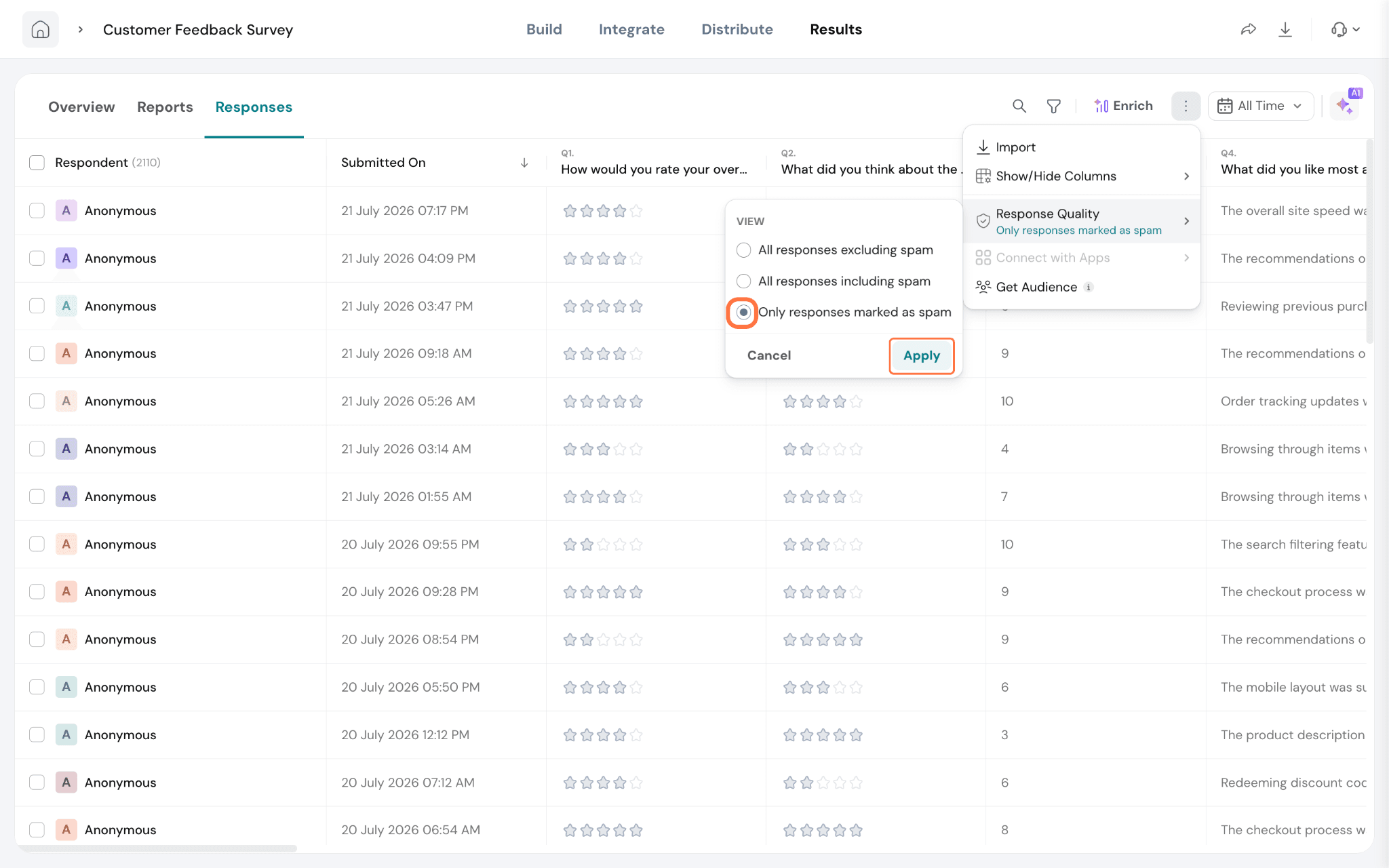
- The default option is All responses including spam. To filter out the spam responses, click Only responses marked as spam, then select Apply.
4. The Responses table now shows submissions identified as spam — they are marked with a red flag icon.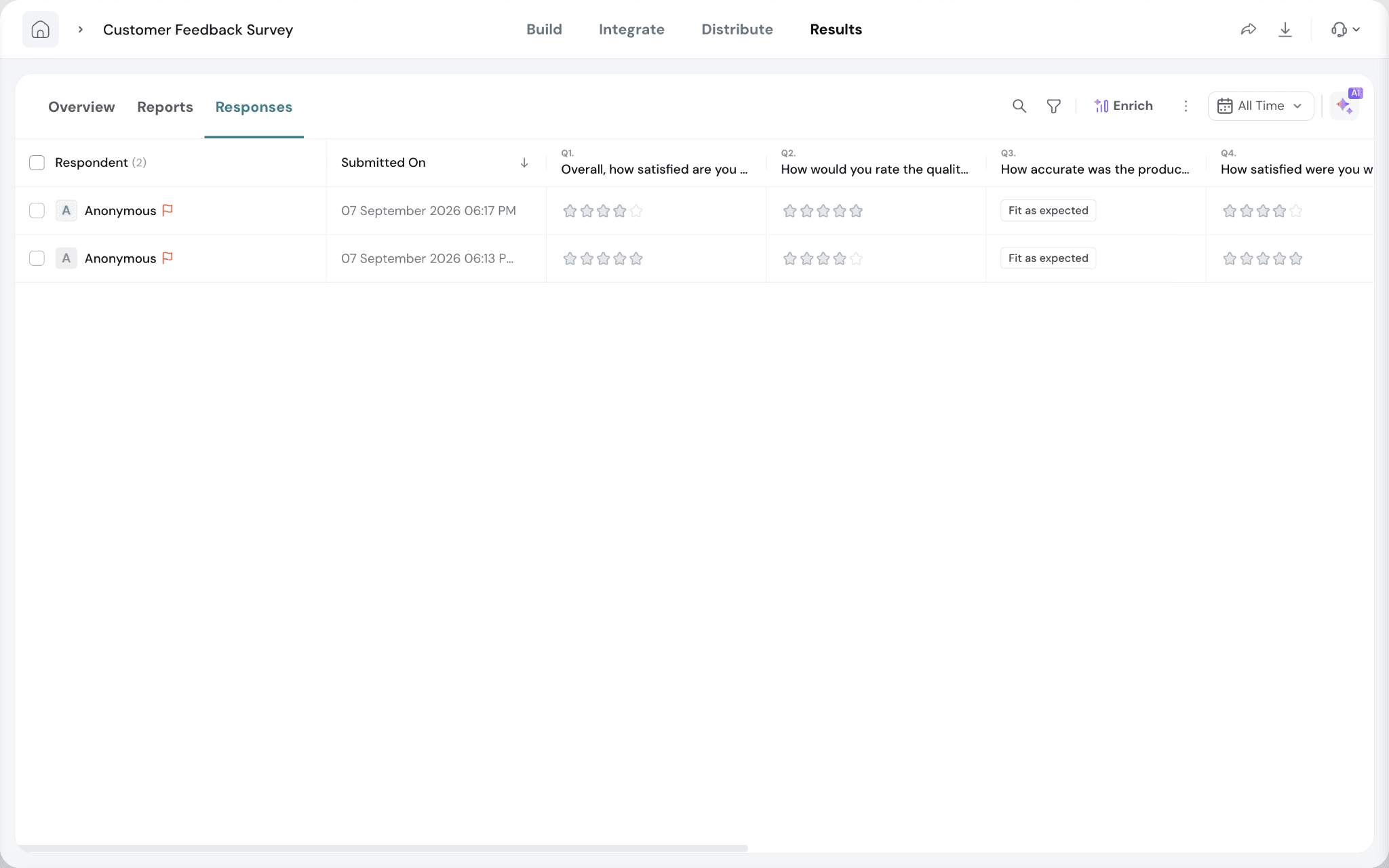
5. If you feel a response was wrongly flagged, you can manually whitelist it. Hover over the response that you wish to whitelist and click on the horizontal three-dot icon, then select Whitelist.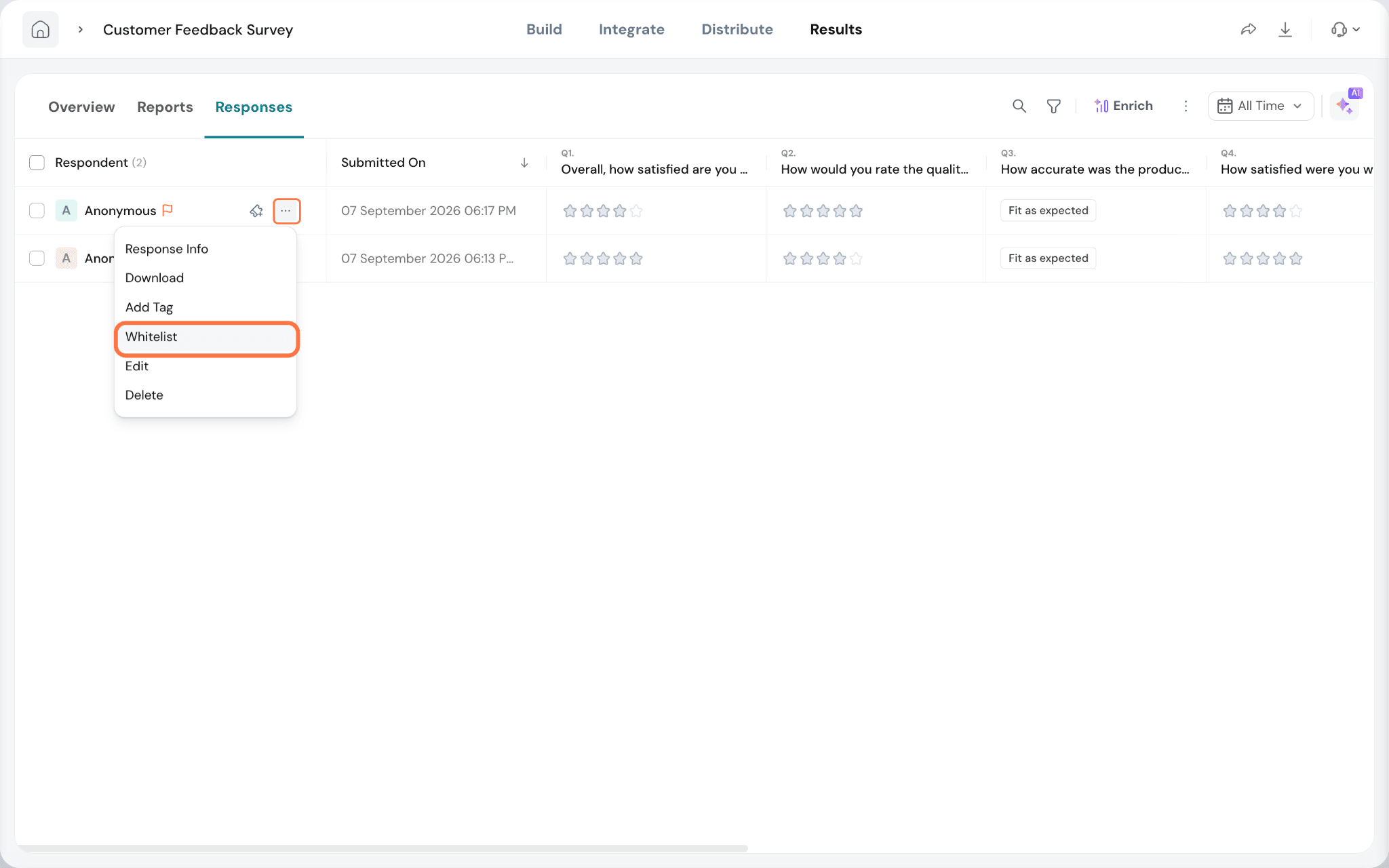
Whitelisted responses are included in survey analysis.
Note
- Spam responses will not be considered in reports, overviews, and dashboards.
- Note: If you see email “opens” within minutes but no submissions, those opens may be generated by your organization’s email security scanner (safe-link/anti-phishing tools) that automatically loads email content. This does not indicate a real respondent opened the survey.
- If ‘Allow partial submission’ configuration is enabled, when a bot is detected while answering the first question embedded in an email share, the submission will not be recorded
- If opens are tracked but responses are not coming in, check whether your recipients’ email security is quarantining, filtering, or blocking the survey email after scanning. Ask your IT/admin team to review quarantine logs and allowlist the sender/domain used for survey emails.
- No integration, trigger, workflow or webhook would work for spam responses
Please reach out to us if you have any questions.