
Setting up Slack alerts for Reputation Management

Get instant Slack notifications for set review conditions
1. Log in to your SurveySparrow account.
2. Under the Reputation menu, click All Reviews.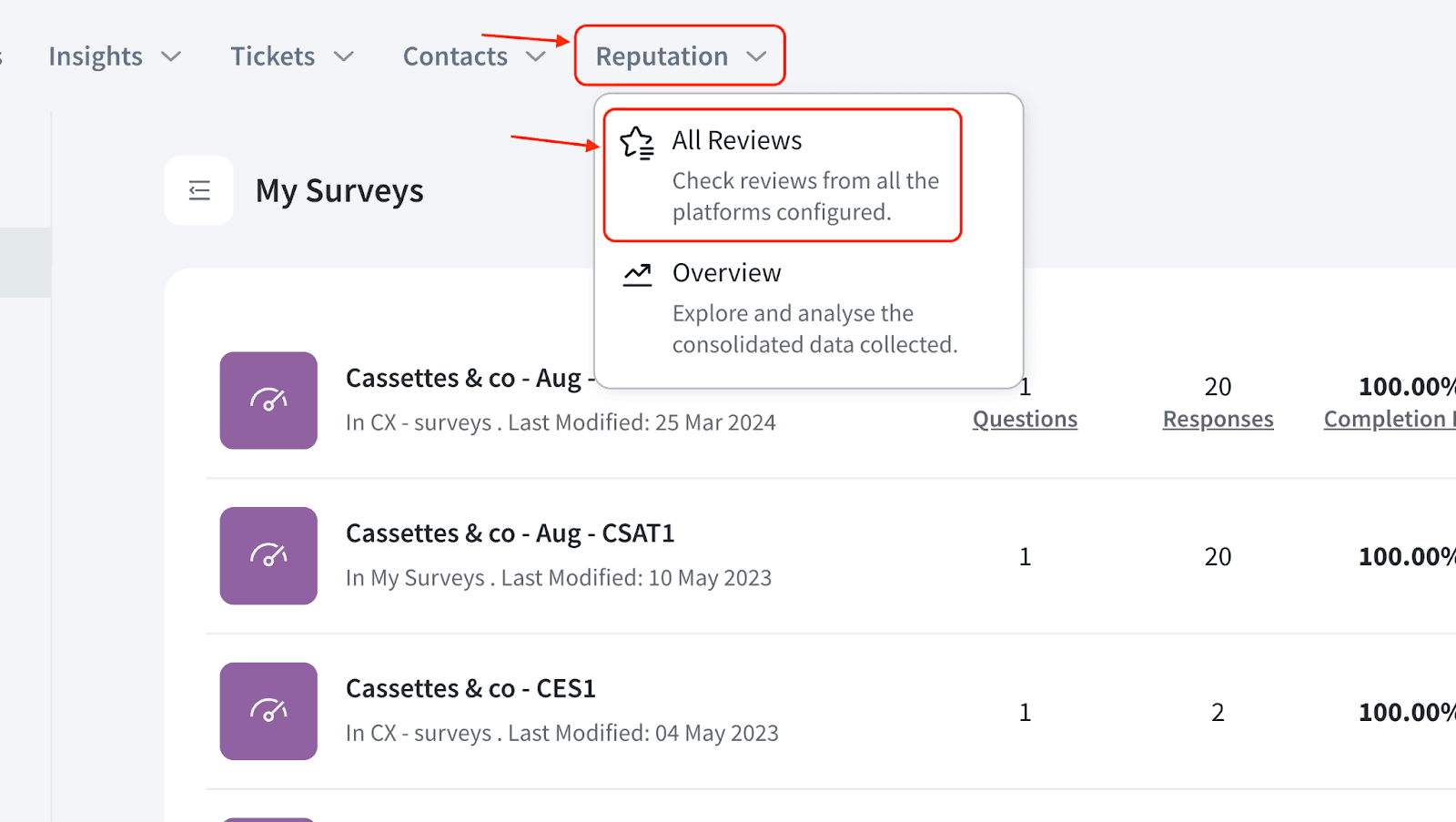
3. Click the 3-dot icon and choose Alerts.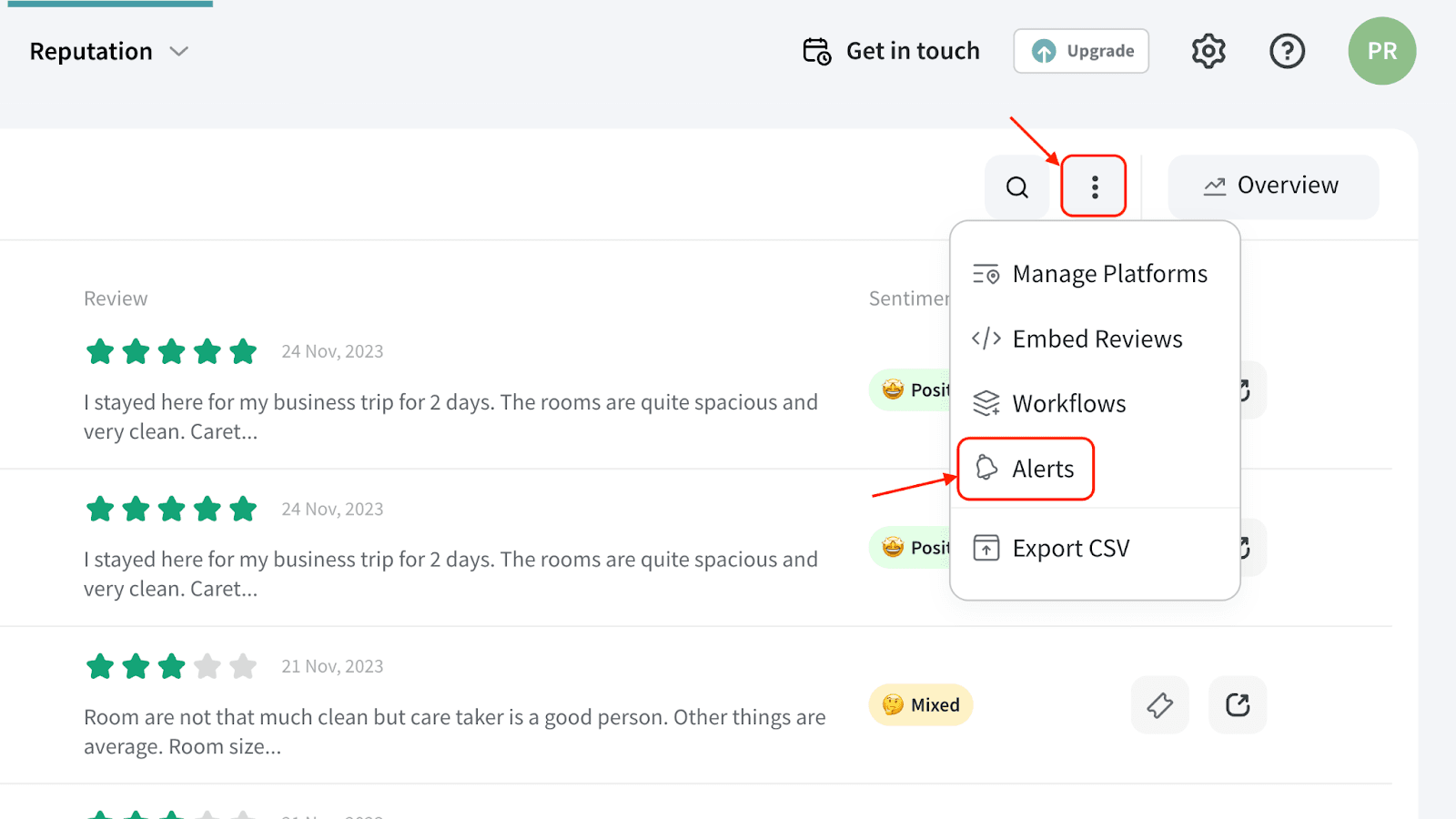
4. Click Connect Slack.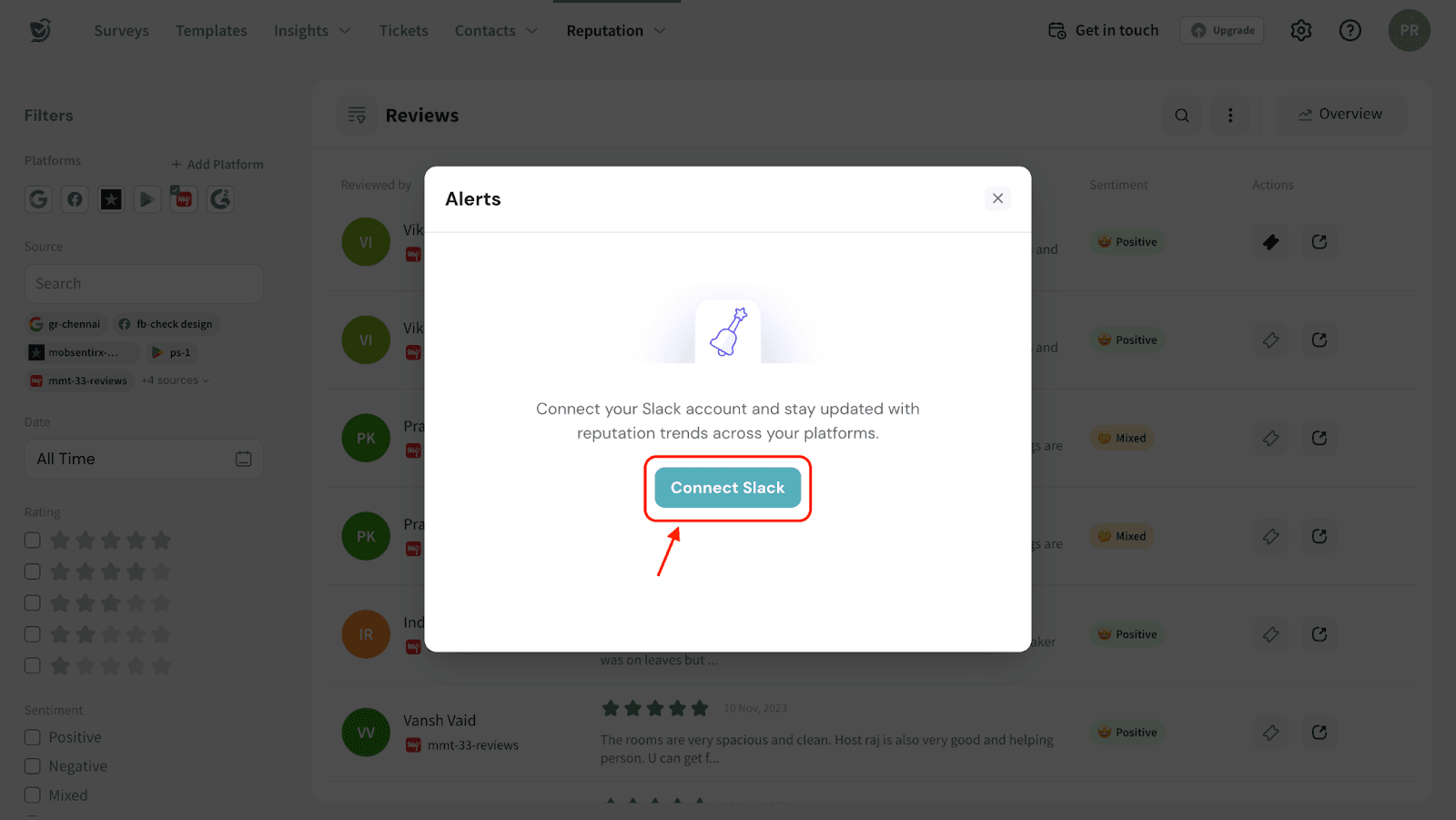
5. Click Allow to set up the Slack connection with SurveySparrow.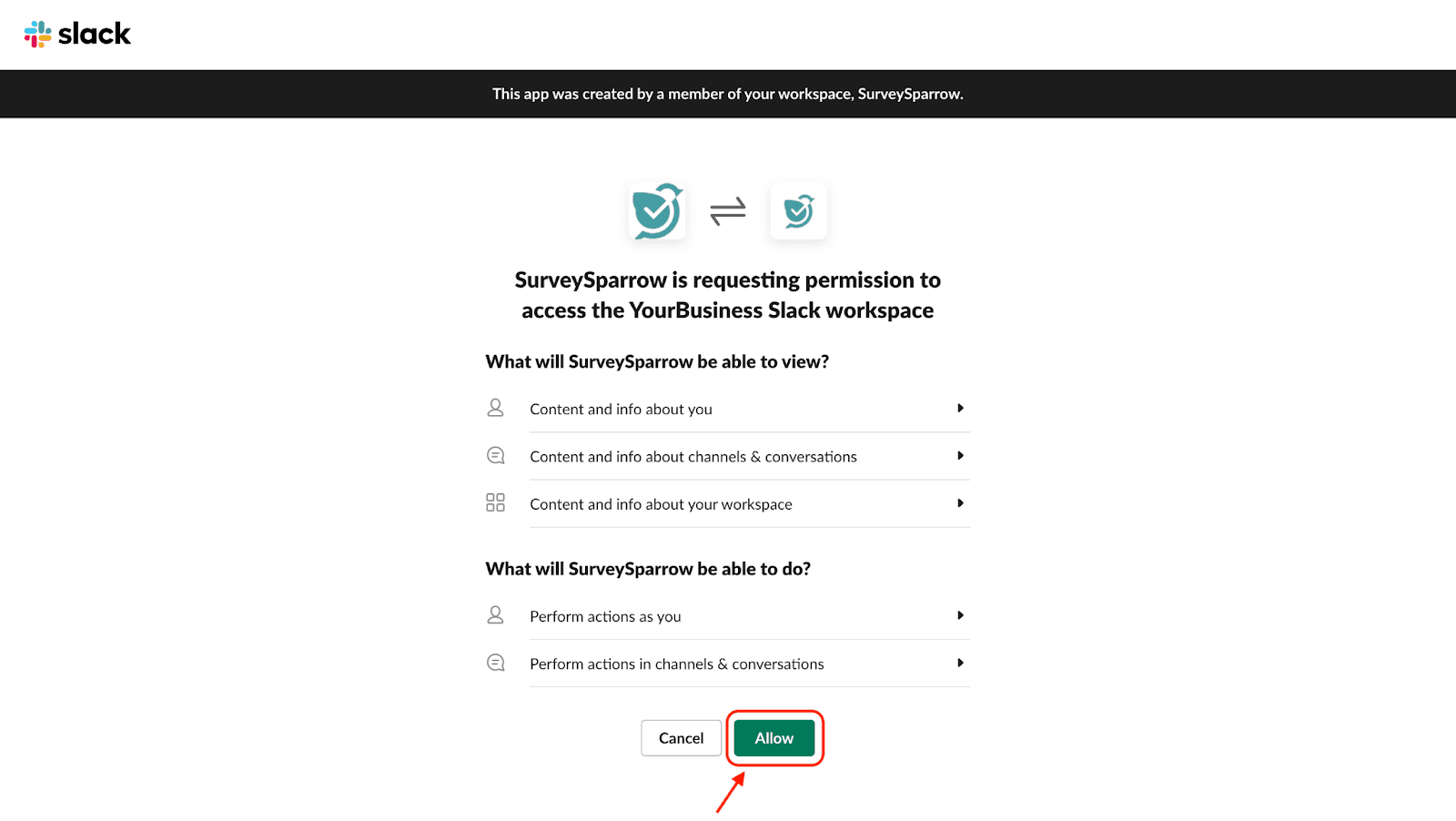
6. Choose the Slack channel in which you’d like to receive the alerts.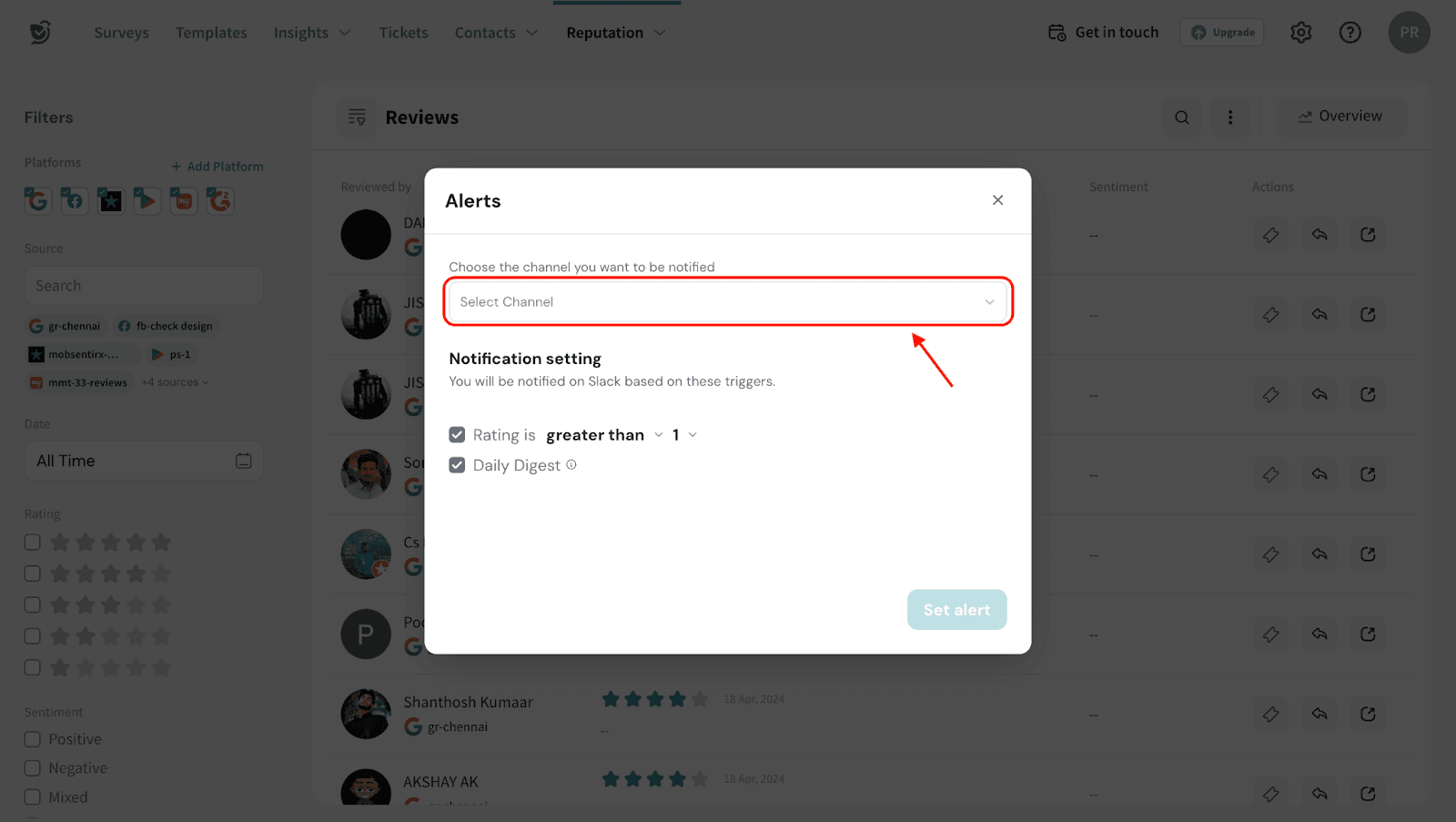
7. Set the conditions for which you’d like to receive alerts.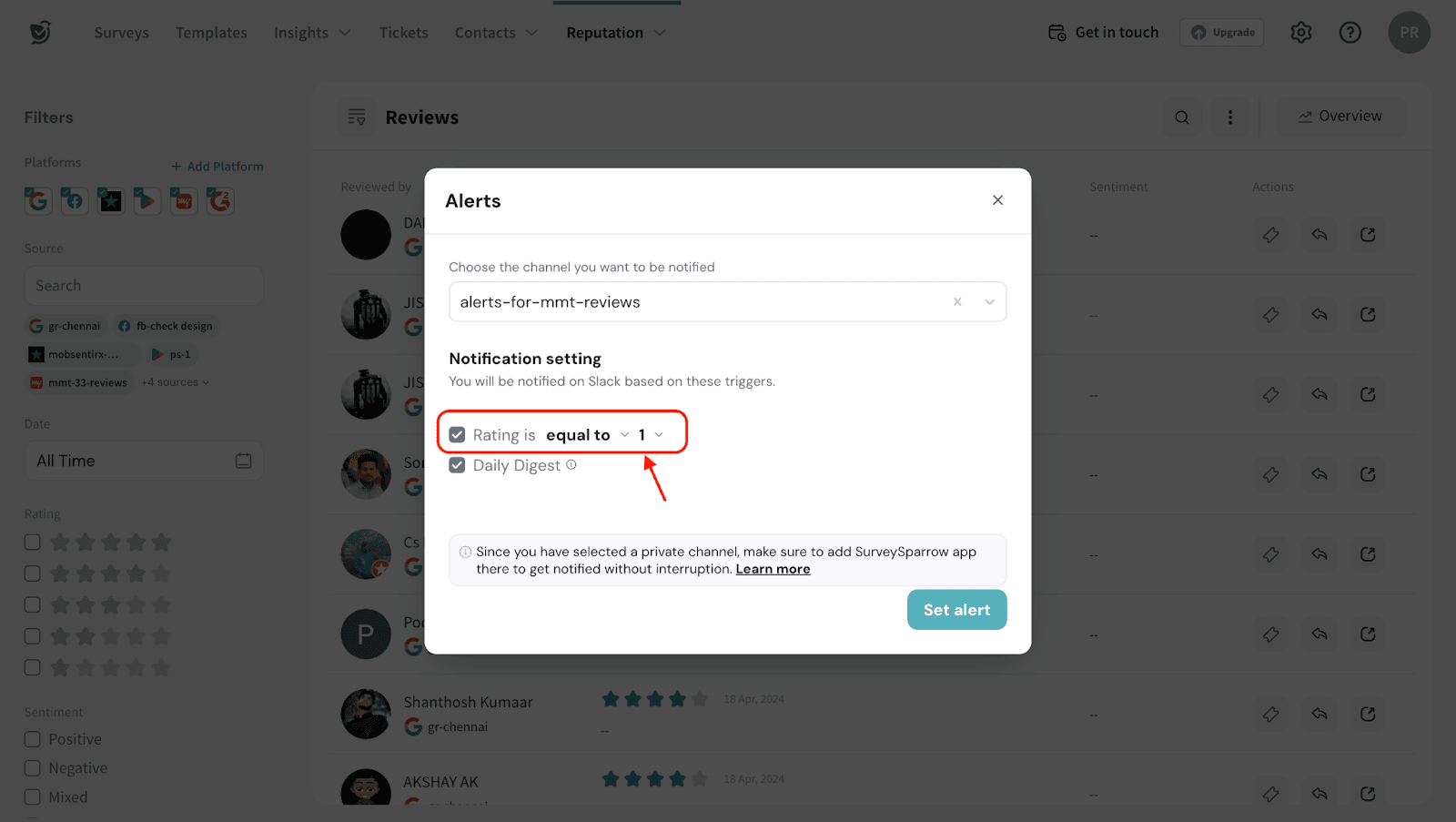
8. Click Set alert.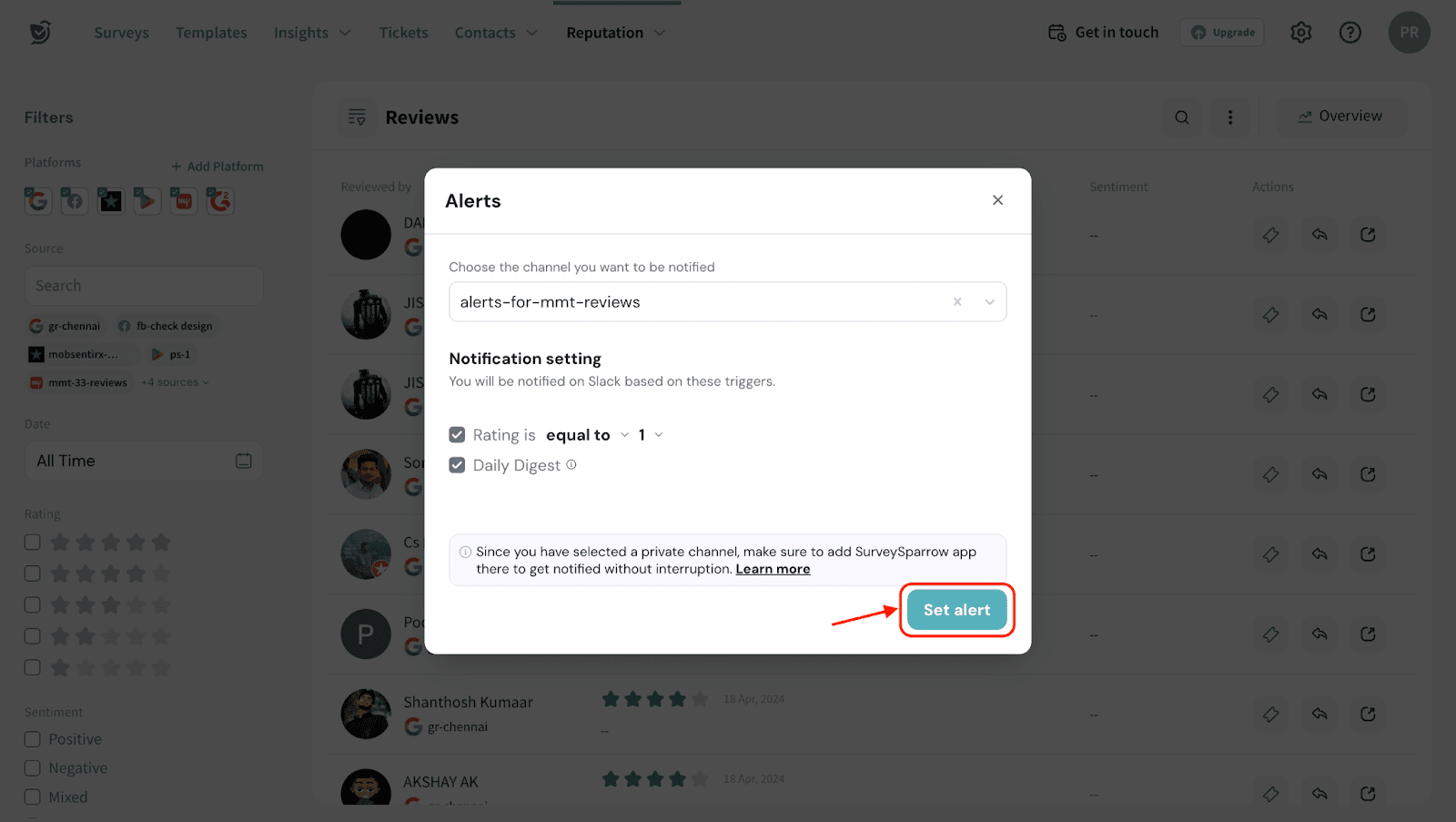
That’s it! You’ll now receive alerts on Slack channel based on the set conditions.
Configuring alerts to private Slack channel
Once you’ve set up the alerts for Reputation Management, configure your private Slack channel to receive the alerts. Let’s see how to do that.
1. Go to the Integrations section of the channel.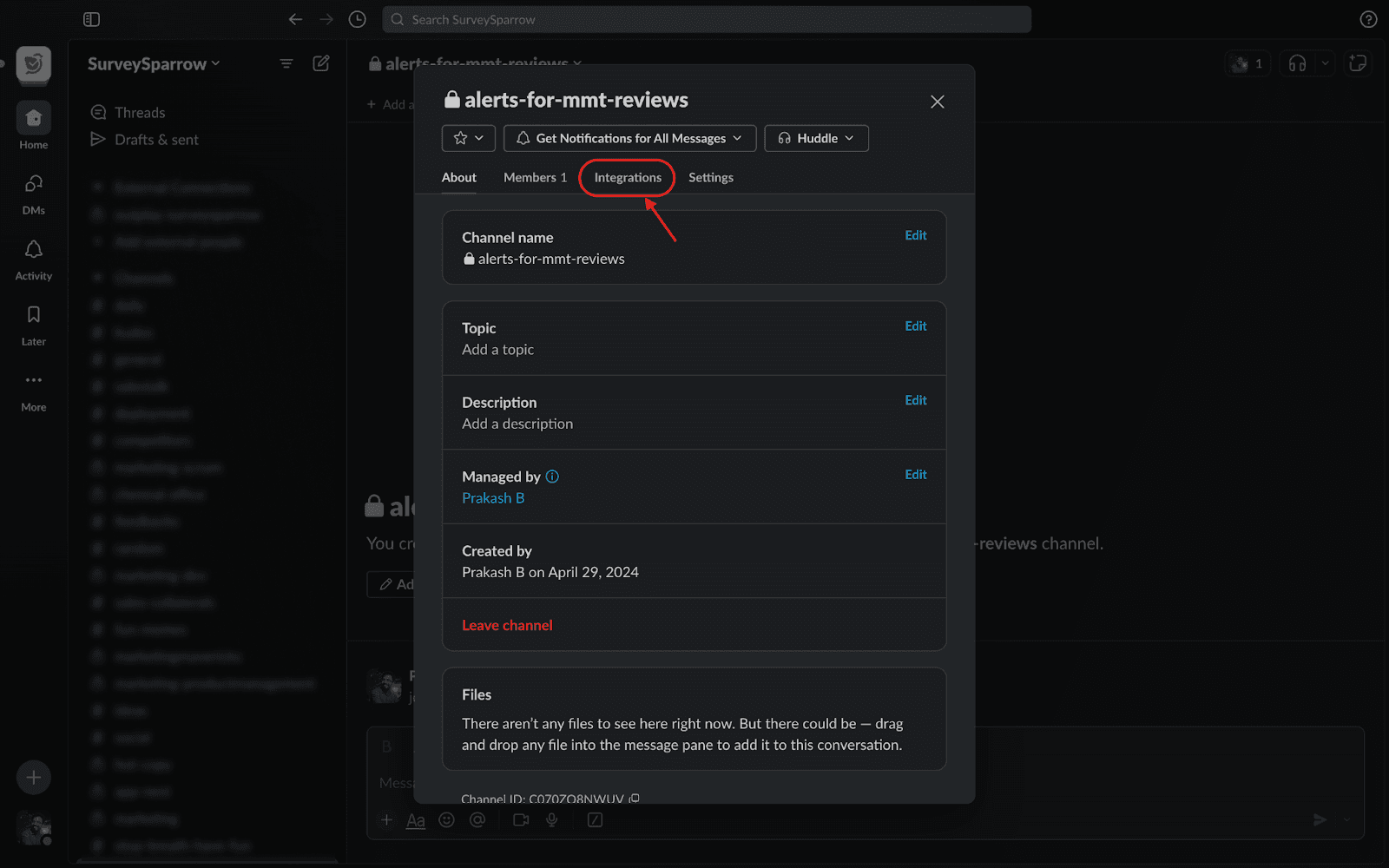
2. Click Add an App.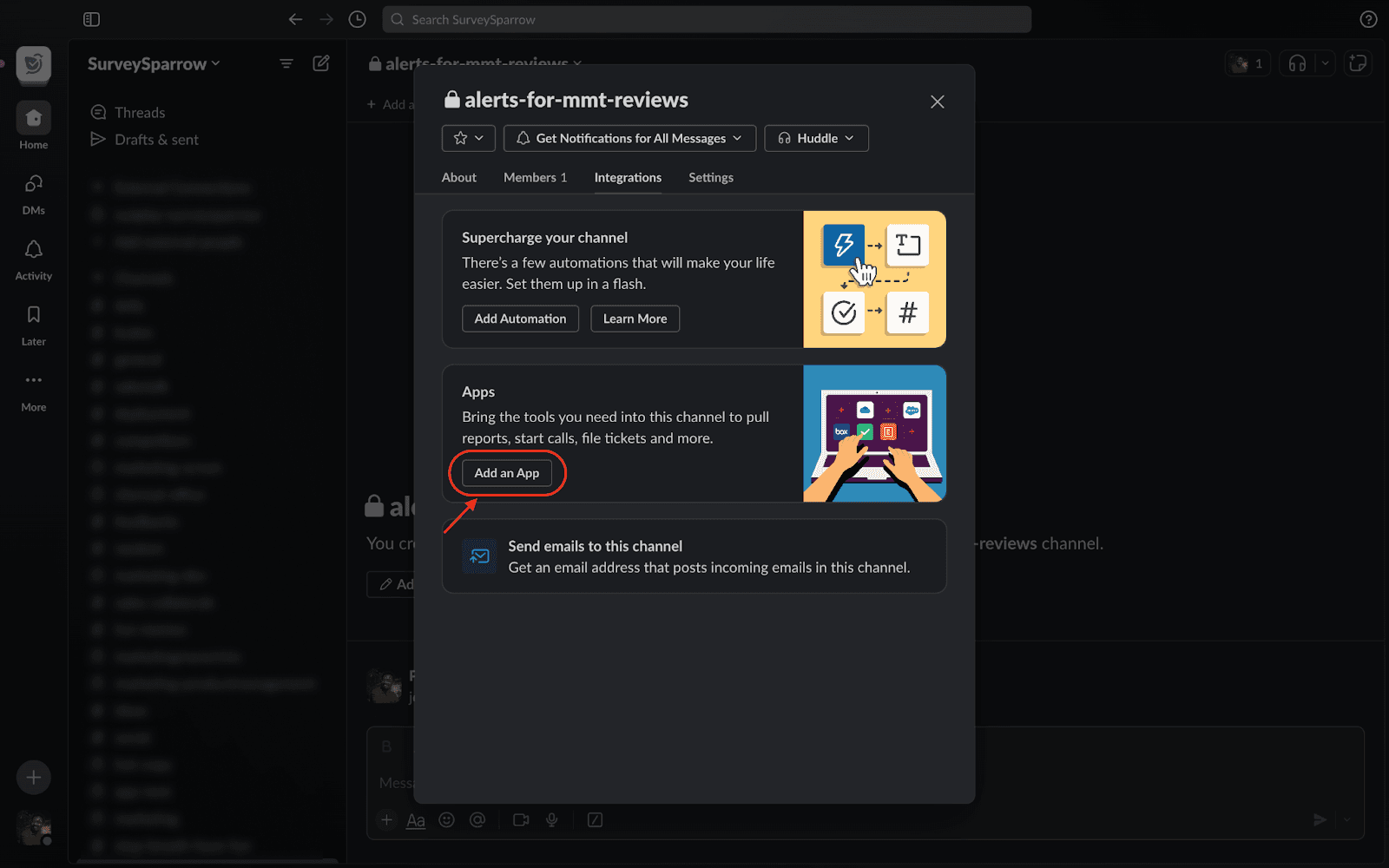
3. Add ‘SurveySparrow’ app to the channel.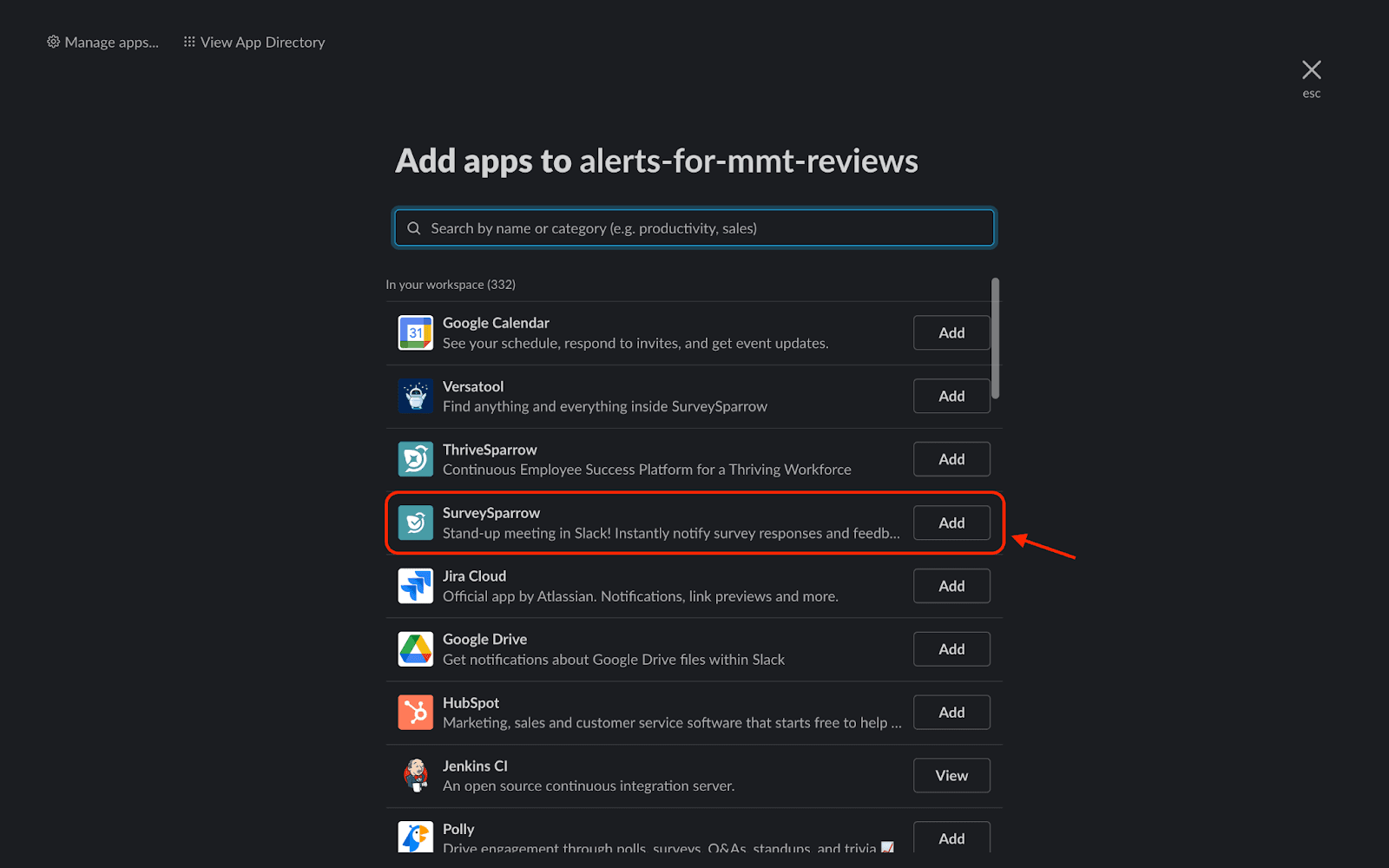
Once done, you’ll receive the alerts on your private Slack channel. Feel free to reach out to our community if you have any questions.