
Closing a Live Survey on SurveySparrow: A Step-by-Step Guide

SurveySparrow provides an intuitive platform for creating and managing surveys, offering users the flexibility to conduct and control their surveys effortlessly. If you're wondering how to close a survey that is currently live on SurveySparrow, the process is simple and straightforward.
Once your survey has been launched and is active, follow these step-by-step instructions to close it:
1. Access the Surveys View:
Log in to your SurveySparrow account and navigate to the Surveys section.
2. Locate the Active Survey:
Identify the survey that you want to close from the list of your active surveys. You can find this in the Surveys View, where all your ongoing surveys are listed.
3. Click on the Three-Dot Menu:
Look for the ellipsis or three-dot menu placed next to the survey name. Click on it to reveal a dropdown menu that contains various options for managing your survey.
4. Select "Close" Option:
In the dropdown menu, you'll find the "Close" option. Click on it to initiate the process of closing the active survey.
5. Confirm Closure :
Depending on the platform's settings, you might be asked to confirm the closure of the survey. If prompted, confirm your action by clicking on the appropriate button.
6. Survey Closed Confirmation:
Once the survey is successfully closed, you will receive a confirmation message or notification acknowledging the closure of the survey.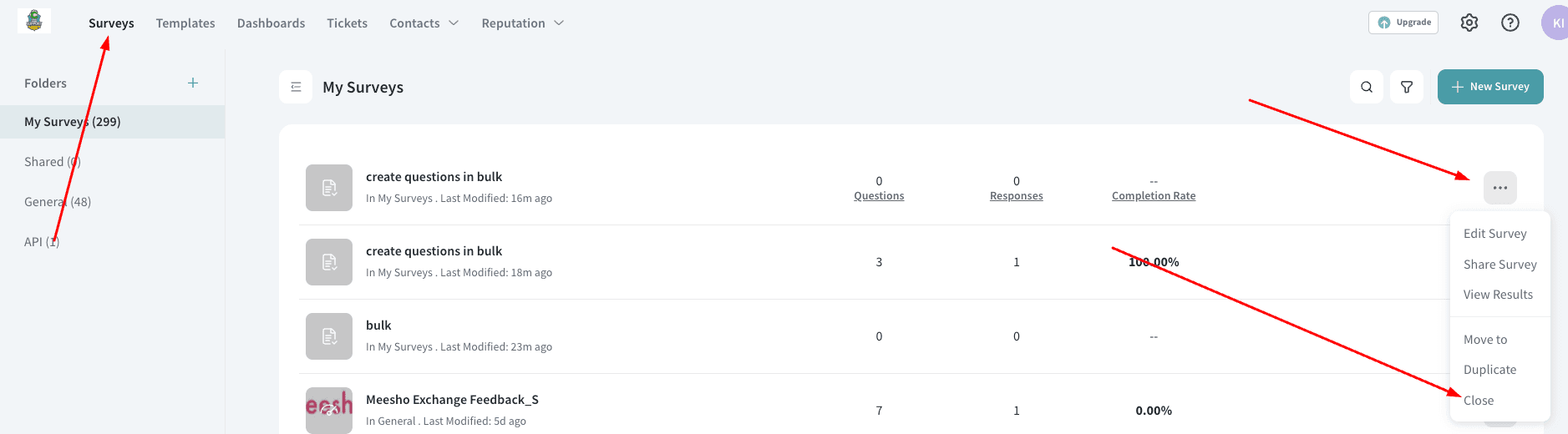
By following these steps, you can effectively close an ongoing survey on SurveySparrow. It's essential to ensure that you've collected the necessary amount of responses or reached the intended end date before closing the survey to avoid any disruption in data collection.
Closing a survey on SurveySparrow is a simple yet crucial step in managing your survey lifecycle. Whether you've obtained the desired number of responses or the survey duration has come to an end, SurveySparrow offers a user-friendly approach to control and conclude your survey activities efficiently.
Remember, closed surveys can still be accessed for analysis and reporting purposes, allowing you to derive valuable insights from the collected responses. Utilize SurveySparrow's comprehensive analytics tools to derive meaningful conclusions from the gathered data even after the survey has been closed.
How to access closed surveys: https://support.surveysparrow.com/hc/en-us/articles/8756753682973-Retrieving-Closed-Surveys-in-SurveySparrow
Use Quotas for market-specific limits (recommended workaround):
If you need different closure/collection limits per market (or any segment) within the same survey, use Quotas. Quotas let you set limits by a criterion (for example, a “Market” question answer or a custom variable) and redirect respondents once the quota is met.
How to find it: Open the survey builder → click the Config (gear) icon → go to Set Quotas → add a quota rule and define the limit for each market/criterion value.
Set a cut-off date/time or response limit:
- To auto-close by schedule, set an end date/time for the survey (cut-off).
- To auto-close after a certain volume, set a maximum number of responses the survey can receive.
Note: These limits apply at the survey level (not different limits per market within the same single survey link).
Automatic survey closure options (and what’s not supported):
- Closing a survey based on specific answers (conditional auto-close) is not supported as a survey-level “close” action.
- If you need to stop collecting responses automatically, you can instead use (a) a cut-off date/time, (b) a maximum response limit, or (c) Quotas to control/redirect respondents when a limit is reached.
In conclusion, SurveySparrow's straightforward interface and intuitive features empower users to manage their surveys effortlessly, including the seamless closure of active surveys when needed.