
Step-by-step guide to changing the Account Owner email in SurveySparrow

Changing the Account Owner in SurveySparrow involves a few simple steps. Follow the instructions below:
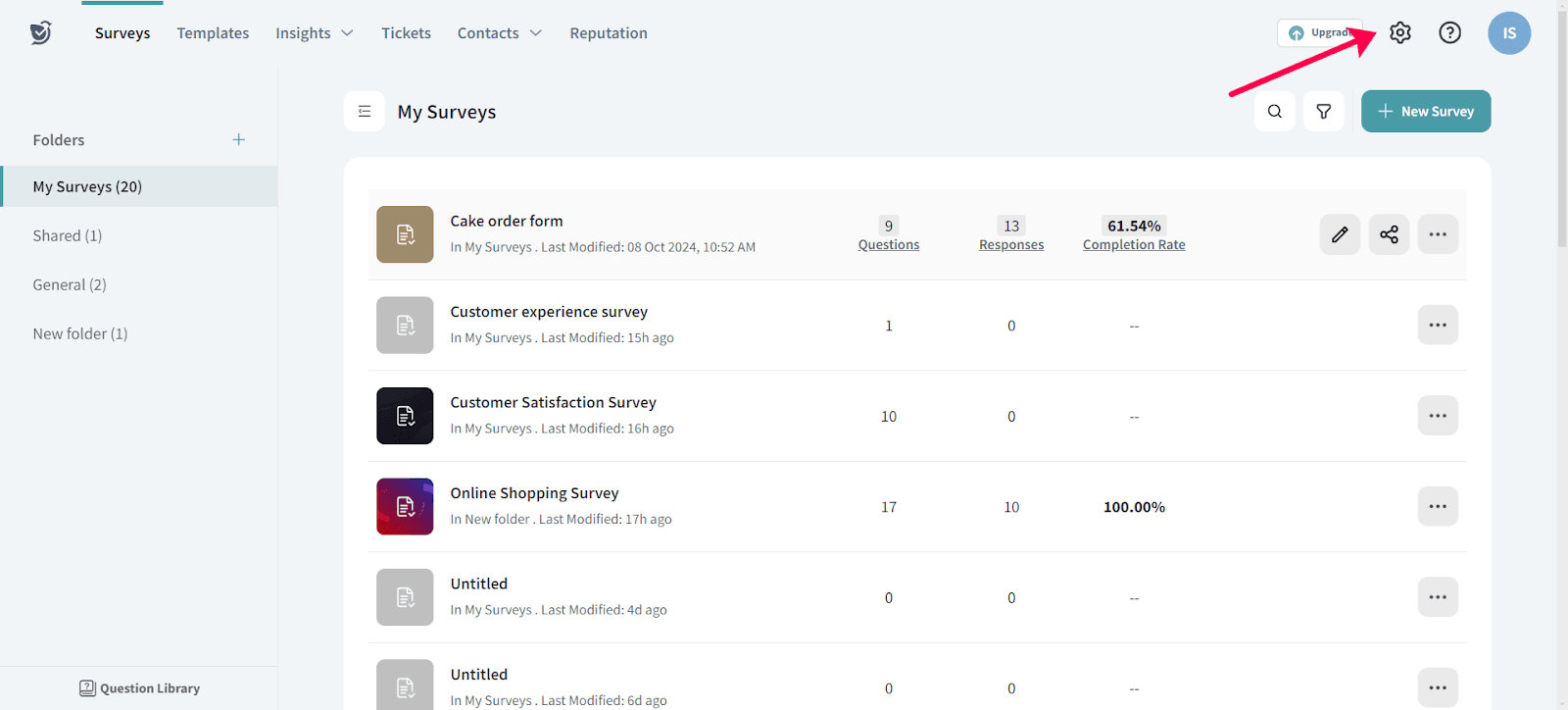
- Accessing the Settings: To begin, you need to navigate to the settings section in your SurveySparrow account. Look for the settings icon, represented by cogwheel symbol.
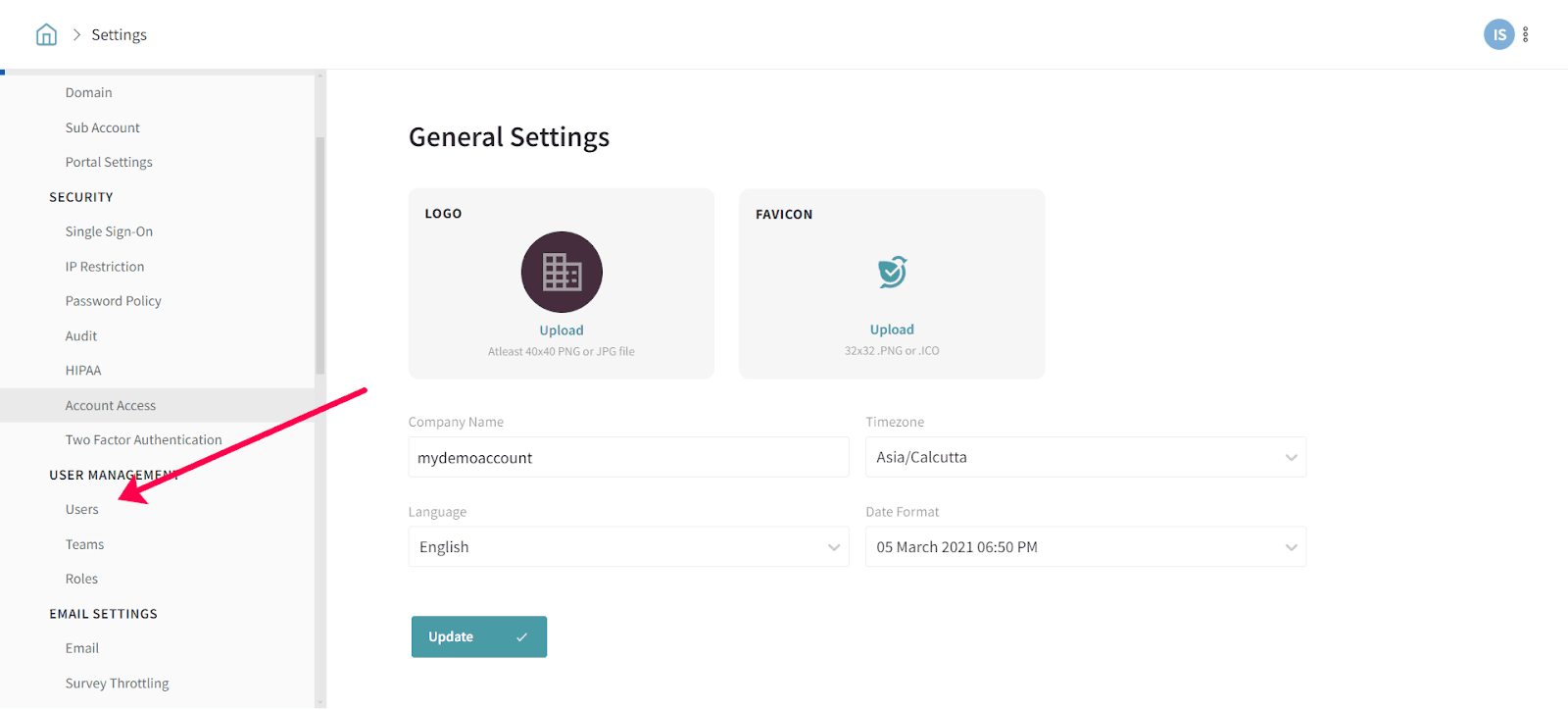
- Locating the Users Section: Once you are in the settings area, you will typically find a list of options or tabs. Look for the option labeled "Users" and click on it. This section allows you to manage user accounts and permissions.
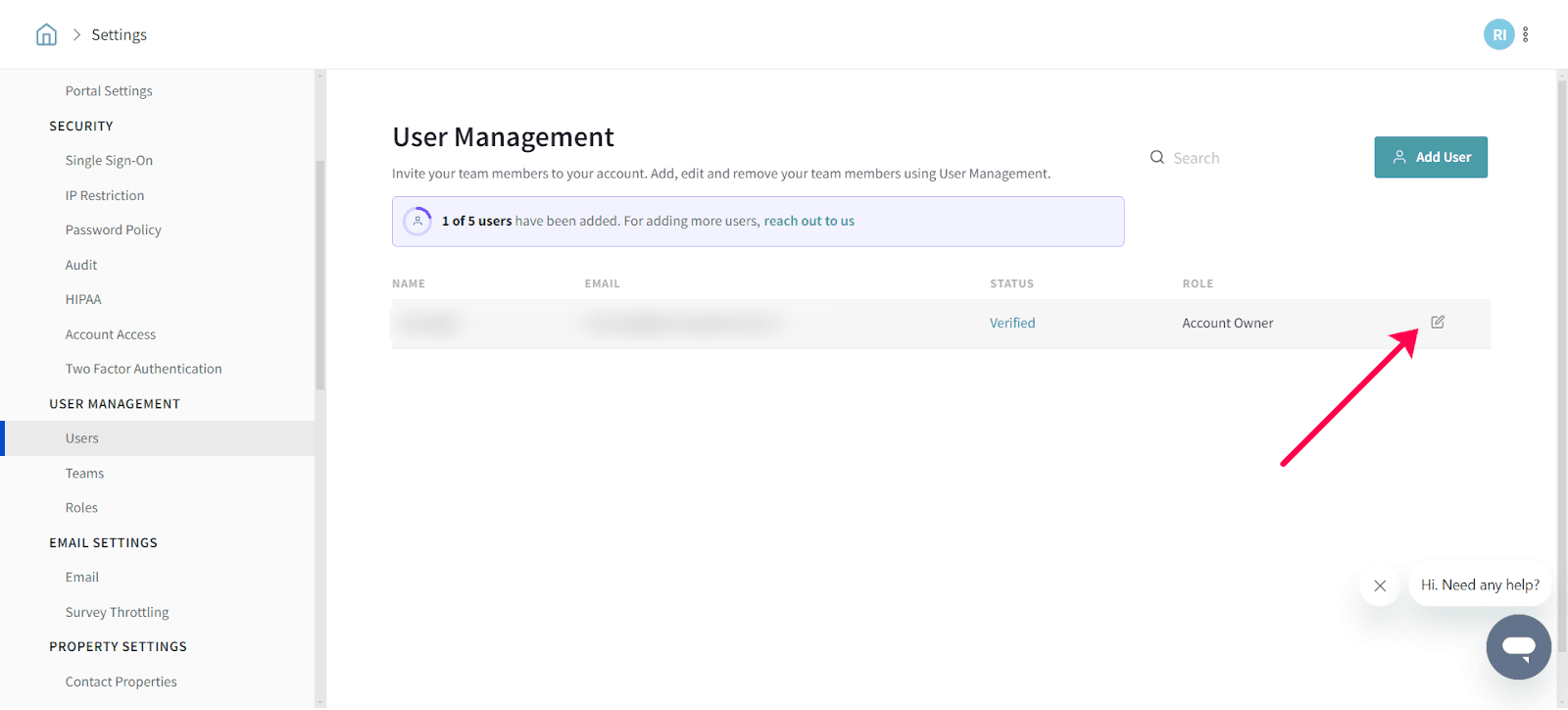
- Selecting the Account Owner: In the Users section, you should see a list of user profiles associated with your SurveySparrow account. Find your own profile on the list and identify it by your name or username. Look for a pencil icon or an edit option next to your profile and click on it. This will open up the profile editing interface.
- Choosing the New Account Admin: Within the profile editing interface, you will find a field or dropdown menu that allows you to select the new account admin. This is the person who will assume the role of the Account Owner. Review the available options and select the appropriate user from the list.
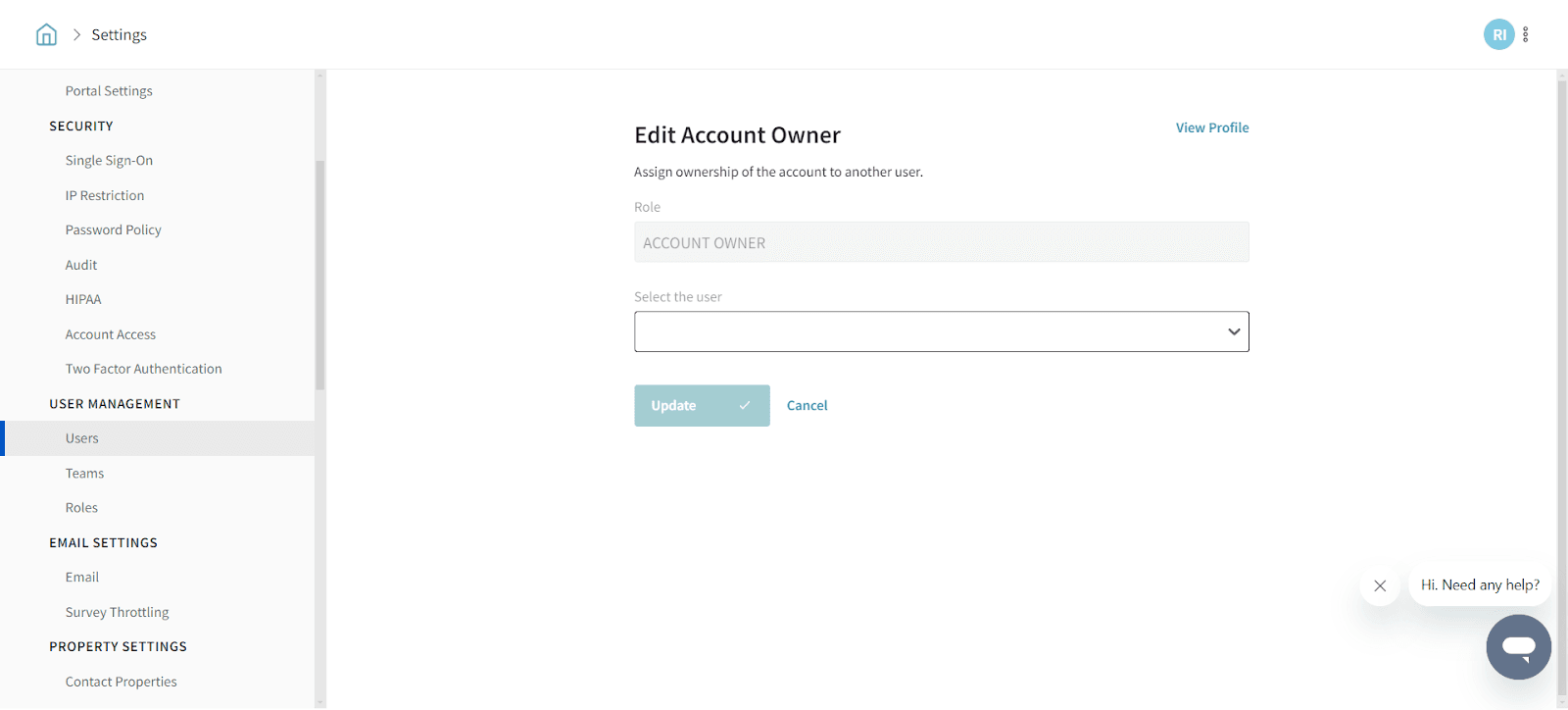
- Updating the Changes: After selecting the new account admin, make sure to save the changes you have made. Look for a "Save" or "Update" button within the profile editing interface and click on it. This will finalize the process of changing the Account Owner in SurveySparrow.
It's important to note that this step-by-step guide is specifically intended for the current account admin who wishes to transfer their owner access to another admin. By following these instructions, you can easily change the Account Owner in SurveySparrow and ensure that the appropriate user has the necessary administrative privileges.
Not sure who your active users are ? No worries, we can also share the list of active users in your workspace to help you identify the right Account Owner.
Need to change your Account Owner ? Here's what to do:
- If you have access to the current Account Owner's account and the new Account Owner is already a user in the workspace, simply follow the steps above to transfer ownership.
- If the new Account Owner isn't a user yet, add them from Settings → User Management → Users → Add User. Once they accept the invitation, transfer ownership using the steps above. You can then remove the previous Account Owner and transfer any remaining dependencies during the deletion process.
Can't add a new user because you've reached your user limit, or no longer have access to the current Account Owner's login? Just reach out to us via chat or email with the current Account Owner's email, new Account Owner's email, and your workspace domain. We'll be happy to help with the ownership change.